 Botmonster Tech
Best USB-C Docking Stations for a Dual-Monitor Linux Desk Setup in 2026

The best USB-C docking stations for a dual-monitor Linux setup in 2026 are the CalDigit TS4 (Thunderbolt 4, dual 4K@60Hz, rock-solid kernel 7.0 support) and the Anker 777 (USB4 Gen 2, excellent driver compatibility, more affordable at $149). The deciding factor is whether your laptop supports Thunderbolt 4 or only USB4. Thunderbolt provides guaranteed DisplayPort alt-mode bandwidth for dual 4K; USB4 solutions share that bandwidth with USB traffic and may require Multi-Stream Transport (MST) support from both the dock and the kernel.
Intel Core Ultra or Raptor Lake silicon? Go CalDigit TS4. AMD Ryzen AI 9 or similar USB4-only platform? The Anker 777 handles most use cases for $100 less. The rest of this post explains why, and how to avoid the common Linux-specific pitfalls.
USB-C, USB4, and Thunderbolt 4: Understanding the Spec Maze
The USB-C connector is just a physical shape. It says nothing about what protocols run through it. A port can be USB 3.2 Gen 2, USB4 Gen 2x2, or Thunderbolt 4 - all using the same oval plug. Not knowing this distinction is the main reason people buy docks that do not work the way they expect.
USB4 comes in two bandwidth tiers that matter a lot for dual-monitor setups. Gen 2 runs at 40 Gbps - that sounds like plenty until you account for two 4K@60Hz streams (roughly 25 Gbps combined via DisplayPort 1.4 with DSC), USB 3.2 peripherals, and NVMe storage. You can make it work, but the link is close to saturated. USB4 Gen 3 doubles the pipe to 80 Gbps and is only now appearing in high-end AMD Ryzen AI Max 395 laptops. If you have Gen 3, almost any dock is fine for dual 4K.
Thunderbolt 4 is an Intel-certified superset of USB4 Gen 2 with firm guarantees baked into the spec: at minimum two downstream Thunderbolt ports per hub, mandatory Thunderbolt 3 display output support, and DSC (Display Stream Compression) for dual 4K@60Hz without perceptible quality loss. Intel does not allow manufacturers to cut corners on this certification, which is what makes Thunderbolt 4 the lower-risk choice for complex multi-monitor setups.
Multi-Stream Transport (MST) in Linux has improved substantially. Kernel 7.0 shipped better MST enumeration, but some dock-and-laptop firmware combinations still fall back to 30 Hz or mirror-only mode on the first boot. A BIOS update on the laptop usually fixes it. Always update firmware before suspecting the dock itself.
Power Delivery is the other variable worth checking before you buy. USB-C docks with 100W+ PD 3.1 can charge a Framework 16 or ThinkPad X1 Carbon at full speed while simultaneously driving two monitors and a collection of USB peripherals. Cheaper docks cap out at 65W or 85W, which is enough for thinner laptops but not for a 45W TDP mobile workstation under load.
One nuance between Intel and AMD platforms: Intel Raptor Lake and Meteor Lake carry certified Thunderbolt 4 controllers. AMD Ryzen AI 9 HX 370 and the AI Max series offer “USB4 40 Gbps” which covers the same bandwidth in practice but lacks Intel’s IP and certification process. This rarely causes real problems with a quality dock, but MST reliability on AMD can vary more between firmware versions than on Thunderbolt-certified hardware.
Top Picks: CalDigit TS4 and the Thunderbolt Tier
For anyone with a Thunderbolt 4-capable laptop, the CalDigit TS4 is the obvious starting point. It has been the standard recommendation since its release and nothing in 2026 has genuinely displaced it for Linux desks.
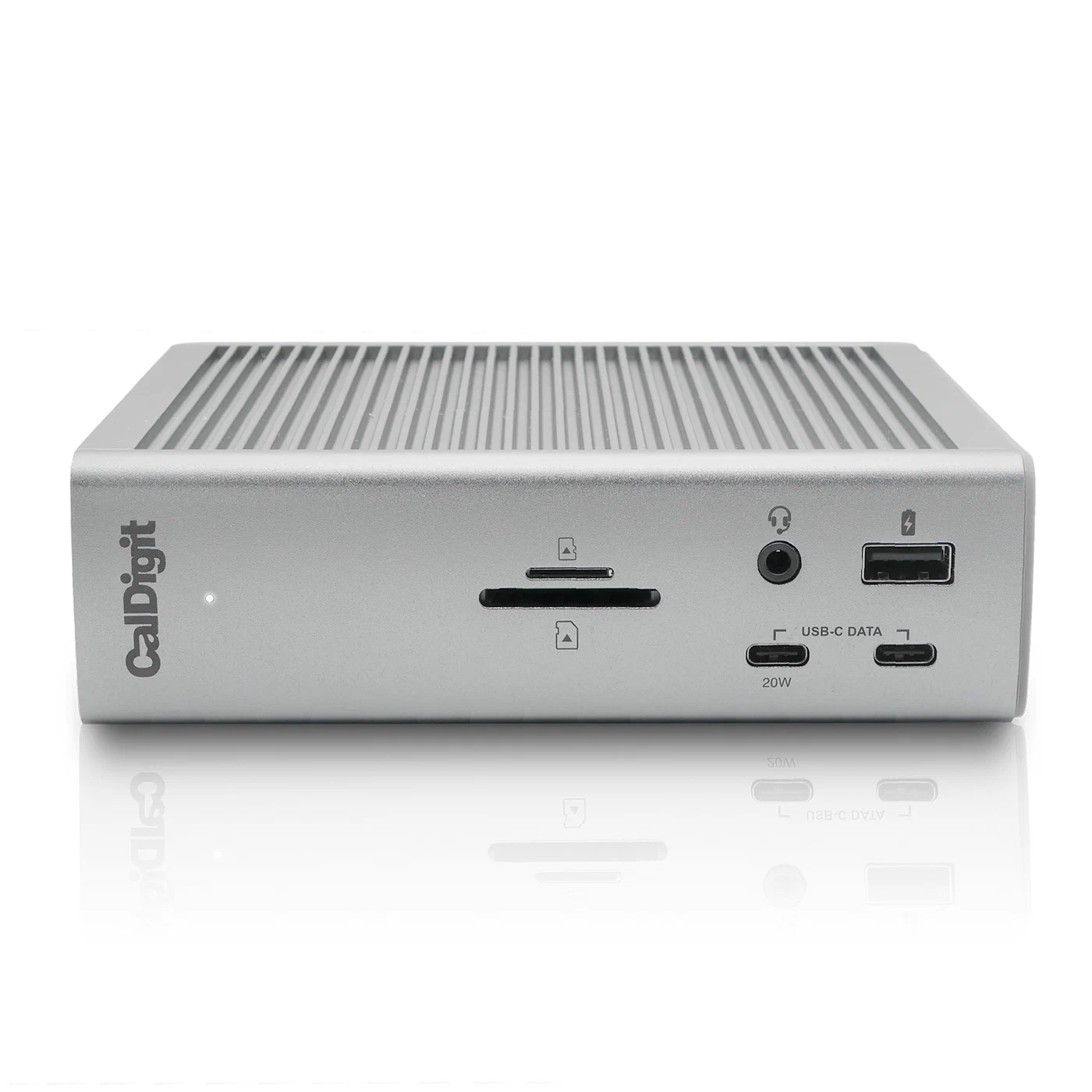
The TS4 has 18 ports: 3x Thunderbolt 4, 5x USB-A 3.2, 2x USB-C 3.2, SD and microSD card slots, 3.5mm audio, and 2.5 GbE networking. Host charging is 98W. The chassis is solid aluminum. Street price in 2026 is $249.
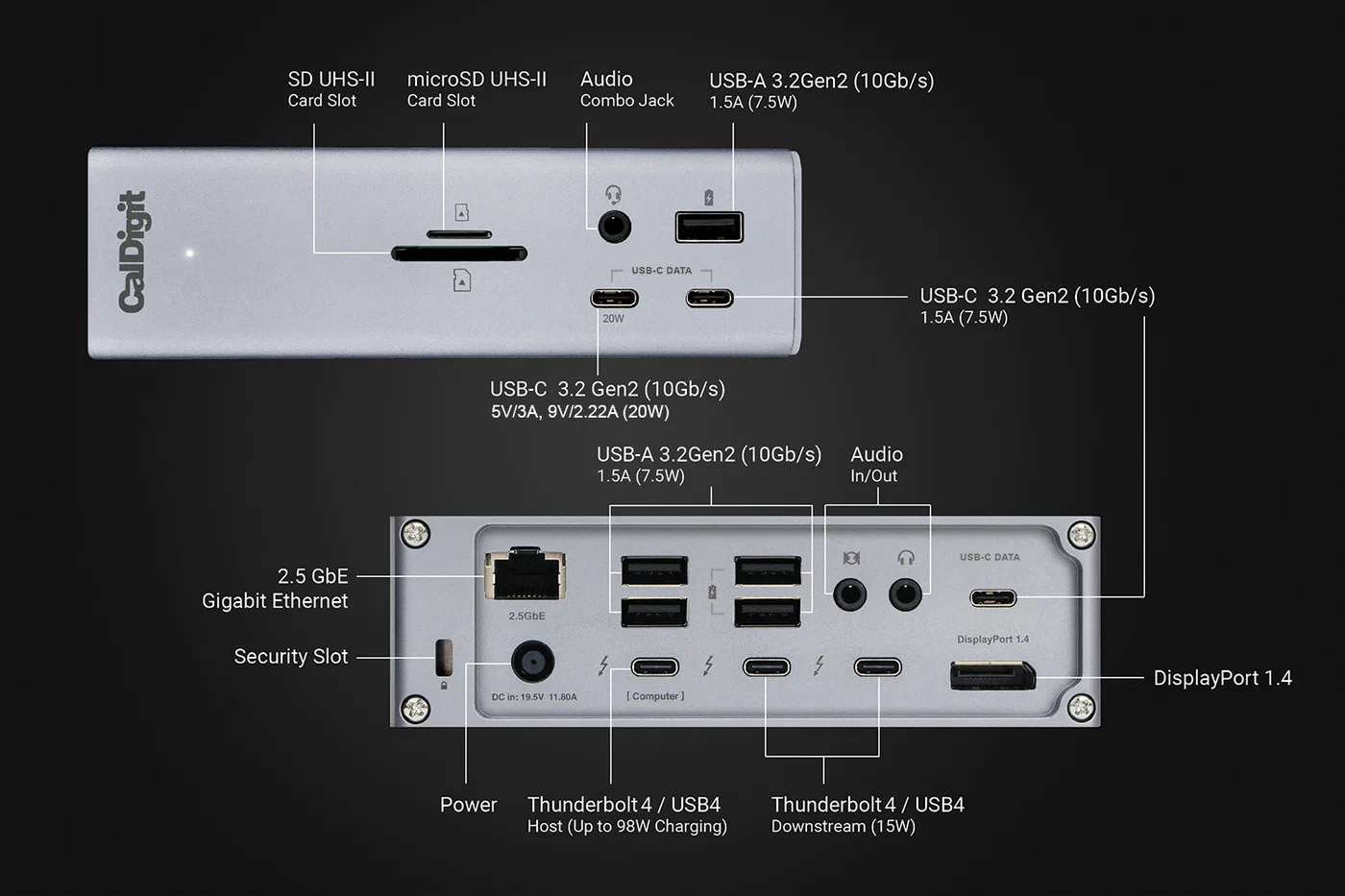
Linux compatibility is a non-issue. Thunderbolt 4 ports enumerate as USB4 in the kernel and have been natively supported since kernel 5.13. No proprietary drivers, no DKMS modules to maintain, no special packages. Hot-plug and re-plug work reliably on Ubuntu 25.10, Fedora 41, and Arch Linux with kernel 7.0, under both X11 and Wayland. Dual 4K@60Hz over Thunderbolt 4 MST has been confirmed working with LG 27UK850-W and Dell U2723QE connected simultaneously, on both KDE Plasma 6.3 and COSMIC Desktop 1.0.
The CalDigit Element Hub ($119) is worth knowing about for users who want Thunderbolt but can live with fewer ports. It has one Thunderbolt 4 upstream and four downstream ports but no built-in display output - you run a DisplayPort cable directly from a Thunderbolt port to the monitor. Good for single-monitor setups or displays that support daisy chaining.
OWC Thunderbolt Hub and Plugable TBT4-HUB3C sit in the $100-150 range with fewer ports than the TS4 but solid Linux compatibility. Reasonable options if the TS4 price is painful and you have fewer peripherals to connect.
One practical note: if your first boot with a new dock produces a single display or the second monitor runs at 30 Hz, go to UEFI before anything else and update the Thunderbolt NVM firmware. Laptop vendors push these updates regularly, and the difference between NVM version 40 and version 62 on a ThinkPad can be dramatic for MST enumeration.
USB4 Budget Tier: Anker 777, Baseus, and When They’re Good Enough
Not every laptop has Thunderbolt. AMD-based machines - Framework 16, ASUS Zenbook S 16, many Lenovo ThinkBook models - offer USB4 40 Gbps without the Thunderbolt certification. That is still enough bandwidth for a functional dual-monitor setup with the right dock.
The Anker 777 (A8396) has become the Linux community’s default pick in this tier. It has 12 ports including a USB4 upstream, dual HDMI 2.0 outputs, and 85W Power Delivery charging for $149. On r/linux and various Linux hardware forums, kernel compatibility reports going back to kernel 6.8 have been consistently positive - it just works on most AMD and Intel hardware.
The catch is the second HDMI port. The Anker 777 uses an integrated DisplayLink-style bridge chip to multiplex the second display signal, which requires the evdi kernel module on Linux. For productivity work - coding, writing, browser tabs - performance is completely fine. For gaming or video editing the bridge introduces a few milliseconds of added latency and the second screen can drop frames during GPU-heavy workloads. If gaming on external monitors matters to you, buy a Thunderbolt dock instead.
Installing evdi in 2026 is considerably less painful than it was in earlier kernel generations. DisplayLink’s evdi module is now in the DKMS repository and installable via official PPAs for Ubuntu and Debian:
sudo add-apt-repository ppa:displaylink/displaylink-driver
sudo apt install displaylink-driver
Kernel 7.0 added a cleaner DKMS hook that reduces the post-upgrade rebuild breakage that used to plague DisplayLink setups. On Fedora and Arch, the evdi-dkms package in the community repos handles the same job.
Baseus 17-in-1 USB4 entered the market at $89 with a port count and spec sheet similar to the Anker 777. It works on most AMD and Intel systems with kernel 6.12 or newer. Community testing data is thinner than for the Anker, so treat it as a reasonable backup if the Anker is out of stock rather than a first choice.
USB4 is enough for: a single external 1440p monitor with the laptop lid closed, two 1080p monitors for a basic productivity workstation, or any scenario where you are not pushing the bandwidth ceiling with fast NVMe storage attached at the same time. If you only need one external display and a few USB peripherals, a USB 3.2 dock handles that job with zero kernel compatibility concerns. The Plugable USB-C Triple Display costs $80 and works out of the box on any distro.
Linux Compatibility: What Can Go Wrong
Even good docks produce Linux-specific pain points. These are the ones that come up most often.
The suspend/resume display dropout is the most common complaint on dock forums. You close the lid, reopen it, and one or both monitors are black or stuck at a wrong resolution. The root cause is usually Thunderbolt NVM firmware not properly re-initializing after S3 sleep. Update the laptop BIOS first - that fixes it most of the time. If it does not, switch from S3 sleep to S0ix (modern standby) in UEFI settings. S0ix keeps the Thunderbolt controller in a lower-power active state and avoids the full re-enumeration on wake.
HDCP handshake failures on HDMI produce a black screen on one monitor after dock reconnect. Some monitors reset HDCP state on power cycle or signal loss. On X11, forcing HDCP off resolves it:
xrandr --output HDMI-1 --set hdcp offOn Wayland this is handled per compositor - KDE Plasma has a per-monitor HDCP toggle in Display Settings. If your content does not require HDCP, disable it in the monitor’s OSD menu for a permanent fix.
Wayland fractional scaling with mixed DPI is a real pain on certain setups. A 4K laptop screen at 200% scaling alongside a 1080p external at 100% is the classic case. KDE Plasma 6.3 and GNOME 48 both handle mixed fractional scaling correctly on Wayland. On X11, the Xorg server applies a single global DPI, causing blurry text on the lower-resolution external monitor at any scale factor other than 1.0. If you run a HiDPI laptop with a standard external monitor, Wayland is not optional - it is the practical requirement.
Audio output switching trips up some dock users. Many docks present a USB audio device to the system, which PipeWire enumerates as a new sink. If PipeWire selects it automatically and the dock has no speakers, audio goes silent. Set the default sink explicitly:
pactl set-default-sink alsa_output.pci-0000_00_1f.3.analog-stereoOr add a persistent default in /etc/pipewire/pipewire.conf.d/ to prevent PipeWire from switching sinks on device hotplug.
Power delivery negotiation failures produce a laptop that charges at 5V/900mA (4.5W) instead of 20V/5A (100W). Look in UEFI for a “USB-C Power Role” or “PD Role” option and set it to “Sink” or “Auto”. Some laptops also require a minimum PD contract above 65W before they will negotiate at 20V - match the dock’s PD wattage to the laptop’s requirement.
Thunderbolt security levels are worth checking before assuming a dock is broken. Check current authorization status:
cat /sys/bus/thunderbolt/devices/0-0/authorized
boltctl list
If the security level is “secure” or “dponly”, the dock may not be authorized to enumerate its full device tree. Set security to “user” mode in UEFI Thunderbolt settings, which prompts for explicit authorization of new devices. The boltctl enroll command permanently approves a trusted dock.
Desk Setup Recommendations by Laptop
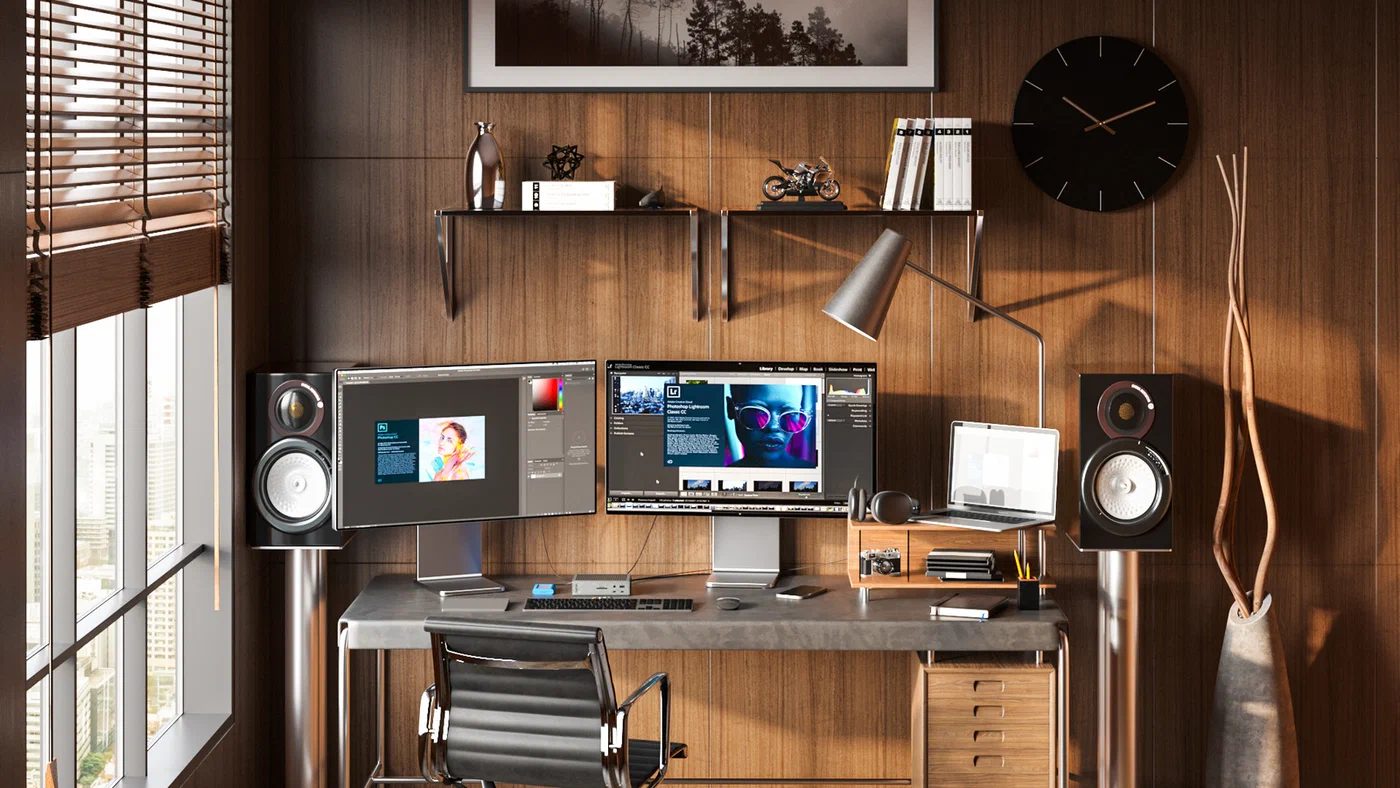
Concrete pairings for the most common laptop configurations:
Framework 16 (AMD Ryzen AI 9) - the USB4 left-side port supports MST. Either the CalDigit TS4 (better future-proofing) or the Anker 777 (saves $100) works here. Monitor pairing: LG 27GR95QE (1440p OLED, 240Hz, primary display) plus Dell U2723QE (4K IPS, color-accurate, reference work). Total dock + monitors with the Anker 777: around $650.
ThinkPad X1 Carbon Gen 13 (Intel Core Ultra 7 265H, Thunderbolt 4) - CalDigit TS4 is the natural pairing. The Lenovo ThinkPad Universal Thunderbolt 4 Dock ($230) is a validated alternative - jointly tested with ThinkPad firmware and it includes a dedicated RJ45, three DisplayPort outputs, and HDMI. Buy the Lenovo dock if you want Lenovo support to have no excuse on a compatibility issue.
ASUS Zenbook S 16 (AMD Ryzen AI Max 395) - USB4 Gen 3 at 80 Gbps via the left-side port. The Anker 777 covers it well; check that your BIOS is at version 310 or later for improved USB4 display enumeration. Two Samsung ViewFinity S8 monitors (4K, on a single arm to save desk space) work well here. The 80 Gbps headroom means two 4K@60Hz streams plus an attached NVMe drive won’t saturate the link.
MacBook Pro (Apple Silicon M4, also runs Asahi Linux) - CalDigit TS4 only. USB4 MST support on Apple Silicon under Asahi Linux is inconsistent as of early 2026 - sometimes it works, sometimes the second monitor falls back to mirroring. Thunderbolt 4 reliably drives two displays on both macOS and Asahi.
Budget desk setup under $400 total - Anker 777 ($149) + two refurbished Dell P2723QE 4K monitors ($100 each, widely available from business liquidation sales) + Anker USB-C cable ($15) = $364. The Dell P2723QE has USB-C passthrough for daisy-chaining and solid color accuracy. A capable three-display workspace for the price of a single premium monitor.
What to Check Before You Buy
Two things determine whether a dock will work well with your Linux laptop.
First, confirm whether your USB-C port is Thunderbolt 4, USB4 Gen 2, or something else. Check lspci output for “Thunderbolt” in the device name, or look at the laptop spec sheet under the USB-C port listing. Many manufacturers list “Thunderbolt 4” with the lightning bolt icon; AMD laptops will list “USB4 40Gbps” without that icon.
Second, update your laptop BIOS before buying any dock. Thunderbolt NVM firmware bugs are responsible for a significant share of the “dock doesn’t work on Linux” reports. A BIOS from 2024 on a 2025 laptop often has known MST fixes that were not present at launch. Update first, then test.
The Linux kernel story in 2026 is better than it has ever been for docking station support. Most docks work without any manual intervention on kernel 7.0. The pain points that remain - suspend/resume, DisplayLink latency, PD negotiation - are all solvable with a few minutes of configuration or a firmware update.