 Botmonster Tech
How to Build a KVM-over-IP With PiKVM for Remote Server Management

PiKVM turns a Raspberry Pi into a full KVM-over-IP device that gives you IPMI-like remote access to any computer’s BIOS, bootloader, and operating system through a web browser. You connect the Pi to the target machine’s HDMI output and USB port, open the PiKVM web interface from anywhere on your network, and get real-time video of the screen with keyboard and mouse control, virtual media mounting, and ATX power management. A DIY build runs under $100 in parts, while even the premium PiKVM V4 Plus at around $385 undercuts comparable commercial IPMI modules from HPE or Dell by a wide margin.
If you manage a homelab, run headless servers in a closet, or maintain machines at a remote location, PiKVM solves a problem that SSH and RDP cannot: it works when the OS is crashed, the network stack is down, or you need to change BIOS settings. Software-based remote access is useless in those scenarios. PiKVM captures the raw HDMI output from POST through GRUB and into the OS, regardless of what operating system is installed or whether the machine is even booting.
What PiKVM Is and Why You Need It
Commercial out-of-band management solutions - HPE iLO, Dell iDRAC Enterprise, Supermicro IPMI - cost hundreds of dollars per server and are typically locked to enterprise hardware. An HPE iLO license runs around $300, Dell iDRAC Enterprise sits between $200 and $400, and while Supermicro includes IPMI on their server boards, you will not find it on consumer hardware. PiKVM brings that same BIOS-level functionality to any machine: consumer PCs, NAS boxes, network equipment, single-board computers, anything with an HDMI output and a USB port.
PiKVM is open-source software released under the GPLv3 license. The project lives on GitHub and supports several hardware configurations:
- Raspberry Pi 4 (2GB+ RAM) with a USB HDMI capture dongle - the cheapest DIY option
- Raspberry Pi 5 with a CSI-to-HDMI adapter board for better video quality
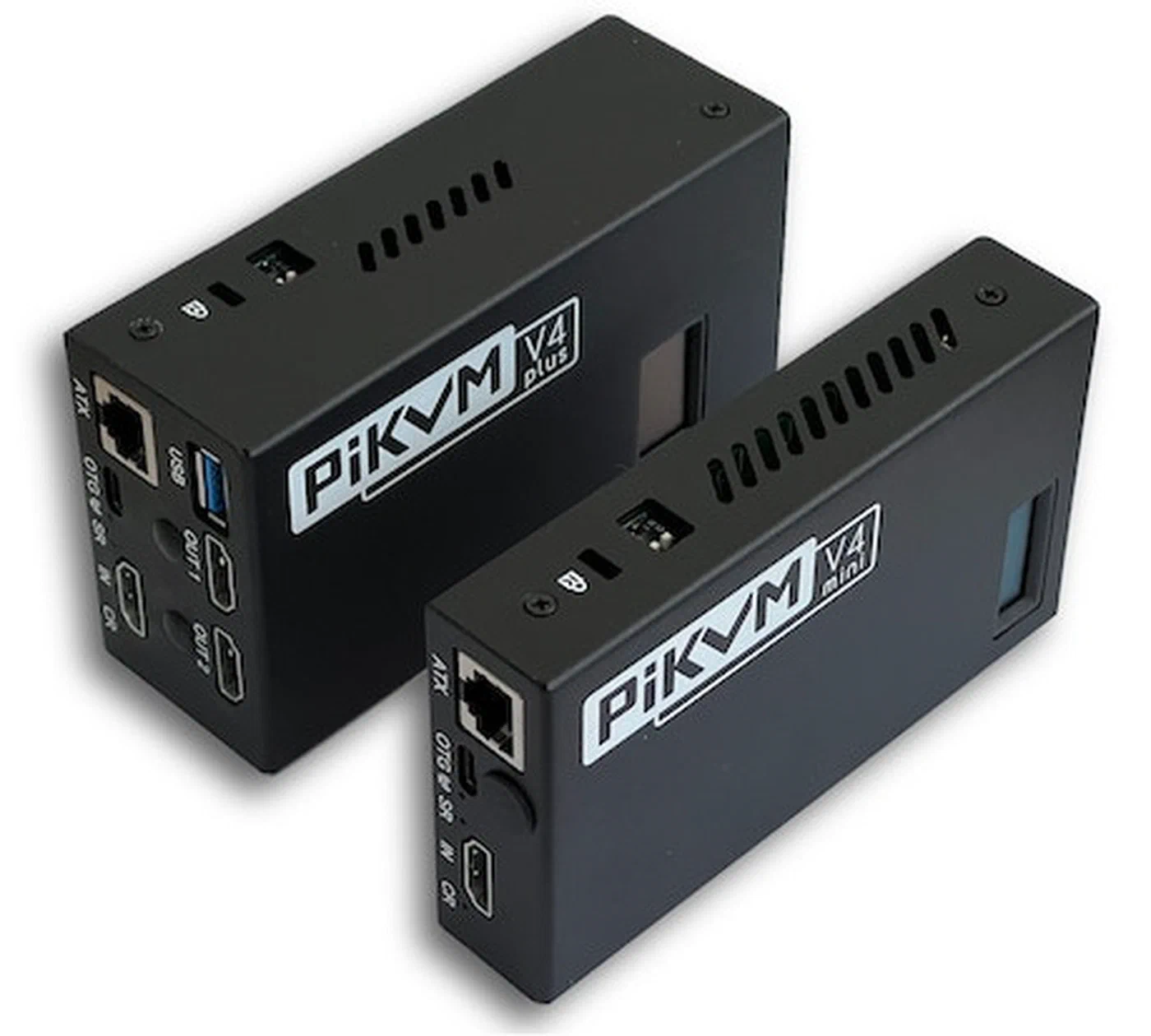
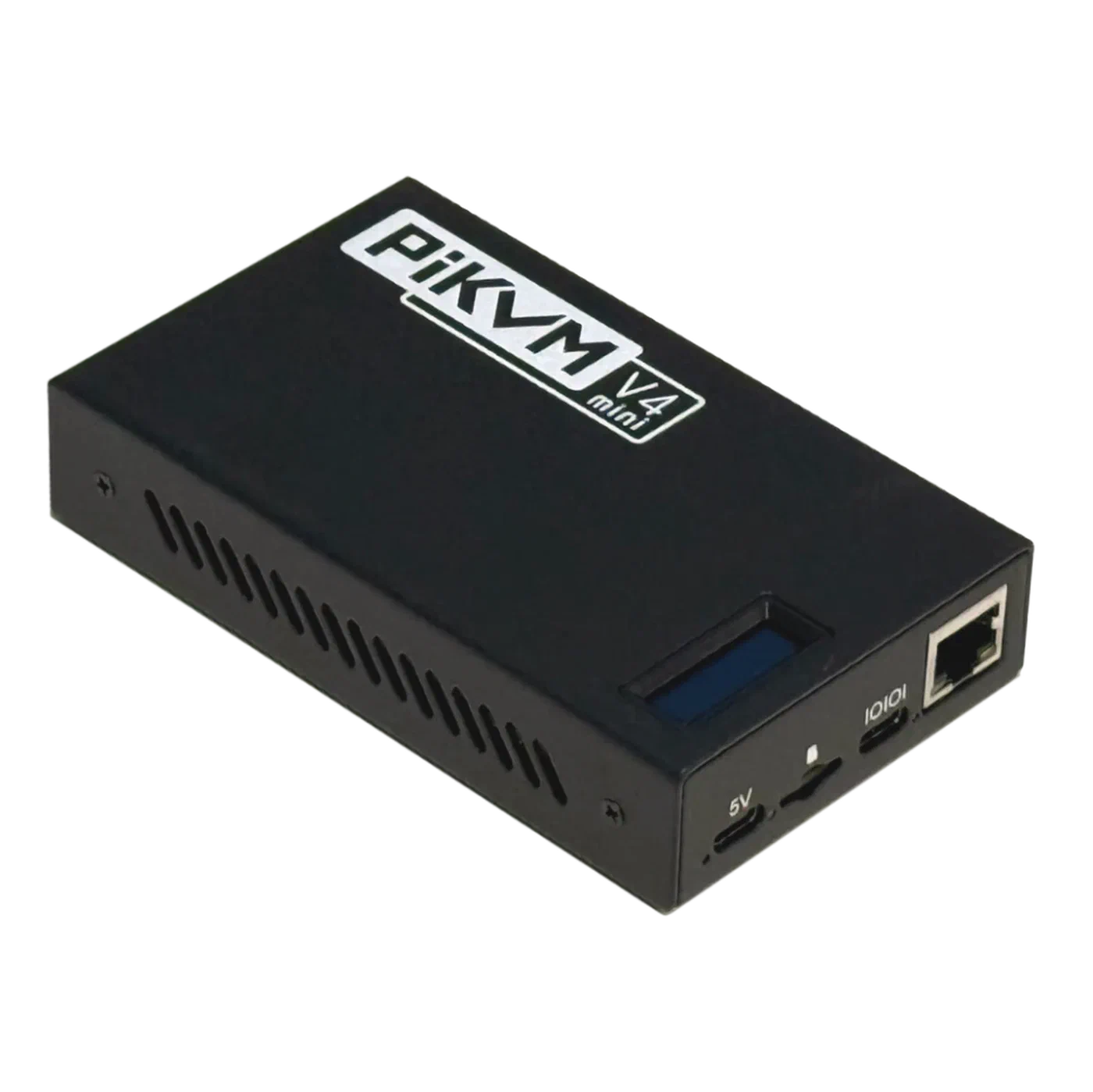
- PiKVM V4 Mini ($270) - a purpose-built device with integrated CSI HDMI capture, ATX control, and a custom aluminum case
- PiKVM V4 Plus ($385) - the flagship model adding USB 3.0 internal storage, multi-port connectivity, and KVM switching capabilities
The video capture side delivers 1080p at 60fps with hardware H.264 encoding on the Pi, producing a responsive remote desktop experience with roughly 100ms latency on a local network. That is fast enough to navigate BIOS menus, run OS installers, and even do light desktop work on the remote machine.
Use Cases That Justify the Build
PiKVM makes the most sense in scenarios where no other remote access tool works:
- Headless homelab servers: Your Proxmox host kernel panics after an update. SSH is dead. PiKVM lets you watch the boot process and fix GRUB from the couch.
- Remote locations: You have a server at a second house or a friend’s place. Without PiKVM, a bad configuration change means driving there. With PiKVM plus Tailscale , you fix it from anywhere.
- NAS in a closet: Your Synology or TrueNAS box needs a BIOS update. Instead of hauling it to a desk and connecting a monitor, you access BIOS through PiKVM.
- Network equipment: Many managed switches and routers have a console or HDMI port for initial setup. PiKVM can capture that output and let you configure the device remotely.
Hardware Options and Cost Breakdown
PiKVM supports three main hardware approaches, each with different trade-offs between cost, video quality, and setup complexity.
Option A: DIY Build with Raspberry Pi 4 (~$80-100)
This is the entry-level build. You need:
- Raspberry Pi 4 (2GB or 4GB) - $45-70
- USB HDMI capture card (HDMI-to-USB dongle) - $10-15 (must support UVC)
- USB-A to USB-C OTG cable for HID emulation - $5
- MicroSD card (16GB+) - $8-10
- Power supply for the Pi - $10-15
The USB capture dongle is the weak link in this build. It works, but it introduces more latency than a CSI-based capture solution and uses more CPU on the Pi. For a homelab where you access the KVM occasionally to fix problems, this is perfectly adequate.
Option B: DIY Build with Raspberry Pi 5 (~$100-130)
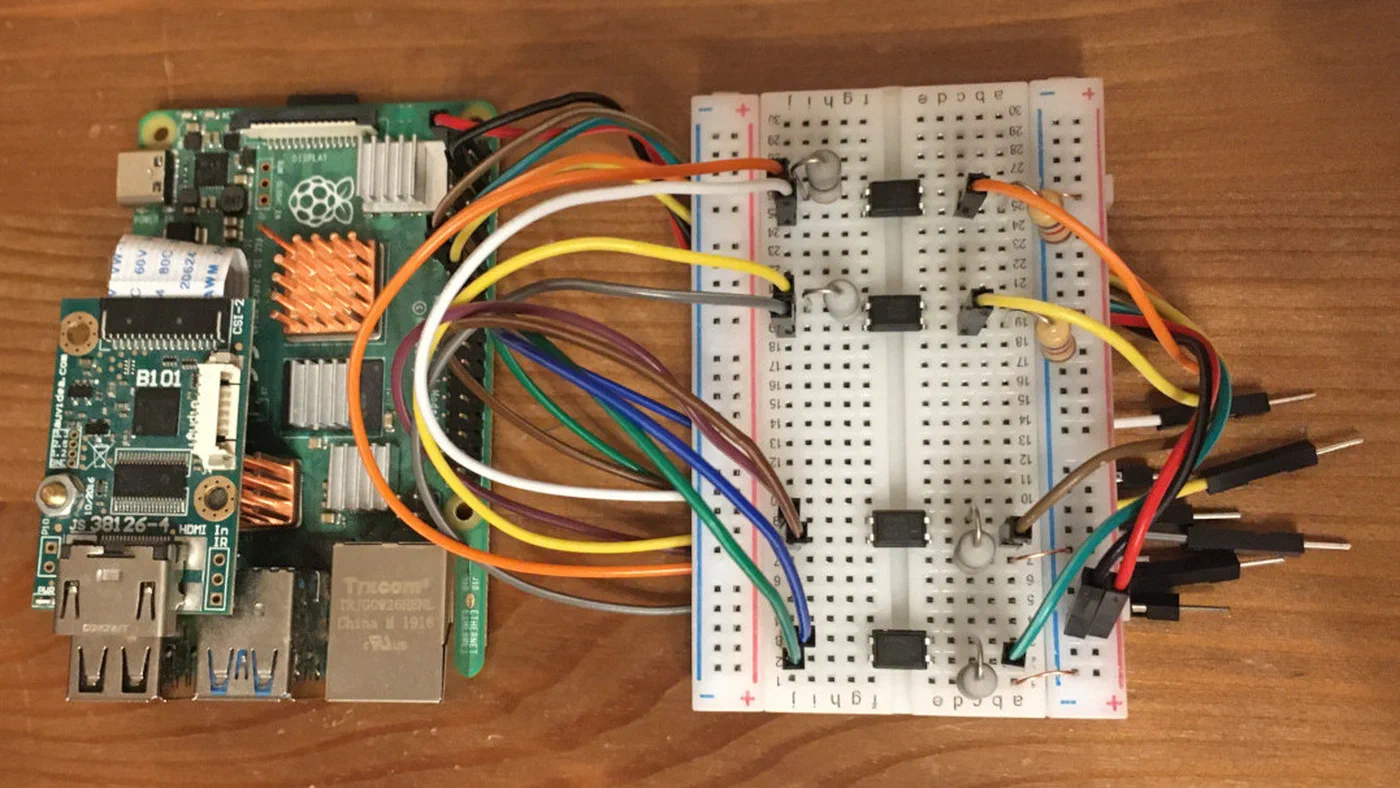
The Pi 5 build uses a CSI-to-HDMI adapter board from Geekworm or Waveshare instead of a USB capture dongle. The CSI capture path produces cleaner video with lower CPU usage and better latency. You connect the adapter to the Pi’s CSI port via a flat flex cable.
- Raspberry Pi 5 (4GB) - $70
- CSI-to-HDMI adapter board - $25-35
- USB-C OTG cable - $5
- MicroSD card (16GB+) - $8-10
- Power supply - $10-15
Option C: PiKVM V4 Mini or V4 Plus ($270-$385)
The purpose-built hardware eliminates the DIY assembly. The V4 devices come with integrated CSI HDMI capture, a hardware ATX control header, USB-C OTG, and a custom aluminum case. The V4 Plus adds an internal USB 3.0 slot for a flash drive (useful for storing ISOs), multiple connectivity channels (WiFi, Ethernet, and optional cellular), and PCI mounting brackets for rack installation.
How It Compares to Alternatives
PiKVM is not the only KVM-over-IP solution in this price range. Here is how it stacks up:
| Feature | PiKVM DIY (Pi 4) | PiKVM V4 Plus | JetKVM | TinyPilot Voyager 3 |
|---|---|---|---|---|
| Price | ~$80-100 | ~$385 | $69 | ~$99 |
| Video | 1080p60 (USB) | 1080p60 (CSI) | 1080p60 (H.264) | 1080p (USB) |
| Latency | ~100-150ms | ~60-100ms | ~30-60ms | ~100-200ms |
| Virtual Media | Yes | Yes | No | Yes |
| ATX Control | DIY wiring | Built-in | Via RJ11 extension | No |
| Open Source | Yes (GPLv3) | Yes (GPLv3) | Yes (Go/Linux) | Proprietary |
| Multi-server | Via external switch | Built-in switching | No | No |
| WiFi | Via Pi WiFi | Built-in | No | Via Pi WiFi |
| Form Factor | DIY/bulky | Compact aluminum | Tiny (credit card) | Compact plastic |
JetKVM is the most interesting competitor. At $69, it is cheaper than even a DIY PiKVM build, offers excellent 30-60ms latency thanks to its Rockchip RV1106 processor, and includes a built-in 1.69-inch touchscreen. It ships with free WebRTC-based remote access through JetKVM Cloud, eliminating the need for VPN setup. The main trade-offs are the lack of virtual media support (you cannot mount ISOs remotely) and no WiFi.
TinyPilot Voyager 3 is the commercial plug-and-play option at $99 per unit. It comes ready to use out of the box with professional support, but runs proprietary software and lacks ATX power control. TinyPilot is winding down the older Voyager 2a model.
PiKVM’s advantage is the combination of open-source software, virtual media support, ATX power control, and the mature feature set that comes from years of development. If you need to mount ISOs for remote OS installations, PiKVM is the clear winner.
Software Installation and Configuration
PiKVM provides a ready-to-flash OS image that turns your Pi into a KVM appliance in minutes.
Initial Setup
- Download the PiKVM OS image from pikvm.org/download for your specific hardware combination (Pi model + capture method).
- Flash the image to your microSD card using balenaEtcher
or
dd. - Insert the card, connect your Pi to the target machine’s HDMI and USB ports, and power on.
- Access the web interface at
https://<pi-ip-address>. Default credentials areadmin/admin. - Change the password immediately - both the web UI password and the root SSH password (
ssh root@<pi-ip>, default passwordroot).
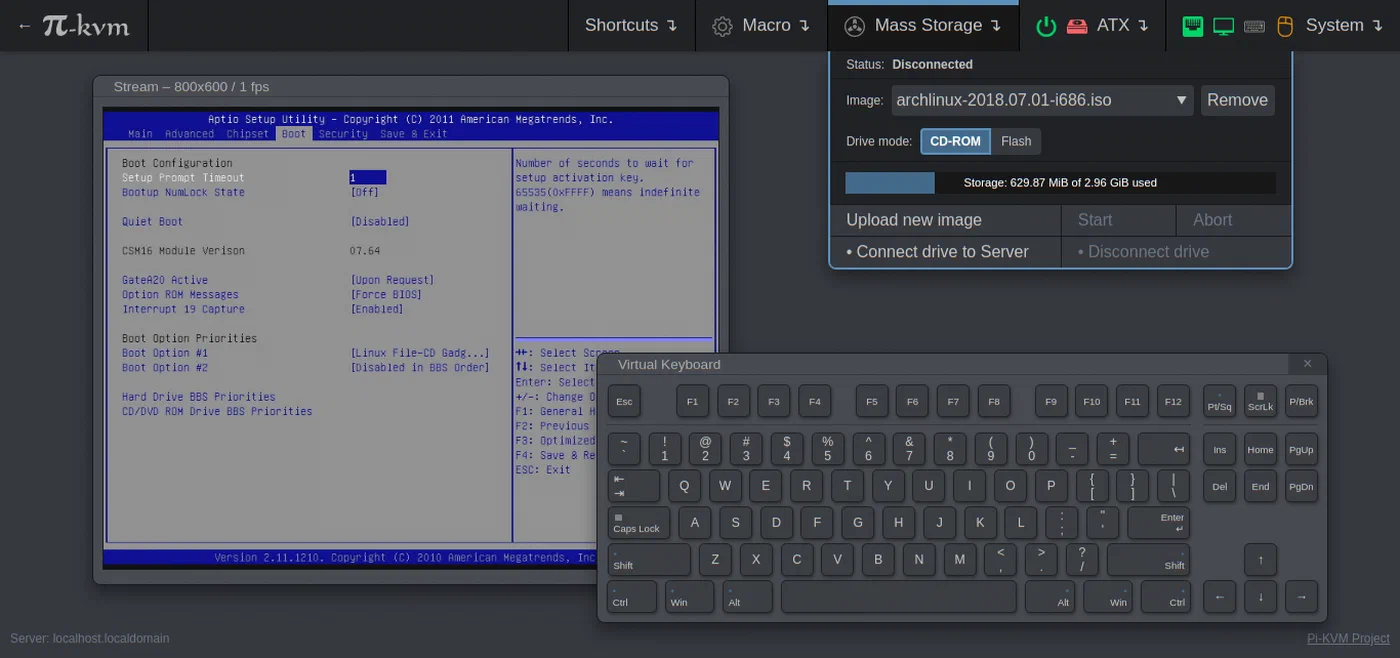
The web interface provides real-time HDMI video streaming, virtual keyboard and mouse control, clipboard sharing (paste text to the remote machine), virtual media for mounting ISO files, and ATX power controls if you have wired the GPIO pins.
Essential Post-Install Configuration
PiKVM uses /etc/kvmd/override.yaml for configuration changes. The filesystem is read-only by default for reliability, so you need to remount it before editing:
rw    # remount filesystem as read-write
nano /etc/kvmd/override.yaml
ro    # remount as read-only when done
Common configuration adjustments:
- Adjust the
streamersection for resolution, FPS, and compression quality. Lower quality settings reduce bandwidth for access over slow connections. The defaults work well for LAN access. - Some BIOS implementations do not support absolute mouse positioning. If the mouse cursor behaves erratically in BIOS, switch to relative mode or dual positioning mode in the override config.
- PiKVM supports TOTP 2FA for the web interface. Enable it in the admin panel under Security settings.
- PiKVM generates a self-signed SSL certificate by default. For trusted HTTPS, replace it with a Let’s Encrypt
certificate using
certbotor import your own.
ATX Power Control Wiring
The optional ATX control feature lets you remotely power on, power off, and hard reset the target machine. It requires connecting GPIO pins from the Pi to the target computer’s front panel header (power switch, reset switch, power LED) through an optocoupler relay board (around $5 from Amazon or AliExpress).
The wiring is straightforward: the optocoupler isolates the Pi’s GPIO from the motherboard’s front panel circuit, and PiKVM’s software handles the rest. When you click “Power” or “Reset” in the web interface, the Pi triggers the appropriate GPIO pin, which activates the optocoupler, which momentarily shorts the motherboard’s power or reset pins - exactly what the physical button does.
This is where PiKVM pulls ahead of JetKVM and TinyPilot. Remotely cold-booting a powered-off server or force-resetting a frozen machine eliminates the last reason you would ever need physical access.
Virtual Media and Remote OS Installation
Virtual media lets you mount ISO files as USB drives on the target computer and install operating systems remotely without physical media.
How It Works
- Upload an ISO file through the PiKVM web interface: open the “Drive” menu, click “Upload”, and select your ISO (Ubuntu, Proxmox, Windows, whatever you need).
- Click “Connect” to mount the ISO. The target computer now sees a USB mass storage device containing the ISO contents, identical to plugging in a physical USB flash drive.
- Reboot the target machine, enter BIOS using the PiKVM virtual keyboard, set USB as the first boot device, save and reboot.
- The machine boots from the virtual ISO. You complete the entire OS installation through the PiKVM web interface.
PiKVM can emulate either a USB mass storage device or a CD-ROM drive. CD-ROM mode is required for some BIOS implementations that only boot from optical media. Toggle this in the Drive menu settings.
Image Management Tips
- Store commonly used installer ISOs on an attached USB drive rather than the Pi’s microSD card. The V4 Plus has an internal USB 3.0 slot specifically for this purpose.
- PiKVM can download ISOs directly from URLs, so you do not need to transfer them through your workstation first.
- Keep a library of your most-used ISOs: Proxmox VE, Ubuntu Server, TrueNAS SCALE, Windows 11, and any recovery tools you rely on.
One performance note: ISO boot and installation runs over USB 2.0 emulation, which is slower than a native USB 3.0 flash drive. Expect OS installations to take 20-50% longer than they would with physical media. The convenience of doing it remotely from a browser usually outweighs the speed penalty.
Advanced Features and Multi-Server Management
PiKVM includes several features that bring it close to enterprise IPMI capabilities.
Wake-on-LAN Integration
Configure WoL MAC addresses in PiKVM to remotely power on servers that are completely shut down. This complements the ATX GPIO power control for machines that are in a soft-off state. Between WoL and ATX control, you can bring a server from fully powered off to running an OS without touching it.
Multi-Server Switching
A single PiKVM can manage multiple servers using an HDMI KVM switch (a TESmart 4-port switch runs around $40) controlled via PiKVM’s GPIO. You switch between servers from the web interface without needing additional PiKVM units. The PiKVM V4 Plus has this switching capability built in.
API and Automation
PiKVM exposes a full REST API at /api/ for programmatic control. You can script power cycles, capture video snapshots, and send keyboard input for automated server provisioning. A basic example:
# Check power state
curl -k -u admin:password https://pikvm/api/atx

# Trigger power button
curl -k -u admin:password -X POST https://pikvm/api/atx/power
You can integrate this into infrastructure automation workflows, monitoring systems, or CI/CD pipelines that provision bare-metal servers.
Tailscale for Secure Remote Access
Install Tailscale
directly on PiKVM for secure remote access from anywhere without port forwarding or exposing the device to the public internet. Run tailscale up on the PiKVM and you can reach the web interface through Tailscale’s mesh VPN from any device on your tailnet. This is the recommended approach for remote access - far simpler and more secure than opening ports on your router.
Prometheus Metrics and Monitoring
PiKVM exports hardware and session metrics suitable for monitoring dashboards. You can track video stream uptime, connected sessions, and target server power state in Grafana . For homelabs already running a Prometheus/Grafana stack, this integrates naturally into your existing monitoring setup.
Security Hardening
PiKVM provides BIOS-level access to your servers, which makes securing it properly essential. A compromised PiKVM device gives an attacker complete control over every machine connected to it.
Network Isolation
Place PiKVM on a dedicated management VLAN, separate from your regular LAN and any IoT devices. Configure your router’s firewall rules to restrict which hosts can reach the PiKVM’s web interface. Only your management workstation and your VPN endpoint should have access.
Authentication and Access Control
Change default passwords immediately after first boot (both the web UI and SSH root password). Enable TOTP two-factor authentication in the web interface. Disable SSH password authentication and switch to key-based login only.
PiKVM does not natively include fail2ban , but the underlying Arch Linux system can run it. Install and configure fail2ban to ban IPs after repeated failed login attempts.
Firewall Rules
PiKVM’s OS is based on Arch Linux and can use nftables for local firewall rules. A minimal policy should default-deny all inbound traffic and only allow HTTPS (port 443) and SSH (port 22) from your management network or VPN subnet.
Troubleshooting Common Issues
A few problems come up regularly with PiKVM builds, especially DIY setups.
Black screen / no video: This is almost always an EDID issue. The HDMI capture device is not advertising the right display capabilities to the target machine. Try unplugging the HDMI cable, connecting it to a real monitor briefly, then reconnecting to PiKVM. For persistent issues, PiKVM lets you override EDID data in the configuration. Also verify your target is not outputting a resolution higher than 1920x1080 at 60Hz (the V4 supports up to 1920x1200).
USB HID not recognized in BIOS: Some motherboard BIOS implementations have buggy USB drivers that do not handle composite USB devices (keyboard + mouse + mass storage in one device). The fix is to either disable mass storage emulation in PiKVM’s config, or use the Pico HID option to physically separate the HID devices from mass storage on different USB ports.
Mouse cursor jumping or not tracking: The BIOS does not support absolute mouse positioning. Switch to relative mouse mode in /etc/kvmd/override.yaml. You can also configure dual-mode, which tries absolute first and falls back to relative.
Video lag or stuttering: If you are using a USB capture dongle, try a different one - quality varies wildly between cheap HDMI capture devices. CSI-based capture (V4 or Pi 5 with adapter) generally produces smoother video. On the network side, use Ethernet rather than WiFi for the PiKVM’s connection.
ATX power control not working: Double-check your optocoupler wiring. The most common mistake is reversing the polarity on the optocoupler input. Use a multimeter to verify continuity when the GPIO triggers. Also confirm the GPIO pin numbers in your PiKVM configuration match the physical wiring.
Getting Started
PiKVM is a project that pays for itself the first time you actually need it - a kernel panic on a headless server, a botched BIOS update, an OS reinstall on a machine in another room. Any of those situations would normally mean a trip to the server closet with a monitor and keyboard under your arm.
For most homelab users, the DIY Pi 4 build at around $80-100 is the right starting point. If you want cleaner video and less fiddling, step up to a Pi 5 with CSI capture or go straight to the V4 Mini. If you manage multiple servers and want a polished, rack-mountable solution, the V4 Plus justifies its $385 price tag with built-in switching and storage.
The setup takes about 30 minutes for the hardware and another 15 for the software. Once it is running, you will wonder how you managed servers without it.