 Botmonster Tech
How to Build a Local AI Coding Agent with Claude Code and MCP

Claude Code combined with custom MCP (Model Context Protocol) servers creates a local AI coding agent that can read and write files, query databases, call APIs, and execute shell commands - all orchestrated by Claude through a standardized tool-use interface. You set up the Claude Code CLI, configure MCP servers in your project or user settings, and the agent automatically discovers and uses the tools you expose. The result is a development workflow where you describe tasks in natural language and Claude executes multi-step coding operations with full access to your project context.
MCP has become the standard way to give AI models access to external tools, and Claude Code is one of the most capable clients for putting it to work on real codebases. This guide covers the full setup from installation through building custom tools.
What Is MCP and Why It Matters for AI-Assisted Development
MCP stands for Model Context Protocol. It is an open standard, originally developed by Anthropic and now broadly adopted, that defines how large language models discover, call, and receive results from external tools. The protocol uses a JSON-RPC 2.0 interface, which means any client that speaks MCP can talk to any server that implements it.
The architecture is straightforward. An MCP client (in this case, Claude Code) connects to one or more MCP servers. Each server is a lightweight process that declares a set of available tools, complete with JSON Schema parameter definitions. When Claude sees these tools, it can decide to call them during a conversation, just like it would use its built-in file read/write or bash execution capabilities.
There are three transport options for communication between client and server. The default for local work is stdio - Claude Code launches the server process and communicates via stdin/stdout. For remote servers, there is SSE (Server-Sent Events over HTTP) and the newer streamable HTTP transport, which is the most flexible option for production deployments.
The practical benefit of MCP over writing custom tool integration code is standardization. Because the interface is well-defined, any MCP server works with any MCP client. The community has built servers for PostgreSQL, GitHub, Slack, filesystem operations, Docker, and over 200 more - all browsable at mcp.so . You do not need to write glue code to connect Claude to your database. Someone has already done it, and the interface is the same regardless of which database or service you are connecting to.
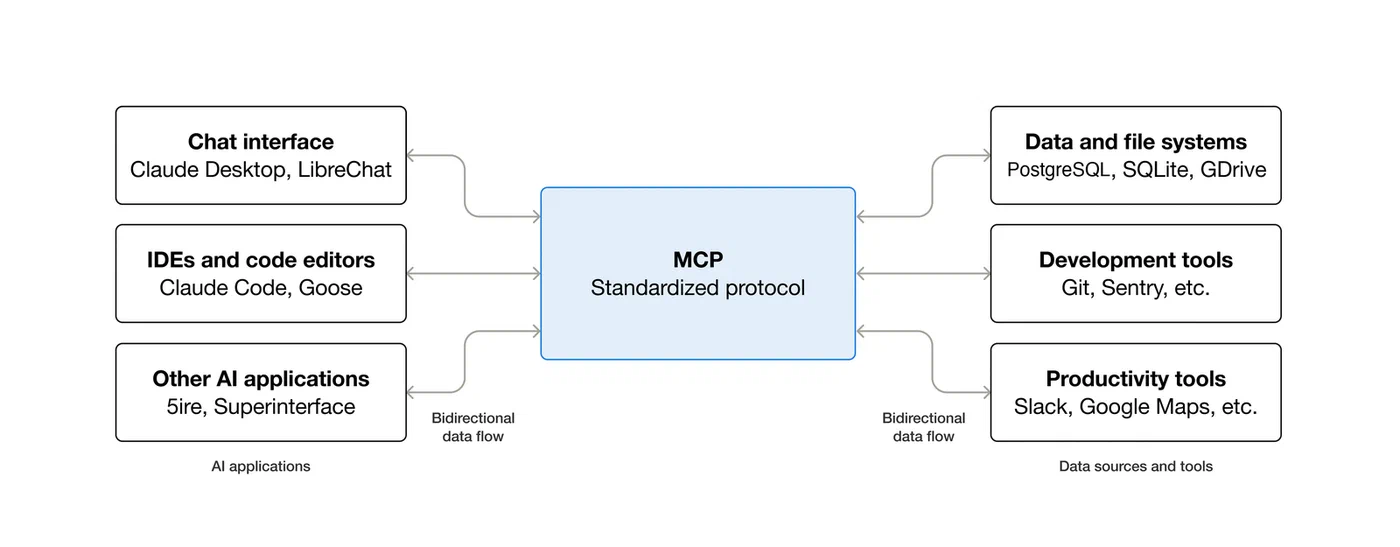
Claude Code has native MCP support built in since version 1.0. It automatically discovers MCP servers from your project configuration (.mcp.json in the project root) and your user configuration (~/.claude/settings.json), then presents their tools alongside its built-in capabilities. The agent loop works like this: Claude receives a prompt, decides which tools to call, sends tool calls via MCP, receives results, reasons about those results, and either calls more tools or generates a response. This loop is what turns Claude from a chatbot into an agent that can actually do things on your machine.
Installing and Configuring Claude Code
Getting Claude Code running takes a few minutes. Install it globally via npm:
npm install -g @anthropic-ai/claude-codeThis requires Node.js 18 or later (Node 22 LTS is recommended). Verify the installation with claude --version - you want version 1.0.x or later, as that is when MCP support became stable.
For authentication, run claude in your terminal and follow the OAuth flow to link your Anthropic account. Alternatively, set the ANTHROPIC_API_KEY environment variable if you prefer API key-based auth. A Claude Max subscription provides unlimited usage, which is worth considering if you plan to use this heavily.
The configuration system has two levels. Project configuration lives in .mcp.json at your project root. This file defines MCP servers available to that specific project and should be checked into version control so your team shares the same tool setup. User configuration lives at ~/.claude/settings.json and defines MCP servers available globally across all projects - useful for personal tools like database clients or system utilities.
The configuration format looks like this:
{
  "mcpServers": {
    "server-name": {
      "command": "npx",
      "args": ["-y", "@package/mcp-server"],
      "env": {
        "API_KEY": "your-key-here"
      }
    }
  }
}
Each server entry specifies the command to launch it and any required environment variables. Claude Code launches these processes automatically when it starts.
The permission model is worth understanding. Claude Code asks for approval before executing tools in new categories. You can configure allowedTools in settings to pre-approve trusted tools, which reduces the interactive prompts during automated workflows. For scripted or CI usage where no human is in the loop, run Claude in headless mode:
claude -p "your prompt" --allowedTools "mcp__server__tool"This is how you integrate Claude Code into build pipelines, git hooks, or automated review workflows.
Setting Up Essential MCP Servers for Development
The value of Claude Code scales directly with the MCP servers you connect to it. Here are five servers that cover most development workflows, with exact configuration snippets you can drop into your .mcp.json.
The filesystem server (@anthropic-ai/mcp-filesystem) exposes tools like read_file, write_file, list_directory, and search_files. While Claude Code already has built-in file access, this server adds search capabilities and can be configured with specific allowed directories:
"filesystem": {
  "command": "npx",
  "args": ["-y", "@anthropic-ai/mcp-filesystem", "/home/user/projects"]
}
The PostgreSQL server (@anthropic-ai/mcp-postgres) gives Claude read-only SQL query access to your database. Claude can inspect schemas, run diagnostic queries, and understand your data model without you having to copy-paste table definitions:
"postgres": {
  "command": "npx",
  "args": ["-y", "@anthropic-ai/mcp-postgres"],
  "env": {
    "POSTGRES_URL": "postgresql://user:pass@localhost:5432/mydb"
  }
}
The GitHub server (@anthropic-ai/mcp-github) enables Claude to create issues, open pull requests, read code from repositories, and manage reviews. Configure it with a personal access token:
"github": {
  "command": "npx",
  "args": ["-y", "@anthropic-ai/mcp-github"],
  "env": {
    "GITHUB_PERSONAL_ACCESS_TOKEN": "ghp_your_token_here"
  }
}
The Docker server (@anthropic-ai/mcp-docker) lets Claude list containers, run new ones, and execute commands inside them. This is particularly useful for running tests in isolation or debugging containerized services:
"docker": {
  "command": "npx",
  "args": ["-y", "@anthropic-ai/mcp-docker"]
}
And then there are custom servers - this is where things get project-specific. You can build a lightweight MCP server in Python that wraps your internal APIs and exposes them as typed tools. More on this in the next section.
A complete .mcp.json with all of these configured together gives Claude access to your code, your database, your GitHub repositories, and your container infrastructure.
Building a Custom MCP Server for Your Specific Needs
Pre-built servers cover the common cases, but writing custom servers tailored to your project is where MCP gets interesting. The MCP Python SDK keeps the boilerplate minimal.
Install the SDK:
pip install mcp[cli]A minimal server needs just a few lines. Create a file called server.py:
from mcp.server.fastmcp import FastMCP

mcp = FastMCP("my-project-tools")

@mcp.tool()
def get_table_schema(table_name: str) -> str:
    """Get the column names and types for a database table."""
    import psycopg2
    conn = psycopg2.connect("postgresql://user:pass@localhost/mydb")
    cur = conn.cursor()
    cur.execute("""
        SELECT column_name, data_type, is_nullable
        FROM information_schema.columns
        WHERE table_name = %s
        ORDER BY ordinal_position
    """, (table_name,))
    rows = cur.fetchall()
    conn.close()
    return "\n".join(f"{r[0]}: {r[1]} (nullable: {r[2]})" for r in rows)

mcp.run(transport="stdio")
That is a working MCP server. Claude can call get_table_schema("users") and get back the exact column definitions, which means it writes accurate SQL without guessing column names.
Here is another practical example - a service health checker:
@mcp.tool()
def check_service_health(service_name: str) -> dict:
    """Check the health status of an internal service."""
    import requests
    endpoints = {
        "api": "http://localhost:8000/health",
        "worker": "http://localhost:8001/health",
        "cache": "http://localhost:6379/ping",
    }
    url = endpoints.get(service_name)
    if not url:
        return {"error": f"Unknown service: {service_name}"}
    try:
        resp = requests.get(url, timeout=5)
        return {"status": resp.status_code, "body": resp.json()}
    except Exception as e:
        return {"status": "unreachable", "error": str(e)}
And a log searcher that wraps journalctl:
@mcp.tool()
def search_logs(query: str, since: str = "1h") -> str:
    """Search system logs for a pattern within a time window."""
    import subprocess
    result = subprocess.run(
        ["journalctl", f"--since=-{since}", "--no-pager", "-g", query],
        capture_output=True, text=True
    )
    lines = result.stdout.strip().split("\n")
    return "\n".join(lines[-50:])  # Last 50 matching lines
Register your custom server in .mcp.json:
"my-tools": {
  "command": "python",
  "args": ["./tools/server.py"]
}
Claude Code launches it automatically on startup. You can test your server independently before connecting it using the MCP inspector:
mcp dev server.pyThis opens an interactive interface where you can call each tool and verify the outputs are correct. Spend some time here before letting Claude use your tools - a broken tool that returns cryptic errors will confuse the agent and waste tokens.
Real-World Workflows and Agent Patterns
With MCP servers configured, Claude Code can execute complex multi-step workflows that would normally require you to bounce between terminal tabs and browser windows. Here are some patterns that work well in practice.
Bug investigation is a good example. You tell Claude “there is a 500 error in the /api/orders endpoint, figure out what is wrong.” Claude reads the error logs using the log searcher tool, finds a stack trace pointing to a null reference. It queries the database with the PostgreSQL tool to check the affected records and discovers a missing foreign key. It reads the relevant source code with the filesystem tool, identifies that a recent migration dropped a NOT NULL constraint that the code depends on. It writes a fix, runs the test suite via bash, and creates a pull request on GitHub. All from a single natural language prompt.
Database migrations follow a similar pattern. Claude inspects the current database schema, reads your ORM model definitions, notices the discrepancy, and generates a migration file. It can spin up a temporary database container using the Docker tool, apply the migration there first, run validation queries to confirm the schema matches expectations, and then write documentation for the migration. This kind of careful, multi-step process benefits from an agent that does not lose track of what it is doing halfway through.
Code review automation is another strong use case. Set up a GitHub webhook that triggers Claude in headless mode when a PR is opened:
claude -p "Review PR #${PR_NUMBER} for security issues, performance problems, and style violations" \
  --allowedTools "mcp__github__*"
Claude reads the diff, checks related code for context, and posts review comments directly on the PR. It will not replace human review, but it catches mechanical issues - unclosed connections, missing error handling, SQL injection risks - before a human reviewer even looks at the code.
You can also build team-specific workflows using slash commands. Create .claude/commands/review.md with a prompt template that Claude executes when you type /review in a session. Combine this with MCP tools to build standardized workflows that every team member uses the same way. For example, a /deploy-check command that verifies service health, checks for pending migrations, and confirms the test suite passes before anyone pushes to production.
For managing long sessions, use /compact to summarize the conversation and keep Claude focused. Structure complex tasks as a series of targeted prompts rather than one massive instruction. Claude Code’s /cost command shows your token usage - keep an eye on it, because large MCP tool outputs (like unfiltered database query results) eat through input tokens fast. Use LIMIT clauses in SQL and head for log output to keep context sizes manageable.
Practical Tips from Daily Usage
A few things that matter in practice when working with Claude Code and MCP:
Start small with MCP servers. Add one or two, get comfortable with how Claude uses them, then expand. A misconfigured server that returns errors on every call is worse than no server at all.
Read-only database access is non-negotiable for the PostgreSQL server. Never give an AI agent write access to production data through MCP, no matter how much you trust the model. Use a read replica or a restricted user account.
Never hardcode API keys or database passwords in .mcp.json. Use the env field to reference environment variables, and keep those variables in a .env file that is in your .gitignore.
When building custom MCP servers, write clear docstrings for your tool functions. Claude reads these descriptions to decide when and how to use each tool. A vague description leads to the tool being called in wrong contexts or with wrong parameters.
Test MCP servers independently using the mcp dev inspector. Every tool should work correctly in isolation before you connect it to Claude Code. Debugging a broken tool through Claude’s error messages is much harder than testing it directly.
Use allowedTools in your configuration to restrict which tools Claude can use in automated and headless contexts. An agent running in CI should not have access to your Docker server unless it actually needs it for that specific job.
The gap between an AI chatbot that writes code snippets and an AI agent that performs actual development tasks comes down to tool access. Claude Code provides the agent runtime, MCP provides the tool interface, and your custom servers provide the domain-specific capabilities. Put them together and you have a practical coding assistant that works on your actual codebase, with your actual database, against your actual APIs.