 Botmonster Tech
How to Deploy with Docker Compose and Traefik in Production

Deploy a production-ready stack by running Traefik
v3 as a Docker container that automatically discovers your services through Docker labels, provisions and renews Let’s Encrypt
TLS certificates via the ACME protocol, and routes incoming HTTPS traffic to the correct backend container. Everything lives in a single docker-compose.yml file with no separate Nginx or Apache configs to maintain. Traefik’s Docker provider watches the Docker socket for container start and stop events, reads routing rules from labels like traefik.http.routers.myapp.rule=Host('app.example.com'), and reconfigures itself in real time. Combined with middleware for rate limiting, authentication, and security headers, this gives you a self-managing reverse proxy that handles multi-service deployments on a single VPS with zero manual certificate management.
The current stable release as of early 2026 is Traefik v3.6.x, with v3.7 in early access. All examples in this guide target the v3.x line.
Why Traefik Replaces Nginx for Docker-Based Deployments
Nginx is a battle-tested reverse proxy, but pairing it with Docker means manually updating config files and reloading the process every time a service changes. You add a new container, you edit a server block, you run nginx -t, you reload. Repeat for every service, every domain, every port change. Traefik
was built specifically for dynamic container environments and eliminates that operational friction entirely.
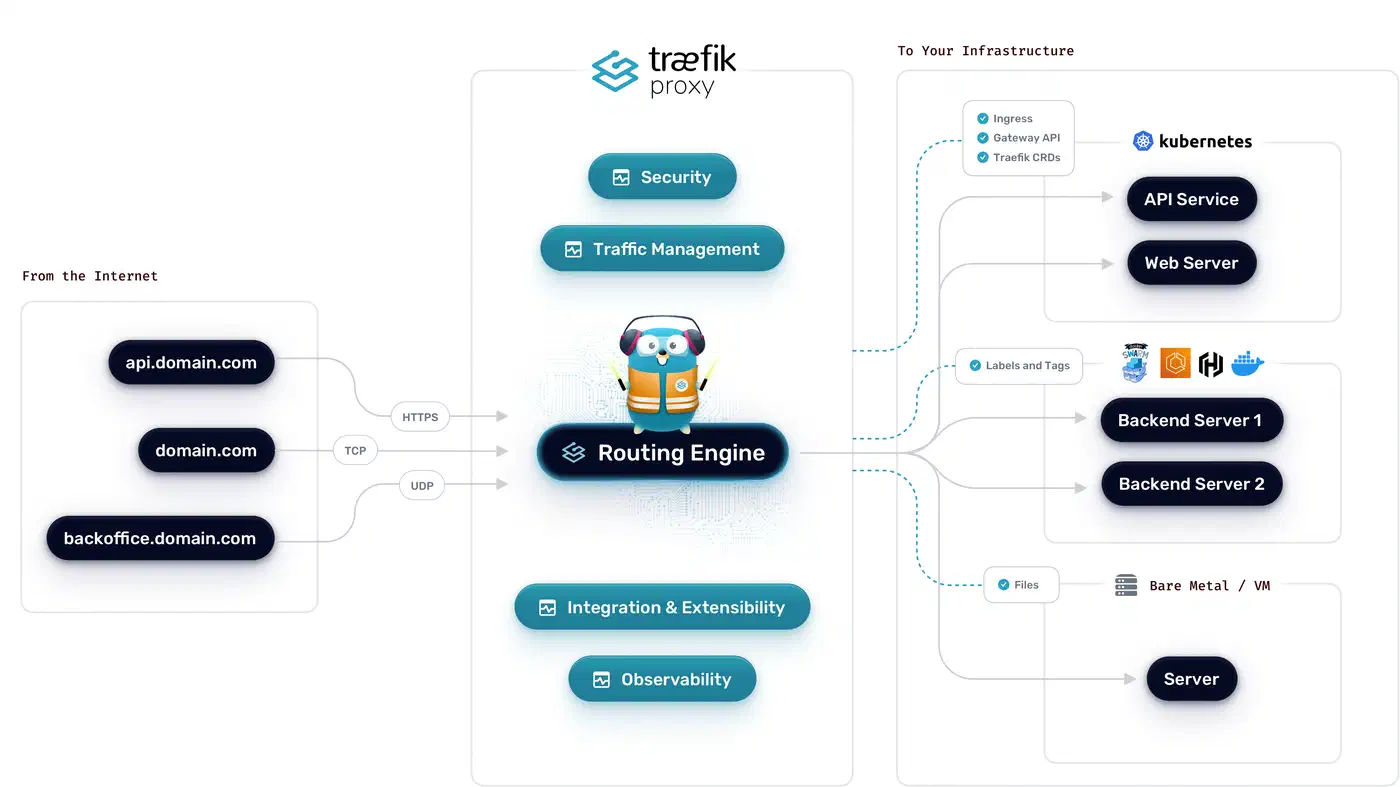
Traefik’s core advantage is automatic service discovery. When a Docker container starts with the right labels, Traefik detects it and creates the route within seconds. When the container stops, the route disappears. You never touch a config file or run a reload command. Traefik is a single Go binary with native Docker integration, unlike solutions such as nginx-proxy (jwilder) or Nginx Proxy Manager , which wrap Nginx with template generators and web UIs that add their own layers of complexity.
Traefik also handles Let’s Encrypt certificates out of the box. The certificatesResolvers configuration supports HTTP-01 and DNS-01 challenges natively, stores certificates in a JSON file (acme.json), and renews them automatically before expiry. You can drop Certbot and its cron job entirely.
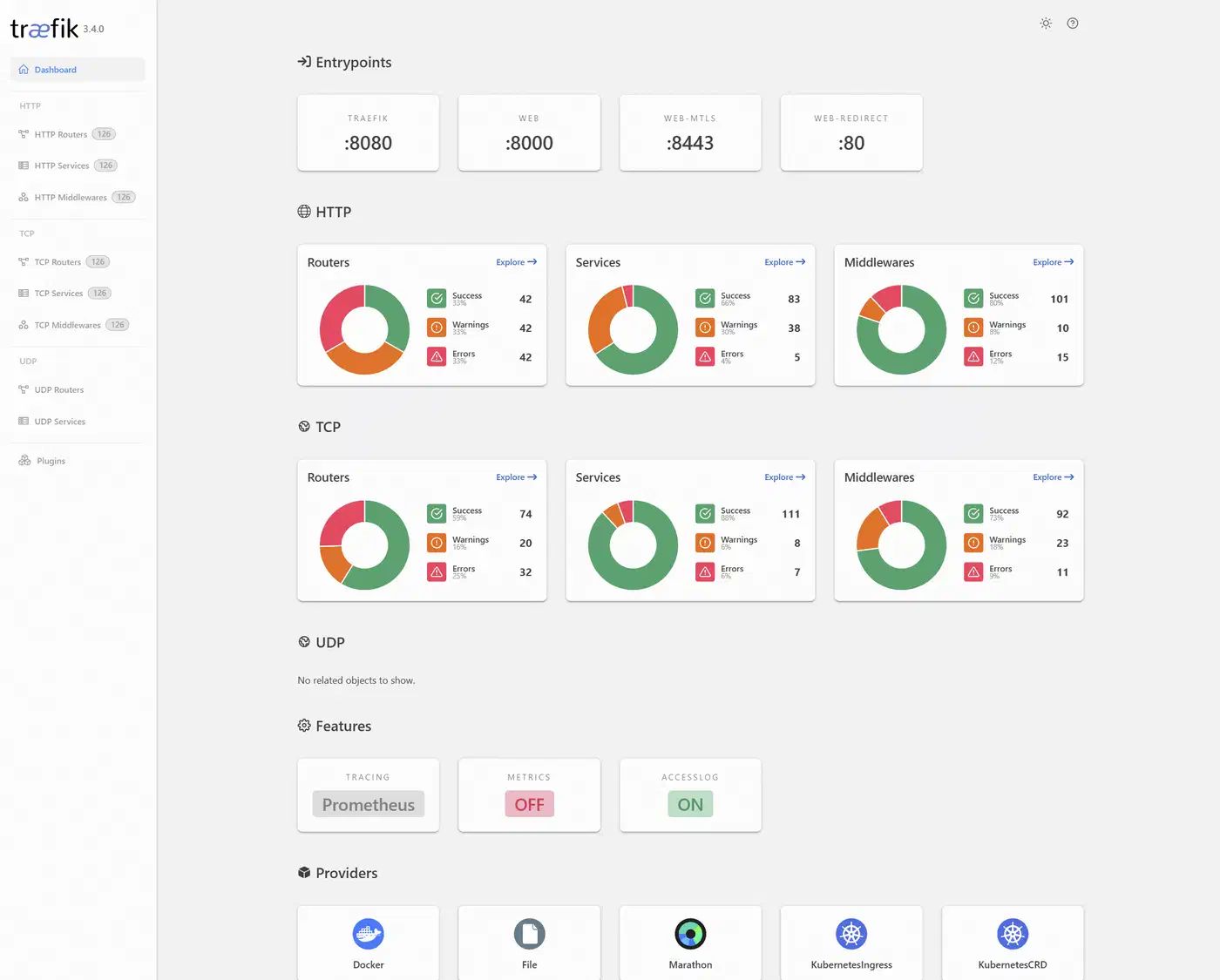
Traefik also ships with a built-in web dashboard (disabled by default in production, available on port 8080 during development) that shows all active routers, services, and middlewares in real time. When something is not routing correctly, you can see exactly which rules are active and which services they point to - invaluable for debugging.
Performance is not a concern for most deployments. Traefik v3.6 handles 30,000+ requests per second on a modest 2-core VPS with sub-millisecond routing overhead. If you need throughput above 100K requests per second, complex location block logic, or you are not using containers at all, Nginx still makes sense. For everything else, Traefik is the better fit.
Setting Up Traefik with Docker Compose
The foundation is a docker-compose.yml that runs Traefik as the single entrypoint for all traffic. Every service that Traefik should route to must share a Docker network with the Traefik container.
Start by creating a dedicated network:
docker network create traefik-publicServices on the default bridge network are invisible to Traefik. Any container you want routed must explicitly join traefik-public.
Next, create the certificate storage file with the correct permissions:
touch acme.json
chmod 600 acme.json
Traefik will refuse to start if acme.json has world-readable permissions. This file stores your TLS certificates and ACME account keys - treat it like a private key.
Here is the complete Traefik service definition:
services:
  traefik:
    image: traefik:v3.6
    container_name: traefik
    restart: unless-stopped
    command:
      # Enable Docker provider
      - "--providers.docker=true"
      - "--providers.docker.exposedbydefault=false"
      - "--providers.docker.network=traefik-public"
      # Entrypoints
      - "--entrypoints.web.address=:80"
      - "--entrypoints.websecure.address=:443"
      # Global HTTP to HTTPS redirect
      - "--entrypoints.web.http.redirections.entrypoint.to=websecure"
      - "--entrypoints.web.http.redirections.entrypoint.scheme=https"
      # Let's Encrypt
      - "--certificatesresolvers.letsencrypt.acme.email=you@example.com"
      - "--certificatesresolvers.letsencrypt.acme.storage=/acme.json"
      - "--certificatesresolvers.letsencrypt.acme.httpchallenge.entrypoint=web"
      # Logging
      - "--accesslog=true"
      - "--accesslog.format=json"
    ports:
      - "80:80"
      - "443:443"
    volumes:
      - "/var/run/docker.sock:/var/run/docker.sock:ro"
      - "./acme.json:/acme.json"
    networks:
      - traefik-public
    deploy:
      resources:
        limits:
          memory: 256m
          cpus: '0.5'

networks:
  traefik-public:
    external: true
A few things to note. The Docker socket mount is read-only (:ro) - Traefik only needs to read container metadata, not manage containers. The exposedbydefault=false flag means containers are invisible to Traefik unless they explicitly opt in with traefik.enable=true. This prevents accidentally exposing internal services like databases.
The HTTP-to-HTTPS redirect on the web entrypoint means every request to port 80 is automatically redirected to port 443. No separate redirect rules needed per service.
Testing with the Let’s Encrypt staging server: Before going live, point Traefik at the staging environment to avoid hitting rate limits (Let’s Encrypt allows only 5 duplicate certificates per domain per week in production). Add this flag:
- "--certificatesresolvers.letsencrypt.acme.caserver=https://acme-staging-v02.api.letsencrypt.org/directory"Browsers will show a certificate warning (issued by “Fake LE Intermediate X1”), but if the certificate appears at all, your configuration is correct. Remove the caserver line, delete acme.json, and restart Traefik to get a real certificate.
Adding Services with Docker Labels
Every backend service is configured through Docker labels in its compose definition. You never edit a Traefik config file or run a reload command.
Here is a basic label set for a web application:
services:
  myapp:
    image: myapp:latest
    restart: unless-stopped
    labels:
      - "traefik.enable=true"
      - "traefik.http.routers.myapp.rule=Host(`app.example.com`)"
      - "traefik.http.routers.myapp.entrypoints=websecure"
      - "traefik.http.routers.myapp.tls.certresolver=letsencrypt"
      - "traefik.http.services.myapp.loadbalancer.server.port=8080"
    networks:
      - traefik-public
The server.port label tells Traefik which port the container listens on internally. If your container exposes only one port, Traefik can usually detect it automatically, but being explicit avoids ambiguity.
Path-based routing lets you split traffic by URL path. To route example.com/api/* to a backend API and everything else to a frontend:
# API service
labels:
  - "traefik.http.routers.api.rule=Host(`example.com`) && PathPrefix(`/api`)"
  - "traefik.http.routers.api.priority=100"

# Frontend service
labels:
  - "traefik.http.routers.frontend.rule=Host(`example.com`)"
  - "traefik.http.routers.frontend.priority=50"
Higher priority wins when rules overlap. Without explicit priorities, Traefik uses rule length as a tiebreaker, which can produce unexpected results.
Multi-service example: Here is a realistic compose file with a Hugo static site served by Nginx Alpine, a Go API, and a PostgreSQL database. Note that PostgreSQL has no Traefik labels - it should never be exposed to the internet:
services:
  blog:
    image: nginx:alpine
    volumes:
      - ./public:/usr/share/nginx/html:ro
    labels:
      - "traefik.enable=true"
      - "traefik.http.routers.blog.rule=Host(`blog.example.com`)"
      - "traefik.http.routers.blog.entrypoints=websecure"
      - "traefik.http.routers.blog.tls.certresolver=letsencrypt"
    networks:
      - traefik-public

  api:
    build: ./api
    labels:
      - "traefik.enable=true"
      - "traefik.http.routers.api.rule=Host(`api.example.com`)"
      - "traefik.http.routers.api.entrypoints=websecure"
      - "traefik.http.routers.api.tls.certresolver=letsencrypt"
      - "traefik.http.services.api.loadbalancer.server.port=3000"
      - "traefik.http.services.api.loadbalancer.healthcheck.path=/health"
      - "traefik.http.services.api.loadbalancer.healthcheck.interval=10s"
    networks:
      - traefik-public
      - backend

  postgres:
    image: postgres:16
    environment:
      POSTGRES_PASSWORD_FILE: /run/secrets/db_password
    volumes:
      - pgdata:/var/lib/postgresql/data
    networks:
      - backend

networks:
  traefik-public:
    external: true
  backend:
    internal: true

volumes:
  pgdata:
The backend network is marked internal: true, which means it has no external connectivity at all. PostgreSQL can only be reached by the API container.
WebSocket connections work automatically. Traefik proxies WebSocket upgrades without any special labels. If you need to be explicit, set traefik.http.services.ws-app.loadbalancer.server.scheme=http on the service.
Middleware for Security, Rate Limiting, and Headers
Traefik middleware sits between the router and the service, modifying requests and responses in transit. Every production deployment should have a baseline middleware chain.
Security Headers
These labels add standard security headers that prevent clickjacking, MIME sniffing, and downgrade attacks:
labels:
  - "traefik.http.middlewares.security-headers.headers.frameDeny=true"
  - "traefik.http.middlewares.security-headers.headers.contentTypeNosniff=true"
  - "traefik.http.middlewares.security-headers.headers.stsSeconds=63072000"
  - "traefik.http.middlewares.security-headers.headers.stsIncludeSubdomains=true"
  - "traefik.http.middlewares.security-headers.headers.stsPreload=true"
  - "traefik.http.middlewares.security-headers.headers.referrerPolicy=strict-origin-when-cross-origin"
Rate Limiting
To protect against basic DoS and brute-force attacks, add a rate limit middleware:
labels:
  - "traefik.http.middlewares.ratelimit.ratelimit.average=100"
  - "traefik.http.middlewares.ratelimit.ratelimit.burst=50"
This allows each source IP 100 requests per second with bursts up to 50. Adjust these values based on your application’s traffic patterns.
Basic Authentication
For admin interfaces that need password protection, generate a hash with htpasswd and reference it in a label:
# Generate the password hash
htpasswd -nb admin yourpassword
# Output: admin:$apr1$xyz...labels:
- "traefik.http.middlewares.auth.basicauth.users=admin:$$apr1$$xyz..."Note the double dollar signs ($$) - Docker Compose interprets single $ as variable substitution, so you must escape them.
IP Allowlisting
To restrict access to internal services, limit source IPs:
labels:
  - "traefik.http.middlewares.internal.ipallowlist.sourcerange=192.168.1.0/24,10.0.0.0/8"
Compression
Enable compression with a single label:
labels:
  - "traefik.http.middlewares.compress.compress=true"
Traefik v3 supports Brotli compression by default when the client sends Accept-Encoding: br, falling back to gzip for older clients.
Chaining Middleware
Apply multiple middlewares to a single router by listing them comma-separated:
labels:
  - "traefik.http.routers.myapp.middlewares=ratelimit,security-headers,compress"
Order matters - middleware executes left to right. Put rate limiting first to reject abusive traffic before it hits your headers middleware or service.
Wildcard Certificates with DNS-01 Challenge
The HTTP-01 challenge works well for individual domains, but if you run many subdomains (dashboard.example.com, api.example.com, blog.example.com), requesting a separate certificate for each one is wasteful and hits Let’s Encrypt rate limits faster. Wildcard certificates (*.example.com) solve this, but they require a DNS-01 challenge since Let’s Encrypt needs to verify you control the DNS zone.
Cloudflare
is the most common DNS provider for this setup. You need an API token with Zone:DNS:Edit permissions for your domain.
services:
  traefik:
    image: traefik:v3.6
    environment:
      - CF_DNS_API_TOKEN=your-cloudflare-api-token
    command:
      - "--certificatesresolvers.letsencrypt.acme.email=you@example.com"
      - "--certificatesresolvers.letsencrypt.acme.storage=/acme.json"
      - "--certificatesresolvers.letsencrypt.acme.dnschallenge=true"
      - "--certificatesresolvers.letsencrypt.acme.dnschallenge.provider=cloudflare"
      - "--certificatesresolvers.letsencrypt.acme.dnschallenge.delaybeforecheck=10"
The delaybeforecheck parameter (in seconds) tells Traefik to wait before verifying the DNS record, giving Cloudflare’s API time to propagate the TXT record. Ten seconds is usually enough.
For AWS Route 53
, replace the provider and set AWS_ACCESS_KEY_ID and AWS_SECRET_ACCESS_KEY environment variables instead.
Routing to Non-Docker Services with the File Provider
Not everything runs in Docker. You might have a service running directly on the host, a NAS with a web interface, or an application on another machine in your network. Traefik’s file provider handles these cases.
Enable the file provider alongside the Docker provider:
command:
  - "--providers.docker=true"
  - "--providers.file.directory=/etc/traefik/dynamic"
  - "--providers.file.watch=true"
volumes:
  - "./dynamic:/etc/traefik/dynamic:ro"
Then create a YAML file in the dynamic/ directory:
# dynamic/external-services.yml
http:
  routers:
    nas:
      rule: "Host(`nas.example.com`)"
      entryPoints:
        - websecure
      tls:
        certResolver: letsencrypt
      service: nas

  services:
    nas:
      loadBalancer:
        servers:
          - url: "http://192.168.1.50:5000"
The watch=true flag makes Traefik reload the file provider configuration when files change, without restarting the container. You can add, remove, or modify external service routes by editing files in the dynamic/ directory.
Production Hardening and Zero-Downtime Deployments
Getting Traefik running is the easy part. Keeping it reliable in production takes a bit more work around logging, monitoring, update strategy, and backups.
Access Logging
Structured JSON logs feed directly into aggregation tools like Grafana Loki or any JSON-capable collector:
command:
  - "--accesslog=true"
  - "--accesslog.format=json"
  - "--accesslog.filepath=/var/log/traefik/access.log"
Mount a host volume for /var/log/traefik so logs persist across container restarts.
Prometheus Metrics
Expose a metrics endpoint for Prometheus to scrape:
command:
  - "--metrics.prometheus=true"
  - "--metrics.prometheus.entrypoint=metrics"
  - "--entrypoints.metrics.address=:8082"
Key metrics to monitor: traefik_entrypoint_requests_total for traffic volume, traefik_service_request_duration_seconds_bucket for latency, and traefik_tls_certs_not_after for alerting when certificates approach expiry.
Zero-Downtime Container Updates
Traefik’s dynamic discovery makes rolling updates straightforward. Rebuild and restart a single service:
docker compose up -d --no-deps --build myappTraefik detects the new container within seconds and routes traffic to it. Combined with health checks (loadbalancer.healthcheck.path), Traefik will not send traffic to a container that has not finished starting up.
Backing Up acme.json
This single file holds all your TLS certificates and ACME account keys. If you lose it, Traefik will request new certificates from Let’s Encrypt, which is rate-limited to 5 duplicate certificates per domain per week. A simple cron job is enough:
0 3 * * * cp /path/to/acme.json /backups/acme-$(date +\%F).jsonCrowdSec Integration
The CrowdSec bouncer plugin installs as a Traefik middleware and checks incoming requests against both local and global IP blocklists maintained by the CrowdSec community:
command:
  - "--experimental.plugins.crowdsec.modulename=github.com/maxlerebourg/crowdsec-bouncer-traefik-plugin"
  - "--experimental.plugins.crowdsec.version=v1.3.0"
Unlike static IP blocklists that go stale, CrowdSec’s threat intelligence updates in real time based on attack patterns observed across its entire network of installations.
Restart Policies and Resource Limits
Set restart: unless-stopped on Traefik and all your services. Traefik should be the first service to start - it will pick up other containers as they come online.
On a small VPS (2 cores, 4GB RAM), 256m memory and 0.5 CPUs is a reasonable starting point for Traefik’s resource limits. Monitor actual usage with docker stats and adjust from there.
Canary Deployments with Weighted Load Balancing
Traefik supports weighted round-robin load balancing, which enables canary deployments where you gradually shift traffic from an old version to a new one. This requires the file provider since Docker labels alone cannot define weighted services.
Create a dynamic config file:
# dynamic/canary.yml
http:
  services:
    app-weighted:
      weighted:
        services:
          - name: app-v1@docker
            weight: 9
          - name: app-v2@docker
            weight: 1

  routers:
    app:
      rule: "Host(`app.example.com`)"
      entryPoints:
        - websecure
      tls:
        certResolver: letsencrypt
      service: app-weighted
This sends 90% of traffic to v1 and 10% to v2. To increase the canary percentage, edit the weights and Traefik picks up the change automatically (with file.watch=true). Once v2 is validated, set its weight to 10 and remove v1.
Both app-v1 and app-v2 run as separate Docker Compose services with standard Traefik labels (but without their own router definitions, since the file provider handles routing).
Full Stack Overview
A production Traefik deployment on a single VPS typically includes these components:
| Component | Purpose |
|---|---|
| Traefik container | Reverse proxy, TLS termination, routing |
traefik-public network | Shared network for all routed services |
acme.json | Certificate storage (back up regularly) |
| Docker labels | Per-service routing and middleware config |
dynamic/ directory | File provider for external services and canary configs |
| Prometheus + Grafana | Metrics and alerting |
| CrowdSec | IP reputation and threat blocking |
The entire configuration lives in version control alongside your application code. Adding a new service means adding labels to a compose file and running docker compose up -d. Removing a service means stopping the container - Traefik cleans up the route automatically.
This setup handles dozens of services on a single VPS without breaking a sweat. When you outgrow one machine, Traefik also supports Docker Swarm and Kubernetes as providers, but for self-hosted deployments and small-to-medium production workloads, a single VPS with Docker Compose and Traefik gets you surprisingly far with very little operational overhead.