 Botmonster Tech
Build a Fanless Home Server for Under $300: Silent, Efficient, and Powerful

A fanless home server under $300 is real in 2026. Using an Intel N150 or N305 mini PC - the Beelink EQ12 Pro or GMK NucBox G3 - you get a passively cooled machine that draws 6-15W under load, makes zero noise, and handles a full stack of self-hosted services: Home Assistant, Jellyfin, Vaultwarden, Nextcloud, Immich, and a WireGuard VPN all running simultaneously without a single fan spinning.
These chips genuinely changed what passive cooling can handle at this price point.
Why Fanless? The Case for Silent, Always-On Computing
Fans are the leading source of noise, dust accumulation, and hardware failure in small home servers. For years, building a serious home server meant tolerating the hum of a cooling fan 24 hours a day. That changed when Intel released the Alder Lake-N lineup.
The Intel N150 has a 6W TDP. The N305 sits at 15W. AMD’s Ryzen 8305G competes in the same tier. These chips match or exceed the single-threaded performance of 2019-era Core i5 systems while consuming a fraction of the power. That is the condition that makes passive cooling viable - not as a niche engineering challenge, but as a mainstream product you can buy off Amazon today.
Home server workloads are idle-dominant. A machine running Jellyfin, Home Assistant, and Nextcloud spends roughly 95% of its time waiting: waiting for a network request, waiting for a cron job, waiting for a user to push a file. Peak CPU demand happens in short bursts - a video transcode request, an Immich face recognition pass, an LLM query. A 6W N150 handles those bursts without thermal throttling at normal room temperatures. The passive heatsink absorbs the transient spike and dissipates it over the next few minutes.
The noise situation is concrete. A fanless server in your home office or living room contributes zero dB. Fan-cooled servers sit in the 20-30 dB range continuously - audible in a quiet room, noticeable in a bedroom, and something you stop noticing consciously but that still keeps you slightly awake at night. If the server lives anywhere near where you sleep or work, silence has real value.
Without moving parts, longevity improves considerably. Fans have a rated MTBF of 50,000-80,000 hours - roughly 6-9 years under ideal conditions, often less in dusty or warm environments. A fanless system with an NVMe SSD has no mechanical components at all. Both the chassis heatsink and the solid-state storage are designed to outlast the rest of the hardware.
The electricity cost argument is worth spelling out. A 10W server running continuously consumes 87.6 kWh per year. At the US average of $0.12/kWh, that comes to about $10.50/year. A repurposed 65W desktop doing the same job costs roughly $68/year. Over five years, the fanless mini PC saves around $285 on electricity - which offsets most of its purchase price compared to running a “free” old desktop 24/7. That math shifts further in high electricity-cost regions.
There are real thermal limits. Sustained heavy transcoding or local ML inference on a 6W TDP chip will cause throttling when ambient temperatures are high. This guide focuses on standard home server workloads - media serving via Direct Play, Home Assistant automation, file sync, and password management - that stay within the passive envelope. Running Ollama with a small model for an hour is fine. Running inference loops nonstop for eight hours is a different story.
Hardware Picks Under $300
The fanless mini PC market in 2026 has stabilized around a handful of well-supported designs. Here are the options worth considering.
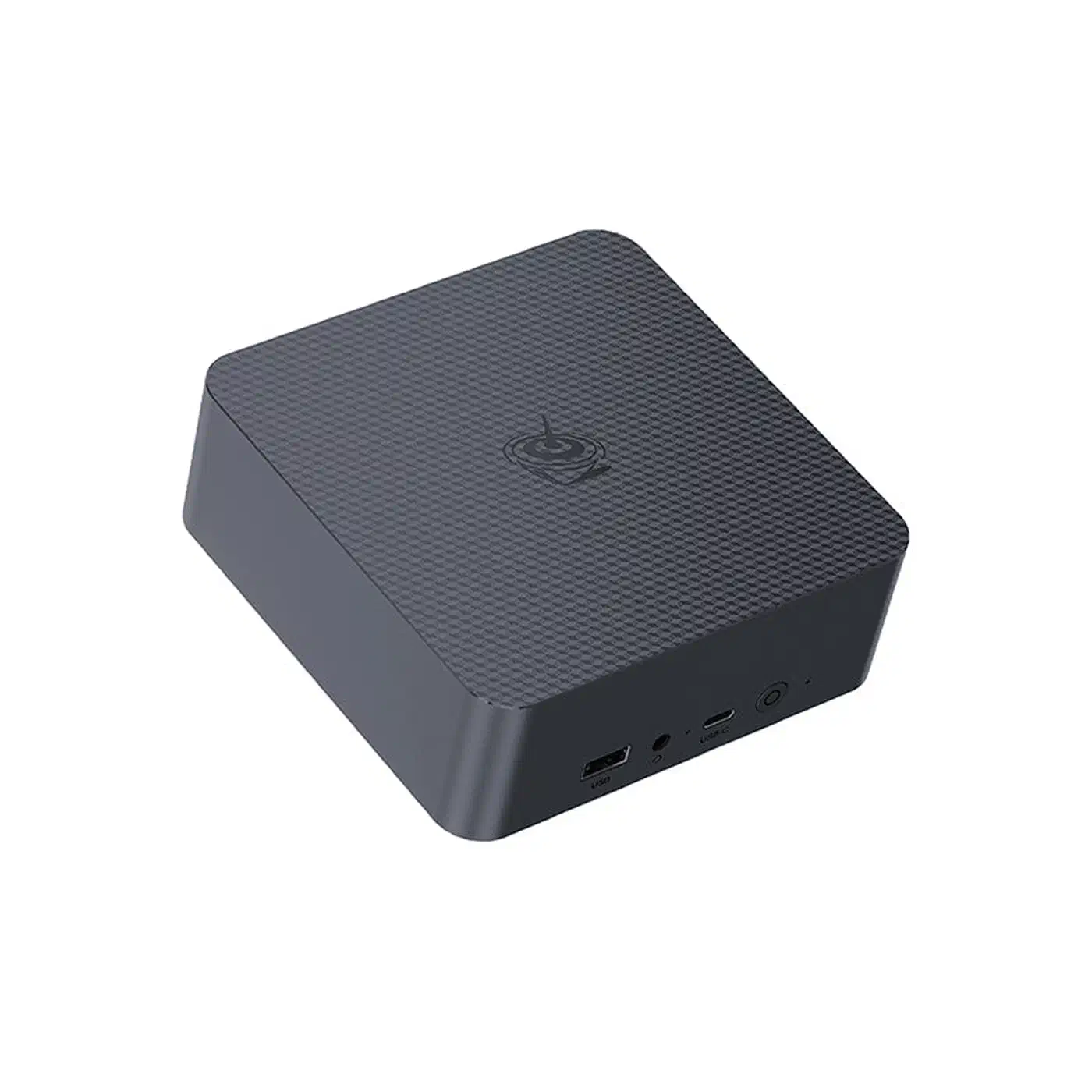
The Beelink EQ12 Pro at $179 (Intel N305, 16GB DDR5, 500GB NVMe) is the pick for most people. The N305 packs 8 Efficient cores boosting to 3.8 GHz, dual 2.5GbE ports, two HDMI 2.0 outputs, an M.2 2280 slot, and a SATA bay for a second drive. Debian 13 and Proxmox 8.3 install with no driver issues. The fanless chassis uses a large aluminum heatsink that covers the entire board, and real-world case temperatures under mixed load stay in the 55-60°C range.
The GMK NucBox G3 at $169 (Intel N300, 16GB DDR4, 512GB NVMe) costs a little less, with slightly lower single-core performance than the N305 but comparable throughput for home server tasks. It includes HDMI 2.0 and DisplayPort. A reasonable choice if you will never attach a display and want to keep costs down.
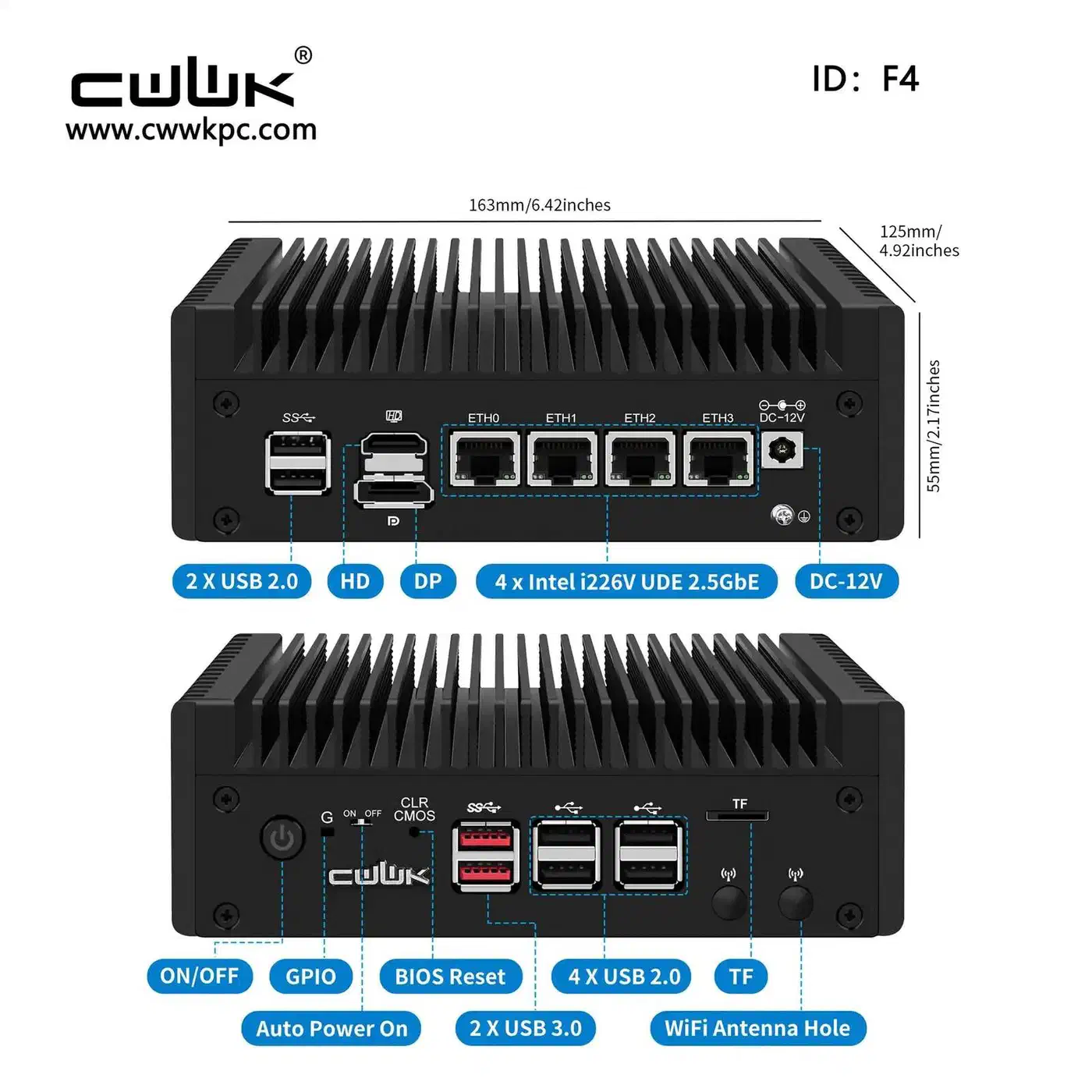
The CWWK Q670 at $239 (Intel N150, 32GB DDR5, 1TB NVMe) is better for pure NAS or router duty. Four Intel 2.5GbE ports, a larger external fin heatsink, and 32GB of RAM out of the box. If you want to run this as a firewall or multi-port server, the port density is worth the extra cost.
| Model | CPU | RAM | Storage | Ports | Price |
|---|---|---|---|---|---|
| Beelink EQ12 Pro | N305 | 16GB DDR5 | 500GB NVMe | 2x 2.5GbE | $179 |
| GMK NucBox G3 | N300 | 16GB DDR4 | 512GB NVMe | 1x 2.5GbE | $169 |
| CWWK Q670 | N150 | 32GB DDR5 | 1TB NVMe | 4x 2.5GbE | $239 |
For storage, add a 2TB Crucial P3 NVMe for $89 to the Beelink’s SATA bay or M.2 slot. All three units support standard M.2 2280 drives and 2.5" SATA. A used 1TB SATA SSD salvaged from a laptop upgrade works fine in the SATA bay.
16GB of RAM covers the full recommended service stack. Home Assistant, Jellyfin, Nextcloud, Vaultwarden, and Immich together peak at roughly 6-8GB under load. 32GB only makes sense if you plan to run a local LLM via Ollama alongside everything else.
Total build cost for the recommended configuration: Beelink EQ12 Pro ($179) + 2TB Crucial P3 NVMe ($89) + mini HDMI to HDMI adapter ($8) = $276. Add a $20 USB Ethernet adapter as a dedicated management interface and you land at $296.
Operating System Choice: Proxmox, Debian, or NixOS
The OS determines how maintainable the server is over its lifetime. Three options are worth considering seriously.
Debian 13 (Trixie) is the straightforward path. Install it, run Docker Compose for all services, manage packages with apt. Long-term support, predictable upgrade cycles, and a large community make this the right choice for anyone who wants the server to work reliably without learning new tooling. If you are comfortable with Linux but have no interest in infrastructure complexity, start here.
Proxmox VE 8.3
is worth it when you want proper isolation between services. Home Assistant runs as a full HAOS virtual machine with direct USB passthrough for a Zigbee coordinator. Nextcloud, Jellyfin, and Vaultwarden run in lightweight LXC containers. The web UI at https://server-ip:8006 handles snapshots, resource graphs, and VM/container management without going near the command line. The license is free for home use - the paid subscription only adds enterprise support and a stable package mirror.
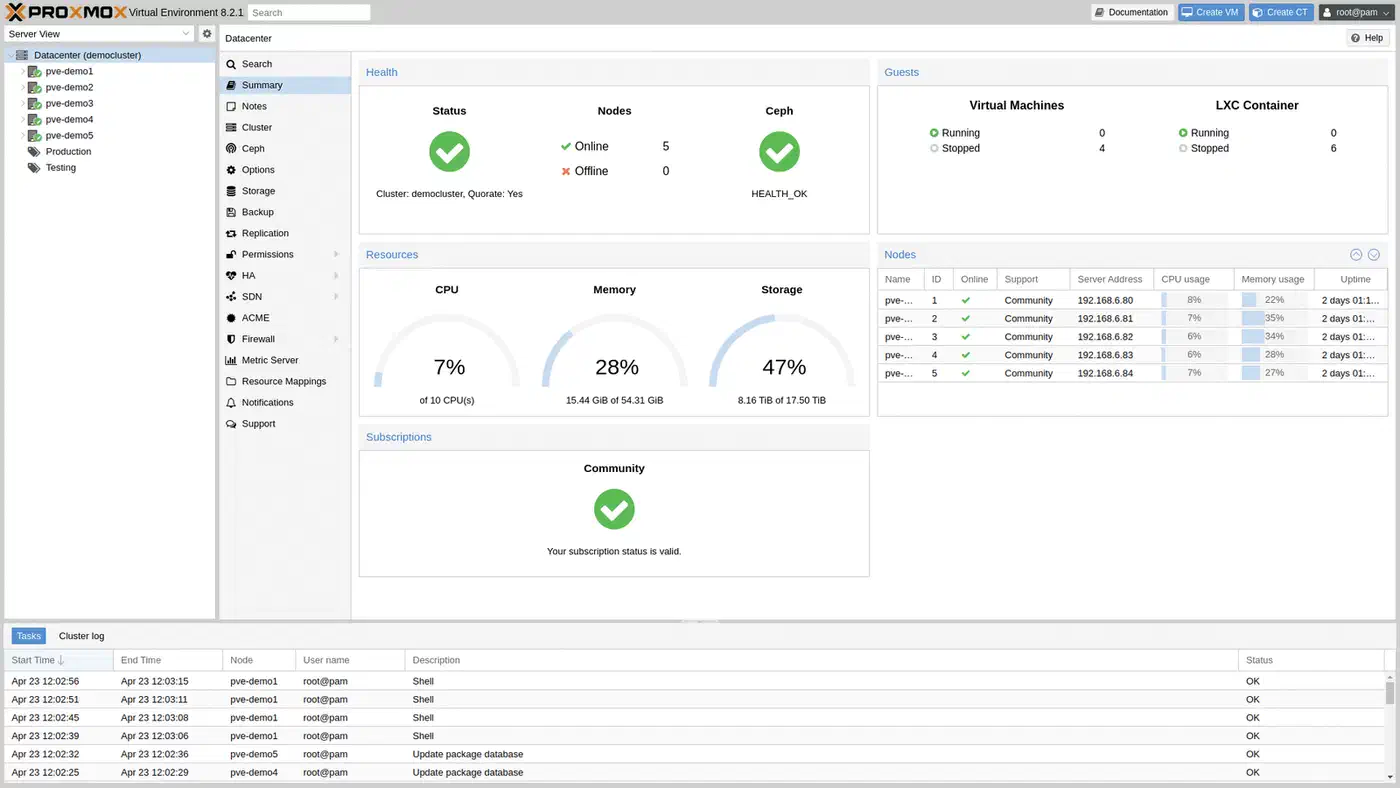
The Proxmox workflow: install Proxmox on bare metal, create an LXC container from the Debian template for each service, configure CPU and RAM limits per container, and manage everything through the browser. Taking a snapshot before an upgrade means rolling back any service takes under a minute.
NixOS 24.11
is the most reproducible option. Your entire server configuration - every installed package, every service definition, every firewall rule - lives in a single configuration.nix file. Check that file into Git, and you can reproduce the exact server state on new hardware in one command. No configuration drift, no mystery packages installed six months ago and forgotten, no manual changelog. The tradeoff is a steeper initial learning curve. If you are comfortable with declarative configuration and care about long-term maintainability, NixOS pays off over time.
All three OS options work with Docker Compose for service deployment. Keep stack files in /opt/stacks/ with one subdirectory per service. Back this directory up to a private Gitea
instance so your entire service configuration is version-controlled and recoverable.
For storage layout, partition the NVMe as 128GB for the OS with the remainder for data. Mount the data partition at /data and symlink all Docker volume paths there (/data/jellyfin, /data/nextcloud, etc.). This cleanly separates OS from data - an OS reinstall does not touch your service data, and backup scripts only need to target one directory.
Use Restic with Backblaze B2 or rsync to an external USB drive for backups. Schedule via systemd timers rather than cron - timer units integrate with the journal and make it easy to check whether a backup ran and whether it succeeded. Verify a full restore from backup at least once per quarter. An untested backup is not a backup.
Service Stack: What to Run on Your Fanless Server
Here is a practical service stack that runs comfortably on an N305 without pushing the thermal limits of the chassis.
Home Assistant (2 vCPU, 2GB RAM as a Proxmox VM) handles all smart home automations. Run the full HAOS image in a VM so the supervisor and add-on system work as intended. Pass the USB Zigbee coordinator - a Sonoff Zigbee 3.0 USB Plus-E works well - directly through to the HA VM using Proxmox’s USB passthrough configuration. Run Zigbee2MQTT in a separate LXC container and connect it to Home Assistant via MQTT.
Jellyfin 10.10 (LXC or Docker) is the open-source media server option with no license fees or account requirements.
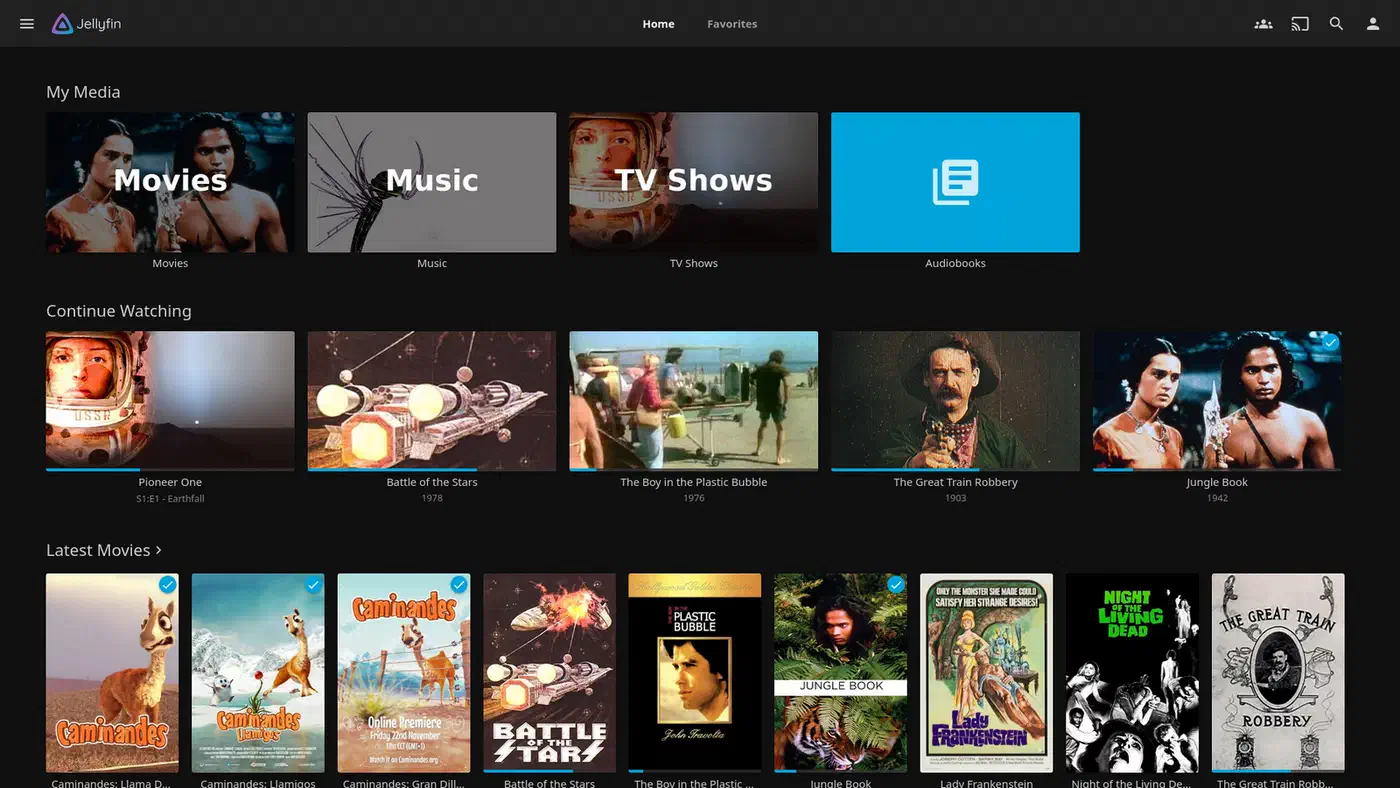
On fanless hardware, set Direct Play as the primary strategy - when the client device can play the file natively, Jellyfin streams it without touching the CPU at all. When transcoding is unavoidable, the N305’s Intel QuickSync hardware encoder handles H.265/HEVC at 1-2% CPU load versus 80-100% for software transcoding. Enable the i915 driver passthrough in your LXC container configuration so Jellyfin can reach the iGPU.
Nextcloud AIO 31 (Docker) handles file sync, calendar, and contacts. The All-in-One container simplifies setup considerably - one Docker command brings up Nextcloud, Redis, and the Nextcloud Talk signaling server together. Add the Nextcloud Office add-on for document editing. Expect roughly 3GB RAM usage when the office server is active and multiple users are editing documents.
Vaultwarden (Docker) is an unofficial Bitwarden-compatible server that runs on about 50MB of RAM. Full Bitwarden app compatibility means your family uses the official Bitwarden apps on every platform while vault data stays local. One Docker Compose entry and a reverse proxy configuration covers the whole setup.
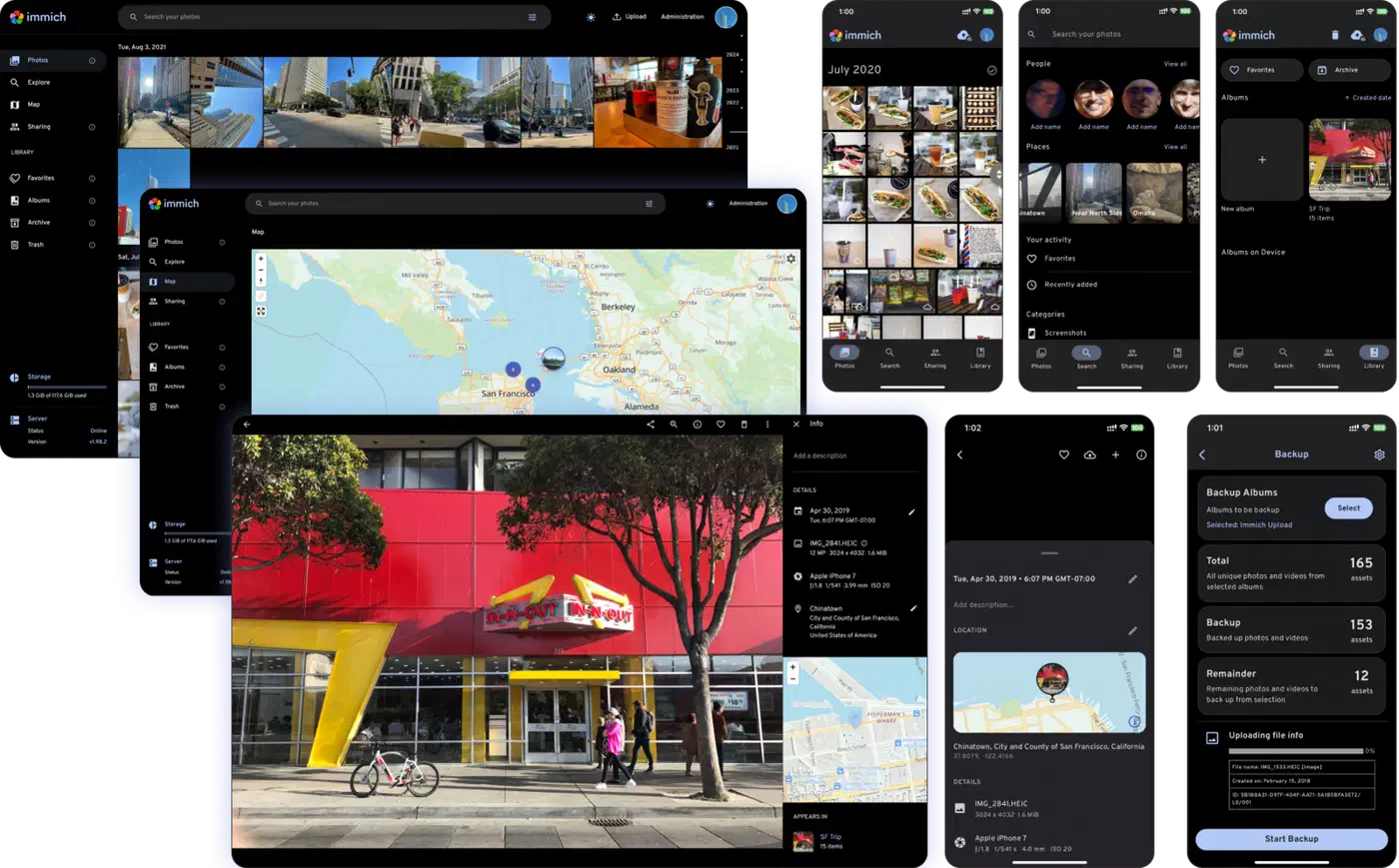
Immich 1.120 (Docker) is a serious Google Photos replacement. AI-powered photo timeline, face recognition, scene classification, and map view all run on your hardware. The N305 CPU handles the machine learning passes - face recognition and scene clustering - but not quickly: expect 30-60 seconds per new photo batch during the initial library scan. This runs as a background task and has no impact on other services. Once the library is indexed, new uploads are processed in the background within a few minutes.
WireGuard (native kernel module or Docker) exposes the server and home network for secure remote access. Configure split-tunnel routing so only traffic destined for home network subnets goes through the VPN - local browsing on the remote network stays local and does not route through your home connection. Expose only port 51820/UDP externally. All other service ports - Jellyfin, Nextcloud, Home Assistant - stay on the local LAN and are reachable only through the WireGuard tunnel.
With all services running and no active user sessions, expect roughly 3-4GB RAM used, 5-8% CPU across all cores, and 8-10W draw at the wall on the EQ12 Pro.
Networking, Power, and Physical Setup
Routing traffic, managing power, and positioning the device are the details that determine long-term reliability.
The Beelink EQ12 Pro’s dual 2.5GbE ports let you dedicate one to upstream LAN and one to a direct connection to a NAS or external backup drive. If your switch supports 802.3ad link aggregation, configure bonding to combine both ports for 5GbE aggregate throughput to the LAN.
A compact APC Back-UPS 425VA at around $40 protects against the most common cause of home server data corruption: power loss during a database write. Configure NUT (Network UPS Tools) to monitor battery level and trigger a clean shutdown when it drops below 20%. A 15-second power outage becomes a non-event instead of a potential filesystem problem.
Set the static assignment on your router, not in the OS network configuration. When the server’s IP needs to change, you change one setting on the router. The server’s network interface continues using DHCP and picks up the new address on next lease renewal. This avoids having a static IP buried in OS configuration that conflicts with router changes months later.
Most N-series mini PCs support Wake-on-LAN. Enable it in the BIOS, then run ethtool -s eth0 wol g on first boot and persist it via a systemd service or /etc/network/interfaces option. A WoL packet from a phone app - Depicus Wake on LAN
on iOS, for example - powers the server on remotely after a deliberate shutdown.
The aluminum chassis runs warm - 50-65°C surface temperature under mixed load. Keep 2-3 inches of clearance on all sides. Avoid enclosed cabinets, AV furniture with glass doors, or any spot where ambient heat accumulates. An open shelf in a coat closet, a bookcase slot with rear ventilation, or a desk corner with clear airflow all work. The device is small enough (roughly 130mm x 120mm x 50mm for the EQ12 Pro) that placement options are wide.
Install Cockpit
for browser-based server management. It provides a terminal, real-time CPU/RAM/disk graphs, service management, and container oversight through the browser at port 9090. Lighter than a full Portainer
deployment and requires no configuration beyond apt install cockpit. For most day-to-day management - checking why a container restarted, reviewing disk usage, restarting a service - Cockpit is sufficient without needing SSH.
Intel N-series efficiency, mature containerization tooling, and a healthy market for fanless mini PC enclosures have converged to make 2026 a good time to build a silent home server. The EQ12 Pro at $179 plus a storage upgrade gives you a machine that handles a real workload, costs under $11/year to power, and has no mechanical components to replace. The setup takes a weekend. Then it runs quietly in a closet for years without asking for much in return.