 Botmonster Tech
Fixing Wayland Screen Tearing on Linux Mint (2026)
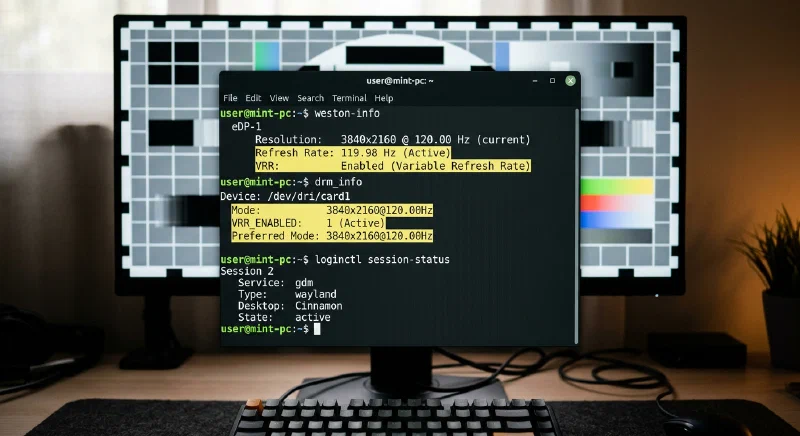
Screen tearing on Linux Mint in 2026 is less common than it was in the X11 era, but it is still possible on Wayland when the rendering pipeline is not synchronized end to end. Most guides oversimplify the issue and claim that moving to Wayland alone eliminates tearing forever. In practice, you still need the right kernel, the right driver path, sane compositor settings, and monitor settings that match what your GPU can actually deliver.
This guide focuses on Linux Mint users running modern hardware, especially high refresh displays and mixed monitor setups. It walks through root causes, validation commands, VRR setup, fractional scaling pitfalls, NVIDIA specific steps, and a complete troubleshooting matrix. By the end, you should be able to identify whether tearing is caused by compositor timing, GPU synchronization, display configuration, or simply a bad session choice for your hardware.
Prerequisites and Baseline Requirements
Before you tune anything, establish a known-good baseline. Wayland tearing fixes rely on several layers that all need to be reasonably current: kernel DRM/KMS , Mesa or proprietary NVIDIA stack, compositor support, and monitor firmware behavior. If one layer is too old, you can spend hours tweaking settings that will never work reliably.
Use this baseline for Linux Mint 22.x era systems in early 2026:
| Component | Recommended baseline | Why it matters |
|---|---|---|
| Linux kernel | 7.x (or latest Mint-supported HWE equivalent) | Better explicit sync, VRR, and multi-monitor timing behavior |
| Mesa (AMD/Intel/NVK path) | 25.x or newer | Frame pacing, Vulkan WSI stability, VRR behavior |
| NVIDIA proprietary path | 570.x or newer | Improved Wayland explicit sync handling |
| Display connection | DisplayPort preferred for high refresh + VRR | HDMI VRR support varies by monitor and cable quality |
| Monitor OSD | FreeSync/G-Sync Compatible enabled | VRR cannot work if disabled at panel level |
| Session type | Wayland session confirmed | Avoid testing Wayland fixes while logged into X11 |
Quick checks:
echo "$XDG_SESSION_TYPE"
uname -r
inxi -Gxx
XDG_SESSION_TYPE must return wayland. inxi -Gxx
should show the active driver stack and renderer. If it reports software rendering or fallback drivers, fix that first.
GPU model guidance:
- AMD RDNA 2/3/4: generally the easiest path under
amdgpu+ Mesa. - Intel Xe / Arc generations: good Wayland support with current Mesa.
- NVIDIA RTX (Turing and newer): usable on Wayland, but configuration differs a lot between proprietary and NVK paths.
What Causes Tearing on Wayland? (And Why It Is Not Always Fixed)
Wayland changes who controls frame presentation, but it does not magically remove every source of timing mismatch. Under Wayland, the compositor is responsible for when a frame gets scanned out to the display. That design should prevent classic unsynchronized flips, but the compositor still depends on kernel DRM/KMS, GPU driver fences, and monitor timing constraints.
The artifact people describe as “tearing” usually appears when a frame misses the ideal vblank window and part of the old frame plus part of the new frame gets shown during scanout. In theory, the compositor should avoid presenting late frames. In reality, late commits can still happen when the pipeline is under pressure, especially with:
- Different refresh rates across monitors (for example 165 Hz + 60 Hz).
- Fractional scaling on one display but not another.
- GPU driver fence timing bugs.
- Fullscreen app behavior that bypasses expected compositor heuristics.
Wayland surfaces use a commit model (wl_surface.commit
) where clients submit buffers and metadata for composition. If buffer readiness and presentation fences are not aligned, the compositor can be forced into less ideal scheduling choices. That is where explicit sync protocols in newer stacks matter: they reduce ambiguity around “when this frame is truly ready”.
Compositor choice also matters. Linux Mint users often compare Cinnamon (Muffin path), KDE (KWin ), and GNOME (Mutter ). Each compositor has different policies for multi-monitor clocking, VRR gating, and low-latency fullscreen behavior, so identical hardware can produce very different results across desktop environments.
Wayland’s Perfect Frame Promise vs Real Multi-Monitor Reality
The phrase “Wayland is tear-free by design” is directionally true but operationally incomplete. On a single monitor at a stable refresh rate, modern Wayland sessions can look flawless. On mixed refresh desktops, the compositor often has to pick a pacing strategy that favors one output timing domain. The other output can appear jittery or show artifacts that users interpret as tearing.
A common 2026 scenario is a 144/165/240 Hz primary display plus a 60 Hz secondary panel used for chat, browser, or monitoring tools. If an app is rapidly updating on both screens, the compositor may align composition cycles to one output while re-timing for the other. The result is not always a hard tear line, but can be micro-stutter or intermittent tear-like edge breaks.
Explicit synchronization using linux-drm-syncobj-v1
significantly improves this by making GPU and compositor coordination deterministic. Instead of guessing when a buffer is ready for presentation, fences explicitly communicate readiness. In practice, that removes an entire class of race conditions that previously showed up as occasional tearing during heavy scene changes.
You may also see references to tearing-control and FIFO related protocol extensions (fifo_v1, compositor-specific tearing policies). Adoption is still uneven across compositors in Q1 2026, so do not assume every desktop enables the same behavior by default.
To isolate driver-level issues from compositor-level issues, run controlled tests with glxgears and vkcube :
vblank_mode=0 glxgears
vkcube
If artifacts appear in one test path but not the other, that gives you useful direction. glxgears in particular is not a benchmark, but it is still helpful as a quick behavior probe when toggling compositor settings.
Fractional Scaling and Buffer Alignment
Fractional scaling is one of the most overlooked causes of perceived tearing on Linux Mint Wayland sessions. The problem is not that fractional scaling is “bad”. The problem is that it introduces extra resampling and composition complexity, which increases timing pressure. On high refresh monitors, that extra work can turn near-miss frame schedules into visible artifacts.
Typical pattern:
- Primary monitor at 165 Hz with 125% or 150% scaling.
- Secondary at 60 Hz and 100% scaling.
- Browser video on secondary, game or animation on primary.
In this setup, the compositor is juggling scale transforms and mixed refresh presentation. If your GPU has enough headroom, you may never notice. If headroom is marginal, you can see edge tearing, jitter, or uneven frame pacing.
Practical mitigation strategy:
- Temporarily set both monitors to 100% scaling.
- Test for tearing with the same workload.
- Re-enable fractional scaling on only one monitor.
- Retest and compare.
If tearing appears only after fractional scaling is enabled, keep scaling on the less demanding display or reduce refresh on the secondary monitor to simplify composition. Another effective compromise is to keep the primary gaming/work display at integer scaling and use fractional scaling only on side panels.
On Linux Mint, this is worth validating before deep driver surgery. Many users blame drivers first when the trigger is actually composition complexity from scaling choices.
The COSMIC Option on Mint
In 2026, COSMIC
has become an interesting alternative for users hitting limits with traditional Mint desktop defaults. COSMIC uses cosmic-comp
(built on smithay
) and has focused heavily on modern Wayland behavior, including explicit sync integration and cleaner high refresh handling.
Is COSMIC a universal fix? Not exactly. It is a different compositor stack with different trade-offs. But if your current desktop session consistently tears under your hardware profile, testing COSMIC in parallel is a valid diagnostic and often a practical solution.
You can install it without removing Cinnamon by keeping a parallel desktop approach. The key is to avoid destructive package changes and select sessions from the login manager.
General approach:
sudo apt update
sudo apt install cosmic-session
Package names can vary by repository state on Mint, so verify availability first:
apt search cosmic | grep -E "session|comp|desktop"After install, log out and select the COSMIC session at login. Keep Cinnamon installed so rollback is instant.
Community feedback in early 2026 suggests strong frame pacing improvements on AMD Radeon RX 9070 and good results on Intel Arc B580, especially on mixed refresh monitor setups. NVIDIA behavior is improving but still more sensitive to driver branch and explicit sync maturity.
Configuring VRR (FreeSync and G-Sync Compatible )
Variable Refresh Rate (VRR) is often the single biggest improvement for tearing and stutter during dynamic frame workloads. Instead of forcing fixed 60/120/144/165 Hz scanout intervals, VRR lets the display adjust refresh timing to match delivered frames within a supported range.
For Linux Mint users, VRR requires all three layers to agree:
- Monitor VRR enabled in OSD.
- Driver path with VRR support.
- Compositor setting that allows VRR.
Check whether your connector reports VRR capability with drm_info
:
drm_info | grep -A6 -E "Connector|VRR_CAPABLE"If VRR_CAPABLE is present and enabled-capable, move to compositor settings. For GNOME/Mutter-derived environments, you may need an experimental feature toggle. For KWin, use the explicit VRR option in display settings. Cinnamon Wayland support continues to evolve, so the exact UI labels may vary by Mint update level.
Low framerate behavior matters too. If your game or workload drops below the monitor VRR floor, frame pacing can become uneven and look like tearing. Use a frame limiter to stay inside the effective VRR range when possible.
Practical rule:
- 48-165 Hz panel: cap around 160 FPS, avoid dipping below 48 FPS during demanding scenes.
If low-FPS dips are unavoidable, reducing graphics settings slightly often looks better than running uncapped with large frame swings.
NVIDIA Proprietary Driver Walkthrough (Mint Wayland Path)
NVIDIA requires separate treatment because the proprietary stack behaves differently from Mesa-first AMD/Intel paths. In 2026, proprietary 570.x is much better than older branches, but you still need explicit configuration discipline.
First, confirm your active NVIDIA stack:
nvidia-smi
inxi -Gxx
If nvidia-smi fails, do not continue with Wayland tuning yet. Fix driver installation first.
On Linux Mint, install the recommended proprietary driver through Driver Manager or package tooling, then verify the correct kernel module is active after reboot.
For VRR and stable Wayland behavior, validate these points:
- Driver branch is 570.x or newer.
- Session is Wayland.
- Monitor OSD has adaptive sync enabled.
- Compositor VRR toggle is enabled where supported.
For X11 fallback sessions, VRR often uses xorg.conf.d options such as AllowVRR depending on branch behavior and distro packaging. Keep this in mind because many users test in X11 and assume the same knobs apply under Wayland. They do not always map one-to-one.
If you still see tearing under proprietary NVIDIA Wayland:
- Disable fractional scaling and retest.
- Reduce secondary monitor refresh mismatch.
- Test single-monitor mode to isolate multi-head timing.
- Compare with NVK (where practical) for behavior differences.
NVK (Mesa path) can be useful for diagnosis and some workloads, but proprietary drivers may still be preferable for specific CUDA or application compatibility needs. Choose based on your actual workload, not ideology.
Step-by-Step Fix Checklist
Use this checklist in order. Skipping around makes diagnosis harder because multiple variable changes hide the true cause.
- Confirm session and compositor state using
loginctlandweston-info.
echo "$XDG_SESSION_TYPE"
loginctl show-session "$XDG_SESSION_ID" -p Type -p Name -p State
weston-info | head -n 40- Confirm kernel and driver baseline.
uname -r
inxi -Gxx- Validate monitor refresh and scaling settings in Linux Mint Display settings.
- Set desired refresh on each monitor explicitly.
- Temporarily set scaling to 100% on all monitors.
- Retest before re-enabling fractional scaling.
- Enable VRR at monitor OSD and compositor level.
- Check panel OSD first.
- Verify connector capability using
drm_info.
- Test with controlled workloads.
vblank_mode=0 glxgears
vkcube- Isolate multi-monitor complexity.
- Disconnect secondary display.
- Retest on primary only.
- Reconnect and lower secondary refresh if needed.
- For NVIDIA proprietary users, verify branch and module health with
nvidia-smi.
nvidia-smi
cat /proc/driver/nvidia/version
If unresolved, test another Wayland compositor session (for example COSMIC or KDE) to identify compositor-specific behavior.
Keep X11 as a fallback session if your production workload still tears under Wayland.
To make X11 default without removing Wayland, choose the X11 session at the login screen and set it as your remembered session in your display manager configuration.
Troubleshooting Matrix
Use this table to map symptoms to likely causes quickly.
| Symptom | Likely root cause | Fix |
|---|---|---|
| Horizontal tear line during video playback | VRR disabled or compositor pacing mismatch | Enable VRR in monitor OSD and compositor settings; verify with drm_info |
| Tearing appears only with second monitor connected | Mixed refresh timing conflict | Lower secondary refresh, test single monitor, keep primary as timing priority |
| Smooth at 100% scale, tears at 125%/150% | Fractional scaling composition overhead | Use integer scaling on primary display; apply fractional only where needed |
| NVIDIA only: random tearing after suspend | Driver state instability or branch issue | Update to latest 570.x point release, reload session, retest |
| Stutter mistaken for tearing at low FPS | VRR floor exceeded | Cap FPS within panel VRR range, lower graphics settings |
| Tearing in one desktop, not another | Compositor-specific behavior | Test KDE/COSMIC/GNOME session and keep the one with stable pacing |
| No improvement after all tuning | Wrong session type or fallback renderer | Confirm XDG_SESSION_TYPE=wayland and hardware acceleration in inxi -Gxx |
Before and After Validation (Terminal Output Examples)
If you cannot include screenshots in your workflow, terminal evidence is still useful and reproducible. Capture “before” and “after” snapshots of session, driver, and VRR signals.
Example “before” (tearing likely):
$ echo $XDG_SESSION_TYPE
wayland

$ inxi -Gxx
Graphics:
  Device-1: NVIDIA ... driver: nvidia v: 565.xx
  Display: wayland server: Xwayland v: 24.x compositor: Muffin
  Resolution: 2560x1440@165Hz, 1920x1080@60Hz

$ drm_info | grep -A3 VRR_CAPABLE
VRR_CAPABLE: 0 (not set)
Example “after” (improved pacing):
$ echo $XDG_SESSION_TYPE
wayland

$ inxi -Gxx
Graphics:
  Device-1: NVIDIA ... driver: nvidia v: 570.xx
  Display: wayland server: Xwayland v: 24.x compositor: Muffin
  Resolution: 2560x1440@165Hz, 1920x1080@60Hz

$ drm_info | grep -A3 VRR_CAPABLE
VRR_CAPABLE: 1 (set)
Capture a short video test before and after each major change (VRR toggle, scaling adjustment, monitor refresh adjustment). Small, isolated changes with clear evidence are the fastest way to converge on a stable setup.
A practical workflow is to keep a simple troubleshooting log:
| Change | Result | Keep? |
|---|---|---|
| Enabled monitor FreeSync | Reduced tearing in fullscreen apps | Yes |
| 150% scaling on primary | Reintroduced jitter in browser scroll | No |
| Secondary monitor from 60 Hz to 120 Hz | Worse frame pacing under load | No |
| Secondary monitor from 60 Hz to 50 Hz | Improved stability for primary gaming | Yes |
This log prevents circular tuning where you unknowingly undo a fix from two hours earlier.
When to Fall Back to X11
Wayland is the right default direction for Linux desktops, but reliability matters more than ideology. If your specific workflow still tears after baseline updates and controlled tuning, using X11 as your daily driver is a valid temporary choice.
Good reasons to fall back:
- Mission-critical recording or live streaming where visual artifacts are unacceptable.
- Proprietary app stack with known Wayland regressions on your GPU branch.
- Multi-monitor layout that your compositor cannot pace correctly today.
Keep Wayland installed and retest after major kernel, Mesa, compositor, or NVIDIA updates. The ecosystem is moving quickly in 2026, and many issues disappear one release later.
If you switch to X11, document the reason and the exact condition that fails on Wayland. That gives you a clean re-test checklist later and helps you avoid vague “it felt better” comparisons.
Final Recommendations for Linux Mint 2026
Most Linux Mint tearing cases in 2026 are solvable without drastic changes. The highest-impact sequence is: verify baseline versions, enable and validate VRR, reduce mixed-refresh complexity, and test fractional scaling carefully. For NVIDIA, ensure you are on a modern 570.x proprietary branch and treat Wayland tuning as a separate path from old X11 guidance.
If Cinnamon Wayland still struggles on your setup, a parallel COSMIC session is worth testing because it changes the compositor behavior without forcing a full distro migration. Keep your troubleshooting evidence in command output and short before/after recordings, and you will reach a stable configuration much faster.
The key mindset is system-level alignment. Wayland presentation, driver fences, monitor capabilities, and desktop configuration must all agree. Once they do, Linux Mint can deliver smooth, tear-free output even on modern high refresh multi-monitor desktops.