 Botmonster Tech
Restore an Old MacBook Pro with Modern Linux (2026)
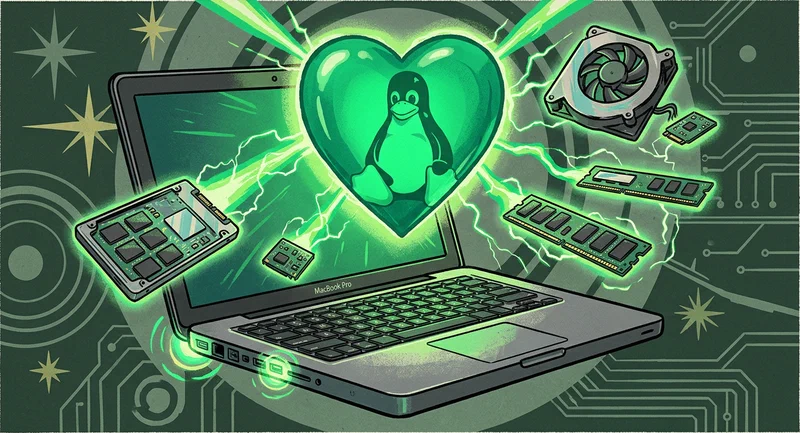
You can breathe new life into a 2012–2015 MacBook Pro by replacing the HDD with an SSD and installing a lightweight Linux distribution. A machine that felt sluggish and unsupported under macOS becomes a snappy, capable computer for web browsing, writing, and development work. This transformation keeps perfectly functional hardware out of landfills and provides a secure, up-to-date machine for years more of productive use.
Which MacBook Models Are Worth Restoring in 2026?
Not all old MacBooks are equal candidates for Linux revival. The most important factor is hardware upgradability - and Apple’s transition from user-serviceable to sealed hardware is a hard dividing line.
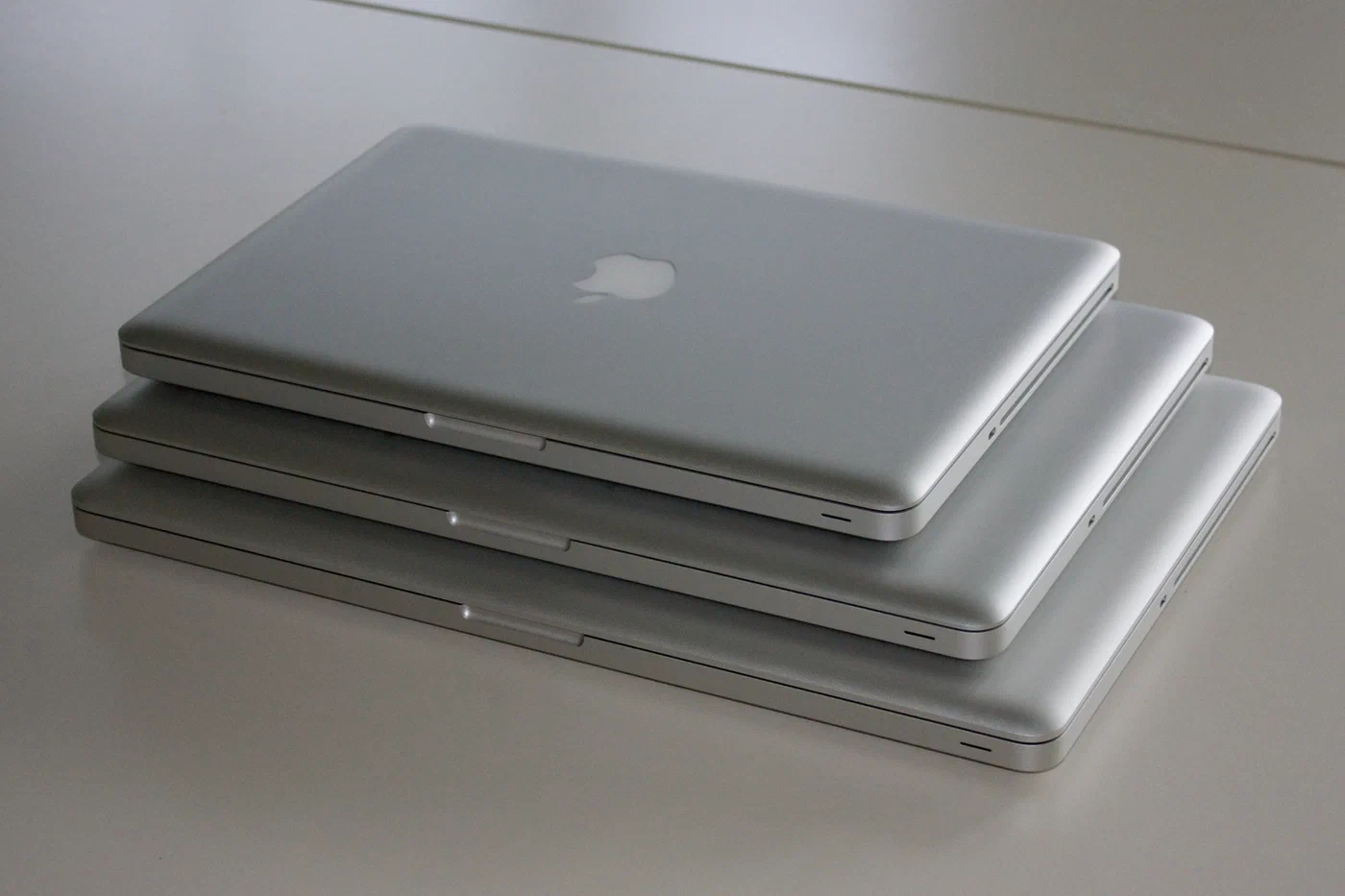
The sweet spot: 2012–2015 Intel MacBook Pros. The 2012 MacBook Pro (both 13-inch and 15-inch, unibody design) is the gold standard for restoration projects. It accepts user-upgradeable RAM (up to 16GB), has a user-replaceable 2.5-inch SATA drive bay, includes a DVD drive that can be swapped for a second storage bay using a $15 caddy, and runs mainstream Linux distributions with comprehensive driver support. The 2013–2015 models (with Retina displays) are slightly harder to work with - soldered RAM and proprietary SSD form factors - but benefit from better GPU support and the high-resolution display.
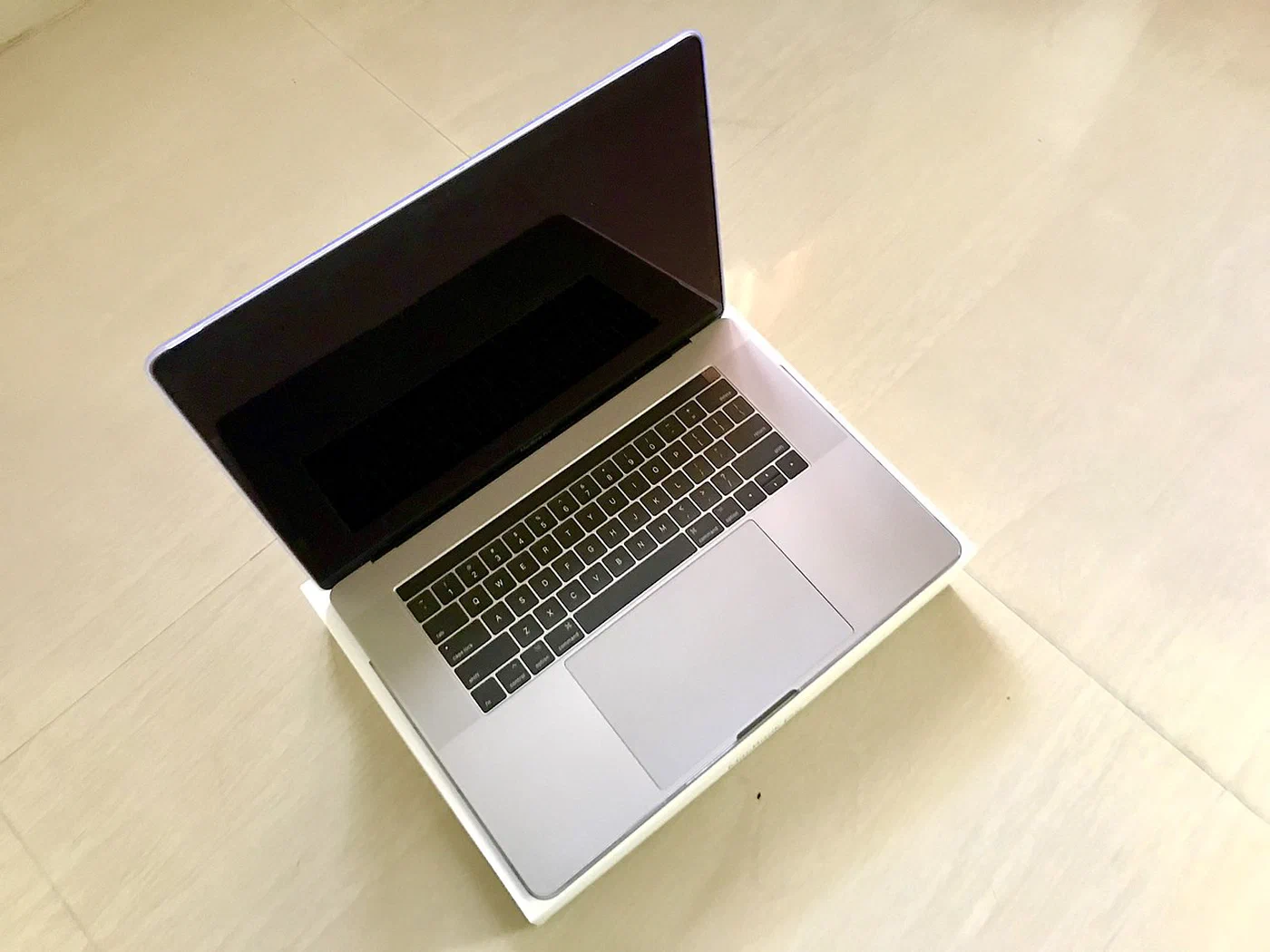
Models to avoid for Linux in 2026: The 2016–2019 Touch Bar MacBooks contain the Apple T2 security chip, which significantly complicates Linux installation. The T2 controls the Touch ID sensor, storage encryption, and boot security in ways that require workarounds - possible, but not a smooth experience in 2026. The fingerprint reader and Touch Bar still don’t work reliably under Linux on these machines.
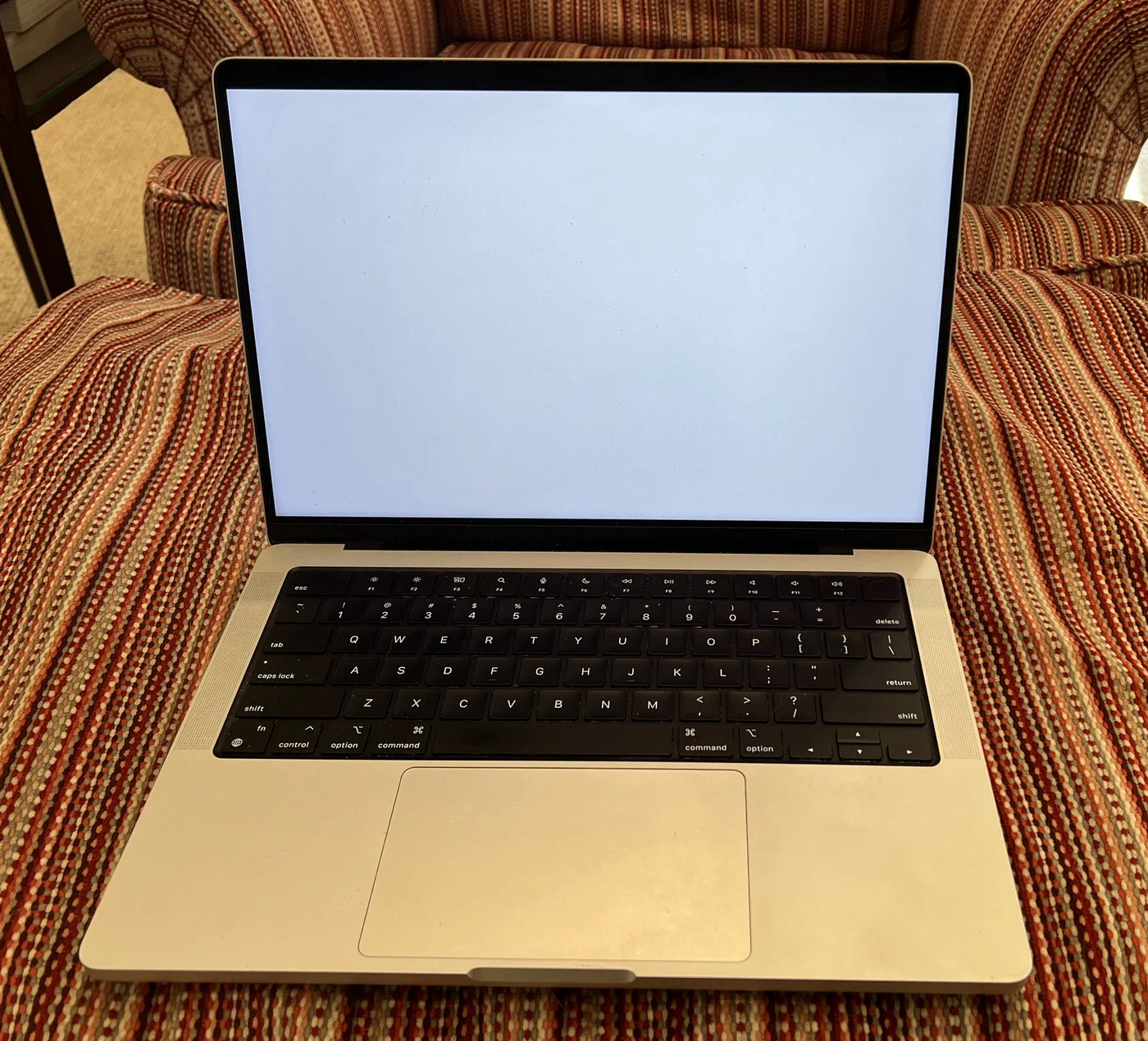
Apple Silicon MacBooks (M1/M2/M3): Asahi Linux has matured significantly and now offers usable daily driver support on M1 and M2 MacBooks, including 3D GPU acceleration. If you have an M1 MacBook Pro collecting dust, Asahi Linux is worth considering - but it’s a different, more complex installation path than this guide covers.
To identify your exact model: on macOS, run system_profiler SPHardwareDataType | grep "Model Identifier". The model identifier (e.g., MacBookPro11,1) tells you exactly which generation you have, and iFixit’s teardown database has detailed information for every model.
Essential Hardware Upgrades Before Installing Linux
The operating system matters far less than the hardware it runs on. A 2012 MacBook Pro with a stock 5400 RPM hard drive is painfully slow under any OS in 2026 - not because the CPU is weak, but because the storage bottleneck turns every application launch and system operation into a waiting exercise. Fix the hardware first.
SSD Replacement: The Single Biggest Upgrade
Replacing the spinning hard drive with a SATA SSD is the most impactful upgrade possible. Read speeds improve from ~100 MB/s on a 5400 RPM drive to ~500 MB/s on a budget SATA SSD. Application launches go from 5–15 seconds to 1–3 seconds. System boot drops from over a minute to under 15 seconds.
The 2012 non-Retina MacBook Pro uses a standard 2.5-inch SATA III drive bay - any consumer SATA SSD fits. Samsung 870 EVO, Crucial MX500, and WD Blue are all reliable options at $50–80 for 500GB in 2026. The 2013–2015 Retina models use Apple’s proprietary blade SSD connector, requiring either an Apple OEM replacement (expensive, limited supply) or a third-party PCIe adapter like those sold by OWC or Sintech that adapt a standard M.2 NVMe drive.
RAM Upgrade
The 2012 MacBook Pro accepts standard 1600MHz DDR3 SODIMMs. Upgrading from the stock 4GB or 8GB to the maximum 16GB (two 8GB sticks) costs around $40 and eliminates the memory pressure that causes Linux to use swap aggressively on lighter-RAM configurations. With 16GB, running a browser, a terminal multiplexer, a code editor, and several Docker containers simultaneously is comfortable.
Thermal Paste Replacement
Thermal compound degrades over 5–10 years, and a 2012 MacBook Pro has had its paste in place for over a decade. Degraded paste means the CPU runs hotter, hits thermal throttling sooner, and reduces performance on sustained workloads. Replacing thermal paste with a quality compound like Thermal Grizzly Kryonaut or even Arctic MX-4 is a 30-minute job (the MacBook Pro is well documented on iFixit) that can reduce CPU temperatures by 10–20°C and eliminate throttling.
Check the current state: on macOS, sudo powermetrics | grep -i thermal or on Linux sensors (from the lm-sensors package). If you’re seeing consistent temperatures above 80°C at moderate load, paste replacement will help.
Battery Assessment
Check the battery cycle count before deciding whether to replace it:
# On macOS
system_profiler SPPowerDataType | grep "Cycle Count"
Apple considers batteries rated for 1000 cycles to be at end-of-life at that count. At 500+ cycles, capacity has typically degraded to 80% or below. Aftermarket MacBook Pro batteries from iFixit or third-party suppliers cost $60–90 and restore full capacity. A fresh battery extends the machine’s useful life considerably - a 2012 MacBook Pro with new battery, SSD, and maxed RAM is a legitimately useful portable computer in 2026.
Choosing the Right Linux Distribution
Distribution choice significantly affects driver support, performance, and long-term maintainability on MacBook hardware. The key considerations are: default desktop environment weight, out-of-box WiFi support, and whether the distribution’s release cadence suits your maintenance tolerance.
Best for beginners: Linux Mint 22 XFCE. The XFCE desktop is lightweight (uses around 400–600MB RAM at idle), highly customizable, and immediately familiar to anyone coming from macOS or Windows. Linux Mint ships with Broadcom WiFi drivers in its driver manager, handling the most common MacBook hardware headache automatically. The LTS-based release cycle means you’re not chasing updates - you configure it once and it works for years.
Best for power users: EndeavourOS or Arch Linux. Rolling release means you’re always on the latest kernel and package versions - important for getting improvements in MacBook hardware support as they land. The tradeoff is that you manage updates more actively and breakage is occasionally possible. The Arch community’s documentation (the Arch Wiki) is unmatched for troubleshooting MacBook-specific Linux issues.
Best for older hardware (pre-2012, limited RAM): antiX Linux or Debian with LXDE. antiX is specifically designed for low-resource machines - it boots into under 200MB RAM usage and runs adequately on machines with 2–4GB. For a 2009–2011 MacBook that’s otherwise in good condition, antiX extends usable life another several years.
Why to avoid Ubuntu GNOME on older MacBook hardware: GNOME’s shell compositor uses significant GPU resources, and older Intel HD Graphics and NVIDIA Kepler GPUs struggle with it. At idle, GNOME Shell consumes 300–500MB RAM and keeps the GPU partially active. On a machine with 8GB RAM and a thermal throttling GPU, this translates to perceptible sluggishness that lighter desktop environments simply don’t have.
The Installation Process - macOS to Linux
Installing Linux on a MacBook has specific quirks compared to standard PC installation. The EFI firmware is Apple’s implementation of UEFI, which works slightly differently from PC UEFI.
Create the bootable USB using Balena Etcher
(GUI, cross-platform) or dd on Linux/macOS:
sudo dd if=linuxmint-22-xfce-64bit.iso of=/dev/sdX bs=4M status=progressBoot from the USB by holding the Option key immediately on startup until the boot picker appears. Select the USB drive (it’ll appear as “EFI Boot” or the distribution name).
Partitioning strategy: For a clean Linux installation (removing macOS entirely), a simple layout works well:
- 512MB EFI partition (FAT32, mounted at
/boot/efi) - Swap partition or swap file (8–16GB for 8–16GB RAM respectively)
- Root partition taking remaining space (ext4)
If you want to keep a small macOS recovery environment, reduce the Linux root partition to leave 15–20GB for macOS, keeping the Apple Recovery partition intact. This lets you run Apple Diagnostics and boot internet recovery if needed.
rEFInd bootloader: Apple’s EFI implementation doesn’t handle standard GRUB particularly well on all MacBook models. rEFInd is a boot manager designed specifically for Apple EFI and provides more reliable boot management than GRUB on MacBook hardware. Install it from within a running Linux session:
sudo apt install refind  # or equivalent for your distro
sudo refind-install
Full disk encryption: Setting up LUKS encryption during installation is straightforward with most distribution installers - look for “Encrypt this installation” or equivalent in the partition step. The performance overhead on modern SSD with a 3rd/4th-generation Intel CPU is negligible (less than 5% on reads, slightly more on writes).
Post-Install Hardware Driver Configuration
MacBook hardware requires specific attention to a few key subsystems. Most things work automatically; a few require manual intervention.
WiFi - Broadcom BCM43xx
MacBook Pros from 2012–2015 predominantly use Broadcom BCM43xx series WiFi chips, which require proprietary firmware that’s not included in the Linux kernel by default.
# Detect the chip
lspci -vnn | grep -i network

# Install on Debian/Ubuntu/Mint
sudo apt update
sudo apt install firmware-b43-installer  # or broadcom-sta-dkms for wl driver

# On Fedora/RHEL
sudo dnf install b43-fwcutter
The b43 open-source driver works for most BCM4331 and BCM43224 chips. The proprietary wl (broadcom-sta) driver has broader compatibility but requires DKMS to rebuild after kernel updates. Linux Mint’s driver manager handles this automatically - it’s the main reason beginners are steered toward Mint.
Audio
MacBook Pro audio via snd_hda_intel driver generally works out of the box. If you encounter issues with speaker output or headphone detection, the common fix is adding a kernel parameter:
# In /etc/default/grub, add to GRUB_CMDLINE_LINUX_DEFAULT:
snd_hda_intel.model=mbp101
Reload grub and reboot. PipeWire (the replacement for PulseAudio in modern distributions) handles the MacBook’s audio subsystem well in 2026 with no additional configuration needed.
NVIDIA Discrete GPU (15-inch Models)
15-inch MacBook Pros from 2012–2014 include NVIDIA Kepler GPUs (GT 650M or GT 750M). Kepler support was dropped from mainline NVIDIA proprietary drivers in 2022, so these cards now require the legacy NVIDIA 470.xx driver:
sudo apt install nvidia-legacy-470xx-driver # Debian/MintAlternatively, the open-source nouveau driver works for basic 2D acceleration and compiling DXVK/Vulkan is not a realistic expectation. For most laptop use - terminal, browser, light productivity - nouveau is adequate and eliminates the DKMS maintenance overhead.
FaceTime HD Camera
The iSight and FaceTime HD cameras in 2012–2015 MacBook Pros are PCIe devices, not USB, and require the facetimehd (also known as bcwc_pcie) out-of-tree kernel module:
# Install dependencies
sudo apt install dkms git
git clone https://github.com/patjak/facetimehd
cd facetimehd && make && sudo make install
sudo modprobe facetimehd
Once loaded, the camera appears as /dev/video0 and works with Video4Linux applications, Firefox, Chromium, and OBS.
Performance Optimization for a 2012-Era Machine
Even with an SSD and maxed RAM, a 2026 Linux setup benefits from tuning to eliminate the remaining sources of slowness on decade-old hardware.
Zram for compressed swap: Using a compressed RAM-based swap space eliminates SSD writes under memory pressure and improves responsiveness when RAM approaches capacity:
sudo apt install zram-config # or systemd-zram-generator on modern distrosZram compresses idle memory pages 3:1 on average, effectively giving the system significantly more usable RAM at the cost of CPU cycles that the machine has in abundance relative to SSD I/O.
Compositor settings: In XFCE, navigate to Settings > Window Manager Tweaks > Compositor and disable “Show shadows under windows” and “Show shadows under dock.” Reduce transparency effects to zero. On older Intel HD Graphics 4000, eliminating compositor effects frees GPU cycles that translate directly into reduced input lag.
Browser configuration: Firefox remains the best choice for older MacBooks on Linux. Set dom.ipc.processCount to 2-4 in about:config (the default can spawn 8+ processes, each consuming RAM). Enable hardware acceleration under Settings > Performance - on machines with working GPU drivers, this significantly reduces CPU load for video and modern web apps. Falkon
(based on QtWebEngine) is a lighter alternative for basic browsing tasks that responds noticeably faster on constrained hardware.
auto-cpufreq: The auto-cpufreq
daemon dynamically adjusts CPU frequency scaling based on system load and battery state. On a MacBook Pro, this can extend battery life by 30–50% compared to the default performance governor and reduces thermal throttling during sustained workloads by preventing unnecessary frequency boosts that trigger TDP limits.
# Install from GitHub releases or via snap
sudo auto-cpufreq --install
A properly configured 2012 MacBook Pro with these optimizations applied will run Linux Mint or EndeavourOS with snappy application response, 5–7 hours of battery life on light tasks, and sustained performance on compilation workloads without thermal throttling. It’s not a 2026 machine, but it’s a genuinely usable one - and it’s hardware that would otherwise end up in a landfill.