 Botmonster Tech
Self-host Plausible Analytics: 1 KB script, no cookies


You can run a self-hosted Plausible Analytics
instance on a $6/month VPS. It uses Docker Compose and a Caddy
reverse proxy for automatic HTTPS. The whole process takes under 30 minutes. Once it runs, you add one <script> tag to your site and you’re done. No cookie banners, no personal data collected. The tracking script weighs under 1 KB gzipped. It stores everything in a ClickHouse
database on your own server, and gives you a clean, fast dashboard for your traffic.
This guide walks through the full setup. You’ll provision a VPS, deploy Plausible Community Edition with Docker Compose, set up Caddy as a reverse proxy with automatic TLS, add the tracking script to your site, and move away from Google Analytics.
Why Self-Host Plausible in 2026
Google Analytics 4 is a complex tool. The interface is dense, the learning curve is steep, and the data model is built around marketing funnels. Most personal sites and small projects don’t need any of that. GA4 also collects personal data widely, uses cookies, and needs a consent banner under GDPR, CCPA, and ePrivacy rules. Ad blockers like uBlock Origin and Brave Shields block GA4 requests outright. If a fair share of your audience uses these tools, your numbers are already wrong.
Plausible Community Edition (CE) v2.2 is fully open source under AGPL-3.0. It is the same as the hosted Plausible Cloud version. You get the same dashboard, the same API, and the same tracking. The only difference is that you run the infrastructure yourself.
The performance gap between the two scripts is large. Plausible’s plausible.js is 1 KB gzipped. Google’s gtag.js weighs in at about 28 KB gzipped. That gap counts when you try to hit good Core Web Vitals scores, above all on LCP (Largest Contentful Paint) and TBT (Total Blocking Time). A lighter script means faster pages, and Google itself rewards that in search rankings.
Plausible uses no cookies at all. It does not store IP addresses and does not fingerprint visitors. So you comply with GDPR, CCPA, and ePrivacy out of the box, with no cookie consent banner. For a personal blog or small business site, dropping the banner improves both user experience and page speed.
On cost, the math works in your favor. Plausible Cloud starts at $9/month for up to 10K monthly pageviews, and the price scales with traffic. A self-hosted instance on a Hetzner CX22 (2 vCPU, 4 GB RAM, 40 GB NVMe) costs $5.39/month no matter how much traffic you get. On DigitalOcean , a similar Basic Droplet runs $6/month. You own all the data. It sits in a ClickHouse database on your server, you can export it any time, and there is no vendor lock-in or data sampling.
Self-hosting has one more practical perk: ad blockers. Most content blockers ship with filter lists that block requests to plausible.io by default. When you self-host on your own domain, say analytics.yourdomain.com, those blocklists don’t apply. Your script loads from a first-party domain, so your numbers get much more accurate.
VPS Setup and Prerequisites
You need three things before starting: a VPS, a domain name (or subdomain), and about 20 minutes.
Provision the Server
Any VPS with at least 2 GB of RAM and 1 vCPU will work. The ClickHouse backend is the hungriest part, and 2 GB of RAM handles it fine for sites up to 100K monthly pageviews. The Hetzner CX22 at $5.39/month (2 vCPU, 4 GB RAM, 40 GB NVMe) is the best value pick right now. DigitalOcean, Vultr, and Linode all have similar plans in the $5-6/month range.
Pick a data center close to where most of your traffic comes from. If your audience is mostly in Europe, pick a European data center. Data collection is not latency-sensitive for visitors, since the script fires asynchronously. But your dashboard loads faster when you sit close to the server.
DNS Configuration
Point a subdomain to your VPS. Create an A record for something like analytics.yourdomain.com that points to your server’s IPv4 address. Set the TTL to 300 seconds so changes spread quickly during setup. If your DNS provider supports it, add an AAAA record for IPv6 too.
Do not use your root domain for Plausible. A subdomain keeps things clean and makes it easy to move the analytics server later.
Initial Server Setup
SSH into your fresh server and run the basics:
apt update && apt upgrade -yInstall Docker Engine 27.x and Docker Compose v2 from the official Docker repository. Do not use the Snap version. It has filesystem permission issues that break volume mounts:
# Add Docker's official GPG key and repository
curl -fsSL https://get.docker.com | sh
Verify the installation:
docker compose version
# Should output v2.32 or later
Lock down SSH access while you’re at it. Turn off root login and password authentication in /etc/ssh/sshd_config:
PermitRootLogin no
PasswordAuthentication no
Set up ufw to allow only the ports you need:
ufw allow 22/tcp
ufw allow 80/tcp
ufw allow 443/tcp
ufw enable
Deploying Plausible with Docker Compose
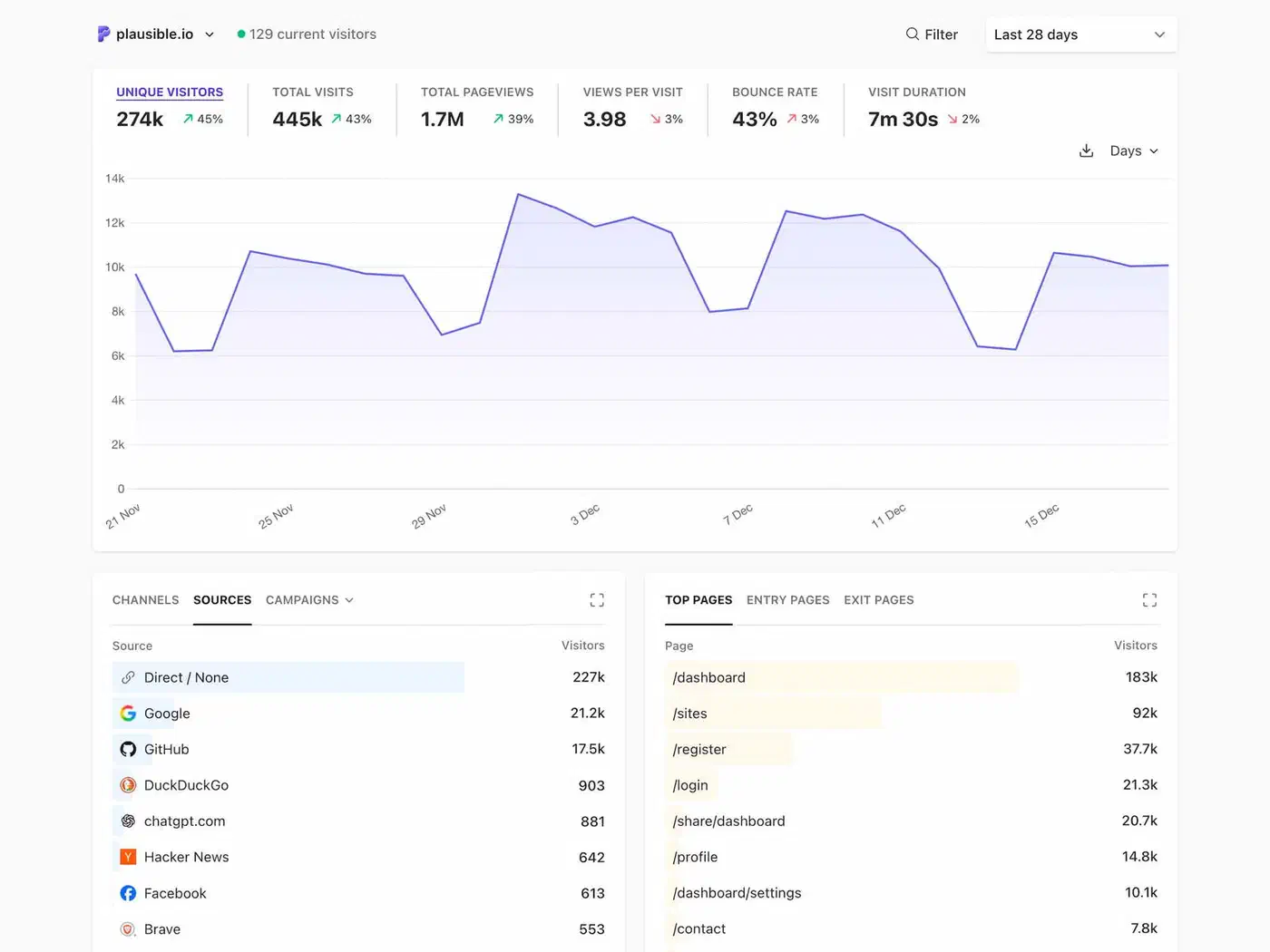
Plausible CE ships with an official Docker Compose setup. It runs three containers: the Plausible web app (an Elixir app), a PostgreSQL database for user and session data, and a ClickHouse database for analytics events.
Clone and Configure
Pull down the official hosting repository:
git clone https://github.com/plausible/community-edition plausible-ce
cd plausible-ce
Edit the plausible-conf.env file. The two critical settings are:
BASE_URL=https://analytics.yourdomain.com
SECRET_KEY_BASE=<generate-this>
Generate the secret key:
openssl rand -base64 48Copy the output into SECRET_KEY_BASE. If you want email reports, weekly traffic summaries sent to your inbox, set the SMTP options too:
MAILER_EMAIL=analytics@yourdomain.com
SMTP_HOST_ADDR=smtp.yourdomain.com
SMTP_HOST_PORT=587
SMTP_USER_NAME=analytics@yourdomain.com
SMTP_USER_PWD=your-smtp-password
SMTP_HOST_SSL_ENABLED=true
Here is a complete plausible-conf.env for reference:
BASE_URL=https://analytics.yourdomain.com
SECRET_KEY_BASE=your-generated-secret-key-here
DISABLE_REGISTRATION=invite_only
TOTP_VAULT_KEY=your-totp-vault-key-here
Generate the TOTP vault key the same way as the secret:
openssl rand -base64 32Launch the Stack
The docker-compose.yml in the repository defines the three services:
plausible- the Elixir web app, exposed on port 8000plausible_db- PostgreSQL 16 for user accounts and site configurationplausible_events_db- ClickHouse 24.x for analytics event storage
Start everything:
docker compose up -dThe first startup takes 30-60 seconds while ClickHouse and PostgreSQL build their schemas. Watch the logs to make sure everything comes up cleanly:
docker compose logs -f plausibleYou should see a line like Access Plausible at https://analytics.yourdomain.com with no error messages. Press Ctrl+C to exit the log tail.
Verify all containers are healthy:
docker compose psAll three should show status “Up”. If any container is restarting, check its logs with docker compose logs <service-name>.
Create Your Admin Account
Visit https://analytics.yourdomain.com in your browser. This won’t work until you set up Caddy in the next section. To test first, you can hit port 8000 directly for now. The first user to register becomes the site admin.
After you create your account, lock down registration. Set DISABLE_REGISTRATION=true in plausible-conf.env and restart the stack:
docker compose down && docker compose up -dConfiguring Caddy as a Reverse Proxy
Caddy handles TLS and proxies requests to the Plausible container. I pick Caddy over Nginx here because it handles HTTPS on its own, with zero config. Caddy gets and renews Let’s Encrypt certificates for you. You don’t need to install certbot, set up cron jobs for renewal, or debug certificate chains.
Basic Caddyfile
Create a Caddyfile in your project directory:
analytics.yourdomain.com {
    reverse_proxy localhost:8000
    encode gzip
}
That is the whole config, just three lines. Caddy gets a TLS certificate for analytics.yourdomain.com, ends HTTPS, compresses responses with gzip, and forwards requests to the Plausible app on port 8000.
Running Caddy with Docker
The cleanest approach is to add Caddy to the same docker-compose.yml:
caddy:
  image: caddy:2.9-alpine
  restart: unless-stopped
  ports:
    - "80:80"
    - "443:443"
    - "443:443/udp"
  volumes:
    - ./Caddyfile:/etc/caddy/Caddyfile
    - caddy_data:/data
    - caddy_config:/config
Add the volumes to the bottom of your docker-compose.yml:
volumes:
  caddy_data:
  caddy_config:
When you run Caddy in Docker next to the Plausible containers, change the reverse_proxy line to use the Docker service name instead of localhost:
analytics.yourdomain.com {
    reverse_proxy plausible:8000
    encode gzip
}
Restart the full stack:
docker compose up -dWithin 60 seconds, visit https://analytics.yourdomain.com. You should see the Plausible login page with a valid TLS certificate, shown by the padlock icon in your browser.
Cloudflare Users
If your domain is behind Cloudflare’s proxy (orange cloud), the default HTTP-01 challenge for Let’s Encrypt won’t work. You need DNS-01 challenges instead. Build a custom Caddy image with the Cloudflare DNS plugin, or use the caddy-cloudflare Docker image, then update your Caddyfile:
analytics.yourdomain.com {
    tls {
        dns cloudflare {env.CF_API_TOKEN}
    }
    reverse_proxy plausible:8000
    encode gzip
}
Set your Cloudflare API token as an environment variable in your Docker Compose file or .env file.
Rate Limiting
To guard the Plausible event API from abuse, add rate limiting. With the caddy-ratelimit plugin, you can cap the event endpoint:
analytics.yourdomain.com {
    rate_limit {
        zone api_limit {
            match {
                path /api/event
            }
            key {remote_host}
            events 100
            window 1m
        }
    }
    reverse_proxy plausible:8000
    encode gzip
}
This caps each IP at 100 events per minute. That is well above what real tracking sends, but low enough to blunt abuse.
Adding the Tracking Script to Your Site
With Plausible running and Caddy handling HTTPS, adding analytics to your site is a one-line change.
The Basic Script Tag
Add this to the <head> section of every page you want to track:
<script defer data-domain="yourdomain.com" src="https://analytics.yourdomain.com/js/plausible.js"></script>Plausible starts collecting pageview data right away, with no further setup.
Hugo Integration
For Hugo
sites, the best move is to add the script to a custom partial. Create or edit layouts/partials/head/custom.html:
<script defer data-domain="yourdomain.com" src="https://analytics.yourdomain.com/js/plausible.js"></script>If your theme supports custom analytics config through config.toml, you can use that instead. But the partial method works across all Hugo themes. If you also want to swap third-party comment widgets for a privacy-first option, see our guide on self-hosting Remark42 comments
.
Bypassing Ad Blockers with a Script Proxy
Even with a self-hosted instance, some strict blocklists may add your analytics subdomain over time. You can make your tracking script nearly invisible to blockers. Just proxy it through your main domain.
In your site’s Caddy or Nginx config, add a route that serves the Plausible script from your own domain:
yourdomain.com {
    handle /js/visits.js {
        reverse_proxy analytics.yourdomain.com:443 {
            header_up Host analytics.yourdomain.com
        }
    }
    handle /api/event {
        reverse_proxy analytics.yourdomain.com:443 {
            header_up Host analytics.yourdomain.com
        }
    }
    # ... rest of your site config
}
Then update your script tag to use the proxied path:
<script defer data-domain="yourdomain.com" src="/js/visits.js"></script>To the browser, the analytics script is just another first-party JavaScript file. No blocklist will flag it.
Custom Event Tracking
Plausible supports custom events to track specific user actions. You can track button clicks, form submissions, file downloads, or any other action:
plausible("Download", {props: {file: "guide.pdf"}});
plausible("Signup", {props: {plan: "pro"}});
These events show up in the “Goals” section of your Plausible dashboard.
Migrating from Google Analytics
If you have historical data in Google Analytics that you want to preserve, Plausible supports CSV imports.
Export your GA4 data from the Google Analytics admin panel as CSV files. Then in Plausible, go to Settings, then Import Data, then Google Analytics CSV Import. Upload your files, and Plausible imports past pageviews, traffic sources, and geographic data.
The import is not perfect. GA4’s data model differs a fair bit from Plausible’s simpler one. But it gives you continuity in your traffic trends. You can see past data next to new Plausible data in the same dashboard.
Once the import looks correct, remove the GA4 tracking code from your site. Your pages load faster, and Google no longer tracks your visitors.
Backups and Maintenance
Your analytics data lives in two databases. PostgreSQL is small and holds user accounts and site config. ClickHouse is larger and stores all analytics events. Both run as Docker volumes.
Set up a daily backup with a simple cron job:
# /etc/cron.d/plausible-backup
0 3 * * * root docker exec plausible-ce-plausible_db-1 pg_dump -U postgres plausible > /backups/plausible-pg-$(date +\%F).sql
0 3 * * * root docker exec plausible-ce-plausible_events_db-1 clickhouse-client --query "SELECT * FROM plausible_events_db.events FORMAT Native" > /backups/plausible-ch-$(date +\%F).native
For a sturdier solution, use restic to back up the Docker volumes to an offsite spot like Backblaze B2 or an S3 bucket .
When new versions of Plausible CE ship, upgrading is simple:
cd plausible-ce
docker compose pull
docker compose down
docker compose up -d
Check the Plausible CE changelog before you upgrade. It flags any breaking changes or migration steps.
Resource Usage at Scale
On a Hetzner CX22 (2 vCPU, 4 GB RAM), here is roughly what to expect:
| Monthly Pageviews | RAM Usage | CPU Usage | Disk Growth/Month |
|---|---|---|---|
| 1,000 | ~800 MB | Negligible | ~10 MB |
| 10,000 | ~1 GB | Minimal | ~100 MB |
| 100,000 | ~1.5 GB | Light spikes | ~500 MB |
| 500,000+ | ~2.5 GB | Moderate | ~2 GB |
ClickHouse compresses analytics data very well. Even at 100K pageviews per month, you use well under a gigabyte of disk per month. The 40 GB NVMe on a CX22 lasts you years before disk space becomes a concern.
If you run a higher-traffic site and ClickHouse starts eating too much memory, you can tune its settings in clickhouse-config.xml. Cap max_memory_usage and adjust the merge tree settings. But for most personal sites and small businesses, the defaults work fine.
Thirty minutes of setup, five dollars a month, and you get accurate, privacy-respecting analytics on your own hardware. If GA4’s complexity has been bugging you, or GDPR compliance is a worry, self-hosted Plausible fixes both with little effort.