 Botmonster Tech
How to Set Up Wildcard SSL Certificates with Let's Encrypt and DNS

A wildcard SSL certificate for *.example.com from Let’s Encrypt
covers every single-level subdomain - app.example.com, git.example.com, status.example.com - under one certificate. You obtain it by running Certbot
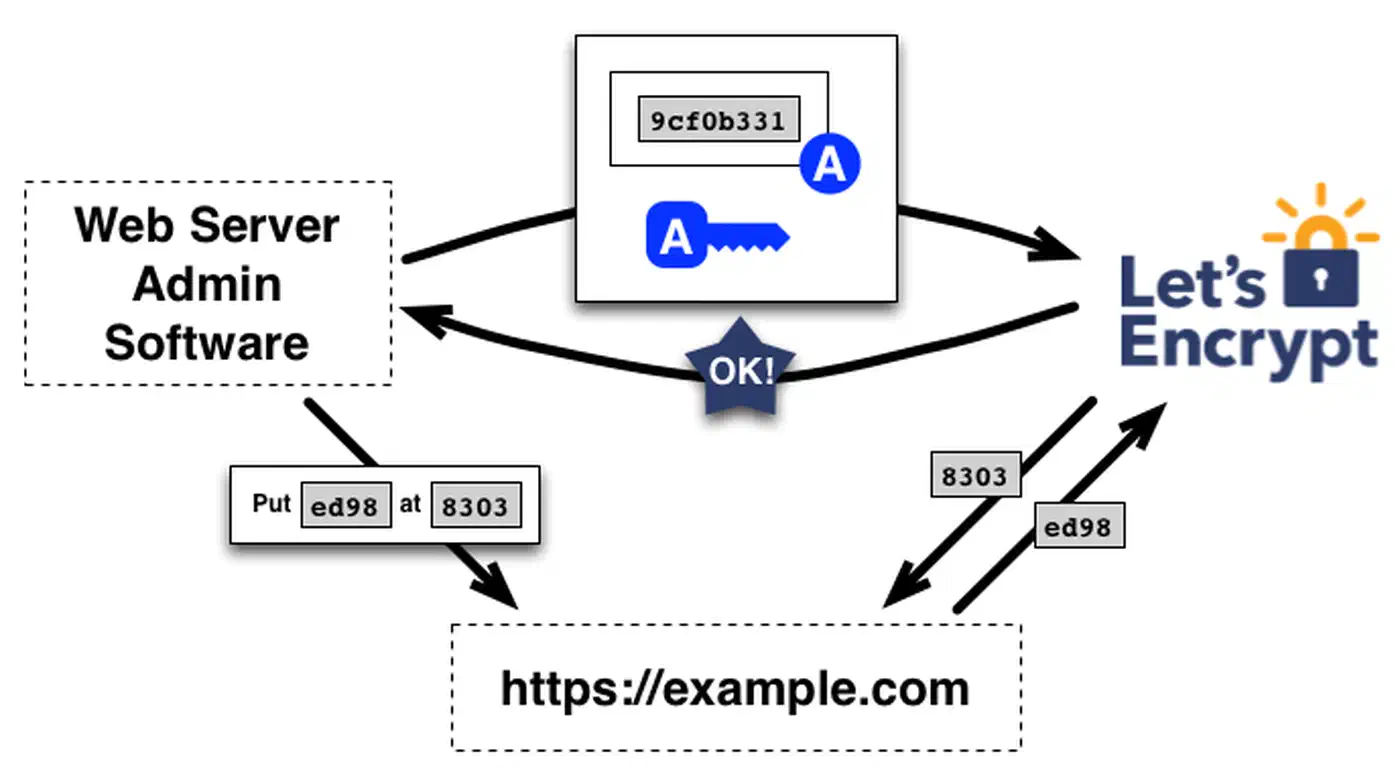
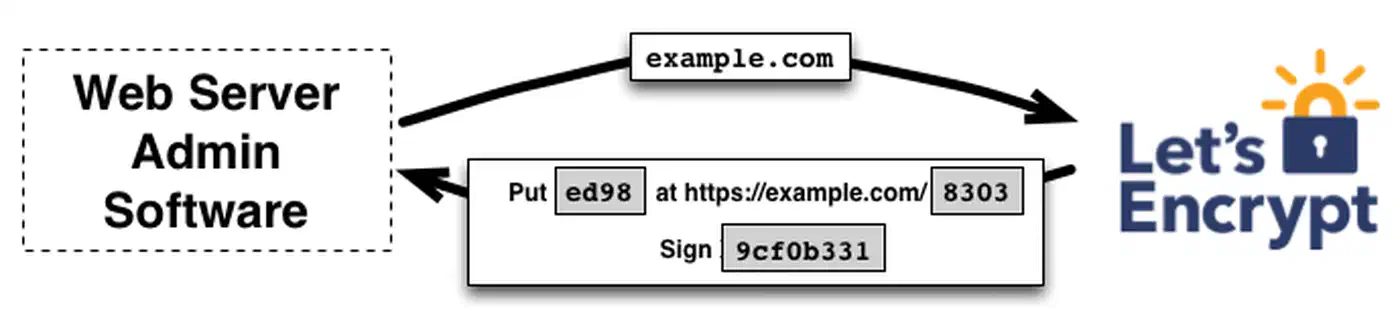
with the DNS-01 challenge, which requires creating a TXT record at _acme-challenge.example.com to prove domain ownership. A DNS plugin like certbot-dns-cloudflare or certbot-dns-route53 automates this by creating and cleaning up the TXT record through your DNS provider’s API. Once issued, a single wildcard cert replaces the need to manage individual certificates for every self-hosted service behind your reverse proxy.
This guide walks through the full setup: choosing between Certbot and acme.sh, configuring DNS plugins for multiple providers, automating renewal, wiring the certificate into Nginx or Traefik, and debugging the most common DNS-01 failures.
Why Wildcard Certificates and When You Need Them
If you run three subdomains, individual Let’s Encrypt certificates work fine. Each one gets its own HTTP-01 challenge, Certbot handles renewal, and life is simple. But once you pass 10 or 15 subdomains, the management overhead adds up. Every new service needs its own certificate request, its own renewal entry, and its own potential point of failure. A wildcard certificate collapses all of that into a single cert.
Here is what a wildcard covers and what it does not:
| Covered | Not Covered |
|---|---|
app.example.com | example.com (apex domain - request separately) |
git.example.com | a.b.example.com (multi-level subdomain) |
anything.example.com | other-domain.org (different domain entirely) |
To cover both *.example.com and the apex example.com, request both in the same certificate using two -d flags. Certbot will issue a single SAN (Subject Alternative Name) certificate covering both.
Let’s Encrypt rate limits are another reason to go wildcard. The limit is 50 certificates per registered domain per week. If you run 20+ subdomains and something triggers a mass reissuance - a server migration, a configuration mistake, a key compromise - you could hit that limit. A single wildcard certificate counts as one issuance regardless of how many subdomains it covers.
When to stick with individual certificates: If you only use HTTP-01 challenges (simpler, no DNS API needed), if different subdomains require different key types or lifetimes, or if you want Certificate Transparency logs to show specific subdomain names rather than *.example.com. Wildcard certs do not reveal your individual subdomain names in CT logs, which can be either a privacy benefit or a transparency tradeoff depending on your needs.
One firm constraint: Let’s Encrypt only issues wildcard certificates through the DNS-01 challenge. HTTP-01 and TLS-ALPN-01 will not work. This means you must have API access to your DNS provider - there is no way around it.
Setting Up Certbot with DNS-01 Challenge
Certbot version 5.4.0 (the current stable release as of March 2026) defaults to ECDSA P-256 keys for all new certificates. ECDSA certificates are smaller and produce faster TLS handshakes compared to RSA, so there is no reason to override this default unless you need compatibility with very old clients.
Installing Certbot
The recommended installation method is via snap, which provides automatic updates:
sudo snap install certbot --classic
sudo ln -s /snap/bin/certbot /usr/bin/certbot
On systems where snap is not available, sudo apt install certbot (Debian/Ubuntu) or sudo dnf install certbot (Fedora/RHEL) works but may ship an older version.
Choosing and Installing a DNS Plugin
Certbot DNS plugins are separate packages. Install the one matching your DNS provider:
| DNS Provider | Plugin Package | Credentials File |
|---|---|---|
| Cloudflare | certbot-dns-cloudflare | /etc/letsencrypt/cloudflare.ini |
| AWS Route 53 | certbot-dns-route53 | AWS IAM credentials (~/.aws/credentials) |
| Google Cloud DNS | certbot-dns-google | Service account JSON key file |
| DigitalOcean | certbot-dns-digitalocean | /etc/letsencrypt/digitalocean.ini |
| OVH | certbot-dns-ovh | /etc/letsencrypt/ovh.ini |
| RFC 2136 (BIND) | certbot-dns-rfc2136 | TSIG key configuration file |
For snap-based installations, install the plugin as a snap:
sudo snap install certbot-dns-cloudflare
sudo snap set certbot trust-plugin-with-root=ok
sudo snap connect certbot:plugin certbot-dns-cloudflare
Cloudflare Setup
Create a restricted API token at dash.cloudflare.com
with Zone:DNS:Edit permission scoped to your specific zone. Save it to a credentials file:
sudo mkdir -p /etc/letsencrypt
echo 'dns_cloudflare_api_token = YOUR_API_TOKEN_HERE' | sudo tee /etc/letsencrypt/cloudflare.ini
sudo chmod 600 /etc/letsencrypt/cloudflare.ini
Request the wildcard certificate:
sudo certbot certonly \
  --dns-cloudflare \
  --dns-cloudflare-credentials /etc/letsencrypt/cloudflare.ini \
  --dns-cloudflare-propagation-seconds 30 \
  -d "*.example.com" \
  -d "example.com"
Cloudflare DNS propagates within 5-10 seconds, so a 30-second wait is conservative but safe.
AWS Route 53 Setup
The Route 53 plugin uses standard AWS credentials. Your IAM policy needs these permissions:
{
  "Effect": "Allow",
  "Action": [
    "route53:GetChange",
    "route53:ChangeResourceRecordSets",
    "route53:ListHostedZones",
    "route53:ListHostedZonesByName"
  ],
  "Resource": "*"
}
Install and run:
sudo snap install certbot-dns-route53
sudo snap set certbot trust-plugin-with-root=ok
sudo snap connect certbot:plugin certbot-dns-route53

sudo certbot certonly \
  --dns-route53 \
  -d "*.example.com" \
  -d "example.com"
DigitalOcean Setup
Generate a personal access token at cloud.digitalocean.com with read/write scope. Save it to a credentials file:
echo 'dns_digitalocean_token = YOUR_DIGITALOCEAN_TOKEN' | sudo tee /etc/letsencrypt/digitalocean.ini
sudo chmod 600 /etc/letsencrypt/digitalocean.ini

sudo certbot certonly \
  --dns-digitalocean \
  --dns-digitalocean-credentials /etc/letsencrypt/digitalocean.ini \
  --dns-digitalocean-propagation-seconds 60 \
  -d "*.example.com" \
  -d "example.com"
Certificate Output
After successful issuance, Certbot stores your files at predictable paths:
- Certificate chain:
/etc/letsencrypt/live/example.com/fullchain.pem - Private key:
/etc/letsencrypt/live/example.com/privkey.pem
These are symlinks that Certbot updates automatically on renewal, so your reverse proxy configuration never needs to change.
Using acme.sh as an Alternative
acme.sh is a pure shell script ACME client with no dependencies beyond bash and curl. Its main advantage over Certbot is built-in support for over 150 DNS providers without needing separate plugins. If your DNS provider does not have a Certbot plugin, acme.sh probably supports it natively.
Installation and Basic Usage
curl https://get.acme.sh | sh -s email=your@email.comThis installs acme.sh to ~/.acme.sh/ and sets up a cron job for automatic renewal. To issue a wildcard certificate with Cloudflare:
export CF_Token="YOUR_CLOUDFLARE_API_TOKEN"
export CF_Zone_ID="YOUR_ZONE_ID"

~/.acme.sh/acme.sh --issue \
  -d "*.example.com" \
  -d "example.com" \
  --dns dns_cf
Replace dns_cf with your provider’s identifier: dns_aws for Route 53, dns_gd for GoDaddy, dns_he for Hurricane Electric, dns_linode for Linode, and so on. The full list is in the acme.sh wiki
.
Installing the Certificate
After issuance, install the certificate to your preferred location:
~/.acme.sh/acme.sh --install-cert -d "*.example.com" \
  --key-file /etc/ssl/private/example.com.key \
  --fullchain-file /etc/ssl/certs/example.com.pem \
  --reloadcmd "systemctl reload nginx"
acme.sh remembers the install path and reload command, so renewals automatically copy the new cert and reload the service.
Automating Renewal with Systemd Timers
Let’s Encrypt certificates expire after 90 days. Certbot’s renew command checks all managed certificates and renews any expiring within 30 days. It reuses the DNS plugin and credentials from the original issuance, so no extra configuration is needed.
Creating the Systemd Timer
A systemd timer is more reliable than a cron job because systemd logs every run, handles missed executions after downtime, and supports randomized delay to avoid thundering herd problems.
Create the service unit at /etc/systemd/system/certbot-renewal.service:
[Unit]
Description=Certbot certificate renewal

[Service]
Type=oneshot
ExecStart=/usr/bin/certbot renew --quiet --deploy-hook "systemctl reload nginx"
Create the timer at /etc/systemd/system/certbot-renewal.timer:
[Unit]
Description=Run Certbot renewal daily

[Timer]
OnCalendar=*-*-* 03:00:00
RandomizedDelaySec=3600
Persistent=true

[Install]
WantedBy=timers.target
Enable and start the timer:
sudo systemctl enable --now certbot-renewal.timerVerify it is scheduled:
systemctl list-timers | grep certbotDeploy Hooks
The --deploy-hook flag runs a command only when a certificate is actually renewed, not on every check. Common reload commands:
- Nginx:
systemctl reload nginx - Traefik (native): Traefik watches cert files and reloads automatically - no hook needed
- Traefik (Docker):
docker exec traefik kill -s HUP 1 - HAProxy:
systemctl reload haproxy - Apache:
systemctl reload apache2
Testing Before Going Live
Always validate the renewal pipeline without burning production rate limits:
sudo certbot renew --dry-runThis runs against Let’s Encrypt’s staging server and exercises the full flow: DNS plugin authentication, TXT record creation, ACME validation, TXT record cleanup.
Configuring Your Reverse Proxy
Nginx Configuration
Create a shared SSL configuration file at /etc/nginx/conf.d/ssl-params.conf:
ssl_certificate /etc/letsencrypt/live/example.com/fullchain.pem;
ssl_certificate_key /etc/letsencrypt/live/example.com/privkey.pem;

ssl_protocols TLSv1.2 TLSv1.3;
ssl_ciphers ECDHE-ECDSA-AES128-GCM-SHA256:ECDHE-RSA-AES128-GCM-SHA256:ECDHE-ECDSA-AES256-GCM-SHA384:ECDHE-RSA-AES256-GCM-SHA384;
ssl_prefer_server_ciphers off;
ssl_session_cache shared:SSL:10m;
ssl_session_timeout 1d;
ssl_stapling on;
ssl_stapling_verify on;
Then each service gets its own server block that includes the shared SSL parameters:
server {
    listen 443 ssl http2;
    server_name app.example.com;
    include /etc/nginx/conf.d/ssl-params.conf;

    location / {
        proxy_pass http://127.0.0.1:8080;
        proxy_set_header Host $host;
        proxy_set_header X-Real-IP $remote_addr;
        proxy_set_header X-Forwarded-For $proxy_add_x_forwarded_for;
        proxy_set_header X-Forwarded-Proto $scheme;
    }
}
Every new subdomain you add just needs a new server block with a different server_name and proxy_pass target. The wildcard cert handles TLS for all of them.
Use Mozilla’s SSL Configuration Generator for current cipher suite recommendations rather than copying cipher strings from blog posts that may be outdated.
Traefik with External Certificate
If you manage certificates with Certbot and just want Traefik to use them, define the cert in a dynamic configuration file:
# /etc/traefik/dynamic/certs.yml
tls:
  certificates:
    - certFile: /etc/letsencrypt/live/example.com/fullchain.pem
      keyFile: /etc/letsencrypt/live/example.com/privkey.pem
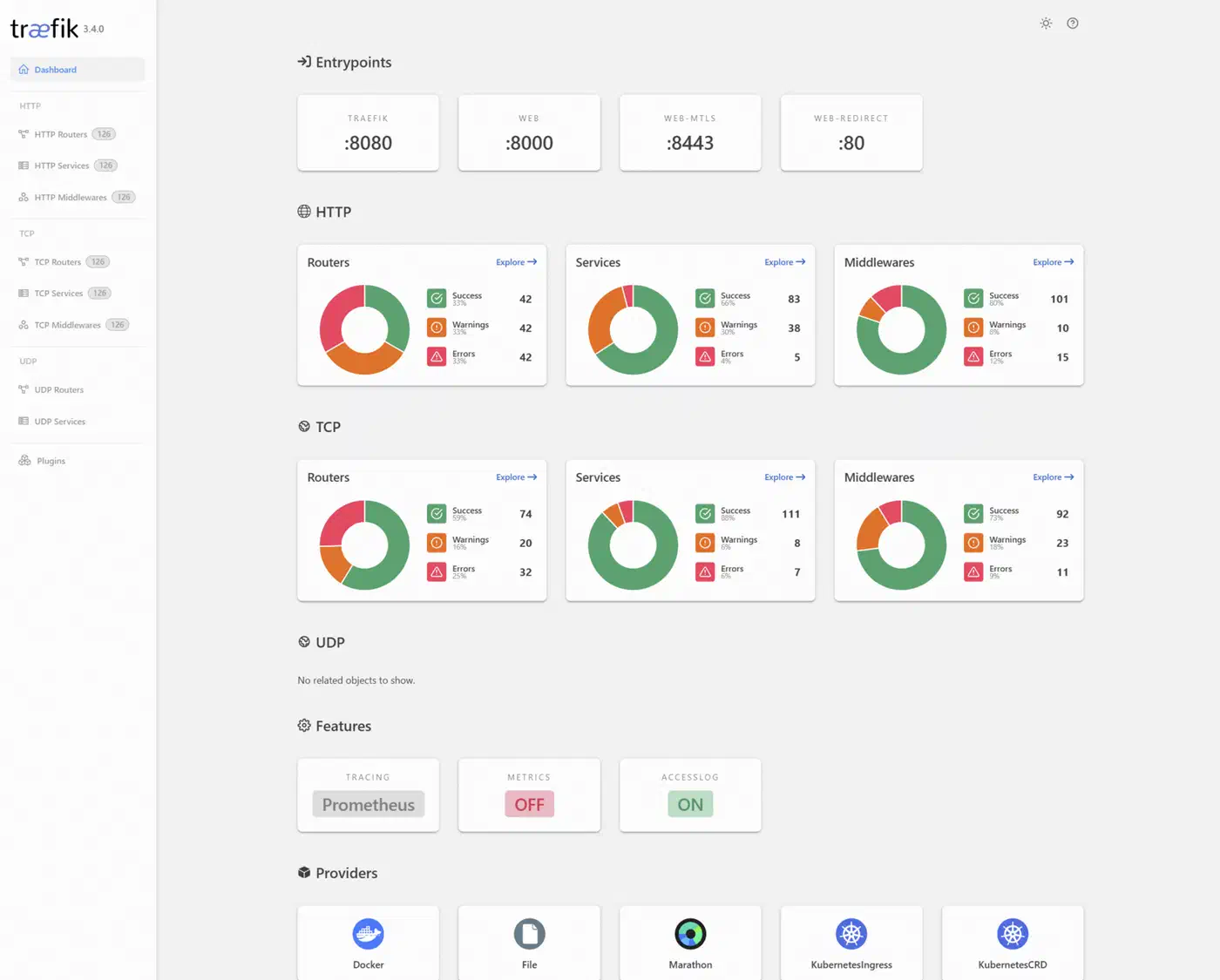
Traefik with Built-in ACME
Traefik
can handle its own Let’s Encrypt wildcard certificates without Certbot entirely. In your traefik.yml static configuration:
certificatesResolvers:
  letsencrypt:
    acme:
      email: your@email.com
      storage: /letsencrypt/acme.json
      dnsChallenge:
        provider: cloudflare
        resolvers:
          - "1.1.1.1:53"
          - "8.8.8.8:53"
Set the Cloudflare token as an environment variable:
export CF_DNS_API_TOKEN=your_cloudflare_api_tokenThen reference the resolver in your Docker Compose labels or dynamic configuration:
labels:
  - "traefik.http.routers.myapp.tls.certresolver=letsencrypt"
  - "traefik.http.routers.myapp.tls.domains[0].main=example.com"
  - "traefik.http.routers.myapp.tls.domains[0].sans=*.example.com"
Traefik monitors certificate expiration and renews automatically when fewer than 30 days remain. No cron jobs, no systemd timers, no deploy hooks.
Running Certbot in Docker
If you prefer not to install Certbot on the host, the official Docker image works with DNS plugins:
docker run --rm \
  -v /etc/letsencrypt:/etc/letsencrypt \
  -v /var/lib/letsencrypt:/var/lib/letsencrypt \
  certbot/dns-cloudflare certonly \
  --dns-cloudflare \
  --dns-cloudflare-credentials /etc/letsencrypt/cloudflare.ini \
  -d "*.example.com" \
  -d "example.com" \
  --agree-tos \
  --email your@email.com
The certificate files end up in the same /etc/letsencrypt/ directory on the host thanks to the volume mount. For renewal, run the same container with renew instead of certonly, scheduled through a cron job or systemd timer on the host.
Plugin-specific Docker images are available on Docker Hub
for each DNS provider: certbot/dns-cloudflare, certbot/dns-route53, certbot/dns-google, certbot/dns-digitalocean, and others.
Monitoring Certificate Expiry
Automated renewal does not mean you should stop paying attention. Renewal can fail silently if API tokens expire, DNS provider changes their API, or your server loses outbound internet access.
Check certificate status manually:
sudo certbot certificatesThis shows the expiry date for every managed certificate.
For automated monitoring, Prometheus with the x509_cert_not_after metric can track certificate expiration timestamps and fire alerts when a cert has fewer than 14 days remaining. Gatus
offers a simpler option with its [CERTIFICATE_EXPIRATION] > 168h health check. If you prefer something lighter, a cron script using OpenSSL works too:
echo | openssl s_client -connect app.example.com:443 -servername app.example.com 2>/dev/null \
  | openssl x509 -noout -dates
Troubleshooting Common DNS-01 Issues
“No TXT Record Found”
The DNS record has not propagated to Let’s Encrypt’s resolvers yet. Increase the propagation delay:
--dns-cloudflare-propagation-seconds 60Verify the record exists manually:
dig -t TXT _acme-challenge.example.com @1.1.1.1If the record shows up in dig but Let’s Encrypt still cannot see it, the issue is typically DNS caching at their validation infrastructure. Wait a few minutes and retry.
API Permission Errors
Each provider needs specific permissions:
- Cloudflare: The API token must have
Zone:DNS:Edit(not justZone:DNS:Read) scoped to your specific zone. - AWS Route 53: The IAM policy needs
route53:GetChange,route53:ChangeResourceRecordSets,route53:ListHostedZones, androute53:ListHostedZonesByName. - DigitalOcean: The personal access token must have read and write scope.
- Google Cloud DNS: The service account needs the
dns.adminrole on the project containing your zone.
Stale TXT Records
If a previous challenge failed mid-way, the _acme-challenge TXT record may still exist with an old value. Certbot plugins normally clean up after themselves, but manual removal is sometimes needed:
dig -t TXT _acme-challenge.example.comIf an old record is present, delete it through your DNS provider’s dashboard or API before retrying.
CAA Record Blocking
If you have a CAA DNS record set, it must include Let’s Encrypt’s issuer identifier:
0 issue "letsencrypt.org"Check with:
dig -t CAA example.comIf no CAA record exists, any CA can issue certificates for your domain (this is the default behavior).
Rate Limit Errors
The “too many certificates” error means you have hit the 50 certificates per registered domain per week limit. Use Let’s Encrypt’s staging server for testing to avoid burning production rate limits:
--server https://acme-staging-v02.api.letsencrypt.org/directoryStaging certificates are not trusted by browsers but exercise the full validation flow.
Firewall Considerations
DNS-01 does not require any inbound ports (unlike HTTP-01 which needs port 80 open). However, your server must be able to make outbound HTTPS connections to both your DNS provider’s API and Let’s Encrypt’s ACME servers.
Free Wildcard Certificate Alternatives
Let’s Encrypt is not the only option. Other ACME-compatible CAs issue free wildcard certificates:
| CA | Wildcard Support | Certificate Lifetime | Notes |
|---|---|---|---|
| Let’s Encrypt | Yes (DNS-01 only) | 90 days | Most widely used, largest ecosystem |
| ZeroSSL | Yes (DNS-01 only) | 90 days | ACME-compatible, web dashboard available |
| Google Trust Services | Yes (DNS-01 only) | 90 days | Requires Google Cloud account |
Buypass previously offered free ACME certificates with 180-day lifetimes but discontinued their free ACME product in October 2025. If you see older guides recommending Buypass Go SSL, that service is no longer available.
All these CAs work with Certbot and acme.sh using the same DNS-01 workflow described above. To use ZeroSSL with Certbot, add the --server flag pointing to their ACME directory URL. With acme.sh, switch the default CA using --set-default-ca --server zerossl.
Quick Reference
Here is the minimal set of commands to go from zero to a working wildcard certificate with Cloudflare DNS:
# Install Certbot and Cloudflare plugin
sudo snap install certbot --classic
sudo snap install certbot-dns-cloudflare
sudo snap set certbot trust-plugin-with-root=ok
sudo snap connect certbot:plugin certbot-dns-cloudflare

# Save API credentials
echo 'dns_cloudflare_api_token = YOUR_TOKEN' | sudo tee /etc/letsencrypt/cloudflare.ini
sudo chmod 600 /etc/letsencrypt/cloudflare.ini

# Request wildcard + apex certificate
sudo certbot certonly \
  --dns-cloudflare \
  --dns-cloudflare-credentials /etc/letsencrypt/cloudflare.ini \
  -d "*.example.com" \
  -d "example.com"

# Test renewal
sudo certbot renew --dry-run

# Enable automatic renewal
sudo systemctl enable --now certbot-renewal.timer
Your certificate files live at /etc/letsencrypt/live/example.com/fullchain.pem and privkey.pem. Point your reverse proxy at those paths, set up the systemd timer, and every subdomain you create gets HTTPS automatically.