 Botmonster Tech
Setup an E-Ink Monitor for Coding and Reduced Eye Strain

Using an E-Ink monitor as a secondary display for coding significantly reduces eye strain by eliminating backlighting and blue light exposure. Modern E-Ink refresh modes in 2026 make these displays viable for text-heavy terminal work - but only once your Linux theme and workflow are optimized for high-contrast, no-animation rendering. This is a niche product for a specific problem, and the honest path is to understand both what it fixes and what it doesn’t before spending over $1,000.
Why E-Ink for Coding? The Science of Eye Strain
Screen-related eye strain (clinically “computer vision syndrome”) has three physiologically distinct causes, and E-Ink addresses all three more effectively than any LCD or OLED panel.
Flicker is the most underappreciated cause. LCD panels with LED backlighting use PWM (pulse width modulation) dimming - the backlight rapidly switches on and off to control perceived brightness. At lower brightness settings, this happens hundreds of times per second. Most people cannot consciously perceive this flicker, but the visual cortex processes it continuously, causing fatigue over hours of exposure. Monitors marketed as “flicker-free” eliminate PWM by using DC dimming instead, which helps significantly. E-Ink eliminates the issue entirely by a different mechanism: E-Ink pixels are bistable, meaning they hold their state indefinitely without any refresh energy. No backlight, no PWM, no flicker of any kind. The pixels only change when the content changes.
Blue light emission is the second cause. The short wavelength of blue light (400–490nm) is absorbed differently by the eye’s photoreceptors, and sustained exposure suppresses melatonin production and strains the accommodation mechanism. LCD backlights emit a strong blue peak inherent to the LED phosphor process. E-Ink frontlights - the thin illumination layer on front-lit E-Ink models - can be tuned to a much warmer color temperature, and many E-Ink monitors can operate in completely frontlight-off mode under ambient room lighting, emitting zero blue light at all.
Accommodation fatigue is the subtler mechanism. The eye’s lens constantly adjusts focus between different depths, and a monitor at fixed focal distance forces sustained near-focus accommodation. What makes this worse on displays is the fundamental difference between emissive and reflective surfaces: an LCD emits light toward your eyes, which triggers different accommodation behavior than the reflected light reading involves. E-Ink reflects ambient light like paper - your eyes process it more like reading a printed page, which uses a more relaxed accommodation state. This is why extended reading on E-Ink feels less tiring than the same duration on a backlit display, even at the same text size and brightness.
The Current State of E-Ink Monitors in 2026
The E-Ink monitor market has consolidated around a handful of serious vendors, with meaningful improvements in refresh speed since the early-generation Dasung units.
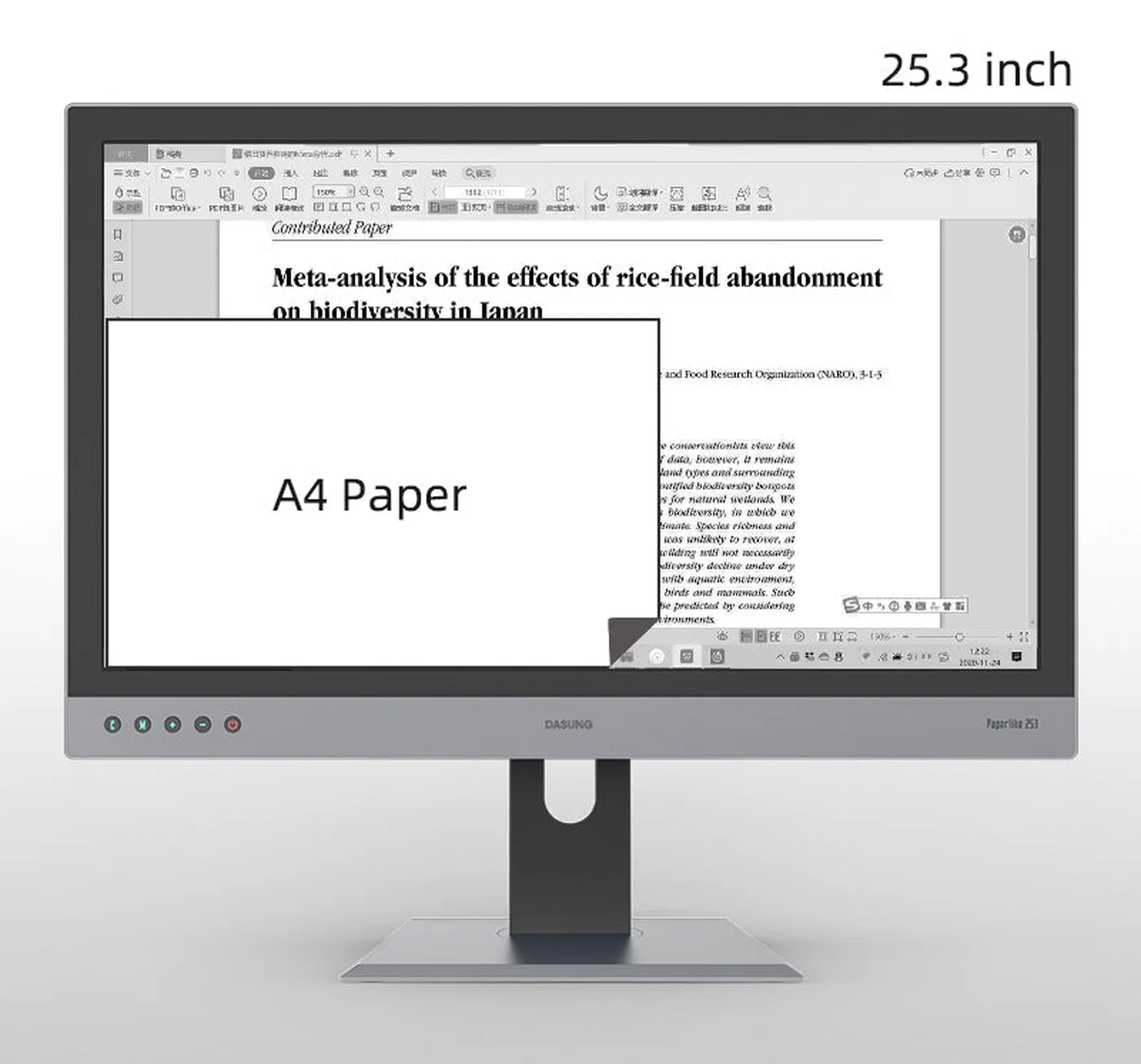
Dasung Paperlike series remains the most developer-focused option. The Paperlike 253 is a 25.3-inch E-Ink monitor with HDMI and USB-C connectivity, a dedicated refresh mode controller, and a proven track record with Linux. The current generation supports three main refresh modes: A2 (fast, low quality, designed for cursor and scrolling use), GC16 (full 16-shade grayscale, high quality, slower), and REGAL (Dasung’s proprietary balanced mode that provides better quality than A2 without GC16’s ghosting delay).
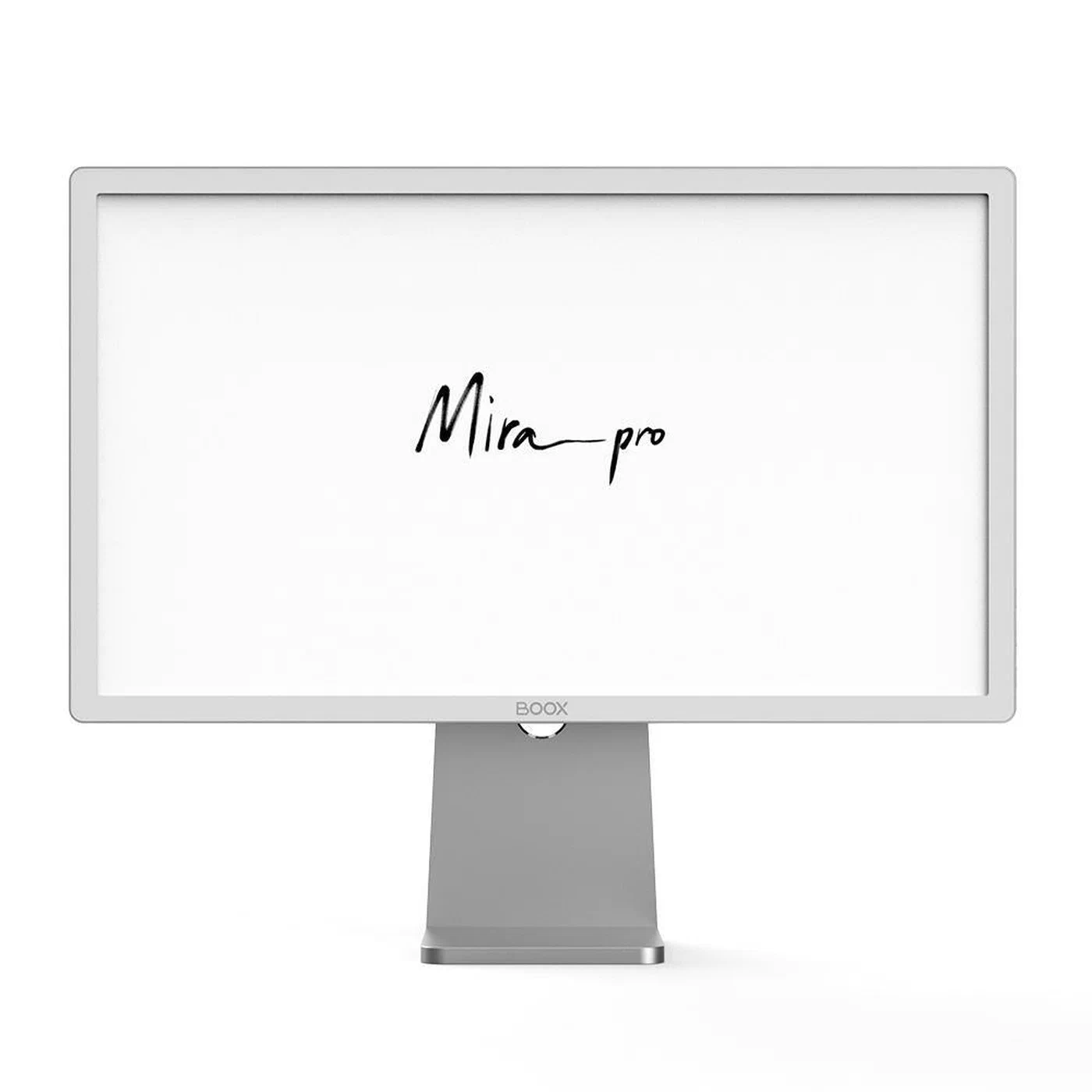
BOOX Mira from Onyx takes a different approach: tighter integration with their proprietary refresh mode software, a slightly lower price point, and a companion app with more granular control. Linux support requires more manual configuration than the Dasung, but the 25.3-inch model at around $800-900 is the most affordable large-format E-Ink monitor available.
Sony Digital Paper is designed primarily for document review and note-taking, not as a desktop monitor. It lacks an HDMI input and isn’t suitable for general coding use.
Refresh rate reality: in A2 mode, modern Dasung and BOOX monitors achieve what subjectively feels like 20–30fps equivalent for cursor movement and text scrolling. This is fast enough for editing in Vim, navigating file trees, and reading logs. It is not fast enough for smooth scrolling in a web browser, video playback, or any animation-heavy application. Quantifying this: if you rapidly scroll through a 1000-line file, you’ll see motion blur and ghosting that resolves to a clear image when you stop. Most developers adapt to this within a few hours.
Color E-Ink in 2026: Gallery 3 and Kaleido 3 panels bring color to E-Ink, but the current generation trades color for significant quality reductions - lower contrast ratio, more visible grain, and slower refresh than monochrome E-Ink. For syntax highlighting, the colors are visible but look washed out compared to even a budget IPS panel. Monochrome E-Ink remains the better choice for coding comfort; color E-Ink is better suited for comics, textbooks, and illustrated documents.
Linux Setup and Driver Configuration
E-Ink monitors connect as standard displays - HDMI or USB-C DisplayPort Alt Mode - and Linux recognizes them without any special drivers. The configuration work is about preventing the OS from fighting against the display’s characteristics.
Setting the correct refresh rate: Linux will attempt to drive the E-Ink monitor at 60Hz. This is fine - the E-Ink panel’s internal controller manages its own refresh timing regardless of the signal frequency. What you want to avoid is adaptive sync or variable refresh rate modes, which some HDMI implementations enable by default:
# Force a specific mode without adaptive sync
xrandr --output HDMI-1 --mode 1920x1080 --rate 60
On Wayland with Sway or Hyprland, add to your config:
output HDMI-A-1 mode 1920x1080@60Hz
output HDMI-A-1 adaptive_sync off
Disabling compositor animations: This is critical. Fade effects, slide transitions, and transparency compositing all trigger multiple screen updates during what could be a single frame. On E-Ink, this multiplies ghosting artifacts and makes the display appear to lag.
GNOME:
gsettings set org.gnome.desktop.interface enable-animations falseKDE Plasma: System Settings > Workspace Behavior > Desktop Effects - disable all transition effects.
i3/Sway: compositors like picom can be configured with no-fading-openclose = true and no-fading-destroyed-argb = true.
Controlling refresh modes: Dasung provides a Linux utility for switching between A2, REGAL, and GC16 modes via a system tray icon or command line. BOOX Mira has a physical button on the monitor frame for mode switching, with their companion software providing finer control. For Dasung units without the utility or third-party E-Ink monitors:
# Force a full refresh (GC16 equivalent) via xrandr
xrandr --output HDMI-1 --set "scaling mode" "Full"
# Trigger display reset by briefly disabling and re-enabling
xrandr --output HDMI-1 --off && sleep 1 && xrandr --output HDMI-1 --auto
Optimizing Your Terminal and Code Editor for E-Ink
The biggest productivity gain from an E-Ink monitor comes from adapting your software environment to the display’s characteristics. The default dark-theme developer setup that looks great on OLED is actively bad on E-Ink.
Terminal theme: High-contrast black-on-white dramatically outperforms dark themes on E-Ink. The reason is physics: E-Ink’s reflective surface has lower absolute contrast ratio than a backlit display (~15:1 vs 1000:1 for IPS). On a dark theme, the already-lower-contrast whites (text) appear grey against a slightly lighter grey background. Flipping to a light theme with black text maximizes the available contrast. Recommended themes: PaperColor Light , Modus Operandi (also available for Vim/Neovim), or the system default light theme.
Vim and Neovim: Disable cursor blinking - E-Ink doesn’t handle the rapid on/off cycle gracefully:
set guicursor=a:blinkon0Use bold attributes for syntax highlighting instead of color differentiation, since E-Ink renders grayscale:
" Example: make comments bold instead of colored
highlight Comment term=bold cterm=bold gui=bold
The Modus Themes for Neovim are specifically designed for accessibility and render excellently in grayscale.
VS Code: Install the “GitHub Light” or “Quiet Light” theme. Disable the minimap (Settings > editor.minimap.enabled: false) - the minimap triggers constant partial-screen refreshes during scrolling. Disable smooth scrolling (editor.smoothScrolling: false) for sharper display on E-Ink. Consider VSCodium
as an alternative if you want VS Code’s functionality without the telemetry overhead.
Font selection: Heavier font weights render more distinctly on E-Ink’s lower contrast. JetBrains Mono ExtraBold, Iosevka Heavy, and IBM Plex Mono Medium all perform better than their regular-weight counterparts. At typical terminal font sizes (13–15pt), the thicker strokes fill in more pixel area and produce crisper character shapes.
Workflow Recommendations - Primary vs. Secondary Monitor
The most practical E-Ink setup for most developers is a dual-monitor configuration: standard IPS or OLED primary monitor for active coding, browser, and anything animated; E-Ink secondary monitor for the passive tasks where the eye strain benefits are most pronounced.
Ideal E-Ink use cases:
- Reading documentation and man pages
- Reviewing git diffs and pull requests
- Writing prose (technical writing, documentation, README files)
- Monitoring logs and status outputs that update infrequently
- Reference material open during active coding on the primary display
Keep on your standard monitor:
- Browser with JavaScript-heavy pages
- Video playback, streaming, meetings
- Real-time dashboards (Grafana, htop with high refresh)
- Anything with cursor-following animations
Window manager setup for automatic routing: In i3 or Sway, assign specific workspaces to the E-Ink output:
# Sway config
workspace 5 output HDMI-A-1
workspace 6 output HDMI-A-1
# Then assign apps via rules
assign [app_id="org.pwmt.zathura"] workspace 5
for_window [app_id="kitty" title="manpage*"] move workspace 6
This automatically sends your PDF viewer (Zathura) and man page terminal windows to the E-Ink display, routing your primary coding session to the main monitor.
Is It Worth It? Honest Assessment
Let’s be direct about the cost: a Dasung Paperlike 253 is approximately $1,100 USD in 2026. A BOOX Mira 25.3 is around $850. These are significant investments - roughly equivalent to a mid-range laptop or a high-end monitor. The question is whether the eye strain reduction justifies the cost for your specific situation.
Who benefits most: Developers who have been prescribed glasses for screen use, people with diagnosed conditions like dry eye syndrome triggered by screen exposure, individuals with light sensitivity (migraine sufferers, photophobia), and remote workers who spend 8+ hours daily reading documentation or reviewing code rather than writing it. For these users, reduced fatigue translates directly into extended productive sessions and better quality of life.
Who will be disappointed: Developers whose workflow is animation-heavy, anyone accustomed to the visual refinement of a high-quality IPS or OLED panel, or people who want E-Ink as a primary monitor for full-time coding. The refresh rate limitations are real limitations, not marketing caveats.
Alternatives to consider first: Before spending $850-1100, try these lower-cost interventions in order: hardware monitor warm mode at 4000K or below, a physical blue-light filter film (~$20), a low-brightness desk lamp with a 2700K bulb for ambient lighting that reduces contrast ratio demand, and extended breaks every 45 minutes (the 20-20-20 rule: every 20 minutes, look at something 20 feet away for 20 seconds). For many people, these changes resolve screen fatigue without any hardware investment.
For developers who have tried those interventions and still experience significant eye fatigue, an E-Ink secondary monitor is a genuinely effective solution. For the right person, $900 spent on eliminating daily eye pain is excellent value.