 Botmonster Tech
The Best Portable Monitors for a CLI Workflow (2026)
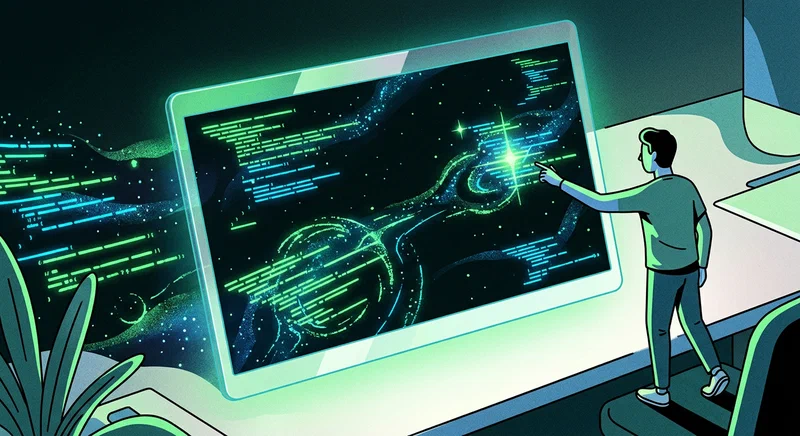
The best portable monitors for developers feature high-DPI 1440p resolutions and single-cable USB-C connectivity for power and video. In 2026, lightweight OLED models are preferred for their superior contrast and readability when working in a terminal-focused environment - though they come with burn-in caveats worth understanding before you buy.
What a CLI Developer Actually Needs from a Portable Monitor
Consumer portable monitor reviews optimize for the wrong things. Refresh rate comparisons, HDR brightness specs, and color gamut coverage are relevant for gaming and video editing. For eight hours of staring at a terminal prompt, the calculus is completely different.
Pixel density is the primary concern. At 14–16 inches, 1440p delivers around 200–220 PPI - the threshold above which individual subpixels become imperceptible, and text rendering transitions from “acceptable” to “sharp.” A 1080p panel at the same size is around 160 PPI - you can see the pixel grid if you look closely, and after hours of reading code, it creates subtle visual fatigue. The productivity-per-dollar argument for paying more to get 1440p is stronger for developers than for any other use case.
Color temperature and panel warmth matter more than color accuracy. Accurate sRGB coverage matters if you’re doing color-critical design work. For terminal use, you want a panel with good low-end color temperature adjustment (below 5000K) and ideally hardware-level blue light reduction. Some portable monitors include a hardware button to toggle a warm mode - this is more effective than software blue light filters, which degrade color accuracy unpredictably and don’t work in all applications.
Matte versus glossy is a straightforward win for matte panels in office and outdoor environments. Glossy panels have higher peak contrast and look better in controlled lighting, but any ambient light source behind you turns the screen into a mirror. Matte panels diffuse reflections at the cost of slightly lower measured contrast - for CLI work, matte panels are consistently more comfortable for full-day sessions.
Refresh rate is a non-issue. A 60Hz portable monitor is indistinguishable from a 120Hz one when you’re typing in a terminal or reading documentation. The extra refresh rate costs money, consumes more power from the laptop battery, and generates more heat. Skip it.
OLED vs. IPS vs. E-Ink - Display Technology for Text
Each display technology has distinct trade-offs for text rendering and long-session comfort that don’t map neatly to marketing specs.
OLED advantages for terminal work are real. Because each pixel generates its own light, OLED panels have effectively infinite contrast ratios - black is truly black, not dark grey. On a dark terminal theme, the text literally glows against a void background. The visual clarity for syntax-highlighted code is noticeably better than IPS in a direct comparison. OLED panels also respond faster, have wider viewing angles, and are increasingly available in portable form factors.
The burn-in concern is legitimate for CLI use. A terminal window has highly static elements: the prompt indicator, status bar, tmux pane borders, vim mode indicators. OLED pixels degrade faster with sustained static content, and a terminal workflow is about as static-heavy as a usage pattern can get. Practical mitigation strategies include using a screensaver or screen blanking after 2-3 minutes of inactivity, choosing high-contrast themes rather than fixed-position decorations, and using OLED panels as secondary (not primary) long-session monitors.
IPS panels are the mature, reliable choice. No burn-in risk, consistent brightness uniformity, proven durability over years of use, and good availability at multiple price tiers. The contrast ratio is lower (typically 800:1 to 1200:1), which means blacks look dark grey rather than true black on dark themes - visible but not disruptive for most people.
E-Ink is a special case: zero flicker, zero blue light, reflective surface that mimics paper. But the refresh rate - even in the fastest “A2” mode on modern Dasung or BOOX panels - is only practical for static text. Scrolling through a long log file or navigating in Vim produces a ghosting trail that some users find tolerable and others find intolerable. E-Ink makes an excellent secondary monitor for reading documentation or reviewing diffs; it’s not suitable as a primary coding display. See the separate E-Ink monitor guide for a full breakdown.
Connectivity and Power Delivery - The Single-Cable Requirement
The defining convenience feature of a developer-grade portable monitor is single-cable operation: one USB-C cable that carries both the video signal and enough power to charge your laptop simultaneously. This sounds simple, but the spec sheet details matter.
USB-C DisplayPort Alt Mode is the standard that allows video to travel over a USB-C cable. Most portable monitors support this, but not all USB-C ports on laptops do. Thunderbolt 4 ports always support DisplayPort Alt Mode. USB4 ports generally do. USB 3.2 Gen 2 ports sometimes don’t - check your laptop’s documentation explicitly.
Power Delivery wattage determines whether the monitor can charge your laptop or merely avoid draining it. A monitor that provides 45W PD will charge a thin-and-light laptop but may not keep up with a 65W power draw during heavy compilation. Look for 65W PD if you want truly cable-free operation on a full-power laptop. Some monitors spec “PD charging” but only provide 15–18W - enough for a phone but not a laptop.
The critical spec sheet distinction: “USB-C Full Function” means the port handles video, data, and power delivery simultaneously. “USB-C Charging Only” means the USB-C port only does power - you’ll need a separate video cable. This is often poorly labeled and some manufacturers are deliberately vague. If the product listing doesn’t explicitly state “DisplayPort Alt Mode,” look for confirmation in user reviews before purchasing.
A compatibility matrix for common 2026 laptop configurations:
| Laptop Port | Works with USB-C Monitor? | Notes |
|---|---|---|
| Thunderbolt 4 | Yes, always | Full video + PD |
| USB4 | Usually yes | Check laptop specs |
| USB 3.2 Gen 2 (Type-C) | Sometimes | DisplayPort Alt Mode optional |
| USB 3.2 Gen 1 (Type-C) | Rarely | Usually data-only |
| USB-A | No | Use adapter + HDMI |
Top Portable Monitor Picks for CLI Work in 2026
Budget Pick (under $150): ARZOPA A1 GAMUT
At around $120, the ARZOPA A1 GAMUT offers solid 1080p IPS at 60Hz, dual USB-C ports, and good build quality for the price. The 1920×1200 resolution (the 16:10 variant) is preferable to 1080p for terminal work - the extra vertical pixels give you more log lines and code context. The matte option is worth seeking out over the glossy version.
The limitations are real: 1080p at 15.6 inches is 141 PPI, noticeably less sharp than 1440p panels. For sustained reading sessions, this becomes fatiguing. It’s the right pick for occasional remote work or conference laptop setup, not a permanent second desk monitor.
Mid-Range OLED (under $350): ASUS ZenScreen OLED MQ16AH
The ZenScreen OLED MQ16AH is 15.6 inches at 1080p OLED with 60Hz. The OLED panel’s contrast advantage makes up for some of the pixel density gap versus 1440p IPS - text rendering is exceptional for the resolution. ASUS includes a hardware blue-light filter button, and the 360-degree hinge is practical for different desk setups. At 0.78kg, it’s light enough to carry daily without noticing.
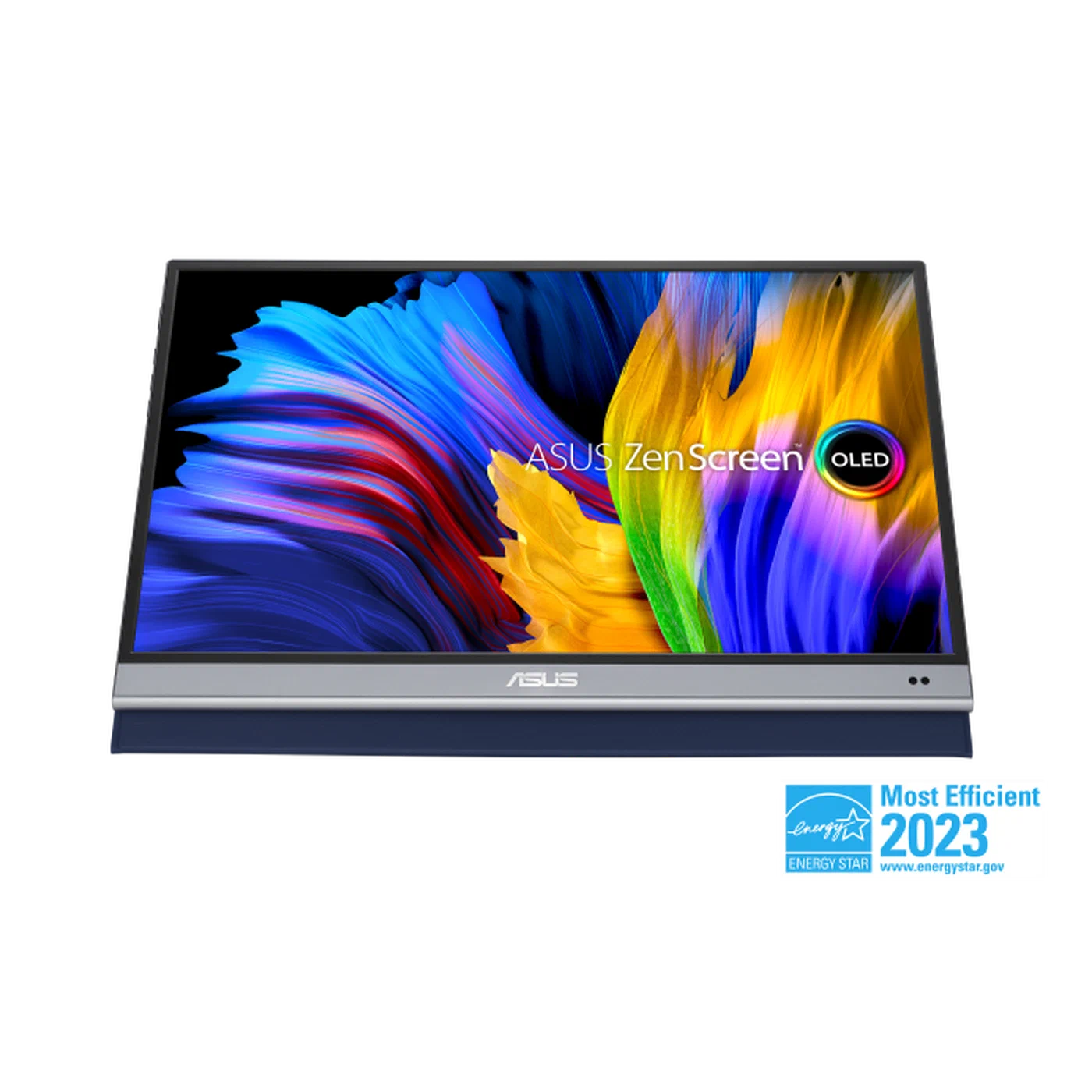
The burn-in caveat applies. Use it as a secondary monitor for reading and documentation rather than as your primary all-day coding display, and configure screen blanking.
High-Resolution Pick (1440p): LG Gram+View 16MQ70
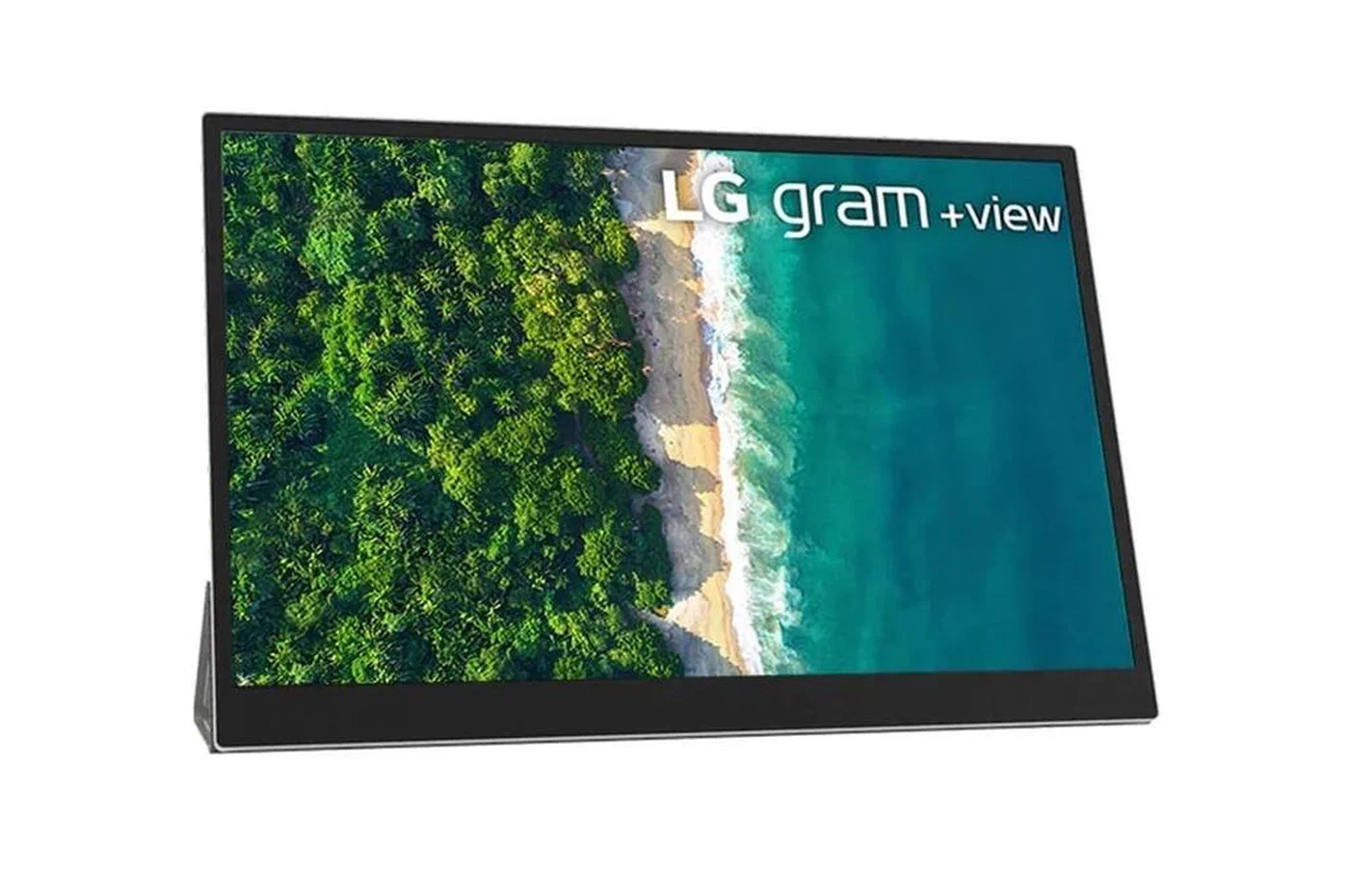
The LG Gram+View 16MQ70 hits the sweet spot for CLI developers: 2560×1600 at 16 inches, IPS matte panel, 60Hz, and a wide 16:10 aspect ratio that gives you real vertical real estate. At 217 PPI, text is genuinely sharp - comparable to a good laptop display at HiDPI scaling. Single USB-C with 60W PD handles most thin-and-light laptops.
The IPS technology means no burn-in concerns, consistent brightness, and proven longevity. At around $280-320, it’s the highest-value choice for developers who want a permanent second-monitor setup in a portable package.
Ultralight Travel Pick: ESPRESSO Display V2
The ESPRESSO Display V2 is 13.3 inches at 1080p with a proprietary magnetic attachment system that snaps to many laptop lids. At under 400g, it’s the lightest option with decent build quality. The magnetic attachment is genuinely useful - no stand fiddling, just snap it on and connect the cable.
The trade-offs: 13.3 inches is small for serious coding, the pixel density is adequate but not exceptional, and the proprietary attachment only works with compatible cases. Best suited for travel where weight is paramount over display quality.
Linux Compatibility and Terminal Setup
HiDPI Scaling on Wayland
The LG Gram+View’s 2560×1600 resolution requires careful scaling configuration on Linux. Under Wayland (Sway, GNOME, KDE Plasma), you can set per-monitor fractional scaling:
GNOME (Wayland):
gsettings set org.gnome.mutter experimental-features "['scale-monitor-framebuffer']"
# Then set 150% scaling in Settings > Displays
Sway:
output DP-1 scale 1.5KDE Plasma: Set per-display scaling in System Settings > Display Configuration. KDE handles fractional scaling more gracefully than GNOME in 2026 - less blurring on XWayland applications.
Avoid fractional scaling on X11 if possible - it requires global scaling that affects all monitors, and non-native scale factors produce blurry rendering.
Color Profile Calibration
If you care about accurate terminal colors (syntax highlighting that matches what you see in PRs on your laptop screen), calibrate the portable monitor’s color profile using DisplayCAL
with an inexpensive colorimeter like the X-Rite i1Display. The ICC profile can be loaded by GNOME, KDE, or manually applied via xcalib:
xcalib ~/.local/share/icc/portable-monitor.iccTerminal Configuration for High DPI
# Alacritty config (~/.config/alacritty/alacritty.toml)
[font]
size = 13.0

[font.normal]
family = "JetBrainsMono Nerd Font"
style = "Regular"
Alacritty and Kitty both use GPU rendering and handle HiDPI scaling correctly without configuration on Wayland. Nerd Fonts are essential for terminal workflows using Starship, Neovim with nvim-tree, or any tool that renders glyphs - download and install the JetBrainsMono Nerd Font variant for the best results on high-DPI displays.
Font rendering optimization: on a high-DPI matte IPS display, subpixel hinting (hintslight or hintsfull) may or may not improve rendering depending on the panel’s subpixel layout. Test with fontconfig settings and use whichever looks sharper on your specific panel.
Stand and Portability Considerations
The included stand quality varies enormously and is often the worst thing about an otherwise good portable monitor. The ARZOPA and similar budget options use a folding cover-stand that’s unstable at obtuse angles - workable at a desk but frustrating if the surface isn’t perfectly flat. The LG Gram+View uses a conventional kickstand integrated into the back, which is stable but limits angle options. Third-party portable monitor stands from brands like Omoton or Vivo provide better adjustability at $25-40 and work with any monitor.
Battery-powered portable monitors exist (Viewsonic TD1655 includes a 7800mAh battery) and are worth considering for truly cable-free setups - presentations, field work, or locations where power outlets are scarce. They add weight and cost but eliminate the dependency on the laptop’s USB-C power delivery.