 Botmonster Tech
Tuning the Steam Deck OLED Kernel for Gaming Performance
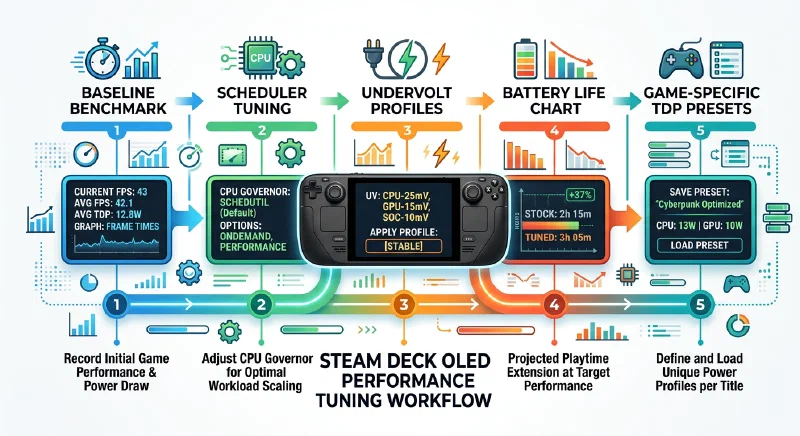
Steam Deck OLED performance tuning is no longer just about pushing a few sliders and hoping for more FPS. In 2026, the stack is layered: Valve’s kernel, Proton version, game engine behavior, and power policy all interact. If you tune one layer in isolation, you often trade smoothness for instability, or frame rate for battery drain.
This guide focuses on a practical goal: improve frame-time consistency and battery life without turning your Deck into a fragile science project. You will get a safe workflow, specific kernel-level options, and game-profile examples you can actually reuse.
Understanding the Steam Deck OLED Hardware
Kernel tuning only makes sense if you map changes to real hardware constraints. The Steam Deck OLED still uses the AMD Van Gogh APU architecture family, with 4 Zen 2 CPU cores and an RDNA 2 iGPU sharing a 16 GB LPDDR5 memory pool. That shared memory design is the reason CPU-heavy games and GPU-heavy games respond very differently to identical TDP limits.
Compared with the original LCD model, the OLED revision gives you three meaningful advantages for tuning. First, the 90 Hz panel exposes frame pacing flaws more clearly than a 60 Hz display, which makes scheduler quality and frame-time variance more important than raw average FPS. Second, process and board-level efficiency improvements reduce wasted power at mid-load, so undervolting and power-limit shaping are more rewarding. Third, the larger 50 Wh battery gives more headroom for profile experimentation, especially if you target 40-60 FPS locks.
Thermals remain the hard ceiling. The Deck can burst high power briefly, but sustained performance depends on the vapor chamber, ambient temperature, and fan curve behavior. In practical terms, long sessions in heavy titles are usually constrained by heat saturation and sustained power limits, not by peak clocks.
You should also understand Valve’s power management path. SteamOS orchestrates game-level policy, while kernel drivers enforce frequency, voltage, and thermal limits. That means a custom kernel patch may do nothing if user-space policy is still clamping the workload, and the opposite is also true.
SteamOS 3.8 and the Game Mode Overhaul
Before touching custom kernels, build a baseline on current SteamOS behavior. SteamOS 3.8 already includes meaningful improvements in amdgpu
states, frame pacing, and dynamic refresh behavior. Many people still apply old tweak lists from 2024-2025 that now conflict with Valve defaults.
Game Mode and Desktop Mode are not equivalent for tuning. In Game Mode, SteamOS prioritizes foreground game workloads, applies more aggressive boost behavior, and coordinates display refresh policies with frame limiters. Desktop Mode is tuned for general responsiveness and background services, so performance conclusions from Desktop benchmarking are usually misleading.
SteamOS channels matter as well:
| Channel | Typical use | Risk profile | Recommendation |
|---|---|---|---|
| Stable | Daily gaming | Lowest | Start here for baseline |
| Beta | Near-term fixes/features | Moderate | Good for enthusiasts who test often |
| Preview | Experimental rollout | Highest | Use only if you can recover quickly |
If your goal is reproducible tuning, lock to one channel during testing. Do not benchmark on Beta, then apply kernel tweaks on Stable and expect apples-to-apples results.
Prerequisites, Disclaimers, and Backup First
Any kernel modification or undervolting workflow needs a clear safety policy. This is the part most guides skip, and it is where most broken installs come from.
Use this checklist before changing anything:
| Item | Why it matters | How to verify |
|---|---|---|
| SteamOS channel fixed | Prevent moving target | Settings > System > OS Update Channel |
| Recovery media ready | Fast rollback from bad boot | Create SteamOS recovery USB |
| Baseline metrics captured | Compare gains honestly | Record FPS, 1% lows, battery drain |
| Game list selected | Avoid random testing noise | Pick 3-5 repeatable scenes |
| Proton versions pinned | Kernel and translation layer interact | Per-game Compatibility settings |
Backup procedure (minimum):
# In Desktop Mode terminal: keep a copy of your tunables and logs
mkdir -p "$HOME/deck-tuning-backup"
cp -a /etc "$HOME/deck-tuning-backup/etc-$(date +%F)" 2>/dev/null || true
cp -a "$HOME/.steam" "$HOME/deck-tuning-backup/steam-$(date +%F)" 2>/dev/null || true
You should also export your Steam controller layouts and note current per-game launch options. If you later troubleshoot stutter, this avoids guessing whether the regression came from kernel changes, launch flags, or a Proton update.
Important disclaimer: undervolting and unsupported kernel patching can cause crashes, data corruption in edge cases, and failed updates. If you depend on the Deck as your only gaming device, prioritize reversible changes first.
Custom Kernels for the Steam Deck: Risks and Options
The safest performance path is usually to stay on Valve’s kernel and tune policy. But if you want deeper scheduler or power-management changes, custom kernels are viable if you treat them as controlled experiments.
In 2026, most users compare three routes:
| Option | Upside | Downside | Best for |
|---|---|---|---|
Valve default kernel (linux-neptune lineage) | Maximum compatibility with SteamOS updates | Less aggressive tuning options | Most users |
| Community Deck-focused kernels | Extra scheduler/power patches | Update friction, variable QA | Advanced tinkerers |
| Bazzite (immutable alternative) | Curated gaming kernel + atomic updates | Migration effort from SteamOS | Users wanting pre-tuned reliability |
If you choose manual kernel patching on SteamOS, expect updates to overwrite assumptions over time. Document your changes and re-validate after major OS updates.
Bazzite deserves explicit mention because it addresses the same performance goals with better rollback ergonomics. If you value stability but still want advanced tuning knobs, Bazzite is often a better long-term strategy than repeatedly repatching stock SteamOS.
CPU Scheduler Tuning with BORE and CachyOS -Inspired Patches
Frame pacing issues on handhelds are often CPU scheduling issues disguised as GPU bottlenecks. Average FPS can look fine while 1% lows feel rough because short CPU bursts miss their render deadlines.
BORE -style scheduling changes target this exact problem by reacting better to bursty game-thread behavior than default general-purpose settings. On Deck-like workloads, that can reduce microstutter in open-world traversal and shader-heavy transitions.
If your kernel exposes scheduler tunables, test in small steps:
# Inspect current scheduler tunables
sysctl kernel.sched_latency_ns
sysctl kernel.sched_min_granularity_ns

# Example: reduce latency window slightly (values are examples)
sudo sysctl -w kernel.sched_latency_ns=12000000
sudo sysctl -w kernel.sched_min_granularity_ns=1500000
Do not chase extreme values. Over-aggressive scheduler latency can increase CPU overhead and hurt battery life for little gain. Use MangoHud to compare before/after 1% lows and frame-time consistency, not just peak FPS.
A practical workflow:
- Run a 10-minute baseline in one fixed scene.
- Apply one scheduler change.
- Repeat same scene with same frame cap and brightness.
- Keep the change only if frame-time percentile improves consistently.
Proton and Wine Version Context: Why Kernel Tuning Alone Is Not Enough
Kernel tuning directly interacts with the translation layer for Windows games. A game on Proton 9 can behave very differently on Proton 10 even with identical kernel settings because shader compilation paths, DXVK versions, and synchronization primitives change.
Treat Proton version as part of your tuning profile. For each game you optimize, record:
- Proton build used (
Proton Experimental,Proton 9.x,GE-Proton, etc.). - Launch options (FSR flags, mangohud,
gamemoderun). - In-game graphics preset and frame cap.
Example launch option pattern:
MANGOHUD=1 gamemoderun %command%If you use FSR environment variables, verify the game is actually honoring them. Some titles now use native upscaling paths and ignore legacy flags. Misapplied flags can make users attribute visual artifacts to kernel instability when the real cause is the graphics stack.
FSR 4.0 and Upscaling Strategy on the Deck OLED
The Deck’s GPU budget is finite, so upscaling remains one of the highest-impact tuning tools. In 2026, the practical strategy is not “always enable the newest upscaler” but “match upscaling mode to game bottleneck and refresh target.”
For GPU-bound AAA titles, use quality-oriented upscaling plus a stable frame cap. For CPU-limited games, aggressive upscaling may raise FPS counters without improving frame pacing.
Common approach in Steam launch options where relevant:
WINE_FULLSCREEN_FSR=1 WINE_FULLSCREEN_FSR_STRENGTH=2 %command%Then confirm in MangoHud whether frame-time spikes improved. If they did not, your bottleneck is likely CPU scheduling, shader compilation, or storage streaming.
A good rule for OLED panel behavior is to align output with display divisors: 45 FPS for 90 Hz or 30/60 targets for specific titles. Consistent frame pacing usually feels better than fluctuating higher averages.
Undervolting and Power Limit Tuning
Undervolting and power shaping can deliver the biggest battery gain, but this is also where instability risk increases. Start with power limits before voltage offsets.
ryzenadj
remains the common Linux-side control tool for AMD APU limits:
# Example values only - tune gradually
sudo ryzenadj --stapm-limit=12000 --fast-limit=15000 --slow-limit=13000 --tctl-temp=80
Interpretation:
--stapm-limit: sustained package target, central for heat/battery tradeoff.--fast-limit: short burst ceiling, affects responsiveness spikes.--slow-limit: medium-window sustained behavior.--tctl-temp: thermal target guardrail.
After stable power-limit tuning, you can test voltage offsets conservatively. Small offsets may reduce heat and fan noise, but each APU sample behaves differently. If you see random game exits, shader compile crashes, or resume instability, roll back immediately.
To persist settings safely, use a small systemd
unit that runs after login and another hook for resume. Keep defaults nearby so rollback is one command away.
Per-Game Performance Profiles That Actually Work
One global profile is convenient, but suboptimal. Different engines stress different parts of the APU. You get better outcomes by maintaining at least three profile classes.
| Profile type | Typical games | Suggested tuning direction |
|---|---|---|
| GPU-heavy | AAA open-world, high effects | Slightly higher GPU budget, moderate CPU cap |
| CPU-heavy | Strategy, simulation, large AI scenes | Favor CPU burst behavior and scheduler responsiveness |
| Balanced/indie | 2D, stylized, lightweight 3D | Lower TDP, strict frame cap for battery |
Example profile notes you can store in a text file:
Cyberpunk 2077: Proton Experimental, 45 FPS cap, medium preset, moderate TDP
Baldur's Gate 3: Proton 9.x, CPU-favor profile, shader cache warmed
Hades II: 60 FPS cap, low TDP profile for long battery sessions
This approach avoids endless retuning and helps you restore known-good behavior after OS updates.
Battery Life Benchmarks and Measurement Method
Claims like “15% better battery” are meaningless unless measured consistently. Use repeatable scenarios and report watt draw plus playtime.
Benchmark method:
- Set fixed brightness (for example 50%), Wi-Fi state, and audio volume.
- Use the same in-game scene or route for each run.
- Log average power draw and battery drop over 20-30 minutes.
- Repeat at least twice and average.
Example results template:
| Game | Profile | Avg FPS | 1% low | Avg package power | Estimated playtime |
|---|---|---|---|---|---|
| Game A | Stock | 44 | 31 | 16.8 W | 2h 35m |
| Game A | Tuned | 45 | 36 | 14.9 W | 2h 55m |
| Game B | Stock | 60 | 49 | 13.2 W | 3h 18m |
| Game B | Tuned | 60 | 55 | 11.7 W | 3h 45m |
These numbers are illustrative, but the pattern is realistic: well-tuned profiles often improve 1% lows and battery life more reliably than they increase peak FPS.
Monitoring and Validation Tooling
Without telemetry, tuning is guesswork. Keep your validation toolchain simple and consistent.
Useful tools and what they answer:
| Tool | Purpose |
|---|---|
| MangoHud | FPS, frame-time graph, CPU/GPU usage |
radeontop | Real-time GPU load and activity |
s-tui
or similar | CPU temp/frequency trends |
journalctl -b | Boot/session errors after tuning changes |
Quick checks:
# Session-level errors after a crash/reboot
journalctl -b -p err

# Verify governor behavior exposed by kernel
cat /sys/devices/system/cpu/cpu0/cpufreq/scaling_governor
When results conflict, trust frame-time consistency and thermals over short benchmark spikes.
Troubleshooting Table: Symptom to Cause to Fix
If tuning goes wrong, this matrix helps isolate the issue quickly.
| Symptom | Likely root cause | First fix to try |
|---|---|---|
| Better average FPS but worse stutter | Over-aggressive scheduler tweak | Revert scheduler tunables toward default |
| Random game crashes after undervolt | Voltage offset too aggressive | Remove offset, keep only power-limit tuning |
| Battery drain unchanged | Frame cap missing or profile mismatch | Apply per-game cap (30/45/60) and retest |
| Good performance in one game, bad in others | Single global profile overfitted | Split into CPU-heavy/GPU-heavy profiles |
| Performance regressed after SteamOS update | Kernel/proton interaction changed | Re-pin Proton version and retest baseline |
| Fan noise higher despite undervolt | Fast-limit too high for ambient temp | Reduce burst limit and lower thermal target |
A Practical, Low-Risk Tuning Sequence
If you want one sequence to follow, use this:
- Establish baseline on SteamOS Stable with fixed Proton versions.
- Add frame cap strategy per game (30/45/60 depending on title).
- Tune power limits with
ryzenadjin small steps. - Validate with MangoHud and battery drain logs.
- Only then test scheduler changes.
- Consider custom kernel or Bazzite migration if gains plateau.
This order gives most of the upside while minimizing breakage.
Conclusion
The Steam Deck OLED rewards thoughtful tuning, but the biggest gains come from disciplined profiling, not from the most aggressive kernel patch. In real use, the best outcomes are usually better 1% lows, steadier frame pacing on the 90 Hz panel, lower fan noise, and meaningful battery improvements in the games you actually play.
If you remember one principle, use this: tune the stack, not just the kernel. Keep Proton version context, per-game profiles, and battery measurements in the loop. That is how you get a faster Deck that still behaves predictably after updates.