 Botmonster Tech
Why Is My USB-C Charger So Slow? Understanding USB Power Delivery

USB Power Delivery (USB-PD) is supposed to be the universal charging standard that ends cable chaos. In practice, plugging in the wrong cable or charger gives you a device that charges at 5W instead of 100W - or refuses to charge at all. The root cause is almost always one of three things: a cable rated below what the device needs, a charger that advertises high wattage but only supports a narrow set of voltage profiles, or confusion between USB-PD and the half-dozen proprietary fast-charging protocols that coexist with it.
What follows covers how USB-PD negotiation works, what cable ratings actually mean, how to read charger specs honestly, and how to verify what your setup is actually delivering.
How USB Power Delivery Negotiation Actually Works
When you plug a USB-C cable into a charger, the two devices do not simply start pushing current. They first have a brief electrical conversation over the CC (Configuration Channel) pin - a dedicated signaling line in the USB-C connector that carries no power itself. This negotiation happens in the first 500 milliseconds and determines how much power the device actually receives.
The charger (called the source) broadcasts a list of Power Data Objects (PDOs) - essentially a menu of voltage and current combinations it can supply. Standard PDOs under USB-PD 3.1 SPR (Standard Power Range) include:
| Voltage | Current | Power |
|---|---|---|
| 5V | 3A | 15W |
| 9V | 3A | 27W |
| 15V | 3A | 45W |
| 20V | 3A | 60W |
| 20V | 5A | 100W |
The device (the sink) reads this list, picks the highest option it supports, and sends back a Request Data Object (RDO). The charger replies with an Accept message and switches to the negotiated voltage. The whole exchange is BMC-encoded signaling at 300 kHz - fast enough that you never notice it.
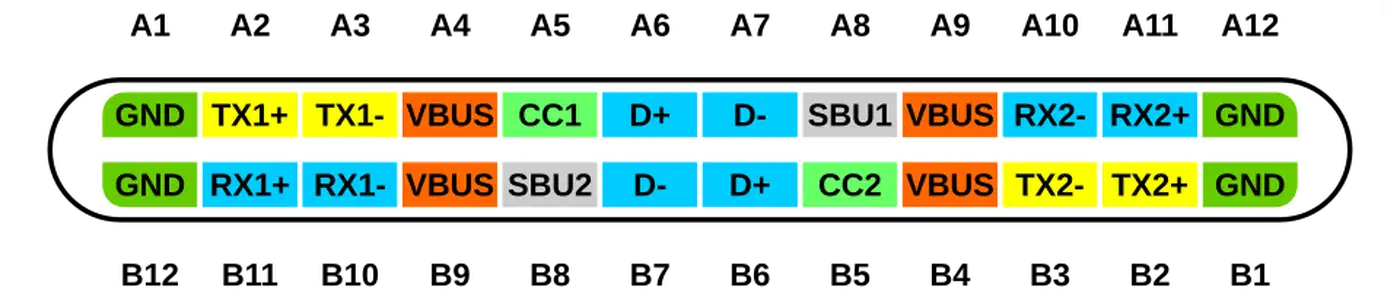
If negotiation fails - because the cable is broken, the charger doesn’t speak USB-PD, or there’s a mismatch - the device falls back to the USB-C baseline: 5V at 0.9A, which is a miserable 4.5W. That’s why some devices charge so slowly with “the wrong charger.”
USB-PD 3.1 EPR: Up to 240W
The USB-IF ratified Extended Power Range (EPR) in 2022, and devices started shipping with EPR support in 2024. EPR adds three new high-voltage PDOs:
| Voltage | Current | Power |
|---|---|---|
| 28V | 5A | 140W |
| 36V | 5A | 180W |
| 48V | 5A | 240W |
These voltages are aimed at gaming laptops and mobile workstations. Apple’s Thunderbolt 5 MacBook Pros support EPR at up to 140W. The USB-IF projects that over 60% of new laptops will support PD 3.1 by late 2026, partly driven by EU regulations that require laptops sold in Europe to support USB-C charging.
PPS: Fine-Grained Voltage Control for Phones
USB-PD 3.0 introduced Programmable Power Supply (PPS), which lets a charger and device negotiate voltage in 20mV steps within a continuous range (for example, 3.3-11V at 3A), rather than jumping between fixed PDO steps. Samsung Galaxy S24/S25 and Google Pixel 9 use PPS to deliver their “super fast charging” modes - up to 45W on the S25 - while minimizing heat. Without a PPS-capable charger, these phones fall back to standard PD speeds of around 15W.
Cables: The Hidden Bottleneck
The cable is the part of the charging chain most people buy on impulse and think about the least. It is also the most common cause of charging running slower than expected - you plug in, charging starts, but at a fraction of the rated speed.
The 3A/5A Split and E-Marker Chips
USB-C cables come in two fundamental tiers. The first is 3A cables (60W max at 20V), which require no special chip and cover the majority of phones and lower-power laptops. The second is 5A cables (100W or 240W), which require an e-marker chip - a small integrated circuit embedded in the cable’s connector plug that identifies the cable’s current rating, USB version (2.0, 3.2, 4.0), and manufacturer ID to the PD controller.
Without an e-marker chip, the charger assumes the cable is 3A-rated regardless of how thick or expensive it looks. You can have a $40 braided USB-C cable that looks premium and still cap out at 60W because it lacks the e-marker.
There is no visual way to tell 3A and 5A cables apart. The only reliable methods are checking the original packaging (which states the rated amperage or wattage) or reading the cable’s e-marker chip with a USB-C power meter.
EPR Cables for 240W
EPR charging adds a third tier: cables with an EPR-capable e-marker that can safely carry 48V at 5A. These are still relatively uncommon and carry a price premium ($25-40 as of 2026). Verified options include the Anker 765 USB-C cable and Cable Matters 240W EPR cable. If you plug an EPR charger into a non-EPR cable, the PD controller will cap negotiation at 100W maximum - it will not attempt 28V or above without the correct cable.
USB4 and Thunderbolt Cables as a Reliable Option
USB4 Gen 2x2 and Thunderbolt 3/4 cables are always e-marked and always support at least 100W PD alongside 40Gbps data. If you need a “just works” cable for any USB-PD scenario up to 100W, grabbing a USB4 or Thunderbolt 4 cable (such as the Cable Matters 40Gbps USB4 or Apple’s Thunderbolt 4 Pro Cable) is the safest choice. They cost more than generic cables but eliminate the guesswork.
Wire Gauge and Cable Length
The physical conductor inside the cable also matters. AWG (American Wire Gauge) ratings describe conductor thickness - lower numbers mean thicker wire, lower resistance, and less voltage drop at high current. For 5A charging, 20AWG power conductors are recommended; they maintain efficiency at 1-2m and hold voltage more stable under load. 28AWG conductors are adequate for 3A/60W cables, but at 5A and longer lengths, voltage drop becomes significant enough to trigger PD renegotiation or fallback.
For 100W+ charging, stick to cables 1m or shorter. A 2m cable at 5A drops roughly 0.5V more than a 1m cable, which can push the received voltage below the threshold for the negotiated PDO.
USB-A to USB-C Cables
USB-A to USB-C cables never support USB-PD. PD negotiation requires the CC pins, which are only present in USB-C connectors. USB-A ports use the older BC 1.2 protocol, capping at 5V/2.4A (12W). If you are charging a modern laptop with a USB-A to USB-C cable, you are getting at best 12W regardless of what the charger is rated at.
Charger Selection: What the Wattage Rating Actually Means
A charger labeled “100W” does not always deliver 100W to your device. That number is the charger’s maximum total output - which may be split across multiple ports or may require a specific PDO that your device doesn’t support.
Total vs. Per-Port Wattage
Multi-port GaN chargers distribute power dynamically. A typical breakdown for a 3-port 100W charger looks like:
| Ports in Use | Port 1 | Port 2 | Port 3 |
|---|---|---|---|
| 1 device | 100W | - | - |
| 2 devices | 65W | 35W | - |
| 3 devices | 45W | 30W | 25W |
Always look up the per-port power delivery table in the spec sheet, not just the headline wattage on the box.
GaN Technology in 2026
Gallium Nitride (GaN) transistors have displaced silicon in essentially all serious charger designs by 2026. GaN chargers run roughly 10-15 degrees Celsius cooler and are around 40% smaller than equivalent silicon chargers. Most current chargers use GaN III or GaN V technology under various brand names (Anker’s GaNPrime, Ugreen’s Nexode, Baseus GaN5). The technology differences between brands are minor at this point - the meaningful spec differences to compare are PDO support and per-port power allocation.
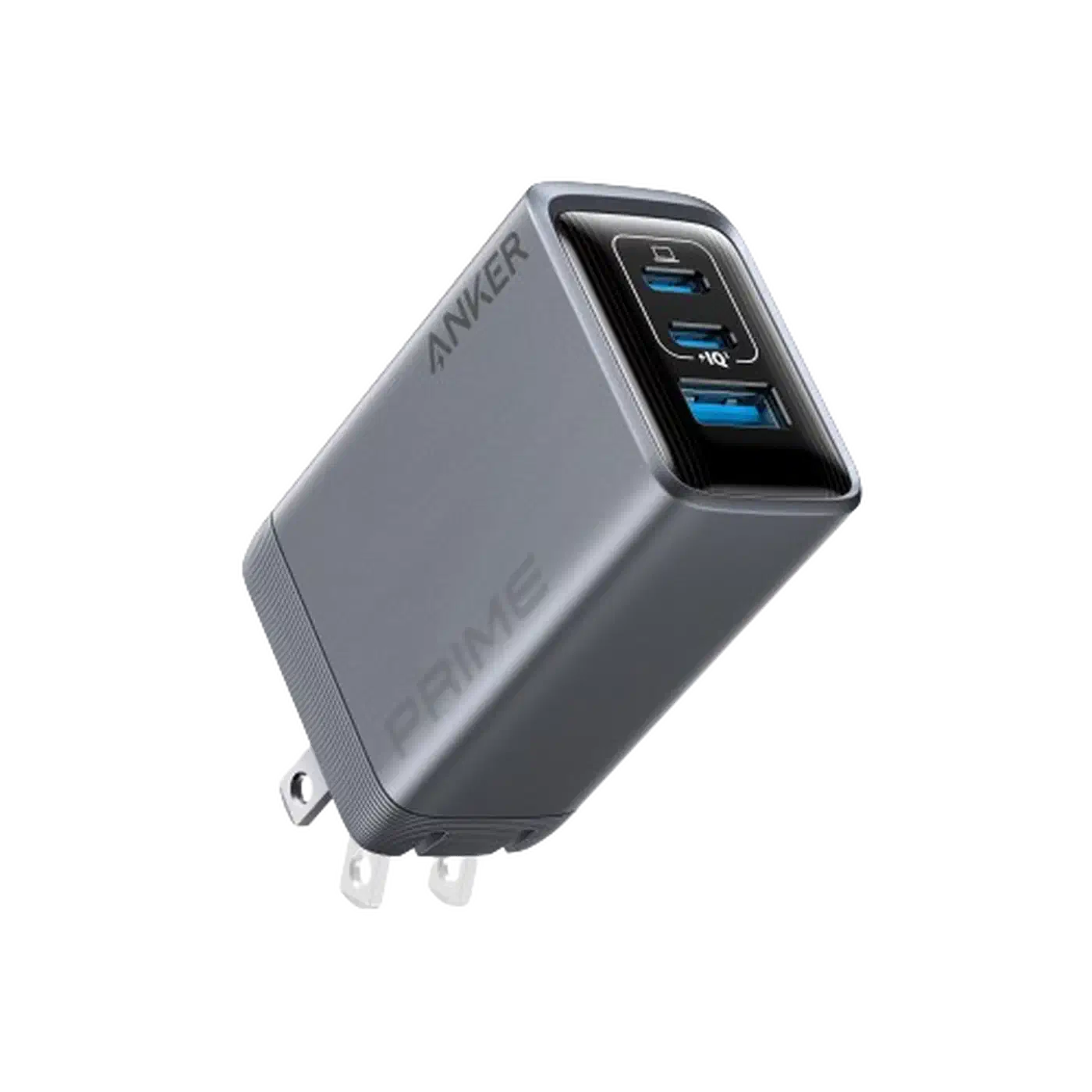
Three chargers worth considering by use case: the Baseus 65W GaN5 ($25) for budget single-device use covering most phones and thin laptops, the Anker Prime 100W ($55) for all-round multi-port use with solid per-port power management, and the Ugreen Nexode Pro 160W (~$70) for EPR-capable setups supporting MacBook Pro 16" and power-hungry laptops.
PDO Profiles Matter More Than Wattage
A charger labeled “65W” that only advertises PDOs of 5V/3A, 9V/3A, and 20V/3.25A is missing the 15V PDO. Chromebooks and some Microsoft Surface models specifically request the 15V profile for optimal charging. Without it, they negotiate down to 9V/3A (27W) - you are not damaging anything, but you are charging at less than half the intended speed.
Check that any charger you buy for a laptop explicitly lists supported voltages: 5V, 9V, 15V, and 20V, not just the highest wattage.
Laptop-Specific PD Requirements
Laptop PD requirements vary considerably by manufacturer and model:
| Laptop | Minimum PD | Optimal PD | Notes |
|---|---|---|---|
| MacBook Air M3/M4 | 30W | 67W | Apple 30W charges slowly; 67W for full speed |
| MacBook Pro 14" | 67W | 96W | Will run off lower wattage but not charge under load |
| MacBook Pro 16" | 96W | 140W EPR | Thunderbolt 5 models support EPR |
| Dell XPS 13 | 45W | 65W | Below 45W: plugged in, not charging |
| Dell XPS 15/17 | 90W | 130W | Requires barrel connector on highest-TDP configs |
| Lenovo ThinkPad X1 | 45W | 65W | Rapid Charge requires PD 2.0 or higher |
| Framework 13 | 45W | 60W | Will trickle-charge below 45W |
| Framework 16 | 65W | 100W | Larger GPU config needs 100W to charge under load |
Below the minimum wattage, most laptops will either refuse to charge entirely or display “plugged in, not charging” while running off battery. This is normal behavior, not damage.
Quick Charge vs. USB-PD
Qualcomm Quick Charge 3.0 and 4.0 are not USB-PD. They use different signaling on the D+ and D- data lines and are incompatible with USB-PD devices. A phone designed for USB-PD will receive only 5W from a QC3.0-only charger. QC5 aligns with USB-PD and does work, but many chargers sold as “Qualcomm certified” still ship with QC3.0. Check the spec sheet before buying.
Testing Your Setup with a USB-C Power Meter
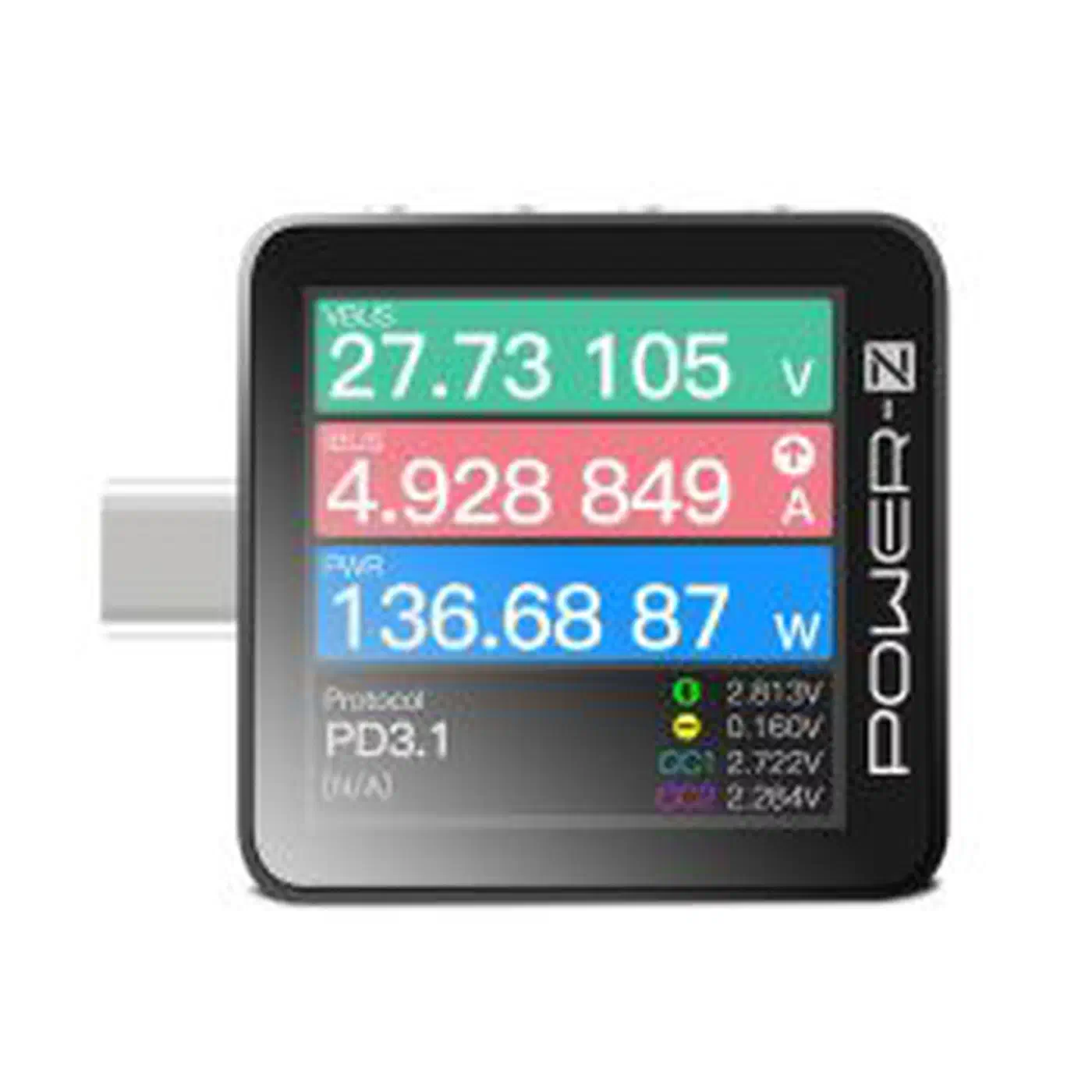
The only way to know what your charger-cable-device combination is actually delivering is to measure it. USB-C inline power meters cost $20-110 and plug between your charger and device to display real-time voltage, current, power, and protocol information.
Three options at different price points: the ChargerLAB Power-Z KM003C
($110) is the most capable, with a dual USB-C inline design, 1.54" OLED display, PD 3.1 support up to 50V/6A, e-marker chip reading, full PDO list display, and PC logging software. The YZXStudio ZY1280 ($20) shows basic voltage/current/power and works well for quick sanity checks, but won’t read e-marker data or display PDO lists. The Witrn U3 (~$25) hits the middle ground, with PD 3.1 EPR support and cable e-marker reading.
What to Check When Testing
Plug the meter inline between charger and device cable. Four things to verify: the negotiated voltage matches the expected PDO (20V for a laptop, 9V or PPS range for a phone); current draw is within the cable’s rated capacity (3A or 5A); the protocol shows as USB-PD rather than BC 1.2 or QC; and the PDO list from the charger includes the voltages your devices need, particularly 15V for Chromebooks and Surface devices.
The KM003C can also read a cable’s e-marker chip directly to display its rated current (3A or 5A), USB speed version, and manufacturer. This is the fastest way to audit a mystery cable pulled from a drawer.
A practical habit: test every charger and cable you own once, then label them with a label maker (e.g., “45W PD - 3A only” or “100W e-marked”). Separate 5A cables physically from 3A cables. This takes 20 minutes and eliminates 95% of future USB-PD confusion.
Hubs, Docks, and Power Passthrough
If you use a USB-C hub or docking station, the hub itself consumes some of the power you feed it - typically 15W - before passing the rest through to your laptop. A hub rated at 100W PD input delivers approximately 85W to the laptop; a 60W hub delivers about 45W; a 45W hub delivers around 30W, which is too little for most laptops under any load.
When choosing a hub for laptop use, aim for at least 100W PD input if your laptop needs 65W or more. The hub’s advertised “power passthrough” wattage is not the same as what your laptop sees - read the spec sheet for the actual passthrough figure after hub overhead.
Troubleshooting Common USB-PD Problems
Most USB-PD failures have a specific, identifiable cause.
If your phone charges slowly (15W instead of 25-45W), the charger likely lacks PPS support. Samsung Galaxy and Google Pixel devices require PPS for maximum speed. Confirm with a power meter that it shows PPS negotiation, not a fixed 9V PDO.
If a laptop shows “plugged in, not charging,” the charger’s highest PDO is below the laptop’s minimum requirement. Check the laptop manufacturer’s spec and verify the charger explicitly supports that wattage. A 45W charger will not charge a laptop that requires 65W minimum, even though it can power it at idle.
A “Charger not supported” warning on Samsung phones means Samsung firmware is rejecting a charger that lacks PPS or has a non-standard PDO profile. Using a PPS-capable charger clears this. It is a software restriction, not a hardware failure.
Intermittent disconnects or reconnects usually point to a damaged cable, specifically at the CC pin contacts. Try a different cable, and inspect the USB-C port for lint with a flashlight. Compressed air can clear debris that breaks the CC connection.
For Linux users who want raw data: on kernels 6.3 and newer, cat /sys/class/typec/port0/partner/usb_power_delivery/*/source_capabilities prints the charger’s PDO list in human-readable form directly from the kernel’s USB-PD driver.
Getting It Right
USB Power Delivery works reliably when you match three components correctly: a charger with the right PDO profiles for your device, a cable rated for the current you need (with an e-marker for 5A), and a device that supports PD. When the chain is correct, it just works. Problems arise from a market flooded with cables and chargers that meet some but not all of the requirements, combined with no visual way to tell them apart.
A USB-C power meter is the single best investment for anyone who cares about charging correctly. Spend $25 on a Witrn U3 or save up for the KM003C, test your existing gear once, label everything, and the mystery evaporates.