 Botmonster Tech
Run Llama 4 Scout locally: 24GB VRAM, GGUF, real speeds

You can run Llama 4 Scout on a 24 GB consumer GPU, but only with an aggressive quantization and some patience. Scout is a 109B-parameter Mixture-of-Experts model, and even its smallest Unsloth dynamic GGUF build is about 32 GB, so a 24 GB card runs it with CPU offload at roughly 20 tokens per second. This guide covers which Llama 4 model fits your hardware, the real VRAM math, and the fastest way to get it running. For the electricity and amortized card cost behind that, see the honest hardware math for local AI.
Key Takeaways
- Llama 4 has no 70B model. The local options are Scout and Maverick.
- Scout is 109B total but only 17B active, so it runs faster than its size suggests.
- The smallest Scout build is about 32 GB, so 24 GB cards offload to RAM.
- Ollama is the quickest start; llama.cpp with Unsloth GGUF gives the most control.
- A 64 GB Apple Silicon Mac runs Scout more comfortably than most consumer GPUs.
What Is Llama 4? The Real Model Lineup
First, clear up a common mix-up: there is no “Llama 4 70B.” The 70B you may remember is Llama 3.3. Llama 4 is a different family, and every member uses a Mixture-of-Experts (MoE) design. Meta shipped two open-weight models you can run locally, plus one preview that you cannot. The same MoE recipe powers MoE models from China such as DeepSeek V4 and Kimi K2. Z.ai’s coder went the same route, and the home-lab verdict on it is worth a read before you commit a weekend.
| Model | Total params | Active params | Experts | Context | Status |
|---|---|---|---|---|---|
| Llama 4 Scout | 109B | 17B | 16 | 10M tokens | Open weights |
| Llama 4 Maverick | 400B | 17B | 128 | 1M tokens | Open weights |
| Llama 4 Behemoth | ~2T | ~288B | 16 | Not stated | Preview, unreleased |
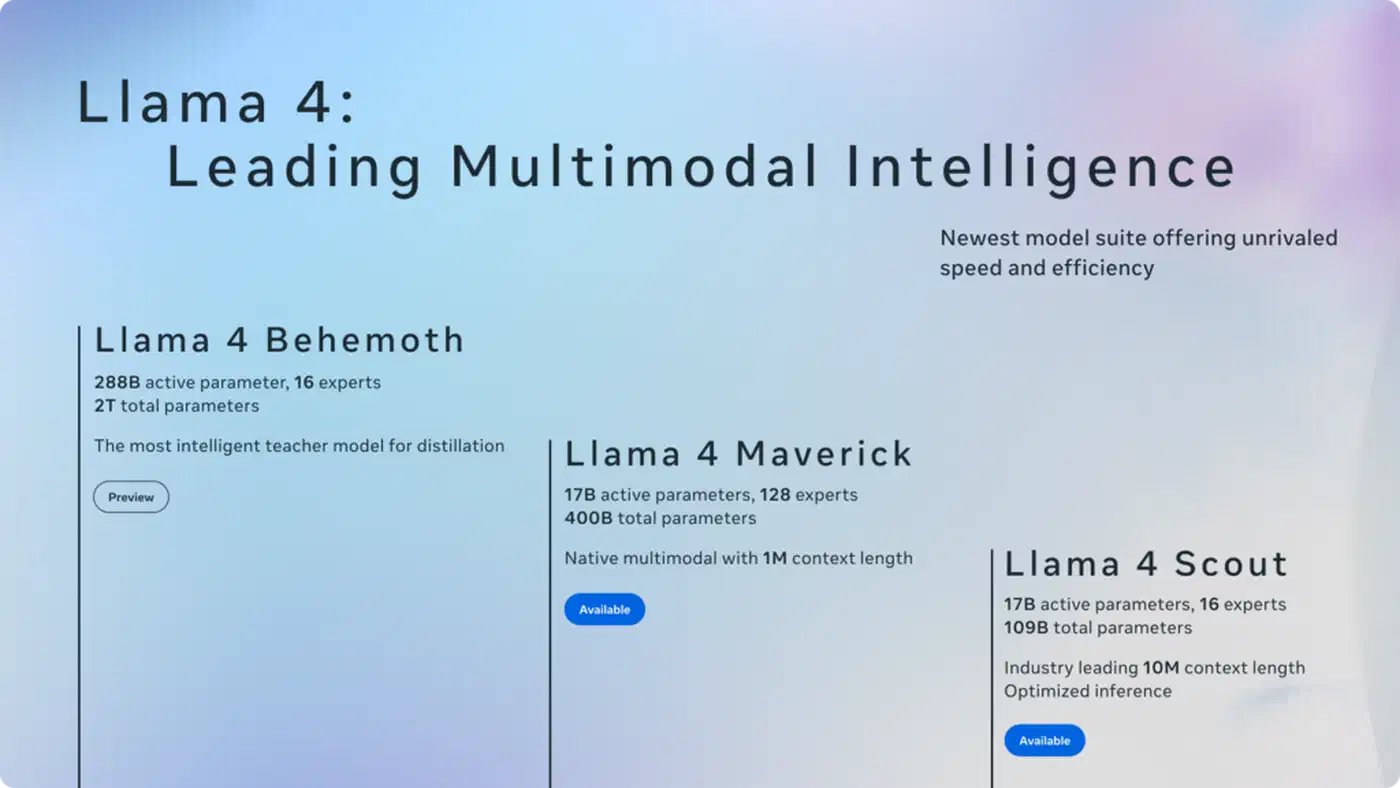
The MoE layout is the key to local use. In a dense model like Llama 3, every parameter fires for every token. In an MoE model, the network splits into many “expert” sub-networks, and a router picks only a few per token. Scout holds 109B parameters but activates just 17B on any forward pass. So once the weights are loaded, Scout generates at a speed closer to a 17B dense model, even though it takes up the memory of a 109B one. That split, big to store, cheap to run, is what makes Scout the realistic local pick.
Llama 4 is also natively multimodal: Scout and Maverick accept image inputs alongside text, and they use an interleaved-attention design Meta calls iRoPE to reach very long context. Scout’s headline is a 10M-token context window. That number is an upper bound, not a default. The KV cache (the buffer that stores past context) grows with context length, so most local users stay near 8k to 32k and treat the long window as a ceiling.
Can Your GPU Actually Run Llama 4?
Here is the honest answer. Scout’s smallest usable build, Unsloth’s 1.78-bit dynamic GGUF, is about 32 GB on disk. That is larger than any single consumer GPU’s VRAM except the 32 GB RTX 5090. Everything below 32 GB runs Scout by keeping some layers in VRAM and offloading the rest to system RAM. Because only 17B parameters are active per token, that offload hurts less than it would on a dense 70B, but it still costs speed. If Scout will not fit, llmfit ranks local models against your RAM and GPU and shows what will. Before you commit to a card, take a minute to check what this rig adds to your power bill.
| GPU tier | VRAM | Scout verdict |
|---|---|---|
| RTX 5060 / 4060 | 8-12 GB | Not practical. Too much offload, single-digit tokens per second. |
| RTX 5070 Ti / 4080 | 16 GB | Works with heavy CPU offload and 48 GB+ system RAM. Slow but usable. |
| RTX 3090 / 4090 / 5080 | 24 GB | The practical entry. 1.78-bit Scout with offload, around 20 tokens per second. |
| RTX 5090 | 32 GB | Holds the 1.78-bit build almost entirely in VRAM. Smoother, fewer stalls. |
| Dual 24-48 GB / 48 GB pro | 48-96 GB | Higher-bit Scout fully in VRAM, or step up to Maverick. |
System RAM does the heavy lifting whenever layers spill off the GPU. For a 24 GB card running Scout, treat 48 GB of DDR5 as the floor and 64 GB as comfortable. DDR5 bandwidth turns directly into tokens per second when many layers live in RAM, so faster memory is a real upgrade here, not a spec-sheet nicety.
Maverick is a different class. At 400B total it needs about 122 GB even at 1.78-bit, which means roughly two 48 GB cards or a high-memory workstation. For almost everyone reading this, Scout is the model, and Maverick is the “if you have a server” option.
Quantization: Which Scout Build to Download
Quantization is what makes a 109B model fit a gaming PC. It stores each weight in fewer bits. The full BF16 Scout is about 216 GB; Unsloth’s dynamic GGUF builds compress that by keeping the sensitive layers at higher precision and squeezing the rest. The result holds quality far better than naive fixed-bit quantization at the same size.
Here are representative Unsloth Scout builds, with sizes pulled from the Unsloth Llama 4 Scout GGUF repository:
| Build | Bits | Size | Who it suits |
|---|---|---|---|
| UD-IQ1_S | ~1.78 | 32.5 GB | 24-32 GB GPUs with offload, the smallest that works |
| UD-IQ2_M | ~2.4 | 39.1 GB | 32 GB+ or big-RAM setups |
| UD-Q3_K_XL | ~3.5 | 49 GB | 48 GB cards, Apple Silicon 64 GB |
| UD-Q4_K_XL | ~4.5 | 62 GB | Near-full quality, needs 64 GB+ of memory |
| Q8_0 | 8 | 115 GB | Workstations, reference quality |
The 1.78-bit build is the one that fits a 24 GB card, and Unsloth’s dynamic method keeps it coherent for chat, summarizing, and general questions. The trade-off is real: at 1.78-bit, hard multi-step math and exact code generation degrade first. If you have the memory for UD-Q3 or UD-Q4, take it, because the quality jump from 1.78-bit to 3-bit is the largest on the ladder. Note that Ollama’s default llama4:scout tag is a roughly 4-bit, 67 GB build, which is why it will not load on a typical consumer card without a lot of offload.
Setting Up: Ollama or llama.cpp
Two paths run Scout locally. Ollama is the quickest, and llama.cpp gives you the most control over offload and speed, though several other local runtimes make different speed-versus-setup trade-offs. Both are good. Pick Ollama if you want to chat in ten minutes; pick llama.cpp with an Unsloth GGUF if you want to fit a 24 GB card and tune every flag.
Run Llama 4 Scout locally on a consumer GPU
Install the NVIDIA driver and CUDA Toolkit
Install NVIDIA driver 570 or newer and CUDA Toolkit 12.4 or newer. Verify with nvidia-smi and nvcc --version.
Build llama.cpp with CUDA support
Clone llama.cpp and build with cmake -B build -DGGML_CUDA=ON -DCMAKE_CUDA_ARCHITECTURES=90 so the binary targets the Blackwell RTX 50-series.
Download a dynamic-quant Scout GGUF
Use huggingface-cli download to fetch the UD-IQ1_S Scout build from the Unsloth GGUF repository into a local ./models directory.
Run inference with offload
Launch llama-cli with the model path, --n-gpu-layers set as high as your 24 GB allows, --ctx-size 8192, and --flash-attn. The rest of the layers run on CPU from system RAM.
Or start with Ollama
Run curl -fsSL https://ollama.com/install.sh | sh, then ollama pull llama4:scout and ollama run llama4:scout. Expect a large download and heavy memory use.
Prerequisites
- NVIDIA driver: 570.x or newer (
nvidia-smi) - CUDA Toolkit: 12.4 or newer (
nvcc --version) - CMake: 3.20+ to build llama.cpp
- Disk space: 40 GB+ for the 1.78-bit Scout build, more for higher bits
- System RAM: 48 GB+ if you offload on a 24 GB card
- OS: Ubuntu 22.04/24.04 or Windows 11 with WSL2 (native Linux is faster)
Installing llama.cpp with CUDA
git clone https://github.com/ggerganov/llama.cpp.git
cd llama.cpp

# Build with CUDA support (90 = Blackwell RTX 50-series)
cmake -B build -DGGML_CUDA=ON -DCMAKE_CUDA_ARCHITECTURES=90
cmake --build build --config Release -j $(nproc)

./build/bin/llama-cli --version
On an RTX 40-series card, use -DCMAKE_CUDA_ARCHITECTURES=89; for RTX 30-series, use 86. Then pull a dynamic-quant Scout build from the Unsloth repository:
pip install huggingface_hub
huggingface-cli download unsloth/Llama-4-Scout-17B-16E-Instruct-GGUF \
  --include "*UD-IQ1_S*" \
  --local-dir ./models
Run your first inference with CPU offload. The --n-gpu-layers flag sets how many layers run on the GPU; raise it until VRAM is nearly full, then stop:
./build/bin/llama-cli \
  -m ./models/Llama-4-Scout-17B-16E-Instruct-UD-IQ1_S.gguf \
  --n-gpu-layers 30 \
  --ctx-size 8192 \
  --threads 8 \
  --flash-attn \
  -p "Explain mixture-of-experts routing in three short paragraphs."
Start --n-gpu-layers low and raise it until you hit a CUDA out-of-memory error, then back off by a few. Set --threads to your physical core count, not the hyperthreaded count, because the offloaded layers run on the CPU. --flash-attn cuts KV-cache memory and speeds up long contexts, so leave it on.
Installing Ollama
curl -fsSL https://ollama.com/install.sh | sh

ollama pull llama4:scout
ollama run llama4:scout
Ollama’s scout tag is a roughly 4-bit, 67 GB build, so on a 24 GB card it offloads heavily. If it crawls, the Unsloth 1.78-bit GGUF through llama.cpp is the lighter route. Ollama also exposes an OpenAI-compatible REST API on http://localhost:11434, so tools like Open WebUI and Continue.dev connect with no code changes:
curl http://localhost:11434/v1/chat/completions \
  -H "Content-Type: application/json" \
  -d '{
    "model": "llama4:scout",
    "messages": [{"role": "user", "content": "Hello, what can you do?"}]
  }'
Real Speeds and What to Expect
Hard, vendor-neutral tokens-per-second numbers for Scout are still scarce, so treat these as reference points, not promises. Unsloth reports Scout’s 1.78-bit dynamic build running at roughly 20 tokens per second on a single 24 GB GPU with offload, and Maverick at around 40 tokens per second on two 48 GB cards. Above 10 tokens per second, chat feels real-time; below 5, it drags.
Your actual speed depends on how much of the model sits in VRAM versus system RAM. The more layers you push onto a 24 GB card, the faster it runs, right up until it overflows. A 32 GB RTX 5090 holds far more of the 1.78-bit build in VRAM, so it stalls less and feels noticeably smoother than a 24 GB card at the same quant.
Running Llama 4 on Apple Silicon
Apple Silicon is quietly one of the best homes for Scout. The unified-memory design means a Mac’s RAM is also its GPU memory, so an M-series machine with 64 GB can hold a UD-Q3 Scout build (about 49 GB) in one pool, with no VRAM-versus-RAM split to manage. A 128 GB Mac can run UD-Q4 (about 62 GB) comfortably. llama.cpp has full Metal support, and per watt it often matches a same-tier NVIDIA setup.
# Build llama.cpp with Metal (auto-detected on macOS)
cmake -B build
cmake --build build --config Release -j $(sysctl -n hw.physicalcpu)

./build/bin/llama-cli \
  -m ./models/Llama-4-Scout-17B-16E-Instruct-UD-Q3_K_XL.gguf \
  --n-gpu-layers 99 \
  --ctx-size 8192 \
  --flash-attn \
  -p "Hello!"
If you are buying hardware specifically for local LLMs and Scout is the target, a high-memory Mac is worth comparing against a multi-GPU NVIDIA build on both cost and desk noise. To keep that noise down, a quiet sub-$1,500 build shows how far careful part picks and fan tuning go.
Ollama vs LM Studio vs llama.cpp
The three tools the search results push all run Scout, but they suit different users.
- Ollama: one binary, automatic downloads, a clean REST API. Best for a fast start and for serving the model to other apps. Its default Scout tag is heavy, so it favors machines with lots of memory.
- LM Studio: a polished desktop GUI with a model browser and a chat window. Best if you want a point-and-click setup and easy quant switching, with no terminal.
- llama.cpp: the engine under the other two. Best when you need to fit a tight 24 GB card, tune offload, or benchmark. The Unsloth dynamic GGUF builds target it directly.
A common path is to prototype in LM Studio or Ollama, then move to llama.cpp once you need to squeeze the model onto a specific card.
Connecting Tools with the Model Context Protocol
Running Scout locally is useful on its own. Hook it to your files and tools and it becomes a local agent. The Model Context Protocol (MCP), introduced by Anthropic, is the standard way to do that: it draws a clean line between the model host and outside tools, so any MCP-friendly client can talk to any MCP-friendly server.
The official MCP SDK ships ready-made servers. A filesystem server lets the model list directories and read files instead of you pasting text into the prompt:
npm install -g @modelcontextprotocol/server-filesystem
mcp-server-filesystem /home/youruser/documents /home/youruser/projects
Open WebUI supports MCP-style tools in its UI, and the llama.cpp server exposes function calling through its /v1/chat/completions endpoint with a tools parameter. Security is a real concern once a model can touch your files: give the server read-only access to set directories by default, require an explicit opt-in for write access, and never point a write-enabled server at folders holding SSH keys or password stores. Running the MCP server in a Docker container with only chosen directories mounted is a simple, solid guardrail:
docker run --rm \
  -v /home/youruser/documents:/data/documents:ro \
  -v /home/youruser/projects:/data/projects:rw \
  mcp-filesystem-server /data
Adding a Web Interface with Open WebUI
If you prefer a browser over the command line, Open WebUI gives Scout a full chat interface with history, model switching, and file uploads. It connects to Ollama and any OpenAI-compatible endpoint.
docker run -d \
  --network host \
  -v open-webui:/app/backend/data \
  --name open-webui \
  --restart always \
  ghcr.io/open-webui/open-webui:main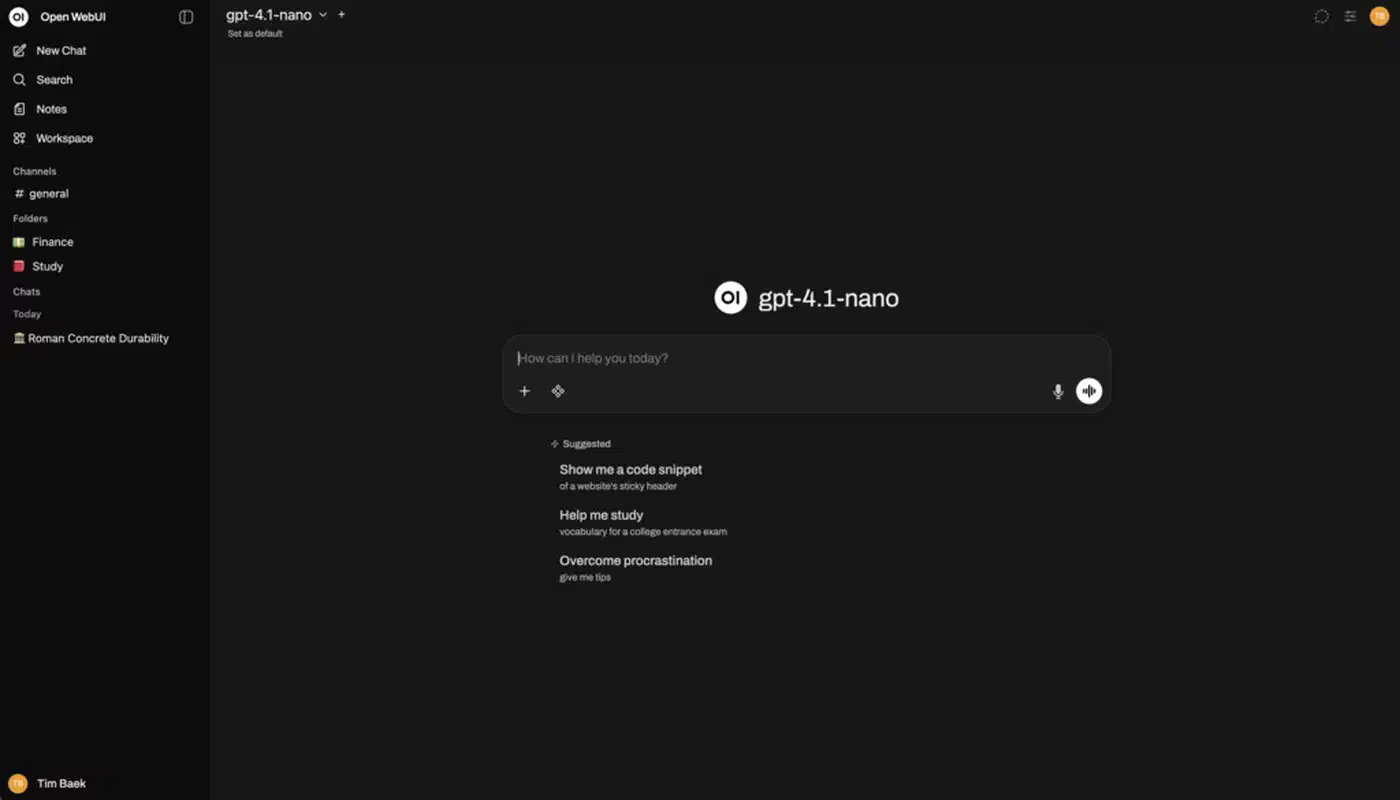
Open http://localhost:3000, create a local-only account, and your Ollama models appear in the picker. To use a llama.cpp server instead, add http://localhost:8080/v1 as an OpenAI-compatible endpoint in admin settings and set any placeholder API key.
Troubleshooting
CUDA out-of-memory: lower --n-gpu-layers until the model fits, or shrink --ctx-size to reduce the KV cache. Start at --n-gpu-layers 0 to confirm it loads on CPU, then raise it. Watch live VRAM with nvidia-smi dmon -s u.
It loads but crawls: on a 24 GB card this usually means most layers are on the CPU. Confirm Flash Attention is on, set --threads to your physical core count, and consider the smaller 1.78-bit build if you are on a larger quant.
The Ollama model is huge: the default llama4:scout tag is around 67 GB. For a consumer card, the Unsloth 1.78-bit GGUF through llama.cpp is far lighter.
Driver mismatch: llama.cpp CUDA builds need CUDA 12.x. Check that nvidia-smi reports CUDA 12.4 or higher in the top-right corner; update the driver if not.
Frequently Asked Questions
Can Llama 4 be run locally?
Yes. Llama 4 Scout runs on a single 24 GB consumer GPU using Unsloth’s 1.78-bit dynamic GGUF with CPU offload, at roughly 20 tokens per second. Maverick is much larger and needs about two 48 GB cards. Both ship as open weights.
How much RAM does it take to run Llama 4?
For Scout’s smallest build (about 32 GB) on a 24 GB GPU, plan on 48 GB of system RAM as a floor and 64 GB for comfort, since the layers that do not fit in VRAM live in RAM. On Apple Silicon, 64 GB of unified memory holds a mid-tier Scout build in one pool.
Can you run Llama 4 locally without internet?
Yes. Once you have downloaded the model weights, llama.cpp and Ollama run fully offline. No data leaves your machine, there are no API rate limits, and there is no cloud dependency during inference.
What are Llama 4’s hardware requirements?
The realistic minimum is a 24 GB GPU plus 48 GB of system RAM for Scout at 1.78-bit. A 32 GB RTX 5090 or a 64 GB+ Apple Silicon Mac is more comfortable. Maverick needs roughly 122 GB of combined memory, which means a dual-GPU or workstation setup.
Is there a Llama 4 70B model?
No. Llama 4 ships only as Mixture-of-Experts models: Scout (109B) and Maverick (400B), plus the unreleased Behemoth. The 70B you may be thinking of is Llama 3.3, a dense model from the previous generation.
Running Llama 4 locally in 2026 is practical, but only if you match the model to your memory. Scout is the consumer-grade pick: 109B parameters that activate just 17B at a time, squeezed onto a 24 GB card with Unsloth’s dynamic quantization, or run more comfortably on a 32 GB GPU or a high-memory Mac. Start with Ollama to confirm everything works, then move to llama.cpp with a dynamic GGUF when you want to fit a tight card and tune for speed. Your data stays on your machine, and once the hardware is paid for, inference is free.