 Botmonster Tech
10 Claude Code Plugins to 10X Your AI Development Projects

If you want better output from Claude Code , adding more AI is rarely the answer. Pairing it with the right CLI tools and skills is. By combining purpose-built integrations like Supabase CLI, Playwright, and GitHub CLI with structured orchestration frameworks like GSD, you can build a development stack where Claude Code handles code generation, entire deployment pipelines, research workflows, and browser automation - without constant hand-holding.
Most developers discover Claude Code and immediately try to connect every available MCP server they can find. Within a week, they notice that the agent is slower, less decisive, and often picks the wrong tool for the job. The fix is almost always a smaller, more deliberate toolset.
CLI vs. MCP: Why the Terminal Wins
Claude Code is a terminal-native agent. It runs in your shell, reads your file system, and executes commands directly. That architecture matters when you are choosing how to extend it.
MCP (Model Context Protocol) servers are external processes that Claude communicates with over a local socket or HTTP. They add overhead: a server process to manage, a protocol layer to traverse, and one more thing that can fail silently. For many use cases - particularly read-heavy ones like browsing the web or querying an external API - MCP servers are a reasonable choice. But for development workflows that need speed, reliability, and tight integration with the local environment, CLI tools are almost always better.
When a CLI tool is installed globally or in a project’s node_modules, Claude can invoke it the same way a developer would: by running a command. There is no extra process to manage, no socket to watch, and no abstraction layer between the agent and the result. The tool does what it says on the tin, and Claude gets a clean stdout/stderr response to reason about.
The best CLI tools also ship with dedicated Claude Code skills - structured Markdown files that teach the agent exactly how and when to use the tool, what the expected outputs look like, and what common failure modes to watch for. Always check whether a CLI has a companion skill before assuming you need to write your own instructions.
One caveat worth taking seriously: more tools do confuse the agent. Every additional capability in scope increases the number of paths Claude has to reason about when planning a task. Keep your active toolset focused. Install globally only what you use across every project; install the rest locally, per project.
The 10 Essential Plugins and Tools
Supabase CLI - The Foundation
Supabase CLI
is the replacement for the Supabase MCP server, and for agentic workflows it is the better option. Install it once (npm install -g supabase), authenticate, and Claude can create and manage full PostgreSQL databases, set up row-level security policies, run migrations, and even initialize vector stores for RAG pipelines - all from natural language instructions.
The standout use case is pairing it with pgvector. You can tell Claude to “create a Supabase project, add a documents table with vector embeddings, and write the ingestion script” - and it will do all three steps in sequence, checking the CLI output after each one to confirm success before moving on.
Note: Supabase has a free tier, but production deployments and certain features require a paid account.
Skill Creator - The Architect
The Skill Creator is Anthropic’s meta-tool for the Claude Code ecosystem. Its job is to help you build, modify, and measure the performance of other skills - essentially a build-and-test loop for agent behaviors.
The feature that sets it apart is A/B testing. You can create two versions of a skill - say, two different approaches to writing a blog post or running a deployment check - and let Skill Creator run both against a test set and compare the outputs. This is how you avoid the common trap of tuning a skill based on vibes rather than evidence.
Invoke it via /skillcreator in any Claude Code session, or describe what you want to build in natural language. It will read your existing skill files, understand the pattern, and generate or modify skill Markdown accordingly.
GSD Framework - The Orchestrator
GSD (Get Shit Done) is an orchestration framework that sits on top of Claude Code and transforms how complex projects are managed. The core idea is spec-driven development: before writing a single line of code, you produce a detailed specification, break it into phases, and then execute each phase in its own fresh context window.
This addresses one of the most common failure modes in long Claude Code sessions - “context rot,” where the agent gradually loses track of earlier decisions, starts contradicting itself, or fails to notice that a file it wrote in step 3 is now out of sync with the code it is writing in step 12. By using sub-agents with fresh contexts for each phase, GSD keeps each execution unit small, focused, and reliable.
The workflow moves from a high-level “plan mode” - where you and Claude define the architecture together - into a regimented phase-by-phase execution where Claude knows exactly what it is building, what it has already built, and what success looks like for the current step.
NotebookLM-PI - The Researcher
NotebookLM-PI is a Python CLI that pipes Google’s NotebookLM directly into your Claude Code terminal session. If you have ever used NotebookLM’s “Deep Research” or audio overview features, you already know its reasoning engine is unusually good at synthesizing large document sets. This tool makes that engine available from the command line.
The value play is offloading research-heavy tasks to NotebookLM’s free tier while keeping Claude Code in the driver’s seat for implementation. Ask Claude to query NotebookLM about a set of PDFs you have uploaded, get a structured summary back as text, and then use that summary to drive the actual code or content generation. You get two specialized reasoning systems working in sequence rather than forcing one to do everything.
Setup involves CLI-based OAuth login and then issuing natural language queries. The tool returns clean text responses that Claude can immediately reason about and act on.
Obsidian Vault Integration - The Personal Assistant
Obsidian is a Markdown-based personal knowledge management tool built around the concept of a “Vault” - a folder of interconnected notes. Running Claude Code directly inside an Obsidian Vault folder turns the agent into a genuine personal assistant that can read, write, search, and cross-link your notes using the same conventions you use manually.
The setup is minimal: open a terminal in your Vault directory and start a Claude Code session. No MCP server required. Claude can read every note in the vault, follow [[wikilinks]] to related notes, create new notes with proper metadata, and update indexes automatically.
The key best practice is explicitly instructing Claude to follow Obsidian conventions in your CLAUDE.md file. Tell it to use [[note-name]] syntax for internal links, to add tags in frontmatter using your existing tag vocabulary, and to place new notes in the correct subfolder based on topic. Without these instructions, Claude will create technically correct Markdown that does not integrate cleanly with the rest of your vault.
Vercel CLI - The Deployer
Vercel CLI
brings one-command deployment into the natural language workflow. Install it with npm install -g vercel, authenticate once, and Claude can deploy any frontend project to a preview URL or production environment without leaving the terminal.
A more useful pattern is the agent loop: after Claude makes a code change, it runs vercel --prod, waits for the deployment to complete, checks the deployment status endpoint, and then runs a smoke test against the live URL - all in a single uninterrupted chain. If the smoke test fails, it rolls back automatically. This turns what used to be a multi-step manual process into a fully autonomous deploy-verify-rollback cycle.
Note: Vercel requires an account, and production deployments beyond the free tier limits require a paid plan.
Playwright CLI - The Automation Agent
Playwright is Microsoft’s browser automation library, and its CLI makes it directly invokable from Claude Code. The agent can launch a headless browser, navigate to any URL, interact with UI elements, fill forms, click buttons, and extract data - all driven by natural language instructions.
What makes Playwright particularly valuable in an agentic context is the show command, which opens a visible browser window alongside the headless automation. You can watch exactly what the agent is doing in real time, which makes debugging much faster. When Claude is running a complex multi-step form submission or scraping a paginated table, being able to see the browser state is far more useful than reading a stack trace.
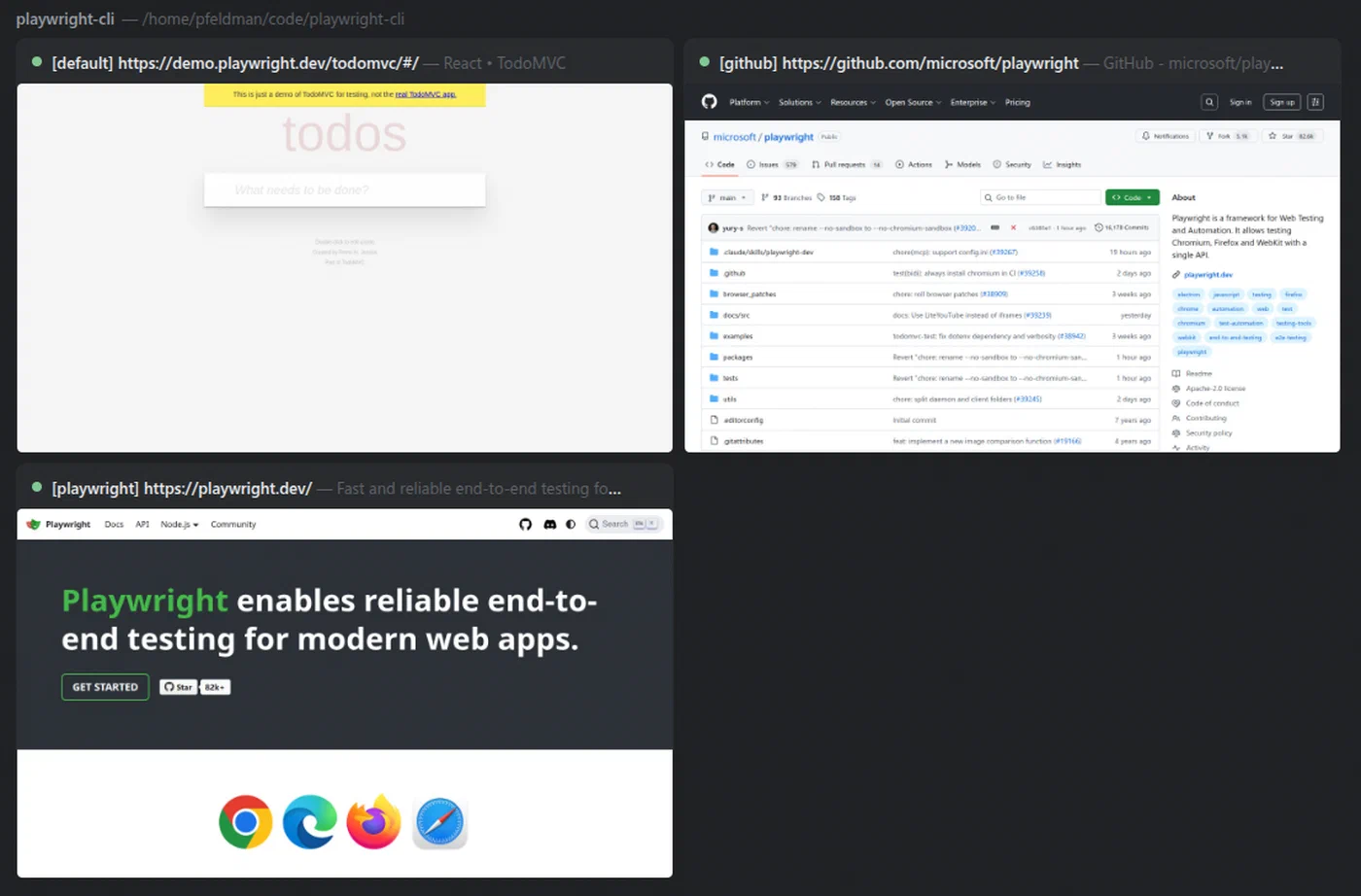
Use cases include automated UI testing after each deployment, extracting structured data from sites that do not offer APIs, and filling out forms as part of a larger automated workflow.
Install: npm install -g @playwright/test && playwright install
GitHub CLI - The Workflow King
GitHub CLI
changes how Claude Code interacts with Git and GitHub more than almost any other tool. Without it, every PR, issue, push, and code review requires either manual steps or a fragile MCP server connection. With gh installed, Claude can handle the full Git workflow from natural language.
Ask it to “create a pull request for this branch with a summary of the changes” and it will write the PR description, apply labels, and open it - pulling context directly from the diff and commit history. It works well alongside Vercel CLI: Claude pushes code, opens a PR, deploys to a preview environment, adds the preview URL as a PR comment, and waits for CI to pass. The entire loop from “write this feature” to “PR ready for review” can be autonomous.
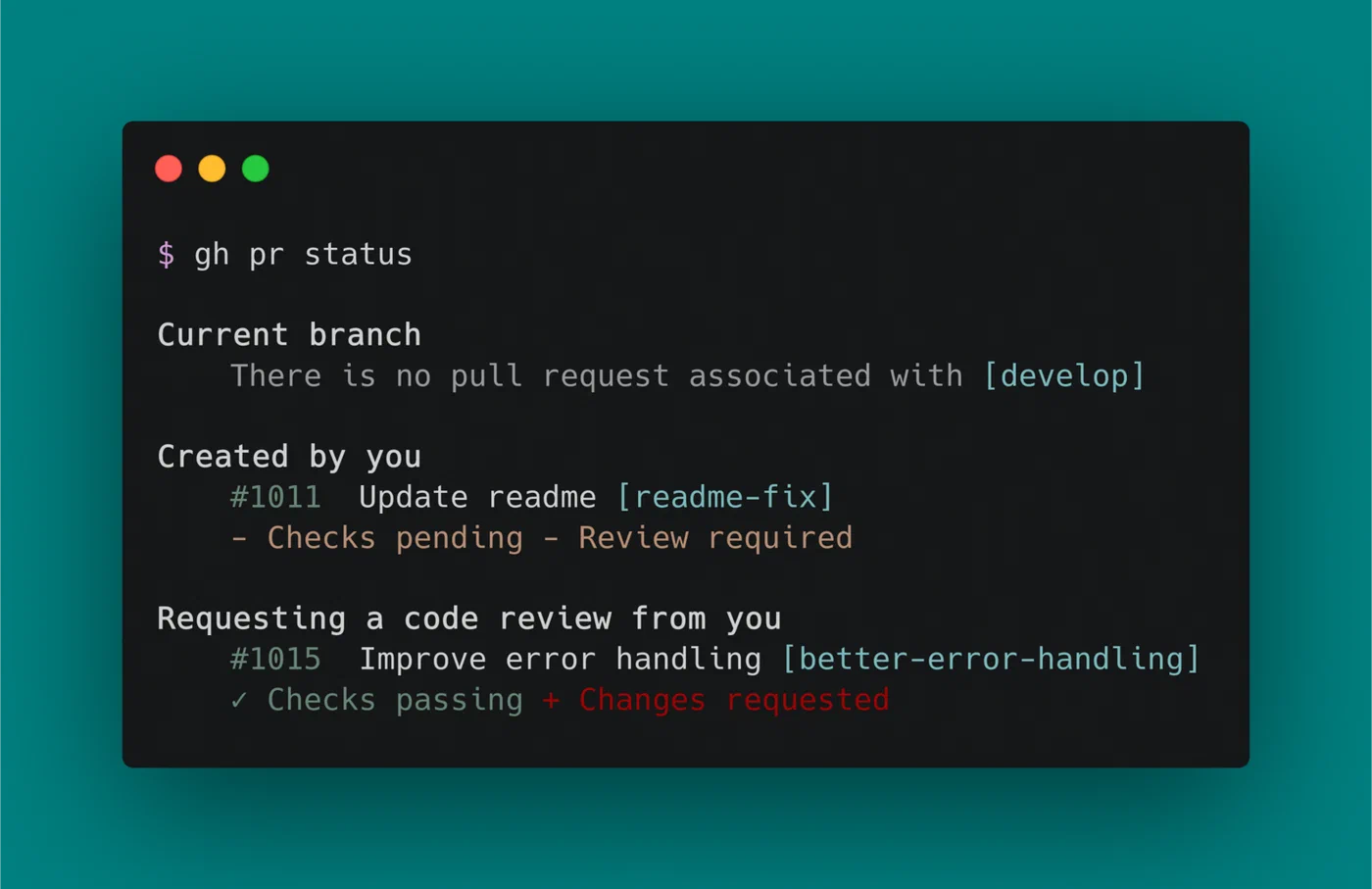
No paid account required beyond a standard GitHub account.
Firecrawl - The Web Scraper
Firecrawl is a web scraping API and CLI built specifically for AI agents. Standard scraping tools return raw HTML; Firecrawl returns clean, structured Markdown that is immediately ready for an LLM to reason about. The difference in downstream output quality is significant.
Its four core commands cover most research workflows: scrape for a single URL, crawl for an entire site, map for generating a sitemap, and search for full-text search across crawled content. For any task where Claude needs current, factual information from the web - competitive research, documentation lookup, news aggregation - Firecrawl is the right tool.
Note: Firecrawl requires an API key, and heavy usage requires a paid tier.
Excalidraw Diagram Skill - The Visualizer
The Excalidraw Diagram Skill , built by Cole Med, teaches Claude Code to generate technical diagrams and architecture charts as Excalidraw files using natural language. Where manual diagramming is tedious and time-consuming, this skill makes it a one-sentence task.
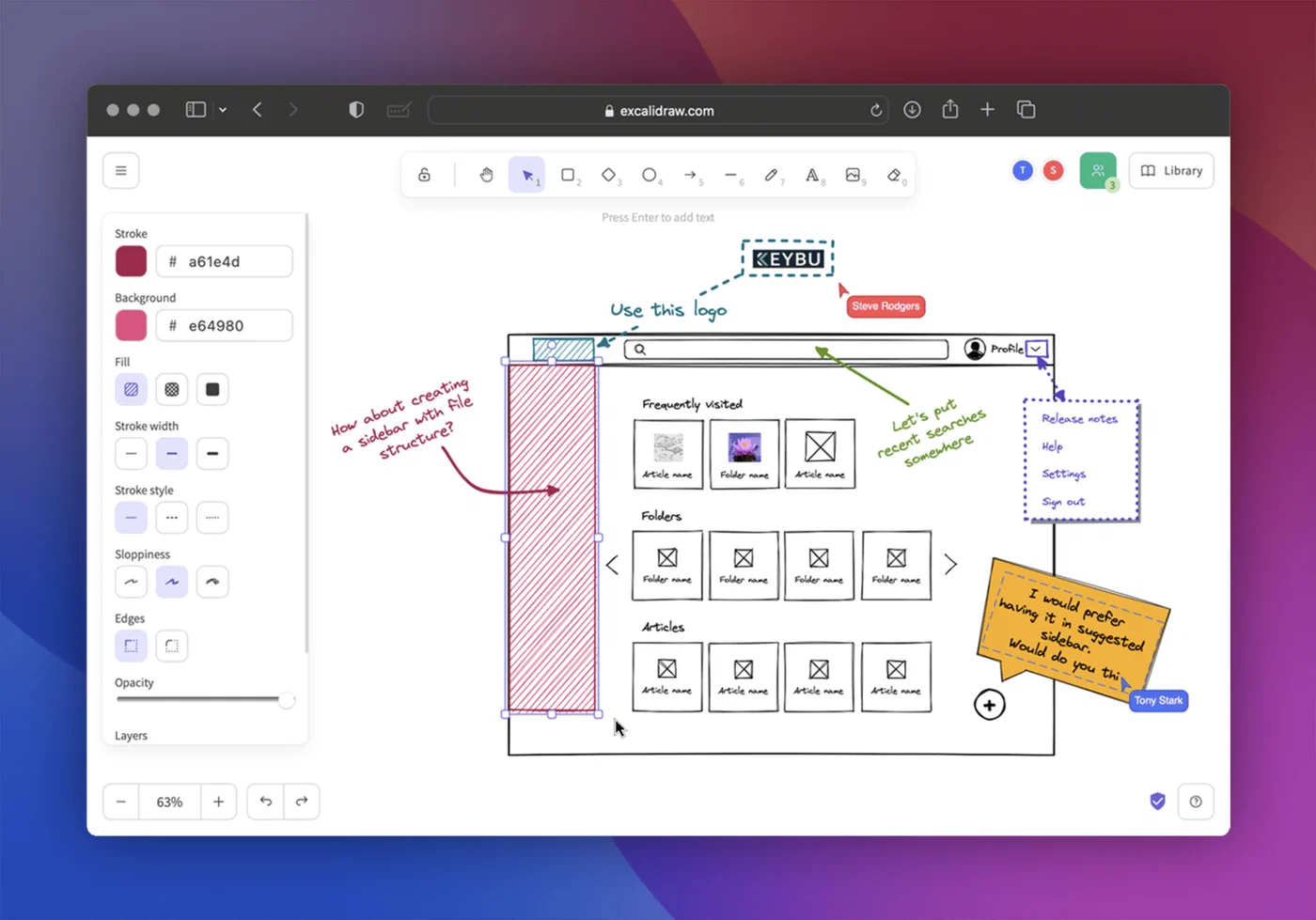
Because the skill has access to your project’s codebase, it can generate diagrams that actually reflect your architecture rather than generic placeholder boxes. Ask for a “data flow diagram for the authentication service” and it will read the relevant files, understand the actual components and relationships, and produce an Excalidraw file you can open and edit immediately. For documentation, presentations, and architecture reviews, this saves hours.
Finding the Sweet Spot
More tools do not produce better results. Every tool you add is another option the agent has to evaluate, another potential source of confusion when two tools could plausibly handle the same task, and another thing that can fail mid-session and derail a longer workflow.
The practical rule is: install globally only what you use in every project. For most developers, that means GitHub CLI and possibly Playwright. Everything else - Supabase CLI, Vercel, Firecrawl - belongs in a per-project installation, ideally documented in the project’s CLAUDE.md so the agent knows what is available and when to use it.
A starter stack for three common use cases:
| Use Case | Core Stack |
|---|---|
| Solo developer | GitHub CLI + GSD + Skill Creator |
| Full-stack app | GitHub CLI + Supabase CLI + Vercel CLI + Playwright |
| Content creation | Firecrawl + NotebookLM-PI + Obsidian + Excalidraw Skill |
And a reference table for all ten tools covered here:
| Tool | Type | Primary Use Case | Install |
|---|---|---|---|
| Supabase CLI | CLI | Database and auth management | npm install -g supabase |
| Skill Creator | Skill | Build and test Claude skills | /skillcreator in Claude Code |
| GSD Framework | Framework | Orchestrated, spec-driven development | See repo README |
| NotebookLM-PI | CLI | AI-powered document research | pip install notebooklm-py |
| Obsidian | Integration | Personal knowledge management | Direct folder access |
| Vercel CLI | CLI | Frontend deployment | npm install -g vercel |
| Playwright | CLI | Browser automation and UI testing | npm install -g @playwright/test |
| GitHub CLI | CLI | Git and GitHub workflow automation | brew install gh / apt install gh |
| Firecrawl | CLI/API | AI-ready web scraping | npm install -g firecrawl-cli |
| Excalidraw Skill | Skill | Technical diagram generation | Install from skill repo |
Tools that require paid accounts or API keys: Firecrawl (free tier limited), Vercel (free tier available, paid for production scale), and Supabase (free tier available, paid for production projects and advanced features).
No individual tool on this list will fix a poorly-designed workflow. The discipline of keeping your stack intentional matters more than any specific choice. A Claude Code session with three well-chosen, well-documented tools will outperform one with fifteen poorly-integrated ones. Pick the stack that matches your actual workflow, document it in your project’s CLAUDE.md, and give the agent a clean, focused scope to work within.