 Botmonster Tech
Build an AI-Powered Terminal Assistant with Ollama and Shell Scripts

You can build a practical AI terminal assistant by wiring Ollama’s
local API into shell functions that explain errors, suggest commands, and summarize man pages - all from your .bashrc or .zshrc. No Python dependencies, no cloud API keys, no persistent daemon consuming RAM when you’re not using it. The whole thing fits in under 120 lines of shell script and responds in under a second on modest hardware with a model already loaded.
The approach described here is intentionally minimal. You get exactly the features that save you time in a real terminal workflow, without the overhead of a full CLI AI wrapper application.
Architecture - How the Assistant Works
The design is a collection of shell functions that make HTTP requests to Ollama’s REST API on demand, then print the result to your terminal. When you’re not calling them, they consume exactly zero resources.
The data flow for every function follows the same pattern:
- Capture some input (an error message, a description of what you want to do, a command name)
- Build a JSON payload with a system prompt and user content
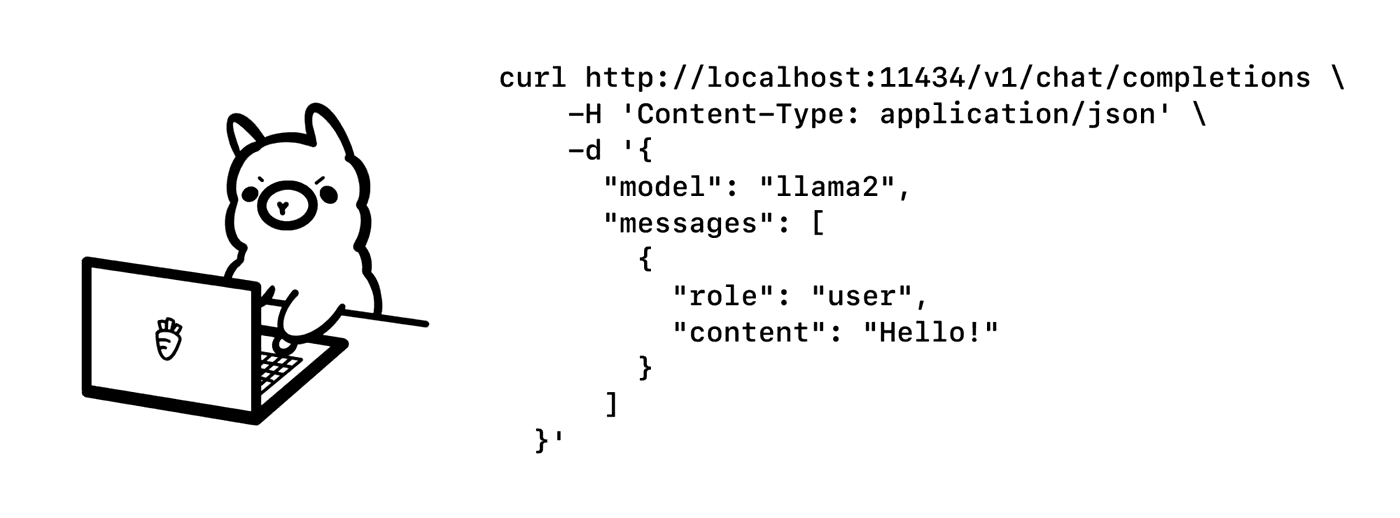
- Send it to
http://localhost:11434/api/generateviacurl - Parse the response with
jqand print it
Ollama needs to be running in the background before any of this works. On systemd systems, systemctl start ollama handles it. Otherwise, ollama serve in a background terminal works fine.
For the model, you want something fast. Phi-4 Mini and Qwen 2.5 3B both give fast, accurate responses for terminal tasks. Pull whichever fits your VRAM:
ollama pull phi4-mini    # ~2.5 GB, very fast
ollama pull qwen2.5:3b   # ~1.9 GB, slightly more capable on code tasks
Short responses (error explanations, single commands) use "stream": false so curl collects the full response before printing. Longer output (man page summaries) uses "stream": true and pipes through jq for token-by-token output - waiting five seconds for a block of text to arrive all at once is annoying, streaming makes it feel much more responsive.
The choice to keep this shell-native means it works in any terminal emulator without requiring a specific Python environment, Go binary, or framework. It also means the functions compose naturally with pipes, heredocs, and the rest of your existing shell workflows.
Core Function - Error Explanation
The wtf function is the one you’ll use most. After a command fails, type wtf and it explains what went wrong and suggests a fix.
First, set up a hook to capture stderr from every command. In .bashrc:
# Redirect stderr to both the screen and a temp file
exec 2> >(tee /tmp/.last_stderr >&2)
This sends stderr to both the terminal (so you still see errors in real time) and /tmp/.last_stderr for later retrieval by wtf.
Now the function itself:
wtf() {
  local exit_code=$?
  local last_cmd
  last_cmd=$(fc -ln -1 | sed 's/^ *//')
  local last_err
  last_err=$(cat /tmp/.last_stderr 2>/dev/null | tail -20)
  local os_info
  os_info=$(uname -srm)

  if [[ -z "$last_err" && $exit_code -eq 0 ]]; then
    echo "Last command succeeded (exit code 0). Nothing to explain."
    return
  fi

  local prompt="Command: $last_cmd
Exit code: $exit_code
Error output: $(sanitize_prompt "$last_err")
OS: $os_info

Explain what went wrong and suggest the most likely fix. Two to three sentences unless the fix genuinely requires more detail."

  curl -s "${AI_HOST:-http://localhost:11434}/api/generate" \
    -d "$(jq -n \
         --arg model "${AI_MODEL:-phi4-mini}" \
         --arg prompt "$prompt" \
         '{model: $model, prompt: $prompt, stream: false}')" \
  | jq -r '.response'

  > /tmp/.last_stderr
}
Note the sanitize_prompt call - that function is defined in the installation section and strips API keys and passwords
before they hit the model. Worth doing even though Ollama runs locally, since model context can end up in logs.
For zsh users, replace PROMPT_COMMAND with precmd hooks. The stderr capture becomes:
# In .zshrc
preexec() { exec 2> >(tee /tmp/.last_stderr >&2) }
The OS context in the prompt matters more than you’d expect. Without uname output, the model occasionally suggests apt commands on an Arch system. With it, suggestions match the actual OS nearly every time.
Response time with Phi-4 Mini already loaded in VRAM: under a second. On CPU-only hardware, expect 3-8 seconds depending on the machine. That’s still faster than switching to a browser, searching Stack Overflow, and reading through five answers.
Command Suggestion and Generation
The ai function takes a plain English description and outputs the shell command you need:
ai() {
  local description="$*"
  if [[ -z "$description" ]]; then
    echo "Usage: ai <description of what you want to do>"
    return 1
  fi

  # Include piped context if present
  local pipe_context=""
  if [[ ! -t 0 ]]; then
    pipe_context="
Context from stdin:
$(cat | head -50)"
  fi

  local suggested_cmd
  suggested_cmd=$(curl -s "${AI_HOST:-http://localhost:11434}/api/generate" \
    -d "$(jq -n \
         --arg model "${AI_MODEL:-phi4-mini}" \
         --arg sys "You are a Linux shell command generator. Output only the raw shell command with no explanation, no markdown, no backticks. Target bash on Linux with GNU coreutils." \
         --arg prompt "Task: $description$pipe_context" \
         '{model: $model, system: $sys, prompt: $prompt, stream: false}')" \
    | jq -r '.response' | tr -d '`' | sed '/^bash$/d')

  echo "Command: $suggested_cmd"
  echo -n "Execute? [y/N] "
  read -r confirm
  if [[ "$confirm" =~ ^[Yy]$ ]]; then
    eval "$suggested_cmd"
  fi
}
The confirmation step is not optional. Auto-executing LLM output is asking for trouble - the model can produce a subtly wrong command that’s destructive. The prompt makes it easy to hit y when the command looks right, which is most of the time.
Pipe support is genuinely useful: ai "sort these by modification time" < filelist.txt passes the file contents as context. The model can reference actual filenames in its output, which produces more specific and accurate commands than a generic prompt.
The how variant adds explanation alongside the command, for when you want to understand what you’re running:
how() {
  curl -s "${AI_HOST:-http://localhost:11434}/api/generate" \
    -d "$(jq -n \
         --arg model "${AI_MODEL:-phi4-mini}" \
         --arg sys "You are a Linux shell expert. Given a task description, provide the command and a concise explanation of each significant flag." \
         --arg prompt "Task: $*" \
         '{model: $model, system: $sys, prompt: $prompt, stream: false}')" \
  | jq -r '.response'
}
Use ai for quick command lookup when you know exactly what you want. Use how when you’re learning or working with unfamiliar tools.
Man Page and Documentation Summarizer
Man pages are thorough to the point of being unwieldy for quick lookups. The explain function cuts to what matters:
explain() {
  local cmd="$1"
  [[ -z "$cmd" ]] && { echo "Usage: explain <command>"; return 1; }

  local cache_dir="$HOME/.cache/ai-assistant"
  local cache_file="$cache_dir/$cmd.txt"
  mkdir -p "$cache_dir"

  # Return cached result if available
  if [[ -f "$cache_file" ]]; then
    cat "$cache_file"
    return
  fi

  # Get documentation source
  local doc_text=""
  if man "$cmd" &>/dev/null; then
    doc_text=$(man "$cmd" | col -b | head -200)
  elif "$cmd" --help &>/dev/null; then
    doc_text=$("$cmd" --help 2>&1 | head -100)
  else
    doc_text="No man page or --help output available for '$cmd'."
  fi

  local result
  result=$(curl -s "${AI_HOST:-http://localhost:11434}/api/generate" \
    -d "$(jq -n \
         --arg model "${AI_MODEL:-phi4-mini}" \
         --arg sys "You are a technical documentation expert. Summarize man pages into practical bullet points a working developer can act on immediately." \
         --arg prompt "Summarize this documentation in 6-8 bullet points. Focus on common use cases and frequently used flags. Skip history, bugs sections, and obscure edge cases.

$doc_text" \
         '{model: $model, system: $sys, prompt: $prompt, stream: false}')" \
  | jq -r '.response')

  echo "$result" | tee "$cache_file"
}
Caching is the key feature here. Man page summaries don’t change between runs, and generating one takes a few seconds. After the first call, explain rsync returns instantly from ~/.cache/ai-assistant/rsync.txt.
The explain-flag function handles quick flag lookups without reading the full man page:
explain-flag() {
  curl -s "${AI_HOST:-http://localhost:11434}/api/generate" \
    -d "$(jq -n \
         --arg model "${AI_MODEL:-phi4-mini}" \
         --arg sys "Explain what each flag in a shell command does. One line per flag, no preamble." \
         --arg prompt "Explain each flag: $*" \
         '{model: $model, system: $sys, prompt: $prompt, stream: false}')" \
  | jq -r '.response'
}
Example output:
$ explain-flag "tar -xzf archive.tar.gz"
-x  Extract files from the archive
-z  Decompress through gzip
-f  Treat the next argument as the archive filename
That’s faster than man tar when you just need to confirm what a flag combination does.
Installation, Configuration, and Performance Tuning
Package everything in ~/.ai-assistant.sh and source it from your shell config:
# In .bashrc or .zshrc
[ -f ~/.ai-assistant.sh ] && source ~/.ai-assistant.sh
At the top of ~/.ai-assistant.sh, add the configuration defaults and the Ollama availability check:
# Configuration - override these in your shell config or per-command
: "${AI_MODEL:=phi4-mini}"
: "${AI_HOST:=http://localhost:11434}"

# Security: strip common secret patterns before they reach the model
sanitize_prompt() {
  sed -E \
    -e 's/(Authorization: Bearer )[^ ]*/\1[REDACTED]/g' \
    -e 's/password=[^ &]*/password=[REDACTED]/g' \
    -e 's/sk-[A-Za-z0-9]{20,}/[REDACTED_KEY]/g' \
    -e 's/ghp_[A-Za-z0-9]{20,}/[REDACTED_KEY]/g' \
    <<< "$1"
}

# Skip loading functions if Ollama isn't running
if [[ "${AI_DISABLED:-0}" == "1" ]] || \
   ! curl -s --connect-timeout 1 "${AI_HOST:-http://localhost:11434}/api/tags" &>/dev/null; then
  return 0
fi
The availability check at source time means the functions simply won’t be defined when you ssh into a headless server where Ollama isn’t running. No error spam, no broken commands.
The := syntax for defaults sets values without overriding existing environment variables. So you can override per-command without changing your config:
AI_MODEL=qwen2.5:7b explain curl # use a larger model for this one callModel selection by function:
| Function | Recommended model | Reason |
|---|---|---|
wtf | phi4-mini | Speed is the priority; error messages are short |
ai | phi4-mini | Low latency for command generation |
how | qwen2.5:7b | More explanation benefits from a more capable model |
explain | phi4-mini | Cached after first run, so quality matters less |
Keeping the model loaded in VRAM is the single biggest performance factor. Ollama evicts models from memory after five minutes of inactivity by default. Set OLLAMA_KEEP_ALIVE=30m to extend this:
# For systemd installations, create an override:
# /etc/systemd/system/ollama.service.d/override.conf
[Service]
Environment="OLLAMA_KEEP_ALIVE=30m"
Then systemctl daemon-reload && systemctl restart ollama.
Cold-start latency (loading the model from disk into VRAM) is 2-3 seconds for Phi-4 Mini on NVMe storage. With the model already resident in VRAM, response time for a typical error explanation is under a second. That difference is what separates a tool you actually reach for from one you forget exists.
Comparing with existing tools: Projects like shell-gpt , aichat , and mods all handle similar use cases and are worth knowing about. Shell-gpt integrates tightly with OpenAI’s API and has a polished interface. Aichat supports dozens of provider backends. Mods has good pipeline integration for processing command output.
The shell-script approach trades features for simplicity. There’s nothing to install beyond curl and jq. The code is short enough to read and understand fully in 15 minutes. You can modify any function without reading documentation or submitting a pull request. For a tool that runs on every shell startup and every command failure, that transparency has real value.
Shell startup cost is negligible. All functions are defined lazily - the only code that runs at source time is the Ollama availability check, which is a single fast HTTP call with a one-second timeout. On a modern system, sourcing the full assistant adds under 50ms to shell startup. With AI_DISABLED=1, it adds nothing.
The complete ~/.ai-assistant.sh with all five functions, the security scrub, caching, and the availability guard runs to about 120 lines. That’s readable, auditable, and easy to extend. Add a git-ai function for commit message generation, a docker-ai function for container troubleshooting, or whatever else fits your workflow - each new function follows the same pattern as the ones above. If you want to take this further, see how to pair Ollama with Docker to build a local code interpreter agent
that executes LLM-generated code in a sandboxed container.