 Botmonster Tech
How to Build a Local AI Meeting Transcriber and Summarizer

You can build a fully local, cloud-free meeting transcriber by capturing system audio with PipeWire, transcribing with Faster-Whisper on your GPU, and piping the transcript to a local LLM through Ollama that extracts structured summaries with attendee names, decisions, and action items. The entire pipeline runs on a machine with 16GB+ RAM and a mid-range NVIDIA GPU, producing meeting notes within seconds of the call ending - with zero data leaving your network.
Commercial transcription services like Otter.ai and Fireflies.ai route your audio through external servers. If your meetings cover sensitive topics - product strategy, personnel matters, legal reviews - that is a non-starter. Running everything locally gives you the same structured output without any data leaving your building.
Capturing System Audio on Linux
Getting clean audio from your meeting application into the transcription pipeline is the first thing you need to sort out. On modern Linux distributions (Fedora 41+, Ubuntu 24.04+, Arch), PipeWire is the default audio server and makes this straightforward.
The simplest approach is pw-record, which can target a specific application’s audio output. You need the node ID of your meeting app, which you can find by inspecting the PipeWire graph:
pw-record --target $(pw-cli ls Node | grep -A2 "zoom" | grep "id:" | awk '{print $2}') meeting.wavThis captures only the meeting application’s audio, ignoring system notifications, music, or anything else running on your machine. If you need to capture both remote participants and your own microphone in a single stream, create a virtual combined sink:
pactl load-module module-combine-sink sink_name=meeting_capture \
  slaves=$(pactl list short sinks | grep -m1 "meeting" | cut -f1),$(pactl list short sources | grep -m1 "input" | cut -f1)
Alternatively, pw-loopback creates a loopback from the meeting app’s output to a virtual source that Whisper can read directly for real-time transcription.
Audio format matters for downstream accuracy. Whisper expects 16kHz mono WAV/PCM. If you are recording to a file first, convert with:
ffmpeg -i meeting_raw.wav -ar 16000 -ac 1 -f wav meeting_16k.wavFor real-time pipelines, pipe through sox to resample on the fly.
One common gotcha involves Bluetooth headsets. When using A2DP profile (high quality audio), the microphone is unavailable. You need to switch to HFP/HSP profile, which drops audio quality to 16kHz but enables the microphone. PipeWire handles this automatically if you set bluez5.autoswitch-profile = true in your WirePlumber configuration, or you can force it manually with bluetoothctl.
As a backup capture method, OBS Studio with the PipeWire plugin can record both video and audio simultaneously on Wayland, giving you a screen recording alongside the transcript if you need to reference visual content later.
Real-Time Transcription with Whisper
Two Whisper implementations are worth considering for local speech-to-text: Whisper.cpp and Faster-Whisper.
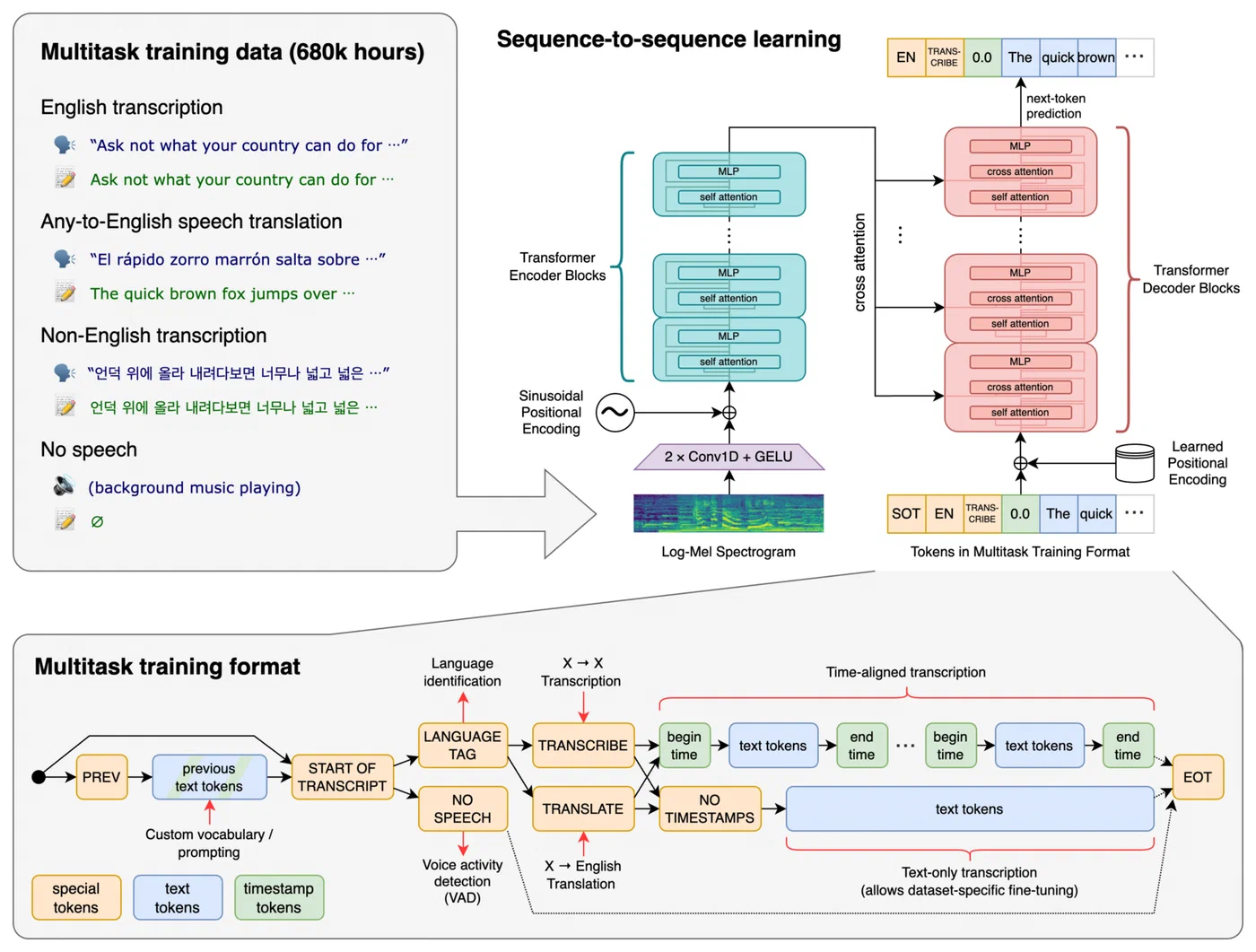
Faster-Whisper (based on CTranslate2) is the better choice if you have a dedicated GPU. The large-v3-turbo model runs at 5-8x real-time speed on an RTX 4060 with 8GB VRAM. That means a 60-minute meeting transcribes in about 8-12 minutes. For shorter standups and check-ins, results appear almost instantly.
Whisper.cpp works better for CPU-only or low-VRAM setups. The medium.en model (1.5GB) runs at 2-3x real-time on a Ryzen 7 7700X using 8 threads. Accuracy is acceptable for English-only meetings with clear audio.
Here is a practical model selection guide:
| Model | Parameters | VRAM | Speed (RTX 4060) | Best For |
|---|---|---|---|---|
large-v3-turbo | 1550M | ~6GB | 5-8x real-time | Maximum accuracy, multilingual |
medium.en | 769M | ~3GB | 10-15x real-time | English-only, balanced |
small.en | 244M | ~1.5GB | 20-30x real-time | Fast results, clear audio |
Accuracy drops roughly 5% Word Error Rate (WER) between each tier, so choose based on your audio quality and language requirements.
Always enable Voice Activity Detection (VAD). Faster-Whisper ships with Silero VAD that skips silence segments, cutting processing time by 30-50% for meetings with long pauses or muted periods:
from faster_whisper import WhisperModel

model = WhisperModel("large-v3-turbo", device="cuda", compute_type="float16")
segments, info = model.transcribe(
    "meeting_16k.wav",
    vad_filter=True,
    vad_parameters=dict(min_silence_duration_ms=500)
)
For real-time streaming, you can build a pipeline that chunks audio into 30-second segments with 5-second overlap, transcribing each chunk as it arrives and merging results. The overlap prevents words from being cut mid-utterance at chunk boundaries.
Speaker Diarization
A transcript without speaker labels is hard to follow. pyannote-audio
v3.3 pairs with Whisper to identify who said what. It produces timestamped segments tagged with SPEAKER_00, SPEAKER_01, and so on. You map these to real names in post-processing, either manually or by matching against a voice profile database you build over time.
from pyannote.audio import Pipeline

diarization = Pipeline.from_pretrained(
    "pyannote/speaker-diarization-3.1",
    use_auth_token="your_hf_token"
)
result = diarization("meeting_16k.wav")

for turn, _, speaker in result.itertracks(yield_label=True):
    print(f"[{turn.start:.1f}s - {turn.end:.1f}s] {speaker}")
Note that pyannote requires a HuggingFace token and agreement to their model terms. The diarization step adds roughly 1-2 minutes of processing for a 60-minute recording on GPU.
Summarization with a Local LLM
A raw transcript works as a reference, but scrolling through 12,000 words to find the one decision that matters is painful. Feeding the transcript to a local LLM gets you structured notes with decisions and action items pulled out automatically.
Ollama handles serving local models with minimal configuration. For meeting summarization, Llama 3.3 70B with Q4_K_M quantization (about 40GB RAM) produces the best results for complex technical discussions. If your machine is more constrained, Llama 3.2 8B with Q8_0 quantization (about 9GB RAM) still produces solid summaries for straightforward meetings.
Summary quality depends heavily on the system prompt. A structured prompt that specifies the exact output format works best:
You are a meeting note assistant. Given the following transcript,
produce a JSON object with these keys:
- title (string): descriptive meeting title
- date (string): ISO date
- attendees (list): participant names from the transcript
- summary (string): 3-5 sentence overview
- key_decisions (list): decisions made during the meeting
- action_items (list of objects): each with assignee, task, deadline
- follow_ups (list): items requiring future discussion
For models with large context windows - Llama 3.3 supports 128K tokens - you can pass the full transcript in a single prompt. A 90-minute meeting typically produces around 15,000-20,000 tokens of transcript, fitting comfortably within the context window. For older or smaller models, chunk the transcript into 4,000-token segments with 500-token overlap, summarize each chunk independently, then run a “summary of summaries” pass.
Use the Instructor library with Ollama’s OpenAI-compatible endpoint to validate LLM output against a Pydantic schema. This catches malformed JSON and automatically retries:
import instructor
from openai import OpenAI
from pydantic import BaseModel

class ActionItem(BaseModel):
    assignee: str
    task: str
    deadline: str | None

class MeetingNotes(BaseModel):
    title: str
    summary: str
    key_decisions: list[str]
    action_items: list[ActionItem]

client = instructor.from_openai(
    OpenAI(base_url="http://localhost:11434/v1", api_key="ollama")
)

notes = client.chat.completions.create(
    model="llama3.3:70b",
    messages=[
        {"role": "system", "content": SYSTEM_PROMPT},
        {"role": "user", "content": transcript_text}
    ],
    response_model=MeetingNotes,
    temperature=0.1,
    top_p=0.9
)
Keep temperature at 0.1 and top_p at 0.9 for summarization. You want deterministic, factual output, not creative writing. Also leave repeat_penalty at its default since meeting transcripts naturally contain repeated phrases and penalizing repetition causes the model to drop legitimate content.
Building the End-to-End Pipeline
With each component working independently, the next step is wiring them into a single script that you launch at the start of a meeting and forget about until notes appear afterward.
A Python orchestrator script handles the full flow:
#!/usr/bin/env python3
"""meeting_notes.py - Local meeting transcription and summarization."""

import subprocess
import signal
import sys
from pathlib import Path
from datetime import datetime

NOTES_DIR = Path.home() / "meeting-notes"
NOTES_DIR.mkdir(exist_ok=True)

class MeetingRecorder:
    def __init__(self):
        self.recording_process = None
        self.audio_file = NOTES_DIR / f"raw_{datetime.now():%Y%m%d_%H%M}.wav"

    def start_recording(self, target_node=None):
        cmd = ["pw-record", "--rate", "16000", "--channels", "1"]
        if target_node:
            cmd.extend(["--target", str(target_node)])
        cmd.append(str(self.audio_file))
        self.recording_process = subprocess.Popen(cmd)
        subprocess.run(["notify-send", "Meeting Recorder", "Recording started"])

    def stop_recording(self):
        if self.recording_process:
            self.recording_process.send_signal(signal.SIGINT)
            self.recording_process.wait()
            subprocess.run(["notify-send", "Meeting Recorder", "Recording stopped"])

    def transcribe(self):
        # Run Faster-Whisper transcription
        ...

    def summarize(self, transcript):
        # Call local LLM via Ollama
        ...

    def save_notes(self, notes):
        slug = notes.title.lower().replace(" ", "-")[:50]
        output = NOTES_DIR / f"{datetime.now():%Y-%m-%d}-{slug}.md"
        # Write Markdown with YAML frontmatter
        ...
The script captures audio in a subprocess, and when you press Ctrl+C (or send SIGINT), it stops recording, runs transcription, performs diarization, calls the LLM, and writes the final Markdown file. The output file uses the format {date}-{title-slug}.md with YAML frontmatter containing all the structured metadata.
Desktop Integration
For daily use, create a .desktop file and bind it to a keyboard shortcut like Super+M. Use a PID file to toggle recording on and off:
#!/bin/bash
PIDFILE="/tmp/meeting-recorder.pid"
if [ -f "$PIDFILE" ] && kill -0 "$(cat "$PIDFILE")" 2>/dev/null; then
    kill -INT "$(cat "$PIDFILE")"
    rm "$PIDFILE"
else
    python3 ~/scripts/meeting_notes.py &
    echo $! > "$PIDFILE"
fi
A notify-send call confirms start and stop, so you get visual feedback without switching windows.
Systemd Service for Automatic Recording
For a hands-off setup, create a systemd user service that monitors PipeWire for new audio streams matching meeting application names:
[Unit]
Description=Meeting Transcriber Auto-Detect

[Service]
ExecStart=/usr/bin/python3 %h/scripts/meeting_monitor.py
Restart=always

[Install]
WantedBy=default.target
The monitor script watches for PipeWire nodes from Zoom, Teams, or Google Meet and automatically starts recording when it detects one. When the node disappears (meeting ends), it triggers the transcription and summarization pipeline.
Resource Management
Monitor GPU VRAM during transcription with nvidia-smi. If VRAM runs low, your pipeline should fall back automatically from large-v3-turbo to medium.en to avoid out-of-memory crashes. A simple check before loading the model:
import subprocess

def get_free_vram_mb():
    result = subprocess.run(
        ["nvidia-smi", "--query-gpu=memory.free", "--format=csv,noheader,nounits"],
        capture_output=True, text=True
    )
    return int(result.stdout.strip())

model_name = "large-v3-turbo" if get_free_vram_mb() > 6000 else "medium.en"
Accuracy Optimization and Troubleshooting
Default Whisper settings produce decent results with clean audio, but meeting conditions are rarely clean. Background noise, crosstalk, varied microphone quality, and technical jargon all degrade accuracy. A few adjustments go a long way.
The biggest improvement comes from seeding domain vocabulary. Pass an initial prompt containing technical terms specific to your meetings:
segments, info = model.transcribe(
    "meeting.wav",
    initial_prompt="Meeting about Kubernetes deployment, ArgoCD, Helm charts, gRPC services, PostgreSQL replication"
)
This biases Whisper toward recognizing those terms instead of producing phonetically similar but incorrect words.
Also set the language explicitly with language="en" (or your target language) instead of relying on auto-detection. Auto-detection wastes compute on the first 30 seconds of audio and sometimes misidentifies the language when speakers use technical jargon or code-switch briefly.
If your meetings have noticeable background noise, apply noise reduction before transcription using the noisereduce Python library:
import noisereduce as nr
import soundfile as sf

audio, sr = sf.read("meeting_raw.wav")
reduced = nr.reduce_noise(y=audio, sr=sr)
sf.write("meeting_clean.wav", reduced, sr)
For meetings with echo (common on speakerphone), speexdsp provides echo cancellation that cleans up the audio before Whisper sees it.
A few common issues and how to deal with them:
- Hallucinated repetitive phrases during silence: enable VAD filtering. Without it, Whisper fills silent segments with repeated phrases or phantom text.
- Garbled names and acronyms: add them to
initial_prompt. Whisper handles “John” fine but struggles with “Janek” or “RBAC” without hints. - Missing punctuation: use
large-v3-turbowhich has noticeably better punctuation than smaller models. Alternatively, run a lightweight punctuation restoration model as a post-processing step. - Timestamp drift: reduce chunk overlap if using a streaming pipeline. Excessive overlap causes duplicate segments that shift timestamps.
Benchmark your setup before relying on it for important meetings. Transcribe a known recording and compare against a manual transcript. Calculate Word Error Rate (WER) using the jiwer library. Target less than 10% WER on clean audio and less than 15% on noisy multi-speaker audio. If you are above those thresholds, work through the optimization steps above until you get there.
Where to Go from Here
With PipeWire audio capture, Faster-Whisper transcription, pyannote diarization, and Ollama-served Llama summarization wired together, you have a complete local replacement for commercial transcription services. A 60-minute meeting produces structured notes within 15 minutes on mid-range hardware, and nothing leaves your machine.
Once the basic pipeline works, there are useful extensions. You can pipe action items to a task manager like Vikunja via its API, post the summary to a Slack channel via webhook, or drop the Markdown file into an Obsidian vault so it becomes part of your searchable knowledge base. If you attend recurring meetings (standups, sprint reviews), the voice profiles from pyannote get more accurate over time, and you can build a name-mapping dictionary that auto-labels speakers without manual intervention.
Setup takes a few hours and a machine with a decent GPU. After that, every meeting you take produces private, structured notes automatically.