 Botmonster Tech
Migrate to Wayland Without Reinstalling Linux

You can switch your existing Linux installation from X11 to Wayland without reinstalling anything. The migration boils down to selecting a Wayland session at your display manager’s login screen, then working through three categories of follow-up: Xwayland compatibility for legacy X11 applications, input device configuration via libinput instead of xorg.conf, and environment variable tweaks so that toolkits like Qt, GTK, and Electron render natively through Wayland instead of falling back to X11. Most people can finish the whole process in an afternoon, keeping an X11 session as a fallback until they are satisfied everything works.
As of 2026, every major desktop environment treats Wayland as its primary session. GNOME has defaulted to Wayland since GNOME 42. KDE Plasma 6.x is Wayland-first, and the KDE project has announced that Plasma 6.8 (expected October 2026) will drop the X11 session entirely. NVIDIA’s proprietary driver supports explicit sync from version 555 onward, eliminating the flickering and artifact issues that plagued multi-monitor setups for years. The ecosystem of Wayland-native tools - clipboard managers, screenshot utilities, screen recorders, automation daemons - is mature enough that there are drop-in replacements for nearly every common X11 utility.
Assessing Your Current Setup Before Migrating
A successful migration starts with understanding what you are moving away from. Spending fifteen minutes auditing your current X11 environment will save you from surprise breakage after switching.
Check your display server and GPU driver
Confirm you are running X11:
echo $XDG_SESSION_TYPE
# Should print: x11
For a more reliable check that works over SSH or in scripts:
loginctl show-session $(loginctl | grep $(whoami) | awk '{print $1}') -p TypeNext, check your GPU driver situation. This matters because AMD and Intel GPUs work with Wayland out of the box, while NVIDIA requires specific driver versions and kernel parameters:
glxinfo | grep "OpenGL renderer"
lsmod | grep -E "nvidia|amdgpu|i915"- AMD (amdgpu) and Intel (i915): Fully supported on Wayland with no special configuration. These drivers use implicit sync and have been stable under Wayland for years.
- NVIDIA (proprietary, 555+): Requires
nvidia-drm.modeset=1as a kernel parameter. Explicit sync support landed in driver version 555, and version 565.77+ provides the most stable experience. The EGLStreams vs. GBM debate is over - NVIDIA added GBM support in driver 495 (late 2021), and all modern Wayland compositors use it. - Nouveau: Basic Wayland support exists but lacks hardware acceleration for most GPUs. Not recommended for daily use.
Audit your X11-specific tools
Many X11 utilities have no Wayland equivalent and will silently fail or produce confusing errors. Before switching, make a list of what you actually use. Common ones that need replacement:
| X11 Tool | Wayland Replacement | Notes |
|---|---|---|
xdotool | ydotool or wlrctl | ydotool works on any compositor; wlrctl is wlroots-specific |
xclip / xsel | wl-clipboard
(wl-copy, wl-paste) | Drop-in replacement, supports pipes |
xrandr | wlr-randr or compositor config | wlr-randr for wlroots compositors; GNOME/KDE use their own settings |
xbindkeys | Compositor keybinds | Configured in sway/hyprland config directly |
redshift | gammastep or wlsunset | GNOME Night Light and KDE Night Color are built-in |
scrot | grim + slurp | grim -g "$(slurp)" screenshot.png for region selection |
Check application compatibility
Most GTK4 and Qt6 applications are already Wayland-native. The main categories that need attention:
- Electron apps: Electron 38.2+ defaults to Wayland natively. Older Electron apps (pre-v28) will run through Xwayland. For apps between v28 and v38, set
ELECTRON_OZONE_PLATFORM_HINT=auto. - Java/Swing: Still requires Xwayland in most cases. JetBrains IDEs have supported Wayland natively since the 2024.2 releases.
- Wine: Wine 11.0 (January 2026) has a mature Wayland driver with bidirectional clipboard and drag-and-drop support. Wine 9.22 was the first version to enable the Wayland driver in its default configuration.
- Screen recording: Requires PipeWire-based capture. Tools like OBS with the PipeWire source, wf-recorder , or gpu-screen-recorder all work well.
Keep X11 as a fallback
Do not remove X11 packages. Your display manager (GDM, SDDM, or greetd) will show both X11 and Wayland session options at login. If something critical breaks, you can switch back to X11 in two seconds by picking a different session. This safety net removes all risk from the migration.
Making the Switch - Selecting and Configuring Your Wayland Session
The actual switch is selecting a different session type at login. Each desktop environment and standalone compositor has different levels of Wayland maturity and different configuration requirements.
GNOME
GNOME’s Wayland session is the most battle-tested option. Fedora, Ubuntu 24.04+, and most other major distributions ship it as the default. At the GDM login screen, select “GNOME” rather than “GNOME on Xorg.” If you are already using GNOME on a recent distro, there is a good chance you are already on Wayland without knowing it.
One GNOME-specific gotcha: on systems with NVIDIA GPUs, GDM sometimes disables Wayland by default. Check /etc/gdm3/custom.conf (Debian/Ubuntu) or /etc/gdm/custom.conf (Fedora) and make sure WaylandEnable=true is set.

KDE Plasma
Select “Plasma (Wayland)” at the SDDM login screen. Plasma 6.x is Wayland-first, and the KDE developers have been closing the remaining X11-to-Wayland gaps rapidly. Plasma 6.6 added proper screen mirroring on Wayland, improved drag-and-drop between applications, and fixed various screen recording and sharing issues. Make sure plasma-wayland-protocols is installed.
Sway (i3-compatible tiling)
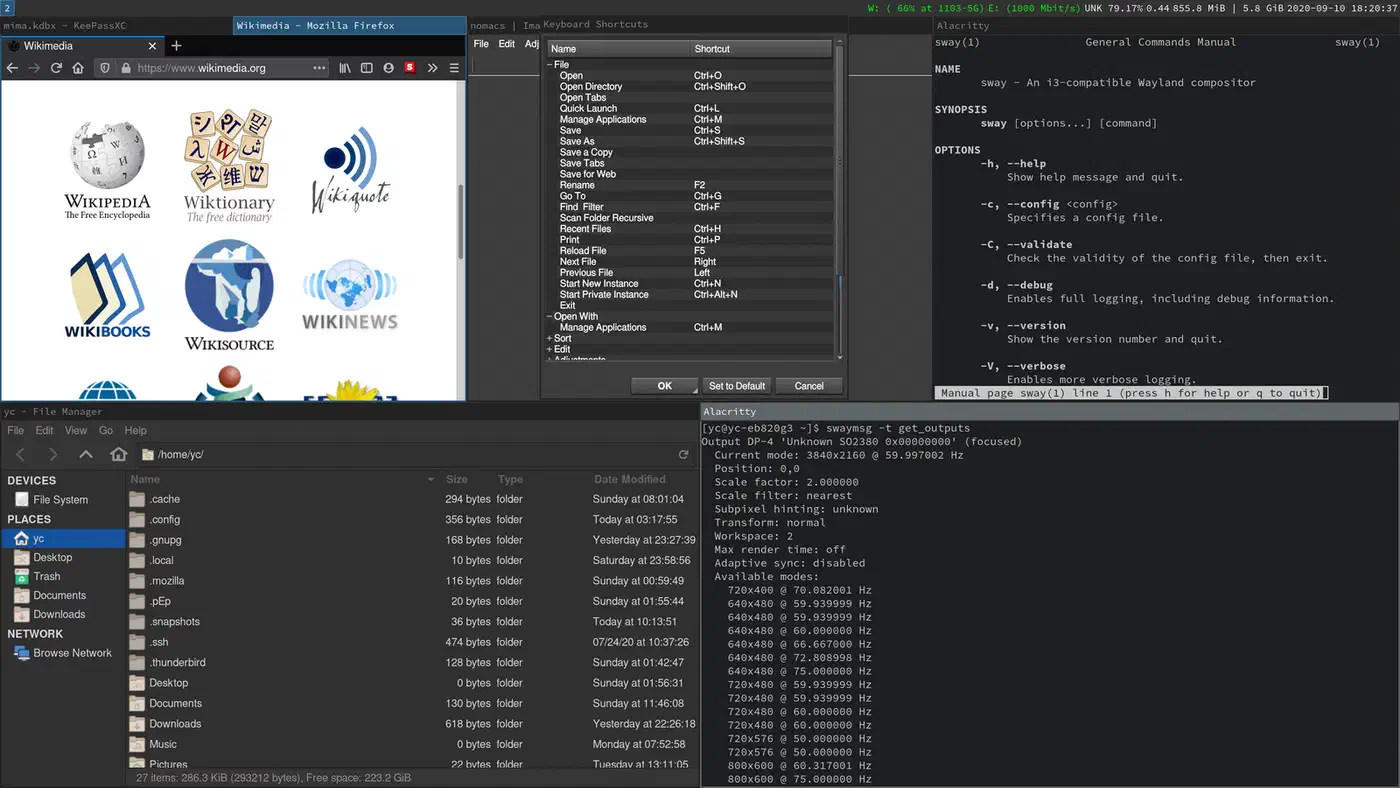
If you run i3 on X11, Sway
is the natural migration target. Install it (sudo apt install sway or sudo dnf install sway) and copy your i3 config to ~/.config/sway/config — or use Ansible dotfiles automation
to migrate your entire setup idempotently. Roughly 95% of i3 configuration is directly compatible. The main differences are output configuration syntax and the replacement of xrandr calls with Sway’s output command.
Launch Sway from your display manager or directly from a TTY with sway. Both Alacritty and Kitty
render natively on Wayland without Xwayland, making either a good default terminal for a Sway setup. Note that Sway 1.11
(June 2025) and wlroots 0.19.0 were the first versions with explicit sync support, which is required for NVIDIA GPUs.
Hyprland
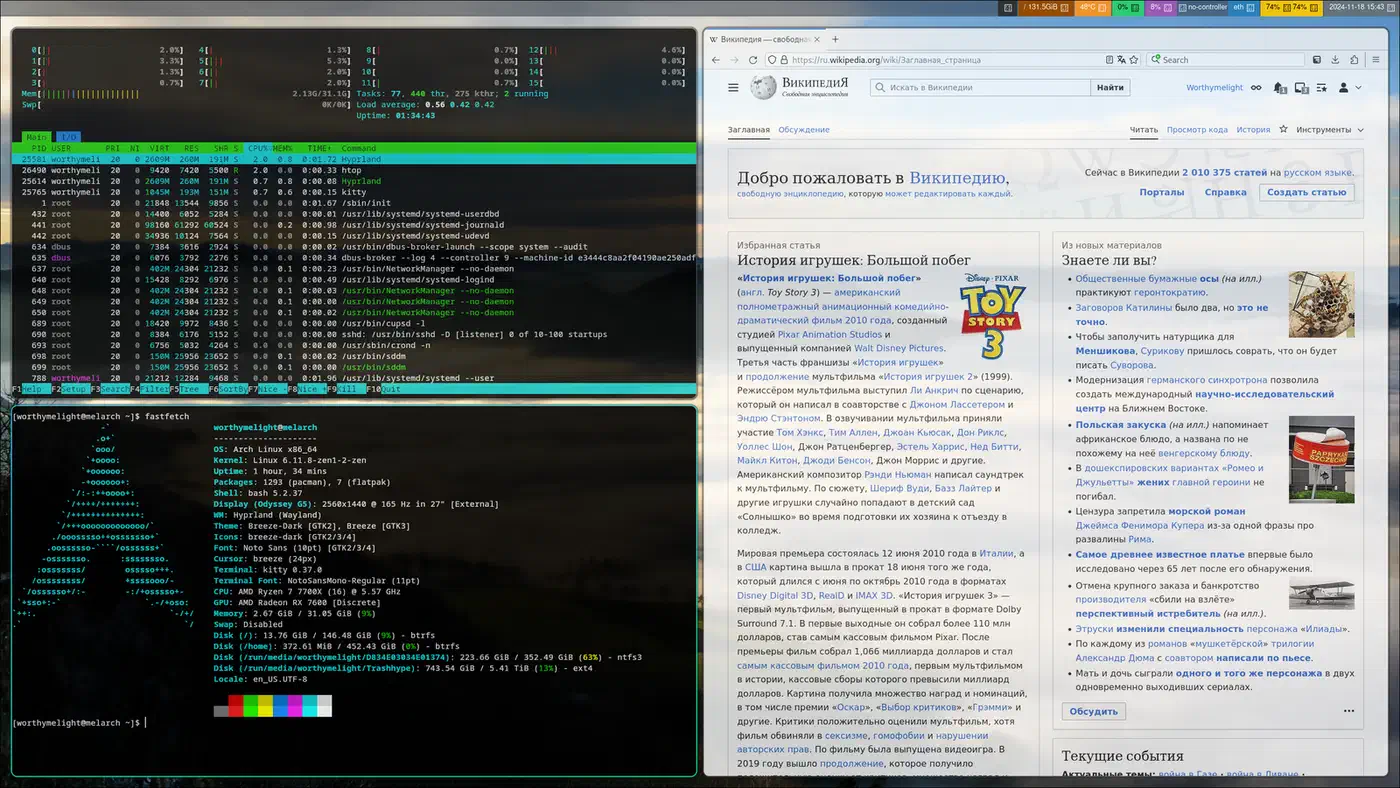
Hyprland
is a dynamic tiling compositor
with flashy animations and fractional scaling support out of the box. Install from your distro’s repo or build from source, and configure in ~/.config/hypr/hyprland.conf. If your package does not include a session file, create one manually in /usr/share/wayland-sessions/.
NVIDIA-specific steps
If you have an NVIDIA GPU, you need to complete these additional steps regardless of which compositor you choose:
- Add
nvidia-drm.modeset=1to your kernel parameters. On GRUB-based systems, edit/etc/default/grub, add it toGRUB_CMDLINE_LINUX, and runupdate-grub(Debian/Ubuntu) orgrub2-mkconfig -o /boot/grub2/grub.cfg(Fedora). - Set environment variables in your shell profile or
~/.config/environment.d/wayland.conf:GBM_BACKEND=nvidia-drm __GLX_VENDOR_LIBRARY_NAME=nvidia - For GDM with NVIDIA, ensure Wayland is not disabled in the GDM configuration (see GNOME section above).
Verify the switch
After logging in to your new Wayland session:
echo $XDG_SESSION_TYPE
# Should print: wayland

echo $WAYLAND_DISPLAY
# Should print: wayland-1 or similar
If xeyes is installed and you run it outside of Xwayland, it should fail with “Error: Can’t open display.” That confirms you are not running under X11.
Handling Xwayland for Legacy X11 Applications
Xwayland
is an X11 server that runs inside Wayland, rendering X11 windows as Wayland surfaces. Most compositors launch it automatically the first time an X11 application starts. You can verify it is running with ps aux | grep Xwayland.
What runs under Xwayland
Applications that typically fall back to Xwayland include older Electron apps (pre-v28), Java/Swing applications, Wine (when using the X11 driver), some IDEs on older versions, and GIMP 2.10.x (GIMP 3.0+ is Wayland-native). Anything using raw Xlib without a modern toolkit abstraction will also need Xwayland.
Identifying which windows use Xwayland
On wlroots compositors (Sway, Hyprland), you can inspect the shell type of each window:
swaymsg -t get_tree | jq '.. | .shell? // empty'Windows showing xwayland are running through the compatibility layer; windows showing xdg_shell are Wayland-native.
In GNOME, use Looking Glass (Alt+F2, type lg) or xprop on the window to check.
Performance implications
Xwayland adds one buffer copy per frame and prevents direct scanout, which means slightly higher latency and GPU usage. For desktop applications, word processors, and web browsers, the difference is invisible. For fast-paced gaming, the extra latency matters - this is where Gamescope comes in as a nested Wayland compositor designed specifically for gaming (more on that below).
HiDPI and Xwayland
By default, Xwayland applications render at 1x scale and get upscaled by the compositor, resulting in blurry text and UI elements. The workarounds depend on your compositor:
- GNOME Mutter: Supports per-Xwayland-window scaling natively.
- Sway/Hyprland: Use
xwayland { force_zero_scaling }in your config, then setGDK_SCALEandQT_SCALE_FACTORper-application to handle scaling at the toolkit level.
Disabling Xwayland entirely
If all your applications are Wayland-native and you want to reduce attack surface, you can disable Xwayland:
- Sway: add
xwayland disableto your config - Hyprland: set
xwayland { enabled = false }
Only do this if you have verified every application you use works without it.
Input Devices, Displays, and Environment Variables
On X11, input devices are configured through xorg.conf snippets and display layouts through xrandr. On Wayland, both responsibilities shift to the compositor and libinput .
Input configuration
All major Wayland compositors use libinput for input handling. The configuration syntax varies by compositor:
Sway example:
input "type:touchpad" {
    tap enabled
    natural_scroll enabled
    dwt enabled
}

input "type:keyboard" {
    xkb_layout us
    xkb_variant dvorak
    xkb_options caps:escape
}
Hyprland example:
input {
    kb_layout = us
    kb_variant = dvorak
    kb_options = caps:escape
    follow_mouse = 1
    touchpad {
        natural_scroll = true
    }
}
GNOME and KDE handle input through their respective Settings GUIs, using the same libinput backend underneath.
Multi-monitor layout
Wayland handles multi-monitor configuration per-compositor rather than through a universal tool like xrandr:
- Sway:
output HDMI-A-1 pos 0 0andoutput DP-1 pos 1920 0 - Hyprland:
monitor=HDMI-A-1,1920x1080@60,0x0,1 - GNOME/KDE: Use the Settings GUI
- wlr-randr: Provides an xrandr-like CLI for any wlroots compositor
HiDPI and fractional scaling
Wayland supports per-monitor scaling natively, unlike X11 where you get one scale for the entire display server:
- GNOME: Supports fractional scaling (125%, 150%, 175%) via
gsettings set org.gnome.mutter experimental-features "['scale-monitor-framebuffer']". On GNOME 47+, fractional scaling is stable and no longer needs the experimental flag on most distributions. - Hyprland: Fractional scaling works natively - set
monitor=name,resolution,position,1.5for 150% scaling. - Sway: Supports integer scaling only. Work around this with per-application font size adjustments.
Environment variables for toolkit Wayland support
These environment variables tell application toolkits to use Wayland rendering instead of falling back to X11. Set them in ~/.config/environment.d/wayland.conf so they apply to all applications launched through systemd or your display manager:
# Qt applications
QT_QPA_PLATFORM=wayland

# GTK applications (usually auto-detected, but explicit is safer)
GDK_BACKEND=wayland

# SDL2 games and applications
SDL_VIDEODRIVER=wayland

# Firefox (usually auto-detected on recent versions)
MOZ_ENABLE_WAYLAND=1

# Electron 28+ applications
ELECTRON_OZONE_PLATFORM_HINT=auto

# Clutter-based applications
CLUTTER_BACKEND=wayland
Note that setting QT_QPA_PLATFORM=wayland globally can break applications that do not support Wayland. If you hit issues, use QT_QPA_PLATFORM=wayland;xcb instead, which makes Qt try Wayland first and fall back to XCB (X11) if Wayland is unavailable.
Another option for persisting these variables is adding them to your compositor config. In Sway, use exec dbus-update-activation-environment --systemd WAYLAND_DISPLAY XDG_CURRENT_DESKTOP to propagate the Wayland session to D-Bus and systemd services (needed for screen sharing, PipeWire portal integration, and other desktop services).
Replacing X11-Only Tools and Workflows
Some X11 utilities have no Wayland mode and need to be replaced outright. Here is a practical mapping of common tools and their Wayland equivalents.
Clipboard
Replace xclip or xsel with wl-clipboard
:
# Install
sudo apt install wl-clipboard  # Debian/Ubuntu
sudo dnf install wl-clipboard  # Fedora

# Usage - same pipe-friendly interface
cat file.txt | wl-copy
wl-paste > output.txt
wl-copy -p  # Primary selection (middle-click paste)
Screenshots
Replace scrot or import with grim
and slurp
:
# Full screen
grim screenshot.png

# Interactive region selection
grim -g "$(slurp)" screenshot.png

# Pipe to annotation tool
grim -g "$(slurp)" - | swappy -f -
GNOME and KDE have their own built-in screenshot tools that work on Wayland out of the box.
Screen recording
X11’s ffmpeg -f x11grab does not work on Wayland. The replacements all use PipeWire for screen capture:
wf-recorderis lightweight and works on wlroots compositors:wf-recorder -f recording.mp4gpu-screen-recorderis GPU-accelerated and works across compositors - best option for performance-sensitive recording.- OBS Studio works fine too, just use the PipeWire capture source instead of X11 screen capture.
Window automation
Replace xdotool with one of these, depending on your compositor:
- ydotool
works on any compositor via uinput. It requires the
ydotoolddaemon to be running, and it cannot target specific windows by ID the way xdotool can - it operates at the input device level. - wlrctl is specific to wlroots compositors but supports window focus, resize, and workspace operations.
- kdotool is KDE-specific and implements more xdotool-like features than ydotool, including window management commands.
Color temperature
Replace redshift with one of these:
- gammastep is a drop-in replacement for wlroots compositors and uses the same configuration format as redshift.
- wlsunset is a lighter alternative with minimal configuration.
- GNOME Night Light and KDE Night Color are built-in - no installation needed if you use either desktop.
A Note on Gaming
If you game on Linux, the situation on Wayland is far better than it was even two years ago. Gamescope , Valve’s micro-compositor used on the Steam Deck, runs as a nested Wayland session on top of your desktop compositor. It handles frame pacing, VRR (Variable Refresh Rate), and HDR for games that support it. Launch games through Gamescope to get the best latency and avoid the Xwayland buffer copy penalty.
Steam itself runs on Wayland, and Proton has improving Wayland support. Setting PROTON_ENABLE_WAYLAND=1 enables native Wayland rendering for Proton games, which provides better latency and frame pacing and enables HDR without requiring Gamescope. This feature is still experimental - Steam Overlay does not work with it yet - but for many titles it already produces a better experience than X11.
Wayland vs. X11 Performance
Benchmarks paint a nuanced picture. Wayland’s architecture eliminates the intermediate RAM copies that X11 requires for every rendered frame. In practice, this means more consistent frame delivery and smoother animations, especially on high-refresh-rate monitors. Power consumption also tends to drop on Wayland because of zero-copy GPU rendering - a welcome side effect for laptop users.
Cursor input latency is one area where results are less clear-cut. Some measurements show Wayland adding roughly 6.5ms of cursor latency compared to X11 (close to one full frame at 144Hz), though the magnitude varies by compositor, hardware, and refresh rate. For most desktop work, this is imperceptible. For competitive gaming, it is worth testing on your specific setup.
For day-to-day desktop use, Wayland performs as well as or better than X11. The remaining rough edges are in niche scenarios, and compositor developers are steadily addressing them.
Troubleshooting Common Issues
Screen sharing does not work: Make sure PipeWire and xdg-desktop-portal (plus the portal backend for your compositor) are installed and running. Sway needs xdg-desktop-portal-wlr; GNOME uses xdg-desktop-portal-gnome; KDE uses xdg-desktop-portal-kde.
Applications look blurry on HiDPI: The application is likely running through Xwayland at 1x scale. Check if a native Wayland version exists, or set the appropriate toolkit scaling environment variable.
Clipboard does not work between Wayland and Xwayland apps: Make sure you are running a recent version of Xwayland (23.1+). Older versions had broken cross-protocol clipboard support.
NVIDIA flickering or artifacts: Update to driver 565.77 or newer. Verify nvidia-drm.modeset=1 is in your kernel parameters. On KDE, confirm that your compositor version supports explicit sync (Plasma 6.1+). For a deeper walkthrough of fixing Wayland screen tearing
across GPU vendors, including VRR setup and profiling tools, see the dedicated guide.
Some keyboard shortcuts stop working: Your compositor uses its own keybinding system, not xbindkeys or sxhkd. Migrate your shortcuts to your compositor’s config file. For Sway, the syntax is nearly identical to i3’s bindsym commands.