 Botmonster Tech
How to Replace Cron with Systemd Timers for Modern Linux Task Scheduling

Systemd timers should replace cron for nearly all scheduled tasks on modern Linux systems. They provide structured logging through the journal, built-in dependency management, randomized delays to avoid resource stampedes, and persistent timers that catch up on missed runs after a reboot. The only reason to stick with cron is legacy compatibility on minimal systems that do not run systemd. If your Linux distribution shipped in the last decade, you already have everything you need to make the switch.
This guide walks through the concrete problems with cron, explains how systemd timers work, migrates several real-world cron jobs step by step, and covers the advanced sandboxing and resource controls that make timers strictly superior for production workloads.
Why Cron Falls Short
Cron has been the default task scheduler on Unix systems since the 1970s. It works, and that long track record is exactly why so many administrators never question it. But its limitations become painful as systems grow more complex.
Cron captures stdout and stderr from your job and either emails it to a local mailbox nobody reads or discards it entirely. Debugging a failed cron job means you have to add manual logging to every script - redirecting output to a file, adding timestamps yourself, and hoping you remembered to capture stderr too. Compare that to systemd’s journal, which automatically captures everything with timestamps, priority levels, and structured metadata.
Cron also cannot express dependencies. You cannot tell it “run this job after the network is up” or “only run if this mount point is available.” If you schedule a backup job at 2 AM and the NFS share is not yet mounted when cron fires, your job fails silently. You end up wrapping scripts in retry loops or sleep delays, which is brittle and ugly.
Resource control is another gap. A cron job can consume unlimited CPU, RAM, and I/O. There is no built-in way to apply cgroups limits to a cron task. A runaway backup script can starve your database or web server, and cron will not lift a finger to stop it.
If the machine is powered off at the scheduled time, the job simply does not run. Anacron exists as a partial workaround, but it is limited to daily, weekly, and monthly granularity. If you need hourly jobs that survive reboots, anacron cannot help.
Cron’s five-field time format (*/5 * * * *) is compact but hard to read and easy to get wrong. Specifying “every weekday at 3 AM in the US/Eastern timezone” requires mental gymnastics and timezone math. Systemd’s OnCalendar syntax reads like plain English by comparison.
Finally, cron offers no sandboxing at all. Cron jobs run with the full environment and permissions of the owning user. There is no built-in filesystem isolation, no private /tmp, and no way to restrict network access. A compromised cron script gives an attacker persistent access with no audit trail beyond whatever the script itself logs.
Systemd Timer Fundamentals
Every systemd timer consists of two unit files: a .timer file that defines when to run, and a matching .service file that defines what to run. If you create mybackup.timer, systemd looks for mybackup.service automatically. Both files live in /etc/systemd/system/ for system-wide timers or ~/.config/systemd/user/ for per-user timers.
The Timer File
The timer file is where you define your schedule. The most common directive is OnCalendar=, which uses human-readable calendar expressions instead of cron’s cryptic five-field syntax.
Here is a comparison of common schedules:
| Cron Syntax | OnCalendar Equivalent | Meaning |
|---|---|---|
0 2 * * * | *-*-* 02:00:00 | Every day at 2 AM |
*/15 * * * * | *:0/15 | Every 15 minutes |
0 3 * * 1-5 | Mon..Fri *-*-* 03:00:00 | Weekdays at 3 AM |
0 0 1 * * | *-*-01 00:00:00 | First of every month |
0 6 * * 0 | Sun *-*-* 06:00:00 | Every Sunday at 6 AM |
You can validate any calendar expression before deploying it:
systemd-analyze calendar "Mon..Fri *-*-* 03:00:00"This prints the normalized form and the next several trigger times, catching mistakes before they cause missed runs.
Beyond calendar-based scheduling, systemd offers monotonic timers. OnBootSec=5min fires five minutes after boot. OnUnitActiveSec=30min fires 30 minutes after the service last finished. These are useful for periodic maintenance that should happen at regular intervals regardless of wall-clock time.
Three other directives matter for most setups:
Persistent=truetells systemd to record the last run time on disk. If a scheduled run was missed because the system was off, the timer fires immediately on the next boot.RandomizedDelaySec=300adds a random offset of 0 to 5 minutes. When you have 50 servers all running certbot renewal, this jitter prevents them from hammering the Let’s Encrypt API simultaneously.AccuracySec=controls the coalescing window. The default is 1 minute, meaning systemd may batch timer wakeups for power efficiency. Set it to1sif you need precise scheduling.
The Service File
The service file defines what actually runs. For scheduled tasks, you almost always want Type=oneshot, which tells systemd the process runs to completion and exits rather than staying resident.
[Unit]
Description=My scheduled task

[Service]
Type=oneshot
ExecStart=/usr/local/bin/myscript.sh
This is where systemd timers pull ahead of cron dramatically - you can add resource limits, sandboxing, dependencies, and failure notifications directly in this file.
Real Examples: Migrating Common Cron Jobs
The best way to learn systemd timers is to convert real cron tasks. Here are several common migrations with complete, copy-pasteable unit files.
Daily Backup Script
Cron version:
0 2 * * * /usr/local/bin/backup.shSystemd timer (/etc/systemd/system/backup.timer):
[Unit]
Description=Daily backup timer

[Timer]
OnCalendar=*-*-* 02:00:00
Persistent=true
RandomizedDelaySec=600
AccuracySec=1s

[Install]
WantedBy=timers.target
Systemd service (/etc/systemd/system/backup.service):
[Unit]
Description=Daily backup
After=network-online.target
Requires=mnt-backup.mount

[Service]
Type=oneshot
ExecStart=/usr/local/bin/backup.sh
Nice=19
IOSchedulingClass=idle
MemoryMax=512M
StandardOutput=journal
StandardError=journal
The Nice=19 and IOSchedulingClass=idle settings ensure the backup runs at the lowest priority, so it does not impact running workloads. MemoryMax=512M prevents a runaway tar or rsync from consuming all available RAM. The After= and Requires= directives guarantee the network and backup mount point are available before the script starts - something cron cannot do at all.
Enable and start:
systemctl daemon-reload
systemctl enable --now backup.timer
Certbot Certificate Renewal
Cron version:
0 0,12 * * * /usr/bin/certbot renew --quietSystemd timer (/etc/systemd/system/certbot-renew.timer):
[Unit]
Description=Certbot renewal timer

[Timer]
OnCalendar=*-*-* 00,12:00:00
RandomizedDelaySec=3600
Persistent=true

[Install]
WantedBy=timers.target
Systemd service (/etc/systemd/system/certbot-renew.service):
[Unit]
Description=Certbot renewal
After=network-online.target

[Service]
Type=oneshot
ExecStart=/usr/bin/certbot renew --quiet
PrivateTmp=yes
ProtectHome=yes
ProtectSystem=strict
ReadWritePaths=/etc/letsencrypt /var/lib/letsencrypt /var/log/letsencrypt
The RandomizedDelaySec=3600 spreads Let’s Encrypt
load across a full hour, which is exactly what their documentation recommends. The sandboxing directives restrict Certbot
to only the directories it needs.
Rsync Mirror Sync
This one shows a pattern cron handles poorly. With cron, if you schedule rsync every 15 minutes and a sync takes 20 minutes, you get overlapping runs. Systemd avoids this naturally.
Systemd timer (/etc/systemd/system/mirror-sync.timer):
[Unit]
Description=Mirror sync timer

[Timer]
OnUnitActiveSec=15min
AccuracySec=1s

[Install]
WantedBy=timers.target
Systemd service (/etc/systemd/system/mirror-sync.service):
[Unit]
Description=Mirror sync via rsync
After=network-online.target

[Service]
Type=oneshot
ExecStart=/usr/bin/rsync -avz --delete source/ /srv/mirror/
CPUQuota=50%
IOWeight=50
By using OnUnitActiveSec=15min instead of a fixed calendar schedule, the next sync starts 15 minutes after the previous one finishes. No overlap, no race conditions, no flock wrapper needed.
User-Level Timer
You do not need root to use systemd timers. Place your unit files in ~/.config/systemd/user/ and manage them with the --user flag:
mkdir -p ~/.config/systemd/user
# Create your .timer and .service files there
systemctl --user daemon-reload
systemctl --user enable --now mytask.timer
systemctl --user list-timers
This is useful for development tasks, personal backups, or anything that should run as your regular user without touching system configuration.
Quick One-Off Tasks with systemd-run
Sometimes you need a quick scheduled task without creating unit files. The systemd-run command handles this with transient timers:
systemd-run --on-calendar="*-*-* 18:00:00" /usr/local/bin/report.shThis creates a temporary timer that fires at 6 PM daily. It disappears when you stop it or reboot. For one-off delayed execution:
systemd-run --on-active="30m" /usr/local/bin/cleanup.shThis runs cleanup.sh once, 30 minutes from now. It is the systemd equivalent of the at command but with all the journal logging and resource control benefits.
Advanced Features: Sandboxing and Resource Control
Systemd timers inherit all of systemd’s service management capabilities, including cgroups resource limits and filesystem sandboxing that cron has no access to.
Resource Limits
Add these directives to the [Service] section to enforce hard limits through cgroups
v2:
MemoryMax=512M
CPUQuota=50%
IOWeight=50
TasksMax=32A backup script that leaks memory gets killed at 512M instead of taking down your server. A CPU-hungry compression job gets throttled to 50% of a core instead of starving your web application.
Filesystem Sandboxing
ProtectHome=read-only
ProtectSystem=strict
ReadWritePaths=/var/backups
PrivateTmp=yes
NoNewPrivileges=yes
ProtectSystem=strict mounts the entire filesystem read-only except for paths you explicitly allow with ReadWritePaths=. PrivateTmp=yes gives the service its own isolated /tmp directory. NoNewPrivileges=yes prevents the process from gaining additional privileges through setuid binaries or capability escalation.
This level of isolation would require a custom SELinux policy or AppArmor profile with cron. With systemd, it is a few lines in a unit file.
Failure Notifications
OnFailure=notify-admin@%n.serviceWhen the job fails, systemd triggers a separate notification service. You can wire this to send an email, post to a Slack webhook, or push to Gotify . This replaces cron’s unreliable “email on any output” behavior with targeted failure alerts.
Wake from Suspend
For critical timers on laptops or systems that suspend:
WakeSystem=trueThis tells systemd to set a hardware wake alarm so the system wakes from suspend to run the timer. Cron has no equivalent.
Managing and Monitoring Your Timers
Once you have migrated your cron jobs, here are the commands you will use daily.
To list all timers on the system with their next trigger time, last trigger time, and remaining time:
systemctl list-timers --all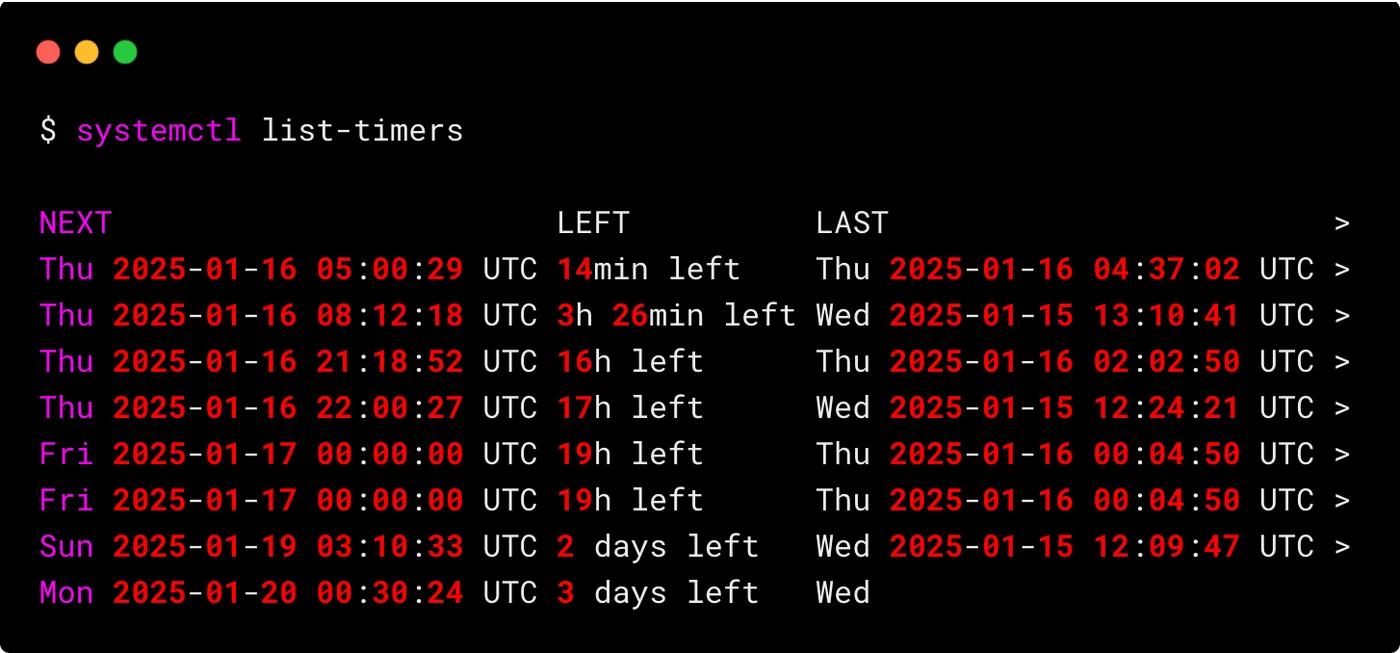
To check the status of a specific timer and its associated service:
systemctl status mybackup.timer    # Is the timer active? When did it last fire?
systemctl status mybackup.service  # What was the exit code? Any errors?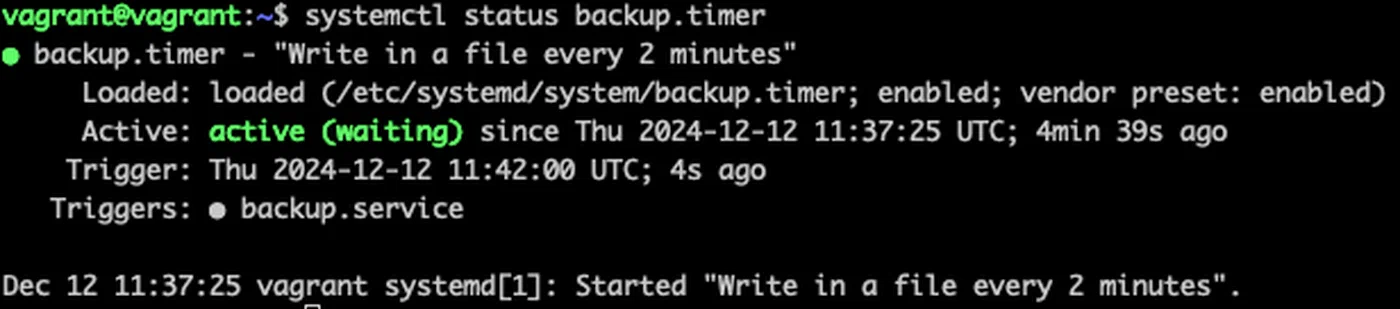
To read logs from a service, use journalctl instead of grepping through custom log files:
journalctl -u mybackup.service --since today
journalctl -u mybackup.service -n 50
journalctl -u mybackup.service -p err    # Only errors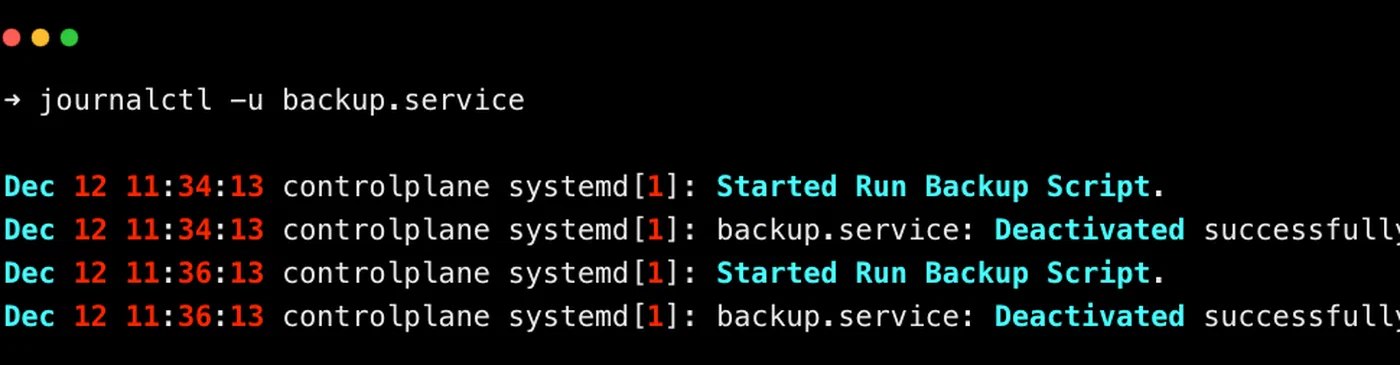
Every timer’s output lives in the journal, queryable by time, priority, and unit name.
Before enabling a new timer, validate the unit files for syntax errors:
systemd-analyze verify mybackup.timer mybackup.serviceIf you need to change a timer’s settings without modifying the original file (useful for package-managed unit files), use drop-in overrides:
systemctl edit mybackup.timerThis creates an override at /etc/systemd/system/mybackup.timer.d/override.conf that survives package updates.
To test a service manually without waiting for the timer to fire:
systemctl start mybackup.serviceThis runs the service once immediately. Use it to verify your job works before relying on the schedule.
Removing Cron Safely
Most modern distributions still ship cron by default, but once you have migrated all your jobs, you can remove it. First, verify nothing is left:
crontab -l                          # Check your user crontab
sudo crontab -l                     # Check root crontab
ls /etc/cron.d/ /etc/cron.daily/ /etc/cron.hourly/ /etc/cron.weekly/ /etc/cron.monthly/
Some system packages drop files into /etc/cron.d/ or the periodic directories. Check whether systemd timer equivalents already exist for those tasks (many distributions have migrated their own maintenance jobs to timers). Once you are confident nothing depends on cron:
# Debian/Ubuntu
sudo apt remove cron

# Fedora/RHEL
sudo dnf remove cronie
Systemd timers have been stable and production-ready since systemd 209, released in 2014. Every major distribution supports them fully. Start with your least critical cron job, verify it works as a timer, and work your way up from there.