 Botmonster Tech
Reverse Engineer USB Devices with Wireshark and Python

Reverse engineering an unknown USB device means figuring out the protocol it uses to communicate - the sequence of bytes that makes it do things. The good news is that most USB devices aren’t encrypting their traffic. Everything they send and receive travels in plain sight through the USB bus, and Linux gives you the tools to watch it. Once you understand the protocol, a Python script using pyusb can control the device directly, bypassing any vendor software entirely.
Understanding USB Communication: The Protocol Basics
Before capturing any traffic, you need a working mental model of how USB devices communicate. Every USB device has a set of endpoints - logical channels through which data flows. Endpoints are numbered and directional (IN for device-to-host, OUT for host-to-device). The device describes its endpoints in descriptors: structured data it sends to the host during the enumeration process when you plug it in. You can read these descriptors right now on any connected device:
lsusb -v -d 046d:c52bThis shows the Vendor ID (046d = Logitech), Product ID (c52b), and a full dump of the device’s descriptor tree. Look for bDeviceClass, bInterfaceClass, and bEndpointAddress values - these tell you what kind of device it is and where to send data.
There are four USB transfer types, and you’ll encounter them in different situations. Control transfers are used for device configuration and setup - they’re bidirectional and follow a specific request/response structure. Interrupt transfers are used by devices that need to deliver data promptly but infrequently - mice, keyboards, and gamepads all use interrupt endpoints. Bulk transfers move large amounts of data when timing isn’t critical - printers and USB storage devices use these. Isochronous transfers handle real-time streaming where some data loss is acceptable, like audio and webcam video.
The most important distinction for reverse engineering is between HID class devices and vendor-specific class devices. A device with bDeviceClass: 3 (HID) uses a publicly documented protocol - the host OS knows how to drive it without any vendor driver. You can read HID reports directly. A vendor-specific device (bDeviceClass: 0xff) uses whatever protocol the manufacturer invented, and that’s where actual reverse engineering begins.
Setting Up Your Capture Environment
Linux with usbmon
On Linux, USB traffic capture goes through the usbmon kernel module. Load it if it’s not already present:
sudo modprobe usbmon
ls /dev/usbmon*
You’ll see devices like /dev/usbmon0, /dev/usbmon1, etc. - one per USB bus. The number corresponds to the bus number shown in lsusb output. To capture from all buses at once, use /dev/usbmon0 which captures from bus 0 (not always available) or use Wireshark’s “any” USB interface.
Wireshark needs read access to these devices. Rather than running Wireshark as root, add your user to the relevant group:
sudo chmod a+r /dev/usbmon*
# Or permanently via udev rule:
echo 'SUBSYSTEM=="usbmon", GROUP="wireshark", MODE="640"' | sudo tee /etc/udev/rules.d/99-usbmon.rules
sudo usermod -aG wireshark $USER
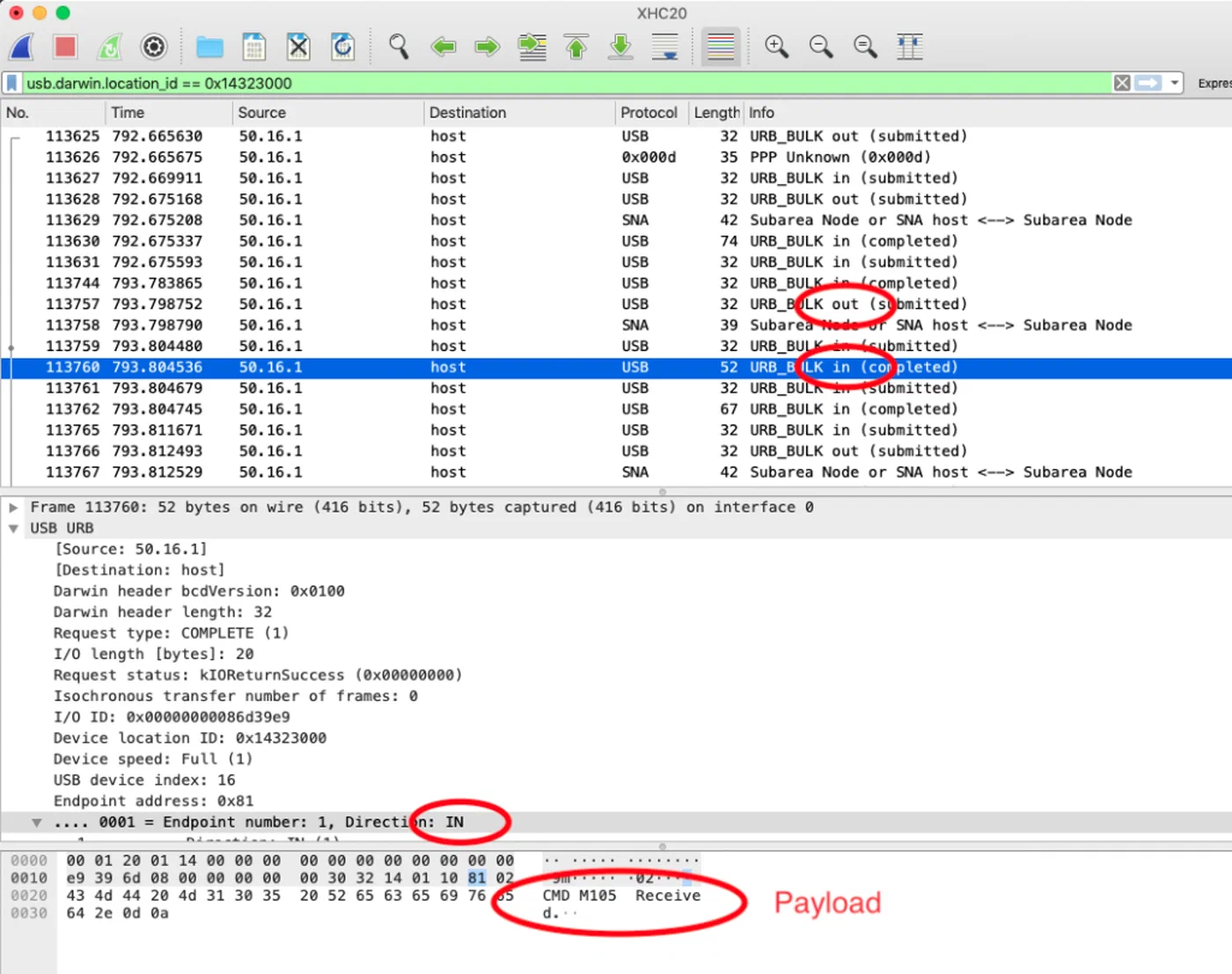
Once Wireshark has access, open it and you’ll see usbmon interfaces in the capture list. Select the one matching your device’s bus number, click Start, and you’re capturing raw USB traffic.
Windows with USBPcap
Many cheap peripherals - RGB lighting controllers, custom HID devices, gaming accessories - only work on Windows because the vendor ships a Windows-only driver. If you need to capture what that driver is sending, install USBPcap
, which integrates directly into Wireshark on Windows as a USB capture source. Capture the traffic while using the vendor software, then transfer the .pcap file to Linux for analysis.
One practical tip: some devices behave differently or even crash when monitored. If your target device is unstable during software capture, a USB hub with hardware logging capability (such as the OpenVizsla) captures at the hardware level without interrupting the device’s normal operation.
Analyzing Traffic in Wireshark
Raw USB captures are noisy. When you first open a capture, you’ll see a flood of packets - SOF (Start of Frame) tokens, various class requests, and potentially traffic from other devices on the same bus. Filter aggressively to isolate your target.
First, identify your device’s bus and address numbers:
lsusb
# Bus 003 Device 007: ID 1a2c:0e24  Your Target Device
In Wireshark, apply the display filter:
usb.bus_id == 3 && usb.device_address == 7Now trigger the action you’re trying to capture - change an LED color, press a button, adjust a setting in the vendor software - and watch Wireshark in real time. You’re looking for a burst of packets that correlates with your action.
Reading Control Transfer Setup Packets
Control transfers are the most information-rich packets to analyze. Each one starts with an 8-byte Setup packet containing:
bmRequestType: direction, type (Standard/Class/Vendor), and recipientbRequest: the request number - often a vendor-defined command IDwValueandwIndex: parameters for the requestwLength: how many bytes of data follow
For vendor-class devices, bRequest is usually a small integer (0x01, 0x09, etc.) that represents a command in the device’s private protocol. If you see the same bRequest value appearing every time you change a setting, that’s your target command.
Identifying Command-Response Patterns
The most effective technique is to make the same change multiple times and look for what stays consistent. If changing an LED to red always sends the same 64-byte packet with the same structure except for the color bytes, the color bytes are obvious. Change to green, repeat - now you can identify which byte positions carry R, G, and B values.
In Wireshark, right-click a packet and choose “Follow > USB Stream” to see the complete conversation between host and device, stripped of framing overhead. Export specific packets as hex: File > Export Specified Packets, then select the packets of interest. This hex dump is what you’ll reconstruct in Python.
Filtering SOF Noise
USB Start of Frame packets appear every millisecond and are almost never what you’re looking for. Filter them out:
usb.bus_id == 3 && usb.device_address == 7 && !(usb.transfer_type == 0x05)Focus on URB_BULK and URB_CONTROL types with DATA IN or DATA OUT directions. These are the actual command and response payloads.
Writing a Python Driver with pyusb
With enough captured packets, you can reconstruct the protocol in Python. Install the prerequisites:
pip install pyusb
sudo apt install libusb-1.0-0  # Debian/Ubuntu
# On Windows, use Zadig to install the WinUSB driver for your device
Enumerating and Opening the Device
import usb.core
import usb.util

# Find by Vendor ID and Product ID from lsusb
dev = usb.core.find(idVendor=0x1a2c, idProduct=0x0e24)

if dev is None:
    raise ValueError("Device not found")

# Detach any kernel driver that has claimed the interface
if dev.is_kernel_driver_active(0):
    dev.detach_kernel_driver(0)

dev.set_configuration()
Sending Control Transfers
Control transfers in pyusb map directly to the Wireshark fields you decoded:
# Sending a vendor control transfer
dev.ctrl_transfer(
    bmRequestType=0x21,  # Host-to-device, Class, Interface
    bRequest=0x09,       # SET_REPORT (common HID command)
    wValue=0x0300,       # Report type + report ID
    wIndex=0,            # Interface number
    data_or_wLength=payload_bytes
)
The payload_bytes is the byte array you reconstructed from Wireshark. If you captured a 64-byte packet that sets LED colors, replicate that exact byte sequence here, substituting the color values at the byte positions you identified.
Sending Bulk and Interrupt Transfers
For devices that use bulk or interrupt endpoints instead of control transfers:
# Find the OUT endpoint
cfg = dev.get_active_configuration()
intf = cfg[(0, 0)]

ep_out = usb.util.find_descriptor(
    intf,
    custom_match=lambda e: usb.util.endpoint_direction(e.bEndpointAddress) == usb.util.ENDPOINT_OUT
)

# Send data
ep_out.write(payload_bytes)

# Read response from IN endpoint
ep_in = usb.util.find_descriptor(
    intf,
    custom_match=lambda e: usb.util.endpoint_direction(e.bEndpointAddress) == usb.util.ENDPOINT_IN
)
response = ep_in.read(64)  # Read up to 64 bytes
Practical Example - Reverse Engineering an RGB Keyboard
Here’s how this process works end-to-end on a typical cheap RGB keyboard that ships with Windows-only software for lighting control.
Step 1: Capture the vendor software’s traffic. Install the vendor software on a Windows VM, open Wireshark (or USBPcap), and start capturing from the keyboard’s USB bus. Change the entire keyboard to solid red. Stop the capture and export it.
Step 2: Identify the relevant packets. Filter by the keyboard’s device address. You’ll typically see a burst of 4–8 packets sent immediately after the color change. The packets are usually 64 bytes each - the standard HID report size.
Step 3: Reconstruct the packet structure. Change to solid green and capture again. Compare the two captures byte by byte. In a typical RGB keyboard protocol, you’ll find something like:
Byte 0:    0x00        (report ID)
Byte 1:    0x0b        (command: set colors)
Byte 2:    key_index   (which key)
Bytes 3-5: 0xFF 0x00 0x00  (R, G, B for red)
Bytes 6-63: 0x00...    (padding)
Change red to green and bytes 3-5 become 0x00 0xFF 0x00. Now you understand the protocol.
Step 4: Write the Python script.
import usb.core
import usb.util

dev = usb.core.find(idVendor=0x1a2c, idProduct=0x0e24)
if dev.is_kernel_driver_active(0):
    dev.detach_kernel_driver(0)
dev.set_configuration()

def set_key_color(key_index, r, g, b):
    payload = bytes([0x00, 0x0b, key_index, r, g, b]) + bytes(58)
    dev.ctrl_transfer(0x21, 0x09, 0x0300, 0, payload)

# Set key 0 to purple
set_key_color(0, 128, 0, 255)
This pattern - capture, compare, extract, replicate - works for the vast majority of non-encrypted consumer USB devices.
Handling Encrypted or Obfuscated Protocols
Some devices add lightweight obfuscation: XOR encoding with a fixed key, byte-swapping, or simple rolling checksums. These aren’t encryption - they’re inconveniences. If your captured packets look random but are consistent for the same operation, try XORing them with common keys (0xAA, 0x55, 0xFF) or check if bytes sum to a known value. The Scapy library can help automate pattern detection across many captures.
True encryption in USB devices is rare at the consumer level but exists in some DRM-protected hardware dongles. These typically require more sophisticated techniques beyond the scope of this guide.
Legal and Ethical Considerations
USB reverse engineering for interoperability - controlling your own hardware without vendor software - is broadly legal in most jurisdictions. In the US, DMCA Section 1201 includes explicit exemptions for interoperability research when the purpose is to make independently created software interoperate with the device. Writing an open-source Linux driver for a device that lacks one falls squarely within this exemption.
The line becomes complicated when the device’s USB protocol enforces DRM or access control. Circumventing those controls, even incidentally, may create legal exposure depending on how the device is marketed and used.
If you find a security vulnerability in a device’s USB protocol - an authentication bypass, a buffer overflow in the command parsing, or unencrypted sensitive data - the appropriate response is responsible disclosure to the manufacturer. Projects like OpenRGB and libratbag maintain open-source databases of reverse-engineered RGB and gaming peripheral protocols that welcome contributions. If you figure out a device’s protocol, consider submitting it - your work will benefit everyone who owns that hardware on Linux.