 Botmonster Tech
How to Use Service Workers for Caching on Static Sites

Service workers give you a programmable network proxy right inside the browser. They sit between your page and the server, intercept every fetch request, and let you decide whether to serve a response from cache or from the network. For static sites - where every page is a pre-built file and every asset has a predictable URL - this is a natural fit. A well-configured service worker makes your static site load in single-digit milliseconds on repeat visits, work fully offline, and pass every Lighthouse PWA audit. The entire implementation fits in a single JavaScript file under 100 lines.
This guide walks through the three caching strategies that matter for static sites, shows how to combine them with URL-based routing, and covers the debugging and deployment details that prevent the most common service worker headaches.
What Service Workers Are and Why Static Sites Benefit Most
A service worker
is a JavaScript file that runs in a separate thread from your page. It has no access to the DOM. What it does have is the ability to intercept every network request your page makes through the fetch event - effectively acting as a client-side reverse proxy.
The lifecycle has three phases that matter:
- During
install, the browser downloads yoursw.jsfile and runs the install event. This is where you pre-cache critical assets. - During
activate, which fires after installation, you clean up old caches from previous deployments. - On every
fetch, the service worker intercepts network requests. Your fetch handler decides how to respond - from cache, from network, or some combination.
Registration happens from your main page JavaScript:
if ('serviceWorker' in navigator) {
  navigator.serviceWorker.register('/sw.js', { scope: '/' });
}
The scope parameter determines which URL paths the worker controls. For static sites, / covers everything, which is exactly what you want.
There is one hard requirement: HTTPS. Service workers only run on secure origins (or localhost during development). In 2026, this is standard practice for any production site, so it should not be a blocker.
Browser support is no longer a concern either. Chrome, Firefox, Safari, and Edge all fully support the Service Worker API and the Cache API . The fallback for any browser that somehow lacks support is simple: the site works normally without caching. No errors, no broken pages.
The key advantage over plain HTTP caching headers is programmatic control. With Cache-Control headers, you set a TTL and hope for the best. With a service worker, you can cache selectively, version your caches, serve custom offline pages, and implement strategies that headers simply cannot express. For a static site where you control every file, this level of control is both easy to implement and immediately rewarding.
Cache-First Strategy for Versioned Static Assets
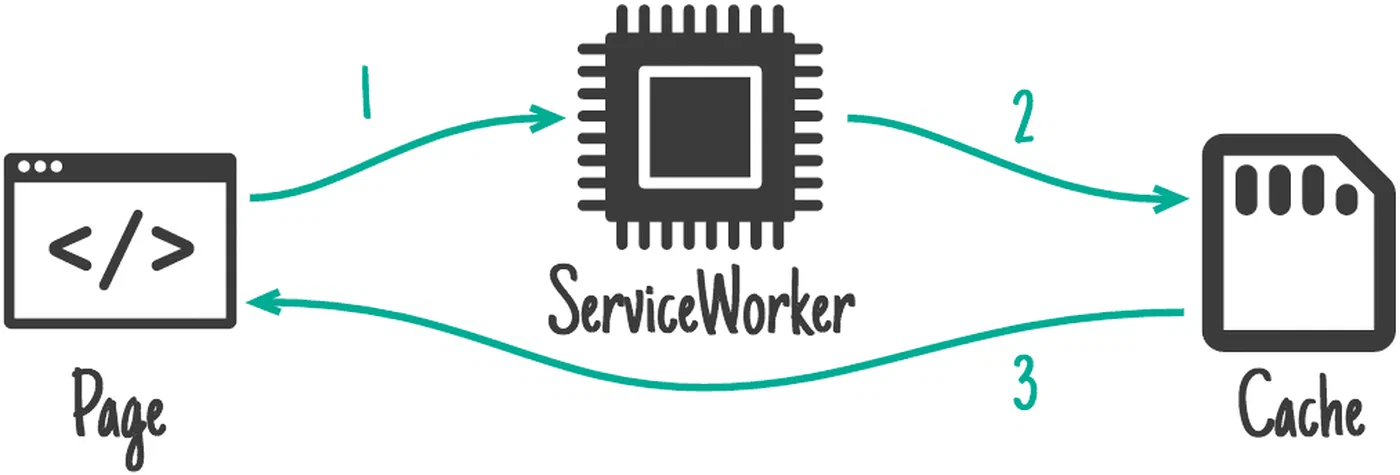
CSS files, JavaScript bundles, fonts, and images with hashed filenames never change. The hash in the filename guarantees that the content at that URL is immutable. These assets are perfect candidates for a cache-first strategy, where the service worker always checks the cache before touching the network.
The logic is straightforward:
- On a
fetchevent, check if the request URL exists in the cache. - If found, return the cached response immediately.
- If not found, fetch from the network, store a clone in the cache, and return the response.
Precaching During Install
For critical assets, you do not want to wait for the first fetch. Instead, cache them proactively during the install event:
const STATIC_CACHE = 'static-v1';
const PRECACHE_URLS = [
  '/css/style.abc123.css',
  '/js/app.def456.js',
  '/fonts/inter.woff2'
];

self.addEventListener('install', event => {
  event.waitUntil(
    caches.open(STATIC_CACHE)
      .then(cache => cache.addAll(PRECACHE_URLS))
  );
});
Hugo makes this easy. When you use asset fingerprinting - {{ $style := resources.Get "css/style.scss" | toCSS | fingerprint }} - Hugo generates URLs with content hashes baked in. If the file content changes, the hash changes, and the old cached version is naturally irrelevant.
The Fetch Handler
self.addEventListener('fetch', event => {
  if (isStaticAsset(event.request.url)) {
    event.respondWith(
      caches.match(event.request).then(cached => {
        if (cached) return cached;
        return fetch(event.request).then(response => {
          const clone = response.clone();
          caches.open(STATIC_CACHE).then(cache => {
            cache.put(event.request, clone);
          });
          return response;
        });
      })
    );
  }
});

function isStaticAsset(url) {
  return /\.(css|js|woff2?|png|jpg|webp|svg|avif)(\?|$)/.test(url);
}
The performance impact is significant. Asset load time drops from 200-500ms over the network to 1-5ms from the Cache API. That difference is directly visible in Lighthouse Time to Interactive scores and, more importantly, in how the site feels to your visitors.
Cache Naming and Cleanup
Use versioned cache names like static-v1 and pages-v1. When you deploy a new version of your service worker, increment the cache name and delete old caches during activation:
self.addEventListener('activate', event => {
  const currentCaches = [STATIC_CACHE, PAGES_CACHE];
  event.waitUntil(
    caches.keys().then(names => {
      return Promise.all(
        names.filter(name => !currentCaches.includes(name))
          .map(name => caches.delete(name))
      );
    })
  );
});
Without this cleanup, old caches accumulate indefinitely and waste storage quota.
Network-First Strategy for HTML Pages
Unlike versioned assets, HTML pages change every time you publish new content. You want visitors to see the latest version, but you also want a fallback when the network is unavailable. Network-first handles both requirements.
The logic:
- On a
fetchevent for a navigation request, try the network first. - If the network responds, cache the response and return it.
- If the network fails (offline or timeout), fall back to the cached version.
Detecting Navigation Requests
function isNavigationRequest(request) {
  return request.mode === 'navigate' ||
    (request.method === 'GET' &&
     request.headers.get('accept').includes('text/html'));
}
Adding a Network Timeout
A slow network is worse than no network - the user stares at a blank page. Use Promise.race() to set a timeout:
const PAGES_CACHE = 'pages-v1';
const NETWORK_TIMEOUT = 3000;

function networkFirstWithTimeout(request) {
  return new Promise((resolve, reject) => {
    const timeoutId = setTimeout(() => {
      caches.match(request).then(cached => {
        if (cached) resolve(cached);
      });
    }, NETWORK_TIMEOUT);

    fetch(request).then(response => {
      clearTimeout(timeoutId);
      const clone = response.clone();
      caches.open(PAGES_CACHE).then(cache => {
        cache.put(request, clone);
      });
      resolve(response);
    }).catch(() => {
      clearTimeout(timeoutId);
      caches.match(request).then(cached => {
        resolve(cached || caches.match('/offline.html'));
      });
    });
  });
}
If the network takes longer than 3 seconds, the cached version loads immediately. If the network fails entirely, the cached version loads. If the user visits a page they have never seen before while offline, they get a custom offline fallback page.
The Offline Fallback Page
Precache an offline.html page during install so it is always available:
const PRECACHE_URLS = [
  '/offline.html',
  // ... other critical assets
];
This page should be lightweight - a simple message explaining the user is offline, maybe with links to previously visited pages. Hugo’s --minify flag keeps your HTML files small (typically 5-15 KB each with Brotli compression from your CDN), so even caching dozens of pages uses minimal storage.
Speeding Up Network-First with Navigation Preload
One downside of network-first is the service worker startup delay. The browser has to boot the service worker thread before it can make the network request, adding latency to navigation. Navigation Preload solves this by letting the browser start the network request in parallel with the service worker bootup.
Enable it in your activate handler:
self.addEventListener('activate', event => {
  event.waitUntil(async function() {
    if (self.registration.navigationPreload) {
      await self.registration.navigationPreload.enable();
    }
  }());
});
Then use event.preloadResponse in your fetch handler:
self.addEventListener('fetch', event => {
  if (isNavigationRequest(event.request)) {
    event.respondWith(async function() {
      const preloadResponse = await event.preloadResponse;
      if (preloadResponse) return preloadResponse;
      return fetch(event.request);
    }());
  }
});
This eliminates the service worker startup penalty, which can be 50-200ms depending on the device.
Stale-While-Revalidate for the Best of Both Worlds
Some resources fall between the two extremes. Your homepage index changes when you publish, but loading it instantly matters more than showing the absolute latest version. The RSS feed, blog listing pages, and any JSON data files generated by Hugo’s custom output formats fit this pattern.
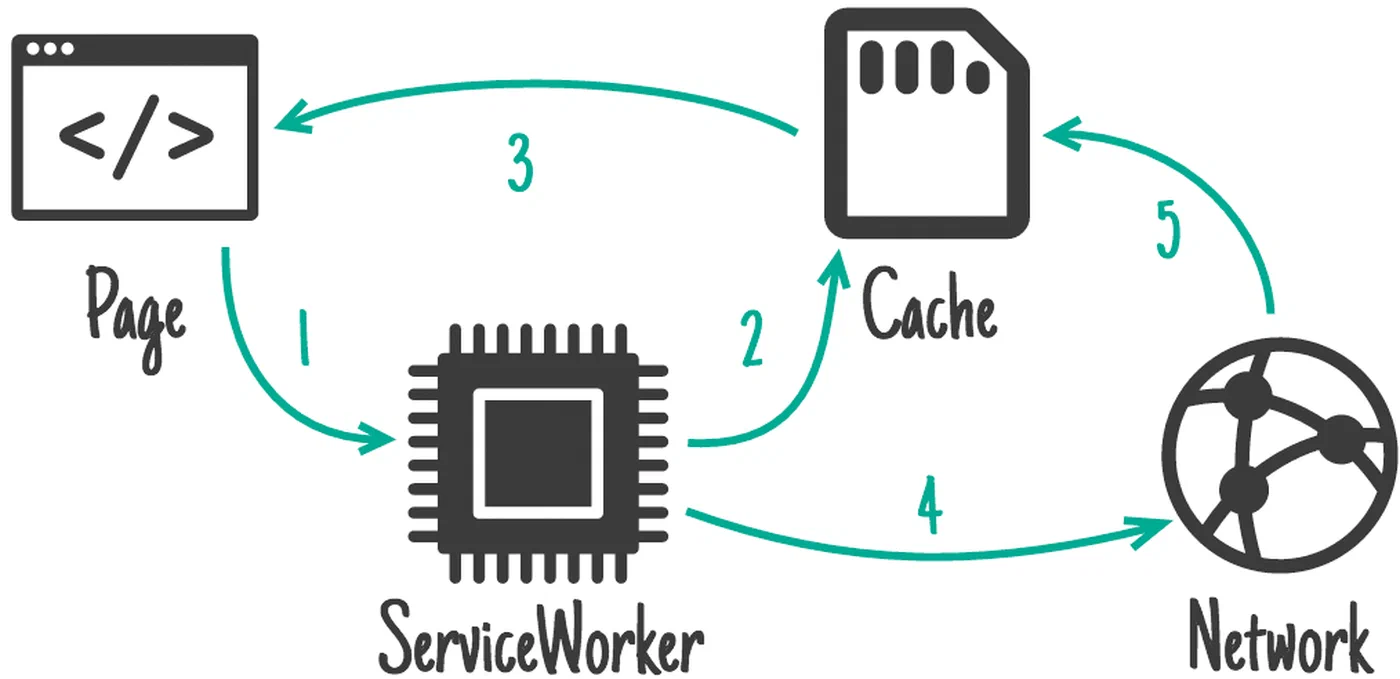
Stale-while-revalidate (SWR) serves the cached version immediately for speed while fetching an updated version in the background for next time:
- On a
fetchevent, immediately return the cached response if available. - Simultaneously fetch from the network in the background.
- When the network response arrives, update the cache.
- The user sees the cached version now and gets the fresh version on their next visit.
const SWR_CACHE = 'swr-v1';

function staleWhileRevalidate(request) {
  return caches.open(SWR_CACHE).then(cache => {
    return cache.match(request).then(cached => {
      const fetchPromise = fetch(request).then(response => {
        cache.put(request, response.clone());
        return response;
      });
      return cached || fetchPromise;
    });
  });
}
For a blog with daily publishing, the maximum staleness is the time between the user’s visits. For most readers, that means content is at most a few hours behind - acceptable for listing pages and feeds.
Combining All Three Strategies with URL-Based Routing
A production service worker does not use a single strategy. It routes requests to the right strategy based on URL patterns:
self.addEventListener('fetch', event => {
  const url = new URL(event.request.url);

  // Static assets: cache-first
  if (isStaticAsset(url.pathname)) {
    event.respondWith(cacheFirst(event.request));
    return;
  }

  // HTML navigation: network-first with timeout
  if (isNavigationRequest(event.request)) {
    event.respondWith(networkFirstWithTimeout(event.request));
    return;
  }

  // Listing pages, RSS, JSON feeds: stale-while-revalidate
  if (url.pathname === '/' ||
      url.pathname.endsWith('/index.xml') ||
      url.pathname.endsWith('.json')) {
    event.respondWith(staleWhileRevalidate(event.request));
    return;
  }

  // Everything else: network only
  event.respondWith(fetch(event.request));
});
This routing logic is the core of your sw.js. Each strategy function handles its own caching, and the fetch handler just dispatches based on URL patterns.
Measuring Cache Performance
You can measure how well your caching strategies work using the Performance API
. The PerformanceResourceTiming interface exposes a transferSize property - if it is 0, the resource was served from cache:
const observer = new PerformanceObserver(list => {
  for (const entry of list.getEntries()) {
    const cached = entry.transferSize === 0;
    console.log(`${entry.name}: ${cached ? 'cache hit' : 'network'} - ${entry.duration}ms`);
  }
});
observer.observe({ type: 'resource', buffered: true });
You can also track service worker startup time for navigation requests by checking the difference between entry.workerStart and entry.responseStart. On mobile devices, this startup time can be 50-200ms, which is why Navigation Preload matters.
Cache Storage Quotas and Limits
Browsers impose storage quotas that vary by platform:
| Browser | Quota Limit | Eviction Policy |
|---|---|---|
| Chrome | ~60% of total disk space | LRU (least recently used) when storage is under pressure |
| Firefox | ~50% of total disk space | LRU per origin |
| Safari | ~20% of disk per origin (60% for installed PWAs) | Deletes script-created data after 7 days without user interaction |
Safari’s 7-day eviction policy for sites without user interaction is the most aggressive. If your site is not installed as a PWA on iOS or macOS, cached data may be wiped after a week of inactivity. Most blog readers who visit regularly will never hit this limit, but you should factor it into your expectations for Safari users.
For a typical static blog, cache usage is modest. With 50 cached HTML pages at 10 KB each, plus 500 KB of CSS/JS/fonts, total storage sits under 1 MB. You are nowhere near browser quotas.
Testing, Debugging, and Deployment
Service workers are tricky to debug because they persist between page loads and serve cached content even after you deploy changes. A few tools and habits go a long way toward keeping things under control.
Chrome DevTools
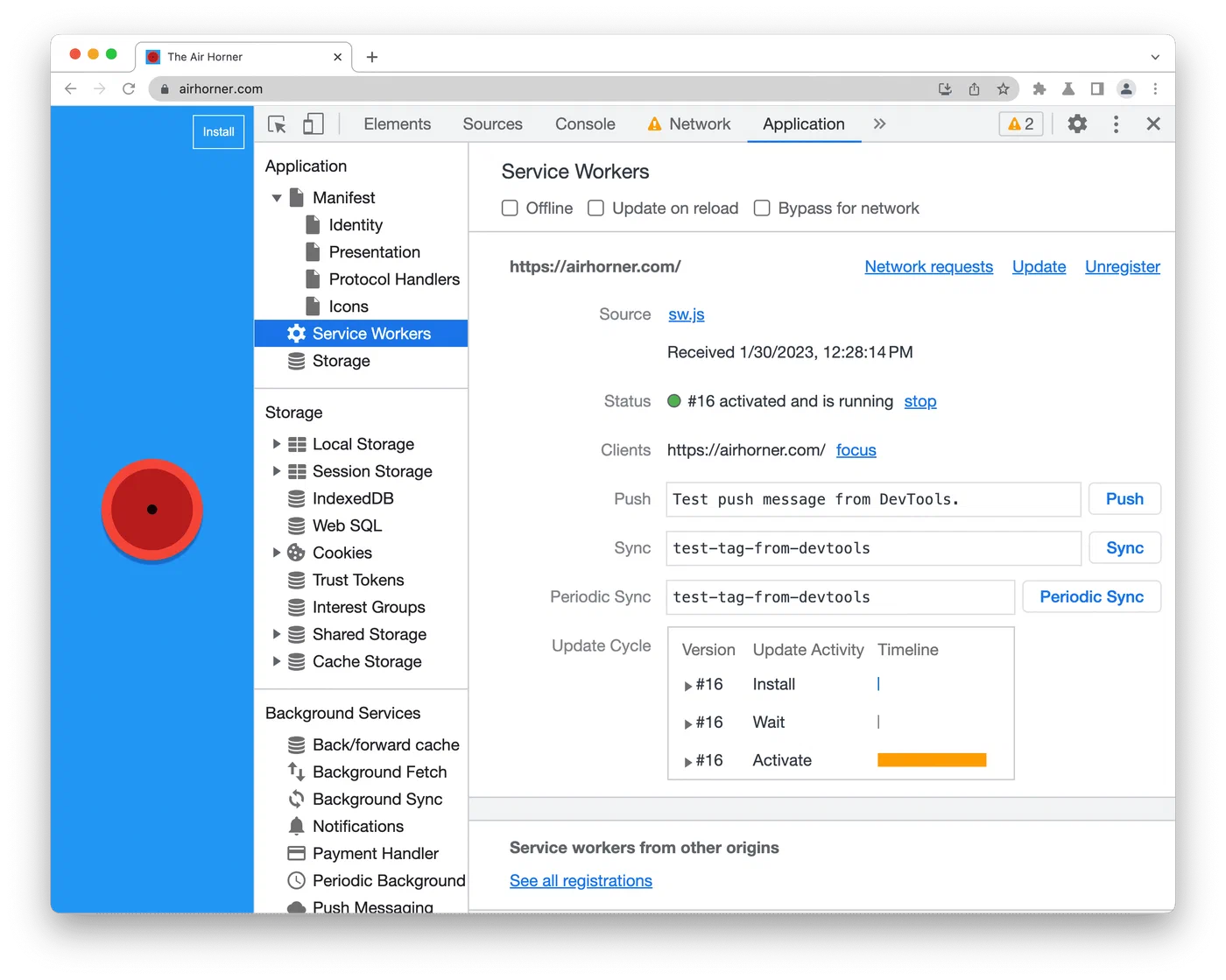
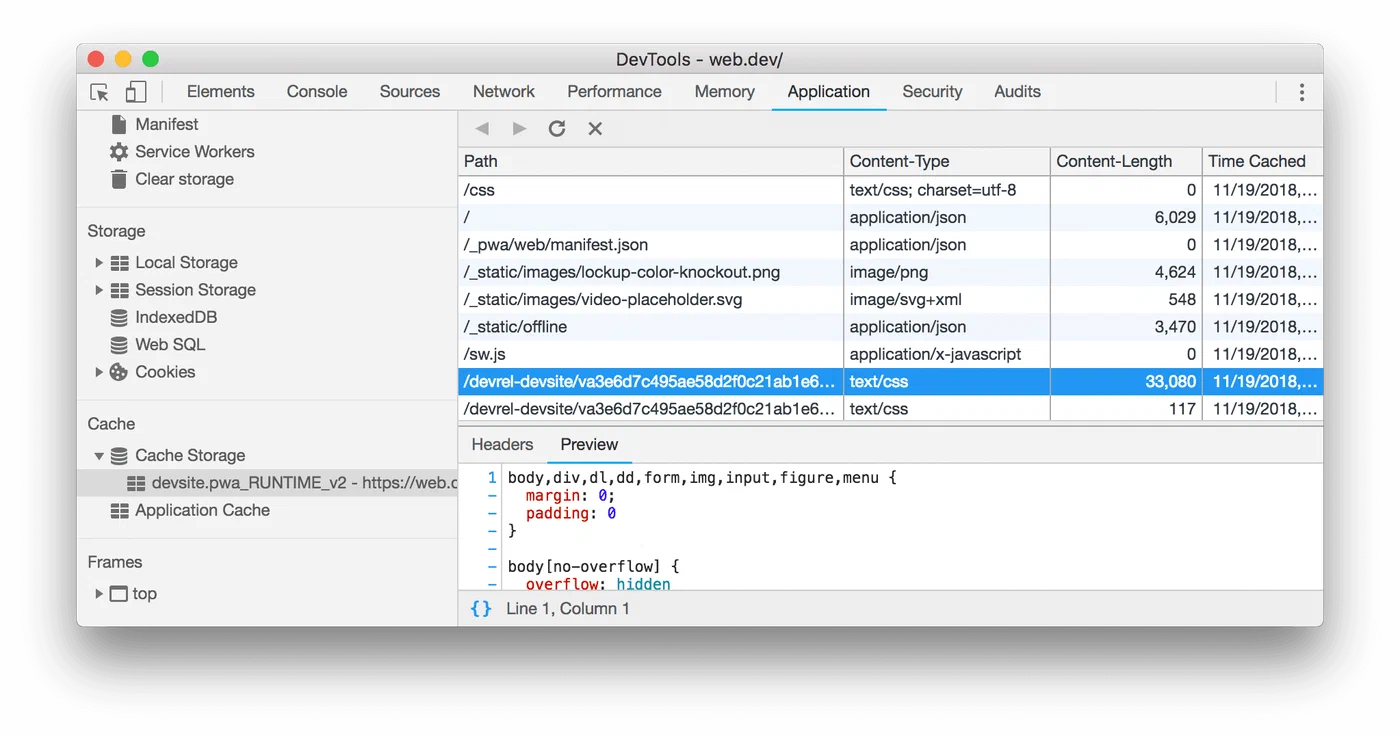
The Application panel in Chrome DevTools is your primary debugging tool. The Service Workers section shows registration status and lets you manually trigger update, unregister, or toggle “Update on reload” (essential during development). The Cache Storage section lets you inspect every cached entry, see its size, and delete individual items. And the Network tab’s Offline checkbox simulates network failure for testing your offline fallback.
You can also drill into Cache Storage to see exactly what your service worker has cached and how much space each entry occupies.
The Update Flow
Browsers check for a new sw.js on every navigation by doing a byte-for-byte comparison with the current version. If the file changed, the new worker installs but enters a waiting state until all tabs using the old worker are closed. To take control immediately:
self.addEventListener('install', event => {
  self.skipWaiting();
});

self.addEventListener('activate', event => {
  event.waitUntil(clients.claim());
});
skipWaiting() promotes the new worker to active immediately, and clients.claim() lets it take control of all open pages without a reload.
Cache Busting on Deploy
To force a byte-level change in your sw.js on every deploy (triggering the browser update check), add a version comment at the top:
// sw-version: 2.0.3
Or let your CI pipeline inject a build hash. Hugo does not fingerprint files in the static/ directory by default, so this manual approach or a build step is necessary.
Lighthouse PWA Audit
Run lighthouse --only-categories=pwa against your site to verify all checks pass: installability, offline capability, and HTTPS. With the strategies in this guide implemented correctly, a perfect 100 PWA score is achievable.
Common Pitfalls
Do not try to cache POST requests - the Cache API does not support them. Be careful with cross-origin requests without CORS, which return opaque responses that consume up to 7 MB of cache quota each regardless of actual size. Only cache same-origin resources or resources with proper CORS headers. Always remember to delete old caches in your activate handler, otherwise stale assets persist forever across deploys. And test the offline path thoroughly: toggle offline mode in DevTools and verify every page type, including cached pages, uncached pages (which should show the offline fallback), and assets.
The Workbox Alternative
Writing a service worker by hand teaches you what is happening under the hood. But for production use, Google’s Workbox library (currently at v7.4.0) provides the same strategies as importable classes. The routing and caching setup from this entire guide compresses down to about 20 lines:
import { registerRoute } from 'workbox-routing';
import { CacheFirst, NetworkFirst, StaleWhileRevalidate } from 'workbox-strategies';
import { ExpirationPlugin } from 'workbox-expiration';

registerRoute(
  ({ request }) => /\.(css|js|woff2?|png|jpg|webp)$/.test(request.url),
  new CacheFirst({
    cacheName: 'static-assets',
    plugins: [new ExpirationPlugin({ maxEntries: 100 })]
  })
);

registerRoute(
  ({ request }) => request.mode === 'navigate',
  new NetworkFirst({
    cacheName: 'pages',
    networkTimeoutSeconds: 3
  })
);

registerRoute(
  ({ url }) => url.pathname === '/' || url.pathname.endsWith('.xml'),
  new StaleWhileRevalidate({ cacheName: 'dynamic-content' })
);
Workbox is used by 54% of mobile sites with service workers. It handles edge cases like opaque response padding, quota management, and cache expiration that would take hundreds of lines to implement manually. For Hugo sites, there is also a dedicated Hugo PWA Module that integrates Workbox with Hugo’s build pipeline, generating precache manifests automatically from your asset pipeline.
Writing the service worker by hand first is a good exercise - you will understand exactly what Workbox abstracts away, and you can debug problems at the fetch-event level instead of guessing what a library does internally. Once you are comfortable with the mechanics, switching to Workbox saves you from maintaining boilerplate and gives you battle-tested handling of edge cases across browsers.