 Botmonster Tech
Your data table probably fails screen readers (and WCAG 2.2)


The short answer: build an interactive data table with semantic HTML (<table>, <thead>, <th scope="col">), add ARIA attributes (aria-sort, aria-live, aria-controls), and wire up keyboard handlers that enable sorting, filtering, and cell-by-cell navigation without a mouse. Done right, the result satisfies WCAG 2.2
Level AA, works for sighted users, screen reader users, and keyboard-only users, and needs no framework dependencies.
This guide walks through the markup, the ARIA attributes, the JavaScript event handlers, and the performance trade-offs you hit once your dataset gets large. The reference patterns come from the WAI-ARIA Authoring Practices Guide sortable table example and the grid pattern .
Why Most Data Tables Fail Accessibility
Interactive data tables are notoriously hard to get right. The same bugs show up in audit after audit, and they cluster around a handful of recurring mistakes.
The biggest one is div soup. A lot of JavaScript table libraries render rows as nested <div> elements with CSS Grid for layout. This produces something that looks like a table, but assistive technology has no idea it is looking at tabular data. Screen readers expose <table> semantics through dedicated table navigation commands (NVDA uses Ctrl+Alt+Arrow to read cells; JAWS uses Alt+Ctrl+Arrow). Strip those semantics and the user is stuck reading row content as a flat stream of text.
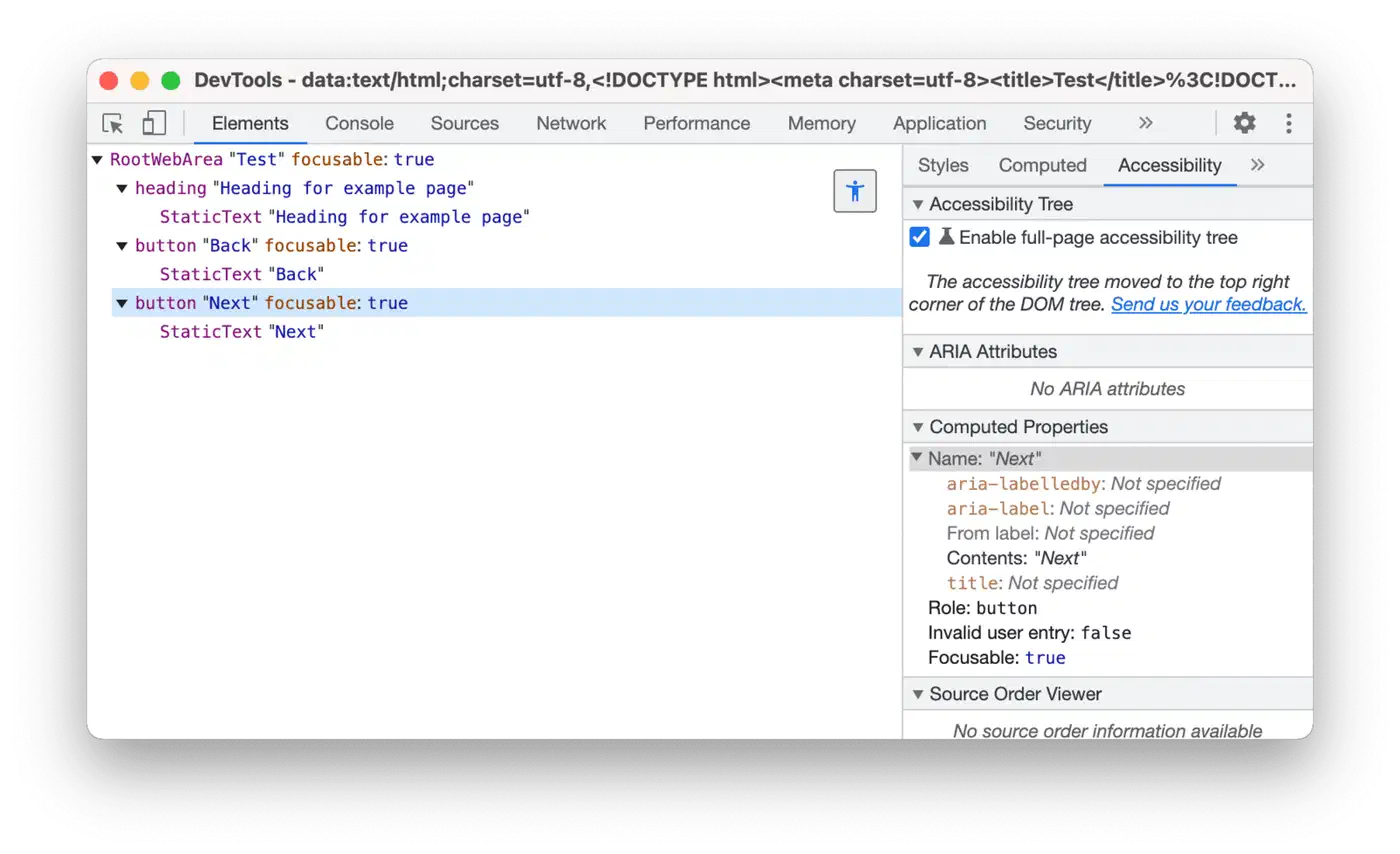
Missing scope attributes break header association. Without <th scope="col"> or <th scope="row">, a screen reader cannot tell the user that the cell containing 42 belongs to the column “Days of vacation” and the row “Alice Chen”. The cell is announced in isolation, which is useless.
Sort state is also rarely communicated. A column header shows a tiny up or down arrow icon when clicked, but aria-sort is missing, so a screen reader user has no clue the table just resorted itself. They click, nothing audible happens, and they move on.
Keyboard navigation tends to be absent too. Tab takes you to the table and then immediately past it. Arrow keys do nothing. Enter on a header does not sort. The whole interactive surface is mouse-only.
Finally, dynamic updates are silent. Filter the table from 100 rows down to 5 and a sighted user sees the change immediately. Without an aria-live region, the screen reader user is still being told there are 100 rows.
There is a legal angle too. WCAG 2.2 Level AA conformance is required by the European Accessibility Act starting June 28, 2025, and the DOJ ADA Title II rule requires it for state and local government web content with deadlines in 2026 and 2027. Inaccessible data tables show up constantly in audit reports because they sit at the center of admin dashboards, financial reports, and analytics tools.
Semantic HTML Foundation
Correct HTML structure gives you about 80 percent of accessibility for free. The rule of thumb: use a real <table> and never reach for role="table" on a <div> unless you have a documented reason.
Here is the minimal skeleton:
<table id="employee-table">
  <caption>
    Employee directory, sortable by name, department, and start date.
    <span class="visually-hidden">
      Use the column header buttons to sort. Sort direction is announced.
    </span>
  </caption>
  <thead>
    <tr>
      <th scope="col">
        <button type="button" aria-sort="none">Name</button>
      </th>
      <th scope="col">
        <button type="button" aria-sort="none">Department</button>
      </th>
      <th scope="col">
        <button type="button" aria-sort="none">Start date</button>
      </th>
    </tr>
  </thead>
  <tbody>
    <tr>
      <th scope="row">Alice Chen</th>
      <td>Engineering</td>
      <td>2021-03-15</td>
    </tr>
    <!-- more rows -->
  </tbody>
</table>
A few things to notice. The <caption> describes the table’s purpose and includes a visually hidden hint about sorting. The first column uses <th scope="row"> because it labels the row, while the rest are <td> data cells. The sortable column headers wrap their text in a <button> because buttons are natively focusable, activatable with Enter and Space, and exposed to assistive tech as interactive controls.
For complex tables with merged cells or multi-level headers, scope is not enough. Use explicit id and headers attributes:
<th id="q1-revenue" scope="col">Q1 Revenue</th>
...
<td headers="q1-revenue alice">$125,000</td>
This is verbose, but it is the only reliable way to associate a data cell with multiple headers when the layout is irregular. The good news: most real-world tables have a flat header row and do not need headers at all.
Making Columns Sortable
Sorting is the most common interactive table feature and the easiest place to drop accessibility on the floor. The required ARIA attribute is aria-sort, applied to the <th> element. It takes one of four values: ascending, descending, none, or other. Only one column should ever have ascending or descending at the same time; every other sortable column should be none.
The handler logic looks like this:
function handleSort(columnIndex) {
  const currentSort = state.sortColumn === columnIndex ? state.sortDirection : 'none';
  const nextSort = currentSort === 'none' ? 'ascending'
                 : currentSort === 'ascending' ? 'descending'
                 : 'none';

  state.sortColumn = nextSort === 'none' ? null : columnIndex;
  state.sortDirection = nextSort;

  // Reset all aria-sort attributes
  document.querySelectorAll('th[aria-sort]').forEach(th => {
    th.setAttribute('aria-sort', 'none');
  });

  // Set the active column's aria-sort
  if (state.sortColumn !== null) {
    const activeTh = document.querySelectorAll('th')[columnIndex];
    activeTh.setAttribute('aria-sort', nextSort);
  }

  sortAndRender();
  announce(`Table sorted by ${columnLabels[columnIndex]}, ${nextSort}`);
}
The tri-state cycle (ascending, descending, unsorted) gives users a way back to the original order without reloading the page. After updating aria-sort, push a message to a polite live region:
<div id="table-status" role="status" aria-live="polite" class="visually-hidden"></div>function announce(message) {
document.getElementById('table-status').textContent = message;
}A role="status" element is announced by screen readers without interrupting whatever the user was doing. Combined with aria-sort, the user gets confirmation in two ways: the assistive tech reads “sorted ascending” when focus lands on the header, and the live region announces the change right after the click.
For the visual indicator, a CSS pseudo-element keeps the markup clean:
th[aria-sort="ascending"] button::after  { content: " \25B2"; }
th[aria-sort="descending"] button::after { content: " \25BC"; }
th[aria-sort="none"] button::after       { content: " \2195"; opacity: 0.4; }
The arrow characters are decorative because the real meaning is carried by aria-sort. No aria-hidden is needed here since CSS pseudo-elements are not exposed to the accessibility tree in the first place.
Adding a Filter and Search Input
Filtering is the second feature most teams build, and the one users complain about when it goes wrong. The accessible pattern uses a real <input type="search">, links it to the table with aria-controls, debounces the keystrokes, and announces the result count via the same live region you set up for sorting.
<label for="table-filter">Filter employees</label>
<input
  id="table-filter"
  type="search"
  aria-controls="employee-table"
  placeholder="Search by name or department">
The <label> is required. Placeholder text is not a label and gets ignored by most screen readers in form mode. aria-controls tells assistive tech that this input affects the table identified by employee-table, so users can jump from the input to the controlled element using their AT’s navigation commands. The same labeling and ARIA patterns apply broadly to other interactive controls — see our deep-dive on accessible web forms and error handling
for the full picture.
The handler uses a 200 millisecond debounce so screen readers don’t get spammed with announcements on every keystroke:
let debounceTimer;
document.getElementById('table-filter').addEventListener('input', (event) => {
  clearTimeout(debounceTimer);
  debounceTimer = setTimeout(() => {
    const query = event.target.value.toLowerCase();
    const matches = data.filter(row =>
      row.name.toLowerCase().includes(query) ||
      row.department.toLowerCase().includes(query)
    );
    renderRows(matches);
    announce(`Showing ${matches.length} of ${data.length} results`);
  }, 200);
});
When the filter matches zero rows, never leave the table empty. Render a single row spanning all columns:
<tr>
  <td colspan="3">No matching results. Try a different search term.</td>
</tr>
Pair the empty state with an announcement: Showing 0 results. Filter cleared to see all rows.
Keyboard Navigation with the ARIA Grid Pattern
Most teams skip this part. A table is browseable with a screen reader’s table navigation keys, but it is not navigable from the keyboard alone. Tab moves focus into the table and right back out. To support keyboard-only users (which includes power users who never lift their hands from the home row), apply the WAI-ARIA grid pattern.
Add role="grid" to the table, role="row" to each <tr>, and role="gridcell" to each <td>. This signals to assistive tech that the table is interactive and that the grid keyboard model applies.
The full keyboard map looks like this:
| Key | Action |
|---|---|
| Right arrow | Move focus one cell right |
| Left arrow | Move focus one cell left |
| Down arrow | Move focus one cell down |
| Up arrow | Move focus one cell up |
| Home | First cell in the current row |
| End | Last cell in the current row |
| Ctrl + Home | First cell of the first row |
| Ctrl + End | Last cell of the last row |
| Page Up / Page Down | Scroll by author-defined row count |
| Enter / Space (on header) | Trigger sort on focused column |
| Tab | Exit the grid to the next focusable element |
Tab is the critical detail. Inside a grid, Tab does not move between cells. Arrow keys handle that. The grid has exactly one tab stop. This is the roving tabindex pattern: the active cell gets tabindex="0", and every other cell gets tabindex="-1". When the user presses an arrow, update tabindex on both the old and new cell, then call .focus() on the new one.
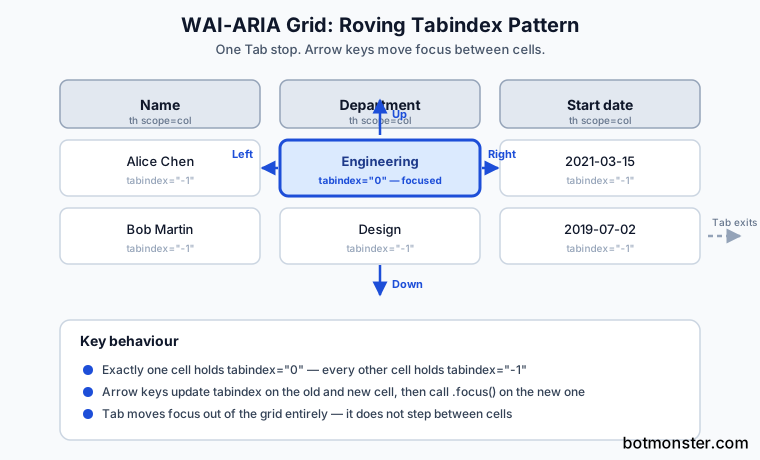
function moveFocus(newRow, newCol) {
  const oldCell = grid.querySelector('[tabindex="0"]');
  if (oldCell) oldCell.setAttribute('tabindex', '-1');

  const newCell = grid.rows[newRow].cells[newCol];
  newCell.setAttribute('tabindex', '0');
  newCell.focus();

  state.activeRow = newRow;
  state.activeCol = newCol;
}

grid.addEventListener('keydown', (event) => {
  const { activeRow, activeCol } = state;
  const lastRow = grid.rows.length - 1;
  const lastCol = grid.rows[0].cells.length - 1;

  switch (event.key) {
    case 'ArrowRight':
      if (activeCol < lastCol) moveFocus(activeRow, activeCol + 1);
      break;
    case 'ArrowLeft':
      if (activeCol > 0) moveFocus(activeRow, activeCol - 1);
      break;
    case 'ArrowDown':
      if (activeRow < lastRow) moveFocus(activeRow + 1, activeCol);
      break;
    case 'ArrowUp':
      if (activeRow > 0) moveFocus(activeRow - 1, activeCol);
      break;
    case 'Home':
      moveFocus(activeRow, event.ctrlKey ? 0 : 0);
      if (event.ctrlKey) moveFocus(0, 0);
      break;
    case 'End':
      moveFocus(activeRow, lastCol);
      if (event.ctrlKey) moveFocus(lastRow, lastCol);
      break;
    default:
      return;
  }
  event.preventDefault();
});
One more thing that matters: keep the focus outline. The browser default outline: 2px solid on the focused cell is the only signal a keyboard user has about where they are. If your designer insists on hiding it, replace it with a custom :focus-visible style that has at least 3:1 contrast against the background.
Performance with Large Datasets
Once your table crosses the 1,000 row mark, the cracks start to show. Rendering 10,000 <tr> elements freezes the browser for several seconds and chews through memory. Screen readers also slow down dramatically when traversing very large live DOM tables. There are three strategies worth knowing.
Pagination is the simplest. Render 50 rows per page, add Previous and Next buttons, and announce page changes via the live region (Page 3 of 12, showing rows 101 to 150). If you do not want to hand-build the page controls, a drop-in jQuery pagination widget like bootpag
renders the numbered <ul class="pagination"> markup and fires a page event you can hook into to swap rows. Pagination is easy to make accessible because every page change is a discrete event the user explicitly triggered.
Virtual scrolling is the next step up. Only the rows currently visible in the viewport (plus a small buffer) exist in the DOM. As the user scrolls, you swap rows in and out. Virtual scrolling preserves the illusion of a single long table but breaks several assistive tech assumptions: screen readers cannot navigate to rows that do not exist in the DOM, so aria-rowcount plus aria-rowindex become mandatory. Set aria-rowcount on the <table> and aria-rowindex on each rendered <tr> so assistive tech knows the true table size and the position of every visible row.
Server-side everything is the third path. Filter, sort, and paginate on the API. The client only ever holds the current page worth of data. This is the right call for datasets above 50,000 rows or for any table where the data changes frequently. The accessibility patterns are identical to client-side pagination, you just hit the server between events.
| Strategy | Best for | Accessibility cost |
|---|---|---|
| Pagination | Up to 5,000 rows | None |
| Virtual scrolling | 5,000 to 50,000 rows | Requires aria-rowcount, aria-rowindex, careful focus management |
| Server-side paging | 50,000+ rows or live data | None, but adds network latency |
Whatever you pick, test with at least 100 rows in a real screen reader before shipping. NVDA and VoiceOver both expose performance issues that don’t show up in axe-core or Lighthouse audits. If your page also includes charts or graphs alongside the table, the same accessibility principles apply — accessible SVG charts
require aria-labelledby and descriptive text for the same reasons your table requires <th scope> and aria-sort.
Testing Checklist
Before you ship the table, run through this list:
- Inspect the DOM and confirm the table uses
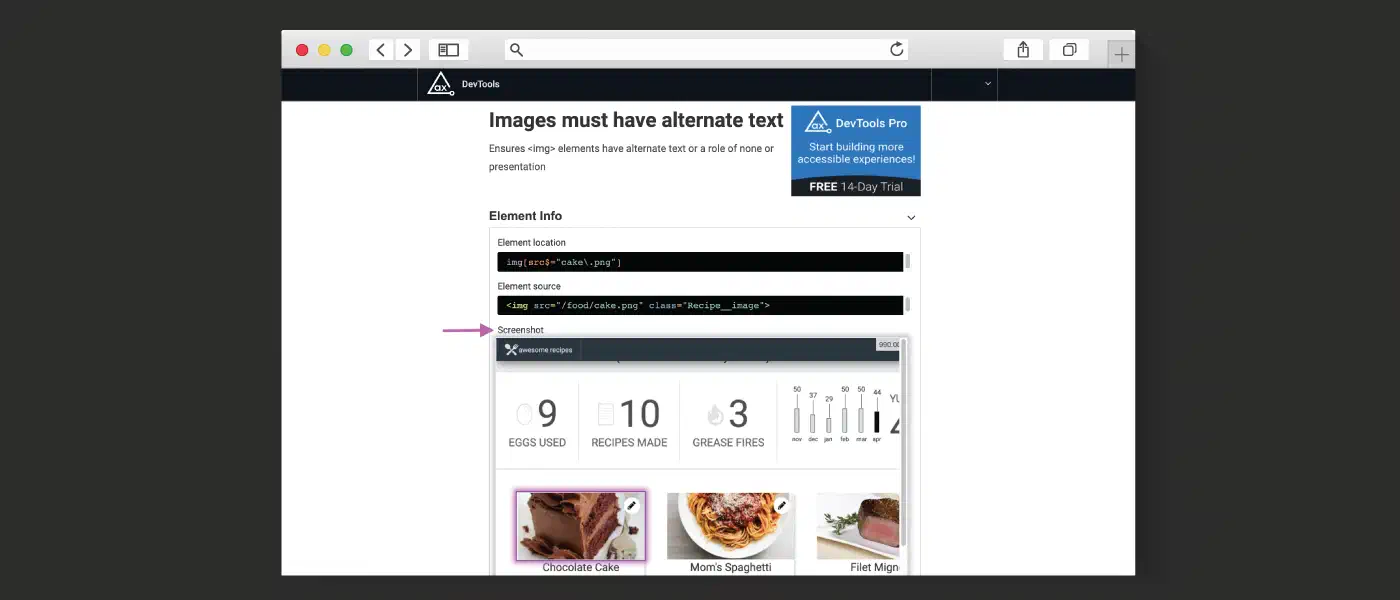
<table>,<thead>,<tbody>, and proper<th scope="...">attributes. - Run axe DevTools and resolve every issue at the Critical and Serious levels.
- Tab into the table and verify exactly one tab stop exists; arrow keys should move between cells.
- Trigger a sort with Enter on a column header and confirm the live region announces the change.
- Filter the table and confirm the result count is announced after the debounce delay.
- Test with NVDA on Windows or VoiceOver on macOS. The two screen readers have different quirks, and catching both is worth the extra fifteen minutes.
- Check the focused-cell outline at 200 percent zoom and in high contrast mode.
A well-built accessible data table costs maybe a day of extra work over the broken kind, and it pays off the first time someone navigates your dashboard with a keyboard. Once you’ve shipped one, the patterns stick. The next table will take a couple of hours, and you’ll never go back to div soup.