 Botmonster Tech
Building a Language Server Protocol extension from scratch

This post is open for corrections. Highlight any line of text to challenge it or ask for a clearer explanation and leave a comment.
The Language Server Protocol (LSP) lets you write language smarts once and use them in every editor. You build one server that handles autocomplete, diagnostics, hover docs, and go-to-definition. Then you plug it into VS Code, Neovim, Helix, Emacs, or anything else that speaks LSP. This walkthrough shows how to build an LSP server in TypeScript for a custom .config file format, from setup through multi-editor support.
What the Language Server Protocol Actually Is
Before LSP, editor support for a language meant writing a separate plugin for every editor. Want Python support? Write a VS Code extension, an Emacs mode, a Vim plugin, a Sublime plugin. Each one redoes parsing, diagnostics, and completion from scratch. With N editors and M languages, that’s N*M plugins to maintain.
LSP cuts this to N+M. Each language ships one server. Each editor ships one client. The server and client talk over JSON-RPC using structured messages: requests, responses, and notifications. The transport is usually stdio or TCP.
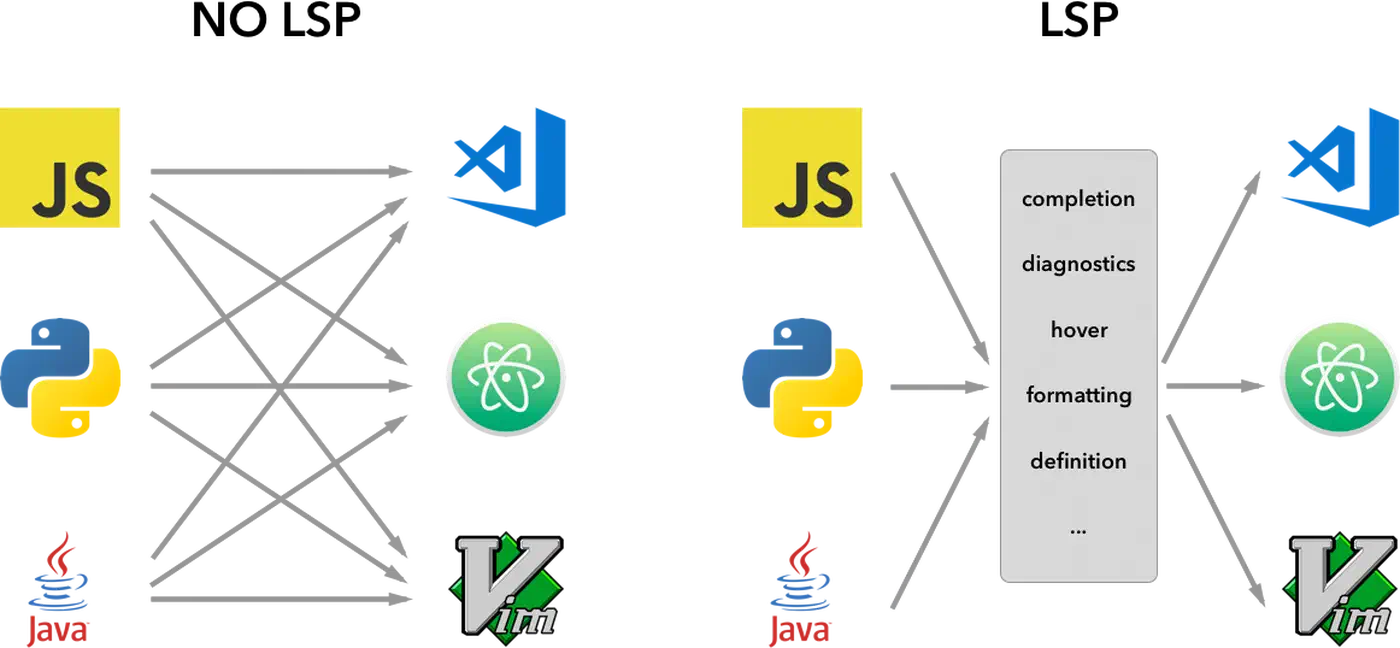
The protocol defines a set of standard methods that map to the features developers use daily:
| LSP Method | Editor Feature |
|---|---|
textDocument/completion | Autocomplete suggestions |
textDocument/publishDiagnostics | Error and warning squiggles |
textDocument/hover | Documentation popups |
textDocument/definition | Go-to-definition |
textDocument/formatting | Auto-format document |
textDocument/codeAction | Quick fixes and refactoring |
Talk starts with a capability handshake. The client sends an initialize request listing the features it supports. The server replies with its own list. So a server can advertise only the features it actually has built. You don’t have to support everything from day one.
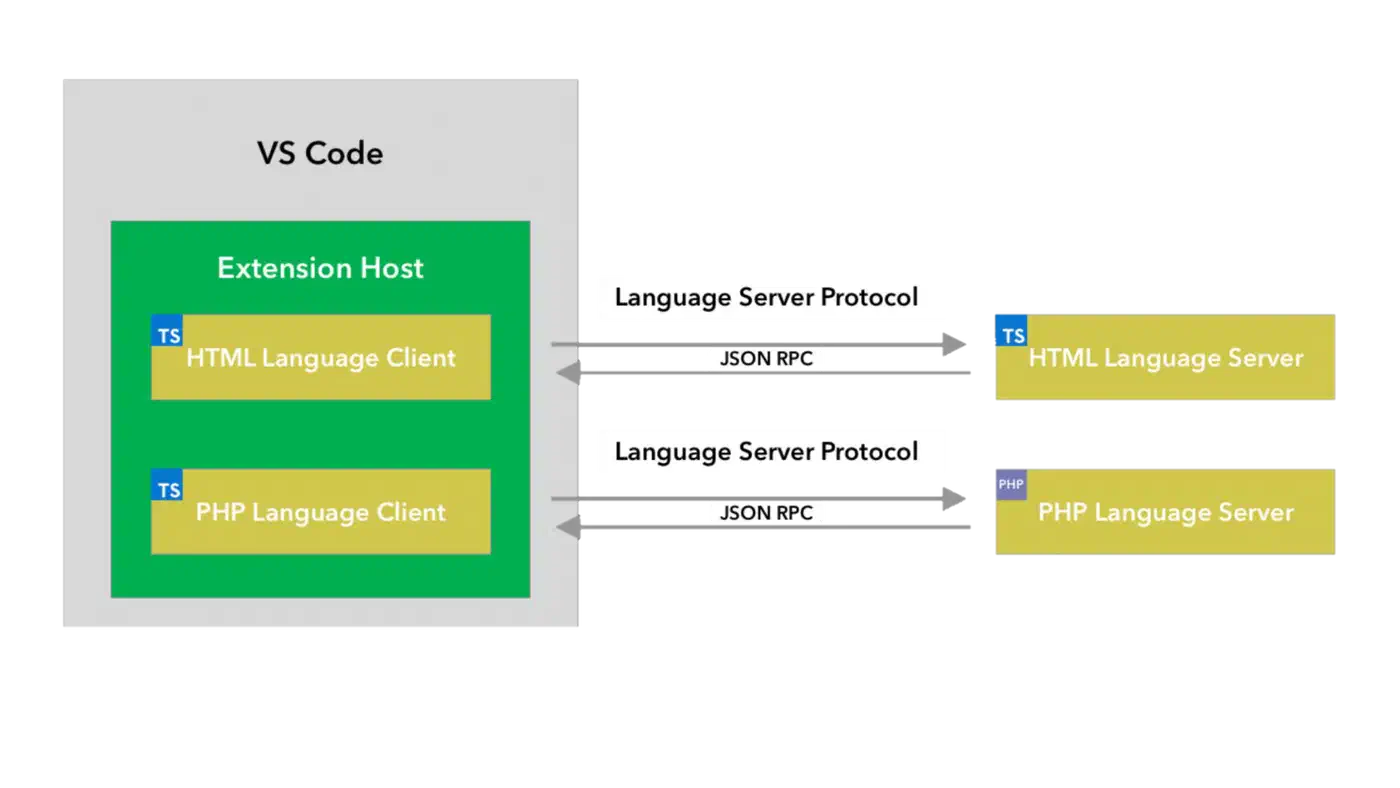
The current stable version is LSP 3.17. Microsoft keeps it as an open standard.
Project Setup and Tooling
The project uses a workspace layout with two folders: server/ and client/. The server holds the LSP logic. The client is a thin wrapper that starts the server and hooks it into VS Code.
Initialize the project:
mkdir config-lsp && cd config-lsp
npm init -y
Install the core dependencies:
# Server dependencies
npm install vscode-languageserver vscode-languageserver-textdocument

# Client dependencies (for the VS Code extension)
npm install vscode-languageclient
The latest vscode-languageserver package is version 9.0.1, which speaks LSP 3.17.
Create a tsconfig.json targeting modern Node.js:
{
  "compilerOptions": {
    "target": "ES2022",
    "module": "NodeNext",
    "moduleResolution": "NodeNext",
    "outDir": "./out",
    "strict": true,
    "esModuleInterop": true
  }
}
The project structure should look like this:
config-lsp/
  server/
    src/
      server.ts        # LSP server entry point
      parser.ts        # Config file parser
      schema.ts        # Config key definitions
  client/
    src/
      extension.ts     # VS Code extension entry point
  package.json
  tsconfig.json
For this tutorial, the target format is a custom .config file with key-value pairs:
# Application configuration
app_name = MyApp
port = 8080
debug = true
log_level = info
Simple enough to keep the focus on LSP ideas. Rich enough to show off real validation, completion, and hover.
Building the Server - Document Sync and Diagnostics
The first feature any LSP server needs is error reporting. When a user types something bad, the editor should flag it right away.
Start by setting up the connection and document manager in server/src/server.ts:
import {
  createConnection,
  TextDocuments,
  ProposedFeatures,
  InitializeParams,
  TextDocumentSyncKind,
  Diagnostic,
  DiagnosticSeverity,
} from 'vscode-languageserver/node';
import { TextDocument } from 'vscode-languageserver-textdocument';

const connection = createConnection(ProposedFeatures.all);
const documents = new TextDocuments<TextDocument>(TextDocument);
The onInitialize handler tells the client what this server can do:
connection.onInitialize((params: InitializeParams) => {
  return {
    capabilities: {
      textDocumentSync: TextDocumentSyncKind.Full,
      completionProvider: {
        resolveProvider: true,
        triggerCharacters: ['='],
      },
      hoverProvider: true,
    },
  };
});
TextDocumentSyncKind.Full means the client sends the entire document on every change. That’s simpler than incremental sync and fine for config files, which tend to be small. For large files with thousands of lines, switch to Incremental mode and apply text diffs yourself.
Now add the validation logic. Every time the document changes, parse it and emit diagnostics:
documents.onDidChangeContent((change) => {
  validateDocument(change.document);
});

function validateDocument(doc: TextDocument): void {
  const text = doc.getText();
  const lines = text.split('\n');
  const diagnostics: Diagnostic[] = [];
  const seenKeys = new Set<string>();

  for (let i = 0; i < lines.length; i++) {
    const line = lines[i].trim();

    // Skip empty lines and comments
    if (line === '' || line.startsWith('#')) continue;

    // Check for missing equals sign
    if (!line.includes('=')) {
      diagnostics.push({
        severity: DiagnosticSeverity.Error,
        range: {
          start: { line: i, character: 0 },
          end: { line: i, character: line.length },
        },
        message: `Invalid syntax: expected "key = value" format`,
        source: 'config-lsp',
      });
      continue;
    }

    const [key] = line.split('=').map((s) => s.trim());

    // Check for duplicate keys
    if (seenKeys.has(key)) {
      diagnostics.push({
        severity: DiagnosticSeverity.Warning,
        range: {
          start: { line: i, character: 0 },
          end: { line: i, character: key.length },
        },
        message: `Duplicate key "${key}"`,
        source: 'config-lsp',
      });
    }
    seenKeys.add(key);
  }

  connection.sendDiagnostics({ uri: doc.uri, diagnostics });
}
When connection.sendDiagnostics fires, the editor draws red or yellow squiggles under the bad lines. Save a .config file with a line like this is broken, with no equals sign, and the error pops up right away.
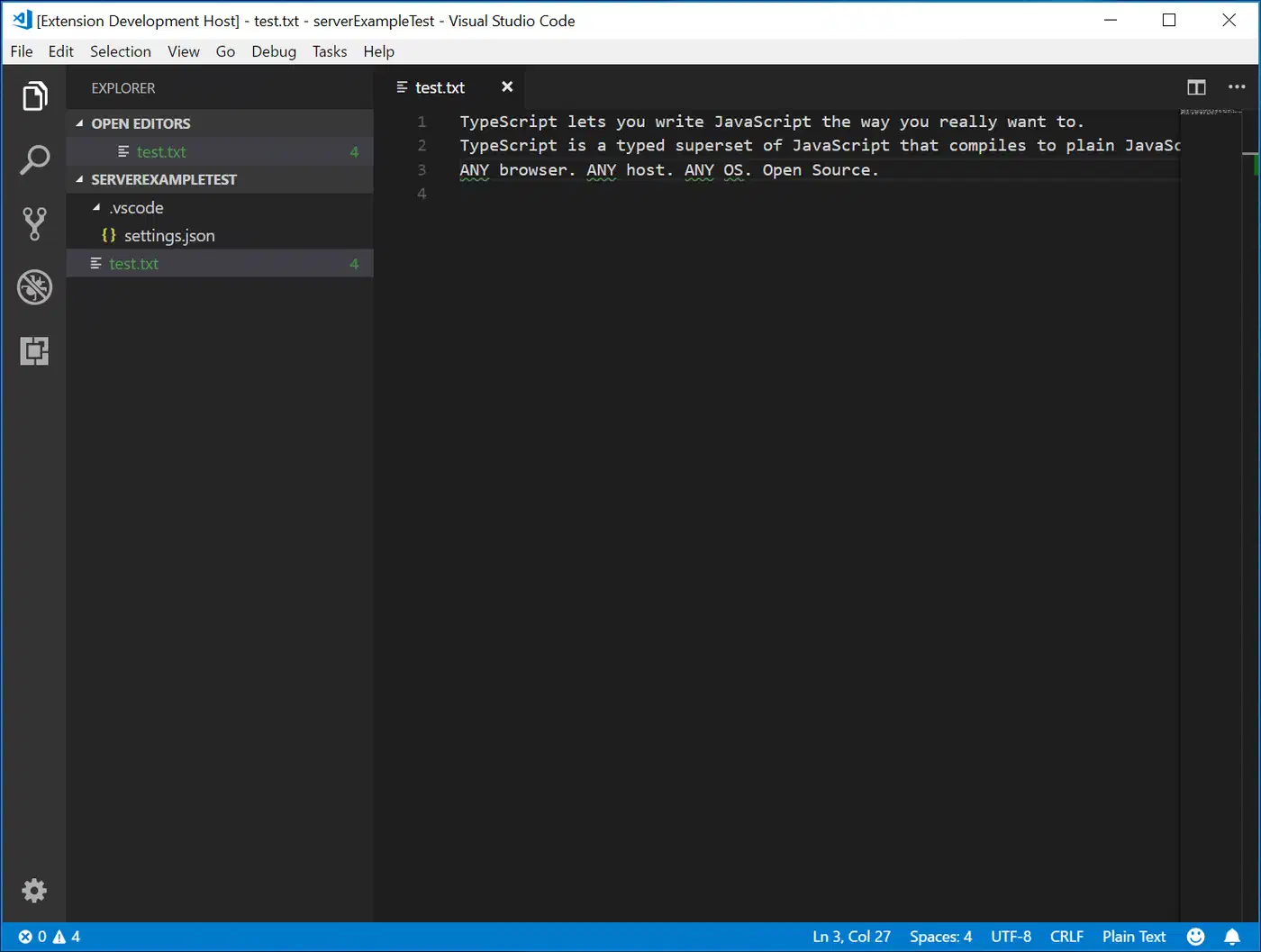
Don’t forget to start listening at the end of the file:
documents.listen(connection);
connection.listen();
Adding Autocomplete and Hover Documentation
With diagnostics working, the next step is autocomplete and hover. These are the features that help users avoid mistakes in the first place. Both draw from a schema that lists the valid keys, the accepted values, and a doc string for each entry.
Define the schema in server/src/schema.ts:
export interface ConfigKeyDef {
  type: 'string' | 'number' | 'boolean' | 'enum';
  description: string;
  allowedValues?: string[];
  defaultValue?: string;
}

export const CONFIG_SCHEMA: Record<string, ConfigKeyDef> = {
  app_name: {
    type: 'string',
    description: 'The display name of the application.',
  },
  port: {
    type: 'number',
    description: 'TCP port the application listens on. Range: 1-65535.',
    defaultValue: '8080',
  },
  debug: {
    type: 'boolean',
    description: 'Enable debug mode. Increases logging verbosity.',
    allowedValues: ['true', 'false'],
    defaultValue: 'false',
  },
  log_level: {
    type: 'enum',
    description: 'Controls logging output level.',
    allowedValues: ['trace', 'debug', 'info', 'warn', 'error'],
    defaultValue: 'info',
  },
};
The completion handler checks context to pick what to suggest. If the cursor sits at the start of a line, offer keys. If it sits after an = sign, offer values.
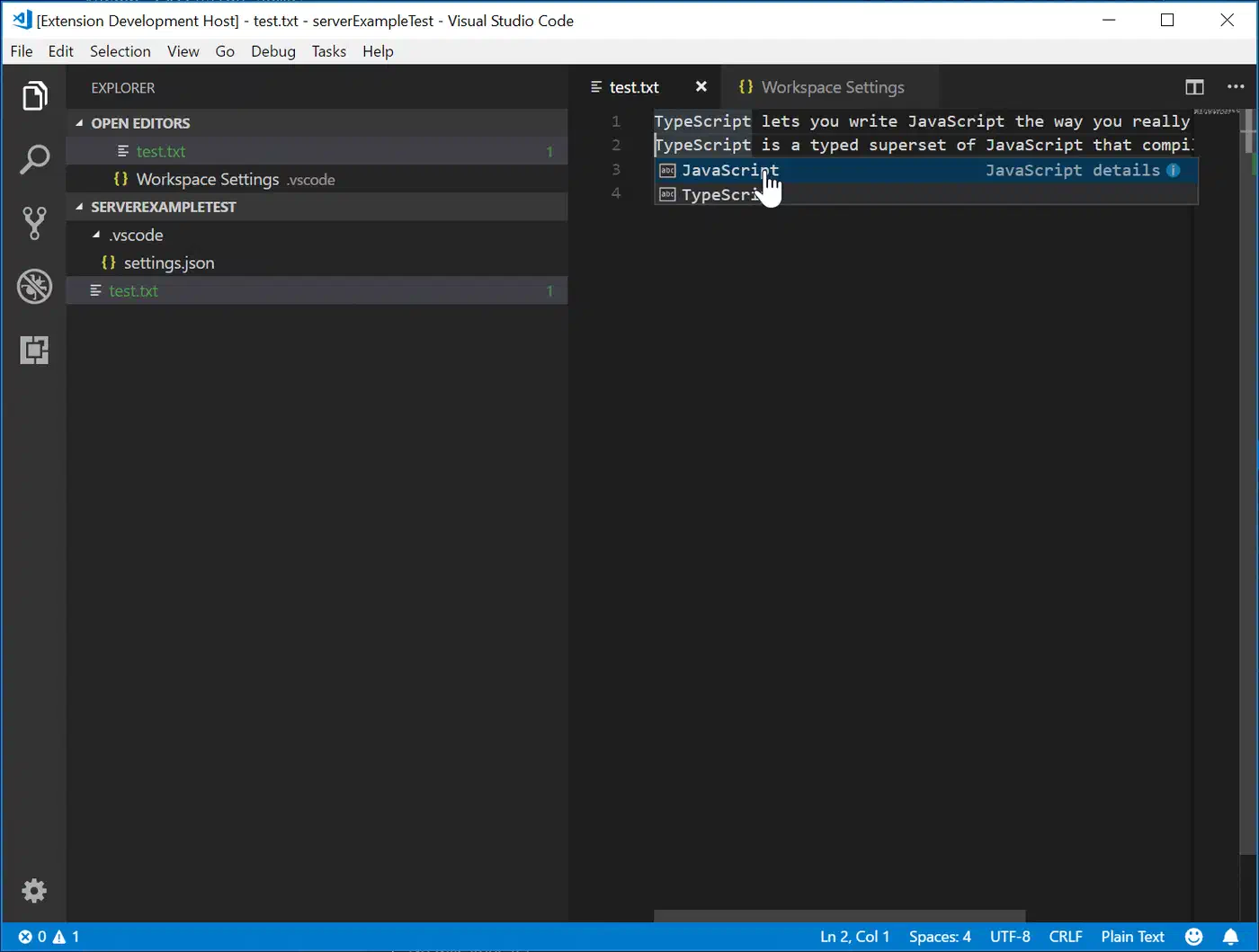
Here’s the implementation:
import {
  CompletionItem,
  CompletionItemKind,
  TextDocumentPositionParams,
} from 'vscode-languageserver/node';
import { CONFIG_SCHEMA } from './schema';

connection.onCompletion(
  (params: TextDocumentPositionParams): CompletionItem[] => {
    const doc = documents.get(params.textDocument.uri);
    if (!doc) return [];

    const line = doc.getText({
      start: { line: params.position.line, character: 0 },
      end: params.position,
    });

    // After "=", suggest values
    if (line.includes('=')) {
      const key = line.split('=')[0].trim();
      const def = CONFIG_SCHEMA[key];
      if (def?.allowedValues) {
        return def.allowedValues.map((val) => ({
          label: val,
          kind: CompletionItemKind.Value,
          detail: `Valid value for ${key}`,
        }));
      }
      return [];
    }

    // At line start, suggest keys
    return Object.entries(CONFIG_SCHEMA).map(([key, def]) => ({
      label: key,
      kind: CompletionItemKind.Property,
      detail: def.type,
      documentation: def.description,
    }));
  }
);
The onCompletionResolve handler lets you load detail on demand. It fires only when the user highlights an item in the list. That saves work when the list is long:
connection.onCompletionResolve((item: CompletionItem): CompletionItem => {
  const def = CONFIG_SCHEMA[item.label];
  if (def) {
    item.documentation = {
      kind: 'markdown',
      value: [
        `**${item.label}**`,
        '',
        def.description,
        '',
        `Type: \`${def.type}\``,
        def.defaultValue ? `Default: \`${def.defaultValue}\`` : '',
        def.allowedValues
          ? `Allowed: ${def.allowedValues.map((v) => `\`${v}\``).join(', ')}`
          : '',
      ]
        .filter(Boolean)
        .join('\n'),
    };
  }
  return item;
});
Hover docs follow a similar pattern. Look up the word under the cursor and return formatted Markdown. If your documentation lives as web pages, the conversion step decides whether tables and code fences survive the trip into a hover card:
connection.onHover((params) => {
  const doc = documents.get(params.textDocument.uri);
  if (!doc) return null;

  const line = doc.getText({
    start: { line: params.position.line, character: 0 },
    end: { line: params.position.line, character: Number.MAX_SAFE_INTEGER },
  });

  const key = line.split('=')[0].trim();
  const def = CONFIG_SCHEMA[key];
  if (!def) return null;

  return {
    contents: {
      kind: 'markdown',
      value: `**${key}** (\`${def.type}\`)\n\n${def.description}`,
    },
  };
});
Building the VS Code Client Extension
The server doesn’t care which editor calls it. But it does need a client to launch it and wire it up. For VS Code, that client is a standard extension.
Create client/src/extension.ts:
import * as path from 'path';
import { ExtensionContext } from 'vscode';
import {
  LanguageClient,
  LanguageClientOptions,
  ServerOptions,
  TransportKind,
} from 'vscode-languageclient/node';

let client: LanguageClient;

export function activate(context: ExtensionContext) {
  const serverModule = context.asAbsolutePath(
    path.join('server', 'out', 'server.js')
  );

  const serverOptions: ServerOptions = {
    run: { module: serverModule, transport: TransportKind.ipc },
    debug: {
      module: serverModule,
      transport: TransportKind.ipc,
      options: { execArgv: ['--nolazy', '--inspect=6009'] },
    },
  };

  const clientOptions: LanguageClientOptions = {
    documentSelector: [{ scheme: 'file', language: 'config' }],
  };

  client = new LanguageClient(
    'configLsp',
    'Config Language Server',
    serverOptions,
    clientOptions
  );

  client.start();
}

export function deactivate(): Thenable<void> | undefined {
  return client?.stop();
}
The extension’s package.json needs to register the language and file association:
{
  "contributes": {
    "languages": [
      {
        "id": "config",
        "aliases": ["Config"],
        "extensions": [".config"],
        "configuration": "./language-configuration.json"
      }
    ]
  },
  "activationEvents": ["onLanguage:config"]
}
For debugging, add a .vscode/launch.json with an “Extension Development Host” setup. This opens a second VS Code window with your extension loaded. Open a .config file in that window and check that diagnostics, autocomplete, and hover all work.
When you’re ready to ship, package with vsce:
npx vsce packageThis makes a .vsix file. Install it in any VS Code copy, or upload it to the VS Code Marketplace.
Beyond VS Code - Supporting Neovim, Helix, and Other Editors
Since every editor speaks the same protocol, one server binary works in all of them with no code changes. The offline grammar checker Harper works this way too: one harper-ls binary brings the same checks to VS Code, Neovim, Helix, Emacs, and Zed. Once you’ve built the TypeScript to JavaScript, hooking up other editors is just config.
Neovim
With Neovim 0.11+, use the built-in LSP API. Create a file at ~/.config/nvim/lsp/config_lsp.lua:
return {
  cmd = { 'node', '/path/to/config-lsp/server/out/server.js', '--stdio' },
  filetypes = { 'config' },
  root_markers = { '.git' },
}
Then turn it on with vim.lsp.enable('config_lsp'). Older Neovim versions use nvim-lspconfig with a similar shape. Editor choice also shapes which AI assistant you can run alongside your server, a split the Cursor versus Copilot showdown digs into for Neovim and VS Code users.
Helix
Add to ~/.config/helix/languages.toml:
[language-server.config-lsp]
command = "node"
args = ["/path/to/config-lsp/server/out/server.js", "--stdio"]

[[language]]
name = "config"
scope = "source.config"
file-types = ["config"]
language-servers = ["config-lsp"]
Emacs
With eglot (built into Emacs 29+):
(add-to-list 'eglot-server-programs
             '(conf-mode . ("node" "/path/to/config-lsp/server/out/server.js" "--stdio")))
Sublime Text
Install the LSP package, then add a client config in LSP settings:
{
  "clients": {
    "config-lsp": {
      "command": ["node", "/path/to/server.js", "--stdio"],
      "selector": "source.config"
    }
  }
}
In every case, the config points to the same server.js binary. No code changes, no rebuilds. That’s the N+M payoff.
Distribution
For easier install, publish the server as an npm package. Users can then run it with npx config-lsp --stdio. Or bundle it into a single binary with esbuild or pkg to drop the Node.js dependency for good.
Performance Considerations
Config files are usually small. But if you plan to reuse your LSP server setup for larger formats, a few things will bite you.
Start with Full document sync for simplicity. When parsing slows down on larger files, switch to Incremental mode. The client then sends only the changed text ranges. You apply diffs to your internal document model instead of re-parsing the whole file.
If your parser is slow, don’t re-validate on every keystroke. Add a debounce timer (150-300ms is typical). It resets on each change and only fires validation when the user pauses typing. Most LSP servers settle around 150ms. Some developers find this adds noticeable lag, so pick a value that fits how fast your parser runs.
The onCompletionResolve pattern shown earlier pays off when your completion list grows long. Return just labels and kinds from onCompletion. Then fill in the detail only when the user picks a specific item from the dropdown.
Think about file size limits too. Emacs lsp-mode defaults to 1MB for preloaded files and 5MB for watcher ops. Your server should back off above some threshold. Don’t try to parse a multi-megabyte file on every keystroke.
Alternative Languages for LSP Servers
TypeScript with vscode-languageserver is the most common pick. Microsoft owns both the protocol and the reference code. But other languages have solid LSP frameworks too:
| Language | Framework | Notable Servers Built With It |
|---|---|---|
| Rust | tower-lsp | rust-analyzer, taplo |
| Python | pygls | Pyright (partially), various custom tools |
| Go | gopls architecture | gopls |
| C# | OmniSharp LSP | OmniSharp |
Rust with tower-lsp is a good pick when you need raw speed. The async runtime and zero-cost abstractions fit servers that handle large codebases. Python with pygls at v2.0 is handy for quick prototypes, or when your tooling is already in Python. Go works well when you want easy cross-builds and single-binary shipping. Zig is worth watching too. ZLS, the Zig Language Server, is itself built in Zig. It shows how well the language fits tight systems tooling.
Where to Go Next
This guide covers the core loop: parsing, diagnostics, completion, hover, and multi-editor support. A few features make good follow-up projects:
Go-to-definition via textDocument/definition helps when config files reference each other, or when keys point to file paths you’d want to click through. Code actions via textDocument/codeAction let you offer quick fixes. Think auto-correcting typos in key names, or suggesting valid values when someone types a bad one. Formatting via textDocument/formatting can fix spacing around = signs, sort keys, or clean up comment styles. Testing deserves its own pass too. Unit-test the parser on its own. A parser is a textbook fit for Hypothesis property testing to find edge cases automatically, since round-trip and invariant rules catch malformed input you would never think to write by hand. Then use VS Code’s extension test framework for full LSP round-trip checks.
Want to push this JSON-RPC server pattern past editors? MCP server development covers the same request-response shape, applied to building tool plugins for LLMs. The parallels are close enough that LSP skills transfer right over.
The one-server-many-clients shape shows up outside editor tooling too. LikeC4 keeps a single model of a system and generates every diagram view from it, the same way your LSP server keeps one source of truth and every editor renders its own view on top.
The Microsoft lsp-sample repository has a full working example. Keep it open next to this guide as a reference.
One practical note for testing: the server keys its analysis off the editor’s workspace root. So if you open the same project from two branch checkouts in separate folders, each editor window runs its own server instance against its own copy, which makes it easy to compare diagnostics across versions.