 Botmonster Tech
How to Build a Custom Linux ISO with Live Build or Cubic

You can build a personalized Linux live USB image - complete with your preferred packages, desktop environment, configuration files, and branding - using either Debian’s live-build
toolchain or Cubic
(Custom Ubuntu ISO Creator). live-build is a fully command-line-driven tool that produces reproducible ISOs from configuration files, making it a natural fit for CI/CD pipelines and version-controlled builds. Cubic takes the opposite approach: a GUI that extracts an existing Ubuntu or Debian ISO, drops you into an interactive chroot, and reassembles everything when you are done. Both produce bootable ISO images ready for USB flashing with Ventoy
, dd, or Balena Etcher
.
Why Build a Custom Linux ISO
Stock distribution ISOs are built for the widest possible audience and optimized for nobody in particular. If you have ever booted a live USB only to spend the first twenty minutes installing your tools before you can start actual work, a custom ISO eliminates that friction.
The most obvious use case is a rescue and repair USB. Pre-install testdisk, photorec, gparted, chntpw, btrfs-progs, zfsutils-linux, and mdadm alongside your SSH keys, and you get a stick that boots on any machine and is ready to recover partitions
, reset Windows passwords, or rebuild a degraded RAID array without an internet connection.
Another common scenario is rapid deployment. Bake in your dotfiles
, SSH authorized_keys, base packages (Neovim, tmux, htop, ripgrep, fzf), and a preseed or autoinstall configuration so new machines come up identical in minutes rather than hours.
Custom ISOs also work well for kiosks and appliances. Build a minimal image with a single application - a browser kiosk, digital signage display, or POS terminal - that boots directly into the app with no desktop environment overhead. Pair this with the toram kernel parameter to run entirely from RAM and remove the USB after boot.
For training or workshop settings, distribute a live USB to every participant with pre-configured development tools, sample projects, and exercise files. Everyone gets an identical environment regardless of what laptop they brought.
Then there are air-gapped environments, where you need all necessary .deb packages and their dependencies bundled onto the ISO itself because the target systems cannot reach the internet. This comes up often in government, defense, and industrial control settings.
The two main tools for Debian and Ubuntu-based custom ISOs differ in their approach:
| Feature | live-build | Cubic |
|---|---|---|
| Interface | CLI only | GUI with embedded terminal |
| Reproducibility | Fully scripted, Git-friendly | Manual, project-file based |
| Base distribution | Debian, Ubuntu | Ubuntu, Debian-based |
| Best for | Automated/CI builds, fleet deployment | One-off customizations, quick tweaks |
| Learning curve | Moderate (config file structure) | Low (visual wizard) |
| Installer support | Optional Debian Installer | Preserves source ISO installer |
For RPM-based distributions, livemedia-creator with Lorax handles Fedora, and Archiso covers Arch Linux. This post focuses on the Debian/Ubuntu toolchain since it covers the broadest range of use cases.
Building a Custom ISO with Debian Live Build
live-build is the official Debian project tool for creating live system images. It is entirely command-line driven and produces repeatable results from configuration files, which makes it straightforward to version-control your ISO recipe and rebuild it in CI.
Install and Initialize
On Debian 13 (Trixie) or Ubuntu 24.04+, install with:
sudo apt install live-buildVerify the installation:
lb --versionCreate and initialize a build directory:
mkdir ~/custom-iso && cd ~/custom-iso
lb config
This creates the auto/, config/, and local/ directory structure that live-build expects. Every customization from here goes into the config/ tree.
Configure the Base System
Set the distribution, architecture, and image type:
lb config \
  --distribution trixie \
  --architectures amd64 \
  --binary-images iso-hybrid \
  --debian-installer none \
  --apt-indices false
The iso-hybrid option creates an ISO that is directly writable to USB with dd. Setting --debian-installer none omits the graphical installer for a pure live system (add it back if you want an installable image). The --apt-indices false flag drops the package index from the final image to save space.
Add Packages
Create a package list file:
mkdir -p config/package-lists
cat > config/package-lists/custom.list.chroot << 'EOF'
neovim
tmux
git
firefox-esr
gparted
build-essential
htop
ripgrep
fzf
curl
wget
openssh-server
EOF
One package name per line. live-build resolves dependencies automatically, so you only need to list what you actually want.
Add Custom Files
Place files in config/includes.chroot/ mirroring the target filesystem root. For example:
config/includes.chroot/etc/skel/.bashrc- custom default shell configuration for new usersconfig/includes.chroot/usr/local/bin/my-tool- custom scripts (make sure they are executable)config/includes.chroot/etc/ssh/sshd_config.d/custom.conf- SSH server tweaksconfig/includes.chroot/root/.ssh/authorized_keys- your SSH public key for root access on boot
Any file placed here ends up at the same path in the live filesystem.
Build the ISO
sudo lb build 2>&1 | tee build.logThis takes 10-30 minutes depending on how many packages you selected and your mirror speed. The build directory grows to roughly 10-15 GB during the process. Output is live-image-amd64.hybrid.iso in the build directory.
Before rebuilding with different settings, always clean first:
sudo lb cleanOr for a full reset including downloaded packages:
sudo lb clean --purgeMinimizing ISO Size
For a truly minimal image, start with a stripped-down base:
lb config --debootstrap-options "--variant=minbase"Remove unnecessary locales and documentation by creating config/includes.chroot/etc/dpkg/dpkg.cfg.d/excludes:
path-exclude=/usr/share/doc/*
path-exclude=/usr/share/man/*
path-exclude=/usr/share/locale/*
path-include=/usr/share/locale/en*
Install localepurge in your package list to strip unused locale data during the build. These measures can reduce a desktop ISO from 2+ GB down to under 800 MB for a minimal system.
Customizing an Existing ISO with Cubic
Cubic (Custom Ubuntu ISO Creator) takes an existing ISO image, extracts its squashfs filesystem, lets you modify it through an interactive chroot, and reassembles everything. It is the fastest path when you want to take a stock Ubuntu or Debian ISO and make a handful of changes without learning a build system.
Install and Launch
Add the PPA and install on Ubuntu 22.04 or 24.04:
sudo apt-add-repository ppa:cubic-wizard/release
sudo apt update
sudo apt install cubic
Launch from the application menu or run cubic from the terminal.
Start a Project
Cubic walks you through a wizard:
- Select a working directory - this is where Cubic stores extracted files, so pick a location with at least 15-20 GB of free space.
- Choose a source ISO - any Ubuntu or Debian-based
.isofile. Cubic extracts the squashfs filesystem and drops you into the chroot.
The Interactive Chroot
You land in a root shell inside the extracted filesystem. Anything you do here becomes part of the final ISO.
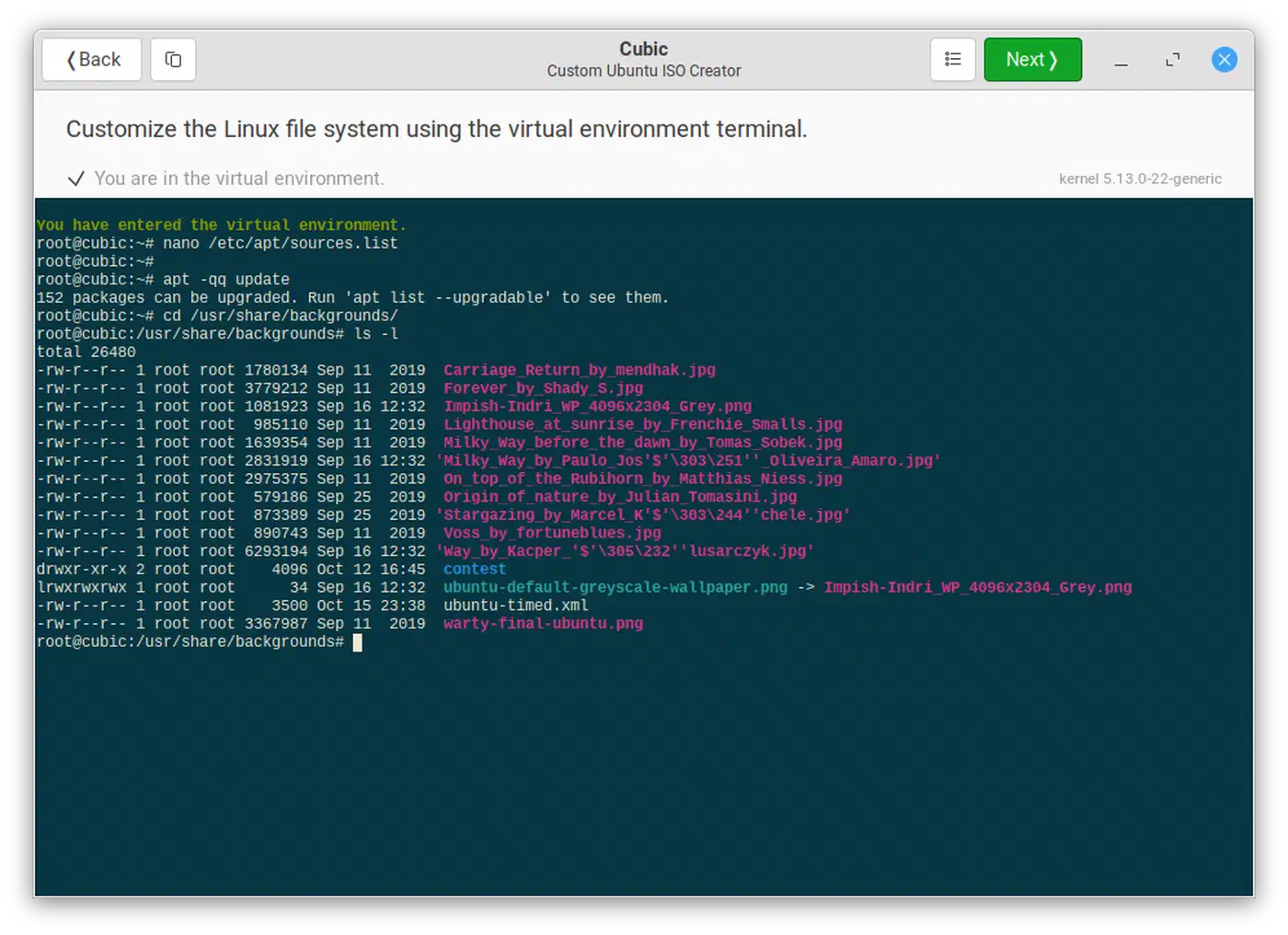
# Update package lists
apt update

# Install your tools
apt install neovim tmux git htop ripgrep fzf testdisk gparted

# Edit configuration files
nano /etc/skel/.bashrc

# Enable or disable services
systemctl enable ssh
systemctl disable cups

# Add your SSH key
mkdir -p /root/.ssh
echo "ssh-ed25519 AAAA..." > /root/.ssh/authorized_keys
chmod 700 /root/.ssh
chmod 600 /root/.ssh/authorized_keys
When you are done, click “Next” to proceed to the remaining tabs.
Kernel and Boot Options
The Kernel tab lets you pick which installed kernel the live system uses. If you need specific hardware support, install a different kernel in the chroot first (for example, apt install linux-image-6.12-generic), and it appears as an option here.
The Boot tab lets you customize GRUB entries and add kernel parameters. Useful additions:
toram- copies the entire filesystem to RAM on boot, allowing you to remove the USB drivequiet splash- standard silent boot with splash screennomodeset- fallback for problematic GPU drivers
You can also embed a preseed file here for automated installation if you are building an installable ISO rather than a pure live system.
Generate the ISO
The final screen offers compression options for the squashfs filesystem:
| Algorithm | Compression Ratio | Compress Speed | Decompress Speed | Best For |
|---|---|---|---|---|
| gzip | ~2.9x | 15 MB/s | 128 MB/s | Broad compatibility |
| xz | ~3.4x | 5.5 MB/s | 35 MB/s | Smallest ISO size |
| zstd | ~3.1x | 50+ MB/s | 200+ MB/s | Best balance of size and speed |
| lz4 | ~2.1x | 94 MB/s | 218 MB/s | Fastest boot time |
For most use cases, zstd is the right choice. It produces files only slightly larger than xz while decompressing 5-8 times faster, which translates directly into shorter boot times. Use xz if you need the smallest possible ISO for distribution over slow connections, and lz4 if boot speed is the only thing that matters.
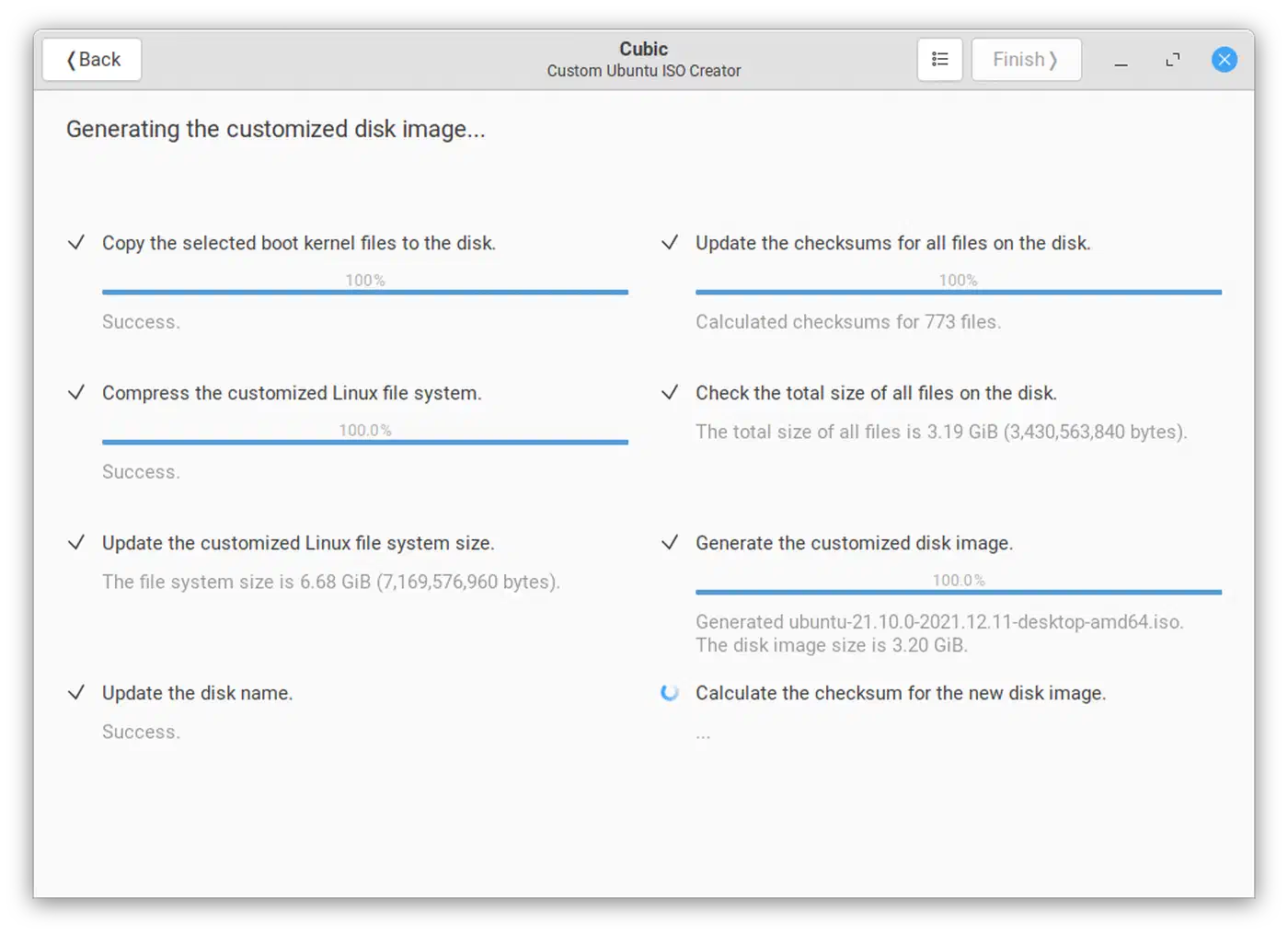
Click through, and Cubic rebuilds the ISO into your project directory.
Advanced Customization - Persistence, Branding, and Automation
A custom ISO that resets to its original state on every boot is useful for kiosks and rescue environments, but many use cases need changes to survive reboots. There are also cosmetic and automation improvements that make the difference between a rough build and a polished product.
Persistent Storage with Ventoy
Ventoy is a tool that lets you put multiple ISO files on a single USB drive and boot any of them from a menu. It also supports persistence, which saves changes between sessions.
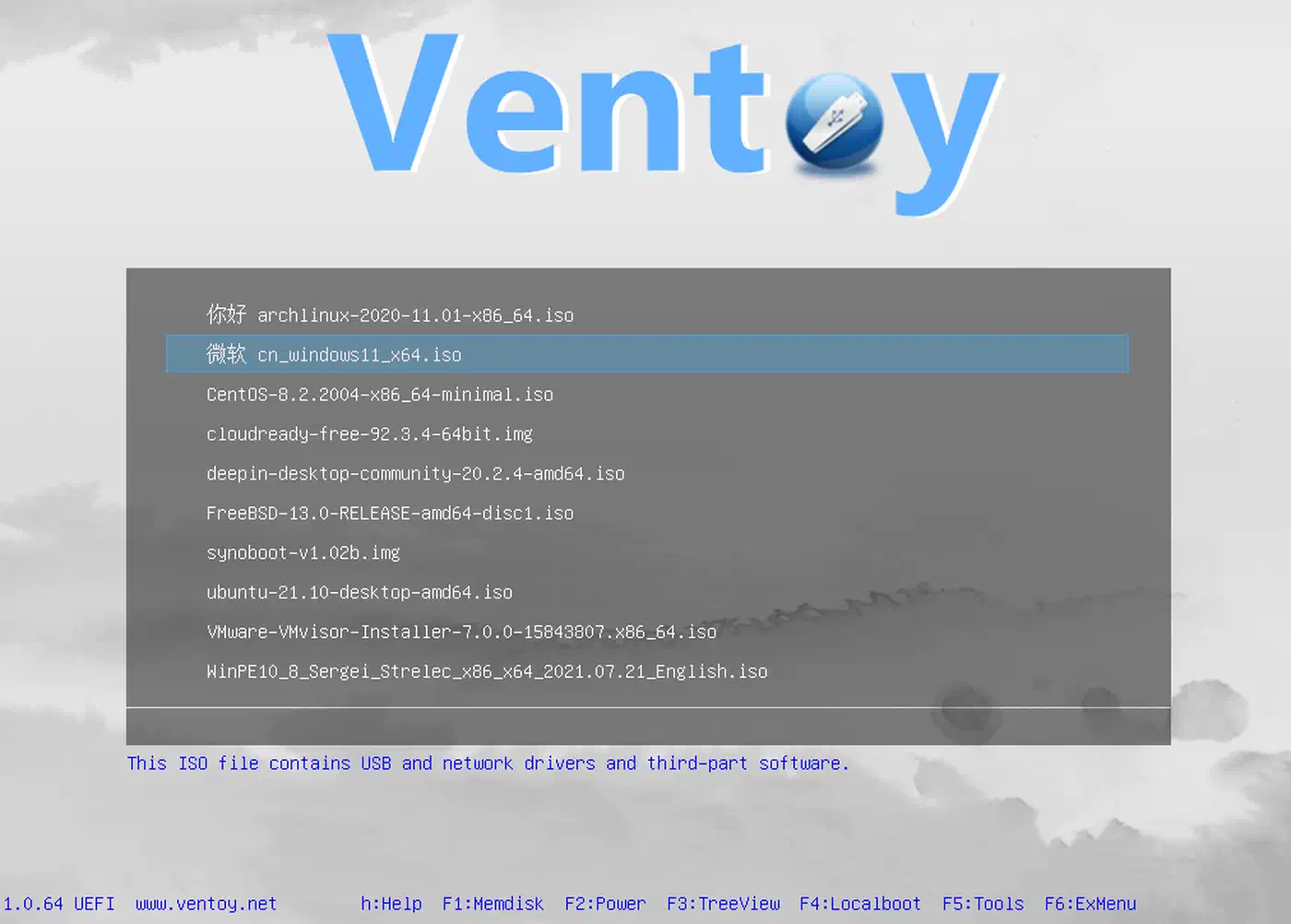
After flashing Ventoy to a USB drive, set up persistence:
Create a persistence data file (ext4 formatted, any size you need):
sudo dd if=/dev/zero of=persistence.dat bs=1M count=4096
sudo mkfs.ext4 -L persistence persistence.dat
Place the file on the Ventoy partition and create
/ventoy/ventoy.json:{ "persistence": [ { "image": "/my-custom-live.iso", "backend": "/persistence.dat" } ] }
All changes made during the live session - installed packages, saved files, modified configs - persist across reboots. You can define multiple persistence files for different ISOs on the same drive.
Native Persistence with live-build
If you are not using Ventoy, live-build supports persistence natively. Configure it during the build:
lb config \
  --binary-filesystem fat32 \
  --bootappend-live "boot=live persistence"
After flashing the ISO, create a separate partition on the USB drive labeled persistence and add a persistence.conf file containing:
/ unionThis tells the live system to overlay all changes onto the persistence partition.
Custom Boot Branding
Replace the default GRUB splash screen by placing a splash.png (1920x1080 for modern displays, or 640x480 for legacy compatibility) in config/includes.binary/boot/grub/.
For the boot animation, install plymouth-themes in your package list and create a custom Plymouth theme:
# In the chroot or config/includes.chroot/
mkdir -p /usr/share/plymouth/themes/my-theme/
# Add your theme files (script, images, etc.)
plymouth-set-default-theme my-theme
CI/CD Automation with live-build
The real power of live-build over Cubic is automation. Check the auto/config, auto/build, and auto/clean scripts into Git. A basic auto/config script:
#!/bin/sh
set -e

lb config noauto \
  --distribution trixie \
  --architectures amd64 \
  --binary-images iso-hybrid \
  --debian-installer none \
  --apt-indices false \
  --cache true \
  "${@}"
Run sudo lb build in a GitHub Actions workflow
or GitLab CI job using a Debian container image. Publish the resulting ISO as a release artifact. Every commit to your configuration repo produces a fresh, reproducible ISO without manual intervention.
Adding a Graphical Installer with Calamares
To turn a live ISO into an installable distribution, integrate Calamares
, a framework for creating distribution installers. Install calamares in your package list, configure its modules (partitioning, locale, user creation), and add a desktop shortcut to launch it from the live session. The Calamares wiki
provides a deployer’s guide covering module configuration and branding.
Testing, Flashing, and Distributing Your Custom ISO
Building the ISO is half the work. You need to verify it boots, flash it to physical media, and potentially distribute it to others.
Test with QEMU
Before wasting time on physical USB drives, test in a virtual machine:
# Basic test (BIOS boot)
qemu-system-x86_64 -m 4G -cdrom live-image-amd64.hybrid.iso -boot d -enable-kvm

# UEFI test
qemu-system-x86_64 -m 4G -cdrom live-image-amd64.hybrid.iso \
  -boot d -enable-kvm -bios /usr/share/ovmf/OVMF.fd
Test both BIOS and UEFI boot modes. Check that networking works, your packages are present, custom configs are applied, and services start correctly.
Flash to USB
The classic approach:
# ALWAYS verify the target device first
lsblk

# Write the ISO
sudo dd if=live-image-amd64.hybrid.iso of=/dev/sdX bs=4M status=progress conv=fsync
Replace /dev/sdX with your actual USB device. Double-check with lsblk - writing to the wrong device destroys data. For multi-ISO USB drives, use Ventoy instead of dd.
Verify and Distribute
Generate checksums and optionally sign them for distribution:
sha256sum live-image-amd64.hybrid.iso > SHA256SUMS
gpg --detach-sign SHA256SUMS
Host the ISO on a Gitea/Forgejo release page, Nextcloud share, or S3-compatible storage. Provide the ISO file, SHA256SUMS, and SHA256SUMS.sig so recipients can verify integrity.
Common Boot Failures
When your custom ISO refuses to boot on real hardware, these are the usual suspects:
- Secure Boot rejection means the live kernel is not signed with a trusted key. Either sign it with your own Machine Owner Key (MOK) or disable Secure Boot in the BIOS.
- A black screen after the bootloader usually means you need
nomodesetin the kernel parameters to disable kernel mode setting. This is common with NVIDIA GPUs. - No network after boot points to missing firmware packages. Include
firmware-linux-nonfree(Debian) or the equivalentlinux-firmwarepackage in your build. - Slow boot on USB 2.0 ports gets worse if you used xz compression, since the slow decompression compounds with slow USB transfer speeds. Switch to zstd or lz4 for USB-targeted builds.
- If the ISO exceeds 4 GB and you are writing it to a FAT32-formatted USB drive, either use Ventoy (which handles large ISOs) or use
ddwhich writes the raw image and bypasses the filesystem size limit.
Which Tool Should You Pick
Start with Cubic if you want to modify an existing ISO in an afternoon without reading documentation about config file layouts. Move to live-build when you need reproducible, version-controlled builds that run unattended in CI. The two tools cover different parts of the workflow, and there is nothing stopping you from prototyping in Cubic and then translating what you learned into a live-build configuration for long-term maintenance. The end result either way is a bootable ISO tailored to your exact needs - whether that is a rescue toolkit that fits on a 1 GB USB stick or a full development environment ready to roll out across a lab of workstations.