 Botmonster Tech
Fix Your PipeWire Audio on Linux: Low-Latency Recording

PipeWire hits sub-10ms recording latency on Linux once you set the quantum (buffer size) to 64 or 128 samples at 48 kHz. You also need real-time scheduling for your user, through the rtkit service or an audio group with PAM limits. Most “PipeWire doesn’t work” complaints trace back to broken ALSA UCM profiles, Bluetooth codec fallbacks, or WirePlumber rules that quietly override your audio routing. This guide covers every layer of the stack, from PipeWire’s design down to ALSA period sizes, so you can stop guessing.
Understanding PipeWire’s Architecture in 2026
PipeWire replaced both PulseAudio and JACK on every major Linux distro by 2025. Version 1.4.x ships as the default audio (and video) server on Fedora, Ubuntu, Arch, openSUSE, and Debian. Knowing how its parts fit together saves you from chasing symptoms a five-minute config check would have caught.
PipeWire itself is the core server. It manages a graph of audio nodes, handles device access, and offers compatibility layers for PulseAudio, JACK, and ALSA clients. It does not decide how nodes link to each other. That job belongs to the session manager.
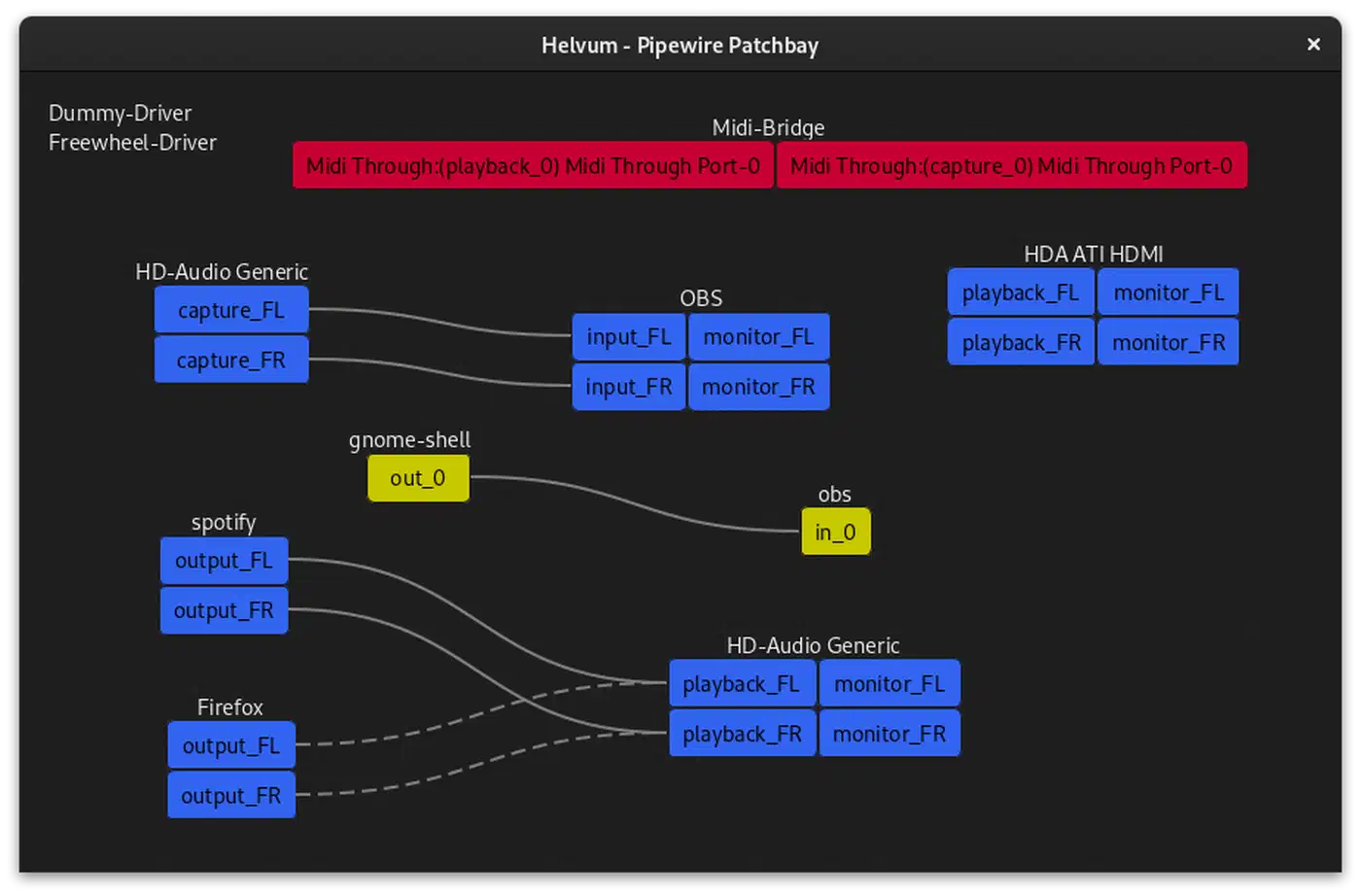
WirePlumber (version 0.5.x) is the default session manager. It decides which mic feeds which app, how Bluetooth devices pick codecs, and what happens when you plug in new headphones. When routing acts up, WirePlumber’s rules are almost always the place to look.
The PulseAudio compatibility layer (pipewire-pulse) lets every PulseAudio app work as-is. For JACK apps, pw-jack wraps the JACK API calls and routes them through PipeWire’s graph. In practice, you can run Ardour, Firefox, and a Bluetooth speaker at the same time without conflicts. The old PulseAudio/JACK split made that painful or impossible.
Audio processing runs in a real-time thread. The key idea here is the quantum, the buffer size measured in samples. The math is simple:
| Quantum | Sample Rate | Latency |
|---|---|---|
| 1024 | 48 kHz | 21.3 ms |
| 256 | 48 kHz | 5.3 ms |
| 128 | 48 kHz | 2.7 ms |
| 64 | 48 kHz | 1.3 ms |
A lower quantum means lower latency. It also gives the CPU less time to process each buffer. If the system cannot keep up, you get xruns (buffer underruns). They show up as clicks, pops, or dropouts.
Configuration lives in two places. /usr/share/pipewire/ holds the defaults. Do not edit these, since package updates will overwrite them. ~/.config/pipewire/ holds your user overrides. Drop-in config files go in ~/.config/pipewire/pipewire.conf.d/, and they merge with the defaults.
To see what is happening in real time, run pw-top. It shows the current quantum, sample rate, xrun count, and load per node. This is the most useful debug tool PipeWire ships. Make it your first stop whenever something sounds wrong.
Configuring Low-Latency for USB Audio Interfaces
USB audio interfaces from Focusrite, MOTU, Behringer, and PreSonus are the most common pro audio devices on Linux. To run them at low latency, you need specific PipeWire config plus some system-level tuning.
PipeWire Quantum Settings
Create the file ~/.config/pipewire/pipewire.conf.d/low-latency.conf with these contents:
context.properties = {
    default.clock.quantum = 128
    default.clock.min-quantum = 64
    default.clock.max-quantum = 1024
    default.clock.rate = 48000
    default.clock.allowed-rates = [ 44100 48000 96000 ]
}
This sets a default quantum of 128 samples (2.7 ms at 48 kHz). The system can still shift between 64 and 1024 based on load. The allowed-rates list stops needless resampling when you switch between projects at different sample rates.
After saving the file, restart PipeWire:
systemctl --user restart pipewire pipewire-pulse wireplumberVerifying Your Interface
Check that PipeWire sees your USB device:
pw-cli list-objects | grep -i "your-interface-name"For a Focusrite Scarlett 2i2 (4th gen) or a similar class-compliant USB device, you can inspect the full node properties with:
pw-dump | jq '.[] | select(.info.props["node.name"] | strings | test("usb")) | .info.props["node.name"]'Verify the sample rate matches your project. A mismatch forces PipeWire to resample. That adds latency and can bring in subtle artifacts.
Real-Time Scheduling
Real-time scheduling is key for low-latency audio. Without it, the kernel scheduler can pause the audio thread. That causes glitches even when CPU use is low.
The simplest approach is to make sure rtkit-daemon is running:
systemctl status rtkit-daemonRealtimeKit lets PipeWire ask for real-time priority without root. It works out of the box on most distros.
For tighter control, add your user to the audio group and create /etc/security/limits.d/audio.conf:
@audio - rtprio 95
@audio - memlock unlimited
Then add yourself to the group and log out/in:
sudo usermod -aG audio $USERMonitoring and Tuning
With pw-top running in a terminal, start recording in your DAW and watch the xrun counter. If xruns keep climbing, raise the quantum from 64 to 128, or from 128 to 256, until they stop. In practice, USB 2.0 interfaces reach 128 samples (2.7 ms) every time, while USB 3.0 interfaces can often handle 64 samples (1.3 ms).
For device-specific ALSA tuning, you can write a WirePlumber rule that sets api.alsa.period-size and api.alsa.headroom for your interface. Create a Lua script in ~/.config/wireplumber/main.lua.d/ that targets your device by its ALSA card name. Set api.alsa.period-size = 128 and api.alsa.headroom = 64. This hands the ALSA backend exact values instead of letting it guess.
Fixing Bluetooth Audio Codec Issues
Bluetooth audio through PipeWire works well when codec negotiation succeeds. It breaks in confusing ways when it does not. The symptoms, such as poor audio, mono output, and random disconnections, rarely point straight at the root cause.
Codec Support
PipeWire supports SBC, AAC, aptX, aptX HD, LDAC, LC3, and LC3plus codecs. The aptX family needs the libfreeaptx package (or pipewire-codec-aptx, depending on your distro). Check which codecs are available:
pactl list cards | grep -A 20 "bluez"Look for the available profiles section. It lists every codec your system can negotiate with the connected device.
The SBC Fallback Problem
The top Bluetooth audio complaint is headphones that connect but sound bad. They fell back to SBC instead of a better codec like LDAC or aptX HD. This happens when the first codec negotiation fails, and PipeWire quietly drops to the baseline.
Fix it by explicitly setting the preferred codec. You can do this per-session:
wpctl set-codec <device-id> ldacOr permanently through a WirePlumber Bluetooth rule that sets bluez5.codecs = [ ldac aptx_hd aptx aac sbc ] in order of preference.
To force the highest quality LDAC tier (990 kbps), add bluez5.default.rate = 96000 to the WirePlumber configuration for the device.
The Microphone Problem
When you use a Bluetooth headset’s mic (HFP/HSP profile), the output locks to mono SBC at 16 kHz. This is a core Bluetooth limit, not a PipeWire bug. The HFP profile just cannot carry good stereo output and mic input at the same time.
The practical fix is to use a separate USB mic for calls and voice recording. Keep A2DP stereo output on your Bluetooth headphones. PipeWire handles this split routing without trouble.
PipeWire 1.4 improved mSBC (wideband speech) support for HFP. It bumps mic quality from 8 kHz to 16 kHz narrowband. To get this, make sure your system has BlueZ 5.76 or newer plus current Bluetooth adapter firmware.
Random Disconnections
If Bluetooth devices drop at random, power management and WiFi conflicts are the usual cause. Reset the Bluetooth adapter:
sudo btmgmt power off && sudo btmgmt power onOn laptops with combo WiFi/Bluetooth chips (especially Intel), the two radios can clash. Turning off Bluetooth coexistence for the iwlwifi driver sometimes helps:
echo "options iwlwifi bt_coex_active=0" | sudo tee /etc/modprobe.d/iwlwifi-bt.confReboot after making this change.
JACK Compatibility and DAW Setup
Pro audio apps like Ardour , REAPER , Bitwig Studio , and Carla expect a JACK server. PipeWire’s JACK compatibility layer works well in 2026, but the setup has a few rules.
Using pw-jack
The pw-jack wrapper sets LD_PRELOAD to redirect JACK API calls to PipeWire:
pw-jack ardour8For system-wide JACK compatibility, symlink libjack.so to PipeWire’s version. Most distro packages do this for you when you install pipewire-jack.
Ardour 8.x and REAPER 7.x both detect PipeWire’s JACK interface natively. Bitwig Studio 5.x has native PipeWire support and does not need the JACK wrapper at all.
Transport and Sync
JACK transport (play/stop/locate sync) works through PipeWire. Many JACK apps can share transport control, and PipeWire keeps the sync sample-accurate. Run Ardour and Hydrogen at once, and hitting play in one starts both, just like a standalone JACK server.
Plugins
LV2 and CLAP plugins work natively. VST3 plugins through yabridge work with PipeWire too. Some heavy plugins may need the quantum bumped to 256 or 512 if their processing will not fit a smaller buffer.
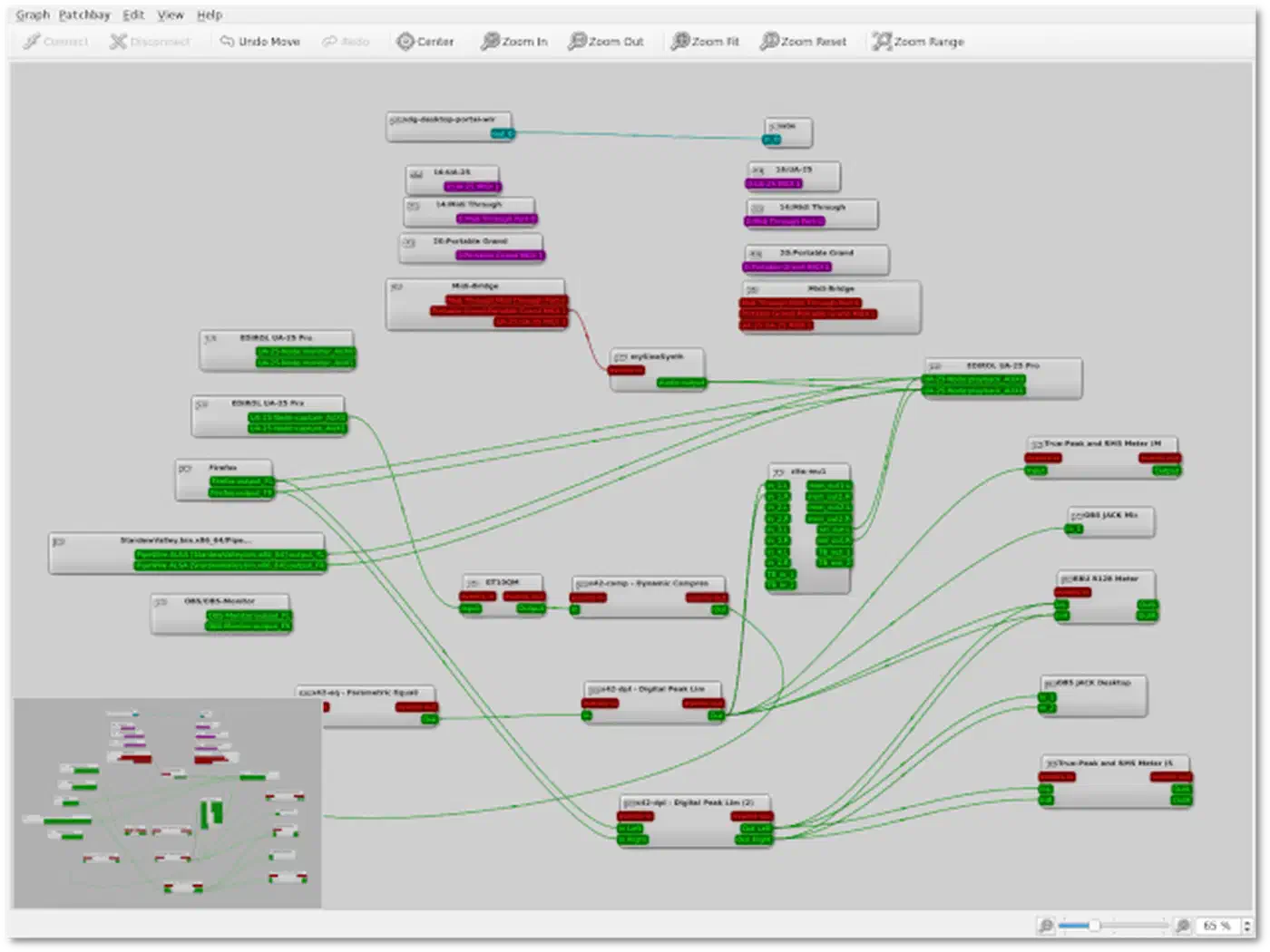
Carla is both a plugin host and a visual patchbay. It draws the PipeWire audio graph as if it were JACK. You can route audio between apps, build processing chains, and drop plugins between sources and sinks.
Troubleshooting JACK Connection Errors
If a JACK application reports “cannot connect to JACK server,” verify PipeWire is actually running:
systemctl --user status pipewire pipewire-pulse wireplumberThen check that the JACK compatibility library is installed. The package name varies by distribution:
- Fedora/RHEL:
pipewire-jack-audio-connection-kit - Ubuntu/Debian:
pipewire-jack - Arch:
pipewire-jack
Diagnosing and Fixing Common PipeWire Problems
This section collects the problems that come up most on forums and bug trackers. They are sorted by symptom, so you can jump straight to your issue.
No Sound After Login
Check the default sink:
wpctl statusIf it shows no default sink, set one manually:
wpctl set-default <sink-id>If the device shows up but reads as unavailable, WirePlumber may have turned it off after a failed probe. Restart WirePlumber:
systemctl --user restart wireplumberAudio Crackling or Popping
This is almost always a timing problem. Try these fixes in order:
- Reduce sample rate from 96 kHz to 48 kHz
- Increase quantum from 64 to 256
- Check for USB hub contention - plug your audio interface directly into a motherboard USB port
- Check for IRQ conflicts:
cat /proc/interrupts | grep snd
A USB audio interface that shares a hub with other high-bandwidth devices, like webcams or external drives, will crackle under load.
Routing Preferences Lost on Reboot
WirePlumber stores routing choices in ~/.local/state/wireplumber/. If that folder lives on a tmpfs filesystem or gets wiped on boot, your routing settings vanish every session. Check that the folder persists:
ls -la ~/.local/state/wireplumber/If it is empty after every reboot, see whether your distro mounts ~/.local/state as tmpfs, or whether a cleanup script is wiping it.
Volume Stuck at 100% or 0%
Some ALSA UCM (Use Case Manager) profiles have broken mixer controls for specific hardware. Check what ALSA sees:
alsamixer -c 0Switch cards with F6 if your device is not card 0. If the mixer shows no usable controls, the UCM profile for your hardware may be wrong. Check /usr/share/alsa/ucm2/ for your device’s profile. Compare it against the upstream alsa-ucm-conf
repo for fixes.
Simultaneous Output to Multiple Devices
The old PulseAudio trick of module-combine-sink does not exist in PipeWire. Instead, use pw-loopback to make a virtual link between nodes:
pw-loopback --capture-props='node.target=<source-sink-id>' --playback-props='node.target=<second-sink-id>'Or configure WirePlumber linking rules to automatically route specific streams to multiple outputs.
Screen Sharing Audio Capture
For Discord, OBS, and other applications that need to capture desktop audio:
- OBS 31.x has native PipeWire capture built in
- For Discord in the browser, enable WebRTC PipeWire capture through
xdg-desktop-portal-wlr(for wlroots compositors) orxdg-desktop-portal-gnome(for GNOME). If you recently made the jump from a legacy X11 session , these portal backends are part of the same setup - The PipeWire screen capture portal handles both video and audio streams, so applications that use the portal API get audio capture for free
PipeWire in 2026 is stable and solid enough for pro audio work on Linux. Set your quantum from real xrun testing, not a number you picked at random. Make sure real-time scheduling runs through rtkit or PAM limits. Always check WirePlumber’s rules when routing acts up. Run pw-top as your main debug tool, and keep your config in ~/.config/pipewire/pipewire.conf.d/, where package updates will not touch it.