 Botmonster Tech
Migrate to Wayland without reinstalling Linux

You can switch your Linux install from X11 to Wayland without reinstalling anything. The move comes down to picking a Wayland session at your login screen. After that, three things need follow-up: Xwayland for legacy X11 apps, input setup through libinput instead of xorg.conf, and a few environment variables. Those variables let toolkits like Qt, GTK, and Electron render through Wayland instead of falling back to X11. Most people finish in an afternoon. You can keep an X11 session as a fallback until you’re happy everything works.
Every major desktop now treats Wayland as its main session. GNOME has defaulted to Wayland since GNOME 42. KDE Plasma 6.x is Wayland-first. The KDE project has announced that Plasma 6.8, expected October 2026, will drop the X11 session for good. NVIDIA’s proprietary driver supports explicit sync from version 555 onward. That fixes the flicker and artifact bugs that hurt multi-monitor setups for years. The set of Wayland-native tools is mature too: clipboard managers, screenshot tools, screen recorders, and automation daemons. There is a drop-in swap for nearly every common X11 utility.
Assessing Your Current Setup Before Migrating
A clean move starts with knowing what you are leaving behind. Spend fifteen minutes auditing your current X11 setup. It will save you from surprise breakage after the switch.
Check your display server and GPU driver
Confirm you are running X11:
echo $XDG_SESSION_TYPE
# Should print: x11
For a more reliable check that works over SSH or in scripts:
loginctl show-session $(loginctl | grep $(whoami) | awk '{print $1}') -p TypeNext, check your GPU driver. This is important: AMD and Intel GPUs work with Wayland out of the box. NVIDIA needs specific driver versions and kernel parameters:
glxinfo | grep "OpenGL renderer"
lsmod | grep -E "nvidia|amdgpu|i915"- AMD (amdgpu) and Intel (i915): Fully supported on Wayland with no special setup. These drivers use implicit sync and have been stable under Wayland for years.
- NVIDIA (proprietary, 555+): Needs
nvidia-drm.modeset=1as a kernel parameter. Explicit sync support landed in driver 555, and version 565.77+ gives the most stable run. The EGLStreams vs. GBM debate is over. NVIDIA added GBM support in driver 495, back in late 2021, and all modern Wayland compositors use it. - Nouveau: Basic Wayland support exists but lacks hardware acceleration for most GPUs. Not a good pick for daily use.
Audit your X11-specific tools
Many X11 utilities have no Wayland version. They fail silently or throw confusing errors. Before you switch, make a list of what you actually use. Here are common ones that need a swap:
| X11 Tool | Wayland Replacement | Notes |
|---|---|---|
xdotool | ydotool or wlrctl | ydotool works on any compositor; wlrctl is wlroots-specific |
xclip / xsel | wl-clipboard (wl-copy, wl-paste) | Drop-in replacement, supports pipes |
xrandr | wlr-randr or compositor config | wlr-randr for wlroots compositors; GNOME/KDE use their own settings |
xbindkeys | Compositor keybinds | Configured in sway/hyprland config directly |
redshift | gammastep or wlsunset | GNOME Night Light and KDE Night Color are built-in |
scrot | grim + slurp | grim -g "$(slurp)" screenshot.png for region selection |
Check application compatibility
Most GTK4 and Qt6 apps are already Wayland-native. A few categories still need attention:
- Electron apps: Electron 38.2+ defaults to Wayland on its own. Older apps before v28 run through Xwayland. For apps between v28 and v38, set
ELECTRON_OZONE_PLATFORM_HINT=auto. - Java/Swing: Still needs Xwayland in most cases. JetBrains IDEs have run Wayland natively since the 2024.2 releases.
- Wine: Wine 11.0, out in January 2026, has a mature Wayland driver. It handles two-way clipboard and drag-and-drop. Wine 9.22 was the first version to turn the Wayland driver on by default.
- Screen recording: Needs PipeWire-based capture. Tools like OBS with the PipeWire source, wf-recorder, or gpu-screen-recorder all work well.
Keep X11 as a fallback
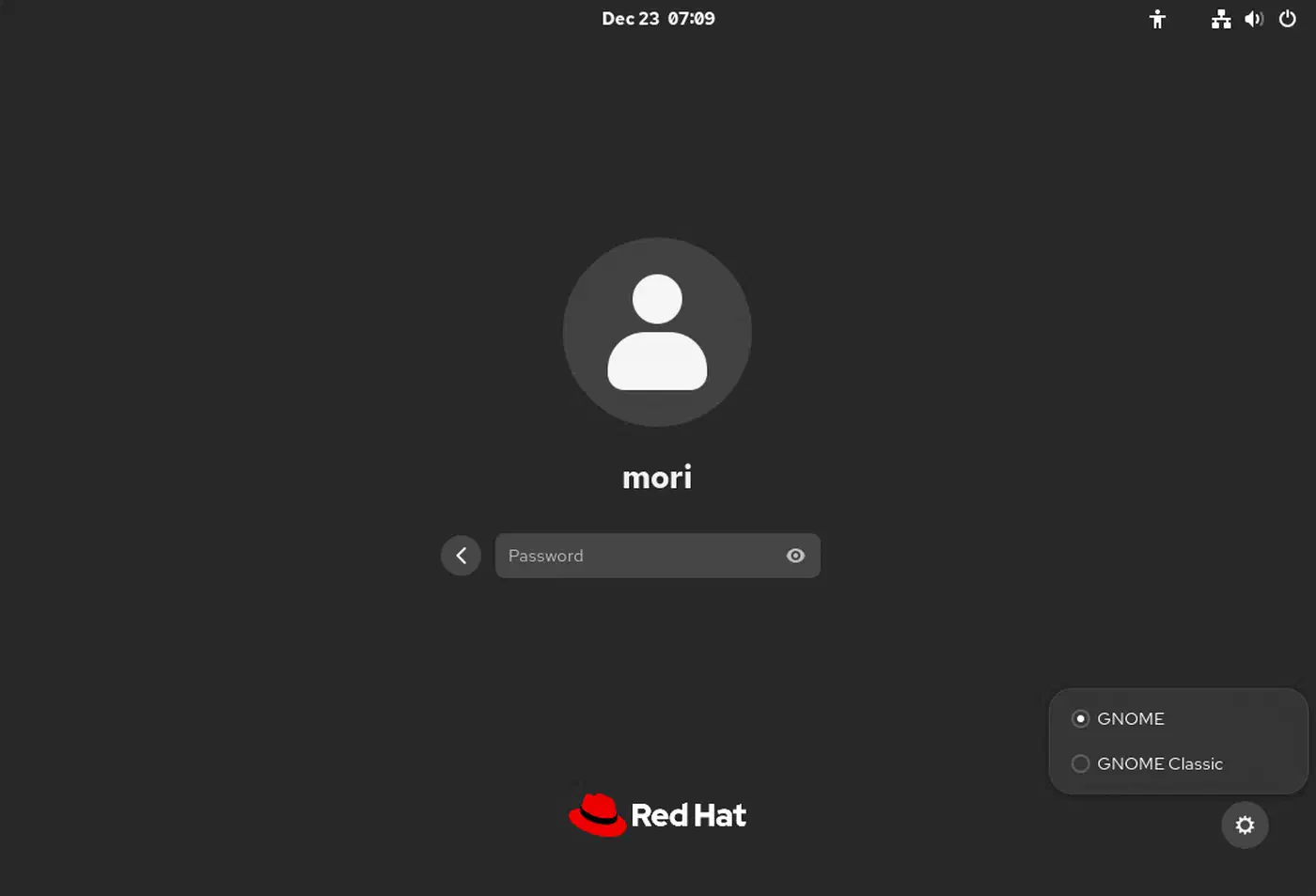
Don’t remove X11 packages. Your display manager (GDM, SDDM, or greetd) shows both X11 and Wayland session options at login. If something critical breaks, you can switch back to X11 in two seconds by picking a different session. That safety net takes all the risk out of the move.
Making the Switch - Selecting and Configuring Your Wayland Session
The switch itself is just picking a different session type at login. Each desktop and standalone compositor has its own level of Wayland maturity and its own setup needs.
GNOME
GNOME’s Wayland session is the most tested option. Fedora, Ubuntu 24.04+, and most other major distros ship it as the default. At the GDM login screen, pick “GNOME” rather than “GNOME on Xorg.” If you already run GNOME on a recent distro, there is a good chance you are on Wayland without knowing it.
One GNOME-specific gotcha: on systems with NVIDIA GPUs, GDM sometimes turns Wayland off by default. Check /etc/gdm3/custom.conf (Debian/Ubuntu) or /etc/gdm/custom.conf (Fedora) and make sure WaylandEnable=true is set.
KDE Plasma
Pick “Plasma (Wayland)” at the SDDM login screen. Plasma 6.x is Wayland-first, and the KDE team has been closing the last X11-to-Wayland gaps fast. Plasma 6.6 added proper screen mirroring on Wayland, better drag-and-drop between apps, and fixes for several screen recording and sharing bugs. Make sure plasma-wayland-protocols is installed.
Sway (i3-compatible tiling)
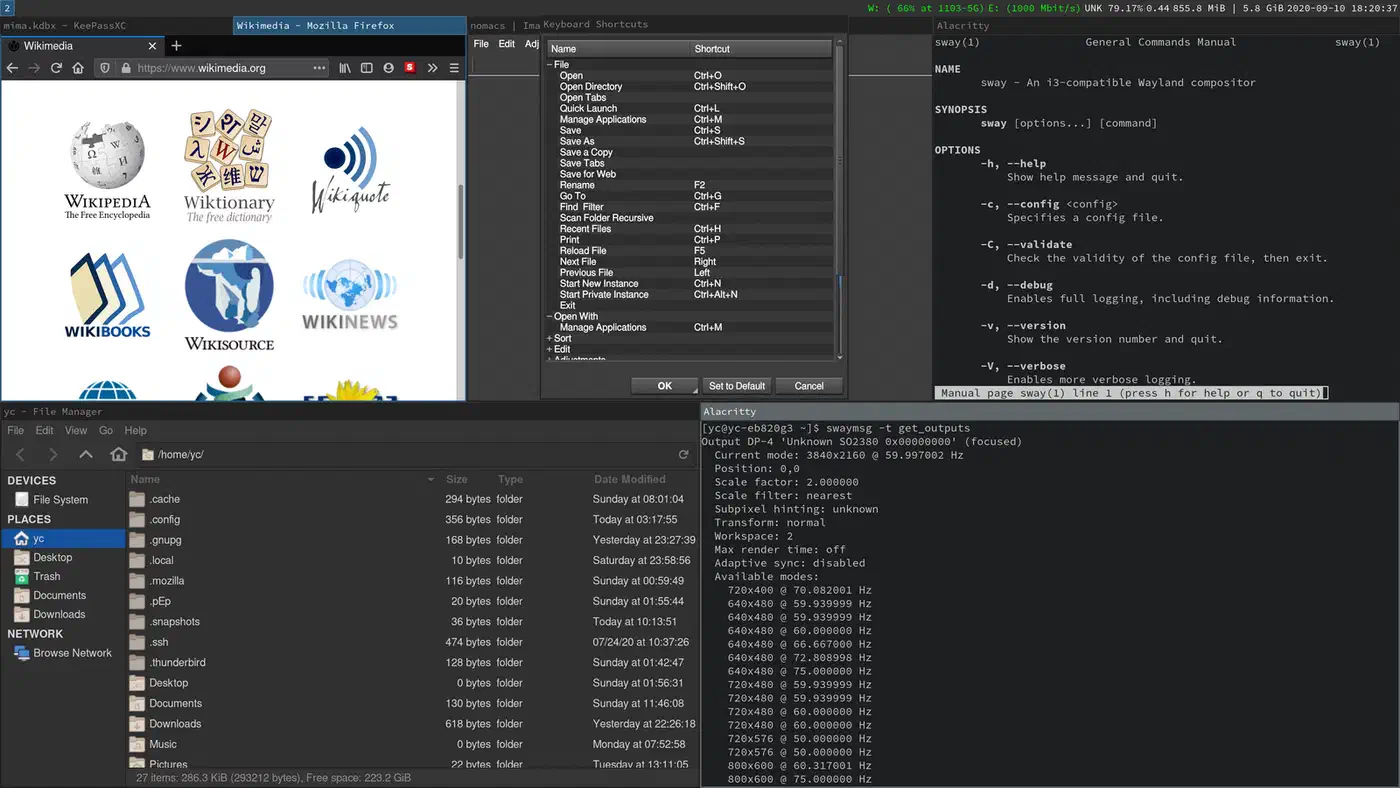
If you run i3 on X11, Sway is the natural target. Install it (sudo apt install sway or sudo dnf install sway) and copy your i3 config to ~/.config/sway/config. You can also use Ansible dotfiles automation to move your whole setup idempotently. Roughly 95% of i3 config carries over directly. The main differences are the output config syntax and swapping xrandr calls for Sway’s output command.
Launch Sway from your display manager or straight from a TTY with sway. Both Alacritty and Kitty render natively on Wayland without Xwayland. Either makes a good default terminal for a Sway setup. Note that Sway 1.11, out in June 2025, and wlroots 0.19.0 were the first versions with explicit sync, which NVIDIA GPUs need.
Hyprland
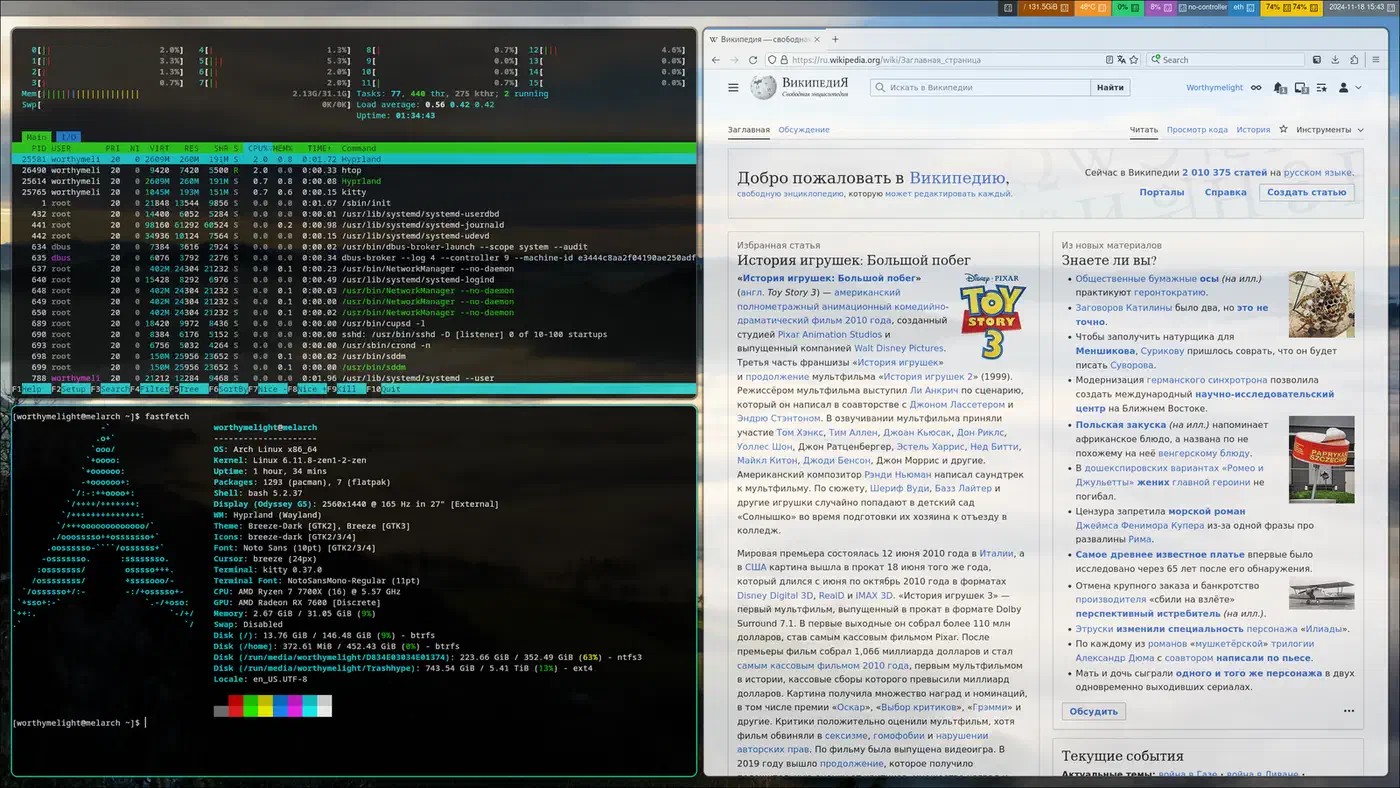
Hyprland is a dynamic tiling compositor with flashy animations and fractional scaling out of the box. Install from your distro’s repo or build from source, then set it up in ~/.config/hypr/hyprland.conf. If your package has no session file, create one by hand in /usr/share/wayland-sessions/.
NVIDIA-specific steps
If you have an NVIDIA GPU, you need these extra steps no matter which compositor you pick:
- Add
nvidia-drm.modeset=1to your kernel parameters. On GRUB-based systems, edit/etc/default/grub, add it toGRUB_CMDLINE_LINUX, and runupdate-grub(Debian/Ubuntu) orgrub2-mkconfig -o /boot/grub2/grub.cfg(Fedora). - Set environment variables in your shell profile or
~/.config/environment.d/wayland.conf:GBM_BACKEND=nvidia-drm __GLX_VENDOR_LIBRARY_NAME=nvidia - For GDM with NVIDIA, make sure Wayland is not turned off in the GDM config (see the GNOME section above).
Verify the switch
After logging in to your new Wayland session:
echo $XDG_SESSION_TYPE
# Should print: wayland

echo $WAYLAND_DISPLAY
# Should print: wayland-1 or similar
If xeyes is installed and you run it outside Xwayland, it should fail with “Error: Can’t open display.” That confirms you are not on X11.
Handling Xwayland for Legacy X11 Applications
Xwayland is an X11 server that runs inside Wayland. It renders X11 windows as Wayland surfaces. Most compositors start it on their own the first time an X11 app launches. You can check that it’s running with ps aux | grep Xwayland.
What runs under Xwayland
Apps that usually fall back to Xwayland include older Electron apps before v28, Java/Swing apps, Wine on the X11 driver, some older IDEs, and GIMP 2.10.x (GIMP 3.0+ is Wayland-native). Anything built on raw Xlib without a modern toolkit will also need Xwayland.
Identifying which windows use Xwayland
On wlroots compositors (Sway, Hyprland), you can inspect the shell type of each window:
swaymsg -t get_tree | jq '.. | .shell? // empty'Windows showing xwayland run through the compatibility layer. Windows showing xdg_shell are Wayland-native.
In GNOME, use Looking Glass (Alt+F2, type lg) or run xprop on the window to check.
Performance implications
Xwayland adds one buffer copy per frame and blocks direct scanout. That means slightly higher latency and GPU use. For desktop apps, word processors, and web browsers, the difference is invisible. For fast-paced gaming, the extra latency counts. That is where Gamescope comes in, a nested Wayland compositor built for gaming (more on that below).
HiDPI and Xwayland
By default, Xwayland apps render at 1x scale, and the compositor upscales them. The result is blurry text and UI elements. The fixes depend on your compositor:
- GNOME Mutter: Supports per-Xwayland-window scaling natively.
- Sway/Hyprland: Use
xwayland { force_zero_scaling }in your config, then setGDK_SCALEandQT_SCALE_FACTORper-application to handle scaling at the toolkit level.
Disabling Xwayland entirely
If all your apps are Wayland-native and you want a smaller attack surface, you can turn Xwayland off:
- Sway: add
xwayland disableto your config - Hyprland: set
xwayland { enabled = false }
Only do this once you’ve checked that every app you use works without it.
Input Devices, Displays, and Environment Variables
On X11, you set up input devices through xorg.conf snippets and display layouts through xrandr. On Wayland, both jobs move to the compositor and libinput.
Input configuration
All major Wayland compositors use libinput for input. The config syntax varies by compositor:
Sway example:
input "type:touchpad" {
    tap enabled
    natural_scroll enabled
    dwt enabled
}

input "type:keyboard" {
    xkb_layout us
    xkb_variant dvorak
    xkb_options caps:escape
}
Hyprland example:
input {
    kb_layout = us
    kb_variant = dvorak
    kb_options = caps:escape
    follow_mouse = 1
    touchpad {
        natural_scroll = true
    }
}
GNOME and KDE handle input through their own Settings GUIs, with the same libinput backend underneath.
Multi-monitor layout
Wayland handles multi-monitor setup per-compositor rather than through one universal tool like xrandr:
- Sway:
output HDMI-A-1 pos 0 0andoutput DP-1 pos 1920 0 - Hyprland:
monitor=HDMI-A-1,1920x1080@60,0x0,1 - GNOME/KDE: Use the Settings GUI
- wlr-randr: Provides an xrandr-like CLI for any wlroots compositor
HiDPI and fractional scaling
Wayland supports per-monitor scaling natively. X11 gives you one scale for the whole display server:
- GNOME: Supports fractional scaling (125%, 150%, 175%) via
gsettings set org.gnome.mutter experimental-features "['scale-monitor-framebuffer']". On GNOME 47+, fractional scaling is stable and no longer needs the experimental flag on most distros. - Hyprland: Fractional scaling works natively. Set
monitor=name,resolution,position,1.5for 150% scaling. - Sway: Supports integer scaling only. Work around it by tweaking per-app font sizes.
Environment variables for toolkit Wayland support
These environment variables tell app toolkits to render through Wayland instead of falling back to X11. Set them in ~/.config/environment.d/wayland.conf so they apply to every app launched through systemd or your display manager:
# Qt applications
QT_QPA_PLATFORM=wayland

# GTK applications (usually auto-detected, but explicit is safer)
GDK_BACKEND=wayland

# SDL2 games and applications
SDL_VIDEODRIVER=wayland

# Firefox (usually auto-detected on recent versions)
MOZ_ENABLE_WAYLAND=1

# Electron 28+ applications
ELECTRON_OZONE_PLATFORM_HINT=auto

# Clutter-based applications
CLUTTER_BACKEND=wayland
Note that setting QT_QPA_PLATFORM=wayland globally can break apps that don’t support Wayland. If you hit issues, use QT_QPA_PLATFORM=wayland;xcb instead. That makes Qt try Wayland first and fall back to XCB (X11) when Wayland is missing.
You can also persist these variables in your compositor config. In Sway, use exec dbus-update-activation-environment --systemd WAYLAND_DISPLAY XDG_CURRENT_DESKTOP to pass the Wayland session to D-Bus and systemd services. Screen sharing, PipeWire portal integration, and other desktop services need this. If a call app still shows a black window afterwards, the fix is usually in the XDG portal backend, not the app.
Replacing X11-Only Tools and Workflows
Some X11 utilities have no Wayland mode and need a full swap. Here is a practical map of common tools and their Wayland equivalents.
Clipboard
Replace xclip or xsel with wl-clipboard:
# Install
sudo apt install wl-clipboard  # Debian/Ubuntu
sudo dnf install wl-clipboard  # Fedora

# Usage - same pipe-friendly interface
cat file.txt | wl-copy
wl-paste > output.txt
wl-copy -p  # Primary selection (middle-click paste)
Screenshots
Replace scrot or import with grim and slurp:
# Full screen
grim screenshot.png

# Interactive region selection
grim -g "$(slurp)" screenshot.png

# Pipe to annotation tool
grim -g "$(slurp)" - | swappy -f -
GNOME and KDE have their own built-in screenshot tools that work on Wayland out of the box.
Screen recording
X11’s ffmpeg -f x11grab does not work on Wayland. The replacements all use PipeWire for screen capture:
wf-recorderis lightweight and works on wlroots compositors:wf-recorder -f recording.mp4gpu-screen-recorderis GPU-accelerated and works across compositors. It’s the best pick for performance-sensitive recording.- OBS Studio works fine too. Just use the PipeWire capture source instead of X11 screen capture.
Window automation
Replace xdotool with one of these, depending on your compositor:
- ydotool works on any compositor via uinput. It needs the
ydotoolddaemon running. It can’t target specific windows by ID the way xdotool can, since it works at the input device level. - wlrctl is specific to wlroots compositors but handles window focus, resize, and workspace actions.
- kdotool is KDE-specific and ships more xdotool-like features than ydotool, including window management commands.
Color temperature
Replace redshift with one of these:
- gammastep is a drop-in swap for wlroots compositors and uses the same config format as redshift.
- wlsunset is a lighter pick with minimal config.
- GNOME Night Light and KDE Night Color are built in. There is nothing to install if you use either desktop.
A Note on Gaming
If you game on Linux, Wayland is far better now than it was even two years ago. Gamescope, Valve’s micro-compositor from the Steam Deck, runs as a nested Wayland session on top of your desktop compositor. It handles frame pacing, VRR (Variable Refresh Rate), and HDR for games that support it. Launch games through Gamescope to get the best latency and skip the Xwayland buffer copy penalty.
Steam itself runs on Wayland, and Proton’s Wayland support keeps getting better. Setting PROTON_ENABLE_WAYLAND=1 turns on native Wayland rendering for Proton games. That gives better latency and frame pacing, and it enables HDR without Gamescope. The feature is still experimental, and Steam Overlay does not work with it yet. Even so, many titles already run better than they did on X11.
Wayland vs. X11 Performance
Benchmarks paint a mixed picture. Wayland’s design drops the extra RAM copies that X11 makes for every rendered frame. In practice, that means steadier frame delivery and smoother animations, mostly on high-refresh-rate monitors. Power use also tends to fall on Wayland thanks to zero-copy GPU rendering. That is a nice bonus for laptop users. The gain is welcome on an old MacBook on Linux, where battery headroom is already tight.
Cursor input latency is the one area where the results are less clear. Some tests show Wayland adding about 6.5ms of cursor latency over X11, close to one full frame at 144Hz. The size of the gap varies by compositor, hardware, and refresh rate. For most desktop work, you won’t notice it. For competitive gaming, it is worth testing on your own setup.
For day-to-day desktop use, Wayland runs as well as or better than X11. The rough edges that remain are in niche cases, and compositor developers keep chipping away at them.
Troubleshooting Common Issues
Screen sharing does not work: Make sure PipeWire and xdg-desktop-portal, plus the portal backend for your compositor, are installed and running. Sway needs xdg-desktop-portal-wlr. GNOME uses xdg-desktop-portal-gnome. KDE uses xdg-desktop-portal-kde.
Apps look blurry on HiDPI: The app is likely running through Xwayland at 1x scale. Check whether a native Wayland version exists, or set the right toolkit scaling environment variable.
Clipboard does not work between Wayland and Xwayland apps: Make sure you run a recent Xwayland version (23.1+). Older versions had broken cross-protocol clipboard support.
NVIDIA flickering or artifacts: Update to driver 565.77 or newer. Check that nvidia-drm.modeset=1 is in your kernel parameters. On KDE, confirm your compositor version supports explicit sync (Plasma 6.1+). For a deeper walkthrough of eliminating tearing artifacts on Linux Mint across GPU vendors, with VRR setup and profiling tools, see the dedicated guide.
Some keyboard shortcuts stop working: Your compositor uses its own keybinding system, not xbindkeys or sxhkd. Move your shortcuts to your compositor’s config file. For Sway, the syntax is nearly the same as i3’s bindsym commands.