 Botmonster Tech
Git Worktrees: The Underused Feature for Multi-Branch Development
git worktree lets you check out multiple branches of the same repository simultaneously into separate directories - no stashing, no cloning, no context switching overhead. Each worktree shares the same .git object store, so you get independent working trees instantly without re-downloading any history. Run git worktree add ../my-repo-hotfix hotfix/urgent-fix and you have a fully functional working tree on a separate branch, ready to build and test while your feature branch stays untouched in the original directory.
What Git Worktrees Actually Are
Most developers have never used worktrees because the Git documentation buries them well below stash, rebase, and bisect. The mental model: one repository, many working directories.
A worktree is a checked-out working tree linked to a single .git directory. All worktrees share the same objects, refs, and history. Nothing is duplicated on disk - the object store is the same for all of them.
This is different from git clone --local. Even with hardlinks, a local clone still creates a second copy of the object database. Worktrees share it natively. A 2 GB repository with five active worktrees does not become 10 GB. Each linked worktree adds only the working files for that branch.
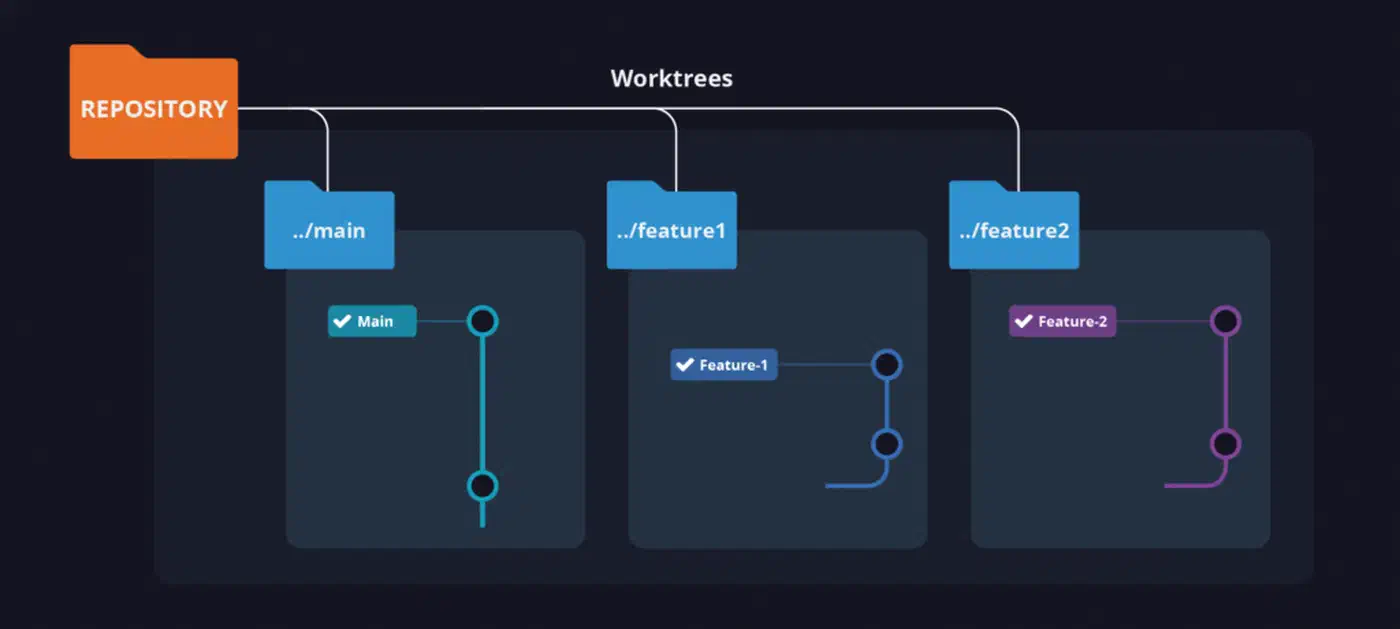
Your original checkout is the “main” worktree. Every directory created by git worktree add is a “linked” worktree. Each linked worktree tracks its own branch independently - commits in one directory do not affect any other until you explicitly merge. Git enforces one hard rule: a branch can only be checked out in one worktree at a time. Trying to check out an already-active branch in a second worktree fails with a clear error, which prevents the kind of corruption that would otherwise be easy to cause.
Each linked worktree contains a .git file (a plain text pointer, not a directory) that points back to the main repository’s .git folder. That single file is what registers the worktree and keeps the shared object store working correctly.
The Problem Worktrees Solve
The scenario that makes worktrees click for most developers is the mid-feature hotfix. You are three hours deep into a new feature. Tests are half-written. A production bug lands in your queue and it needs to go out today.
Before worktrees, your options were:
git stash- Stateless, easy to forget, easy to apply to the wrong branch. Many developers have lost work this way. Stash is fine for a two-minute distraction; it is not fine for a multi-hour parallel workstream.- Commit a WIP - Pollutes history, requires a fixup commit later, and still forces you to switch branches and rebuild mental context from scratch.
- Clone the repo again - Slow if the repository is large, wastes disk, and now you have two copies of
node_modulesortarget/or whatever build artifact directory your project uses.
Gloria Mark at UC Irvine has studied interruption cost in knowledge work for years. Her research consistently puts the context-rebuild cost at 15 to 30 minutes per forced context switch. That is the real price of git stash - not the seconds to run the command, but the half hour you spend getting back into flow after the hotfix ships.
Worktrees sidestep all of this. The hotfix worktree lives in a sibling directory. Your feature branch directory is completely untouched. You fix the bug, push, and walk back to your feature branch exactly as you left it.
Two other pain points are less obvious. Running integration tests against two branches simultaneously used to require two clones. With worktrees you get both working trees from a single clone with no extra disk usage for the object store.
The second is specific to 2026 workflows: a lot of developers now run local LLM tools - Ollama , Claude Code , Cursor - that index the current working directory. When you switch branches, the tool’s index is invalidated and it has to re-index before it understands your codebase again. Each worktree is a fixed directory, so each AI session stays anchored to its branch permanently. For a detailed look at running multiple Claude Code sessions across worktrees without file conflicts, see parallel AI development with git worktrees .
Core Commands and Workflow
The full command surface is small. You can get productive in about ten minutes.
Add a worktree for an existing branch:
git worktree add ../myapp-hotfix hotfix/payment-crashThis creates the directory ../myapp-hotfix, checks out the hotfix/payment-crash branch into it, and registers it as a linked worktree. One command replaces the entire stash-switch-stash-pop cycle.
Create a new branch directly in a worktree:
git worktree add -b feature/new-api ../myapp-api mainThe -b flag creates the branch as part of adding the worktree. Branching from main (or any other base) works exactly as it would with git checkout -b.
List all active worktrees:
git worktree listOutput shows the full path, the HEAD commit hash, and the branch name for every active worktree, including the main one. Useful for confirming what is checked out where before you start work.
Remove a worktree:
git worktree remove ../myapp-hotfixThis deletes the directory and unregisters it. Use --force only if there are untracked files you do not mind losing. The command refuses to remove a worktree with uncommitted changes unless you force it.
Lock a worktree:
git worktree lock ../myapp-hotfixLocking prevents git worktree remove and git worktree prune from deleting the worktree. This is useful when a long-running CI job is using the directory and you do not want a background cleanup script to delete it mid-run.
Prune stale references:
git worktree pruneIf you deleted a worktree directory manually (rather than using git worktree remove), Git’s internal bookkeeping still has a reference to it. prune cleans up these dead references. Running it periodically keeps your worktree list accurate.
A practical naming convention: use <repo>-<branch-type> as the worktree directory name - myapp-hotfix, myapp-review-123, myapp-perf-experiment. Keeping worktrees as siblings of the main clone directory makes them easy to find and gives your shell’s tab completion something predictable to work with.
Real-World Use Cases
The hotfix case is the obvious one - spin up a hotfix worktree, fix and deploy, return to the feature worktree with zero context loss. The hotfix worktree can run a full build and test cycle simultaneously with whatever is running in the main worktree.
If you are bisecting a performance regression, running pytest or cargo test against two branches at the same time cuts the feedback loop roughly in half. You do not need two clones. Both test runs share the same object store.
For pull request review, instead of switching your main branch to check out a colleague’s PR:
git worktree add ../review-pr-456 origin/feature/pr-456Open the ../review-pr-456 directory in your editor or run its test suite without touching your current branch. When the review is done, git worktree remove ../review-pr-456 and you are back to exactly where you were.
You can also build both main and a refactor candidate simultaneously and diff the outputs. This is useful for verifying that a refactor does not change binary behavior or asset fingerprints. Two terminals, two directories, two builds running in parallel.
Some projects keep a gh-pages or dist branch that holds only built artifacts. A permanent worktree mapped to that branch lets you manage it directly without ever changing your main branch’s HEAD:
git worktree add ../myapp-dist gh-pagesBuild into that directory, commit, push - and your main branch never moves.
Worktrees in a Modern Dev Setup
A few integration patterns make worktrees feel native rather than bolted-on.
The gwt shell alias creates a worktree in a sibling directory automatically named after the current repo and the branch:
alias gwt='f(){ git worktree add "../$(basename $(pwd))-$1" "$1" }; f'Usage: gwt hotfix/payment-crash. The directory naming convention is enforced without thinking about it.
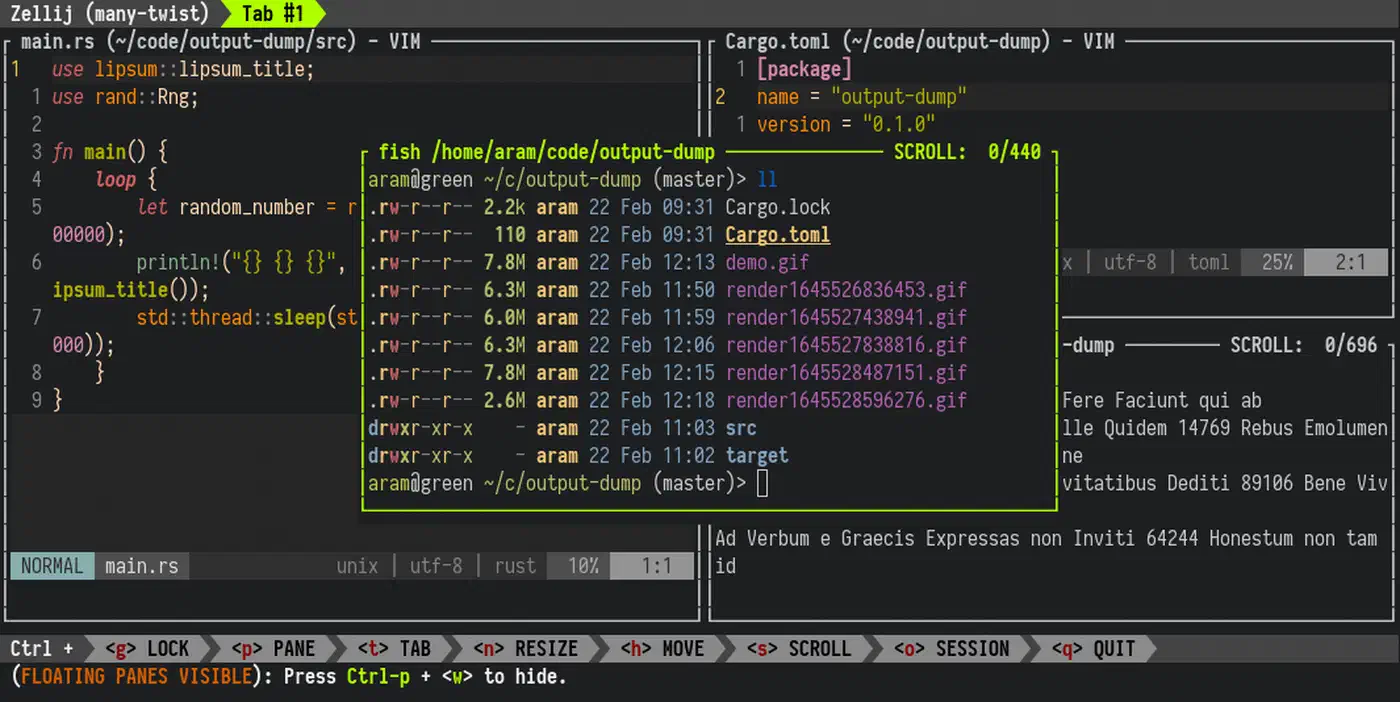
In tmux or Zellij , open each worktree in its own window or tab. The directory name becomes the window title, so navigating between active branches is visually obvious.
direnv
- place a .envrc in the repo root and it activates in every worktree automatically, so API keys, database URLs, and other environment variables are always present regardless of which worktree you are in.
VS Code’s “Open Folder” command works on any worktree directory directly. For multi-root workspaces, add multiple worktree directories as workspace folders. Each one shows up in the file explorer as a separate root, and the Git panel correctly shows per-folder branch status. JetBrains IDEs behave similarly - each worktree directory can be opened as a separate project window, and the IDE identifies them as part of the same Git repository.
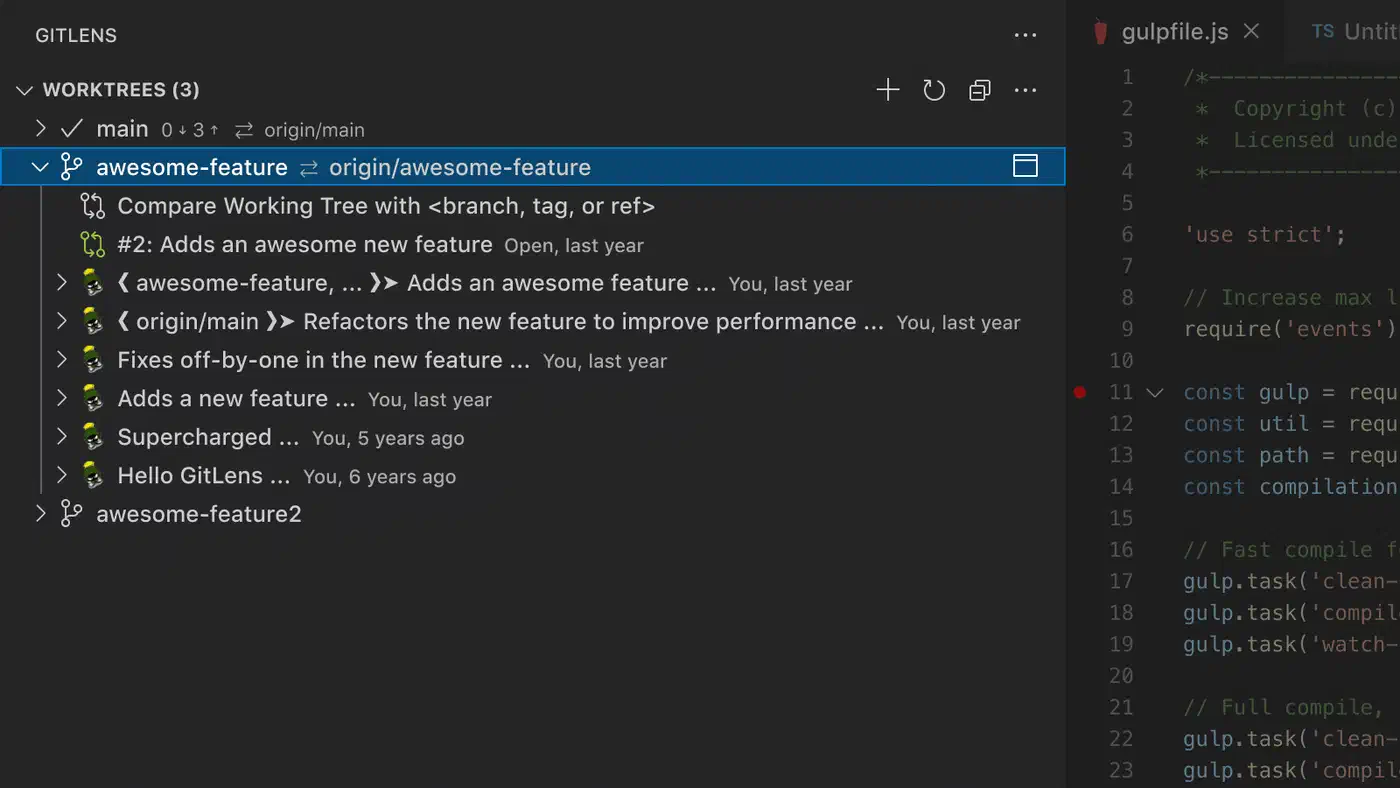
Version 14 of GitLens added a full worktree management UI. You can create, remove, and switch between worktrees without leaving the editor.
For a more complete commitment to the workflow, there is the bare clone pattern. Instead of a normal clone, you start with:
git clone --bare <url> .bareThis gives you the object store with no working tree at all. You then create all branches as named worktrees inside that directory. There is no “main” checkout - every branch lives in its own worktree. The result is a clean top-level directory where every folder is a branch. ThePrimeagen’s 2023 video “Git Worktrees Are Incredible” popularized this setup and is worth watching if you want to see it configured end-to-end.
Limitations
Worktrees have a few gotchas that are good to know before you run into them.
A branch can only be active in one worktree at a time. If you need two worktrees on the same branch, create a local tracking branch and use that. Alternatively, use a detached HEAD in one of the worktrees if you only need to read files rather than commit.
Submodule state is per-worktree and is not shared between them. Each linked worktree needs its own git submodule update --init. In repositories with heavy submodule use - embedded firmware projects, game engines with large asset submodules - this overhead can be significant enough to offset the benefits.
In repositories with millions of files like Android AOSP, the file system overhead of materializing a full working copy for a new worktree can be slow. The object store is shared, but every file still has to be written to disk. Combining worktrees with git sparse-checkout can address this: a sparse worktree materializes only the subset of files you specify.
Some tools assume one working directory per repository. Legacy CI scripts that hard-code paths relative to the repository root, or that use git stash as part of their logic, may behave unexpectedly in a multi-worktree setup. Test in CI before rolling worktrees out to a team.
Tools that detect a Git repository by checking for a .git directory (not a file) may incorrectly report that a linked worktree is not a Git repo. Modern tooling handles this correctly, but older scripts and some legacy integrations still use the directory check. If a tool suddenly claims your worktree is not a repo, that is where to look.
Further Reading
- git-worktree man page - the definitive reference for every flag and edge case
- ThePrimeagen, “Git Worktrees Are Incredible” (YouTube, 2023) - the video that brought the bare clone pattern to mainstream attention
- GitLens worktree documentation - for managing worktrees from within VS Code without a terminal