 Botmonster Tech
How to Build a Local Home Alarm System with Home Assistant and Z-Wave
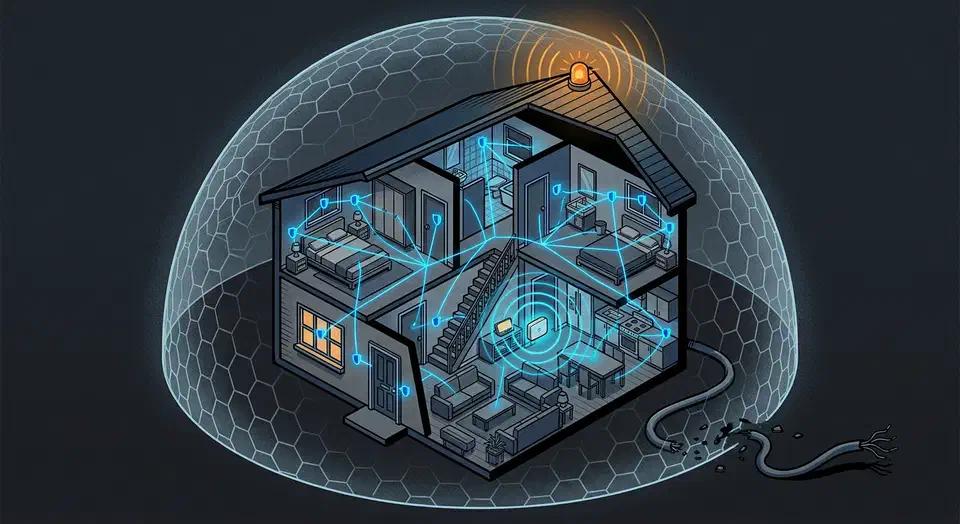
You can build a fully local, cloud-free home alarm system using Z-Wave door and window sensors, motion detectors, and a siren connected to Home Assistant
via a Z-Wave JS controller. The built-in alarm_control_panel integration combined with automations handles arming, disarming, entry delays, and siren activation entirely on your local network. No cloud subscription, no monthly monitoring fee, and the alarm keeps working even when your internet goes down.
Professional monitored systems like SimpliSafe and Ring Alarm cost $10-25 per month and route every sensor event through a company’s cloud servers. If their servers go down or the company decides to change pricing, your security system is at their mercy. A local Z-Wave setup running on Home Assistant puts you in full control. The total hardware cost is roughly $250-350 for a three-bedroom home, with zero ongoing fees. The trade-off is that you handle configuration, testing, and monitoring yourself - but if you are already running Home Assistant, you have the skills to make this work.
Selecting Z-Wave Hardware for a Reliable Alarm System
Z-Wave is the best protocol for a DIY alarm system for several practical reasons. It operates on its own sub-GHz mesh radio (908.42 MHz in the US) independent of WiFi, so sensor communication continues during router outages. Since the 700 series, all Z-Wave devices mandate S2 encryption during pairing, which prevents replay attacks and traffic sniffing. And the mesh topology means sensors relay signals through each other, extending range and adding redundancy. Zigbee and WiFi sensors can work for alarm systems too, but Z-Wave’s combination of encrypted mesh networking and WiFi independence makes it the strongest choice for security applications.
The Controller
The Zooz ZST39 LR 800-series USB stick ($35) is the recommended controller. It supports Z-Wave Long Range (up to 1 mile line-of-sight for LR devices) and S2 security out of the box. Plug it into your Home Assistant server and connect it through the Z-Wave JS add-on, which provides a full management UI for pairing, configuring parameters, and monitoring mesh health.
Door and Window Sensors

The Zooz ZSE44 ($25 each) reports open/closed state with tamper detection. It runs on a single CR2032 battery that lasts 2+ years under normal use. Mount these on every exterior door and ground-floor windows. Adhesive strips work fine for renters, but screw mounting is more reliable long-term. You will likely need 4-8 of these depending on your home’s layout.
Motion Sensors
The Aeotec TriSensor 7 ($40) covers a 120-degree arc at 5 meters and reports motion, temperature, and light level. For alarm use, configure the re-trigger interval (parameter 3) to 10 seconds instead of the default 30 seconds. Place motion sensors in hallways and rooms that an intruder must pass through. Two or three sensors cover a typical home.
Siren
The Aeotec Siren 6 ($50) produces 105dB with configurable tones and volume levels. It has a built-in tamper switch that fires if someone tries to rip it off the wall. Mount it in a central location, high on a wall where it is hard to reach. The siren also works as an audible indicator during arm/disarm sequences using its quieter tone settings.
Keypad
For disarming the alarm at the door, the Ring Keypad Gen 2 ($40) natively integrates with Home Assistant’s alarm panel entity through Z-Wave JS. It has dedicated arm away, arm home, and disarm buttons plus a numeric keypad for code entry. Alternatively, a Zooz ZEN32 Scene Controller ($30) mounted by the door can serve as a disarm keypad using button sequence combinations.
Security Pairing
Every device in the alarm system must be paired using S2 Authenticated or S2 Access Control security classes. During inclusion via the Z-Wave JS UI, you will be prompted for the device’s DSK (usually printed on the device or its box). Never pair alarm components using the legacy S0 class or with no security - S0 traffic uses a known fixed key and can be trivially intercepted and replayed with a $30 SDR dongle.
Configuring the Home Assistant Alarm Control Panel
Home Assistant includes a built-in manual alarm control panel integration that handles armed/disarmed states, entry and exit delays, and triggered states. This runs entirely locally with no cloud dependency.
Basic Panel Configuration
Add the following to your configuration.yaml:
alarm_control_panel:
  - platform: manual
    name: Home Alarm
    code: "5827"
    arming_time: 30
    delay_time: 30
    trigger_time: 300
    disarmed:
      trigger_time: 0
    armed_away:
      arming_time: 30
      delay_time: 30
    armed_home:
      arming_time: 10
      delay_time: 15
    armed_night:
      arming_time: 10
      delay_time: 15
The arming_time is the exit delay (how long you have to leave after arming), delay_time is the entry delay (how long before the siren activates after a sensor trips), and trigger_time is how long the alarm stays in triggered state before auto-resetting. Set the code to something you will remember but that is not obvious.
Arming Modes
Three arming modes cover the common scenarios:
- Armed Away activates all sensors (perimeter + motion). Use when nobody is home.
- Armed Home enables perimeter sensors only, with motion sensors disabled. Use when you are home during the day and want to know if a door opens but do not want motion sensors tripping as you walk around.
- Armed Night enables perimeter sensors plus hallway motion, but disables bedroom area motion. Use at bedtime when you want motion coverage of common areas but not where people sleep.
Automating the transition between armed away and disarmed based on who is actually home works best when you pair it with reliable Bayesian presence detection , which combines Wi-Fi, GPS, and motion data into a single confident estimate rather than relying on a single signal.
Sensor Zone Groups
Create template binary sensors that combine individual physical sensors into logical groups. This makes your automations cleaner and easier to maintain:
template:
  - binary_sensor:
      - name: "Zone Perimeter"
        device_class: door
        state: >
          {{ is_state('binary_sensor.front_door_sensor', 'on')
             or is_state('binary_sensor.back_door_sensor', 'on')
             or is_state('binary_sensor.garage_door_sensor', 'on')
             or is_state('binary_sensor.kitchen_window_sensor', 'on')
             or is_state('binary_sensor.living_room_window_sensor', 'on') }}
      - name: "Zone Interior"
        device_class: motion
        state: >
          {{ is_state('binary_sensor.hallway_motion', 'on')
             or is_state('binary_sensor.living_room_motion', 'on')
             or is_state('binary_sensor.basement_motion', 'on') }}
Dashboard Card
Add the alarm_control_panel card to your Lovelace dashboard. The built-in card provides a numeric keypad for code entry with disarm, arm home, and arm away buttons. The panel exposes states like disarmed, arming, armed_away, armed_home, armed_night, pending (entry delay countdown), and triggered, so you always know exactly what the system is doing.
Also create an input_boolean.alarm_triggered_latch helper that stays on after a trigger event until you manually acknowledge it. This prevents the alarm from silently resetting after trigger_time expires and you missing that something happened while you were away.
Building the Automation Logic
The automations are what actually makes the alarm work. If these are sloppy, you will either miss real intrusions or lose sleep over false alarms from the cat knocking things over at 3 AM.
Entry Detection
When the alarm is in armed_away mode and any perimeter sensor opens, the panel transitions to pending state and starts the entry delay countdown:
automation:
  - alias: "Alarm - Entry Detected"
    trigger:
      - platform: state
        entity_id: binary_sensor.zone_perimeter
        to: "on"
    condition:
      - condition: state
        entity_id: alarm_control_panel.home_alarm
        state: "armed_away"
    action:
      - service: alarm_control_panel.alarm_trigger
        entity_id: alarm_control_panel.home_alarm
The panel handles the delay internally based on your delay_time configuration. If the user does not disarm within 30 seconds, the state transitions to triggered.
Siren Activation
When the panel hits triggered state, activate everything:
  - alias: "Alarm - Triggered Response"
    trigger:
      - platform: state
        entity_id: alarm_control_panel.home_alarm
        to: "triggered"
    action:
      - service: siren.turn_on
        entity_id: siren.aeotec_siren_6
        data:
          tone: 3
          volume_level: 1.0
      - service: light.turn_on
        target:
          entity_id: all
        data:
          brightness: 255
      - service: input_boolean.turn_on
        entity_id: input_boolean.alarm_triggered_latch
      - service: notify.mobile_app_your_phone
        data:
          title: "ALARM TRIGGERED"
          message: "Sensor tripped: {{ trigger.to_state.attributes.friendly_name }}"
          data:
            push:
              sound:
                name: default
                critical: 1
                volume: 1.0
Exit Delay Feedback
When arming, play a gentle beep pattern on the siren so occupants know to leave:
  - alias: "Alarm - Arming Beep"
    trigger:
      - platform: state
        entity_id: alarm_control_panel.home_alarm
        to: "arming"
    action:
      - service: siren.turn_on
        entity_id: siren.aeotec_siren_6
        data:
          tone: 1
          volume_level: 0.3
      - delay: "00:00:30"
      - service: siren.turn_off
        entity_id: siren.aeotec_siren_6
Disarm Response
When the correct code is entered on the keypad or via the HA app:
  - alias: "Alarm - Disarmed"
    trigger:
      - platform: state
        entity_id: alarm_control_panel.home_alarm
        to: "disarmed"
    action:
      - service: siren.turn_off
        entity_id: siren.aeotec_siren_6
      - service: input_boolean.turn_off
        entity_id: input_boolean.alarm_triggered_latch
      - service: notify.mobile_app_your_phone
        data:
          message: "Alarm disarmed successfully"
False Alarm Mitigation
Single-sensor triggers are the biggest source of false alarms. A pet bumps a motion sensor, a strong gust rattles a window, or a sensor battery hiccup sends a momentary open state. Requiring two sensors to trigger within 60 seconds dramatically reduces false alarms while still catching real intrusions:
  - alias: "Alarm - Two-Sensor Verification"
    trigger:
      - platform: state
        entity_id:
          - binary_sensor.front_door_sensor
          - binary_sensor.back_door_sensor
          - binary_sensor.hallway_motion
          - binary_sensor.living_room_motion
        to: "on"
    condition:
      - condition: state
        entity_id: alarm_control_panel.home_alarm
        state: "armed_away"
    action:
      - choose:
          - conditions:
              - condition: state
                entity_id: timer.alarm_verification
                state: "active"
            sequence:
              - service: alarm_control_panel.alarm_trigger
                entity_id: alarm_control_panel.home_alarm
        default:
          - service: timer.start
            entity_id: timer.alarm_verification
            data:
              duration: "00:01:00"
Create the timer helper in your configuration:
timer:
  alarm_verification:
    duration: "00:01:00"
This way, a single sensor trip starts the 60-second timer but only a second trip within that window actually triggers the alarm. For entry doors where you want immediate response, you can bypass verification and trigger directly.
Tamper Detection
If any Z-Wave device reports a tamper event (cover removed), trigger the alarm immediately regardless of armed state:
  - alias: "Alarm - Tamper Detected"
    trigger:
      - platform: state
        entity_id:
          - binary_sensor.front_door_sensor_tamper
          - binary_sensor.back_door_sensor_tamper
          - binary_sensor.siren_tamper
        to: "on"
    action:
      - service: alarm_control_panel.alarm_trigger
        entity_id: alarm_control_panel.home_alarm
      - service: notify.mobile_app_your_phone
        data:
          title: "TAMPER ALERT"
          message: "Device tampered: {{ trigger.to_state.attributes.friendly_name }}"
          data:
            push:
              sound:
                name: default
                critical: 1
Notifications and Remote Monitoring
An alarm that screams into an empty house while you are at work does nothing useful. You need notification paths that reach you both on and off your home network, and you want more than one in case a single path fails.
Critical Mobile Notifications
The Home Assistant Companion App
supports critical notifications that bypass Do Not Disturb mode on both Android and iOS. Set the push data with critical: 1 as shown in the trigger automation above. Also set the notification channel to alarm so you can configure separate notification behavior for alarm events on your phone.
Backup Notification Channels
Do not rely on a single notification path. Set up a local Mosquitto MQTT broker (available as a Home Assistant add-on) and configure a second notification path via MQTT. A Raspberry Pi with a speaker at a neighbor’s house can subscribe to alarm topics and play an audible alert even if your phone is unreachable.
The Telegram bot integration
makes an excellent backup channel. Telegram messages route through external servers but require no subscription. If you have security cameras
, you can attach camera snapshots to Telegram notifications by calling the camera.snapshot service when the alarm triggers and including the image in the message.
Camera Snapshot Integration
When the alarm triggers, capture a still from a local RTSP camera and attach it to the push notification:
  - alias: "Alarm - Capture Snapshot"
    trigger:
      - platform: state
        entity_id: alarm_control_panel.home_alarm
        to: "triggered"
    action:
      - service: camera.snapshot
        data:
          entity_id: camera.front_door
          filename: /config/www/alarm_snapshot.jpg
      - delay: "00:00:02"
      - service: notify.mobile_app_your_phone
        data:
          title: "Alarm - Camera Capture"
          message: "Front door camera snapshot"
          data:
            image: /local/alarm_snapshot.jpg
Daily Health Check
Set up an automation that runs at 8 AM daily and sends a notification confirming all sensors are online and batteries are healthy. This catches dead sensors before they become a security gap:
  - alias: "Alarm - Daily Health Check"
    trigger:
      - platform: time
        at: "08:00:00"
    action:
      - service: notify.mobile_app_your_phone
        data:
          title: "Alarm System Status"
          message: >
            Sensors online: {{ states.binary_sensor
              | selectattr('attributes.device_class', 'defined')
              | selectattr('attributes.device_class', 'in', ['door', 'motion'])
              | rejectattr('state', 'eq', 'unavailable')
              | list | count }} /
            {{ states.binary_sensor
              | selectattr('attributes.device_class', 'defined')
              | selectattr('attributes.device_class', 'in', ['door', 'motion'])
              | list | count }}
Hardening and Reliability
Your alarm system will face power outages, network drops, and possibly someone trying to rip a sensor off the wall. If you do not account for these, the system fails exactly when it matters most.
Power Backup
Put your Home Assistant server on a UPS. The APC BE425M ($45) provides 30-60 minutes of runtime for a Raspberry Pi 5 or Intel NUC during power outages. That is enough time to send notifications and maintain alarm state. Z-Wave sensors are battery-powered, and the siren has its own power supply, so the only component that needs backup power is the controller.
Z-Wave Mesh Independence
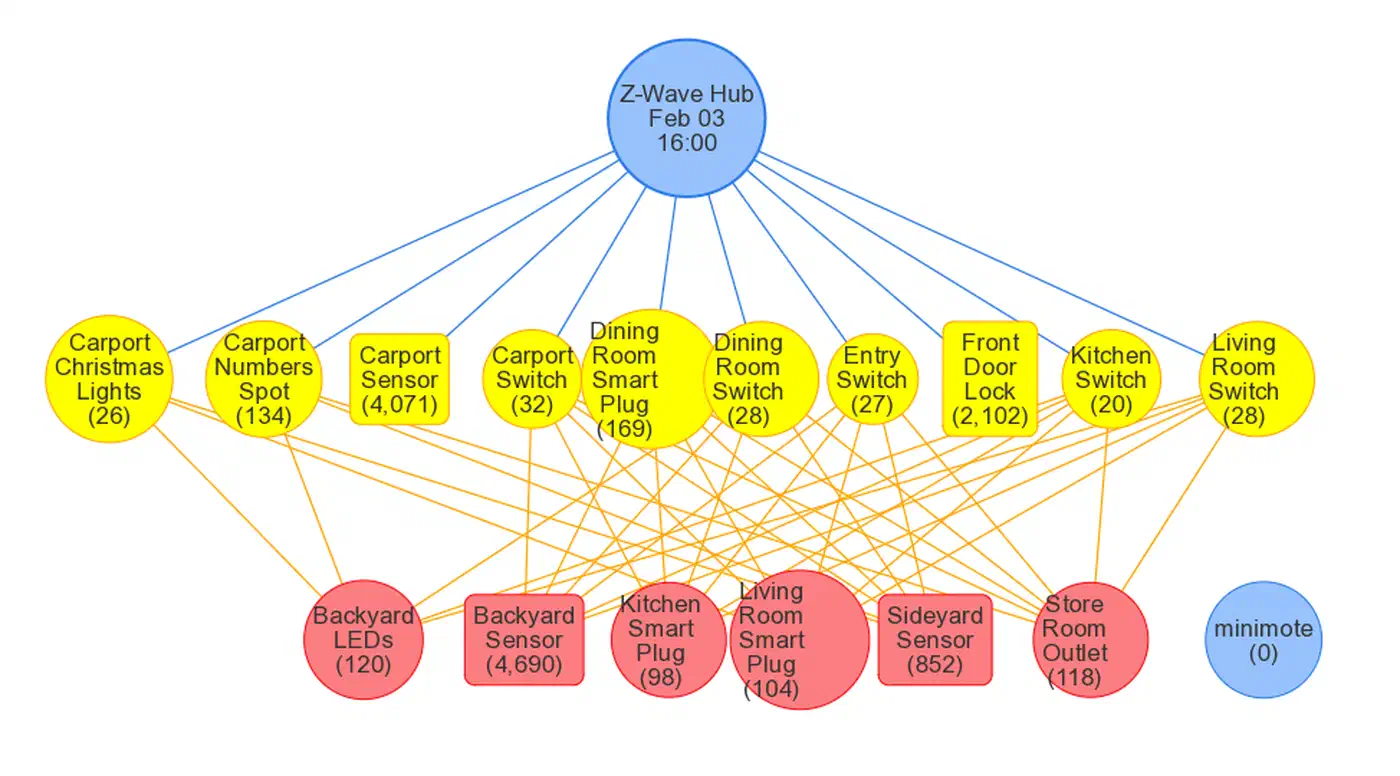
Z-Wave devices operate on their own mesh radio independent of WiFi. Sensor-to-controller communication continues during router outages. The siren will still activate based on automations running on your local Home Assistant server as long as the server has power. WiFi-based alarm sensors lose communication the moment the router goes down, which makes Z-Wave a much better fit for security.
Mesh Maintenance
Enable Z-Wave JS’s healing and route optimization. Run a network heal weekly via an automation calling the zwave_js.heal_network service at 3 AM when there is minimal radio interference. This recalculates optimal routing paths and keeps the mesh performing reliably.
Physical Security
Mount the Z-Wave controller and Home Assistant server in a locked utility closet or network cabinet. Add a tamper sensor on the closet door itself. If an intruder gets to the alarm controller before the siren sounds, the entire system is defeated. The tamper sensor on the closet door triggers an immediate alarm, and because Z-Wave signals already reached the controller before the intruder can physically access it, the siren and notifications fire first. For a complete defense, put your Home Assistant server on a dedicated IoT VLAN — see the guide on smart home network segmentation to isolate alarm hardware from other devices on your network.
Regular Testing
Test the full system monthly. Arm the alarm, trigger a sensor, verify the siren sounds within the expected delay, confirm notifications arrive on all channels, and check that disarming works correctly from both the keypad and the app. Check battery levels on all sensors and replace any below 20%. If you skip testing, you will not know the system is broken until someone actually breaks in.
Cost Comparison
Here is how a DIY Z-Wave alarm stacks up against commercial alternatives for a 3-bedroom home:
| Component | DIY Z-Wave | SimpliSafe | Ring Alarm |
|---|---|---|---|
| Base hardware | $250-350 | $250-500 | $200-330 |
| Monthly fee | $0 | $18-28 | $10-20 |
| Year 1 total | $250-350 | $466-836 | $320-570 |
| Year 3 total | $250-350 | $898-1,508 | $560-1,050 |
| Works offline | Yes | Partial | No |
| Local processing | Yes | No | No |
| Full customization | Yes | No | No |
The DIY system costs less than one year of SimpliSafe monitoring. After that, every month is free. The real cost is your time - a few hours to set everything up, then maybe 30 minutes a month for testing and battery checks.
You do give up professional monitoring - nobody is calling the police on your behalf. But critical push notifications to your phone combined with a 105dB siren are enough for most residential situations, and you keep full control over the system without sending a monthly check to a monitoring company.