 Botmonster Tech
What Is PCIe Bifurcation and How Can It Add More NVMe Drives to Your Homelab?

PCIe bifurcation lets you split a single physical PCIe x16 slot into multiple independent x4 (or x8) logical slots, so you can install two to four NVMe drives using one inexpensive adapter card - typically $20 to $50 for a passive model. Because bifurcation is a CPU-level feature rather than something handled by an external chip, each drive gets its own dedicated lanes with zero overhead. A Gen4 x4 link delivers around 7 GB/s per drive, exactly the same bandwidth you would get from a standard motherboard M.2 slot. For homelab builders who have run out of M.2 slots but still have an empty x16 PCIe slot, bifurcation is one of the cheapest ways to add more NVMe storage.
What PCIe Bifurcation Actually Does
A standard PCIe x16 slot provides 16 lanes of bandwidth, all routed to a single device by default. Bifurcation tells the CPU’s PCIe root complex to treat those 16 lanes as multiple independent groups instead of one monolithic link. The most common configurations are:
| Bifurcation Mode | Devices Supported | Lanes per Device | Typical Use Case |
|---|---|---|---|
| x16 (default) | 1 | 16 | Single GPU or add-in card |
| x8+x8 | 2 | 8 each | Two NVMe drives or GPU + NVMe |
| x4+x4+x4+x4 | 4 | 4 each | Four NVMe drives |
| x8+x4+x4 | 3 | 8+4+4 | Mixed device configurations |
The available modes depend on your CPU and motherboard BIOS. Bifurcation happens at the CPU’s PCIe root complex, so the drives appear as individual NVMe controllers in the OS - same as if they were plugged into separate M.2 slots. No driver overhead, no abstraction layer, no performance penalty.
Bifurcation vs. PCIe Switch Adapters
Buying the wrong type of adapter is an expensive mistake, so this distinction matters. A bifurcation adapter is a passive PCB that physically routes the PCIe traces from the x16 connector to multiple M.2 slots, with no active electronics beyond maybe a power regulator. The CPU does all the lane splitting in silicon. These adapters cost $20 to $50.
A PCIe switch adapter, by contrast, contains an active chip (historically the Broadcom PEX8747, or newer Broadcom/Microchip equivalents) that splits the lanes at the hardware level. This works in any x16 slot regardless of BIOS support, but the adapter itself costs $100 to $300 or more. Switch adapters also introduce a small amount of latency, typically 100-200 nanoseconds per transaction, because every request passes through the switch fabric.
| Feature | Bifurcation Adapter | PCIe Switch Adapter |
|---|---|---|
| Price range | $20-50 | $100-300+ |
| Requires BIOS support | Yes | No |
| Added latency | None | ~100-200ns |
| Power draw (adapter) | ~0-2W | ~5-15W |
| Example products | IOCREST SI-PEX40129 ( | ASUS Hyper M.2 x16 Gen5 (~$80), HighPoint SSD7505 |
| Boot support | Depends on BIOS | Generally better |
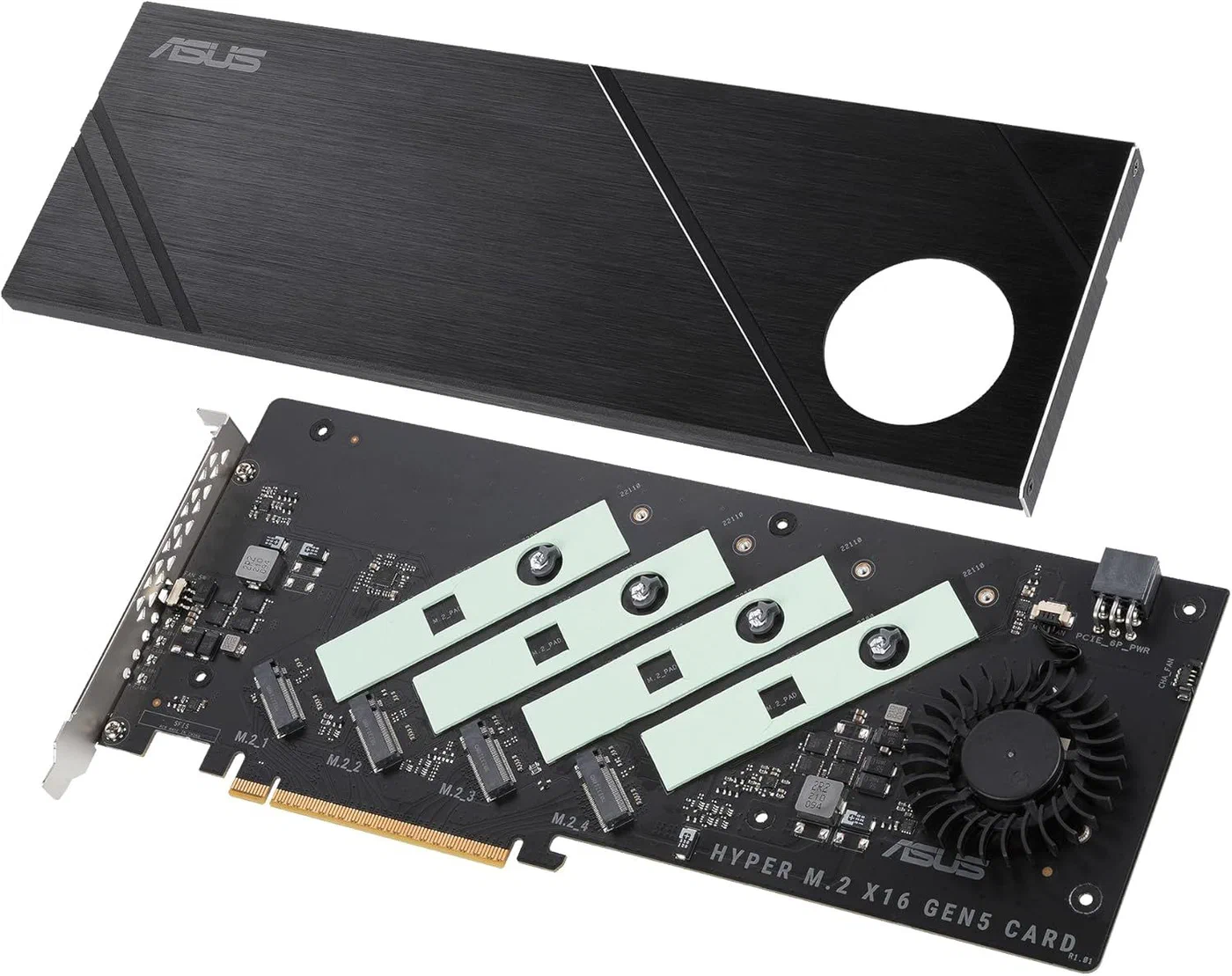
If your motherboard supports bifurcation, go with the passive adapter. You save money, avoid extra heat and power draw, and get the same (or better) performance.
Hardware Requirements and Compatibility
Not every motherboard supports bifurcation, and the BIOS option is often buried in a submenu or missing entirely. Verify all of the following before buying an adapter.
CPU and Platform Support
On Intel, most Z690, Z790, B660, and B760 boards support bifurcation on the CPU-direct x16 slot. All X299, C621, C741, and W-series server/workstation boards support it with granular per-slot configuration. The BIOS setting is usually under Advanced > PCIe Configuration or a similar submenu.
On AMD, AM5 boards (X670E, X670, B650E, B650) generally support bifurcation on the top CPU-direct x16 slot, though support is less consistent across vendors compared to Intel. Some boards - particularly ASUS ProArt models - have well-documented bifurcation support, while budget B650 boards may lack the option entirely. AM4 boards with X570 or B550 chipsets support bifurcation on the top x16 slot, but may require a BIOS update. The Level1Techs forum maintains active threads with user-verified AM5 bifurcation compatibility data.
Server and workstation boards (Intel Xeon with C621/C741 chipsets, AMD EPYC with SP3/SP5 sockets) almost universally support bifurcation with fine-grained lane allocation per slot. If you are building a homelab around used server hardware, bifurcation will almost certainly be available.
Finding the BIOS Setting
The setting location varies by vendor, and it is almost never labeled “bifurcation” in consumer BIOS:
- ASUS: Advanced > Onboard Device Configuration, or sometimes Advanced > PCIe Configuration
- Gigabyte: Settings > IO Ports > PCIe Slot Configuration
- MSI: Settings > Advanced > PCI Subsystem Settings
- ASRock: Advanced > Chipset Configuration
Look for options like “PCIe x16 Slot Mode,” “M.2/SSD Configuration,” or “PCIe Lane Allocation.” Change the relevant slot from “Auto” or “x16” to “4x4” (for four drives) or “2x8” (for two drives).
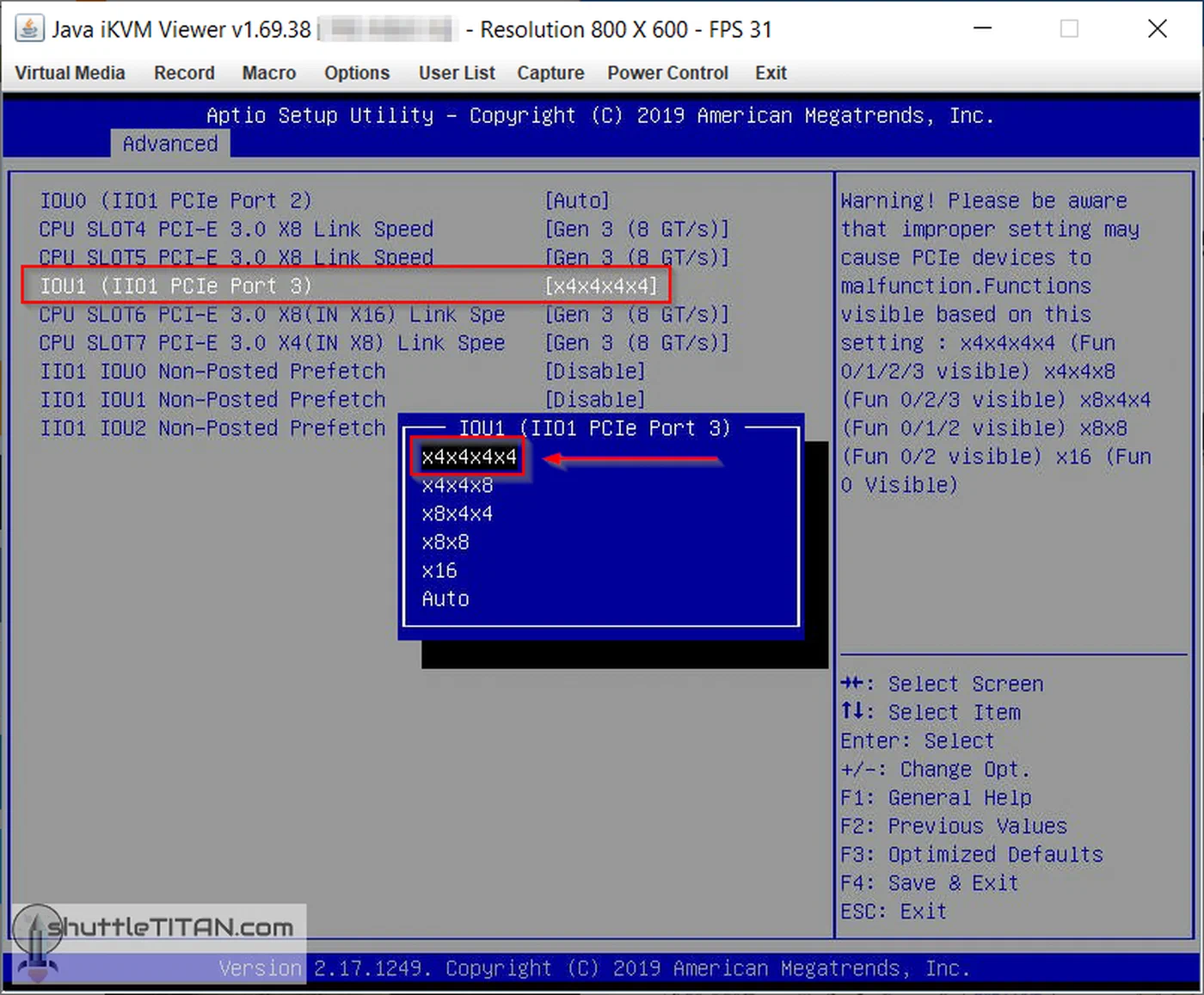
If your BIOS has no bifurcation option at all, you will need either a PCIe switch adapter or a different motherboard. Consult the ASUS PCIe Bifurcation Compatibility FAQ for verified ASUS board support, or check your manufacturer’s support pages.
Choosing an Adapter Card
For bifurcation (passive) adapters, the main considerations are PCIe generation compatibility and physical form factor. Popular options include:
- The IOCREST SI-PEX40129 (~$25) is a basic 4x M.2 adapter, Gen3/Gen4 compatible, with no heatsink included. Good budget pick.
- The GLOTRENDS PA54 (~$30) adds Gen5 support and aluminum heatsink standoffs for a few dollars more.
- The Sabrent EC-P4BF (~$100) is the premium option: full aluminum housing, thermal pads for all four slots, and a switchable active cooling fan. Supports 2230/2242/2260/2280 form factors. Worth it if thermal management matters to you.
- The ASUS Hyper M.2 x16 Gen4 (~$50-70) includes a built-in fan and also works as a PCIe switch adapter on select ASUS boards via Intel VROC.
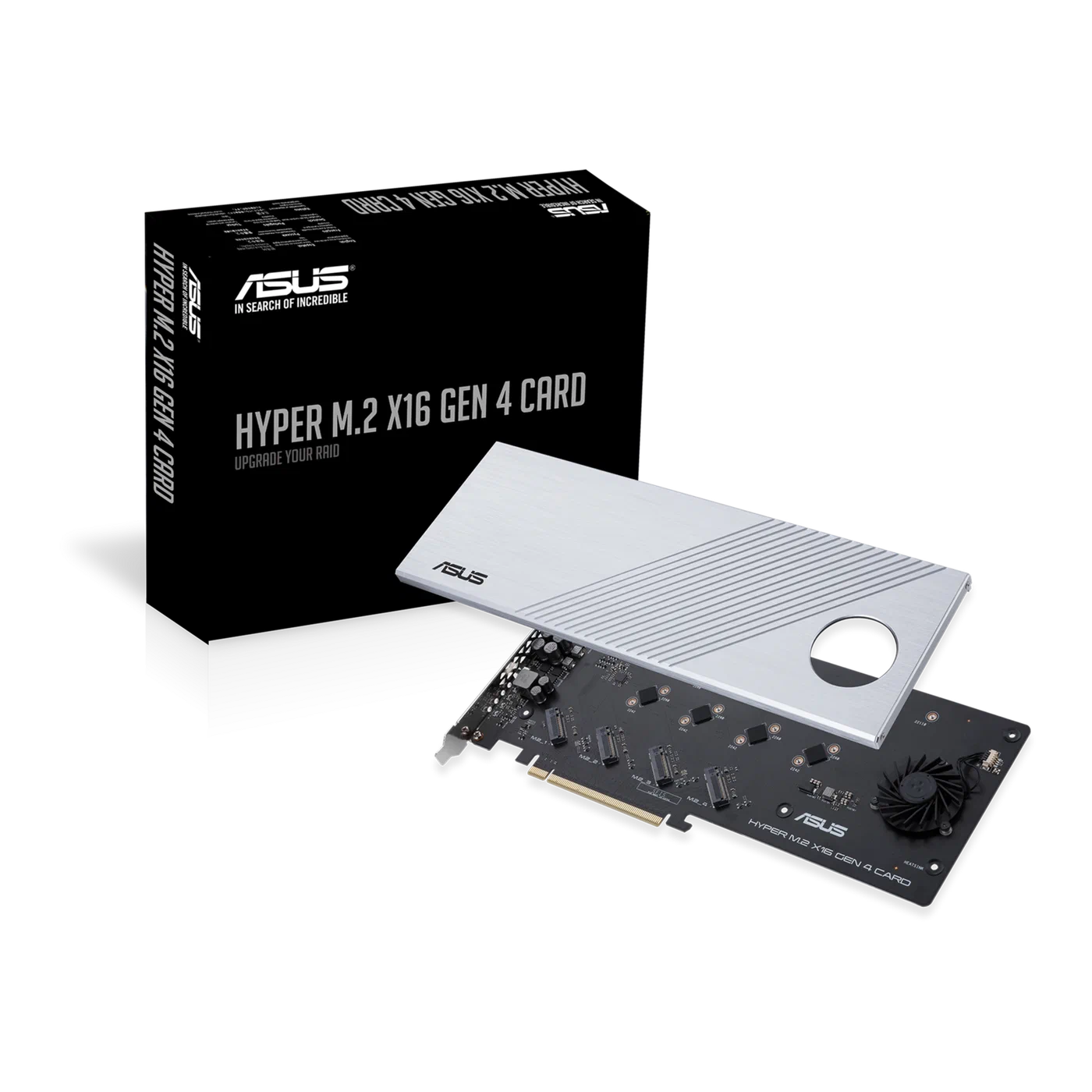
Make sure the adapter matches your PCIe generation. Installing a Gen3 adapter in a Gen4 slot works but limits bandwidth. Installing a Gen5 adapter in a Gen3 slot also works but wastes money.
Important Limitation: CPU-Direct Slots Only
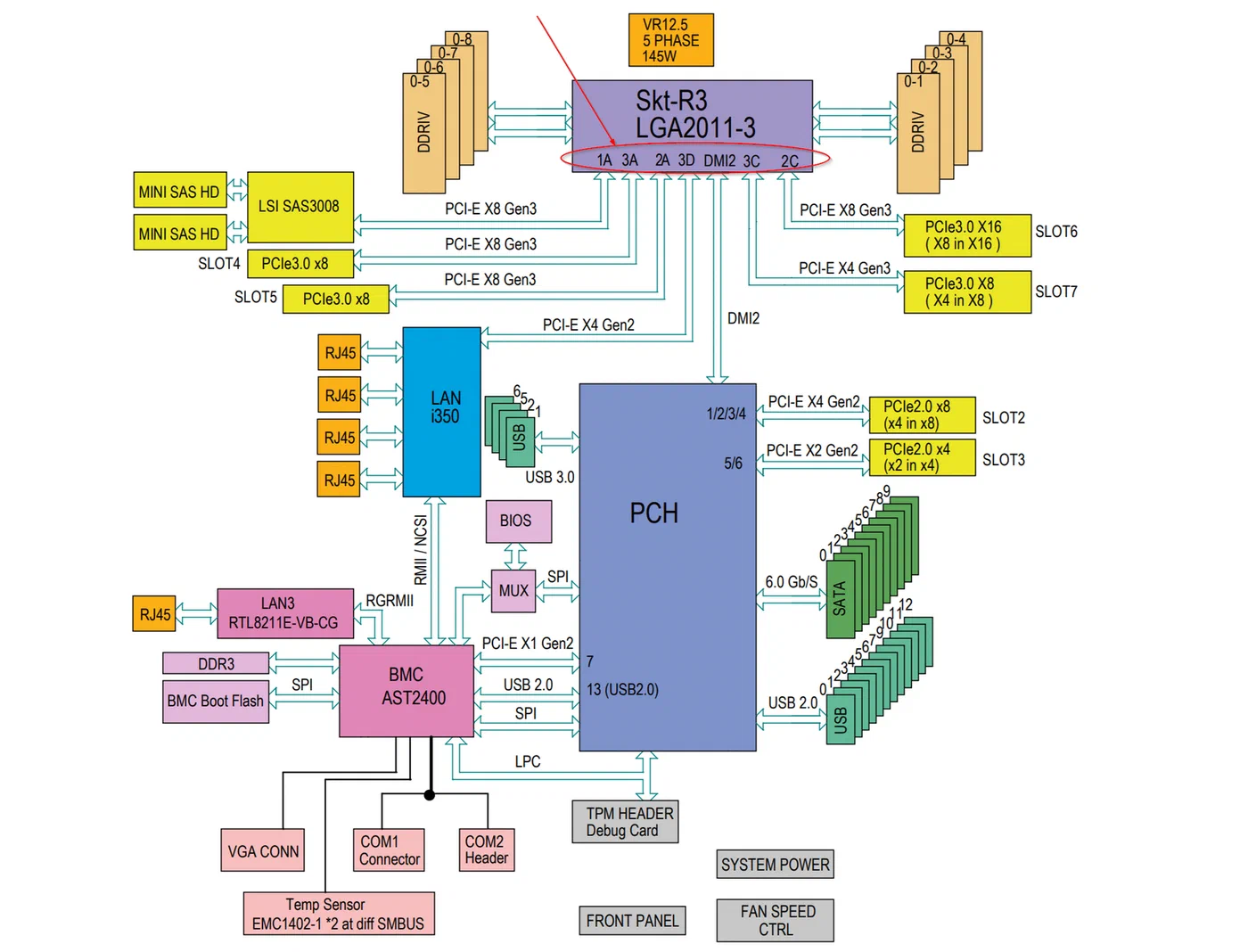
Bifurcation only works on PCIe slots wired directly to the CPU. Most motherboards route the top x16 slot (physically closest to the CPU socket) directly from the CPU, while lower slots may route through the chipset (Intel PCH or AMD chipset). Chipset-connected slots do not support bifurcation on most platforms. Your motherboard manual will have a block diagram showing which slots connect to the CPU versus the chipset - check this before inserting your adapter.
Step-by-Step Setup Guide
Once you have verified hardware compatibility, installation takes about 15 minutes.
Physical installation:
- Power off and unplug the system. Install your NVMe drives into the adapter card’s M.2 slots. Verify key notch alignment - NVMe drives use M-key connectors. B+M key (SATA M.2) drives will not work in most bifurcation adapters.
- Insert the populated adapter card into the CPU-direct PCIe x16 slot. This is typically the top slot closest to the CPU socket. Using a chipset-connected slot will either fail to detect additional drives or fall back to single-device mode.
- Secure the adapter with the bracket screw and reconnect power.
BIOS configuration:
- Enter BIOS/UEFI on boot (usually Delete or F2). Navigate to the PCIe configuration section for the slot you are using.
- Change the slot mode from “Auto” or “x16” to “4x4” (for four drives) or “2x8” (for two drives).
- Save settings and reboot.
Linux verification:
- After boot, verify drive detection:
lspci | grep NVMeYou should see four separate NVMe controllers listed if using a 4x4 configuration. Then verify link speed:
sudo lspci -vv | grep -A 15 "NVMe" | grep "LnkSta"The output should show the expected speed - for example, Speed 16GT/s, Width x4 for Gen4 x4 links. Finally, confirm block devices are available:
lsblkAll four NVMe drives should appear as separate block devices (/dev/nvme0n1, /dev/nvme1n1, etc.).
Troubleshooting
If only one drive is detected, the bifurcation setting likely did not take effect. Common fixes:
- Clear CMOS and reconfigure the BIOS setting from scratch
- Update to the latest BIOS firmware - some boards gained bifurcation support in later updates
- Double-check that your adapter is in the CPU-direct slot, not a chipset-connected slot
- Try reseating the NVMe drives in the adapter - a poor contact on one drive can sometimes prevent enumeration of all drives
Can You Boot from a Bifurcated Adapter?
This varies by BIOS. Many modern UEFI implementations allow booting from an NVMe drive on a bifurcated adapter, but some do not. Server and workstation boards generally handle this better than consumer boards. If boot support is important, test it before committing to a bifurcation-only storage configuration. Keeping a small SATA or onboard M.2 boot drive is a common workaround.
Linux Configuration and Performance Optimization
Linux detects bifurcated NVMe drives automatically through the standard nvme kernel driver with no additional configuration. Each drive appears as an independent block device. What matters more is what you do with multiple fast drives in a single system.
Software RAID with mdadm
For raw throughput, stripe four Gen4 NVMe drives into a RAID0 array:
sudo mdadm --create /dev/md0 --level=0 --raid-devices=4 \
  /dev/nvme0n1 /dev/nvme1n1 /dev/nvme2n1 /dev/nvme3n1
Four Gen4 x4 drives in RAID0 can deliver around 25-28 GB/s sequential reads in ideal conditions. For redundancy at the cost of write performance, use RAID5 or RAID6 instead.
ZFS Pool
ZFS is popular in homelab NAS builds. Create a single-parity raidz pool across all four drives:
sudo zpool create tank raidz /dev/nvme0n1 /dev/nvme1n1 /dev/nvme2n1 /dev/nvme3n1ZFS’s ARC cache and inline compression make this an excellent backend for a homelab NAS, particularly when paired with 10GbE or 25GbE networking.
Btrfs RAID
Btrfs offers RAID10 (striped + mirrored) across four drives:
sudo mkfs.btrfs -d raid10 -m raid10 \
  /dev/nvme0n1 /dev/nvme1n1 /dev/nvme2n1 /dev/nvme3n1
Note that Btrfs RAID5/6 remains experimental in 2026 and is not recommended for production data. Stick with RAID1 or RAID10 for Btrfs if you need redundancy.
I/O Scheduler Tuning
For NVMe drives, the default Linux I/O scheduler often adds unnecessary overhead. Set it to none to let the NVMe hardware queue handle scheduling directly:
echo none | sudo tee /sys/block/nvme0n1/queue/schedulerRepeat for each NVMe device. To make this persistent across reboots, add a udev rule:
# /etc/udev/rules.d/60-nvme-scheduler.rules
ACTION=="add|change", KERNEL=="nvme[0-9]*n[0-9]*", ATTR{queue/scheduler}="none"
NUMA Awareness for Multi-Socket Servers
On dual-socket servers, install the bifurcation adapter in a PCIe slot connected to the same NUMA node as the CPU running your storage-intensive workloads. Use lstopo or numactl --hardware to identify the NUMA topology and verify correct placement. Misplacing the adapter on the wrong NUMA node can add measurable latency to every I/O operation.
Thermal Management and Power Considerations
Stacking four NVMe drives vertically in a single PCIe slot concentrates a significant amount of heat in a small area. Gen4 NVMe drives typically consume 5-8W under sustained load, while Gen5 drives can pull 10-14W each. Four Gen4 drives means 20-32W of heat generated in a space roughly the size of a playing card.
Passive adapters like the IOCREST and GLOTRENDS models rely entirely on case airflow. If your server has decent front-to-back airflow (as most rackmount chassis do), this is usually adequate. Tower cases with minimal airflow may see thermal throttling on the inner drives.
Active adapters like the Sabrent EC-P4BF include a small fan and full aluminum housing with thermal pads. These maintain lower temperatures under sustained load and are worth the extra cost if you plan to run heavy sequential workloads like large file transfers or video editing.
A few things that help in practice: point a 40mm or 80mm case fan directly at the bifurcation adapter if using a passive card. Monitor drive temperatures with sudo nvme smart-log /dev/nvme0n1 | grep temperature and watch for sustained readings above 70C, which typically triggers thermal throttling. If you only need three drives, leaving one M.2 slot on the adapter empty creates an air gap that improves cooling for the remaining drives. Also verify your PSU has sufficient headroom - four NVMe drives plus the adapter add 20-40W to system power draw, which matters in dense homelab builds.
Use Cases: Why Homelab Builders Use Bifurcation
Proxmox VM Storage
Run VM disk images on a RAID10 array of four NVMe drives for fast boot times, live migration, and snapshot performance. Bifurcation gives you this without a $500+ NVMe RAID card. Each bifurcated drive also gets its own IOMMU group (on most platforms), so you can pass individual NVMe drives directly to VMs using VFIO passthrough for near-native storage performance in virtual machines.
For VFIO passthrough with bifurcated drives, enable IOMMU in your BIOS (Intel VT-d or AMD-Vi), add intel_iommu=on or amd_iommu=on to your kernel command line, and verify that each NVMe controller has its own IOMMU group with find /sys/kernel/iommu_groups/ -type l. If drives share an IOMMU group, you may need to pass all of them to a single VM or use ACS override patches.
TrueNAS SCALE All-Flash NAS
Build a high-performance ZFS NAS with 4-8 NVMe drives (two bifurcation adapters in two x16 slots) at a fraction of the cost of enterprise NVMe JBOFs. This is ideal for saturating 10GbE or 25GbE network links, where spinning disks simply cannot keep up.
Ceph OSD Nodes
In a Ceph cluster, each NVMe drive becomes a separate OSD. Bifurcation lets a single-socket server contribute four or more OSDs without dedicated PCIe expansion cards, which is essential for building dense, cost-effective Ceph clusters.
Database Servers
Split database files and WAL/journal across separate physical NVMe drives for optimal PostgreSQL or MySQL performance. Dedicating one drive to WAL writes and another to data reads eliminates I/O contention between the two workloads. Bifurcation provides these dedicated drives without consuming all motherboard M.2 slots.
Tiered Storage
Use one fast NVMe drive as a hot cache tier and three capacity drives as the storage tier, all from a single PCIe slot. Linux’s bcache or dm-cache manages automatic data tiering between the devices, keeping frequently accessed data on the fast drive while storing bulk data on the capacity tier.
Cost Comparison
For a four-drive NVMe setup, here is what the different approaches cost (adapter only, drives excluded):
| Approach | Adapter Cost | Requires BIOS Support | Notes |
|---|---|---|---|
| Passive bifurcation adapter | $20-50 | Yes | Best value if supported |
| Active bifurcation adapter (with cooling) | $80-110 | Yes | Better thermals |
| PCIe switch adapter | $150-300+ | No | Works in any x16 slot |
| Dedicated NVMe HBA/RAID card | $300-800+ | No | Enterprise features, battery backup |
For most homelab builders, a $25 passive bifurcation adapter does the same job as a $200 PCIe switch card - assuming your motherboard cooperates. That $175 saved buys another NVMe drive.
Is Bifurcation Right for Your Build?
PCIe bifurcation solves an annoying hardware problem - too few M.2 slots, too many drives - for very little money. The requirements come down to three things: a CPU-direct PCIe x16 slot, BIOS support for lane splitting, and a compatible passive adapter. If you check those three boxes, you can add four NVMe drives to your homelab for under $30 in adapter costs.
The main gotcha is verifying BIOS support before you buy. Check your motherboard manual, search for your specific board model plus “bifurcation” in forums, and consult manufacturer compatibility pages like the ASUS bifurcation FAQ . If your board does not support it, a PCIe switch adapter works instead - more expensive, but universally compatible.
Four NVMe drives, full bandwidth each, no special drivers, no performance penalty, one PCIe slot. Hard to beat that for homelab storage expansion.