 Botmonster Tech
Moving from VirtualBox to Docker Desktop on Linux
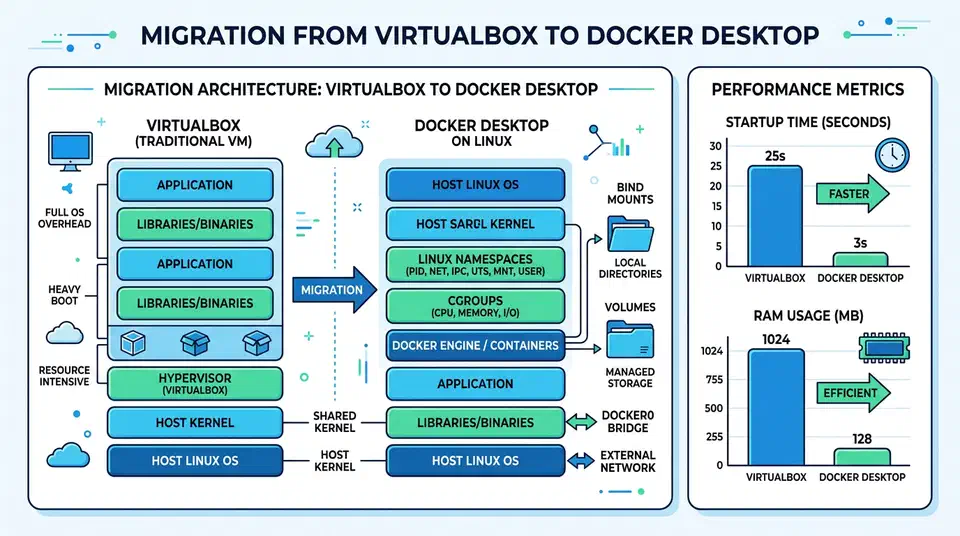
If your Linux dev workflow still leans on one or more VirtualBox VMs, you’re not doing anything wrong. VirtualBox has been the default pick for isolated dev setups for years: clean snapshots, clear network modes, and a full guest OS that acts just like a separate machine.
But in 2026, most app work doesn’t need full hardware emulation. It needs fast startup, easy sharing, the same deps each time, and low cost. That’s where Docker Desktop and docker compose shine.
This guide walks a practical move from VirtualBox-based Linux dev to Docker Desktop. It also covers the trade-offs in plain terms: when you should keep VirtualBox, when Podman is a better fit, and when you should step up from Compose to Kubernetes. If what you actually want is a repeatable machine image, a custom Linux ISO is the simpler answer.
Why this migration now
The shift is less about trends and more about how fast you get feedback.
A typical VirtualBox workflow for a web stack looks like this:
- Boot a VM.
- Wait for guest OS startup.
- SSH or open a console.
- Start services.
- Sync project files via shared folders.
A containerized workflow usually looks like this:
- Run
docker compose up -d. - Start coding immediately on host files with bind mounts.
- Rebuild a single service when needed.
That gap adds up across a day. Faster startup and lower idle memory mean less friction when you switch context, test a branch, or pair with someone.
A second reason is repeatable setups. A Compose file plus a few Dockerfiles are easier to review in Git than binary VM images. Your team can clone a repo and run the same stack, with fewer machine-to-machine quirks.
VirtualBox and Docker solve different problems
Don’t treat Docker as a 1:1 swap for every VM use case.
VirtualBox is a Type 2 hypervisor. It emulates hardware and runs a full guest kernel per VM. So you get strong OS-level walls, and you can run other operating systems with ease.
Docker containers on Linux share the host kernel. They fence off processes with namespaces, cgroups, and seccomp. You get speed and density, but not a separate guest kernel.
The practical rule:
- If you used VirtualBox to run Linux services for app dev work, Docker is usually a better fit.
- If you used it to run Windows, test kernel modules, or check desktop GUI behavior on other OSes, Docker is not a full swap.
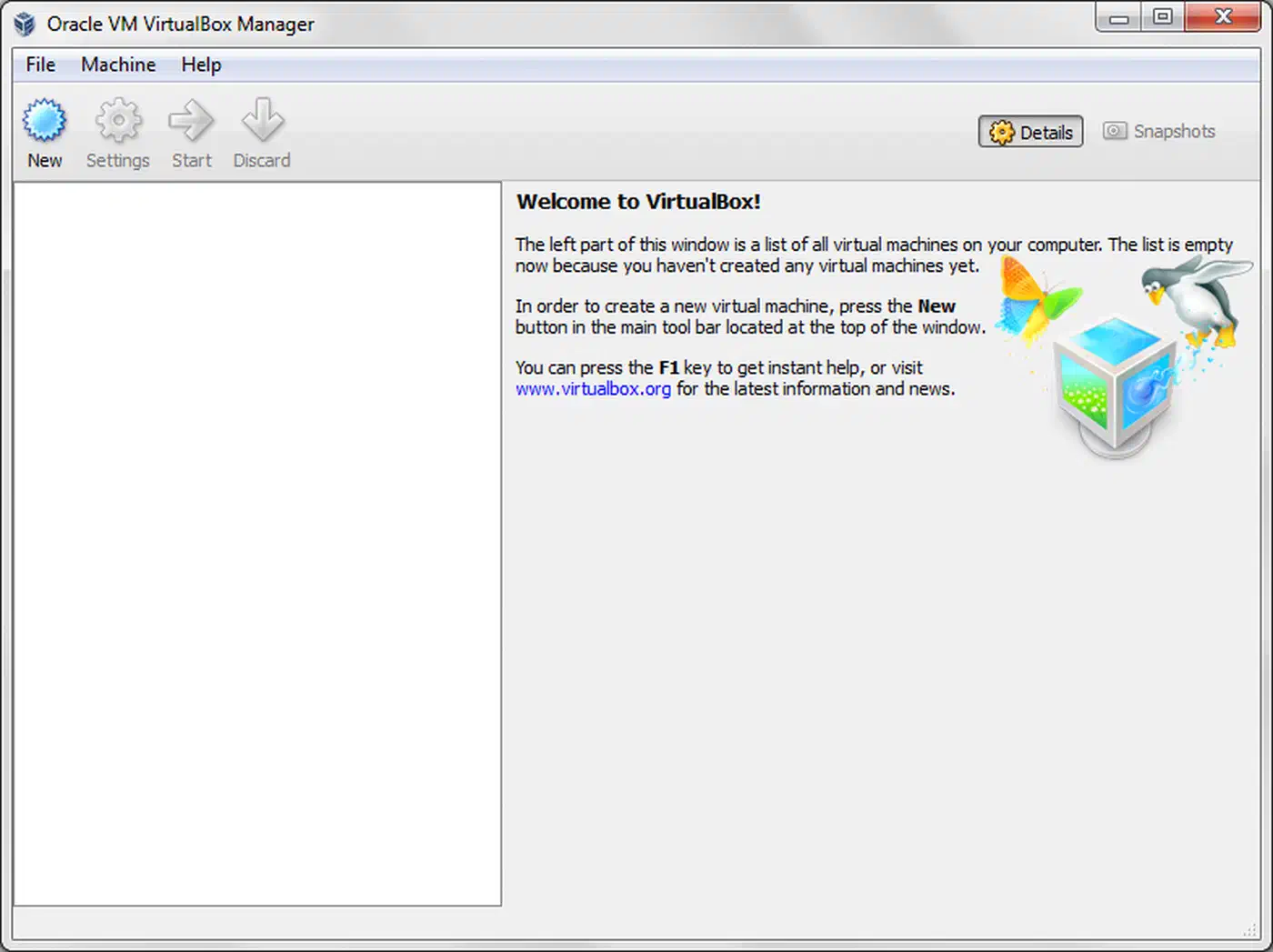
Here is the quick architecture contrast:
| Dimension | VirtualBox VM | Docker Container |
|---|---|---|
| Kernel | Guest kernel per VM | Shared host kernel |
| Startup | OS boot (seconds to minutes) | Process start (sub-second to seconds) |
| Memory overhead | High (GBs per VM typical) | Low (tens to hundreds of MB per service) |
| OS variety | Linux/Windows/*BSD guests | Linux userland on Linux host |
| Isolation model | Hardware virtualization | Process-level isolation |
| Best for | Full OS testing, kernel work, desktop emulation | App stacks, APIs, workers, databases |
When you should keep VirtualBox
A good migration guide also lists the “do not migrate” cases.
Keep VirtualBox (or move to KVM and QEMU) when you need:
- Windows guest testing on a Linux host.
- Cross-desktop GUI checks with full session behavior.
- Security research that needs guest kernel walls.
- Old workflows built around snapshots of the whole OS state.
Docker can run GUI apps by sharing the X11/Wayland socket, but that setup is fragile. It’s rarely the right pick for desktop QA.
You can also run a hybrid model:
- Keep one VM for OS-specific testing.
- Move service-heavy development stacks to Compose.
That gives you most of the speed gain without losing the VM features you still need.
Prerequisites and migration audit
Before you remove anything, audit what your VMs actually do.
List VMs and capture purpose:
VBoxManage list vms
VBoxManage list runningvms
For each VM, document:
- Main job (database, API, full desktop test, CI sandbox).
- Open ports and network mode.
- Where data lives (database dirs, config dirs, uploads, build output).
- Services that start on boot.
- Secrets stored in guest files right now.
A simple mapping template helps:
| VM Name | Current Role | Docker Equivalent | Keep VM? |
|---|---|---|---|
dev-lamp | PHP + Nginx + MySQL | php-fpm, nginx, mysql services | No |
redis-worker-box | Queue + worker + Redis | worker, redis services | No |
win11-qa | Browser/desktop QA | None (needs Windows guest) | Yes |
kernel-lab | Kernel module testing | None (needs custom kernel) | Yes |
Pull the data out before you migrate. For VM guests you can reach over SSH:
rsync -avz user@vm-ip:/var/lib/postgresql/data/ ./vm-export/postgres-data/
rsync -avz user@vm-ip:/etc/nginx/ ./vm-export/nginx-conf/
For guests with no network, mount shared folders and copy app data out. Don’t lean on “I can always boot the VM later” as your backup plan.
Install Docker Desktop on Linux (2026)
On Linux, you now have two main Docker paths:
- Docker Engine: native daemon plus CLI, no desktop UI.
- Docker Desktop: GUI, Docker Scout, extensions, and a managed VM runtime layer.
If you want a dashboard and parity with macOS/Windows teammates, Docker Desktop is often worth it.
Example Debian/Ubuntu .deb flow:
# Download latest package from Docker's official Linux Desktop page first.
sudo apt update
sudo apt install ./docker-desktop-amd64.deb

# Add your user to docker group so CLI works without sudo.
sudo usermod -aG docker "$USER"
newgrp docker

# Validate daemon and CLI path.
docker version
docker run --rm hello-world
If your distro supports a repo-based install for Docker Desktop, prefer the official repo steps so updates are easier.
After the install, open Docker Desktop and tune resources.
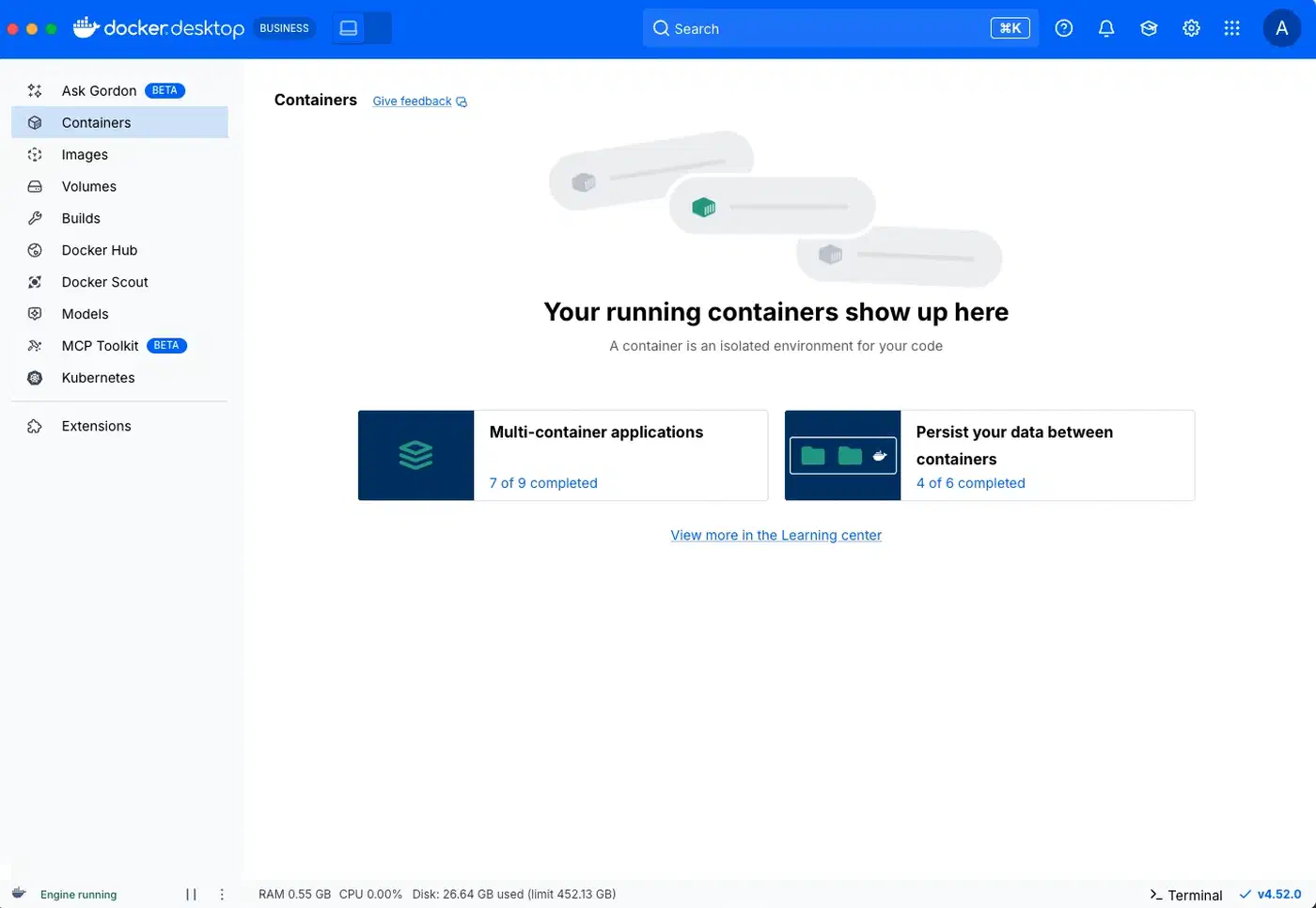
Recommended starting point on a 32 GB dev machine:
- CPUs: 6
- Memory: 8-10 GB
- Swap: 1-2 GB
- Disk image: size based on project needs, usually 60-120 GB
If Docker Desktop starts eating too much RAM during builds, lower the memory cap first, before you touch the CPU count.
Build your first Compose stack from a former VM
Let’s move a common VirtualBox “single dev VM” pattern into Compose.
Assume your old VM hosted:
- Python API
- PostgreSQL
- Redis
- Nginx reverse proxy
Use this structure:
project/
  docker-compose.yml
  .env
  app/
  nginx/
    default.conf
Example docker-compose.yml:
services:
  api:
    build:
      context: ./app
      dockerfile: Dockerfile
    container_name: dev_api
    env_file:
      - .env
    depends_on:
      - db
      - redis
    volumes:
      - ./app:/app
    ports:
      - "8000:8000"
    command: ["uvicorn", "main:app", "--host", "0.0.0.0", "--port", "8000", "--reload"]

  db:
    image: postgres:17
    container_name: dev_db
    environment:
      POSTGRES_USER: app
      POSTGRES_PASSWORD: app
      POSTGRES_DB: appdb
    volumes:
      - pgdata:/var/lib/postgresql/data
    ports:
      - "5432:5432"

  redis:
    image: redis:8
    container_name: dev_redis
    ports:
      - "6379:6379"

  nginx:
    image: nginx:1.29
    container_name: dev_nginx
    depends_on:
      - api
    volumes:
      - ./nginx/default.conf:/etc/nginx/conf.d/default.conf:ro
    ports:
      - "8080:80"

volumes:
  pgdata:
Day-to-day commands:
docker compose up -d
docker compose ps
docker compose logs -f api
docker compose exec api bash
docker compose down
# Remove named volumes only when you intentionally want a clean DB state:
docker compose down -v
Move per-environment settings out of VM shell profiles and into .env so teammates can run the same stack.
Example .env:
APP_ENV=development
DATABASE_URL=postgresql://app:app@db:5432/appdb
REDIS_URL=redis://redis:6379/0
SECRET_KEY=change-me
For editor work, Dev Containers can replace your old “open a terminal inside the VM” habit.
A minimal .devcontainer/devcontainer.json:
{
  "name": "api-dev",
  "dockerComposeFile": "../docker-compose.yml",
  "service": "api",
  "workspaceFolder": "/app",
  "customizations": {
    "vscode": {
      "extensions": [
        "ms-python.python",
        "ms-azuretools.vscode-docker"
      ]
    }
  }
}
Now the setup lives in source control, not in a VM image only you can rebuild.
Data migration patterns from VM disks
The main risk in a move is state, not containers.
Use these patterns:
- Databases: dump from the VM, then load into the container DB.
- App uploads and files: copy into a named volume or a host bind mount.
- Service config: turn
/etc/...files into mounted config files.
PostgreSQL example:
# From inside old VM
pg_dump -U app -d appdb > appdb.sql

# On host
docker compose cp appdb.sql db:/tmp/appdb.sql
docker compose exec db psql -U app -d appdb -f /tmp/appdb.sql
MySQL example:
# Old VM
mysqldump -u root -p appdb > appdb.sql

# Host
docker compose cp appdb.sql mysql:/tmp/appdb.sql
docker compose exec mysql sh -lc 'mysql -u root -p"$MYSQL_ROOT_PASSWORD" appdb < /tmp/appdb.sql'
If you need to keep ownership and permissions for shared data, match the UID and GID between the host user and the container user.
Podman as an alternative path
If you want containers but not Docker Desktop or a long-running root daemon, look at Podman.
What Podman brings:
- No daemon to run.
- Strong rootless defaults.
- A Docker-compatible CLI for many workflows.
podman composeandpodman-composefor Compose-style runs.
Quick comparison:
| Feature | Docker Desktop | Docker Engine | Podman |
|---|---|---|---|
| GUI dashboard | Yes | No | Optional (Cockpit/third-party) |
| Rootless support | Yes | Yes | Yes (first-class) |
| Daemonless | No | No | Yes |
| Compose support | Native docker compose | Native docker compose | podman compose / podman-compose |
| Team familiarity | Very high | High | Medium |
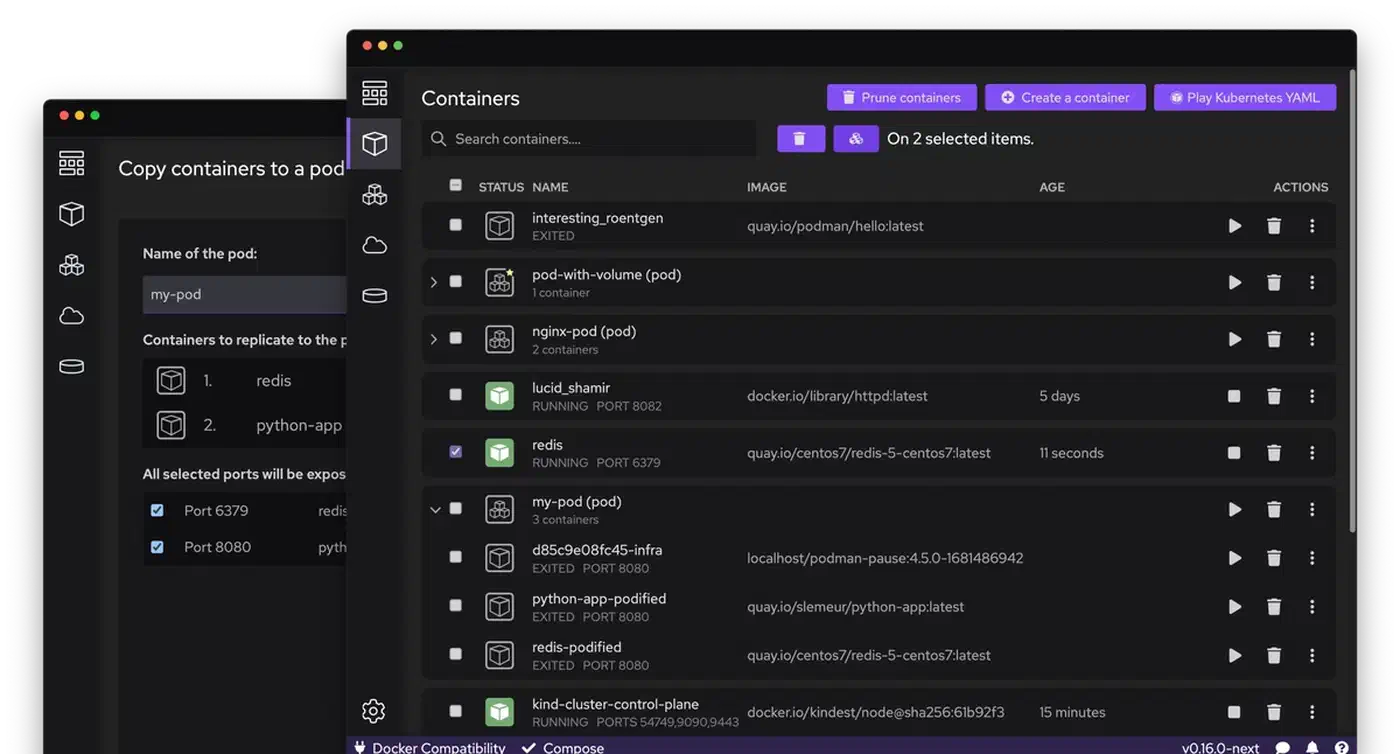
Minimal Podman migration test:
sudo apt install podman podman-compose
podman --version
podman compose up -d
If your team has settled on Docker tooling, use Docker Desktop or Engine. If you care most about rootless runs and few background services, Podman may be the better endpoint.
Beyond Compose: Kubernetes with kind or minikube
Compose is great for local multi-service apps. But if you ship to Kubernetes, a local cluster can cut the drift between dev and prod.
Two practical choices:
kind(Kubernetes in Docker): lightweight, great for CI and API testing.minikube: broader runtime options and richer local cluster features.
Install kind and create a cluster:
kind create cluster --name dev-k8s
kubectl cluster-info --context kind-dev-k8s
Translate Compose concepts to Kubernetes gradually:
- Compose service -> Deployment + Service
- Named volume -> PersistentVolumeClaim
.envvariables -> ConfigMap/Secretdepends_on-> readiness probes and proper startup handling
Use Compose for daily work and Kubernetes for integration tests. Move over fully when your team is ready. Don’t force full Kubernetes early if Compose still solves your real bottleneck. Before that step, Testcontainers lets your test suite spin up real Postgres and Redis containers on demand, with no cluster.
Security hardening for daily dev containers
A move to containers is a good time to harden defaults. For a deeper checklist on image scanning, SBOM output, and CI-wired scan tools, see our guide to hardening Docker images.
At minimum, adopt these controls:
- Run app containers as non-root.
- Use a read-only root filesystem where you can.
- Drop Linux caps you don’t need.
- Don’t mount the Docker socket into app containers.
- Scan images often and pin image tags.
Example hardened service snippet:
services:
  api:
    build: ./app
    user: "1000:1000"
    read_only: true
    tmpfs:
      - /tmp
    security_opt:
      - no-new-privileges:true
    cap_drop:
      - ALL
    cap_add:
      - NET_BIND_SERVICE
    volumes:
      - ./app:/app:rw
    ports:
      - "8000:8000"
Additional practical tips:
- Swap broad bind mounts like
.:/appfor narrow path mounts when you can. - Put secrets in a real secret store, or at least inject them at runtime, not in committed
.envfiles. - Keep base images small (
python:3.13-slim,debian:bookworm-slim,alpineonly if your stack handles musl).
Security is not just a production concern. A hacked dev container with broad host mounts can leak source code, tokens, and SSH keys.
Performance comparison: VM vs Docker Desktop vs Podman
Real numbers vary by hardware. But sample readings on a Linux laptop (Ryzen 7, 32 GB RAM, NVMe), for the same API plus Postgres plus Redis stack, look like this:
| Metric | VirtualBox VM Stack | Docker Desktop Stack | Podman Rootless Stack |
|---|---|---|---|
| Cold start to usable app | 55-90s | 6-12s | 5-11s |
| Idle memory footprint | 2.4-3.8 GB | 450-900 MB | 350-800 MB |
| Rebuild app image | 25-70s | 10-35s | 10-33s |
| Restart single API service | 10-20s | 1-4s | 1-4s |
| Disk overhead growth over week | High (guest OS churn) | Medium (layers + volumes) | Medium (layers + volumes) |
What these numbers mean in practice:
- VMs pay a fixed “full OS tax” before your app runs.
- Containers cut boot overhead and make per-service restarts cheap.
- Docker Desktop adds handy features but may use a bit more memory than a pure rootless Podman path, based on how you set up the runtime.
If you care about tight loops, the biggest win is not raw benchmark speed. It’s how often you can restart, rebuild, and check a change in under 10 seconds.
Troubleshooting common migration issues
Most migration failures are predictable.
Port collision:
- Symptom:
Bind for 0.0.0.0:5432 failed. - Fix: change host port mapping or stop local service using that port.
Permissions mismatch on bind mounts:
- Symptom: app cannot write to mounted directory.
- Fix: align UID/GID, or set container user explicitly.
DNS/service discovery confusion:
- Symptom: app cannot reach DB even though both run.
- Fix: use Compose service name (
db) as hostname, notlocalhost.
Volume surprises:
- Symptom: old schema/data persists after code reset.
- Fix: inspect named volumes and remove intentionally with
docker compose down -v.
Network assumptions from VirtualBox:
- Symptom: tools expecting host-only adapter semantics break.
- Fix: model required topology in Compose networks and explicit port mappings.
Useful diagnostics:
docker compose ps
docker compose logs -f

docker inspect <container>
docker network ls
docker volume ls
If Docker Desktop itself won’t start cleanly after an upgrade, restart its backend service. Then check that no clashing runtime config was left behind by older Docker Engine installs.
Migration checklist and next steps
Use this checklist to finish the move safely:
- List your VirtualBox VMs and tag each one replace or keep.
- Export all key state (DB dumps, configs, uploads).
- Install Docker Desktop and check
hello-world. - Write a first
docker-compose.ymlfor one stack. - Move secrets and config into
.envplus docs. - Add a Dev Container config so the editor setup is repeatable.
- Apply a hardening baseline (non-root, read-only, dropped caps).
- Time startup and memory before and after.
- Decide whether Podman fits your security and ops model better.
- Add local Kubernetes (
kindorminikube) only when you need it.
The best move is a gradual one. Start with one VM-backed project, check that the dev flow feels good, and then reuse the templates across repos.
You don’t need to “containerize everything” in one weekend. You only need to drop the parts of your workflow where full VMs add cost but no real value.