 Botmonster Tech
Systemd timers vs cron: resource control and journal logging

Systemd timers should replace cron for nearly every scheduled task on modern Linux. They log to the journal, manage dependencies, and add random delays to avoid resource stampedes. They also catch up on runs missed during a reboot. The one reason to keep cron is legacy support on minimal systems without systemd. If your distro shipped in the last decade, you have everything to switch.
Key Takeaways
- Cron mails or drops your output, while timers log every run to the journal.
- Timers add cgroup limits and sandboxing that cron cannot reach at all.
- A service unit runs one instance at a time, so slow jobs never stack up.
RandomizedDelaySec=spreads load; cron needs asleep $RANDOMhack.- Cron is still right for BSD, macOS, containers, and MAILTO.
This guide covers the real problems with cron. It explains how systemd timers work and migrates several cron jobs step by step. It also covers the sandboxing and resource controls that make timers a better fit for production.
Why cron falls short
Cron has been the default task scheduler on Unix systems since the 1970s. It works, and that long track record is why so many admins never question it. However, its limits get painful as systems grow more complex.
Cron captures stdout and stderr from your job. It then emails the output to a local mailbox nobody reads, or it discards the output entirely. Debugging a failed cron job means adding manual logging to every script. You redirect output to a file, add timestamps yourself, and hope you also captured stderr. Compare that to systemd’s journal. The journal captures everything with timestamps, priority levels, and structured metadata.
Cron also cannot express dependencies. You cannot tell it to run a job after the network is up, or only when a mount point is ready. Say you schedule a backup at 2 AM and the NFS share is not mounted yet when cron fires. Your job fails silently. You end up wrapping scripts in retry loops or sleep delays, which is brittle and ugly.
Resource control is another gap. A cron job can use unlimited CPU, RAM, and I/O. There is no built-in way to apply cgroups limits to a cron task. A runaway backup script can starve your database or web server, and cron will not stop it.
If the machine is powered off at the scheduled time, the job just does not run. Anacron is a partial fix, but it only handles daily, weekly, and monthly jobs. If you need hourly jobs that survive reboots, anacron cannot help.
Cron also cannot schedule anything more often than once a minute. The five fields stop at minute granularity, so “every 30 seconds” is not expressible without a wrapper script that sleeps. Timers go down to seconds and below with *:*:0/30 and an AccuracySec=1s setting.
Overlap is the failure mode that bites hardest in production. If a cron job takes longer than its interval, cron starts a second copy anyway, then a third. I have walked into boxes with hundreds of stuck rsync processes stacked on top of each other. A systemd service unit runs one instance at a time by design: if the service is still active when the timer fires, the trigger is skipped. No flock, no PID file, no lock directory to clean up after a crash.
Cron’s five-field time format (*/5 * * * *) is compact but hard to read and easy to get wrong. Setting “every weekday at 3 AM in the US/Eastern timezone” takes mental gymnastics and timezone math. Systemd’s OnCalendar syntax reads like plain English by comparison.
Finally, cron offers no sandboxing at all. Cron jobs run with the full environment and permissions of the owning user. There is no filesystem isolation, no private /tmp, and no way to restrict network access. A compromised cron script gives an attacker lasting access with no audit trail beyond what the script itself logs.
Systemd timer fundamentals
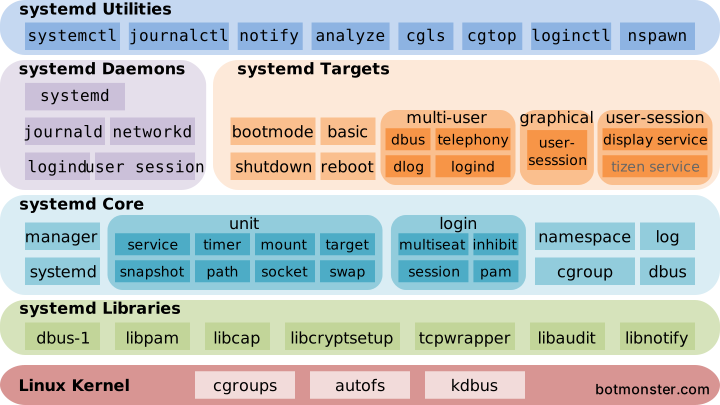
Every systemd timer uses two unit files. A .timer file defines when to run. A matching .service file defines what to run. If you create mybackup.timer, systemd looks for mybackup.service on its own. Both files live in /etc/systemd/system/ for system-wide timers, or ~/.config/systemd/user/ for per-user timers.
The timer file
The timer file is where you define your schedule. The most common directive is OnCalendar=. It uses readable calendar expressions instead of cron’s cryptic five-field syntax.
Here is a comparison of common schedules:
| Cron Syntax | OnCalendar Equivalent | Meaning |
|---|---|---|
0 2 * * * | *-*-* 02:00:00 | Every day at 2 AM |
*/15 * * * * | *:0/15 | Every 15 minutes |
0 3 * * 1-5 | Mon..Fri *-*-* 03:00:00 | Weekdays at 3 AM |
0 0 1 * * | *-*-01 00:00:00 | First of every month |
0 6 * * 0 | Sun *-*-* 06:00:00 | Every Sunday at 6 AM |
You can validate any calendar expression before deploying it:
systemd-analyze calendar "Mon..Fri *-*-* 03:00:00"This prints the normalized form and the next several trigger times. It catches mistakes before they cause missed runs.
Beyond calendar scheduling, systemd offers monotonic timers. OnBootSec=5min fires five minutes after boot. OnUnitActiveSec=30min fires 30 minutes after the service last finished. These work well for upkeep that should run at set intervals no matter the wall-clock time.
Three other directives count for most setups:
Persistent=truetells systemd to record the last run time on disk. If a run was missed because the system was off, the timer fires right away on the next boot. This only applies toOnCalendar=timers. On monotonic timers likeOnBootSec=orOnUnitActiveSec=, the directive is ignored. The stamp files live in/var/lib/systemd/timersfor system timers and~/.local/share/systemd/for user timers. If a timer ever gets out of sync and keeps firing at the wrong moment,systemctl clean --what=state <unit>.timerdeletes the stamp and resets it.RandomizedDelaySec=300adds a random offset of 0 to 5 minutes. When you have 50 servers all running certbot renewal, this jitter stops them from hammering the Let’s Encrypt API at once. AddFixedRandomDelay=trueif you want each machine’s offset to stay the same across restarts instead of rerolling.AccuracySec=controls the coalescing window. The default is 1 minute, so systemd may batch timer wakeups to save power. Set it to1sif you need precise scheduling.
These last two pull in opposite directions, which trips people up. RandomizedDelaySec= spreads runs apart on purpose. AccuracySec= pulls them back together so the kernel can wake once and serve several timers. Systemd applies the randomization first and the coalescing second, so a wide accuracy window can quietly claw back some of the jitter you asked for. If you want real spread, keep AccuracySec=1s alongside your RandomizedDelaySec=.
The stampede this prevents is not theoretical. An SRE in the r/linuxadmin thread on timers versus cron measured their own traffic: of 30,000 to 36,000 requests per minute, roughly a third landed in the first 5 to 10 seconds of every minute, purely because end-user cron jobs all fire on the zero second. They had to provision for about 4x their average peak to absorb it. Their ask was for people to put sleep $((RANDOM%60)) at the top of cron scripts. RandomizedDelaySec= is that hack, done properly and declared in one line.
The service file
The service file defines what actually runs. For scheduled tasks, you almost always want Type=oneshot. This tells systemd the process runs to completion and exits rather than staying resident.
[Unit]
Description=My scheduled task

[Service]
Type=oneshot
ExecStart=/usr/local/bin/myscript.sh
This is where systemd timers pull well ahead of cron. You can add resource limits, sandboxing, dependencies, and failure alerts right in this file.
Syntax quick reference
Most of the time you are not reading a guide, you are looking up one expression. These two tables are the ones I keep open.
OnCalendar formats and their cron equivalents
| Interval | OnCalendar | Cron equivalent |
|---|---|---|
| Every minute | minutely | * * * * * |
| Every 5 minutes | *:0/5 | */5 * * * * |
| Every 15 minutes | *:0/15 | */15 * * * * |
| Every 30 seconds | *:*:0/30 | not possible |
| Hourly | hourly | 0 * * * * |
| Daily 2 AM | *-*-* 02:00:00 | 0 2 * * * |
| Weekdays 3 AM | Mon..Fri *-*-* 03:00:00 | 0 3 * * 1-5 |
| Weekly | weekly | 0 0 * * 1 |
| Monthly | monthly | 0 0 1 * * |
| Quarterly | quarterly | no shorthand |
| Yearly | yearly | 0 0 1 1 * |
| First Saturday of month | Sat *-*-1..7 18:00:00 | not expressible |
| Third-to-last day of February | *-02~03 | not expressible |
| 2 AM Paris time | *-*-* 02:00:00 Europe/Paris | needs CRON_TZ |
The shorthand names are just aliases. Per systemd.time(7), they expand to: minutely = *-*-* *:*:00, hourly = *-*-* *:00:00, daily = *-*-* 00:00:00, weekly = Mon *-*-* 00:00:00, monthly = *-*-01 00:00:00, quarterly = *-01,04,07,10-01 00:00:00, semiannually = *-01,07-01 00:00:00, and yearly = *-01-01 00:00:00.
Two things cron simply cannot say are in that table. The ~ operator counts backward from the end of a month, so *-02~03 is the third-to-last day of February and lands correctly in leap years. And a per-timer timezone suffix means you do not have to reason about what the machine’s clock is set to.
Timer directives and their defaults
Defaults are where people get surprised, because a directive you never wrote is still doing something. These come from systemd.timer(5).
| Directive | Default | What it does |
|---|---|---|
OnCalendar= | none | Wallclock schedule. Can appear more than once. |
OnBootSec= | none | Fires N after boot. |
OnUnitActiveSec= | none | Fires N after the unit last activated. |
OnUnitInactiveSec= | none | Fires N after the unit last finished. |
AccuracySec= | 1min | Coalescing window. Systemd may fire anywhere inside it to batch wakeups. Set 1us for precision. |
RandomizedDelaySec= | 0 | Random jitter from 0 to N. Does the opposite of AccuracySec. |
FixedRandomDelay= | false | Makes that random offset stable across restarts. |
Persistent= | false | Catches up a missed run. OnCalendar timers only. |
WakeSystem= | false | Wakes the machine from suspend. Needs privileges. |
RemainAfterElapse= | true | Keeps the timer loaded after it fires. |
That AccuracySec=1min default is the one to remember. A timer set for 02:00:00 with no other settings may legitimately fire at 02:00:47.
Real examples: migrating common cron jobs
The best way to learn systemd timers is to convert real cron tasks. Here are several common migrations with complete unit files you can copy and paste.
Daily backup script
Cron version:
0 2 * * * /usr/local/bin/backup.shSystemd timer (/etc/systemd/system/backup.timer):
[Unit]
Description=Daily backup timer

[Timer]
OnCalendar=*-*-* 02:00:00
Persistent=true
RandomizedDelaySec=600
AccuracySec=1s

[Install]
WantedBy=timers.target
Systemd service (/etc/systemd/system/backup.service):
[Unit]
Description=Daily backup
After=network-online.target
Requires=mnt-backup.mount

[Service]
Type=oneshot
ExecStart=/usr/local/bin/backup.sh
Nice=19
IOSchedulingClass=idle
MemoryMax=512M
StandardOutput=journal
StandardError=journal
The Nice=19 and IOSchedulingClass=idle settings make the backup run at the lowest priority, so it does not slow running workloads. MemoryMax=512M stops a runaway tar or rsync from eating all your RAM. The After= and Requires= directives make sure the network and backup mount are ready before the script starts. Cron cannot do this at all.
Enable and start:
systemctl daemon-reload
systemctl enable --now backup.timer
For a backup strategy that pairs well with scheduled timers, automated ransomware-proof restore points on ZFS give you immutable copies of your data. Cron’s timing limits make those hard to manage reliably.
Certbot certificate renewal
Cron version:
0 0,12 * * * /usr/bin/certbot renew --quietSystemd timer (/etc/systemd/system/certbot-renew.timer):
[Unit]
Description=Certbot renewal timer

[Timer]
OnCalendar=*-*-* 00,12:00:00
RandomizedDelaySec=3600
Persistent=true

[Install]
WantedBy=timers.target
Systemd service (/etc/systemd/system/certbot-renew.service):
[Unit]
Description=Certbot renewal
After=network-online.target

[Service]
Type=oneshot
ExecStart=/usr/bin/certbot renew --quiet
PrivateTmp=yes
ProtectHome=yes
ProtectSystem=strict
ReadWritePaths=/etc/letsencrypt /var/lib/letsencrypt /var/log/letsencrypt
The RandomizedDelaySec=3600 spreads Let’s Encrypt load across a full hour. That is what their docs recommend. The sandboxing directives limit Certbot to only the directories it needs. If you use Traefik as a reverse proxy, it can renew certificates on its own. Still, this timer approach works just as well for non-containerized services.
Rsync mirror sync
This one shows a pattern cron handles poorly. With cron, if you schedule rsync every 15 minutes and a sync takes 20 minutes, you get overlapping runs. Systemd avoids this on its own.
Systemd timer (/etc/systemd/system/mirror-sync.timer):
[Unit]
Description=Mirror sync timer

[Timer]
OnUnitActiveSec=15min
AccuracySec=1s

[Install]
WantedBy=timers.target
Systemd service (/etc/systemd/system/mirror-sync.service):
[Unit]
Description=Mirror sync via rsync
After=network-online.target

[Service]
Type=oneshot
ExecStart=/usr/bin/rsync -avz --delete source/ /srv/mirror/
CPUQuota=50%
IOWeight=50
With OnUnitActiveSec=15min instead of a fixed calendar schedule, the next sync starts 15 minutes after the last one finishes. No overlap, no race conditions, no flock wrapper needed.
User-level timer
You do not need root to use systemd timers. Place your unit files in ~/.config/systemd/user/ and manage them with the --user flag. The same directory holds any custom service unit you write:
mkdir -p ~/.config/systemd/user
# Create your .timer and .service files there
systemctl --user daemon-reload
systemctl --user enable --now mytask.timer
systemctl --user list-timers
This works well for dev tasks, personal backups, or anything that should run as your regular user without touching system config.
There is one trap here that catches nearly everyone. A user timer only runs while that user has an active login session. Log out of your SSH session and the whole user manager shuts down, taking your timer with it. Nothing errors, nothing logs, the job just stops happening. The fix is one command, run once:
sudo loginctl enable-linger $USERLingering keeps the user manager alive across logins and reboots. Set it before you rely on a user timer for anything, or you will spend an afternoon debugging a schedule that was never running.
Quick one-off tasks with systemd-run
Sometimes you need a quick scheduled task without creating unit files. The systemd-run command handles this with transient timers.
systemd-run --on-calendar="*-*-* 18:00:00" /usr/local/bin/report.shThis creates a temporary timer that fires at 6 PM daily. It goes away when you stop it or reboot. For one-off delayed runs:
systemd-run --on-active="30m" /usr/local/bin/cleanup.shThis runs cleanup.sh once, 30 minutes from now. It is the systemd version of the at command, but with journal logging and resource control too.
Advanced features: sandboxing and resource control
Systemd timers inherit all of systemd’s service controls. That includes cgroups resource limits and filesystem sandboxing, which cron cannot reach at all.
Resource limits
Add these directives to the [Service] section to set hard limits through cgroups v2:
MemoryMax=512M
CPUQuota=50%
IOWeight=50
TasksMax=32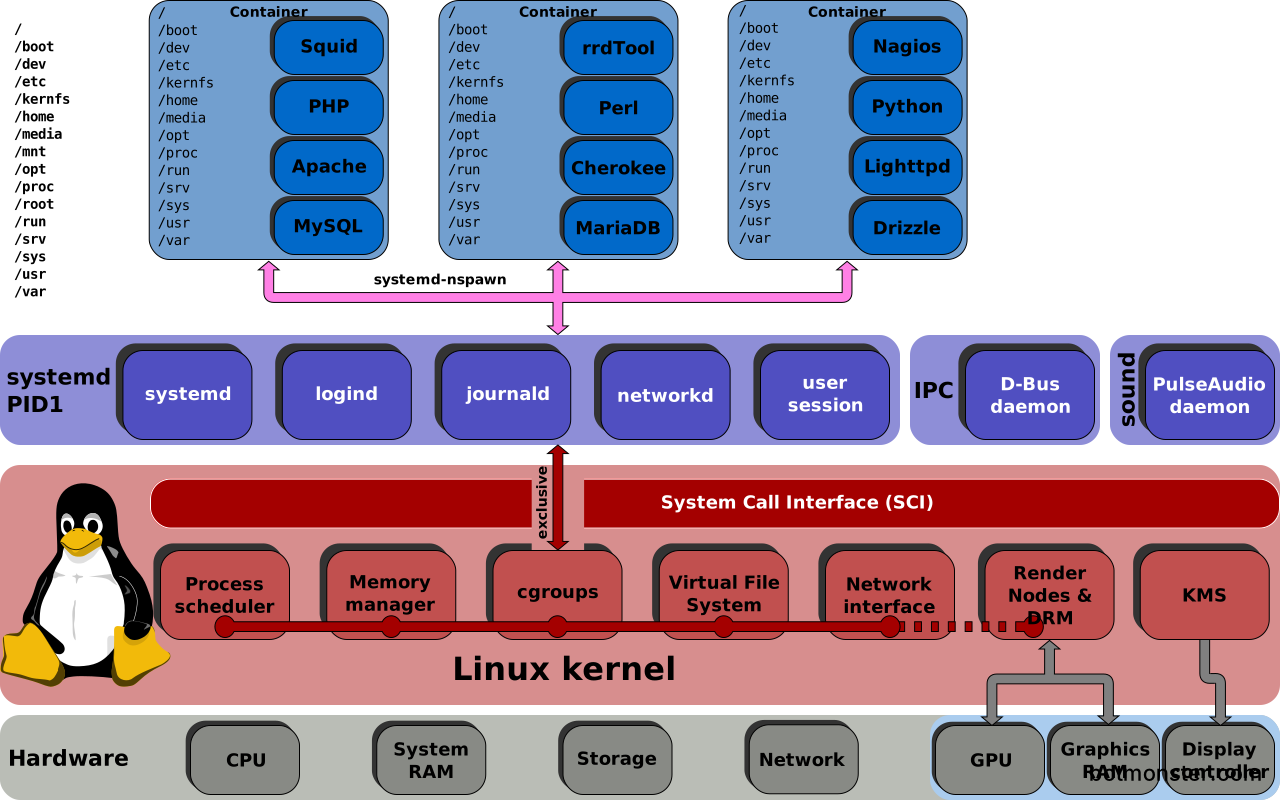
A backup script that leaks memory gets killed at 512M instead of taking down your server. A CPU-hungry compression job gets throttled to 50% of a core instead of starving your web application.
Filesystem sandboxing
ProtectHome=read-only
ProtectSystem=strict
ReadWritePaths=/var/backups
PrivateTmp=yes
NoNewPrivileges=yes
ProtectSystem=strict mounts the entire filesystem read-only except for paths you explicitly allow with ReadWritePaths=. PrivateTmp=yes gives the service its own isolated /tmp directory. NoNewPrivileges=yes prevents the process from gaining additional privileges through setuid binaries or capability escalation.
This level of isolation would require a custom SELinux policy or AppArmor profile with cron. With systemd, it is a few lines in a unit file.
Failure notifications
OnFailure=notify-admin@%n.serviceWhen the job fails, systemd triggers a separate notification service. You can wire this to send an email, post to a Slack webhook, or push to Gotify. This replaces cron’s unreliable “email on any output” behavior with targeted failure alerts.
Wake from suspend
For critical timers on laptops or systems that suspend:
WakeSystem=trueThis tells systemd to set a hardware wake alarm so the system wakes from suspend to run the timer. Cron has no equivalent.
Test it before you trust it. WakeSystem= depends on the machine actually exposing a real-time clock alarm and on the unit having permission to arm it, and neither is guaranteed. When it cannot, the timer fails to start with Failed to enter waiting state: Operation not supported. Virtual machines and some laptop firmware hit this. Enable the timer, run systemctl status on it, and confirm it reached waiting state.
Managing and monitoring your timers
Once you have migrated your cron jobs, here are the commands you will use daily.
To list all timers on the system with their next trigger time, last trigger time, and remaining time:
systemctl list-timers --all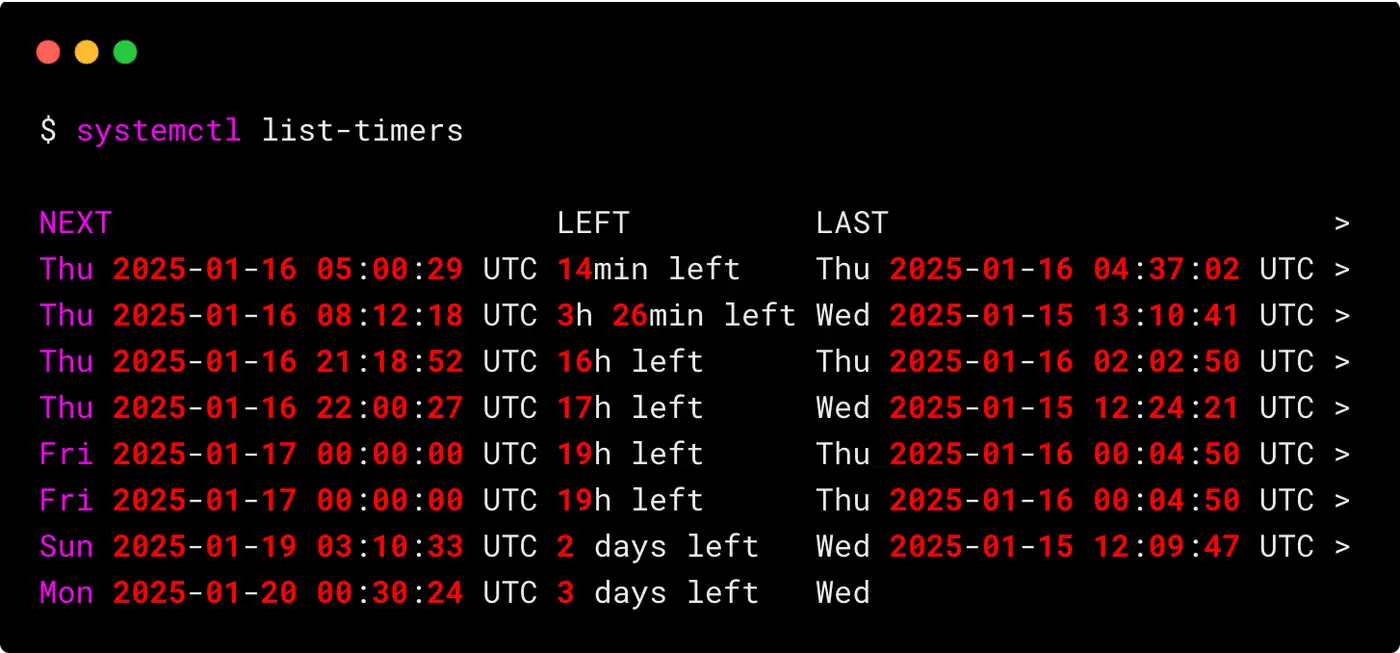
To check the status of a specific timer and its associated service:
systemctl status mybackup.timer    # Is the timer active? When did it last fire?
systemctl status mybackup.service  # What was the exit code? Any errors?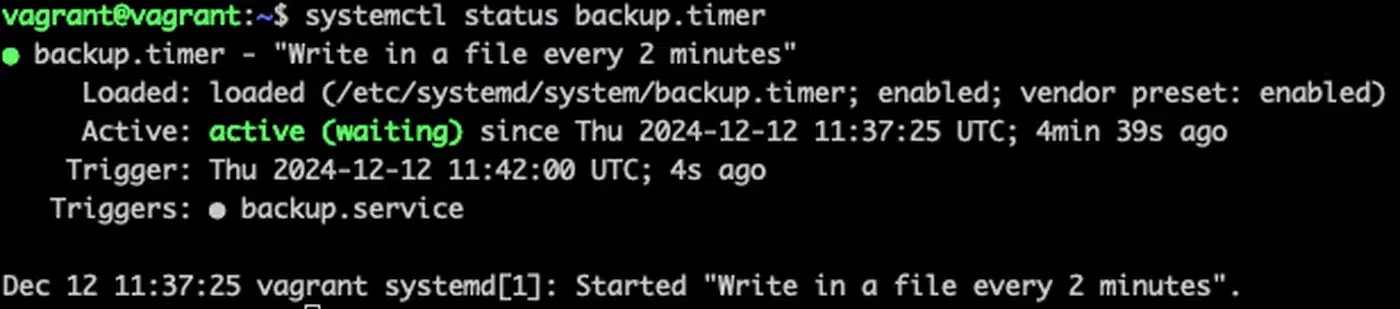
To read logs from a service, use journalctl instead of grepping through custom log files:
journalctl -u mybackup.service --since today
journalctl -u mybackup.service -n 50
journalctl -u mybackup.service -p err    # Only errors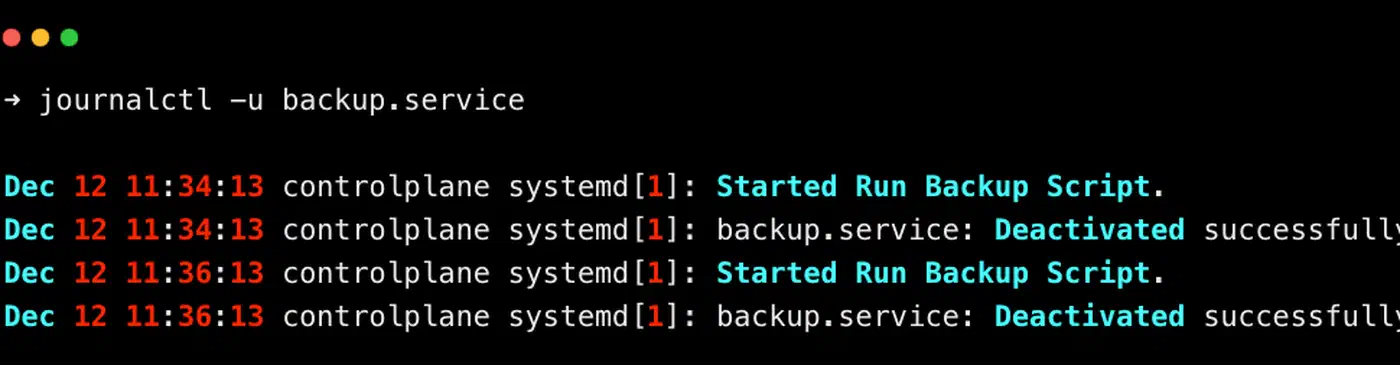
Every timer’s output lives in the journal, queryable by time, priority, and unit name.
Before enabling a new timer, validate the unit files for syntax errors:
systemd-analyze verify mybackup.timer mybackup.serviceThe same systemd-analyze tool is also invaluable for tracking down sluggish startup caused by misbehaving unit dependencies.
If you need to change a timer’s settings without modifying the original file (useful for package-managed unit files), use drop-in overrides:
systemctl edit mybackup.timerThis creates an override at /etc/systemd/system/mybackup.timer.d/override.conf that survives package updates.
To test a service manually without waiting for the timer to fire:
systemctl start mybackup.serviceThis runs the service once immediately. Use it to verify your job works before relying on the schedule.
When cron is still the right answer
I would not migrate everything. There are jobs where cron is the correct tool, and pretending otherwise is how you end up with a worse setup than you started with.
Portability. Timers are Linux with systemd, full stop. Cron runs on FreeBSD, on macOS, on Alpine with OpenRC, and inside containers that have no init system at all. The syntax also travels beyond cron itself. As one commenter put it in the Hacker News thread on this exact question, cron syntax “is used by a bunch of other things as well, e.g. k8s cronjobs.” Learning it once pays off in a lot of places.
MAILTO. Cron will email you the output of a job with one line at the top of a crontab. The Arch Wiki states plainly that timers have no built-in equivalent. You can get there with OnFailure= and a notification unit, but that is a thing you build, not a thing you set.
One line versus a small pile of files. Two unit files, a daemon-reload, and an enable --now is real friction against crontab -e and one line. This was the single most repeated objection in both the Reddit and Hacker News threads, and it is fair. For a job that just needs to run at 3 AM and does not care about limits or logging, the ceremony buys you nothing.
You actually want overlapping runs. The one-instance-at-a-time behavior is usually a feature, but not always. From r/linuxadmin: “Cron is the tool if you expect and want concurrent runs initiated from a timer.” If your job is a short poll that should fire on schedule regardless of what came before, cron’s willingness to start a second copy is the behavior you want.
One place to look. crontab -l shows you everything a user has scheduled in one screen, with no second tool to learn. On a box you touch twice a year, that has real value.
Converting a big crontab with systemd-cron
If you have 40 crontab lines and no appetite for writing 80 unit files, there is a middle path. systemd-cron installs a generator at /usr/lib/systemd/system-generators/systemd-crontab-generator that reads your existing crontabs and /etc/cron.* directories at boot and translates them into timer and service units on the fly.
The result is that you keep using crontab -e and the familiar five-field syntax, while everything actually runs through systemd, with journal logging and the usual unit controls. It also ships built-in MAILTO support, which plain timers lack. It is packaged for Debian, Ubuntu, Arch, and Gentoo, and available for Fedora through COPR. You need systemd 236 or newer.
I treat it as a staging step rather than a destination. Move the whole crontab across in one go, confirm nothing broke, then convert the jobs that would benefit from real resource limits into hand-written units at your own pace.
Removing cron safely
Most modern distributions still ship cron by default, but once you have migrated all your jobs, you can remove it. First, verify nothing is left:
crontab -l                          # Check your user crontab
sudo crontab -l                     # Check root crontab
ls /etc/cron.d/ /etc/cron.daily/ /etc/cron.hourly/ /etc/cron.weekly/ /etc/cron.monthly/
Some system packages drop files into /etc/cron.d/ or the periodic directories. Check whether systemd timer equivalents already exist for those tasks (many distributions have migrated their own maintenance jobs to timers). Once you are confident nothing depends on cron:
# Debian/Ubuntu
sudo apt remove cron

# Fedora/RHEL
sudo dnf remove cronie
Systemd timers have been stable and production-ready since systemd 209, released in 2014. Every major distribution supports them fully. Start with your least critical cron job, verify it works as a timer, and work your way up from there. For managing unit files across multiple machines, Ansible playbooks provide idempotent deployment of timer configurations alongside your other system settings.
Common questions about systemd timers vs cron
What are the differences between cron jobs and systemd timers?
The short version is that cron schedules a command and systemd schedules a managed unit. Everything else follows from that.
| Aspect | Cron | Systemd timer |
|---|---|---|
| Files per job | One crontab line | Two unit files |
| Finest interval | One minute | Sub-second |
| Output | Mailed to a local mailbox or lost | Journal, with timestamps and priority |
| Dependencies | None | After=, Requires=, Wants= |
| Resource limits | None | Full cgroup limits and sandboxing |
| Overlapping runs | Allowed, stacks up | One instance at a time by design |
| Missed runs | Skipped | Persistent=true catches up |
| Portability | POSIX, runs on BSD and macOS | Linux with systemd only |
Why is systemd so controversial?
Because it changed what PID 1 is responsible for, and prominent people disagreed loudly about whether that was wise.
Patrick Volkerding of Slackware argued the design runs against the Unix philosophy of small tools that connect to each other. Rich Felker, who maintains musl, made the narrower technical case that PID 1 is too special a process to carry extra responsibility, and that the added code enlarges the attack surface at the worst possible place. Eric S. Raymond warned about mission creep and bloat. Theodore Ts’o called it a dangerous trend toward uniformizing the Linux ecosystem.
The politics were worse than the engineering. Debian’s Technical Committee fought over the init system through 2013 and 2014, landed on systemd as the Debian 8 default, and several developers resigned over it. Devuan was forked specifically to avoid it. Debian voted on the question again in December 2019 and kept systemd. (The Wikipedia article on systemd is a fair summary of the whole fight.)
None of that touches timers. Timers are opt-in and additive: nothing breaks if you never write one, and adding one takes nothing away. If your machine already boots with systemd, you are already trusting it as PID 1, and using its scheduler asks you to trust exactly nothing new.
Is cron outdated?
No. Cron ships enabled by default on Debian, Ubuntu, and RHEL through cronie, it is specified in POSIX, and it behaves the same way on BSD and macOS as it does on Linux. Nobody has deprecated it, and there is no announced plan to.
What is true is quieter. Distributions moved their own maintenance jobs to timers years ago: logrotate, tmpfiles cleanup, certbot renewal, and dnf-automatic all run as timers now. And Amazon Linux 2023 stopped installing cronie by default. That is a real signal about where the maintainers are heading, but it is one distribution, not the industry.
Does systemd replace cron?
It can, and on one distribution it already has. Amazon Linux 2023’s documentation page is titled “systemd timers replace cron” and states that cronie is not included by default, so crontab support is no longer provided out of the box. Every other major distribution still ships cron and leaves the choice to you.
The precise answer is that timers cover everything cron does except two things: MAILTO, which has no built-in equivalent and has to be rebuilt with OnFailure=, and the one-line simplicity of a crontab entry. If neither of those is what keeps you on cron, timers are a full replacement.