 Botmonster Tech
Self-Host Blog Comments with Remark42 (Privacy-First)

Most blogs reach for Disqus on day one. It takes about five minutes to set up. What you don’t see at sign-up is the deal you’re making. Disqus is free because it monetizes your readers. Every person who loads your comment section gets tracked, profiled, and served ads. They never agreed to it. That’s just the business model behind the embed script you pasted into your template.
Remark42 changes the equation. It is a self-hosted, open-source comment engine built in Go. It ships as a single Docker image. It collects only the data needed to run a comment section, and nothing more. This guide walks through the whole setup. You’ll deploy Remark42 behind Nginx with HTTPS, wire it into a Hugo site, set up moderation, and keep your data safe with automated backups.
Key Takeaways
- Remark42 runs your whole comment section from one small Docker container, with no separate database server to manage.
- Disqus loads dozens of trackers on every page; Remark42 sets no tracking cookies and ships no ad code.
- Sign-in works through OAuth providers like GitHub, so readers never give you a password.
- All comment data lives in one file on your server, and you can export or delete it whenever you want.
- A $6 per month VPS handles a personal blog’s comment traffic for the life of the site.
Why Third-Party Comment Systems Are a Privacy Problem
The scale of what Disqus embeds on your page is striking once you look. Web performance audits show over 90 third-party requests fired by a single Disqus widget. Those requests add 300 to 500 milliseconds to your page’s time-to-interactive on broadband, and much more on mobile. Disqus then assembles your visitors’ reading habits, scroll depth, cross-site browsing history, and identity into a profile. It sells that profile to advertisers. Your readers never agreed to any of this. They came to read your blog post.
The legal exposure is real too. Say some of your readers live in the European Union. Embedding Disqus without a valid Data Processing Agreement and a consent flow puts you in breach of the GDPR. The “it’s just a comment widget” defense has not aged well. Since enforcement began, data authorities in Germany and Austria have acted against sites for similar third-party embeds.
Remark42 collects only what it needs. That means the text of comments, an anonymized OAuth identity token, optional vote counts, and optional email addresses for notifications. It sets no cross-site tracking cookies. It ships no ad network code. The whole dataset lives in a single BoltDB file on your server. You can delete it at any time, with no third party to coordinate with.
Prerequisites
Before you start, make sure the following are in place:
- A Linux server (VPS or bare metal) with Docker and Docker Compose installed. Any recent Ubuntu LTS, Debian, or Fedora release works fine.
- A domain name pointing to your server’s public IP. Remark42 needs a real domain for its OAuth callback URLs. It can’t run under a bare IP address in production mode.
- Nginx installed and running as your site’s reverse proxy. This guide uses Nginx for SSL termination. Caddy users can adapt the config with small changes.
- Certbot for Let’s Encrypt certificate management, or an existing wildcard TLS certificate covering your subdomains already in place. Install steps for all platforms are at certbot.eff.org.
- A GitHub account for OAuth app registration. It is the most common start point for technical blogs. Google, Microsoft, and GitLab work just as well if you prefer them.
Remark42 Architecture Overview
Remark42 is simple to run. The whole backend is a single static Go binary inside the umputun/remark42 Docker image. There is no external database server, no Redis instance, no message queue. Just the binary and one BoltDB file on disk.
Sign-in works through OAuth providers only. GitHub, Google, Facebook, Microsoft, Telegram, and GitLab all work out of the box. Remark42 never stores passwords. When a user signs in, the provider sends back a user ID and display name. Remark42 then hashes the provider-scoped user ID into a stable anonymous identity token. Email addresses are optional. Remark42 stores one only if the user supplies it for notifications.
The frontend is a small JavaScript widget, about 40 KB compressed, that you embed in your site’s HTML. It talks to the Remark42 REST API over HTTPS. It renders comments in a shadow DOM element so your theme’s CSS can’t bleed in. It handles votes and reply threading on the client first, then syncs with the server.
Data lives in a single .db file managed by BoltDB, an embedded key-value store. For a personal blog with thousands of comments, that is plenty. BoltDB handles tens of thousands of concurrent reads with no trouble. The one bottleneck at scale is write throughput, since BoltDB uses a single write lock. But a blog would need hundreds of comments per second before that ever bites.
Registering a GitHub OAuth Application
GitHub is the most common sign-in provider for self-hosted blogs. The audience is often technical and already has accounts. Registering an OAuth app takes about two minutes.
- Go to GitHub Developer Settings and click New OAuth App.
- Fill in the fields:
- Application name: anything descriptive, e.g. “My Blog Comments”
- Homepage URL:
https://yourdomain.com - Authorization callback URL:
https://comments.yourdomain.com/auth/github/callback
- Click Register application.
- On the next screen, copy the Client ID. Then click Generate a new client secret and copy that value right away. GitHub only shows it once.
You will set AUTH_GITHUB_CID and AUTH_GITHUB_CSEC in the Docker Compose environment with these values. The pattern is the same for Google (via Google Cloud Console) and Microsoft (via Azure App Registrations) if you want to offer more than one sign-in option.
Deploying Remark42 with Docker Compose
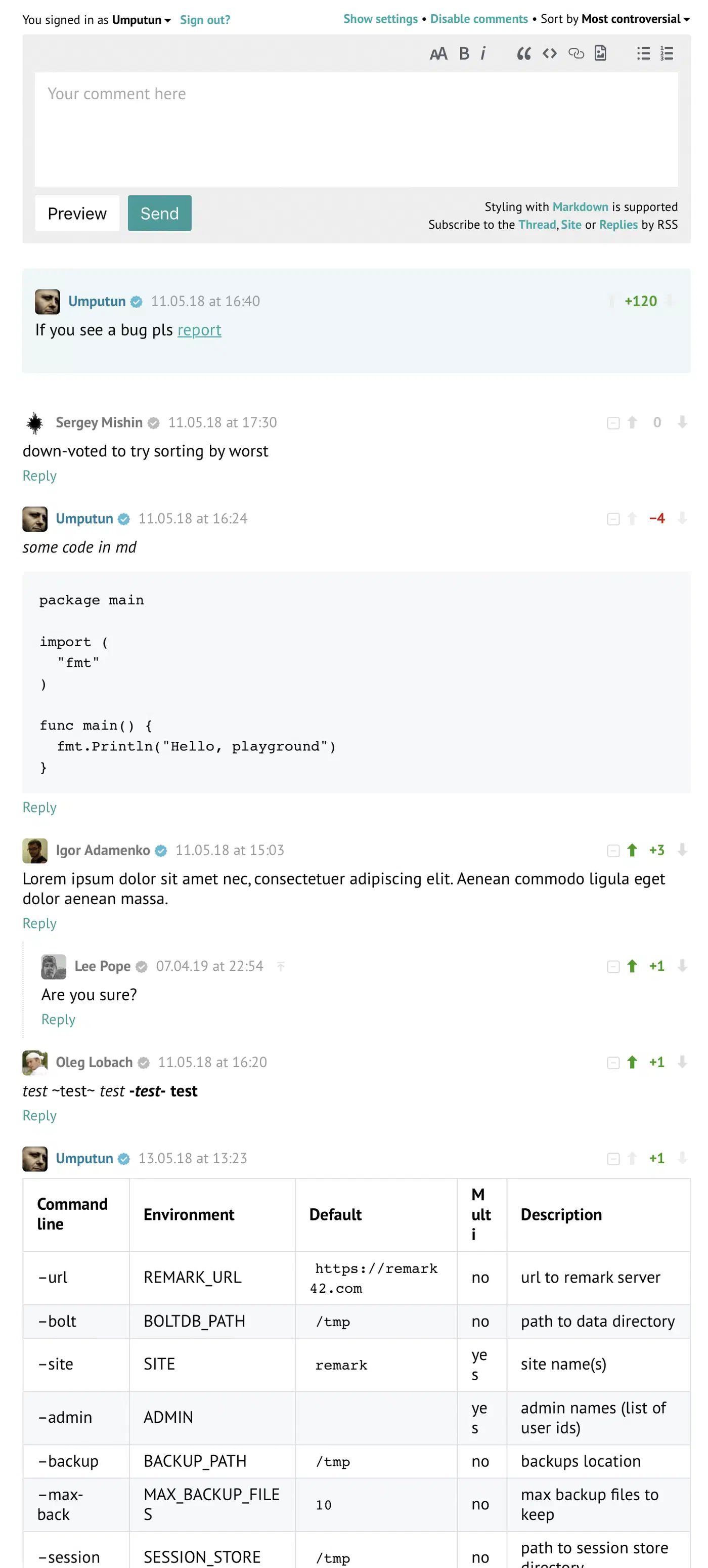
Create a directory for your Remark42 deployment. /opt/remark42 is a sensible choice. Place the following docker-compose.yml inside it:
version: "3.8"

services:
  remark42:
    image: umputun/remark42:latest
    container_name: remark42
    restart: always
    environment:
      - REMARK_URL=https://comments.yourdomain.com   # public base URL
      - SITE=yourblog                                  # arbitrary site ID used in the embed snippet
      - SECRET=change-me-to-a-long-random-string      # JWT signing secret (use openssl rand -hex 32)
      - AUTH_GITHUB_CID=your_github_client_id
      - AUTH_GITHUB_CSEC=your_github_client_secret
      - ADMIN_SHARED_ID=github_yourgithubusername      # promotes this account to admin
      - BACKUP_PATH=/srv/var/backup                    # where backup JSON files go
      - MAX_BACKUP_COUNT=30                            # keep 30 daily backups
      - NOTIFY_EMAIL_FROM=remark42@yourdomain.com
      - SMTP_HOST=smtp.yourdomain.com
      - SMTP_PORT=587
      - SMTP_USERNAME=remark42@yourdomain.com
      - SMTP_PASSWORD=your_smtp_password
      - SMTP_TLS=true
    volumes:
      - ./data:/srv/var/data       # BoltDB file lives here
      - ./backup:/srv/var/backup   # backup JSON exports
    ports:
      - "127.0.0.1:8080:8080"     # bind to loopback only; Nginx fronts it
    healthcheck:
      test: ["CMD", "wget", "-q", "--spider", "http://localhost:8080/api/v1/ping"]
      interval: 30s
      timeout: 10s
      retries: 3
A few notes on the key variables:
REMARK_URLmust match the public URL exactly, scheme included. Remark42 embeds it in OAuth callback redirects, and a mismatch causes sign-in loops.SECRETshould be at least 32 characters of random ASCII. Generate one withopenssl rand -hex 32.ADMIN_SHARED_IDuses the formatprovider_provideruserid. For GitHub, this isgithub_yourgithubusername(your GitHub username, all lowercase). Log in through the widget first, then check the container logs to confirm your exact token.BACKUP_PATHandMAX_BACKUP_COUNTturn on the built-in scheduled backup. More on that in the maintenance section.
Start the container and watch its output:
docker compose up -d
docker compose logs -f remark42
Watch for a line that confirms it is listening on :8080. The health check endpoint /api/v1/ping returns {"status": "ok"} once the service is ready.
Configuring Nginx as a Reverse Proxy
Remark42 binds to 127.0.0.1:8080 and is not exposed to the internet. Nginx handles TLS termination and proxies requests through. Create the following server block at /etc/nginx/sites-available/remark42:
server {
    listen 80;
    server_name comments.yourdomain.com;
    return 301 https://$host$request_uri;
}

server {
    listen 443 ssl http2;
    server_name comments.yourdomain.com;

    ssl_certificate     /etc/letsencrypt/live/comments.yourdomain.com/fullchain.pem;
    ssl_certificate_key /etc/letsencrypt/live/comments.yourdomain.com/privkey.pem;
    include             /etc/letsencrypt/options-ssl-nginx.conf;
    ssl_dhparam         /etc/letsencrypt/ssl-dhparams.pem;

    add_header X-Frame-Options "SAMEORIGIN" always;
    add_header X-Content-Type-Options "nosniff" always;
    add_header Referrer-Policy "strict-origin-when-cross-origin" always;

    location / {
        proxy_pass         http://127.0.0.1:8080;
        proxy_set_header   Host              $host;
        proxy_set_header   X-Real-IP         $remote_addr;
        proxy_set_header   X-Forwarded-For   $proxy_add_x_forwarded_for;
        proxy_set_header   X-Forwarded-Proto $scheme;

        # WebSocket support (used by Remark42 for live comment updates)
        proxy_http_version 1.1;
        proxy_set_header   Upgrade    $http_upgrade;
        proxy_set_header   Connection "upgrade";

        proxy_read_timeout 90s;
    }
}
Enable the site and obtain the Let’s Encrypt certificate:
sudo ln -s /etc/nginx/sites-available/remark42 /etc/nginx/sites-enabled/
sudo nginx -t
sudo systemctl reload nginx
sudo certbot --nginx -d comments.yourdomain.com
Certbot inserts the certificate paths into your server block and sets up a renewal cron job. After this step, https://comments.yourdomain.com/api/v1/ping should return {"status":"ok"}.
Integrating Remark42 with Hugo
Hugo uses partial templates to render comment sections. Create a new file at layouts/partials/comments.html in your Hugo project root. Put it there, not inside the theme, since your project’s layouts/ folder takes precedence over the theme’s:
{{- if and .IsPage (not .Params.nocomments) -}}
<div id="remark42"></div>
<script>
  var remark_config = {
    host: "https://comments.yourdomain.com",
    site_id: "yourblog",
    components: ["embed"],
    max_shown_comments: 20,
    theme: "light",
    locale: "en",
  };
  (function(c) {
    for(var i = 0; i < c.length; i++) {
      var d = document, s = d.createElement('script');
      s.src = remark_config.host + '/web/' + c[i] + '.js';
      s.defer = true;
      (d.head || d.body).appendChild(s);
    }
  })(remark_config.components || ['embed']);
</script>
{{- end -}}
The {{- if and .IsPage (not .Params.nocomments) -}} guard makes sure the widget loads only on real post pages. It skips taxonomy pages, the home page, and section list pages. It also respects a per-post opt-out flag. To turn off comments on a specific post, add nocomments: true to its front matter:
---
title: "A Post With No Comments"
nocomments: true
---
To use this partial, your theme needs to call it somewhere in the single post layout. The cleanest approach is to create a layouts/_default/single.html override that includes:
{{ partial "comments.html" . }}If your Hugo theme has a dark mode toggle, you can wire it to the Remark42 theme. Call window.REMARK42.changeTheme('dark') or window.REMARK42.changeTheme('light') from your theme-switching JavaScript.
Moderation, Spam Control, and Administration
Sign in through the comment widget with the account you listed in ADMIN_SHARED_ID. That gives you the admin panel at https://comments.yourdomain.com/web. From here you can pin comments, delete single messages, and block users by their anonymized identity token. You can also switch the site between open mode, where comments appear right away, and read-only mode, where new comments wait for admin approval first.
For email notifications, configure the SMTP variables in your Docker Compose file as shown above. Remark42 then sends you an email for each new comment, with a direct link to approve or delete it. So you know when someone leaves a comment without checking the dashboard. This helps a lot in the first few weeks after you turn on comments for a post that gets shared widely.
Toxic content detection is available through the Perspective API, Google’s machine learning toxicity scoring service. Register for an API key, then set POSITIVE_SCORE_THRESHOLD=0.5 in your environment variables. Comments that score above the threshold are held for manual review instead of being published right away. That gives you a light spam filter with no local ML infrastructure to run.
For a personal blog with a small audience, the built-in moderation workflow is plenty. That means email alerts plus the admin web panel. Perspective integration makes sense once your posts start pulling real traffic from social media shares.
Remark42 vs. Other Self-Hosted Comment Engines
Before you commit to Remark42, it helps to know how it stacks up against the other self-hosted options:
| Feature | Remark42 | Commento | Isso | Giscus |
|---|---|---|---|---|
| Language / runtime | Go (single binary) | Go + PostgreSQL | Python + SQLite | JavaScript (GitHub Discussions API) |
| Database | Embedded BoltDB | PostgreSQL required | SQLite | None (GitHub-hosted) |
| Authentication | OAuth (6 providers) | OAuth / email | Anonymous / email | GitHub account only |
| Docker image size | ~30 MB | ~150 MB | ~80 MB | N/A (hosted service) |
| Admin UI | Yes (built-in) | Yes | Limited | Via GitHub web UI |
| Anonymous comments | Yes | Optional | Yes | No |
| Data ownership | Full | Full | Full | Partial (GitHub) |
| Best for | Privacy-first blogs | Teams needing email auth | Minimal setups | Developer blogs on GitHub |
Commento needs PostgreSQL, which adds overhead for a one-person blog. Isso is the simplest to set up, but it lacks OAuth and has a rougher UI. Giscus is a hosted service backed by GitHub Discussions. It has zero overhead to run, but it ties your comment data to GitHub, and readers must have a GitHub account to join in.
Remark42 hits the sweet spot for most self-hosted bloggers. You get a single container, an embedded database, real OAuth sign-in, and a capable admin panel. And you don’t have to run a separate database server.
Performance Considerations
BoltDB uses a B-tree with MVCC (Multi-Version Concurrency Control) for reads and a single write lock for changes. In plain terms, Remark42 serves many readers at once with no lock contention, while writes happen one at a time. Say a blog post goes viral and pulls 500 comments in an hour. The write queue processes them in order, and it drops nothing. The Remark42 project’s own benchmarks show the service handling about 1,000 requests per second on modest hardware (2 vCPUs, 2 GB RAM).
What if your blog grows past what BoltDB can handle? For most personal blogs, that means tens of millions of comments. At that point Remark42 supports a PostgreSQL backend as an alternative storage layer. The switch needs one environment variable change and a one-time data migration. Both are documented in the project’s GitHub repository. For almost every personal blog, BoltDB on a $6 per month VPS is plenty for the life of the site.
Backup, Migration, and Maintenance
Self-hosting means you own data recovery. Remark42 makes that easy in a few ways.
You set up automated backups through the BACKUP_PATH and MAX_BACKUP_COUNT environment variables shown in the Docker Compose file above. By default, Remark42 exports the whole BoltDB to a timestamped JSON file each day. It rotates old files once the count passes MAX_BACKUP_COUNT. These JSON exports are human-readable, so they work well for both disaster recovery and data portability.
To move backups off your Docker host, add an rclone cron job. It syncs the backup directory to Backblaze B2, AWS S3, or any S3-compatible object store:
# /etc/cron.d/remark42-backup
0 3 * * * root rclone sync /opt/remark42/backup b2:your-bucket/remark42-backups \
  --log-file=/var/log/rclone-remark42.log
Migrating from Disqus is officially supported. Export your Disqus comment archive from the Disqus dashboard under Settings then Export. Then import the XML file with the Remark42 REST API import endpoint:
curl -X POST \
  -H "Content-Type: application/xml" \
  -H "X-CSRF-Token: $(cat admin-token.txt)" \
  --data-binary @disqus-export.xml \
  "https://comments.yourdomain.com/api/v1/admin/import?site=yourblog&provider=disqus"
Thread mapping works by matching the Disqus <thread link> URL to the url value Remark42 stores per comment thread. As long as your blog post URLs haven’t changed since the Disqus era, the import runs on its own.
Upgrading Remark42 takes three steps. Pull the new image, stop the container, restart it. The built-in migration system handles any BoltDB schema changes on its own at first startup:
cd /opt/remark42
docker compose pull
docker compose down
docker compose up -d
docker compose logs -f remark42
Watch the startup logs to confirm the migration finished before you route traffic back. Remark42 writes a JSON backup before it applies schema migrations, so you have a clean recovery point if anything goes wrong.
Finding Your Admin Identity Token
One detail trips up many first-time admins. The ADMIN_SHARED_ID value is not just your GitHub username. It is the provider-prefixed identity token that Remark42 derives from your OAuth provider’s user ID. The safest way to find it: start Remark42 with no ADMIN_SHARED_ID set, open your site’s comment section, sign in with your GitHub account, then check the container logs:
docker compose logs remark42 | grep "login"You will see a line with something like "id":"github_12345678". Copy that token, set ADMIN_SHARED_ID=github_12345678 in your Docker Compose file, then restart the container. After the restart, your account shows an admin badge in the comment widget, and you get the web admin panel at https://comments.yourdomain.com/web.
Wrapping Up
Remark42 gives you a truly usable comment system. You get OAuth sign-in, threaded replies, vote counts, moderation tools, and email alerts. And you do it without selling your readers’ attention to advertisers. The overhead is real, since you now own backups, upgrades, and SMTP config. But for a privacy-respecting blog, that trade-off is well worth making.
The whole resource footprint on a modest VPS is under 50 MB of RAM and almost no CPU at idle. Your readers get a fast, ad-free comment experience. You get full ownership of the conversation around your content. And you can export everything to a JSON file at any time, with no vendor lock-in and no third party to deal with.
Start with a single OAuth provider. GitHub is easiest for a technical audience. Get one post with comments working end to end, then grow from there. The setup stays simple for a personal blog. And the peace of mind is worth a lot: you know exactly what data you collect, and you know it lives only on your server.