 Botmonster Tech
Setup an e-ink monitor for coding and reduced eye strain

An E-Ink monitor as a second display cuts eye strain by removing the backlight and blue light that hurt your eyes. Modern E-Ink refresh modes in 2026 make these screens usable for text work. You still need to tune your Linux theme and turn off animation. This is a niche product for a niche problem. Know what it fixes, and what it can’t, before you spend over $1,000.
Key Takeaways
- E-Ink fixes the three real causes of screen eye strain: backlight flicker (PWM), blue light, and sustained focus fatigue.
- Use an E-Ink panel as a second monitor, never your only one. It is too slow for animation but excellent for docs, diffs, and logs.
- Linux needs no special drivers. The setup work is turning off compositor animations and adaptive sync.
- Switch to a high-contrast light theme and heavier fonts. Dark themes look washed out on E-Ink’s low contrast ratio.
- At $850 to $1,100 it is a niche fix. Try warm mode, a blue-light filter, and better lighting first.
Why E-Ink for Coding? The Science of Eye Strain
Screen eye strain (the clinical name is “computer vision syndrome”) has three distinct causes. E-Ink handles all three better than any LCD or OLED panel.
Flicker is the cause most people miss. LCD panels with LED backlights use PWM (pulse width modulation) dimming. The backlight switches on and off fast to set brightness. At lower brightness, this happens hundreds of times per second. Most people can’t see the flicker. The visual cortex still processes it, and fatigue builds over hours. Monitors sold as “flicker-free” drop PWM for DC dimming, which helps a lot. E-Ink kills the problem outright with a different trick: E-Ink pixels are bistable, so they hold their state with zero refresh energy. No backlight, no PWM, no flicker. Pixels only change when the content changes.
Blue light is the second cause. The short wavelength of blue light (400 to 490nm) hits the eye’s photoreceptors differently. Long exposure cuts melatonin and strains the focus muscles. LCD backlights put out a hard blue peak baked into the LED phosphor process. E-Ink frontlights, the thin light layer on front-lit models, can be tuned much warmer. Many E-Ink monitors run with the frontlight off in normal room light, so they emit no blue light at all.
Focus fatigue is the subtler one. Your eye’s lens always shifts focus between depths. A monitor at one fixed distance locks your eyes into sustained near focus. Displays make this worse because emissive and reflective surfaces feel different to the eye. An LCD shoots light at your eyes, which triggers a different focus response than reading by reflected light. E-Ink reflects room light like paper. Your eyes treat it more like a printed page, in a more relaxed focus state. That’s why long reading on E-Ink feels less tiring than the same time on a backlit screen, even at matched size and brightness.
The Current State of E-Ink Monitors in 2026
The E-Ink monitor market has settled around a few serious vendors. Refresh speed has gotten much better since the first Dasung units. The ceiling moved again with the Modos Flow 60Hz e-paper monitor, an open-source FPGA design that hits a full 60Hz at 300 PPI.
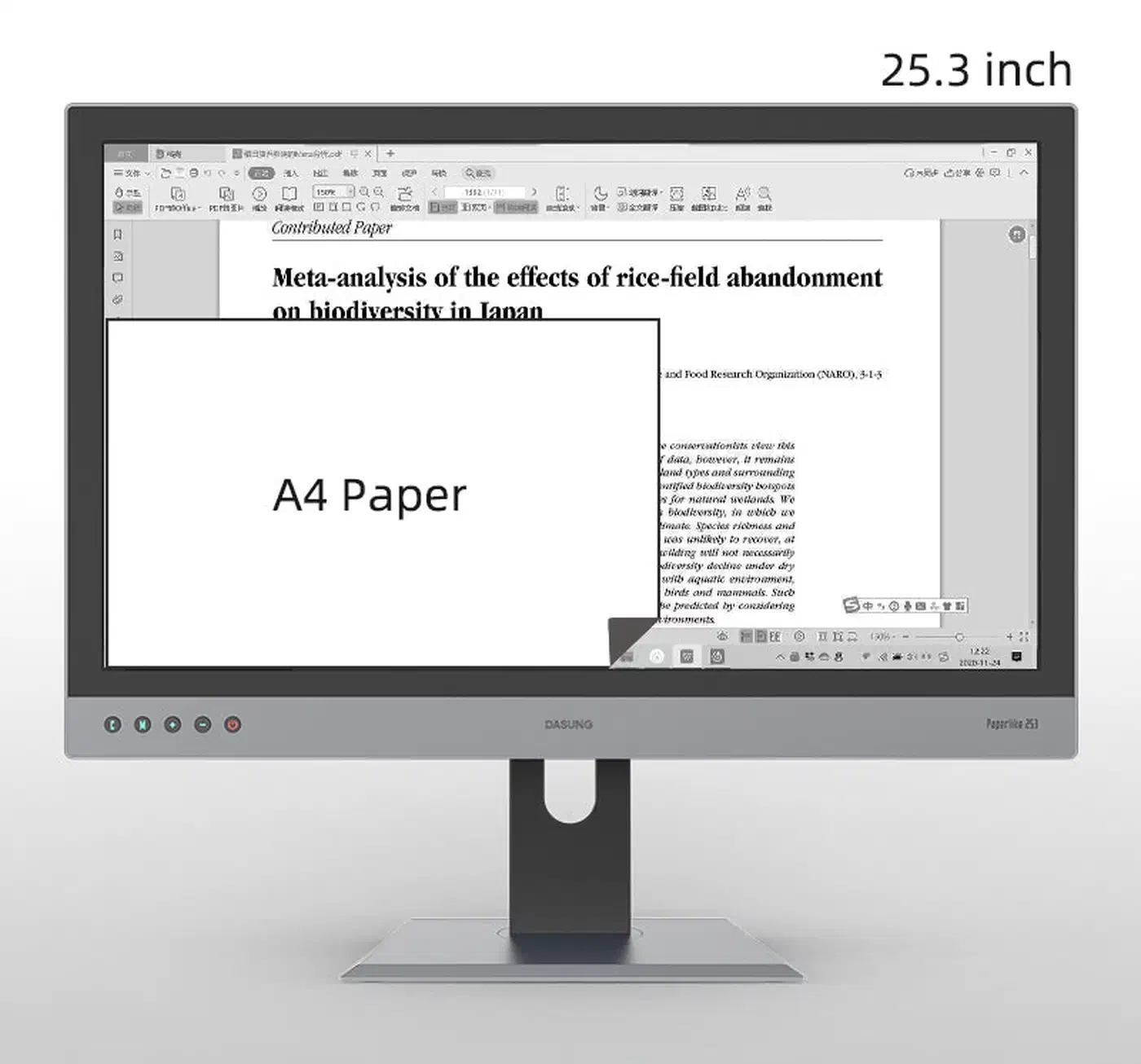
Dasung Paperlike series is still the most developer-friendly option. The Paperlike 253 is a 25.3-inch E-Ink monitor with HDMI and USB-C, a dedicated refresh mode controller, and a strong Linux track record. The current generation has three main refresh modes. A2 is fast and low quality, built for cursors and scrolling. GC16 is full 16-shade grayscale, high quality, slower. REGAL is Dasung’s own balanced mode, with better quality than A2 and less ghosting delay than GC16.
BOOX Mira from Onyx takes a different angle. It ties tightly to their own refresh mode software, costs a bit less, and ships a companion app with finer control. Linux setup needs more manual work than the Dasung. The 25.3-inch model at around $800 to $900 is the cheapest large-format E-Ink monitor you can buy.

Sony Digital Paper is built for document review and note-taking, not as a desktop monitor. It has no HDMI input and isn’t a fit for coding.
Refresh rate reality: in A2 mode, modern Dasung and BOOX monitors feel like 20 to 30fps for cursor moves and text scrolling. That’s fast enough to edit in Vim, browse file trees, and read logs. It’s not fast enough for smooth web scrolling, video, or any animation-heavy app. To put a number on it, if you rapidly scroll a 1000-line file, you’ll see motion blur and ghosting. The image snaps clear when you stop. Most developers adapt in a few hours.
Color E-Ink in 2026: Gallery 3 and Kaleido 3 panels bring color to E-Ink. The current generation trades color for real quality hits: lower contrast, more visible grain, slower refresh than mono E-Ink. Syntax highlight colors show up, but they look washed out next to even a budget IPS panel. Mono E-Ink is still the better pick for coding comfort. Color E-Ink fits comics, textbooks, and illustrated documents.
Linux Setup and Driver Configuration
E-Ink monitors connect as standard displays over HDMI or USB-C DisplayPort Alt Mode. Linux picks them up with no special drivers. The setup work is about stopping the OS from fighting the display.
Set the right refresh rate: Linux will try to drive the E-Ink monitor at 60Hz. That’s fine. The E-Ink panel’s own controller handles refresh timing no matter the signal rate. What to avoid is adaptive sync or variable refresh rate. Some HDMI setups turn this on by default:
# Force a specific mode without adaptive sync
xrandr --output HDMI-1 --mode 1920x1080 --rate 60
On Wayland with Sway or Hyprland, add to your config:
output HDMI-A-1 mode 1920x1080@60Hz
output HDMI-A-1 adaptive_sync off
Turn off compositor animations: This step is critical. Fade effects, slide transitions, and transparency all force many screen updates inside what should be one frame. On E-Ink, that piles up ghosting and makes the screen feel laggy.
GNOME:
gsettings set org.gnome.desktop.interface enable-animations falseKDE Plasma: System Settings > Workspace Behavior > Desktop Effects - disable all transition effects.
i3/Sway: compositors like picom can be configured with no-fading-openclose = true and no-fading-destroyed-argb = true.
Control refresh modes: Dasung ships a Linux utility for switching between A2, REGAL, and GC16. You can drive it from a tray icon or the command line. BOOX Mira has a physical button on the monitor frame for mode switching, with finer control in their companion app. For Dasung units without the utility, or for third-party E-Ink monitors:
# Force a full refresh (GC16 equivalent) via xrandr
xrandr --output HDMI-1 --set "scaling mode" "Full"
# Trigger display reset by briefly disabling and re-enabling
xrandr --output HDMI-1 --off && sleep 1 && xrandr --output HDMI-1 --auto
Optimizing Your Terminal and Code Editor for E-Ink
The biggest gain from an E-Ink monitor comes from fitting your software to the display. The default dark-theme developer setup looks great on OLED. It is actively bad on E-Ink.
Terminal theme: High-contrast black-on-white beats dark themes on E-Ink by a wide margin. The reason is physics. E-Ink’s reflective surface has a lower contrast ratio than a backlit display (~15:1 vs 1000:1 for IPS). On a dark theme, the low-contrast whites (the text) look grey against a slightly lighter grey background. A light theme with black text uses all the contrast you have. Try PaperColor Light, Modus Operandi (also for Vim/Neovim), or the system default light theme.
Vim and Neovim: Turn off cursor blinking. E-Ink doesn’t handle the fast on/off cycle well:
set guicursor=a:blinkon0Use bold for syntax highlighting instead of color. E-Ink renders in grayscale:
" Example: make comments bold instead of colored
highlight Comment term=bold cterm=bold gui=bold
The Modus Themes for Neovim are built for accessibility, and they render well in grayscale.
VS Code: Install the “GitHub Light” or “Quiet Light” theme. Turn off the minimap (Settings > editor.minimap.enabled: false). The minimap fires partial-screen refreshes all through scrolling. Turn off smooth scrolling (editor.smoothScrolling: false) for a sharper display on E-Ink. Try VSCodium if you want VS Code’s features without the telemetry.
Font choice: Heavier weights render more clearly on E-Ink’s lower contrast. JetBrains Mono ExtraBold, Iosevka Heavy, and IBM Plex Mono Medium all beat their regular-weight versions. At typical terminal sizes (13 to 15pt), the thicker strokes fill more pixels and produce crisper letter shapes.
Workflow Tips: Primary vs. Secondary Monitor
The most practical E-Ink setup for most developers is a two-monitor desk. Use a standard IPS or OLED as the primary for live coding, the browser, and anything animated. Use the E-Ink as a secondary for the passive tasks where eye strain gains show up most. If portability is on your list, the guide on portable monitors for CLI workflows covers second-display picks tuned for terminal use and single-cable setups.
Ideal E-Ink use cases:
- Reading documentation and man pages
- Reviewing git diffs and pull requests
- Writing prose (technical writing, documentation, README files)
- Monitoring logs and status outputs that update infrequently
- Reference material open during active coding on the primary display
Keep on your standard monitor:
- Browser with JavaScript-heavy pages
- Video playback, streaming, meetings
- Real-time dashboards (Grafana, htop with high refresh)
- Anything with cursor-following animations
Auto-route windows in your WM: In i3 or Sway, pin specific workspaces to the E-Ink output:
# Sway config
workspace 5 output HDMI-A-1
workspace 6 output HDMI-A-1
# Then assign apps via rules
assign [app_id="org.pwmt.zathura"] workspace 5
for_window [app_id="kitty" title="manpage*"] move workspace 6
That sends your PDF viewer (Zathura) and man page terminals to the E-Ink display. Your main coding session stays on the primary monitor.
Is It Worth It? Honest Assessment
Be direct about the cost. A Dasung Paperlike 253 is about $1,100 USD in 2026. A BOOX Mira 25.3 is about $850. That’s serious money, in the range of a mid-range laptop or a top-end monitor. The real question is whether the eye strain payoff is worth it for your case.
Who benefits most: Developers with prescribed glasses for screen use. People with screen-triggered dry eye. Anyone with light sensitivity, like migraine sufferers or photophobia. Remote workers who spend 8+ hours a day reading docs or reviewing code, not writing it. For these users, less fatigue means longer productive sessions and a better quality of life.
Who will be let down: Developers with an animation-heavy workflow. Anyone used to the polish of a high-end IPS or OLED panel. People who want E-Ink as the primary monitor for full-time coding. The refresh rate limits are real limits, not marketing caveats.
Try these first: Before you spend $850 to $1,100, run through these cheaper fixes in order. Set hardware monitor warm mode to 4000K or below. Add a blue-light filter film (about $20). Use a low-brightness desk lamp with a 2700K bulb to soften the room light and cut contrast demand. Take longer breaks every 45 minutes (the 20-20-20 rule: every 20 minutes, look at something 20 feet away for 20 seconds). For many people, these tweaks fix screen fatigue with no hardware spend.
For developers who have tried those fixes and still get serious eye fatigue, an E-Ink secondary monitor is a real solution. For the right person, $900 to stop daily eye pain is great value.
Frequently Asked Questions
Are E-Ink monitors good for coding?
Yes, with one caveat: use one as a second monitor, not your only display. E-Ink removes the backlight flicker and blue light that drive eye strain, and its slow refresh is fine for the passive parts of coding such as reading docs, reviewing diffs, and watching logs. It is too slow for animation-heavy work, so keep live coding and the browser on a standard panel.
Can I use an E-Ink monitor as a second monitor?
That is the recommended setup. Run a normal IPS or OLED panel as the primary for live coding and anything animated, and place the E-Ink display beside it for passive tasks: documentation, git diffs, logs, and prose. E-Ink monitors connect over HDMI or USB-C, and Linux treats them as a standard second display, so no special multi-monitor configuration is required.
Who makes large-format E-Ink monitors?
Three vendors matter in 2026. Dasung (Paperlike 253, 25.3-inch) is the most Linux-friendly. Onyx BOOX (Mira 25.3) is cheaper at around $850. Both are true desktop monitors with HDMI and USB-C input. Sony Digital Paper is built for document review, has no video input, and is not a coding option.