 Botmonster Tech
The best portable monitors for a CLI workflow (2026)

The best portable monitors for developers pair high-DPI 1440p panels with single-cable USB-C for power and video. In 2026, light OLED models win on contrast and on terminal readability. They do come with burn-in caveats worth knowing before you buy.
What a CLI Developer Actually Needs from a Portable Monitor
Most portable monitor reviews chase the wrong specs. Refresh rate, HDR brightness, and color gamut coverage are useful for gaming and video editing. For eight hours of staring at a terminal prompt, the math is different.
Pixel density is the main concern. At 14 to 16 inches, 1440p gives you about 200 to 220 PPI. Above that point, subpixels stop being visible and text shifts from “acceptable” to “sharp.” A 1080p panel at the same size sits near 160 PPI. You can see the pixel grid if you look closely, and after hours of reading code, it builds quiet eye strain. The case for paying more to get 1440p is stronger for developers than for almost any other use.
Color warmth is more useful than color accuracy. Accurate sRGB coverage is critical for design work. For terminal use, you want a panel that drops below 5000K and ideally has a hardware blue-light mode. Some portable monitors ship a real button to toggle warm mode. That beats software blue-light filters, which shift colors unevenly and don’t work in every app.
Matte versus glossy is a clean win for matte in offices and outdoors. Glossy panels punch above their weight on contrast and look great in controlled light. But any window or lamp behind you turns the screen into a mirror. Matte panels scatter reflections at the cost of a touch less contrast. For CLI work, matte is far more comfortable across a full day.
Refresh rate is a non-issue. You can’t tell 60Hz from 120Hz when you’re typing in a terminal or reading docs. The faster panel costs more, drains your laptop battery, and runs hotter. Skip it.
OLED vs. IPS vs. E-Ink - Display Technology for Text
Each panel type has real trade-offs for text and long sessions. None of them map cleanly to the marketing specs.
OLED wins for terminal work. Each pixel makes its own light, so contrast is effectively infinite. Black is truly black, not dark grey. On a dark terminal theme, text glows against a void. Side by side with IPS, syntax-highlighted code looks sharper. OLED also responds faster, has wider viewing angles, and now ships in more portable sizes.
Burn-in is a real worry for CLI use. A terminal window holds a lot of fixed pixels: the prompt, the status bar, tmux pane borders, vim mode tags. OLED pixels age faster under static content, and few workflows sit as still as a terminal. To cut the risk: turn on screen blanking after 2 or 3 minutes idle, pick high-contrast themes instead of fixed UI chrome, and use OLED as a second screen rather than your all-day main panel.
IPS panels are the safe, mature pick. No burn-in risk, even brightness, proven durability, and good options at every price tier. Contrast is lower, usually 800:1 to 1200:1. Blacks look dark grey rather than true black on dark themes. Most people notice it but don’t mind.
E-Ink is a special case. Zero flicker, zero blue light, a reflective surface that mimics paper. But the refresh rate is rough. Even in the fastest “A2” mode on current Dasung or BOOX panels, it suits only static text. Scrolling a long log file or moving around in Vim leaves a ghosting trail. Some people shrug it off, others can’t stand it. E-Ink is a great second monitor for reading docs or reviewing diffs. It’s not a primary coding screen. See the separate E-Ink monitor guide for the full breakdown.
Connectivity and Power Delivery - The Single-Cable Requirement
The headline feature of a dev-grade portable monitor is single-cable use. One USB-C cable carries the video signal and enough power to charge your laptop at the same time. It sounds simple, but the spec sheet details are where things go wrong.
USB-C DisplayPort Alt Mode is the standard that lets video ride over a USB-C cable. Most portable monitors support it, but not every laptop USB-C port does. Thunderbolt 4 ports always do. USB4 ports almost always do. USB 3.2 Gen 2 ports sometimes don’t. Check your laptop’s docs by name.
Power Delivery wattage decides whether the monitor charges your laptop or just keeps it from draining. A 45W PD monitor will charge a thin-and-light laptop. It may not keep up with a 65W draw during heavy builds. Aim for 65W PD if you want true cable-free use on a full-power laptop. The Lenovo L16 pass-through power design shows how a portable panel delivers that full 65W to the laptop. Some monitors call out “PD charging” but only deliver 15 to 18W. That’s fine for a phone, not a laptop.
The key spec sheet split. “USB-C Full Function” means the port handles video, data, and power at once. “USB-C Charging Only” means the port only does power. You’ll need a second cable for video. Labels are sloppy and some makers are vague on purpose. If the listing doesn’t say “DisplayPort Alt Mode,” dig through user reviews before you buy.
A compatibility matrix for common 2026 laptop configurations:
| Laptop Port | Works with USB-C Monitor? | Notes |
|---|---|---|
| Thunderbolt 4 | Yes, always | Full video + PD |
| USB4 | Usually yes | Check laptop specs |
| USB 3.2 Gen 2 (Type-C) | Sometimes | DisplayPort Alt Mode optional |
| USB 3.2 Gen 1 (Type-C) | Rarely | Usually data-only |
| USB-A | No | Use adapter + HDMI |
Top Portable Monitor Picks for CLI Work in 2026
Budget Pick (under $150): ARZOPA A1 GAMUT
At about $120, the ARZOPA A1 GAMUT gives you a solid 1080p IPS panel at 60Hz, dual USB-C ports, and good build quality for the price. The 1920x1200 16:10 variant beats 1080p for terminal work. The extra vertical pixels show you more log lines and code at once. Hunt for the matte option over the glossy one.
The limits are real. 1080p at 15.6 inches is 141 PPI. That’s clearly less sharp than 1440p panels. Long reading sessions wear on your eyes. It’s the right pick for the odd remote-work day or a conference laptop setup, not a permanent second desk monitor.
Mid-Range OLED (under $350): ASUS ZenScreen OLED MQ16AH
The ZenScreen OLED MQ16AH is 15.6 inches at 1080p OLED, 60Hz. The OLED contrast edge offsets some of the pixel-density gap versus 1440p IPS. Text looks unusually sharp for the resolution. ASUS adds a real blue-light filter button, and the 360-degree hinge fits a range of desk setups. At 0.78kg, you won’t notice it in a bag.
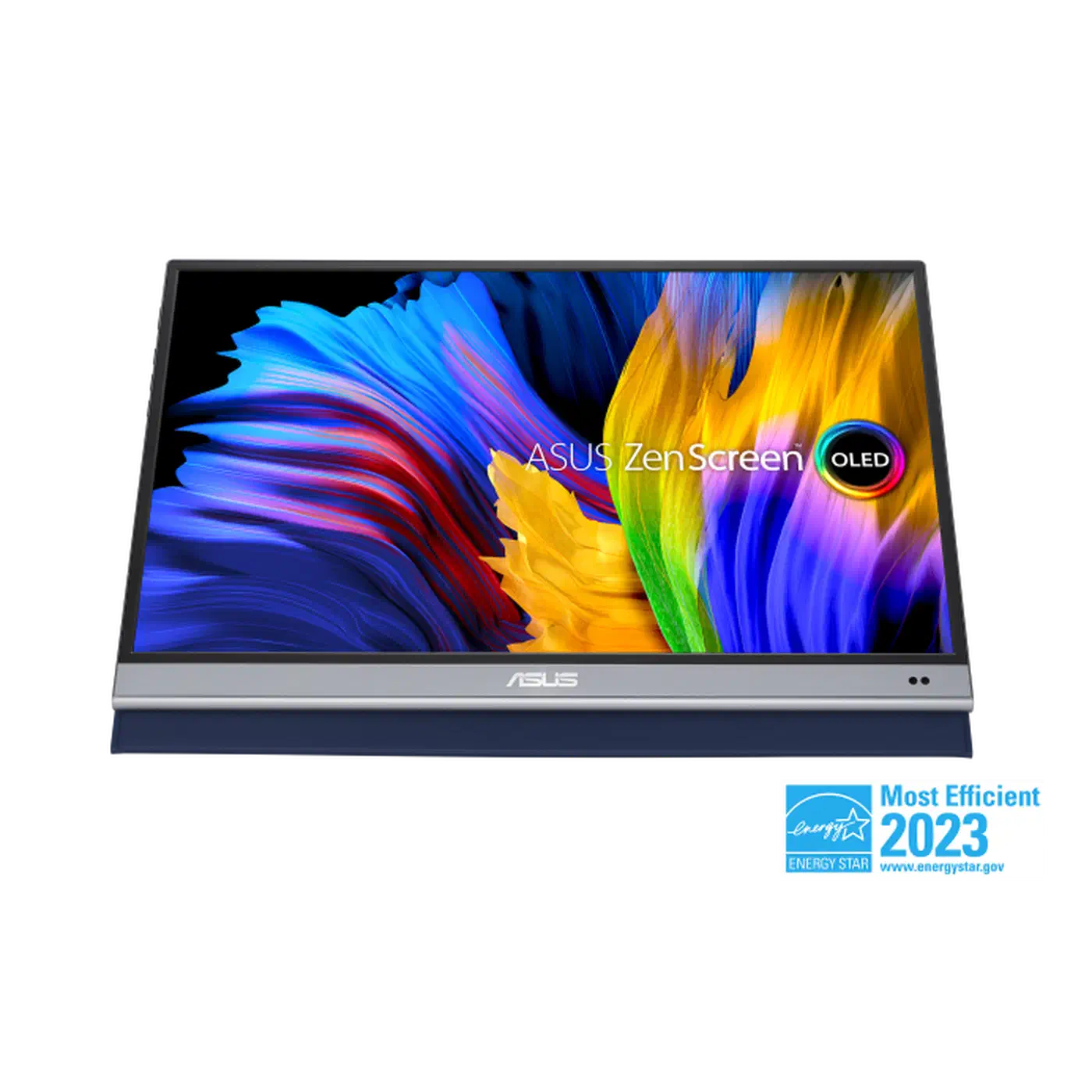
The burn-in caveat still applies. Use it as a second monitor for reading and docs, not as your main all-day coding screen, and turn on screen blanking.
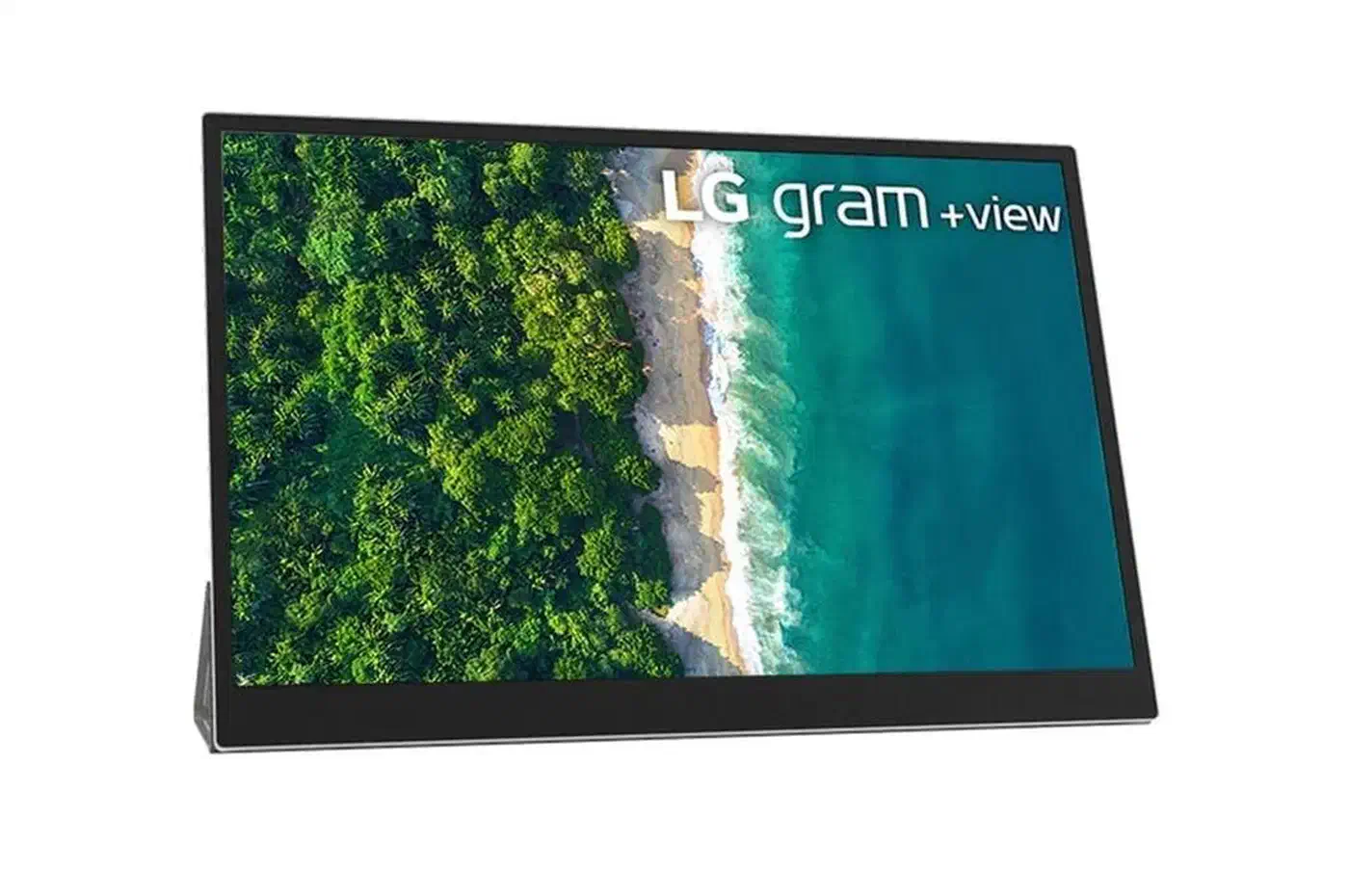
High-Resolution Pick (1440p): LG Gram+View 16MQ70
The LG Gram+View 16MQ70 hits the sweet spot for CLI developers. You get 2560x1600 at 16 inches, an IPS matte panel at 60Hz, and a 16:10 aspect ratio with real vertical room. At 217 PPI, text is truly sharp. It looks like a good laptop display at HiDPI scaling. A single USB-C port at 60W PD handles most thin-and-light laptops.
IPS means no burn-in worry, even brightness, and proven longevity. At about $280 to $320, it’s the highest-value pick for developers who want a fixed second-monitor setup in a portable shell.
Ultralight Travel Pick: ESPRESSO Display V2
The ESPRESSO Display V2 is 13.3 inches at 1080p with a magnetic attachment that snaps to many laptop lids. At under 400g, it’s the lightest option with decent build quality. The magnet is the real win. No stand to fuss with, just snap it on and plug in the cable.
The trade-offs are simple. 13.3 inches is small for serious coding. Pixel density is okay but not exceptional. The proprietary mount only works with compatible cases. Pick it when travel weight wins over display quality.
Linux Compatibility and Terminal Setup
HiDPI Scaling on Wayland
The LG Gram+View’s 2560x1600 resolution needs careful scaling on Linux. On Wayland compositors like Sway, GNOME, and KDE Plasma, you can set fractional scaling per monitor:
GNOME (Wayland):
gsettings set org.gnome.mutter experimental-features "['scale-monitor-framebuffer']"
# Then set 150% scaling in Settings > Displays
Sway:
output DP-1 scale 1.5KDE Plasma: Set per-display scaling in System Settings > Display Configuration. KDE handles fractional scaling more cleanly than GNOME in 2026. You’ll see less blurring on XWayland apps.
Avoid fractional scaling on X11 if you can. It applies one global scale to every monitor, and non-native scale factors look blurry.
Color Profile Calibration
If you want accurate terminal colors that match the syntax highlighting in your laptop’s PR view, calibrate the monitor’s color profile. Use DisplayCAL with a cheap colorimeter like the X-Rite i1Display. GNOME and KDE can load the ICC profile, or you can apply it by hand with xcalib:
xcalib ~/.local/share/icc/portable-monitor.iccTerminal Configuration for High DPI
# Alacritty config (~/.config/alacritty/alacritty.toml)
[font]
size = 13.0

[font.normal]
family = "JetBrainsMono Nerd Font"
style = "Regular"
The two leading GPU-rendered terminals both handle HiDPI scaling out of the box on Wayland. Nerd Fonts are a must for terminal workflows that use Starship, Neovim with nvim-tree, or any tool that renders glyphs. Download and install the JetBrainsMono Nerd Font variant for the best results on high-DPI displays.
Font rendering tip: on a high-DPI matte IPS panel, subpixel hinting (hintslight or hintsfull) may or may not help. It depends on the subpixel layout. Try a few fontconfig settings and keep whichever looks sharper on your panel.
Stand and Portability Considerations
Stand quality swings wildly and is often the worst thing about an otherwise good portable monitor. ARZOPA and similar budget panels use a folding cover-stand that wobbles at wide angles. Fine on a flat desk, frustrating on anything else. The LG Gram+View has a built-in kickstand on the back. It’s stable but limits your angle choices. Third-party stands from brands like Omoton or Vivo offer better adjustability at $25 to $40 and work with any monitor.
Some portable monitors include a battery. The Viewsonic TD1655 ships with a 7800mAh cell. They’re worth a look for truly cable-free setups, such as presentations, field work, or sites with no power outlets. You pay in weight and price, but you drop the dependency on your laptop’s USB-C PD.