 Botmonster Tech
Split-pane Markdown editor in 100 lines JS

This post is open for corrections. Highlight any line of text to challenge it or ask for a clearer explanation and leave a comment.
You can build a fully working Markdown editor with synchronized live preview using a <textarea> for input, the marked library for parsing, and a debounced input event listener that re-renders on every keystroke. The whole thing fits in under 100 lines of vanilla JavaScript and CSS, with no build tools, no framework, and no npm install. One index.html file, one CDN script tag, double-click to open in a browser, and you are writing Markdown with a rendered preview next to your cursor.
Why Build Your Own?
There are dozens of free Markdown editors already out there: StackEdit, Dillinger, HackMD, Obsidian, Typora. They all work fine. The reason to write your own is that the exercise teaches you how the pieces fit together. You touch the DOM directly, wire up an event listener by hand, learn what debouncing does by hitting the problem it solves, and find out that a third-party library can be loaded with a single script tag instead of an entire toolchain.
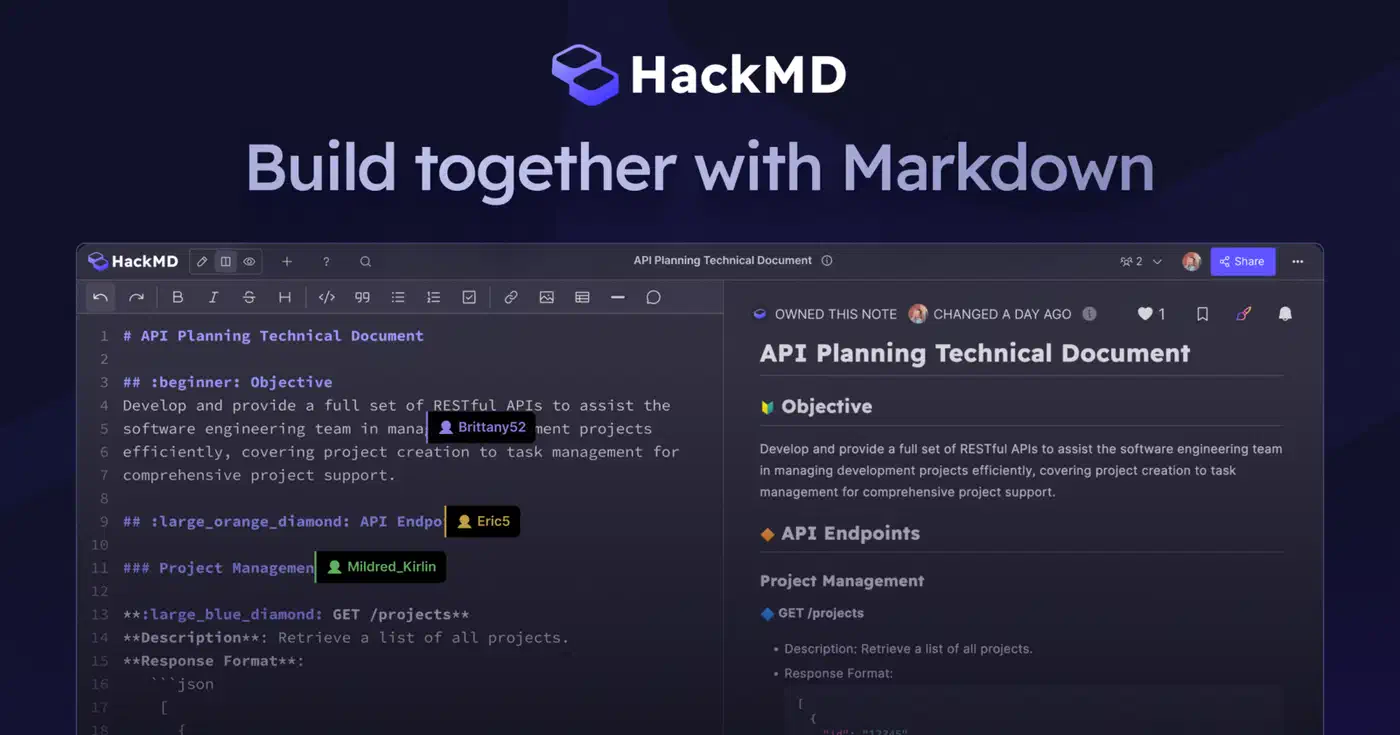
The finished product is a split-pane editor: Markdown text on the left, rendered HTML on the right, both updating in real time as you type. Resize the window and the panes flow with it. Type a heading and watch it appear formatted on the other side within 150ms. Close the tab and your draft survives because it’s saved to local storage. All of that lives inside a single HTML file you can email to yourself.
A few things are missing from this build to keep it under the line budget. There is no syntax highlighting inside the textarea, because that requires a proper editor like CodeMirror or Monaco and adds anywhere from 300 KB to 5 MB depending on which one you pick. There are no file save/load dialogs, no formatting toolbar, no keyboard shortcuts. Each of those is useful, and each of those would derail the main point: a Markdown editor is mostly just a textarea, a parser, and an event listener.
| Feature | This Build | StackEdit | HackMD | Obsidian |
|---|---|---|---|---|
| File size | ~3 KB + CDN | ~2 MB | Web app | ~150 MB |
| Build tools | None | Webpack | Next.js | Electron |
| Offline | Yes | Yes (PWA) | Limited | Yes |
| Live preview | Yes | Yes | Yes | Optional |
| Syntax highlighting in editor | No | Yes | Yes | Yes |
| Lines of code (this implementation) | ~95 | tens of thousands | tens of thousands | hundreds of thousands |
The HTML Structure
The entire layout is fifteen lines. There is no header, no footer, no navigation, no logo. Everything that exists has a job.
<!DOCTYPE html>
<html lang="en">
<head>
  <meta charset="UTF-8">
  <meta name="viewport" content="width=device-width, initial-scale=1.0">
  <title>Markdown Editor</title>
  <link rel="stylesheet" href="style.css">
</head>
<body>
  <div class="editor">
    <textarea id="input" placeholder="Type Markdown here..."></textarea>
    <div id="preview"></div>
  </div>
  <script src="https://cdn.jsdelivr.net/npm/marked/lib/marked.umd.js"></script>
  <script src="app.js"></script>
</body>
</html>
The container is a flex parent. Inside it sit two children: a textarea where the user types, and a div where rendered HTML appears. The marked UMD bundle loads from jsDelivr. You could pin a specific version with marked@18.0.0 if you want reproducibility, or omit it to always get the latest. For a personal tool I usually omit it.

If you want to keep things to a single file, drop the CSS into a <style> tag in the head and the JavaScript into a <script> tag at the bottom. You will end up with one self-contained index.html you can open with a double-click.
The CSS Layout
The CSS is what makes this feel like an editor instead of a school assignment. Twenty-five lines of flexbox, typography, and a media query for dark mode.
* { box-sizing: border-box; margin: 0; padding: 0; }

body { font-family: system-ui, sans-serif; }

.editor {
  display: flex;
  height: 100vh;
  gap: 1px;
  background: #ddd;
}

#input, #preview {
  flex: 1;
  padding: 1.5rem;
  background: #fff;
  overflow-y: auto;
}

#input {
  border: none;
  outline: none;
  font-family: ui-monospace, monospace;
  font-size: 15px;
  line-height: 1.6;
  resize: none;
}

#preview h1, #preview h2, #preview h3 { margin: 1rem 0 0.5rem; }
#preview p, #preview ul, #preview ol { margin: 0.5rem 0; line-height: 1.6; }
#preview pre { background: #f4f4f4; padding: 1rem; border-radius: 4px; overflow-x: auto; }
#preview code { font-family: ui-monospace, monospace; font-size: 0.9em; }
#preview blockquote { border-left: 4px solid #ddd; padding-left: 1rem; color: #666; }

@media (prefers-color-scheme: dark) {
  body, #input, #preview { background: #1e1e1e; color: #e8e8e8; }
  .editor { background: #333; }
  #preview pre { background: #2a2a2a; }
}

@media (max-width: 768px) {
  .editor { flex-direction: column; }
}
The 1px gap between flex children, combined with a #ddd background on the parent, draws a visible divider line without any extra DOM elements. Setting resize: none on the textarea kills that little drag handle in the bottom-right corner. The dark mode block swaps two colors and stops there, with no toggle button or localStorage flag, because the OS already knows what the user prefers. The 768px breakpoint stacks the panes vertically so the editor is usable on a phone in landscape.
The preview styles match what most people expect from a clean GitHub-style render: tight spacing, monospace code blocks on a light gray background, blockquotes with a left border. You can spend an afternoon tuning this to taste, but the version above looks good enough that you probably won’t bother.
The JavaScript Logic
Here is the core of the editor. About thirty lines, most of which are the debounce helper.
const input = document.getElementById('input');
const preview = document.getElementById('preview');

function debounce(fn, ms) {
  let timer;
  return (...args) => {
    clearTimeout(timer);
    timer = setTimeout(() => fn(...args), ms);
  };
}

const render = debounce(() => {
  const html = marked.parse(input.value);
  preview.innerHTML = html;
  localStorage.setItem('md-draft', input.value);
}, 150);

input.addEventListener('input', render);

// Restore draft from previous session
const saved = localStorage.getItem('md-draft');
if (saved) {
  input.value = saved;
}
render();
Grab the two elements, define a debounce, wrap the render function in it, attach the listener, restore any saved draft from a previous session, and call render() once on page load so the preview is populated immediately. That last call matters more than it looks. Without it, the user sees a blank preview pane until they type their first character, which feels broken even though it isn’t.
The debounce earns its keep here. Without it, every keystroke triggers a full Markdown parse and a full HTML reflow. For a short document that’s fine, but once you cross a few hundred lines the parse takes a noticeable fraction of a frame and typing feels sticky. With a 150ms debounce, the parse only fires when you pause - which for most people happens between every couple of words. The preview lags by a tenth of a second, which is well under the threshold where humans perceive the delay as latency.
About safety: marked does not sanitize its output. If you paste raw HTML containing a <script> tag into the textarea, it will execute when the preview re-renders. For a personal tool running on your own machine, that behavior is harmless and sometimes useful; you might want to inline an HTML snippet to see how it looks. For anything that accepts input from other people, pipe the output through DOMPurify before assigning it to innerHTML. The change is one line: preview.innerHTML = DOMPurify.sanitize(marked.parse(input.value)); plus a second CDN script tag.
Synchronized Scrolling
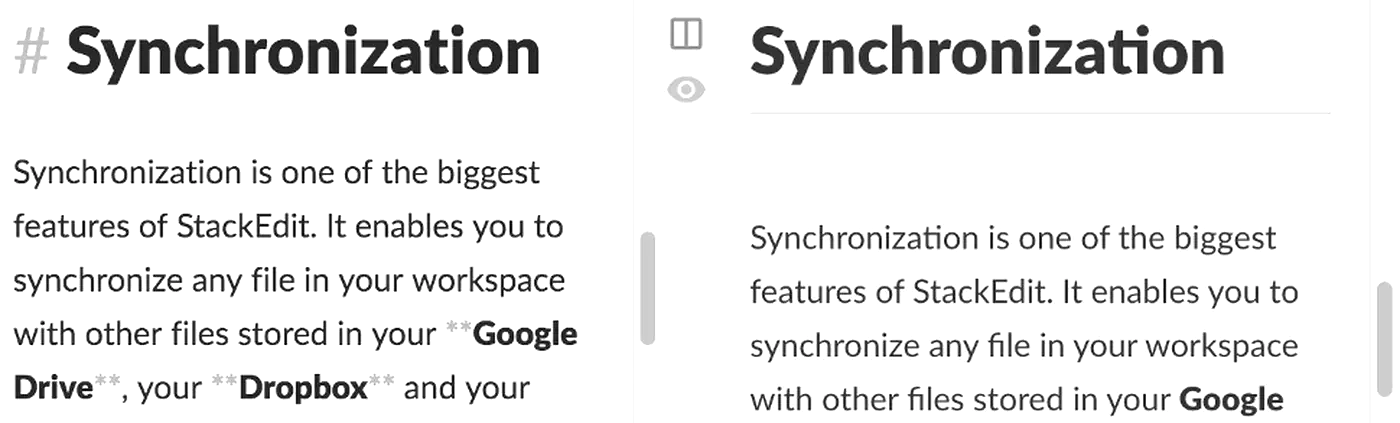
Synced scrolling is the feature that takes this from a toy demo to something I actually use. When you scroll the textarea, the preview should scroll to roughly the same place. The naive approach works surprisingly well: calculate the scroll percentage on the input side, then apply the same percentage to the preview side.
input.addEventListener('scroll', () => {
  const ratio = input.scrollTop / (input.scrollHeight - input.clientHeight);
  preview.scrollTop = ratio * (preview.scrollHeight - preview.clientHeight);
});
Five lines. The result is imperfect: if your Markdown renders to a much taller HTML document because of expanded tables or images, the alignment drifts as you move down the page. For typical prose, where input and output have similar lengths, it works well enough that you stop noticing.
If you want bidirectional sync (scrolling the preview also scrolls the input), add a flag to prevent the two listeners from firing each other in a loop:
let scrolling = false;
function syncFrom(src, dst) {
  if (scrolling) return;
  scrolling = true;
  const ratio = src.scrollTop / (src.scrollHeight - src.clientHeight);
  dst.scrollTop = ratio * (dst.scrollHeight - dst.clientHeight);
  requestAnimationFrame(() => { scrolling = false; });
}
input.addEventListener('scroll', () => syncFrom(input, preview));
preview.addEventListener('scroll', () => syncFrom(preview, input));
The requestAnimationFrame reset prevents infinite loops while still allowing legitimate scrolls to fire on the next frame.
Enhancements That Still Fit
There are about fifteen lines of headroom left in the 100-line budget. Here are the four additions I’d spend them on, ranked by how much they improve the day-to-day experience.
Tab key support comes first. By default, hitting Tab in a textarea moves focus to the next element on the page, which is the wrong behavior for an editor. You want a tab character, or two spaces, or four. Five lines fix it:
input.addEventListener('keydown', (e) => {
  if (e.key !== 'Tab') return;
  e.preventDefault();
  const start = input.selectionStart;
  input.setRangeText('  ', start, input.selectionEnd, 'end');
});
Trapping Tab inside the textarea has a cost: keyboard-only users can no longer tab out of the field. If you ship this on the public web, add an escape route like Escape-then-Tab and read up on keyboard navigation and ARIA for accessible forms first.
GitHub Flavored Markdown is the next big win and only costs a single line. Add marked.use({ gfm: true, breaks: true }); at the top of the script and you get tables, task lists, strikethrough, and autolinks. The breaks: true flag converts single newlines into <br> tags, which matches how most chat apps render Markdown and is usually what you want.
A word and character counter takes about three lines. Add a small footer element and update it inside the render function:
const words = input.value.trim().split(/\s+/).filter(Boolean).length;
const chars = input.value.length;
document.getElementById('stats').textContent = `${words} words, ${chars} chars`;
A copy-HTML button is the last addition. Drop a <button id="copy"> somewhere in the layout and wire it up to the clipboard API:
document.getElementById('copy').addEventListener('click', () => {
  navigator.clipboard.writeText(preview.innerHTML);
});
Add all four and you are still under 100 lines. The publishing half fits in a similar budget: a Python blog engine in 100 lines turns those files into a site. The result is something I have caught myself reaching for instead of a heavier editor when I just want to scribble notes or draft a blog post without any ceremony.
Where to Go From Here
The 100-line version is the starting point, and the next steps depend on what you want to do with it. For long technical documents, swap the textarea for CodeMirror 6 to get syntax highlighting in the editor pane; budget about 300 KB and a few dozen lines of setup. To share the editor with other people on the public web, add DOMPurify and host the file on Netlify or Cloudflare Pages, both of which have free tiers that cost nothing for a static page. For offline use on a phone, add a manifest file and a service worker, and the editor becomes a PWA you can install to the home screen.
Drag-and-drop file loading takes another fifteen lines: listen for drop on the body, read the dropped file with FileReader, and dump its contents into the textarea. Keyboard shortcuts for bold and italic (Ctrl+B and Ctrl+I, wrapping the selection in ** or _) take another ten. Image embedding via base64 is more involved because you need to handle the file upload and the conversion, but it still fits in under fifty lines.
The point of the whole exercise is that the 100-line limit isn’t holding you back. Every line you add is a line you have to maintain, debug, and explain to your future self. Every dependency is something that can break, ship a CVE, or change its API on the next major version. A small, single-file editor that works in 2026 the same way it will in 2036 is more useful than a sprawling framework-driven app that needs a package.json overhaul every six months. Build the small version first. You may find you never want the big one.