 Botmonster Tech
Local meeting transcription on Linux with Whisper and Ollama
Local meeting transcription on Linux needs four free parts. PipeWire captures the call, Faster-Whisper transcribes it on your GPU, and pyannote labels who spoke. Then an Ollama model writes notes with the decisions and action items. No bot joins the call, and no audio or data leaves your machine.
Key Takeaways
- Record your mic and the call on separate stereo channels, and you know which lines are yours before any AI model runs.
- Whisper
turbohas 809M parameters and needs about 6GB of VRAM. - Faster-Whisper transcribed 13 minutes of audio in 17 seconds on an RTX 3070 Ti in batched mode.
- Ollama gives a 4k context window on GPUs under 24 GiB, so a long transcript gets cut unless you raise it.
- The popular local apps target macOS and Windows, so on Linux you build it or use WhisperX.
A hosted AI meeting assistant like Otter, Fireflies or Read AI sends your meeting audio to its servers. Even Granola, which captures device audio with no bot, needs the internet to transcribe. Your recordings, transcripts and notes then live under someone else’s data and privacy policy, and their AI vendors process them. For product plans, HR or legal talk, that is a hard no for many teams. Local meeting transcription keeps all of that data on your own disk.
Local meeting transcription apps vs building your own
Before you build anything, check whether a ready app covers your OS. Here is how the main free and open source local meeting transcription tools compare:
| Tool | Platforms | Runs offline | Open source | Notes |
|---|---|---|---|---|
| Meetily | macOS, Windows | Yes | Yes (MIT) | Whisper or Parakeet speech engine, local LLM or your own API key for summaries |
| Anarlog (formerly Hyprnote) | Apple Silicon Macs | Yes | Yes | Bot-free notepad, stores notes in a local SQLite file |
| Granola | macOS, Windows, iOS | No | No | Bot-free capture, but cloud transcription and paid tiers |
| Whispering | macOS, Windows, Linux | With local models | Yes | Dictation first, push-to-talk, not a meeting recorder |
| WhisperX | Any OS with Python | Yes | Yes | Command-line tool: Whisper plus word timing plus speaker labels |
| This build | Linux | Yes | Yes (your own script) | PipeWire capture, any Whisper model, any Ollama model for the AI notes |
Linux users get the short end. Meetily ships for macOS and Windows, Anarlog for Apple Silicon, and Whispering is a dictation tool. That leaves WhisperX for recorded meeting files, or the pipeline below for live calls. Building it yourself also means you pick every AI model, and no app update can change where your meeting data goes.
Capturing meeting audio on Linux
Clean meeting audio capture is the first job. Fedora 41+, Ubuntu 24.04+ and Arch ship PipeWire as the default sound server, and it speaks the PulseAudio protocol. So plain ffmpeg can record any device by name.
You want two inputs: your mic, and the “monitor” of your speakers, which holds what the other people in the meeting say. Capture them as two channels of one file:
MIC="$(pactl get-default-source)"
CALL="$(pactl get-default-sink).monitor"
ffmpeg -f pulse -ac 1 -ar 16000 -i "$MIC" \
       -f pulse -ac 1 -ar 16000 -i "$CALL" \
       -filter_complex amerge=inputs=2 meeting.wav
The left channel is you. The right channel is everyone else on the meeting. Run Whisper on each channel and every transcript line already carries a “me” or “them” tag, with no AI speaker model at all. For one-on-one calls, that is the whole diarization job.
Pull a channel out as mono when you need it:
ffmpeg -i meeting.wav -af "pan=mono|c0=c0" me.wav
ffmpeg -i meeting.wav -af "pan=mono|c0=c1" them.wav
Whisper works at 16kHz mono, which is why the capture sets -ar 16000. If you record at 48kHz, Faster-Whisper resamples for you, at a small cost in speed.
Bluetooth headsets need care. The A2DP profile sounds good, but it turns the mic off. You need HFP/HSP, which drops audio to 16kHz but turns the mic on. WirePlumber can switch for you with bluez5.autoswitch-profile = true, or you can force it with bluetoothctl.
Before you hit record, tell people. Some US states and many countries require every party to agree before a call is recorded.
Local transcription with Whisper
Two free local transcription tools are worth a look: Faster-Whisper, built on CTranslate2, and whisper.cpp. Both run the same OpenAI models.
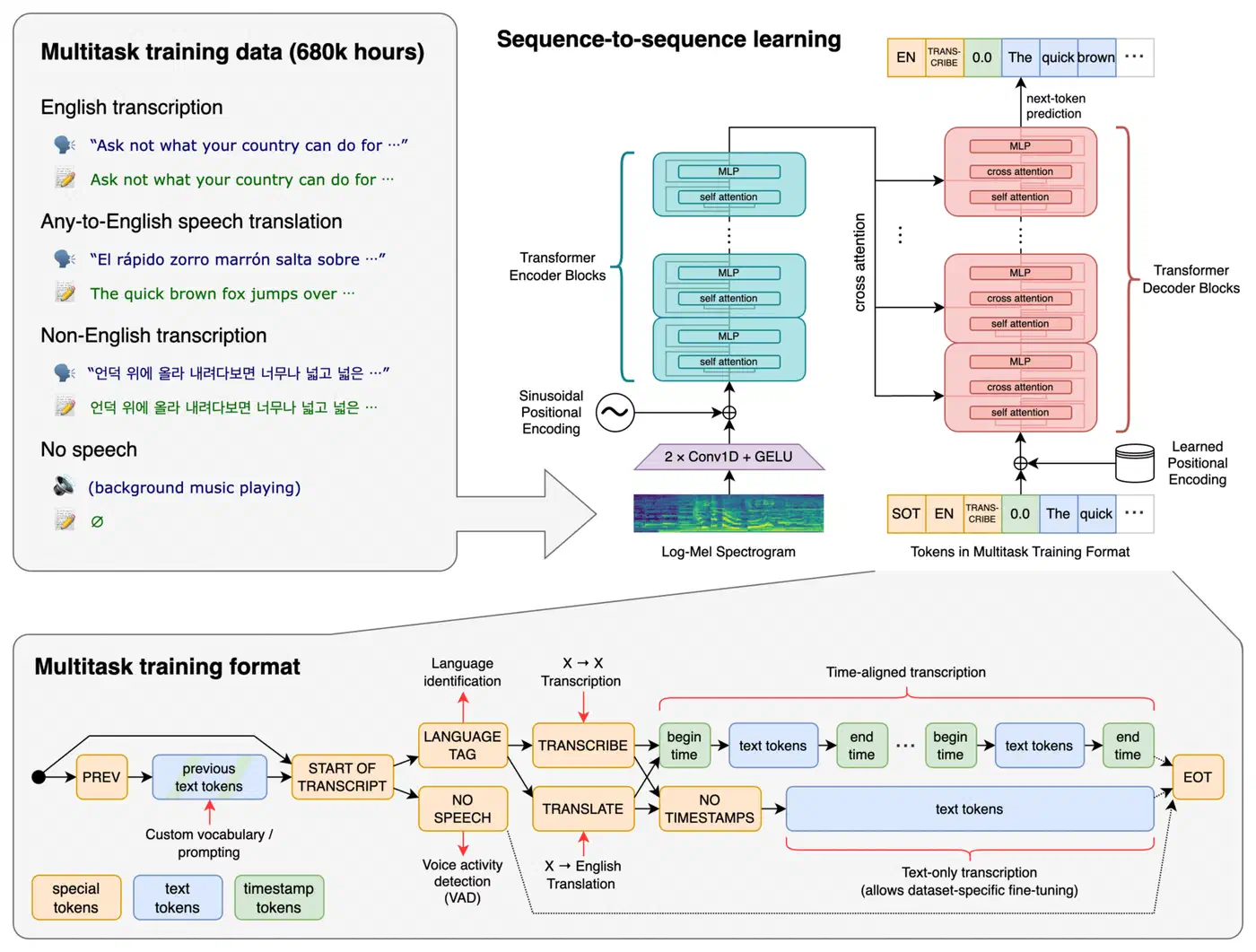
Here are the official model sizes. VRAM is for the reference PyTorch code, and speed is relative to large:
| Model | Parameters | VRAM | Relative speed | Best for |
|---|---|---|---|---|
turbo (large-v3-turbo) | 809M | ~6GB | ~8x | Best default: near-large accuracy, many languages |
large-v3 | 1550M | ~10GB | 1x | Hardest audio, and translation, which turbo skips |
medium.en | 769M | ~5GB | ~2x | English only, mid-range GPUs |
small.en | 244M | ~2GB | ~4x | CPU boxes and clear audio |
For local meeting transcription, Faster-Whisper cuts the memory and time further. On 13 minutes of audio with large-v2 on an RTX 3070 Ti 8GB, the stock OpenAI code takes 2m23s. Faster-Whisper takes 1m03s in fp16, and 17 seconds with batch_size=8. On CPU, the small model on an Intel i7-12700K with 8 threads takes 1m42s in int8. whisper.cpp does it in 2m05s at fp32 and used the least RAM.
Always turn on voice activity detection (VAD). Faster-Whisper ships the Silero VAD model, which skips silent stretches. That saves time on meetings full of muted mics, and it stops Whisper from making up transcript text during silence:
from faster_whisper import WhisperModel

model = WhisperModel("turbo", device="cuda", compute_type="float16")
segments, info = model.transcribe(
    "them.wav",
    language="en",
    vad_filter=True,
    vad_parameters=dict(min_silence_duration_ms=500),
)
GPU mode needs cuBLAS and cuDNN 9 for CUDA 12. Older CUDA setups need an older ctranslate2.
For live captions, chunk audio into 30-second pieces with a 5-second overlap, and merge the results. The overlap stops words from being cut in half at the edges.
Whisper speaker diarization
On a group call, the “them” channel holds many voices, so you need a speaker model. pyannote is the standard. Its current open model is community-1, and it beats the older 3.1 pipeline on AMI, DIHARD 3 and CALLHOME, with a tie on VoxConverse. On the AMI meeting set, its diarization error rate (DER) is 17.0%, against 18.8% for 3.1. On an H100 it handles an hour of audio in about 31 seconds.
from pyannote.audio import Pipeline

diarization = Pipeline.from_pretrained(
    "pyannote/speaker-diarization-community-1",
    token="YOUR_HF_TOKEN",
)
result = diarization("them.wav")

for turn, _, speaker in result.itertracks(yield_label=True):
    print(f"[{turn.start:.1f}s - {turn.end:.1f}s] {speaker}")
You first accept the model’s terms on Hugging Face and make an access token. The output labels are SPEAKER_00, SPEAKER_01 and so on. You map them to names by hand, or with voice profiles you build over time.
If you would rather not glue it yourself, WhisperX bundles the steps. It runs Faster-Whisper, aligns each word to a timestamp, and calls pyannote, all in one command:
whisperx meeting.wav --model large-v3 --diarize --hf_token YOUR_HF_TOKENAI meeting notes with a local LLM
A raw meeting transcript is a fine reference, but nobody wants to scroll 12,000 words to find one decision. A local AI model turns the transcript into structured meeting notes: a summary, the decisions, and who owns each action item.
Ollama serves local models with little setup. For dense technical talk, Llama 3.3 70B in Q4_K_M (llama3.3:70b, a 43GB download) gives the best notes. On a smaller box, llama3.1:8b (about 5GB) still does fine on plain standups.
Llama 3.3 accepts 128K tokens, but Ollama does not give it that much by default. Ollama’s default context is 4k tokens below 24 GiB of VRAM, 32k between 24 and 48 GiB, and 256k above that. A 90-minute meeting transcript at 120 to 150 words a minute is 11,000 to 13,500 words. At roughly 0.75 words per token, that is 15,000 to 18,000 tokens. On a 16GB card, most of the meeting falls outside the window, and the notes miss whatever was cut.
Raise the limit when you start the server:
OLLAMA_CONTEXT_LENGTH=32768 ollama serveOn Ollama’s native API you can also pass num_ctx per request. The OpenAI-style /v1 endpoint takes no such option, so the server setting is the safe fix. Bigger windows cost more memory. If it does not fit, split the transcript into 4,000-token chunks with 500 tokens of overlap. Summarize each, then run a “summary of summaries” pass.
The system prompt sets the shape of the AI meeting notes:
You are a meeting note assistant. Given the following transcript,
produce a JSON object with these keys:
- title (string): descriptive meeting title
- date (string): ISO date
- attendees (list): participant names from the transcript
- summary (string): 3-5 sentence overview
- key_decisions (list): decisions made during the meeting
- action_items (list of objects): each with assignee, task, deadline
- follow_ups (list): items requiring future discussion
Ollama can hold the model to a JSON schema on its own. Pass a Pydantic schema in format and the reply must match it:
from ollama import chat
from pydantic import BaseModel

class ActionItem(BaseModel):
    assignee: str
    task: str
    deadline: str | None

class MeetingNotes(BaseModel):
    title: str
    summary: str
    key_decisions: list[str]
    action_items: list[ActionItem]

response = chat(
    model="llama3.3:70b",
    messages=[
        {"role": "system", "content": SYSTEM_PROMPT},
        {"role": "user", "content": transcript_text},
    ],
    format=MeetingNotes.model_json_schema(),
    options={"temperature": 0.1, "top_p": 0.9, "num_ctx": 32768},
)
notes = MeetingNotes.model_validate_json(response.message.content)
The Instructor library does the same over the /v1 endpoint and adds retries when the JSON fails to validate.
Keep temperature at 0.1 and top_p at 0.9. Low values give stable, factual notes. Leave repeat_penalty at its default too. Meetings repeat phrases by nature, and a penalty makes the model drop real content.
Building the end-to-end pipeline
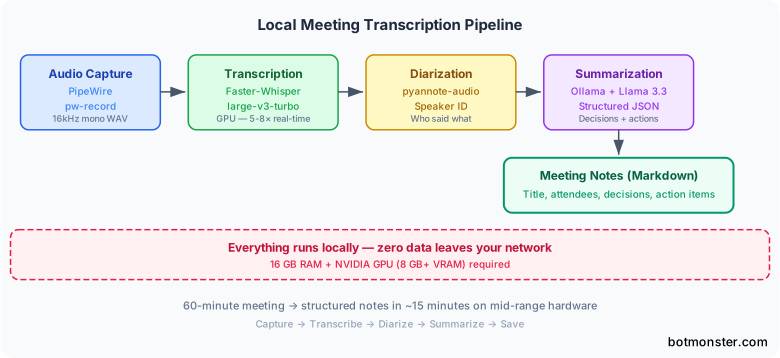
With each piece working, wire them into one local meeting transcription script. You start it when a meeting begins and forget it until the meeting notes show up.
#!/usr/bin/env python3
"""meeting_notes.py - Local meeting transcription and summarization."""

import subprocess
import signal
from pathlib import Path
from datetime import datetime

NOTES_DIR = Path.home() / "meeting-notes"
NOTES_DIR.mkdir(exist_ok=True)

class MeetingRecorder:
    def __init__(self):
        self.recording_process = None
        self.audio_file = NOTES_DIR / f"raw_{datetime.now():%Y%m%d_%H%M}.wav"

    def start_recording(self):
        mic = subprocess.check_output(["pactl", "get-default-source"], text=True).strip()
        sink = subprocess.check_output(["pactl", "get-default-sink"], text=True).strip()
        cmd = [
            "ffmpeg", "-f", "pulse", "-ac", "1", "-ar", "16000", "-i", mic,
            "-f", "pulse", "-ac", "1", "-ar", "16000", "-i", f"{sink}.monitor",
            "-filter_complex", "amerge=inputs=2", str(self.audio_file),
        ]
        self.recording_process = subprocess.Popen(cmd)
        subprocess.run(["notify-send", "Meeting Recorder", "Recording started"])

    def stop_recording(self):
        if self.recording_process:
            self.recording_process.send_signal(signal.SIGINT)
            self.recording_process.wait()
            subprocess.run(["notify-send", "Meeting Recorder", "Recording stopped"])

    def transcribe(self):
        ...

    def summarize(self, transcript):
        ...

    def save_notes(self, notes):
        slug = notes.title.lower().replace(" ", "-")[:50]
        output = NOTES_DIR / f"{datetime.now():%Y-%m-%d}-{slug}.md"
        ...
Press Ctrl+C (or send SIGINT) and ffmpeg closes the file cleanly. The script then transcribes each channel, runs diarization on the “them” side, calls the LLM and writes a Markdown file named {date}-{title-slug}.md, with the structured fields in YAML frontmatter.
Desktop integration
For daily use, make a .desktop file and bind it to a key like Super+M. A PID file toggles recording on and off:
#!/bin/bash
PIDFILE="/tmp/meeting-recorder.pid"
if [ -f "$PIDFILE" ] && kill -0 "$(cat "$PIDFILE")" 2>/dev/null; then
    kill -INT "$(cat "$PIDFILE")"
    rm "$PIDFILE"
else
    python3 ~/scripts/meeting_notes.py &
    echo $! > "$PIDFILE"
fi
The notify-send calls confirm start and stop, so you get feedback without switching windows.
Systemd service for automatic recording
For a hands-off setup, a systemd user service can watch PipeWire for new streams from meeting apps:
[Unit]
Description=Meeting Transcriber Auto-Detect

[Service]
ExecStart=/usr/bin/python3 %h/scripts/meeting_monitor.py
Restart=always

[Install]
WantedBy=default.target
The monitor script polls pactl list sink-inputs for Zoom, Teams or a browser tab running Google Meet. It starts recording when one shows up and kicks off the pipeline when it goes away.
Resource management
Check free VRAM before you load a model, and fall back to a smaller one rather than crash:
import subprocess

def get_free_vram_mb():
    result = subprocess.run(
        ["nvidia-smi", "--query-gpu=memory.free", "--format=csv,noheader,nounits"],
        capture_output=True, text=True
    )
    return int(result.stdout.strip())

model_name = "turbo" if get_free_vram_mb() > 6000 else "small.en"
Free the Whisper model before the LLM loads, so the two never fight over the same VRAM.
Accuracy optimization and troubleshooting
Default settings work on clean audio, but meeting audio is rarely clean, and transcript errors flow straight into the AI summary. Noise, crosstalk, bad mics and jargon all hurt.
The biggest win is seeding your own terms. Pass an initial prompt with the names and words your meetings use:
segments, info = model.transcribe(
    "them.wav",
    initial_prompt="Meeting about Kubernetes deployment, ArgoCD, Helm charts, gRPC services, PostgreSQL replication"
)
This biases Whisper toward those terms, so it stops picking close-sounding wrong words. Set language="en" (or your language) too. Auto-detect only listens to the first 30 seconds, and it guesses wrong when people open with jargon or switch languages.
For loud rooms, clean the audio first with the noisereduce Python library:
import noisereduce as nr
import soundfile as sf

audio, sr = sf.read("meeting_raw.wav")
reduced = nr.reduce_noise(y=audio, sr=sr)
sf.write("meeting_clean.wav", reduced, sr)
For echo from a speakerphone, speexdsp does echo cancellation before Whisper sees the audio.
Common problems and fixes:
- Looping or phantom text in silence: turn on VAD. Without it, Whisper fills quiet gaps with made-up phrases.
- Garbled names and acronyms: add them to
initial_prompt. Whisper gets “John” right but needs hints for “Janek” or “RBAC”. - Your words show up as theirs: your mic is picking up the speakers. Wear headphones, so the two captured channels stay apart.
- Timestamp drift: cut the chunk overlap in a streaming setup. Too much overlap makes duplicate segments that shift the clock.
Test the transcription tool before you trust it with real meetings. Transcribe a recording you have typed out by hand, and compute the word error rate (WER) with the jiwer library. A sane goal is under 10% WER on clean audio and under 15% on noisy group calls. If you land above that, work through the fixes above.
Local meeting transcription FAQ
How can I transcribe a meeting without a bot?
Record your own computer’s audio instead of inviting a bot. The ffmpeg command above captures your mic and the call output, and it works with any app: Zoom, Teams, Meet in a browser, or a phone bridge. Nobody on the call sees a recorder join, and the data stays on your disk.
Is Whisper audio transcription free?
Yes. Whisper’s code and weights are MIT licensed, and Faster-Whisper, whisper.cpp and pyannote are free too. Running them on your own hardware costs nothing beyond power. Paid “Whisper” websites charge for hosting the same model.
What are some open-source AI transcription tools available?
Meetily and Anarlog are free desktop apps that write AI meeting notes, and Whispering is a free dictation tool. WhisperX, whisper.cpp and Faster-Whisper are engines you script yourself, and pyannote adds speaker labels. On Linux, those engines plus a short script are the most complete free option.
Where to go from here
Once the pipeline works, extend it. Push action items to a task manager like Vikunja through its API. Post the summary to your team’s Slack channel with a webhook. Or drop the Markdown file into an Obsidian vault so it joins your searchable notes. For recurring team standups, a small name map turns SPEAKER_00 into real names without manual work. The same local Whisper stack can front a voice interface too: Voicebox turns your voice into system-wide dictation and hands coding agents a voice over MCP.
Setup takes an afternoon and a machine with a decent GPU. After that, every meeting ends with a private transcript and structured notes you did not have to type.