 Botmonster Tech
Code interpreter with Ollama and Docker: unlimited, private

You can build a fully local, sandboxed code interpreter agent. You pair Ollama (running a reasoning model such as Scout, the smallest Llama 4 variant, or DeepSeek R1) with a Docker container that runs the generated Python code. The agent sends a prompt to the local LLM, which writes Python. That code goes into a locked-down container with no network and strict limits. The output feeds back to the LLM so it can fix and retry. The whole loop runs on your machine with zero cloud calls.
Below is the full architecture: Ollama model selection, Docker sandbox hardening, and the Python orchestrator script that ties it together. This build wires the loop by hand, but self-hosted agent frameworks automate the same orchestration once you outgrow a single script.
Why Run a Code Interpreter Locally Instead of Using ChatGPT
ChatGPT’s Code Interpreter (now called Advanced Data Analysis) is handy, but it has real limits for serious work. The runtime times out after about 10 minutes. The filesystem does not persist between sessions. You cannot use a GPU. Many pip packages are blocked. And every byte you upload leaves your machine and lands on OpenAI’s servers.
Running locally flips all of that. You get full control over the runtime, unlimited iteration cycles, and zero data leakage. If you work with proprietary code, internal APIs, or PII-heavy data, that last point alone is worth the setup time.
The cost math is simple too. Ollama running Llama 4 Scout 17B at Q4_K_M quantization costs nothing per query. ChatGPT Plus runs $20 a month, and the GPT-4o API charges about $0.03 per query. If you make hundreds of requests a month, local inference pays for itself fast. That is doubly true if you already own a decent GPU.
A local setup also frees the toolchain. You can mount any directory read-only into the sandbox, install any Python package, and use GPU-accelerated libraries like CuPy or PyTorch. You are not stuck with whatever subset of packages OpenAI chose to pre-install.
Speed holds up too. On an RTX 5070 Ti with 16 GB VRAM you can expect about 30 tokens per second from a 17B model. That makes the loop feel interactive, not sluggish. The model writes a code block in a few seconds, execution takes a fraction of a second for most tasks, and the next round starts right away.
Privacy is the biggest win for some workflows. Think proprietary datasets that cannot leave your network, code that hits internal REST APIs, CSV files full of customer PII, or work that touches trade secrets. With a local agent, none of that data goes anywhere.
Architecture Overview - The Agent Loop
Before you write any code, it helps to know the three parts and how data flows between them.
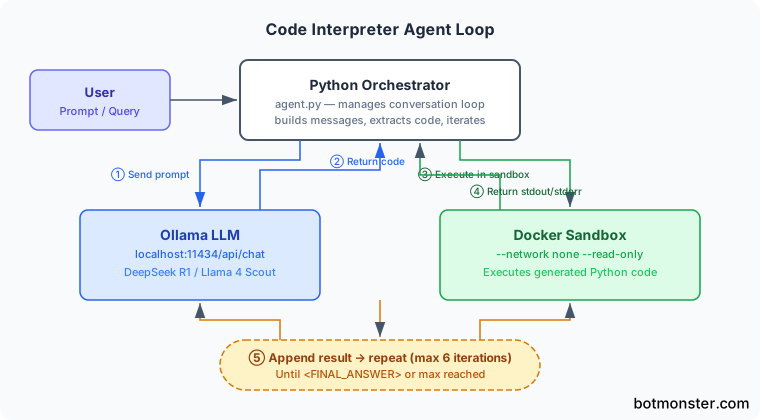
The three parts are:
- A Python orchestrator script on the host. It runs the conversation loop and coordinates the other two parts.
- Ollama serving the LLM via its REST API on
localhost:11434. It handles all code generation and reasoning. - A disposable Docker container for code execution. It is created fresh for each run and destroyed right after.
The loop works like this. The user types a prompt. The orchestrator builds a system prompt plus the user message, then sends a POST request to http://localhost:11434/api/chat. It parses the code block out of the response. It writes that code to a temp file and runs it in a container via docker run. It captures stdout and stderr. Then it appends the result to the conversation history. It repeats until the LLM signals it is done or hits the iteration cap.
For the message format, use Ollama’s chat completion API with a payload like:
{
  "model": "deepseek-r1:14b",
  "messages": [
    {"role": "system", "content": "You are a code interpreter..."},
    {"role": "user", "content": "Analyze this CSV data..."}
  ],
  "stream": false
}
Setting stream to false keeps things simple. The whole response comes back in one JSON blob. If you want real-time token display, set it to true and loop over the streaming chunks.
Set an iteration cap of 5 to 8 rounds. This stops infinite loops where the model keeps writing code that fails the same way. Include the current count in the system prompt so the model knows it needs to converge on a final answer, not explore forever.
For state, keep a conversation list in memory. Each round appends two entries: the assistant’s response with the code block, and a user message with an [EXECUTION RESULT] prefix holding the stdout and stderr. This gives the model full context on what it tried and what happened.
Error handling counts here. If Docker returns a non-zero exit code, put both stdout and the full traceback in the feedback message. The LLM needs the complete error to debug well. A truncated traceback makes the model guess at fixes instead of solving the real problem.
Setting Up Ollama and Choosing the Right Model
Not all local models write equally good code. The model you pick has a big impact on how often the loop succeeds on the first try instead of needing several debug rounds.
Install Ollama on Linux with a single command:
curl -fsSL https://ollama.com/install.sh | shCheck the install with ollama --version. You want v0.6.x or later for the best model support and speed.
Here are the models to use for code interpretation, ranked by code quality:
| Model | Size | VRAM Needed | Strength |
|---|---|---|---|
deepseek-r1:14b | ~8 GB | ~10 GB | Best reasoning and debugging |
llama4-scout:17b | ~10 GB | ~12 GB | Good balance of speed and quality |
qwen3:14b | ~8 GB | ~10 GB | Strong at data analysis tasks |
codellama:34b | ~20 GB | ~22 GB | Best raw code quality (needs 24+ GB VRAM) |
Pull your chosen model:
ollama pull deepseek-r1:14bExpect about 8 GB of download for the Q4_K_M quantized build.
To tune the model for code tasks, create a Modelfile:
FROM deepseek-r1:14b
PARAMETER temperature 0.2
PARAMETER num_ctx 8192
SYSTEM """You are a code interpreter agent. When asked to solve a problem, write Python code wrapped in ```python``` blocks. Use print() for all output you want to see. Write clean, executable code with no placeholders."""
Create the custom model with:
ollama create code-interpreter -f ModelfileThe low temperature (0.2) cuts random variation in the output. That is what you want here: steady, correct code rather than varied but possibly broken tries. The 8192 context window leaves enough room for multi-turn conversations with execution results.
Watch your VRAM. If the model is bigger than your free VRAM, Ollama quietly offloads layers to the CPU. Speed drops from 30 tokens a second to maybe 3 to 5, with no warning. Run nvidia-smi during your first few queries to confirm everything stays on the GPU.
Test the model on its own before you build the full agent:
ollama run code-interpreter "Write a Python script that reads a CSV from stdin and prints summary statistics"Check that it produces clean, ready-to-run code. If the model wraps code in markdown but also mixes chatty text into the code blocks, make the system prompt stricter about output format.
Building the Sandboxed Docker Execution Environment
The Docker container is your security boundary. LLM-generated code is untrusted by default. The model might write code that tries to read /etc/passwd, make network calls, or eat all your memory. A well-configured sandbox blocks all of that.
Start with a minimal Dockerfile:
FROM python:3.12-slim

RUN pip install --no-cache-dir \
    pandas numpy matplotlib scipy requests \
    scikit-learn seaborn

RUN useradd -m -u 1000 sandbox
USER sandbox
WORKDIR /home/sandbox
The --no-cache-dir flag keeps the image lean, under 400 MB even with the data science stack. The non-root sandbox user means that even if the code turns hostile, it has minimal system privileges.
Build the image:
docker build -t code-sandbox:latest .The security flags for docker run are where the real hardening happens:
docker run --rm \
  --network none \
  --read-only \
  --tmpfs /tmp:size=100m \
  --memory 512m \
  --cpus 1.0 \
  --pids-limit 64 \
  --security-opt no-new-privileges \
  -v /tmp/agent_code.py:/code/script.py:ro \
  code-sandbox:latest \
  python /code/script.py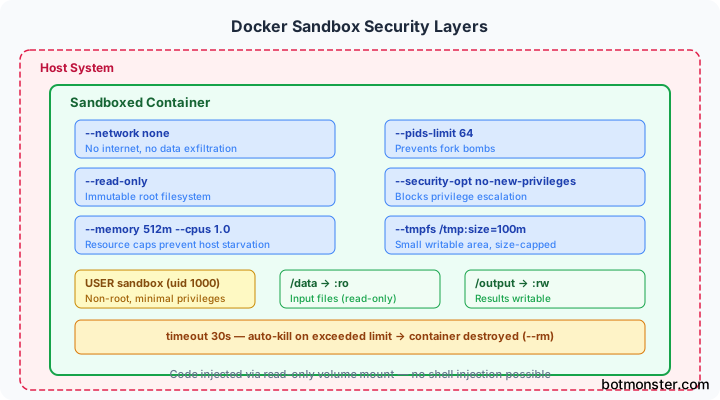
Here is what each flag does:
--network nonecuts all network access, so the code cannot phone home or leak data--read-onlymakes the root filesystem immutable, so nothing can write to system directories--tmpfs /tmp:size=100mgives a small writable temp directory capped at 100 MB--memory 512m --cpus 1.0caps resource use so a runaway script cannot starve the host--pids-limit 64stops fork bombs--security-opt no-new-privilegesblocks privilege escalation
To get code into the container, the orchestrator writes the Python to a temp file on the host, then mounts it read-only at /code/script.py. This dodges the shell injection bugs you would hit by passing code as a command-line argument.
For data analysis tasks that need file I/O, mount directories on their own:
-v ./workspace:/data:ro \
-v ./output:/output
The workspace directory is read-only. The code can read input files but cannot change them. The output directory is writable, so the code can save results, plots, and generated files there.
To enforce a timeout, pair Docker’s stop timeout with a process-level timeout:
docker run --rm --stop-timeout 30 \
  code-sandbox:latest \
  timeout 30 python /code/script.py
If the script runs past 30 seconds, the timeout command kills it. If that somehow fails, Docker force-stops the container. Catch this as a clear error like [TIMEOUT] Script exceeded 30 second execution limit so the LLM knows to speed up its approach.
Putting It All Together - The Orchestrator Script
The orchestrator is one Python script of about 150 lines that ties Ollama and Docker together. No heavy frameworks needed.
Core dependencies stay minimal:
import subprocess
import json
import re
import tempfile
import httpx
httpx gives you a clean HTTP client for talking to Ollama’s API. You could use requests too, but httpx handles async if you want to add streaming later.
The function that calls Ollama:
OLLAMA_URL = "http://localhost:11434/api/chat"

def call_ollama(messages: list, model: str = "code-interpreter") -> str:
    payload = {
        "model": model,
        "messages": messages,
        "stream": False
    }
    response = httpx.post(OLLAMA_URL, json=payload, timeout=120.0)
    response.raise_for_status()
    return response.json()["message"]["content"]

def extract_code(text: str) -> str | None:
    match = re.search(r"```python\n(.*?)```", text, re.DOTALL)
    return match.group(1).strip() if match else None
The function that executes code in Docker:
def execute_in_docker(code: str, timeout: int = 30) -> tuple[str, str, int]:
    with tempfile.NamedTemporaryFile(
        mode="w", suffix=".py", delete=False
    ) as f:
        f.write(code)
        code_path = f.name

    try:
        result = subprocess.run(
            [
                "docker", "run", "--rm",
                "--network", "none",
                "--read-only",
                "--tmpfs", "/tmp:size=100m",
                "--memory", "512m",
                "--cpus", "1.0",
                "--pids-limit", "64",
                "--security-opt", "no-new-privileges",
                "-v", f"{code_path}:/code/script.py:ro",
                "code-sandbox:latest",
                "timeout", str(timeout), "python", "/code/script.py"
            ],
            capture_output=True,
            text=True,
            timeout=timeout + 10
        )
        return result.stdout, result.stderr, result.returncode
    except subprocess.TimeoutExpired:
        return "", "[TIMEOUT] Script exceeded execution limit", 1
The main loop brings everything together:
MAX_ITERATIONS = 6

SYSTEM_PROMPT = """You are a code interpreter agent. You solve problems by writing Python code.

Rules:
- Write exactly ONE ```python``` code block per response
- Use print() for all output you want to see
- When you have the final answer, write it inside <FINAL_ANSWER>...</FINAL_ANSWER> tags
- You have {remaining} iterations remaining - converge toward a solution
"""

def run_agent(user_prompt: str):
    messages = [
        {"role": "system", "content": SYSTEM_PROMPT.format(
            remaining=MAX_ITERATIONS)},
        {"role": "user", "content": user_prompt}
    ]

    for i in range(MAX_ITERATIONS):
        response = call_ollama(messages)
        messages.append({"role": "assistant", "content": response})

        if "<FINAL_ANSWER>" in response:
            answer = re.search(
                r"<FINAL_ANSWER>(.*?)</FINAL_ANSWER>",
                response, re.DOTALL
            )
            print(f"\nFinal Answer:\n{answer.group(1).strip()}")
            return

        code = extract_code(response)
        if not code:
            messages.append({
                "role": "user",
                "content": "[ERROR] No code block found. Write a "
                           "```python``` block."
            })
            continue

        print(f"\n--- Iteration {i+1}/{MAX_ITERATIONS} ---")
        print(f"Executing code ({len(code)} chars)...")

        stdout, stderr, returncode = execute_in_docker(code)

        exec_result = f"[EXECUTION RESULT]\nExit code: {returncode}"
        if stdout:
            exec_result += f"\n\nSTDOUT:\n{stdout}"
        if stderr:
            exec_result += f"\n\nSTDERR:\n{stderr}"

        remaining = MAX_ITERATIONS - i - 1
        exec_result += (
            f"\n\nYou have {remaining} iterations remaining."
        )

        messages.append({"role": "user", "content": exec_result})

        # Update system prompt with remaining count
        messages[0]["content"] = SYSTEM_PROMPT.format(
            remaining=remaining)

    print("\nMax iterations reached without final answer.")
To run the agent:
if __name__ == "__main__":
    import sys
    prompt = " ".join(sys.argv[1:]) or input("Enter your prompt: ")
    run_agent(prompt)
Save this as agent.py and run it:
python agent.py "Read the file /data/sales.csv and create a bar chart of monthly revenue saved to /output/revenue.png"The agent writes pandas code to read the CSV, builds a matplotlib chart, saves it to the output directory, and reports back with the results.
Extending the Agent
Once the basic loop works, a few directions are worth exploring.
Matplotlib plots mostly work out of the box with the output directory mount. Add a note to the system prompt telling the model to save figures to /output/ and call matplotlib.use('Agg'), since the container has no display server.
A --verbose flag that prints the full conversation history after each round helps a lot when you debug. When the model gets stuck looping on the same broken code, the full message chain usually shows why.
For data input, drop files in the workspace/ directory before you run the agent. The model can read anything mounted at /data/ inside the container: CSV files, JSON dumps, text logs, whatever Python can parse.
You can also edit the Dockerfile to add the libraries your workflow needs. For geospatial data, add geopandas and shapely. For NLP tasks, add nltk or spacy. Rebuild the image and the agent picks up the new packages on the next run. The same local-LLM-plus-Python pattern works for other jobs beyond code interpretation, such as automating repetitive workflows with local AI agents.
The iteration loop is what makes this setup genuinely useful next to single-shot code generation. A 14B model that fails on the first try but succeeds on the third still beats a cloud API you cannot afford to call 500 times a month. And all of your data stays on your hardware, processed locally, with nothing sent to an outside server.