 Botmonster Tech
HDMI-CEC one-tap theater scenes: movie, gaming, music modes

You can use HDMI-CEC
commands through Home Assistant
’s HDMI-CEC integration - or a CEC-capable device like a Raspberry Pi running cec-client - to control TV power, input switching, and volume from automations and dashboards. Instead of juggling three or four remotes, you wire up a “Movie Mode” automation that dims the lights
, powers on the TV, switches to the correct HDMI input, and sets volume to a comfortable level. One tap. Done.
This guide covers how CEC works at the wire level, how to set it up with a Raspberry Pi or USB adapter, how to integrate it into Home Assistant, and how to build practical scene automations that turn your phone or a wall tablet into the only remote you need.
How HDMI-CEC Works and What It Can Control
HDMI-CEC (Consumer Electronics Control) is a one-wire protocol running over HDMI pin 13. It lets connected devices send commands to each other without any network configuration or pairing - if two devices are connected by an HDMI cable, they can talk over CEC.
Every device on the CEC bus has a logical address. The TV is always address 0. A recording device gets address 1. Playback devices (Blu-ray players, streaming sticks) get address 4. An audio system (AVR or soundbar) gets address 5. CEC commands travel between these addresses over the shared bus, and any device can send a message to any other device.
What CEC can reliably do:
- Turn any device on (
on 0) or off (standby 0) - Tell the TV to switch to a specific HDMI port (e.g.,
tx 1F:82:20:00for HDMI2) - Send volume up, volume down, and mute commands to the TV or an AVR
- Query which device currently has the TV’s attention (active source)
- Play, pause, stop, fast-forward, rewind on compatible devices
- Send directional pad and select commands (Up, Down, Left, Right, OK)
What CEC typically cannot do:
- Launch specific apps on a smart TV (no Netflix button via CEC)
- Change TV picture settings like brightness, contrast, or picture mode
- Work reliably on every device - many budget TVs and soundbars have incomplete CEC implementations
The branding confusion does not help. Samsung calls it “Anynet+”. LG calls it “SimpLink”. Sony calls it “BRAVIA Sync”. Roku calls it “1-Touch Play”. These are all the same underlying CEC protocol with varying levels of implementation quality. A TV that advertises “SimpLink” or “Anynet+” supports CEC, but that does not guarantee it handles every CEC opcode correctly.
One critical limitation: CEC is a shared bus. Only one controller should send commands at a time. If your Roku stick, your TV’s built-in CEC handler, and Home Assistant all try to send CEC commands simultaneously, you get conflicts - dropped commands, unexpected input switches, or devices turning on when you wanted them off. The fix is disabling CEC on devices you do not want acting as controllers (most TVs have a setting for this), and letting Home Assistant be the single point of control.
CEC Opcode Quick Reference
The most commonly used CEC commands for home automation:
| Action | cec-client Command | Raw CEC Frame | Notes |
|---|---|---|---|
| TV On | on 0 | tx 10:04 | Image View On to address 0 |
| TV Off | standby 0 | tx 10:36 | Standby to address 0 |
| Query Power | pow 0 | tx 10:8F | Returns power status |
| Switch to HDMI1 | - | tx 1F:82:10:00 | Active Source, physical 1.0.0.0 |
| Switch to HDMI2 | - | tx 1F:82:20:00 | Active Source, physical 2.0.0.0 |
| Switch to HDMI3 | - | tx 1F:82:30:00 | Active Source, physical 3.0.0.0 |
| Switch to HDMI4 | - | tx 1F:82:40:00 | Active Source, physical 4.0.0.0 |
| Volume Up | volup | tx 15:44:41 | User Control Pressed |
| Volume Down | voldown | tx 15:44:42 | User Control Pressed |
| Mute Toggle | mute | tx 15:44:43 | User Control Pressed |
| D-Pad Up | - | tx 1F:44:01 | User Control Pressed |
| D-Pad Down | - | tx 1F:44:02 | User Control Pressed |
| D-Pad Left | - | tx 1F:44:03 | User Control Pressed |
| D-Pad Right | - | tx 1F:44:04 | User Control Pressed |
| Select/OK | - | tx 1F:44:00 | User Control Pressed |
In the raw frames, the first nibble is the source address and the second nibble is the destination. 1F means “from Playback Device 1 (address 1) to Broadcast (address F)”. The opcode 82 is Active Source, 44 is User Control Pressed, 36 is Standby, and 04 is Image View On.
Setting Up CEC Control with a Raspberry Pi and cec-client
Home Assistant needs a CEC adapter to send commands over HDMI. If you are running Home Assistant OS on a Raspberry Pi 4 or 5, the built-in HDMI port is already a CEC adapter. Connect an HDMI cable from the Pi to your TV or AVR and you are ready to go. No extra hardware required.
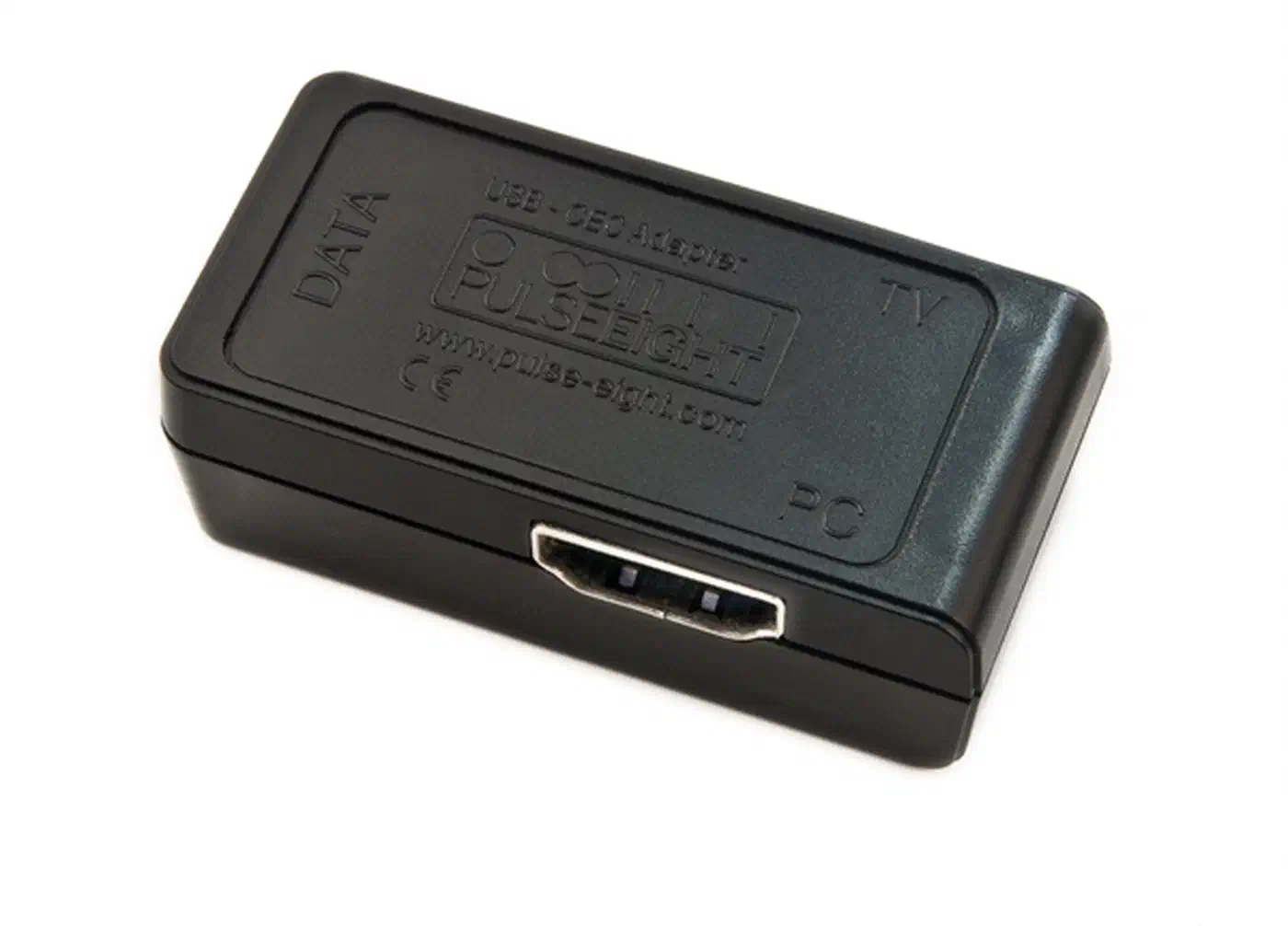
If Home Assistant runs on a virtual machine, an Intel NUC, or any other x86 server, you need a Pulse-Eight USB-CEC adapter
. It connects via USB and presents as /dev/ttyACM0. The adapter is supported by the libcec
library, which is what both cec-client and the Home Assistant HDMI-CEC integration use under the hood.
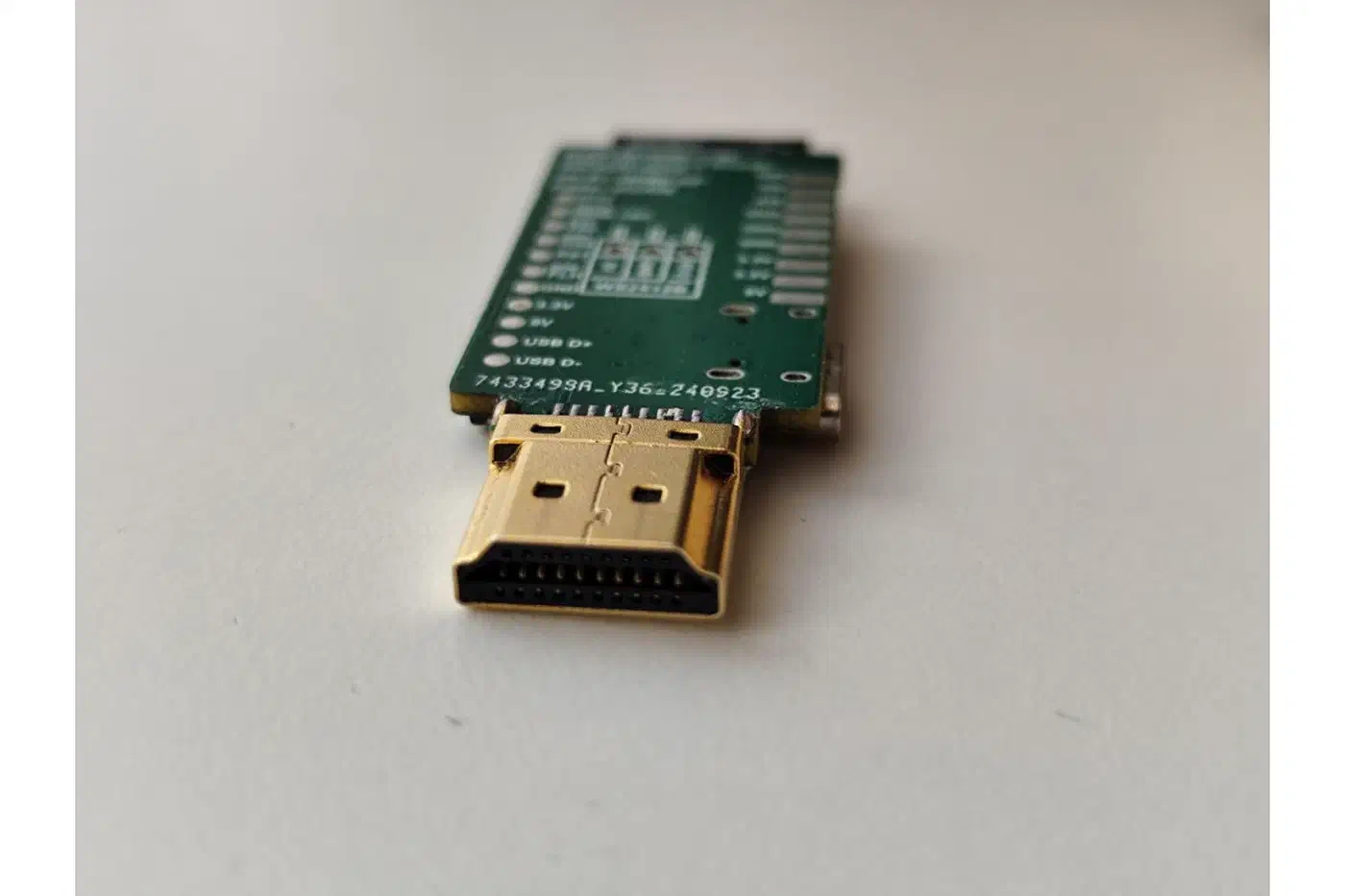
Another option for non-Pi setups is the SMLIGHT SLWF-08 , an ESP8266-based HDMI-CEC controller that works over WiFi with ESPHome firmware and also supports addressable LED strip control for ambient backlighting.
Installing cec-client
On Home Assistant OS, cec-client is pre-installed. On a Debian or Ubuntu system, install it with:
sudo apt install cec-utilsThis gives you the cec-client command-line tool, which is the fastest way to test CEC before configuring anything in Home Assistant.
Testing CEC Connectivity
Scan for all devices on the HDMI-CEC bus:
echo 'scan' | cec-client -s -d 1The -s flag runs a single command (instead of starting interactive mode), and -d 1 sets the debug level low to suppress noise. You should see output listing your TV at address 0, any AVR at address 5, and connected playback devices at their respective addresses.
Test power control:
# Turn TV on
echo 'on 0' | cec-client -s -d 1

# Turn TV off
echo 'standby 0' | cec-client -s -d 1

# Query TV power status
echo 'pow 0' | cec-client -s -d 1
Test input switching:
# Switch TV to HDMI2
echo 'tx 1F:82:20:00' | cec-client -s -d 1
If your Raspberry Pi connects to the TV through an AVR, CEC commands still traverse the HDMI chain - but some AVRs strip CEC signals. Test before committing to a particular cable layout. If commands do not reach the TV through the AVR, try connecting the Pi directly to the TV on a separate HDMI port.
Configuring the Home Assistant HDMI-CEC Integration
With CEC hardware confirmed working from the command line, you can integrate it into Home Assistant. There are two approaches, and picking the right one depends on your TV’s CEC behavior.
Approach 1: The Built-in HDMI-CEC Integration
Add the HDMI-CEC integration
to your configuration.yaml:
hdmi_cec:
  devices:
    0: "Living Room TV"
    5: "Soundbar"
    4: "Roku"
This creates media_player entities for each discovered CEC device. You get power on/off, volume up/down/mute, and source selection as standard media player controls. These entities work with dashboards, automations, and voice assistants out of the box.
Before configuring the integration, use the CEC Scanner add-on (available in the Home Assistant add-on store) to detect connected devices and their addresses. Do not leave the CEC Scanner set to start on boot - it will interfere with the integration.
If you see a “failed to open vchiq instance” error in the logs, add the Home Assistant user to the video group:
sudo usermod -a -G video homeassistantApproach 2: Shell Commands for Direct CEC Control
The shell_command approach gives you direct control over the exact CEC opcodes being sent. This is more reliable than the integration for TVs with quirky CEC implementations, because the integration’s abstraction layer sometimes sends extra commands that confuse certain TVs.
shell_command:
  tv_on: 'echo "on 0" | cec-client -s -d 1'
  tv_off: 'echo "standby 0" | cec-client -s -d 1'
  tv_hdmi1: 'echo "tx 1F:82:10:00" | cec-client -s -d 1'
  tv_hdmi2: 'echo "tx 1F:82:20:00" | cec-client -s -d 1'
  tv_hdmi3: 'echo "tx 1F:82:30:00" | cec-client -s -d 1'
  tv_hdmi4: 'echo "tx 1F:82:40:00" | cec-client -s -d 1'
  tv_volume_up: 'echo "volup" | cec-client -s -d 1'
  tv_volume_down: 'echo "voldown" | cec-client -s -d 1'
  tv_mute: 'echo "mute" | cec-client -s -d 1'
You can then expose these as button entities using template buttons for clean dashboard integration:
button:
  - platform: template
    buttons:
      tv_power_on:
        friendly_name: "TV On"
        press:
          - service: shell_command.tv_on
      tv_power_off:
        friendly_name: "TV Off"
        press:
          - service: shell_command.tv_off
      tv_input_roku:
        friendly_name: "Roku (HDMI2)"
        press:
          - service: shell_command.tv_hdmi2
Which Approach to Choose
Use the built-in integration if your TV responds well to standard CEC and you want media player entities with full state tracking. Use shell commands if your TV has spotty CEC support, if you need precise control over timing, or if the integration sends unwanted extra commands. Many people end up using a hybrid - the integration for state tracking and shell commands for reliable command execution.
Building Automated Scenes - Movie Mode, Gaming Mode, Music Mode
Individual CEC commands are useful on their own, but they get much more interesting when combined into scenes that configure your entire system with one trigger.
Movie Mode
Triggered by a dashboard button, an NFC tag on the coffee table, or a voice command:
automation:
  - alias: "Movie Mode"
    trigger:
      - platform: state
        entity_id: input_select.theater_mode
        to: "Movie"
    action:
      - service: shell_command.tv_on
      - delay: "00:00:03"
      - service: shell_command.tv_hdmi2
      - delay: "00:00:01"
      - service: media_player.volume_set
        target:
          entity_id: media_player.soundbar
        data:
          volume_level: 0.25
      - service: light.turn_off
        target:
          entity_id: light.living_room
      - service: light.turn_on
        target:
          entity_id: light.tv_bias_light
        data:
          brightness_pct: 20
          color_temp: 370
The 3-second delay after tv_on is important. TVs need boot time before they accept input-switching commands. Sending tv_hdmi2 immediately after tv_on will get ignored by most TVs. Adjust the delay based on how fast your specific TV boots - some need 5 seconds, others are fine with 2.
Gaming Mode
Triggered automatically when a gaming console powers on, detected via a smart plug monitoring power draw (a PS5 at idle draws about 50W versus 1-2W in standby):
automation:
  - alias: "Gaming Mode"
    trigger:
      - platform: numeric_state
        entity_id: sensor.ps5_plug_power
        above: 40
    action:
      - service: shell_command.tv_on
      - delay: "00:00:03"
      - service: shell_command.tv_hdmi3
      - delay: "00:00:01"
      - service: light.turn_on
        target:
          entity_id: light.tv_bias_light
        data:
          brightness_pct: 100
          rgb_color: [0, 0, 255]
      - service: input_select.select_option
        target:
          entity_id: input_select.theater_mode
        data:
          option: "Gaming"
Note that CEC cannot switch TV picture mode to “Game” mode. If that matters for input lag, you can pair CEC with a Broadlink RM4 Pro IR blaster to send the IR command for picture mode changes, or set your TV to auto-detect game mode per HDMI input (most modern TVs support this via ALLM - Auto Low Latency Mode).
Music Mode
Triggered from a dashboard or voice assistant - turns on audio without powering the TV:
automation:
  - alias: "Music Mode"
    trigger:
      - platform: state
        entity_id: input_select.theater_mode
        to: "Music"
    action:
      - service: media_player.turn_on
        target:
          entity_id: media_player.soundbar
      - delay: "00:00:02"
      - service: media_player.volume_set
        target:
          entity_id: media_player.soundbar
        data:
          volume_level: 0.15
      - service: media_player.play_media
        target:
          entity_id: media_player.spotify
        data:
          media_content_id: "spotify:playlist:37i9dQZF1DX0XUsuxWHRQd"
          media_content_type: "playlist"
To extend music playback beyond the living room, see the guide on whole-home audio with Snapcast for a multi-room setup that integrates directly with Home Assistant.
All Off
Every theater setup needs a kill switch:
automation:
  - alias: "All Off"
    trigger:
      - platform: state
        entity_id: input_select.theater_mode
        to: "Off"
    action:
      - service: shell_command.tv_off
      - service: media_player.turn_off
        target:
          entity_id: media_player.soundbar
      - service: media_player.media_stop
        target:
          entity_id: media_player.spotify
      - service: light.turn_on
        target:
          entity_id: light.living_room
        data:
          brightness_pct: 60
          color_temp: 370
Tracking Mode with input_select
Use an input_select helper to track the current theater mode and prevent conflicts:
input_select:
  theater_mode:
    name: "Theater Mode"
    options:
      - "Off"
      - "Movie"
      - "Gaming"
      - "Music"
    initial: "Off"
All automations trigger off this helper, and each automation sets it when activated by other means (like the Gaming Mode auto-detection). This prevents Movie Mode from firing while Gaming Mode is active.
Dashboard Design for a Remote Control Replacement
Once the automations work, the next step is a Lovelace dashboard that replaces the stack of remotes on your coffee table. A well-built dashboard does everything a remote does, plus things no remote can - like showing device state at a glance and triggering multi-device scenes.
Create a dedicated “Remote” dashboard view with a dark background. The layout should feel familiar to anyone who has held a remote control:
Put power buttons for each device across the top - TV, soundbar, streaming box. Use media_player.toggle service calls with conditional coloring: green when the device is on, red when off. This gives instant visual feedback that no physical remote can match.
In the center, arrange five button cards in a cross to form a directional pad. Map them to CEC navigation commands - Up (tx 1F:44:01), Down (tx 1F:44:02), Left (tx 1F:44:03), Right (tx 1F:44:04), and Select (tx 1F:44:00). This lets you navigate smart TV menus without reaching for the TV remote.
For volume, either use a slider card mapped to a template number entity that sends volup/voldown based on value changes, or simple +/- button cards. The buttons tend to be more reliable since CEC volume is step-based, not absolute.
Below that, add a row of colored buttons for each HDMI input - HDMI1 (Cable), HDMI2 (Roku), HDMI3 (PS5), HDMI4 (PC). Use icons matching each device so you can tap the right input without reading labels.
At the bottom, put large scene buttons for Movie Mode, Gaming Mode, Music Mode, and All Off. These set input_select.theater_mode, which triggers the automations you built earlier.
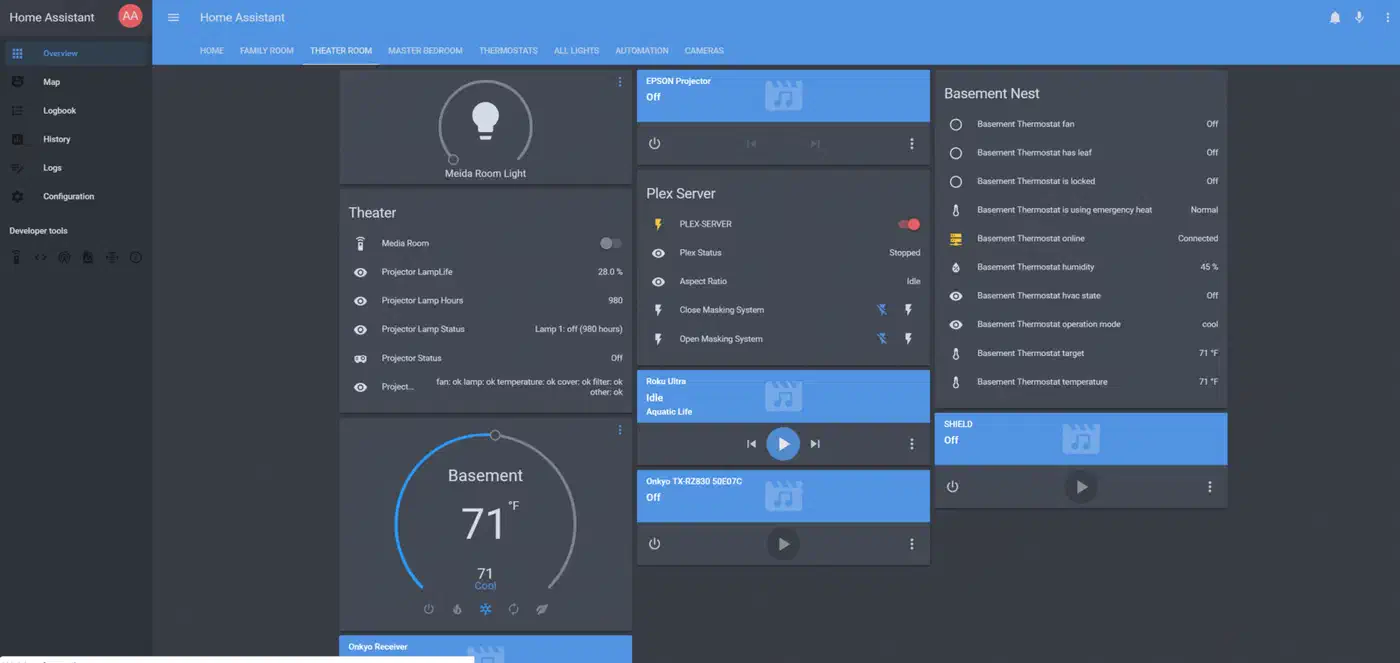
For a dedicated wall-mounted control surface, a Fire HD 8 tablet running Fully Kiosk Browser works well. Mount it near the couch, keep it always on with the screen dimmed, and set it to wake on motion. The browser_mod integration (available through HACS) lets you pop up the remote dashboard as an overlay from any view. For techniques on building polished, room-based layouts with custom CSS Grid and HACS cards, see the guide on professional Home Assistant dashboard design .
Troubleshooting Common CEC Problems
CEC is reliable once working, but the initial setup can involve some debugging. These are the problems you are most likely to run into.
TV ignores commands after power on: Many TVs need 3-5 seconds after receiving on 0 before they process other commands. Add delay actions in your automations.
Commands work from cec-client but not from Home Assistant: Check that the Home Assistant user has permissions to access the CEC device (/dev/ttyACM0 or /dev/vchiq). Add the user to the video group. On Home Assistant OS, this is handled automatically.
Devices turn on unexpectedly: Another device on the CEC bus (often a streaming stick or game console) is sending “Active Source” messages when it wakes. Disable CEC on that device, or configure your TV to ignore CEC wake commands from specific ports.
Input switching does not work: The physical address in the CEC frame must match the actual HDMI port. If HDMI2 is physically wired to port 3 on your AVR, you may need tx 1F:82:30:00 instead of tx 1F:82:20:00. Use echo 'scan' | cec-client -s -d 1 to discover the actual physical addresses.
Samsung TVs (pre-2023 models): Known for aggressive CEC behavior - they often turn on when any connected device sends a CEC message. Disable “Anynet+” in the TV settings and control the TV exclusively through CEC commands sent by Home Assistant, so the TV is a passive receiver rather than an active CEC participant.
AVR strips CEC signals: Some AVRs do not pass CEC commands through. Connect the Raspberry Pi or CEC adapter directly to the TV on a separate HDMI port. You can still control the AVR separately via CEC on that port if the AVR has its own CEC address visible on the bus.
Multiple CEC controllers: If the Roku, PlayStation, and Home Assistant are all trying to control the TV over CEC, commands collide. Pick one controller (Home Assistant) and disable CEC output on the others. Most streaming devices have this setting buried in their system preferences.
Integrating with Voice Assistants
The theater mode input_select makes voice control easy to add. If you use the Home Assistant Cloud
(Nabu Casa) service or a local voice assistant setup
, the input_select.theater_mode entity gets automatically exposed to Google Home or Alexa.
Saying “Hey Google, set Theater Mode to Movie” or “Alexa, set Theater Mode to Movie” triggers the same automation chain as tapping the dashboard button. For more natural phrasing, create script entities with voice-friendly names:
script:
  movie_time:
    alias: "Movie Time"
    sequence:
      - service: input_select.select_option
        target:
          entity_id: input_select.theater_mode
        data:
          option: "Movie"
Expose this script to your voice assistant, and “Hey Google, activate Movie Time” powers up your entire theater.
Beyond CEC - Wake-on-LAN and IR Fallback
CEC handles most home theater control needs, but there are gaps. Two other technologies cover what CEC cannot.
Wake-on-LAN handles devices that need a network wake before CEC can reach them - an HTPC or NVIDIA Shield that goes into deep sleep, for example. Add a WoL step at the beginning of your automation, followed by a longer delay (10-15 seconds) for the device to fully boot, before sending CEC input switch commands.
IR blasters like the Broadlink RM4 Pro handle the commands CEC cannot send - picture mode changes, TV app launches, or controlling devices with no CEC support at all. The Broadlink integration in Home Assistant lets you learn IR codes from existing remotes and replay them from automations.
With CEC for power/input/volume, WoL for deep-sleeping devices, and IR for the rest, Home Assistant becomes the single control point for your entire setup. The pile of remotes on the coffee table can go in a drawer.