 Botmonster Tech
Home Assistant Packages: Split Config from 2000 to 30

Use Home Assistant
’s built-in packages system. Instead of maintaining a single configuration.yaml that grows into a 2,000-line monster, packages let you split everything into self-contained YAML files grouped by function - packages/lighting.yaml, packages/climate.yaml, packages/security.yaml, and so on. Each package file can hold any combination of automations, sensors, scripts, input helpers, and templates. Everything related to one feature lives in one file. When you need to modify your thermostat logic, you open packages/climate.yaml and nothing else.
As of Home Assistant 2026.4, the packages system supports the full range of integration domains, !secret references, Jinja2 templates, and nested subdirectories. The rest of this post walks through the setup, migration strategy, design patterns, and Git workflows that make packages practical for real-world smart home configurations.
Why Packages Beat the Traditional !include Approach
Home Assistant offers two ways to split configuration files, and they work on different principles.
The traditional !include approach splits by domain. You end up with lines like automation: !include automations.yaml and sensor: !include_dir_merge_list sensors/ in your main config. This means a single feature - say, your thermostat control - has its pieces scattered across five or more files. The climate entity config lives in configuration.yaml, the template sensors sit in sensors/, the automations go in automations.yaml, the scripts in scripts.yaml, and the input helpers in yet another place. To understand or modify one feature, you have to open half a dozen files.
Packages flip that model. A packages/thermostat.yaml file contains the climate entity config, template sensors, automations, scripts, and input_number helpers all in one place. Everything related to thermostat control lives together in a single file.
Each package file is structurally a mini configuration.yaml. It can define any top-level domain key - automation:, template:, input_boolean:, script:, sensor:, and so on - without conflicting with other packages. Home Assistant merges all package files at startup using a deep-merge strategy. If you accidentally define the same entity ID in two packages, Home Assistant throws a startup error rather than silently overwriting one definition. This strict behavior prevents configuration conflicts from going undetected.
The practical difference at scale:
| Aspect | !include (domain split) | Packages (function split) |
|---|---|---|
| File organization | One file per domain type | One file per feature |
| Finding related config | Search across 5+ files | Open one file |
| Adding a new feature | Edit multiple files | Create one new file |
| Removing a feature | Hunt through every domain file | Delete one file |
| Git diffs | Changes mixed across domain files | Isolated to feature file |
| Sharing configs | Extract from multiple files | Share single file |
A 200-device Home Assistant instance with 150 automations is painful to manage in a single file. That same setup organized as 20-30 focused packages is straightforward to navigate, debug, and version-control.
Setting Up the Packages Directory
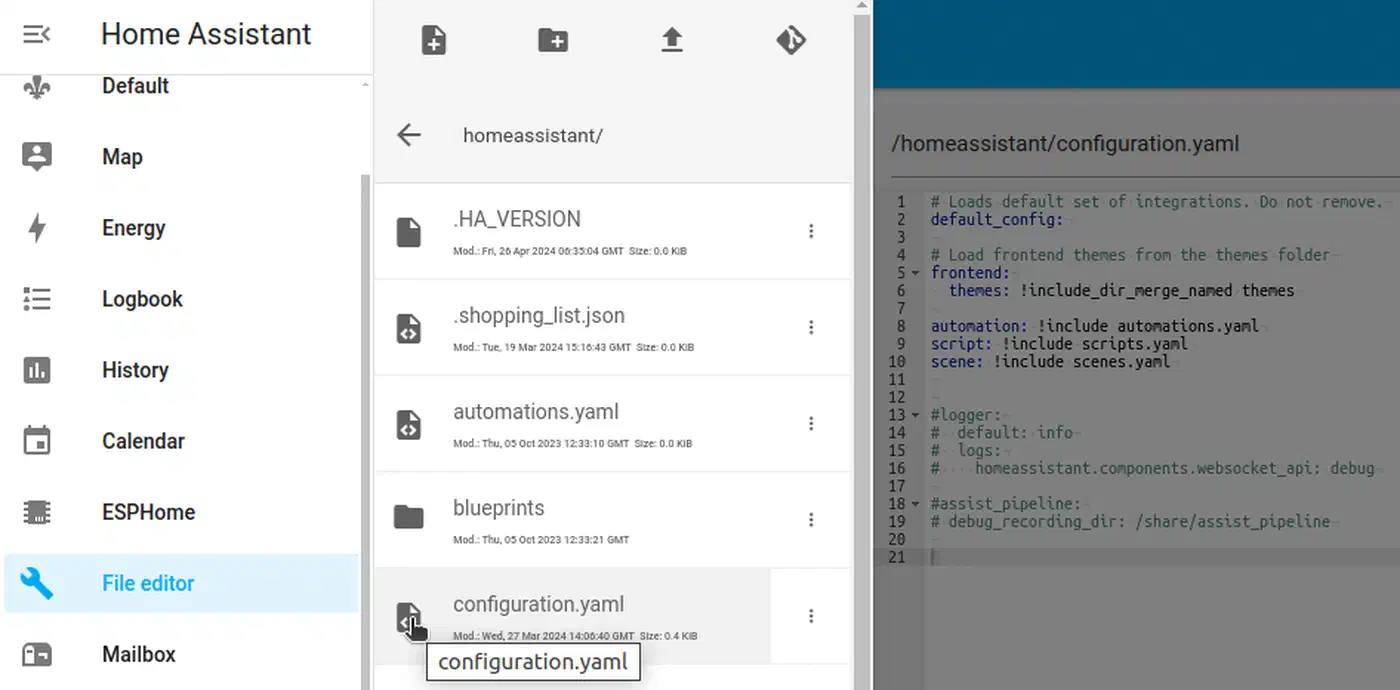
Enabling packages requires a single addition to your configuration.yaml. Add the following under the homeassistant: key:
homeassistant:
  packages: !include_dir_named packages
This tells Home Assistant to load every .yaml file in the packages/ directory (and its subdirectories) as a named package, using the filename as the package name.
There are three loading methods available:
!include_dir_named- The filename becomes the package name. File content uses the same indentation asconfiguration.yaml, so you can copy and paste entries directly. File names must be globally unique, even across subfolders.!include_dir_merge_named- Each file must include a package name as the top-level key, with content indented underneath. More flexible naming but requires adjusting indentation.- Explicit per-file loading - List each package individually:
packages: lighting: !include packages/lighting.yaml. More verbose but gives full control over which files are loaded.
The recommended directory structure looks like this:
/config/
  configuration.yaml
  secrets.yaml
  packages/
    lighting.yaml
    climate.yaml
    security.yaml
    presence.yaml
    media.yaml
    notifications.yaml
Name your package files by function, not by device or room. A lighting.yaml package that handles all lighting logic across the house is easier to maintain than bedroom_lights.yaml, kitchen_lights.yaml, and hallway_lights.yaml each containing tiny fragments.
Each package file starts with domain keys at the top level. A minimal packages/climate.yaml might look like this:
input_number:
  climate_target_temp:
    name: Target Temperature
    min: 16
    max: 30
    step: 0.5
    unit_of_measurement: "°C"

input_boolean:
  climate_away_mode:
    name: Climate Away Mode
    icon: mdi:home-export-outline

template:
  - sensor:
      - name: "HVAC State"
        state: "{{ states('climate.living_room') }}"
        icon: mdi:hvac

automation:
  - alias: "Climate - Set Away Temperature"
    trigger:
      - platform: state
        entity_id: input_boolean.climate_away_mode
        to: "on"
    action:
      - service: climate.set_temperature
        target:
          entity_id: climate.living_room
        data:
          temperature: "{{ states('input_number.climate_target_temp') | float - 3 }}"
Notice the naming convention: entity IDs are prefixed with climate_ so you can immediately tell which package owns them. This convention pays off when you have 30 packages and need to trace an entity back to its definition.
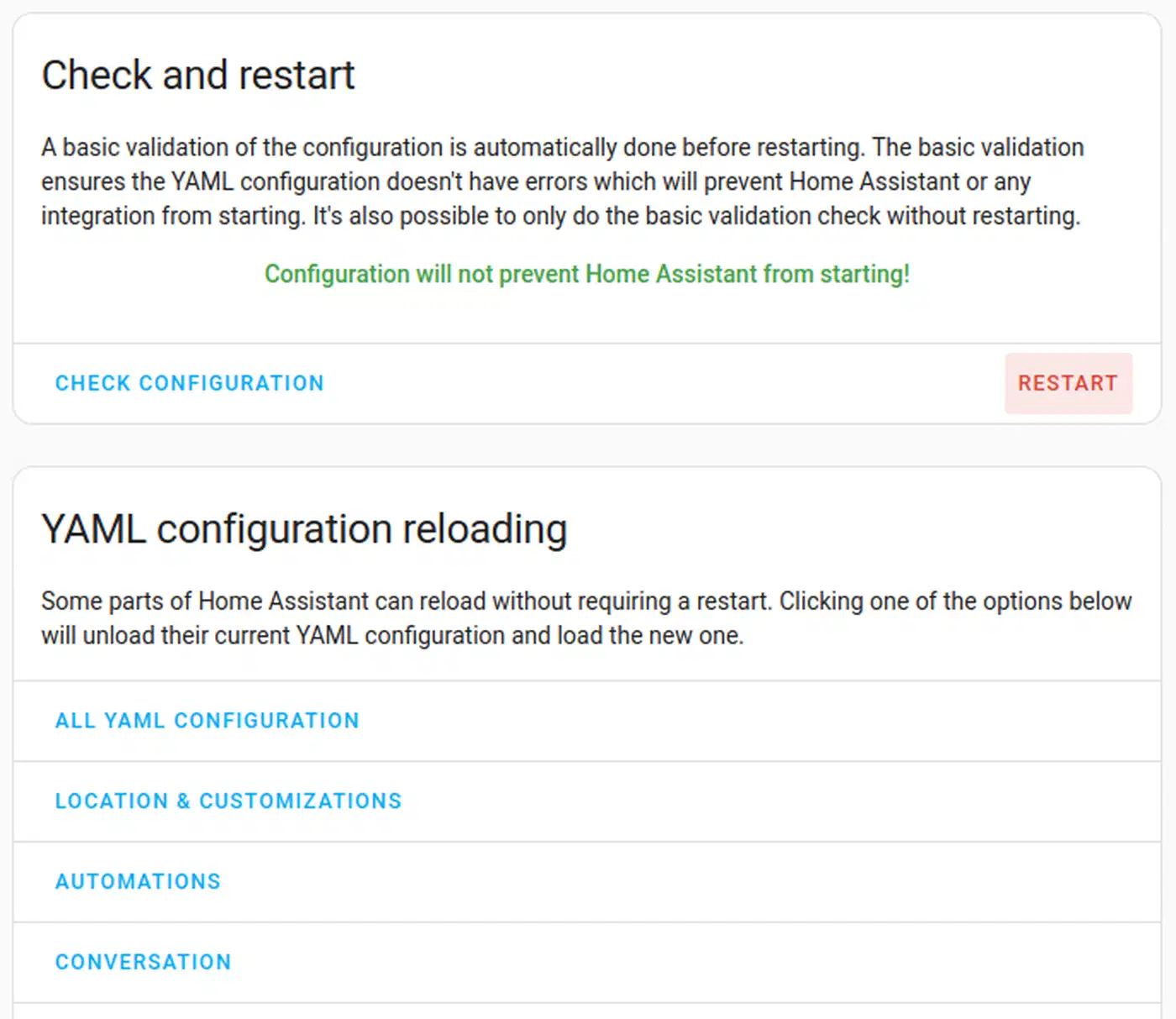
Before restarting Home Assistant after any configuration change, validate your config first. Use the CLI command ha core check or go to Developer Tools > YAML > Check Configuration in the web UI. This catches merge errors, duplicate entity IDs, and YAML syntax issues before a bad restart leaves you locked out.
Subdirectory Support
Home Assistant supports nested subdirectories under packages/ when using !include_dir_named. You can organize like this:
packages/
  lighting/
    adaptive.yaml
    motion.yaml
  climate/
    thermostat.yaml
    humidity.yaml
  security/
    alarm.yaml
    cameras.yaml
The critical constraint: file names must be globally unique across all subdirectories. You cannot have both packages/lighting/schedule.yaml and packages/climate/schedule.yaml because !include_dir_named uses the filename (without path) as the package name, and both would resolve to schedule.
Migrating from a Monolithic Configuration
Moving an existing Home Assistant installation to packages works best when done incrementally. Do not try to restructure everything in one session.
Step 1: Create a safety net. Make a full backup via Settings > System > Backups. If you use Git for your configuration (and you should), commit your current state with a message like “pre-migration snapshot” so you have a clean rollback point.
Step 2: Pick one feature area to start with. Lighting is usually a good candidate because it tends to involve automations, scenes, scripts, and input helpers. Create packages/lighting.yaml and move all lighting-related configuration into it - automations, scenes, scripts, input helpers, and template sensors.
Step 3: Remove the moved items from their original files. Delete them from automations.yaml, configuration.yaml, scripts.yaml, and any other files where they lived. Keep the automation: !include automations.yaml line in configuration.yaml for whatever automations remain.
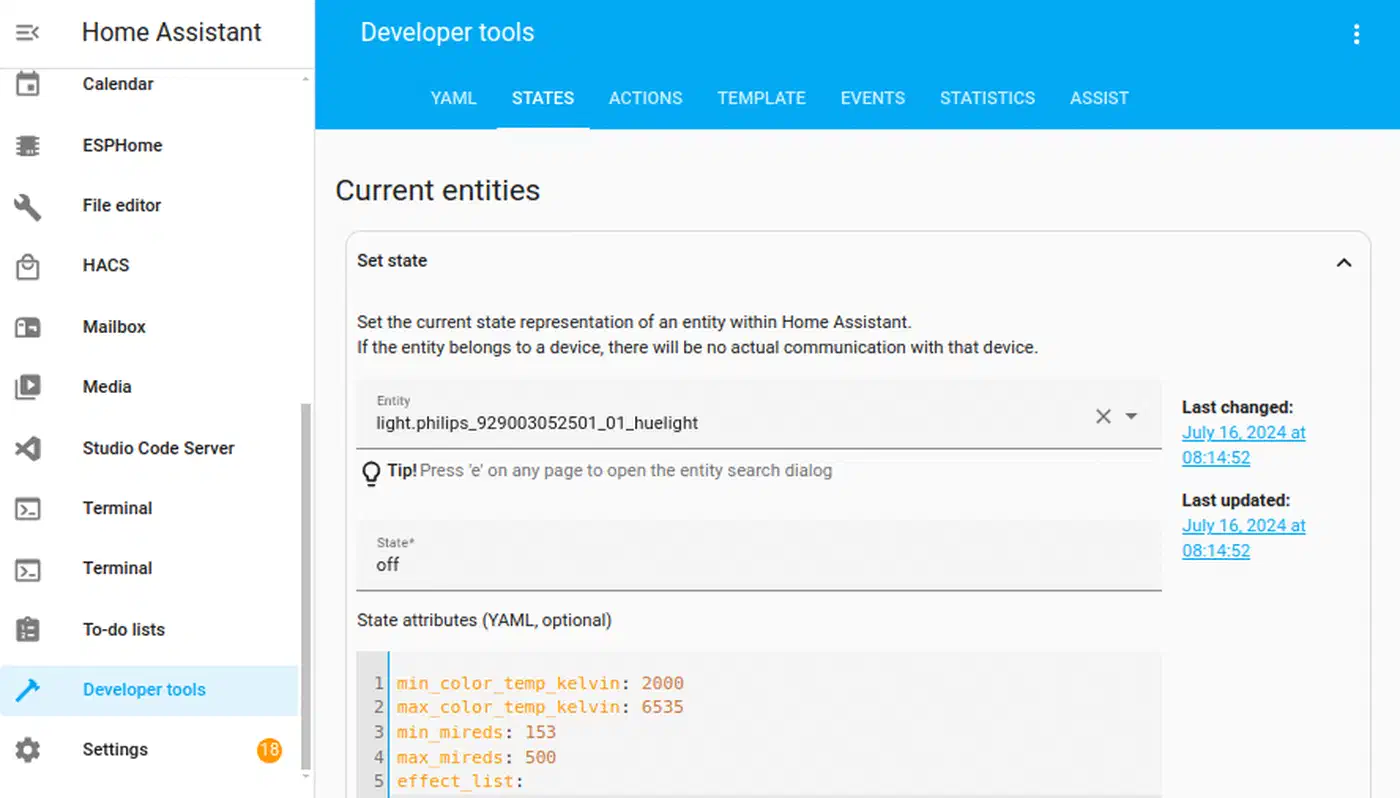
Step 4: Validate and restart. Run the configuration check, fix any duplicate key errors, restart, and verify that the moved entities still appear in Developer Tools > States and automations still trigger correctly.
Step 5: Repeat. Migrate one functional area at a time - climate, security, presence, media, notifications. You can spread this over days or weeks. There is no need to do it all at once.
The UI-Managed Automations Problem
This is the most common source of confusion during migration. Automations created through the Home Assistant UI (the visual automation editor) are stored in automations.yaml, and Home Assistant manages that file directly. Moving a UI-created automation into a package means it becomes YAML-only - you can no longer edit it through the visual editor.
The coexistence strategy is to use labeled automation blocks. In your configuration.yaml, keep:
automation ui: !include automations.yaml
automation manual: !include_dir_merge_list automations_manual/
Or, more commonly, let the UI continue managing automations.yaml for simple automations that non-technical household members might need to adjust, and put your complex, multi-step automations into packages where YAML editing gives you more power and better version control.
The rule of thumb: if an automation is simple enough that the visual editor handles it well and someone else in your household might need to tweak it, leave it in automations.yaml. If it involves templates, complex conditions
, or multi-step sequences, put it in a package.
Package Design Patterns for Common Features
Understanding the mechanics is the first step, but good package design also depends on recognizing recurring patterns. Below are concrete templates for common smart home feature areas that you can adapt to your own setup.
Lighting Package
Group all lighting concerns into one file: light: platform configurations, scene: definitions, adaptive lighting automations, motion-triggered lighting scripts, and an input_select for lighting modes.
input_select:
  lighting_mode:
    name: Lighting Mode
    options:
      - Bright
      - Relaxed
      - Movie
      - Dinner
    icon: mdi:lightbulb-group

scene:
  - name: lighting_bright
    entities:
      light.living_room:
        state: "on"
        brightness: 255
      light.kitchen:
        state: "on"
        brightness: 255

automation:
  - alias: "Lighting - Apply Mode"
    trigger:
      - platform: state
        entity_id: input_select.lighting_mode
    action:
      - service: scene.turn_on
        target:
          entity_id: "scene.lighting_{{ trigger.to_state.state | lower }}"
Presence Package
Define person: entities, zone: definitions, arrival/departure automations
, and a template sensor for “house occupied” state:
input_boolean:
  presence_guest_mode:
    name: Guest Mode
    icon: mdi:account-group

template:
  - binary_sensor:
      - name: "House Occupied"
        state: >
          {{ is_state('person.alice', 'home')
             or is_state('person.bob', 'home')
             or is_state('input_boolean.presence_guest_mode', 'on') }}
        device_class: occupancy

automation:
  - alias: "Presence - Welcome Home"
    trigger:
      - platform: state
        entity_id: person.alice
        to: "home"
    action:
      - service: light.turn_on
        target:
          entity_id: light.hallway
      - service: notify.mobile_app_alice
        data:
          message: "Welcome home!"
Security Package
Combine alarm panel configuration, contact sensor groups, intrusion detection, and notification automations:
group:
  security_doors:
    name: All Door Sensors
    entities:
      - binary_sensor.front_door
      - binary_sensor.back_door
      - binary_sensor.garage_door

automation:
  - alias: "Security - Door Open Alert"
    trigger:
      - platform: state
        entity_id: group.security_doors
        to: "on"
    condition:
      - condition: state
        entity_id: alarm_control_panel.home
        state: "armed_away"
    action:
      - service: notify.mobile_app_alice
        data:
          message: "Alert: {{ trigger.to_state.name }} opened while alarm is armed!"
          data:
            priority: high

script:
  security_siren_sequence:
    alias: "Security Siren Sequence"
    sequence:
      - service: siren.turn_on
        target:
          entity_id: siren.indoor
      - delay: "00:05:00"
      - service: siren.turn_off
        target:
          entity_id: siren.indoor
Notification Package
Centralize notification logic so other packages call a single script rather than duplicating notification service calls:
input_select:
  notification_priority:
    name: Notification Priority
    options:
      - Low
      - Normal
      - High
      - Critical
    icon: mdi:bell

script:
  notify_all_phones:
    alias: "Notify All Phones"
    fields:
      message:
        description: "The notification message"
      title:
        description: "The notification title"
        default: "Home Assistant"
    sequence:
      - service: notify.mobile_app_alice
        data:
          title: "{{ title }}"
          message: "{{ message }}"
      - service: notify.mobile_app_bob
        data:
          title: "{{ title }}"
          message: "{{ message }}"
Each package should be self-contained enough that deleting the file removes the entire feature cleanly, with no orphaned entity references in other packages. The exception is the notification package - other packages will call script.notify_all_phones - but that is an intentional shared service rather than a leaked dependency.
Version Control and Collaboration
Once your configuration is split into packages, Git becomes far more useful. When each feature is its own file, git diff tells you exactly what changed and where. If you want to take this further, see our guide on automatically backing up your HA config to GitHub
.
Git Setup for Home Assistant
Initialize Git in your /config/ directory and create a .gitignore that excludes sensitive and generated files:
# .gitignore
secrets.yaml
.storage/
home-assistant_v2.db
tts/
backups/
*.log
Provide a secrets.yaml.example with placeholder values so others (or your future self setting up a new instance) know which secrets are expected:
# secrets.yaml.example
wifi_password: "your-wifi-password-here"
mqtt_broker_password: "your-mqtt-password-here"
telegram_bot_token: "your-bot-token-here"
Meaningful Commit History
Because each package is a separate file, your commit history becomes self-documenting:
climate: add window-open HVAC pause automation
security: fix false alarm trigger during maintenance mode
lighting: add dinner scene for dining room
presence: refactor house-occupied sensor to include guest mode
Compare that to monolithic-style commits where configuration.yaml is the only file that ever changes and you have no quick way to see what feature was affected.
Branch-Based Testing
Create a feature/new-lighting-modes branch, modify packages/lighting.yaml, test on a development Home Assistant instance, then merge to main. If something breaks, git revert targets a single clean commit instead of untangling interleaved changes.
CI/CD with GitHub Actions
The Home Assistant Config Check GitHub Action validates your YAML configuration on every push or pull request. A basic workflow file looks like this:
name: Home Assistant Config Check
on:
  push:
    branches: [main]
  pull_request:
    branches: [main]

jobs:
  check:
    runs-on: ubuntu-latest
    steps:
      - uses: actions/checkout@v4
      - name: Home Assistant Config Check
        uses: frenck/action-home-assistant@v1
        with:
          path: "."
          secrets: secrets.yaml.example
This catches YAML syntax errors, missing secrets, and domain configuration issues before they ever reach your production Home Assistant instance.
Collaboration in Multi-Person Households
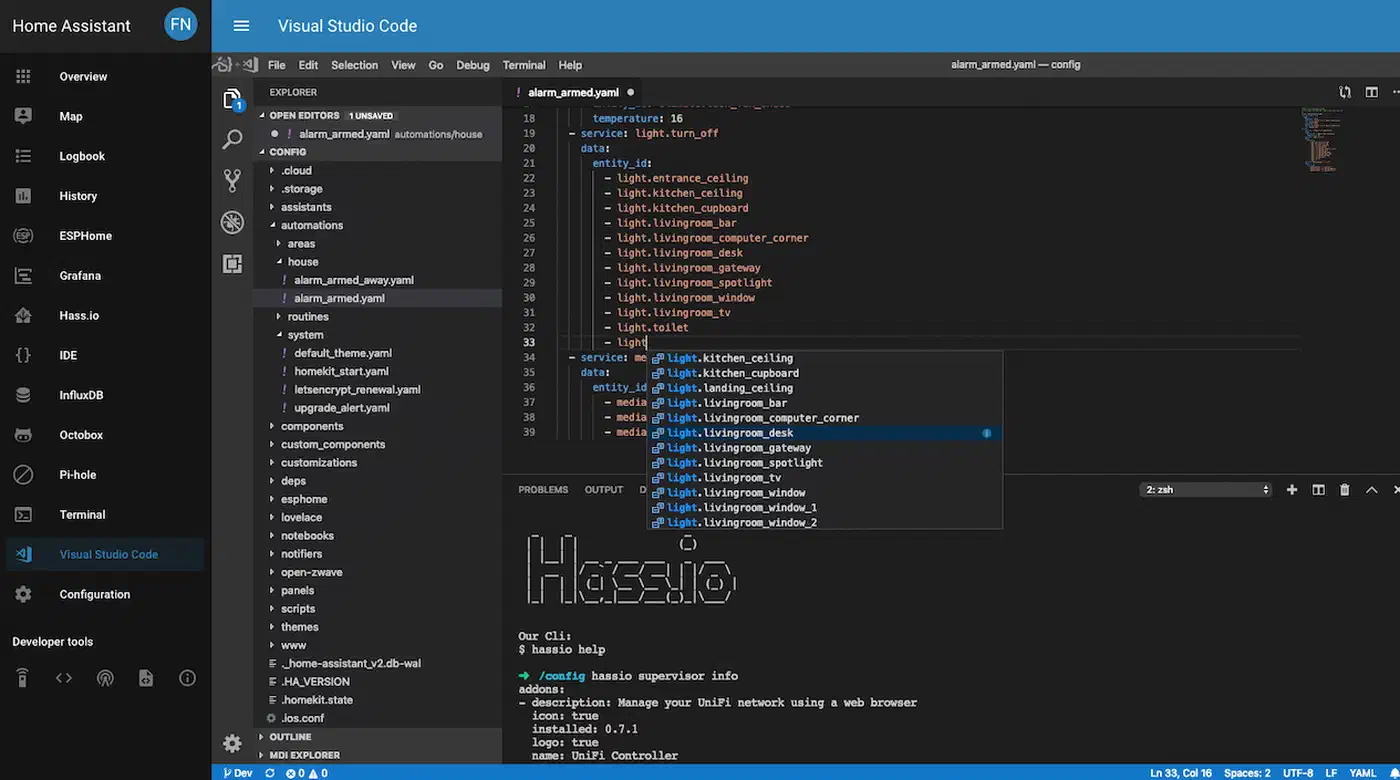
When multiple people work on the configuration, packages reduce merge conflicts dramatically. One person can modify packages/lighting.yaml while another edits packages/climate.yaml without touching the same file. The Studio Code Server
add-on provides VS Code directly in the browser with built-in Home Assistant YAML auto-completion, making in-place editing easy for anyone in the household.
Advanced Tips and Debugging
YAML Anchors for Reducing Duplication
YAML anchors (&anchor_name) and aliases (*anchor_name) work within package files to reduce repetitive configuration. If you have multiple similar automations that differ only in entity IDs, define the common structure once:
automation:
  - alias: "Lighting - Motion Kitchen"
    trigger: &motion_trigger
      - platform: state
        to: "on"
    action: &motion_lights_on
      - service: light.turn_on
    trigger:
      - <<: *motion_trigger
        entity_id: binary_sensor.motion_kitchen
    action:
      - <<: *motion_lights_on
        target:
          entity_id: light.kitchen

  - alias: "Lighting - Motion Hallway"
    trigger:
      - <<: *motion_trigger
        entity_id: binary_sensor.motion_hallway
    action:
      - <<: *motion_lights_on
        target:
          entity_id: light.hallway
Anchors are scoped to a single YAML file, so they cannot be shared across packages. For cross-package reuse, the notification script pattern shown earlier (calling script.notify_all_phones from any package) is the better approach.
Debugging: Which Package Defines an Entity?
When troubleshooting, you sometimes need to find which package defines a specific entity. The entity ID prefix convention (climate_away_mode, lighting_mode) makes this straightforward for your own entities. For entities without a clear prefix, search your packages directory:
grep -r "entity_id_in_question" /config/packages/Developer Tools > States in the Home Assistant UI shows all entities and their current values, but does not indicate which package or file defined them. The grep approach is the most reliable way to trace definitions.
Performance Considerations
The number of package files has no meaningful impact on Home Assistant startup time. YAML parsing is fast; what takes time at startup is initializing integrations, connecting to devices, and loading the entity registry. Whether your configuration lives in one file or fifty files, the parsed result is identical. Home Assistant merges everything into a single configuration dictionary before processing begins.
Tested with 30+ package files on a Raspberry Pi 4 and an Intel NUC, the difference in startup time was within the margin of measurement error - under one second either way. Organize for readability and maintainability without worrying about file count.