 Botmonster Tech
Best Budget 4K Monitors for Linux Development in 2026

The best budget 4K monitors for Linux development in 2026 are the Dell S2722QC (around $330, USB-C with 65W power delivery, clean out-of-box scaling), the LG 27UL500-W (around $250, wide color gamut IPS with HDR10), and the ASUS ProArt PA279CRV (around $420, factory-calibrated with 96W USB-C PD). All three report correct EDID on major distributions, handle Wayland fractional scaling at 150% or 175% without driver workarounds on kernel 6.x, and deliver the pixel density you need for sharp text at 27 inches.
If you also want high refresh rate for smoother scrolling, the Gigabyte M28U (around $380, 144Hz, HDMI 2.1) is worth a look. And if you want a Samsung alternative to the Dell, the Samsung ViewFinity S6 S2702QC (around $270, USB-C with 65W PD) hits a similar price point with slightly better contrast.
Below is a full breakdown of why 4K matters for coding, which panels to buy, how to configure them on GNOME, KDE, Sway, and Hyprland, and what to know about panel technology, GPU requirements, and multi-monitor ergonomics.
Why 4K Matters for Code: Pixel Density and Text Rendering
The reason to want 4K as a developer has nothing to do with video playback. At 27 inches, a 4K display (3840x2160) delivers 163 pixels per inch. Compare that to 1440p at 109 PPI and 1080p at 82 PPI. At 82 PPI, you can see individual pixels in your font glyphs. At 163 PPI, text looks printed on paper. This is the same density class as Apple’s Retina displays, and once you work on one for a week, going back to a 1080p panel is painful.
Fractional scaling on Wayland
in 2026 has finally matured. GNOME
48 and KDE Plasma
6.3 both support 125%, 150%, and 175% scaling natively without the blurriness that plagued XWayland apps in earlier versions. Firefox 146 ships with native wp_fractional_scale_v1 support, and most modern GTK4 and Qt6 applications follow suit. The practical result: at 150% scaling on a 27-inch 4K panel, you get the equivalent workspace of a 2560x1440 display but with text rendered at double the detail.
Font rendering at 4K shifts the equation too. Subpixel hinting - the old trick of exploiting RGB subpixels for sharper edges - becomes largely unnecessary at 163 PPI because each glyph has enough physical pixels for clean edges on its own. Most Linux users at 4K disable subpixel rendering entirely and use grayscale antialiasing instead, which avoids color fringing artifacts and looks cleaner on IPS panels with their wide viewing angles.
If you pair a 4K display with a 1080p display, each monitor needs its own scaling factor. Wayland handles per-monitor scaling natively - GNOME and KDE both let you set different scale values for each output. On X11, this requires ugly hacks with xrandr --scale that often produce blurry results. If you run a mixed-DPI setup, Wayland is essentially mandatory
in 2026.
The Top Budget 4K Monitors Tested on Linux
All monitors below were tested at native 3840x2160 resolution over both DisplayPort and HDMI (where applicable) on kernel 6.12+ with AMD Radeon integrated graphics (amdgpu driver) and Intel Iris Xe (i915 driver). EDID was verified using edid-decode and xrandr --verbose on Fedora 43, Ubuntu 26.04, and Arch Linux.
Dell S2722QC - The All-Rounder (~$330)
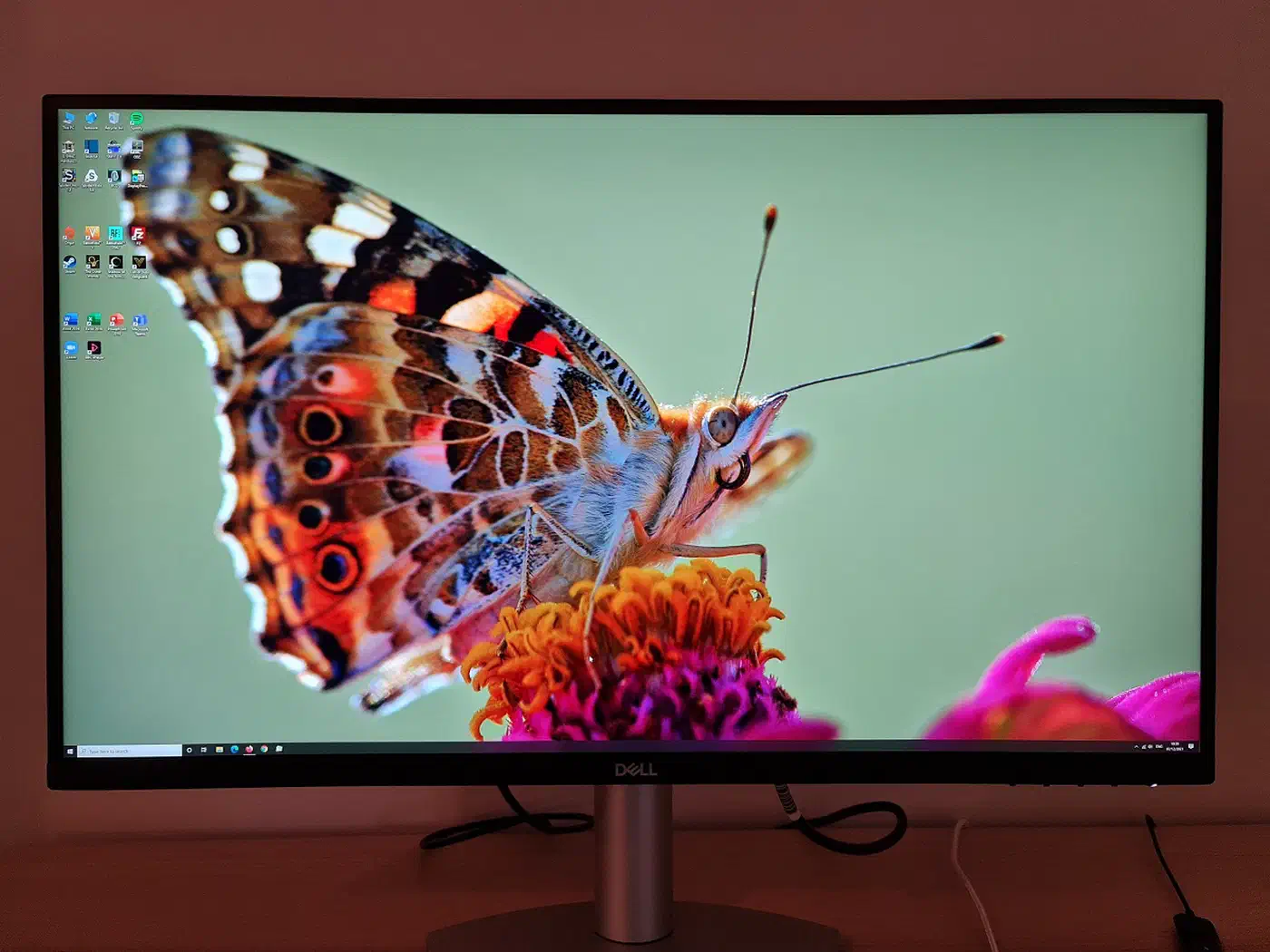
A 27-inch IPS panel at 60Hz with USB-C carrying both DisplayPort 1.4 Alt Mode and 65W power delivery. Two HDMI 2.0 ports, two downstream USB 3.0 ports, built-in dual 3W speakers, and a built-in KVM switch for toggling between two machines. The stand offers full height adjustment (110mm), tilt, swivel, and pivot to portrait mode.
EDID reports correctly on all tested distributions with no quirks. Fractional scaling at 150% on GNOME Wayland looks sharp. sRGB coverage is 99%. Contrast ratio is a typical IPS 1000:1. The 65W USB-C power delivery is enough for most ultrabook-class laptops, but heavier workstations may still need a separate charger. Typical power consumption sits around 28W.
LG 27UL500-W - The Budget Pick (~$250)
The most affordable option on this list. A 27-inch IPS panel at 60Hz with HDR10 support, 98% sRGB coverage, and a 300 nit brightness rating. Connectivity is two HDMI 2.0 ports and one DisplayPort 1.2 - no USB-C here. The stand is tilt-only, so budget for a VESA arm if you want height adjustment.
Linux detects it via standard EDID without issues. Colors are accurate enough for development work, and the wide color gamut means syntax highlighting themes look vibrant. The main weakness is slight IPS glow in the corners on dark backgrounds, which is typical at this price point. At around 27W typical power draw, it is efficient. If USB-C is not important to you and you want the cheapest path to 4K on Linux, this is the monitor to buy.
ASUS ProArt PA279CRV - The Color-Accurate Choice (~$420)
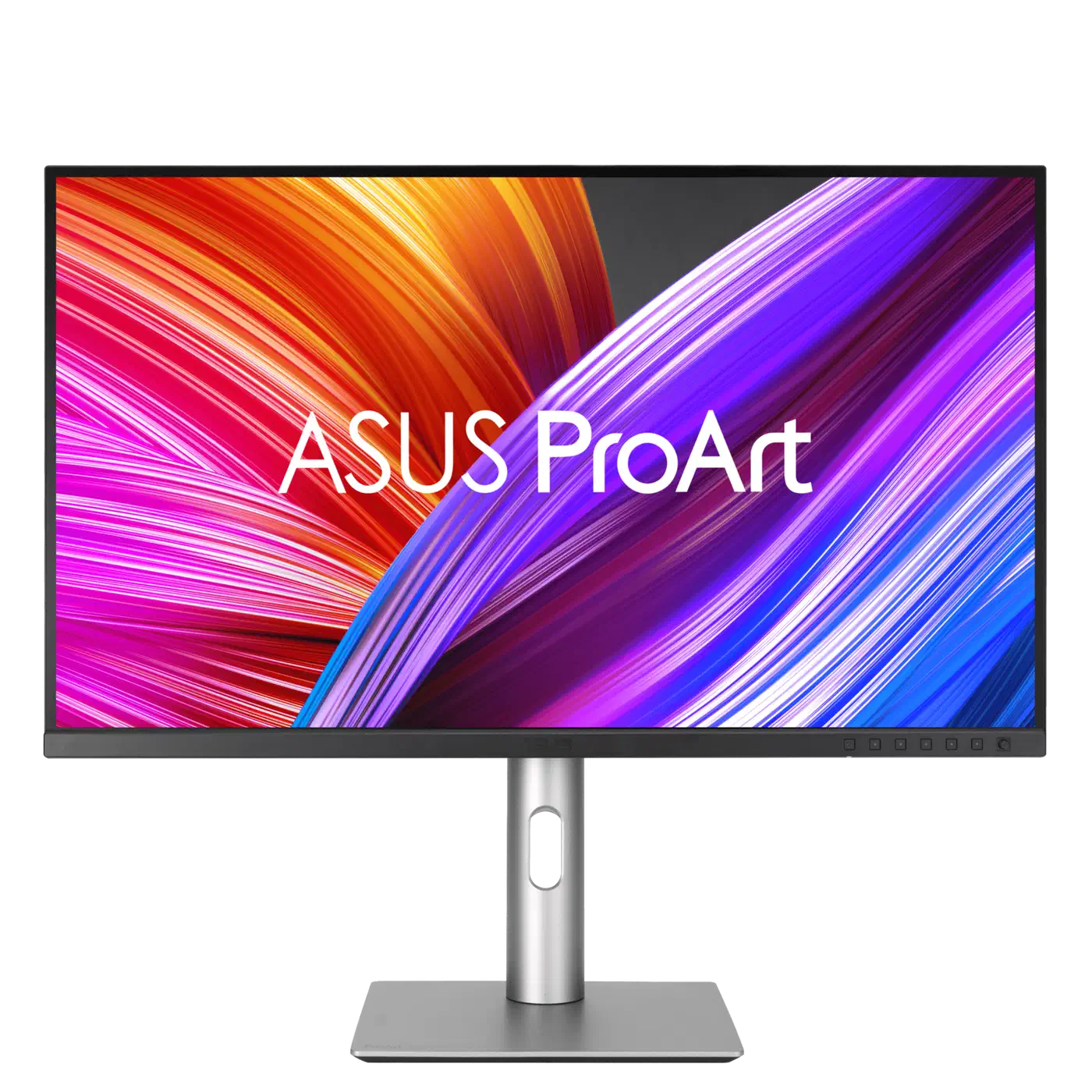
A 27-inch IPS panel at 60Hz with USB-C carrying 96W power delivery - enough to charge even beefy development laptops. Factory-calibrated to Delta E below 2, with 100% sRGB, 99% Adobe RGB, and 99% DCI-P3 coverage. This is the one to get if you also do design, front-end work, or photo editing. It ships with a Calman Verified calibration report.
On Linux, it works with colord
and you can import the factory ICC profile using colormgr import-profile. The stand includes full ergonomic adjustments: height, tilt, swivel, and pivot. Typical power consumption is around 33W. The only downside is the price - at $420 it stretches the “budget” definition, but the 96W USB-C and factory calibration justify the premium.
Gigabyte M28U - The High Refresh Rate Option (~$380)
A 28-inch IPS panel at 144Hz with HDMI 2.1 and DisplayPort 1.4 - a good choice if you also game on Linux or want smoother scrolling through code and terminal output. FreeSync Premium Pro support and VESA DisplayHDR 400 certification. Response time is 1ms GtG, and color coverage is 94% DCI-P3. It includes a built-in KVM switch.
The higher refresh rate makes a difference even for desktop work. Scrolling through a long file in Neovim
or a busy htop output is visibly smoother at 144Hz compared to 60Hz, and pairing it with a terminal emulator that renders scrollback on the GPU
keeps that fast scrollback feeling crisp. Linux handles it without driver issues using standard EDID. Note that driving 4K at 144Hz requires DisplayPort 1.4 with DSC - HDMI 2.1 works too, but your GPU must support it. AMD integrated graphics from Ryzen 7000 series and newer handle this fine. Typical power draw is around 45W, higher than the 60Hz models due to the faster refresh.
Samsung ViewFinity S6 S2702QC - The Samsung Alternative (~$270)
Samsung’s answer to the Dell S2722QC, with a 27-inch IPS panel at 60Hz, USB-C with 65W power delivery, and HDR10 support. The contrast ratio is a touch better at 1100:1 versus the Dell’s 1000:1, which means slightly deeper blacks for those dark terminal themes. sRGB coverage is 99% and it supports 1 billion colors.
Tested working on Fedora and Ubuntu without EDID issues. The build quality and stand are comparable to the Dell. If you find the Dell out of stock or want a marginally better contrast ratio for the same money, this is a solid alternative.
Comparison Table
| Monitor | Price | Size | Refresh | Panel | USB-C PD | sRGB | Contrast | VESA | Typical Power |
|---|---|---|---|---|---|---|---|---|---|
| Dell S2722QC | ~$330 | 27" | 60Hz | IPS | 65W | 99% | 1000:1 | 100x100 | ~28W |
| LG 27UL500-W | ~$250 | 27" | 60Hz | IPS | None | 98% | 1000:1 | 100x100 | ~27W |
| ASUS ProArt PA279CRV | ~$420 | 27" | 60Hz | IPS | 96W | 100% | 1000:1 | 100x100 | ~33W |
| Gigabyte M28U | ~$380 | 28" | 144Hz | IPS | None | 99%* | 1000:1 | 100x100 | ~45W |
| Samsung S2702QC | ~$270 | 27" | 60Hz | IPS | 65W | 99% | 1100:1 | 100x100 | ~30W |
*Gigabyte M28U covers 94% DCI-P3, which maps to approximately 99% sRGB.
Linux Display Configuration and Fractional Scaling Setup
Getting a 4K monitor detected on Linux is trivial in 2026 - plug it in and it works. Getting it looking perfect requires a few compositor-specific settings.
GNOME on Wayland
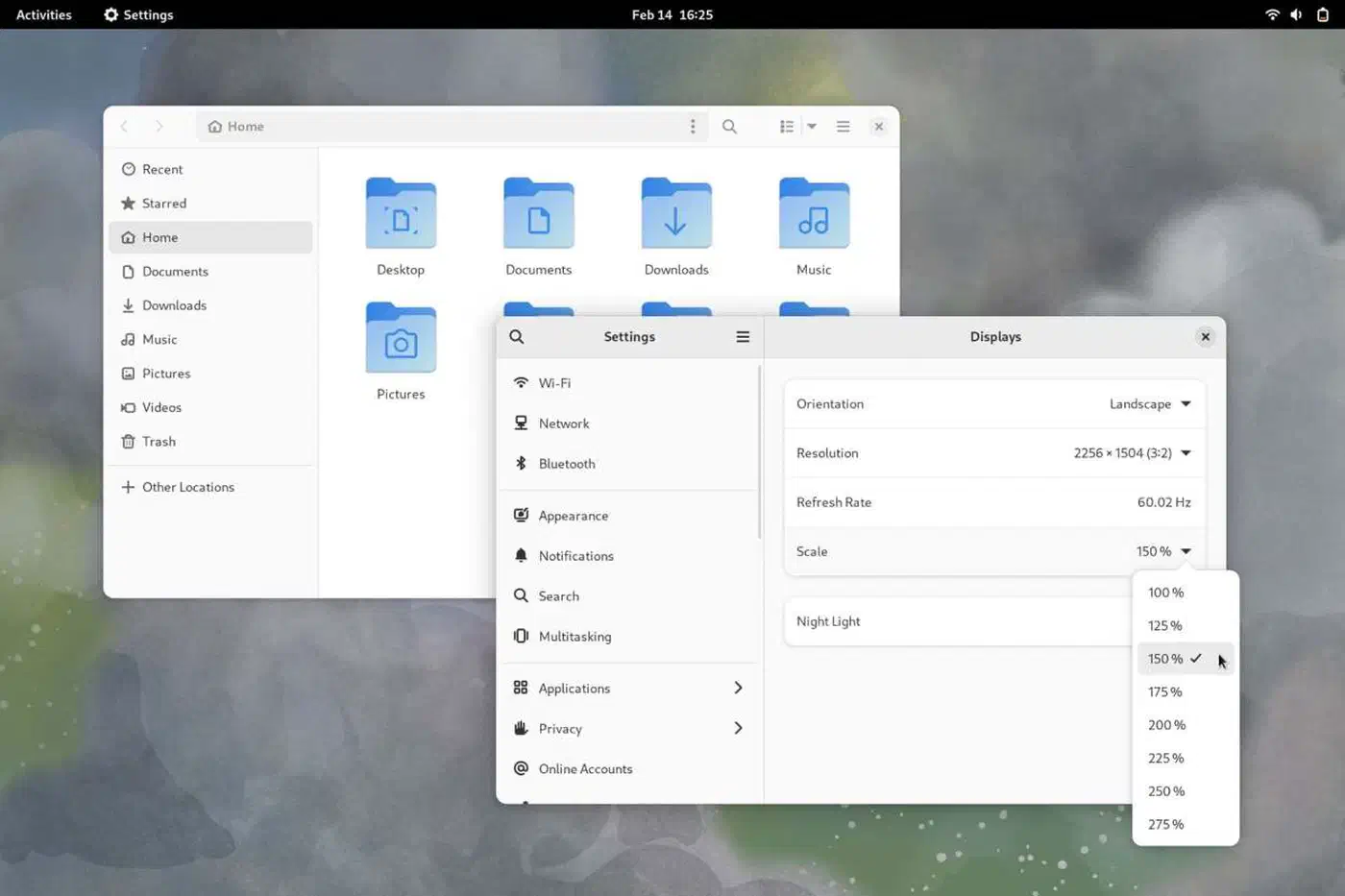
Enable fractional scaling with:
gsettings set org.gnome.mutter experimental-features "['scale-monitor-framebuffer']"Then open Settings, go to Displays, and select 150% or 175%. GNOME renders the desktop at a higher logical resolution and downscales, which produces sharp text. On GNOME 48, this is no longer technically “experimental” but the gsettings key remains for backwards compatibility. XWayland applications that support wp_fractional_scale_v1 will render natively; legacy X11 apps may need GDK_SCALE=2 as an environment variable if they still look blurry.
KDE Plasma on Wayland
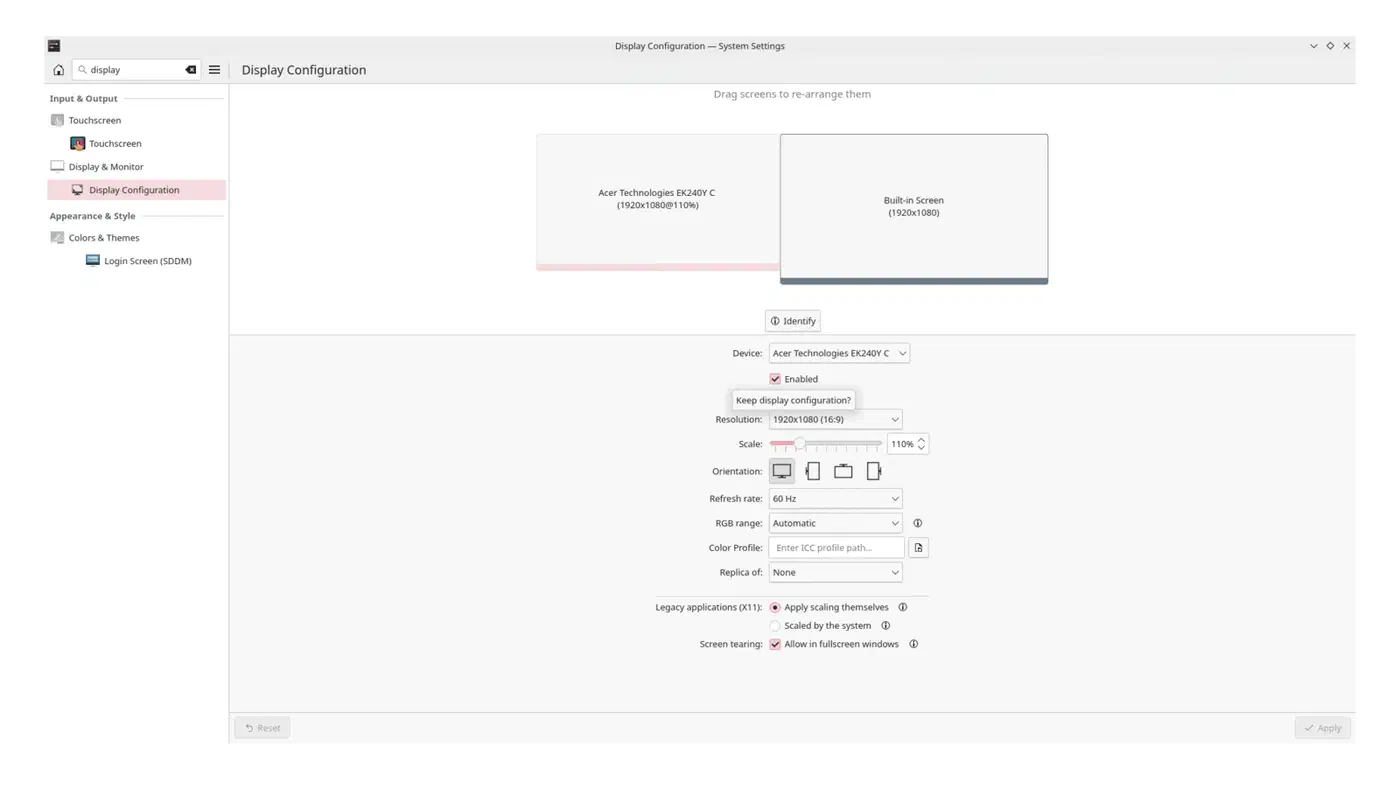
Open System Settings, go to Display & Monitor, and set the scale factor. KDE Plasma 6.3 supports per-monitor scaling with non-integer values like 1.25x, 1.5x, and 1.75x natively without any experimental flags. If you have HDR-capable monitors, Plasma 6.2+ also exposes HDR toggles in the same settings panel with compositor-level tone mapping.
Sway and Hyprland
For wlroots-based compositors , add to your config:
output DP-1 scale 1.5Replace DP-1 with your actual output name from swaymsg -t get_outputs or hyprctl monitors. Wlroots handles fractional scaling efficiently, but some XWayland applications may still appear blurry at non-integer scales since XWayland support in these compositors lags behind GNOME and KDE.
Color Profile Setup
For accurate color reproduction, generate an ICC profile for your specific panel using DisplayCAL (which uses colord under the hood), or import the manufacturer-provided ICC profile:
colormgr import-profile /path/to/manufacturer-profile.iccBoth GNOME and KDE integrate with colord automatically and will apply the profile system-wide.
Night Light and Blue Light Filtering
GNOME’s Night Light and KDE’s Night Color both operate at the Wayland compositor level and work correctly with 4K displays. Set a color temperature range (3500K-6500K is typical) and a time schedule in your display settings. This is particularly useful for long coding sessions extending into evening hours.
Panel Technology: IPS vs. OLED vs. Mini-LED
Every monitor on the recommended list uses an IPS (In-Plane Switching) panel. Here is why, and when you might want to consider alternatives.
IPS is the workhorse for development monitors. You get 178-degree viewing angles, accurate and consistent colors, and zero burn-in risk. The weaknesses are mediocre black levels (1000:1 contrast is standard) and potential IPS glow in the corners, visible when displaying dark content in a dim room. For code editing, where the screen is filled with text on a colored background, IPS is ideal. Typical budget 4K IPS panels draw 25-35W.
OLED 4K monitors have dropped to the $800-1200 range in 2026, with models like the ASUS ProArt PA32DC leading the pack. You get perfect blacks, infinite contrast, and instant pixel response. The downside for developers is burn-in risk from static UI elements: sidebars, status bars, tab bars, and terminal prompts all sit in the same position for hours. Pixel-shift technology and automatic brightness limiters mitigate this, but the anxiety lingers. For a monitor you plan to use eight-plus hours a day displaying mostly static code, IPS remains the safer bet.
Mini-LED backlighting adds local dimming zones to IPS panels, pushing effective contrast up to 2000:1 or higher without burn-in risk. The premium is $100-150 over standard IPS. If you frequently switch between a dark terminal and a bright browser, Mini-LED handles the transition better than standard IPS. But for the pure coding use case, the improvement over standard IPS is marginal and not worth the budget increase.
Refresh rate deserves a mention. 60Hz is perfectly fine for typing code - you will not notice the difference while typing or reading. But scrolling through code, terminal output, or web pages is clearly smoother at 120Hz or 144Hz. If your budget accommodates it, the Gigabyte M28U at 144Hz makes everyday desktop use feel more fluid without requiring an expensive discrete GPU. Response time below 10ms is indistinguishable for development tasks, so do not pay extra for 1ms gaming panels unless you also game.
GPU Requirements for 4K on Linux
Driving a single 4K display at 60Hz is well within the capabilities of any modern integrated GPU. AMD Ryzen 7000 and 8000 series APUs with Radeon integrated graphics handle 4K@60Hz over both DisplayPort and HDMI using the open-source amdgpu driver with no issues. Intel 12th-gen (Alder Lake) and newer processors with Iris Xe or Arc integrated graphics support 4K@60Hz natively through the i915 or xe driver.
For dual 4K at 60Hz, the same integrated GPUs work as long as your motherboard or laptop exposes enough display outputs. Most modern mini-ITX boards and laptops with USB-C/Thunderbolt can drive two 4K displays from integrated graphics.
For 4K at 144Hz (the Gigabyte M28U), you need DisplayPort 1.4 with Display Stream Compression or HDMI 2.1. AMD Ryzen 7000+ integrated graphics support this. Intel Iris Xe tops out at 4K@60Hz over most outputs, so 144Hz requires a discrete GPU on the Intel side - an AMD Radeon RX 7600 or NVIDIA GeForce RTX 4060 is more than sufficient and both have solid Linux driver support (open-source for AMD, proprietary for NVIDIA via the 560+ driver series).
NVIDIA users should note that multi-monitor Wayland support requires the proprietary driver and explicit sync support in your compositor. GNOME 47+ and KDE Plasma 6.1+ both support NVIDIA explicit sync, making the experience much smoother than it was even a year ago.
Connectivity, Ergonomics, and Multi-Monitor Setups
USB-C Power Delivery
USB-C with USB Power Delivery is the single best convenience feature for laptop-based Linux developers. One cable carries your video signal (via DisplayPort Alt Mode), USB data for peripherals connected to the monitor’s downstream ports, and power to charge your laptop. The Dell S2722QC and Samsung S2702QC deliver 65W, which covers most ultrabooks. The ASUS ProArt PA279CRV pushes 96W, enough for heavier workstations.
Verify your laptop’s USB-C port supports DisplayPort Alt Mode before buying - not all USB-C ports carry video. Thunderbolt 3 and 4 ports always support it. Most USB-C 3.2 ports on newer laptops do as well, but check your manufacturer’s spec sheet.
KVM Switching
The Dell S2722QC, ASUS ProArt PA279CRV, and Gigabyte M28U all include built-in KVM switches. This lets you connect two computers to the monitor and toggle between them with a button press, switching both the display input and the USB peripherals (keyboard, mouse) connected to the monitor’s USB hub. For developers who switch between a work laptop and a personal machine, this eliminates the need for a separate KVM box.
Ergonomic Stands vs. VESA Arms
The Dell and ASUS models ship with full ergonomic stands offering height adjustment, tilt, swivel, and pivot to portrait mode. The LG, Gigabyte, and Samsung models have more limited stands. All five monitors support 100x100mm VESA mounting, so a dual monitor arm from brands like HUANUO or ErGear ($40-80) is an affordable way to free up desk space and achieve precise positioning. Portrait mode rotation is particularly useful for reading long documentation, log files, or code review diffs.
Dual 4K Setup Considerations
Running two 4K monitors requires two discrete display outputs from your GPU, each carrying enough bandwidth for 4K. For 60Hz, DisplayPort 1.2 or HDMI 2.0 per monitor is sufficient. For 144Hz, you need DisplayPort 1.4 per monitor. USB-C monitors simplify cabling - one USB-C and one DisplayPort cable is a clean dual-4K setup from a laptop with Thunderbolt.
If you want to drive both displays from a single laptop port, a USB-C docking station can simplify the cabling significantly.
On the software side, Wayland compositors handle dual 4K gracefully. GNOME, KDE, Sway, and Hyprland all support independent per-monitor scaling and refresh rates. Performance overhead is minimal - the compositor renders each output independently, so a 60Hz secondary display next to a 144Hz primary works without forcing both to the lower refresh rate.
How to Verify Linux Compatibility Before Buying
Before committing to a purchase, check these resources:
- The Arch Wiki HiDPI page maintains a list of monitors with known Linux quirks
- Community-maintained EDID repositories let you search for your monitor’s model number and see if it reports resolution and timing correctly
- The Phoronix Forums and Linux Mint Forums have active threads about specific monitors and their Linux compatibility
- RTINGS.com reviews include detailed EDID and compatibility data, though not Linux-specific
If a monitor uses standard EDID reporting (most modern monitors do), it will work on Linux. The monitors to be cautious about are those with non-standard scaling modes, ultrawide resolutions, or proprietary OSD features that require Windows-only software. All five monitors on this list use standard EDID and require no special drivers.
The Bottom Line
For most Linux developers, the Dell S2722QC at around $330 is the best overall pick - USB-C power delivery, a great stand, built-in KVM, and zero Linux compatibility issues. If budget is tight, the LG 27UL500-W at $250 gets you into 4K for less. If color accuracy matters for your workflow, stretch to the ASUS ProArt PA279CRV at $420. And if smoother scrolling and future-proofing appeal to you, the Gigabyte M28U at $380 adds 144Hz to the mix.
Whichever you pick, 4K on Linux is a solved problem in 2026. Wayland fractional scaling works, integrated GPUs drive these panels without issue, and you no longer need to futz with xrandr hacks or hunt for obscure kernel patches. Pick the monitor that fits your budget and port requirements, plug it in, set your scaling to 150%, and enjoy code that looks like it was printed on the screen.