 Botmonster Tech
What Are the Best Ergonomic Split Keyboards for Programmers (2026)?

The three best ergonomic split keyboards for programmers in 2026 are the MoErgo Glove80 ($399, best overall comfort with contoured key wells and aggressive tenting), the ZSA Voyager ($365, best portable option with a low-profile design and magnetic tenting legs), and the Kinesis Advantage360 Pro ($499, best for deep key well fans with wireless ZMK firmware). All three offer full Linux support, open-source firmware tweaks, and columnar stagger layouts that cut finger strain on long coding days.
Each keyboard solves the same problem in its own way. Traditional layouts force your wrists into unnatural angles. Over years of 4-8 hour typing days, that causes real damage. If the options seem overwhelming and you keep putting off the switch, this comparison breaks down what each keyboard does well, where it falls short, and which one fits your workflow.
Why Split Ergonomic Keyboards Matter for Programmers
Standard keyboards force a posture called ulnar deviation. Your wrists angle outward so your hands can reach a single rectangular slab of keys centered in front of you. This position squeezes the carpal tunnel and strains the tendons that run through your forearms. A split keyboard ends that by letting you place each half at your natural shoulder width.
Beyond the split itself, all three keyboards here use columnar stagger rather than the row stagger inherited from typewriters. In a columnar layout, keys sit in straight vertical columns that match the natural up-down motion of your fingers. Row stagger forces sideways finger movement, which is especially hard on the pinky and ring fingers. Columnar layouts cut total finger travel by roughly 20-30%, and that adds up fast across a full day of coding.
Tenting is the third major ergonomic feature. By angling each keyboard half inward like a tent, you reduce forearm pronation: the twist that rotates your palms down toward the desk. Ergonomic research suggests 15-30 degrees of tenting for a good wrist position. All three keyboards here offer some tenting, though they differ a lot in range and adjustment.
Programmers gain the most from layer-based key mapping. Traditional keyboards put brackets, semicolons, equals signs, and other code symbols out on the edges where weaker fingers have to stretch. Split keyboards with programmable firmware let you move these symbols onto thumb clusters or home-row layers. That keeps your strongest fingers on the most-used keys. After the adjustment period, many programmers report fewer typos on symbol-heavy code and less fatigue on long sessions.
The adjustment period is real, and it’s only fair to say so plainly. Expect your typing speed to drop 15-20% in the first week. Most people reach a workable speed within 2-4 weeks, though matching your old speed usually takes 2-4 months. Touch typists adapt faster since they already use correct finger placement. If you hunt-and-peck or have built odd finger habits on a standard keyboard, a columnar split layout will force those habits out. It’s painful at first, but the fix is permanent.
The $350-500 price tag is real, but weigh the alternative. A single week of missed work from RSI costs far more than any keyboard, and chronic wrist pain has ended more than a few programming careers early. These keyboards are professional tools, and they typically last 5-10 years.
MoErgo Glove80: The Comfort King
The Glove80 is the most aggressively ergonomic option here. Its defining feature is a fully contoured key well: a concave sculpted surface where your fingers rest in curved channels instead of pressing down on a flat slab. The 80-key layout includes 6 thumb keys per hand. That gives you plenty of physical keys before you need to lean on firmware layers.
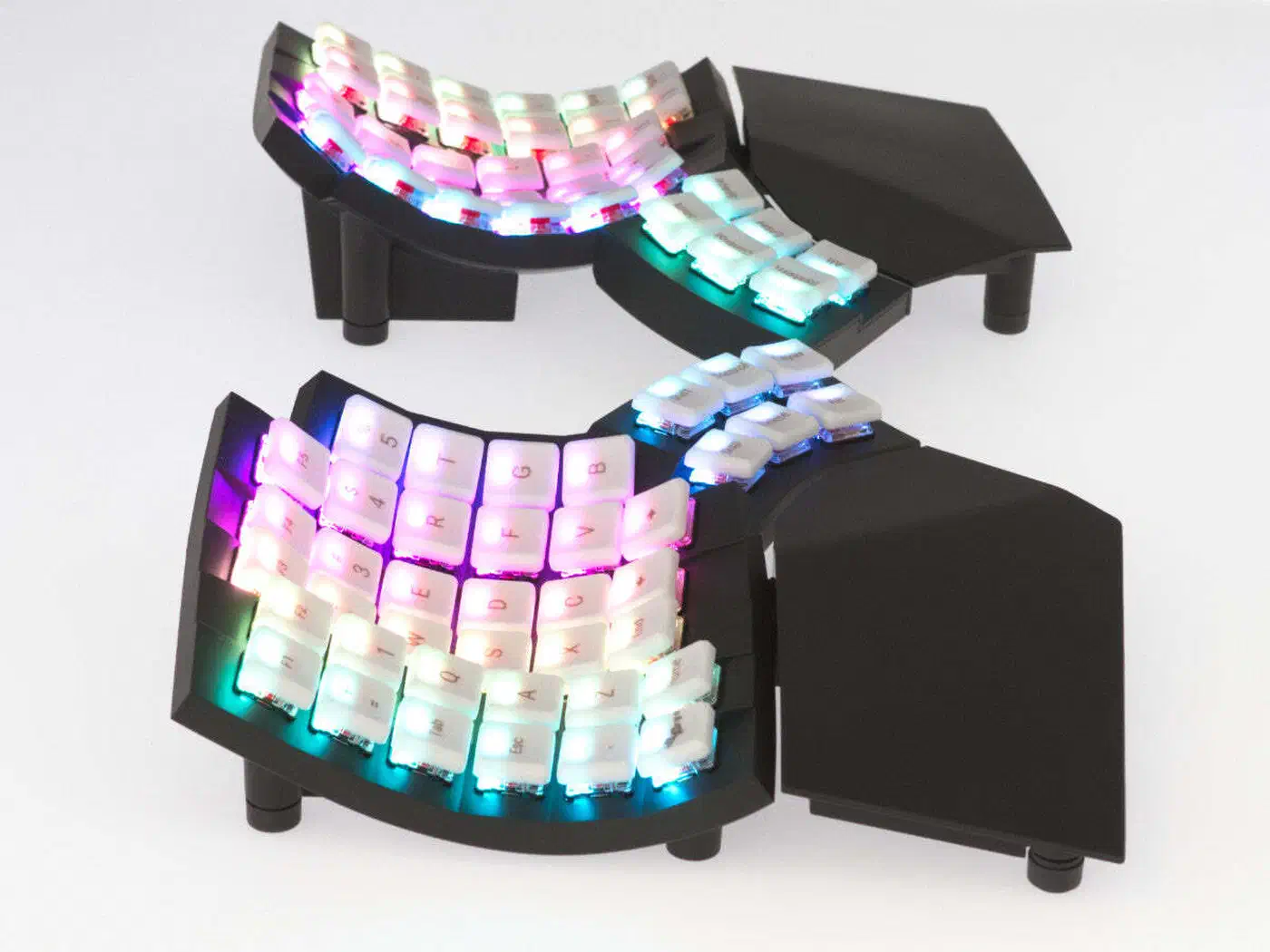
The keyboard ships with Kailh Choc V1 low-profile switches. You pick linear (Red), light linear (Pro Red), tactile (Brown), or clicky (White) at checkout. The sockets are hot-swappable, so you can change switches later without soldering. The catch is that you’re limited to the Choc V1 family. The Choc V1 aftermarket is smaller than Cherry MX, but it still has solid options from Kailh, Ambients, and a few boutique makers. Keycap choices are tighter, mostly MBK and CFX profiles.
Firmware runs on ZMK , an open-source wireless keyboard firmware. The Glove80 connects over Bluetooth 5.0, with roughly 3 months of battery life per half on coin cells, or over USB-C. You can set up your keymap through MoErgo’s web configurator at my.glove80.com, or by editing ZMK keymap files and flashing the firmware yourself. The web configurator works fine, but it’s basic next to ZSA’s Oryx. It gets the job done and does not hold your hand.
Linux support is simple. The Glove80 shows up as a standard HID device over both Bluetooth (via BlueZ 5.x) and USB-C. No drivers needed. It works out of the box on GNOME, KDE, Sway, Hyprland, and every other Linux desktop tested. You can stack system-level remapping on top with tools like keyd or kmonad if you want remapping that holds across keyboards.
The Glove80’s tenting system stands out most after the key well sculpting. Built-in magnetic tenting legs give you 0, 15, 25, and 35 degrees. There’s no separate tenting kit to buy. The magnets snap into detents and hold firmly. The 35-degree option is steeper than anything the Voyager or Advantage360 offers, and switching angles takes about 2 seconds.
The main drawbacks are size and keycap limits. With 80 keys and contoured key wells, this is a large keyboard that needs dedicated desk space. The Choc V1 switch family is fine, but it can’t match the thousands of Cherry MX switch and keycap options out there. At $399, the Glove80 is a real investment, though it sits in the middle of this price range.
ZSA Voyager: The Portable Minimalist
The Voyager takes the opposite tack from the Glove80. Where MoErgo added more keys and deeper sculpting, ZSA stripped away everything non-essential. The result is a 52-key split keyboard that fits in a laptop bag. Each half weighs 217 grams and measures roughly 13x10cm. If you work from coffee shops, coworking spaces, or move between home and office, the Voyager is the only keyboard here that travels well.
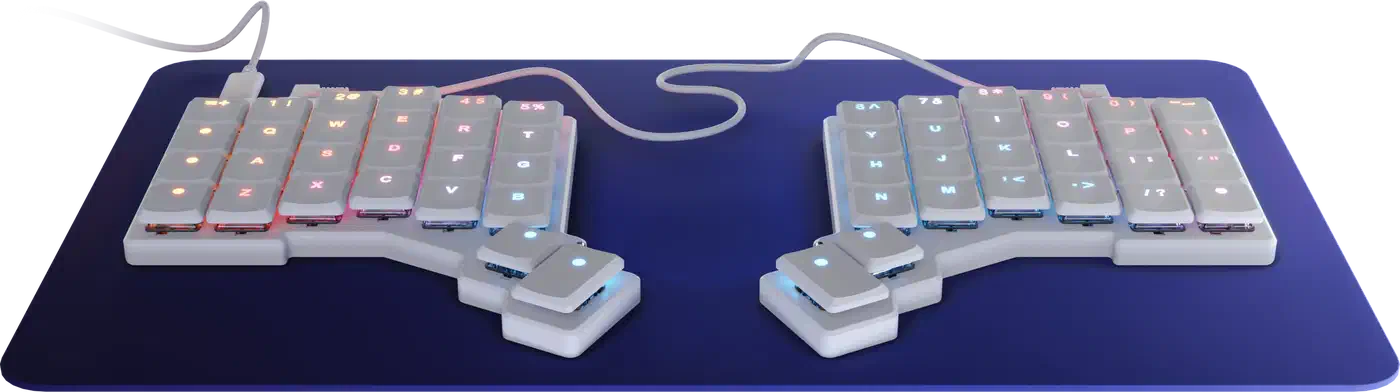
Those 52 keys (36 columnar keys plus 4 thumb keys per hand, plus modifiers) mean you’re fully committed to firmware layers for numbers, symbols, function keys, and navigation. That is either the Voyager’s greatest strength or its dealbreaker, based on how much setup work you can stomach. ZSA’s Oryx web configurator makes the process as painless as it can be. It’s the best keymap tool in the split keyboard world, with a visual layer editor, tap-dance config, combo keys, and one-click firmware builds. You flash the new firmware through the Voyager’s built-in bootloader, no external tools needed.
The Voyager uses Kailh Choc V1 low-profile switches, not V2 as sometimes reported. At checkout you pick Red (linear, 50gf), Pro Red (linear, 35gf), Brown (tactile), or White (clicky). Hot-swap sockets let you change switches later. Choc V1 switches actuate at a shorter 1.5mm versus 2.0mm on most MX switches. Some programmers like that for rapid key presses, while others find it too sensitive at first.
The firmware is QMK -based, not ZMK, and that matters. QMK is wired-only, so the Voyager is a wired-only keyboard. You get a USB-C connection with no Bluetooth option. For a portable keyboard, that’s the Voyager’s biggest compromise. You’ll always need a cable, and if your laptop has only one USB-C port, the keyboard takes it (or you carry a hub).
Linux support is plug-and-play. It’s a standard HID device, no drivers, works everywhere. The Oryx configurator runs in any modern browser, so you can tweak your layout on any machine.
The Voyager includes magnetic tenting legs with adjustable angles. With the Choc V1 low-profile switches, the keyboard height stays under 2cm, which cuts or removes the need for a wrist rest. The flat, low-profile design is comfortable for most people even without tenting, though the tenting range is tighter than the Glove80’s 35-degree max.
Beyond the wired-only limit, the 52-key layout has a steep learning curve. Coming from a full-size keyboard, you need to learn 3-4 firmware layers before you can type fluently. ZSA’s keycaps are limited to their own designs, though aftermarket Choc V1 keycaps from other makers do fit. And at $365, you pay a premium for portability that some desk-bound programmers may not need.
Kinesis Advantage360 Pro: The Deep-Well Veteran
The Advantage360 Pro descends from the original Kinesis Advantage, a staple of ergonomic computing since the 1990s. It keeps the distinctive bowl shape: deeply sculpted concave key wells where each row sits at a different height and angle to match the natural curl of your fingers. If you’ve used and loved a Kinesis Advantage before, the 360 Pro is its modern, split, wireless version.
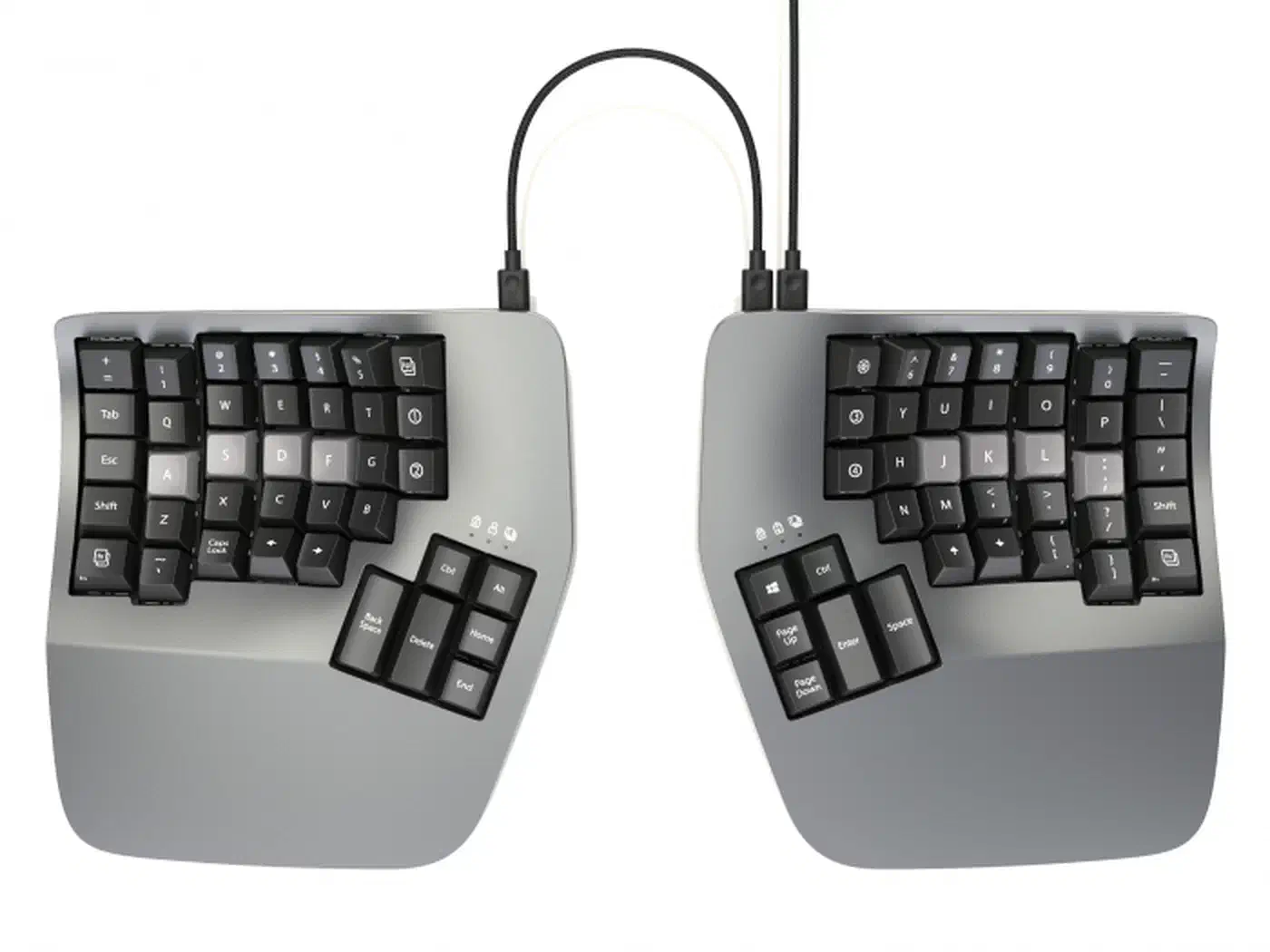
The 76-key layout includes a generous thumb cluster with 6 keys per hand. The key count sits between the Glove80 (80) and Voyager (52). That gives you enough physical keys that most programmers need only 1-2 firmware layers for a full workflow.
For switch fans, the big draw is that the Advantage360 Pro uses full-size Cherry MX-compatible switches. It ships with Cherry MX Brown (tactile) or Cherry MX Silent Red (linear), but the hot-swap sockets accept any Cherry MX-compatible switch. That opens up thousands of switches: Gateron, Kailh Box, Durock, Holy Pandas, and many more. If you have strong views on switch feel, sound, and force, only the Advantage360 lets you run your preferred MX switch in a deeply sculpted split board. For a different take, Hall Effect switches use magnets instead of physical contacts and offer adjustable actuation points that none of these keyboards have.
Firmware is ZMK with Bluetooth 5.0 and a USB-C fallback. The keyboard pairs with up to 5 Bluetooth devices and switches between them with a key combo. That’s handy for programmers who work across a desktop, a laptop, and maybe a home server or Raspberry Pi. You set it up through Kinesis’s web configurator or by editing ZMK keymaps directly. The configurator works fine and is similar in scope to the Glove80’s: adequate, but not as polished as ZSA’s Oryx.
Linux support over Bluetooth works via BlueZ, and USB-C is fully plug-and-play. Some users report Bluetooth stuttering on wakeup from sleep. That’s a known ZMK issue with certain Linux Bluetooth stacks, not a Kinesis-specific bug. The fix is to use USB-C, which is rock solid.
Build quality is substantial. The full ABS case includes integrated palm rests and adjustable tenting via flip-out feet (0-15 degrees). That tenting range is the tightest of the three keyboards here. The Advantage360 is also the heaviest at over 800g per half. This is a keyboard built for a permanent desk spot, not for travel.
At $499, the Advantage360 Pro is the most expensive option here. You pay for the deep key well sculpting, MX switch support, wireless multi-device pairing, and the Kinesis name. Whether that premium is worth it depends on how much you value MX switch options and deep key wells over the Glove80’s better tenting or the Voyager’s portability.
Head-to-Head Comparison and Recommendations
Here is a direct comparison of all three keyboards across the things that count most:
| Feature | MoErgo Glove80 | ZSA Voyager | Kinesis Advantage360 Pro |
|---|---|---|---|
| Price | $399 | $365 | $499 |
| Key Count | 80 | 52 | 76 |
| Switches | Kailh Choc V1 | Kailh Choc V1 | Cherry MX |
| Connectivity | Bluetooth 5.0 + USB-C | USB-C only | Bluetooth 5.0 + USB-C |
| Weight (total) | ~450g | ~434g | ~800g+ |
| Tenting Range | 0-35 degrees (magnetic) | Adjustable (magnetic legs) | 0-15 degrees (flip feet) |
| Firmware | ZMK | QMK (via Oryx) | ZMK |
| Configurator | my.glove80.com | Oryx (best-in-class) | Kinesis web config |
| Key Wells | Contoured concave | Flat low-profile | Deep concave bowls |
| Portability | Moderate | Excellent | Poor (desk-only) |
| Switch Hot-Swap | Yes (Choc V1) | Yes (Choc V1) | Yes (Cherry MX) |
Choose the MoErgo Glove80 if comfort is your top priority and you work mostly at a desk. The contoured key wells, 35-degree tenting, and 80-key layout give you the most complete ergonomic package without heavy layer reliance. It sits between the Voyager’s minimalism and the Advantage360’s bulk.
Choose the ZSA Voyager if you travel often, value portability, or want the best firmware setup experience. The 52-key layout asks for more upfront work on layer design, but Oryx makes that pleasant. The wired-only limit and small key count are real tradeoffs. Still, for programmers who embrace layers, the Voyager is fast and comfortable once set up.
Choose the Kinesis Advantage360 Pro if you want full-size Cherry MX switches in a deeply sculpted key well. No other split ergonomic keyboard in this price range gives you the full MX switch ecosystem with this much key well contouring. Its multi-device Bluetooth is also the most mature of the three, handy for multi-computer setups.
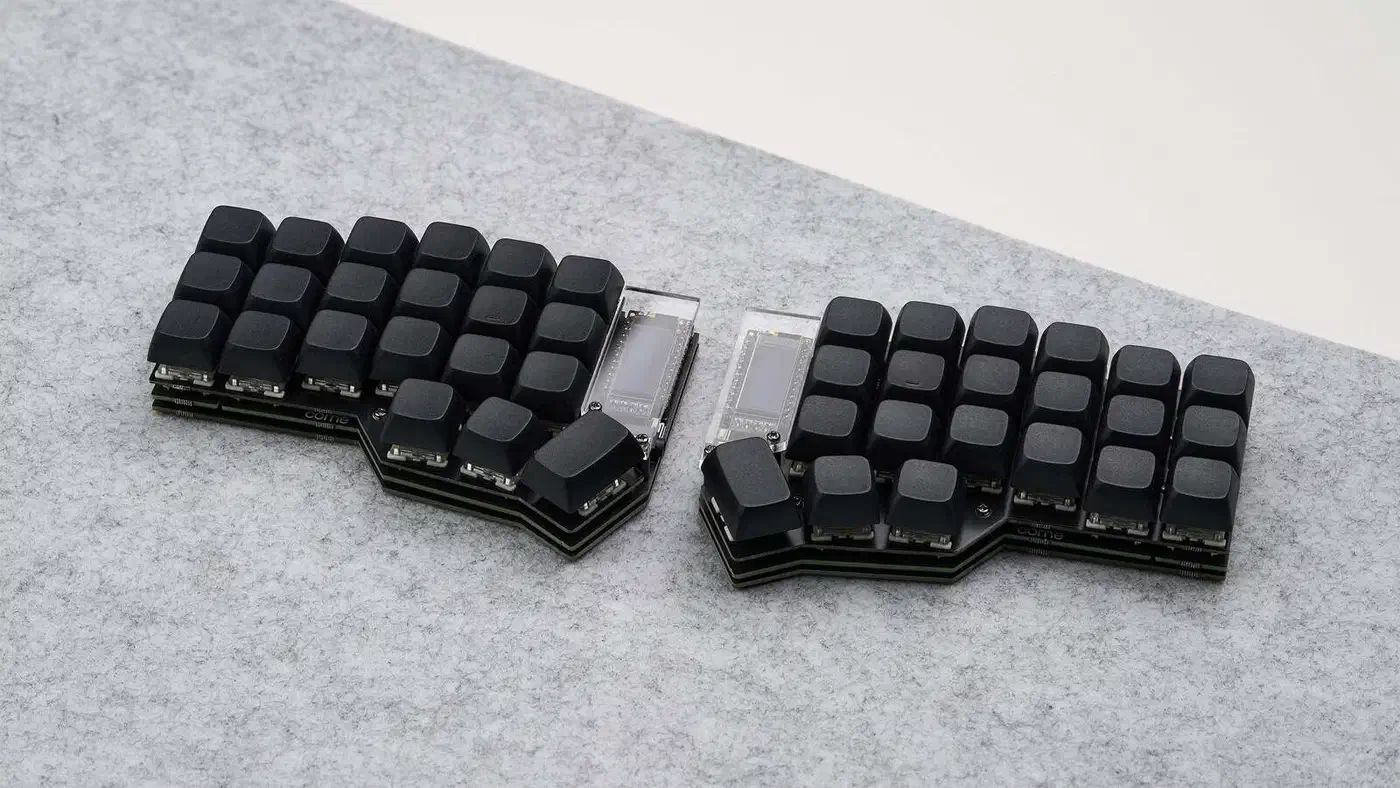
Budget alternative: The Corne (Crkbd) is a 42-key split keyboard you can build from a kit for $50-150. The price depends on case material, switches, and whether you source parts one by one or buy a full kit from vendors like Boardsource or splitkb . It runs QMK or ZMK firmware and supports both Choc and MX switches based on the PCB version. The tradeoff is clear. You need to solder unless you buy a hotswap PCB, source your own keycaps and switches, and set up firmware without a polished web UI. For programmers who enjoy tinkering, the Corne is a great entry point into the split keyboard world for a fraction of the cost.
Making the Transition
Whichever keyboard you choose, the move from a standard layout follows a predictable pattern. Your first week will feel frustrating. Typing speed drops sharply and even simple tasks feel labored. The second week is often the hardest, as muscle memory clashes between old and new layouts peak. By week three or four, most touch typists reach a workable speed, roughly 60-70% of their old pace. Full speed recovery usually takes 2-4 months.
A few practical tips from programmers who made the switch. Do not go cold turkey during a critical project deadline. Keep your old keyboard within reach for the first few weeks and slowly add time on the split board. Start with prose typing such as emails and docs before you take on symbol-heavy code. And set up your layers before you need them. An hour spent building a good symbol layer in Oryx or the ZMK web config saves days of frustration later.
All three keyboards here are excellent tools. They last years and clearly cut strain on your hands and wrists. The best one is whichever fits your priorities: comfort and tenting (Glove80), portability and minimalism (Voyager), or MX switches and deep sculpting (Advantage360 Pro). Any of them is a big upgrade over typing on a flat, non-split keyboard for 8 hours a day.