 Botmonster Tech
Best Ergonomic Vertical and Trackball Mice for Developers Who Type All Day
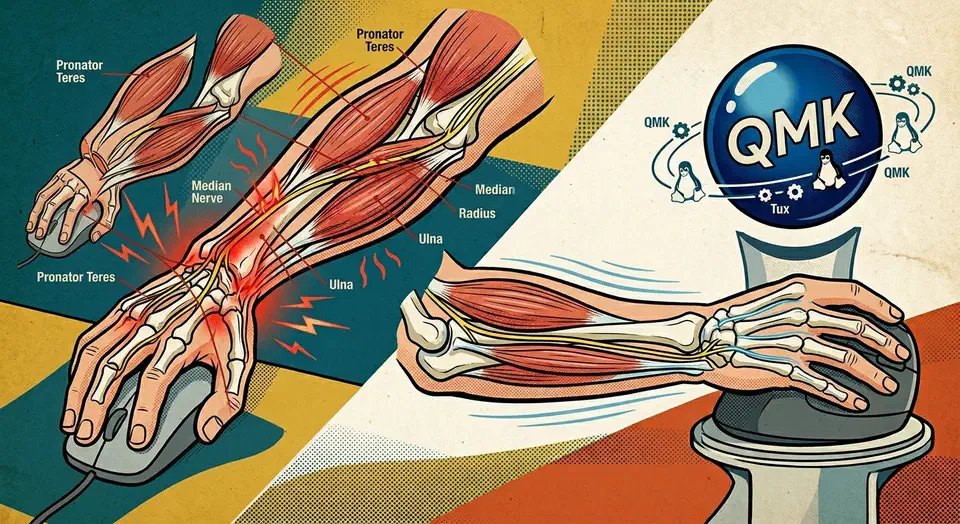
If you spend eight-plus hours a day in a terminal and an editor, the right pointing device counts as much as the right keyboard. The Logitech MX Vertical remains the default vertical pick. It has a 57-degree handshake angle, a 4000 DPI sensor, and solid Linux support via Solaar and logiops . For a thumb trackball, the Logitech MX Ergo S wins on tilt and 120-day battery life. The Kensington SlimBlade Pro leads the finger and palm trackball field with its 55mm billiard-grade ball and Bluetooth LE. For open-source fans, the Ploopy Classic 2 with QMK firmware ships as a fully user-fixable device. Linux sees it as a standard HID mouse with zero closed drivers.
Why Vertical Mice and Trackballs Reduce Forearm Strain
Before comparing models, it helps to know what a flat mouse does to your body. A flat mouse holds the forearm in full pronation, which means palm-down rotation at about 180 degrees. That position pinches the median nerve at the wrist. It also loads the pronator teres muscle non-stop, and shortens the radial side of the forearm over long sessions. After a few thousand hours of coding, those tissues start to complain.
Vertical mice rotate the hand toward a neutral handshake grip. The MX Vertical sits at 57 degrees, and most users adapt to it within a week. The Evoluent VerticalMouse D goes fully vertical at 90 degrees. That is closer to the angle a physical therapist would pick for somebody who already has RSI symptoms. Trackballs take a different path and cut out arm movement on the desk. Your palm stays planted and a ball or thumb drives the cursor. That is a big win if you work with a small keyboard tray, a standing desk mat, or a monitor arm that pushes the screen too far back for a normal sweep.
A few practical details before you spend any money:
- Thumb trackballs shift load onto the thumb’s carpometacarpal joint, a common site for osteoarthritis. If you already have thumb pain, a finger or palm trackball suits you better because the load spreads across many digits.
- Sensor and ball quality count for more than DPI specs suggest. Rough ball surfaces or cheap ruby bearings create stiction that forces micro-adjustments all day. Premium devices use ceramic or stainless-steel bearings with polished 40-55mm balls.
- Aim for six or more programmable buttons so you can bind workspace switching, copy/paste, and browser navigation without moving your hand.
- Instant DPI toggle buttons let you drop from 4000 DPI (fast cursor travel across a 4K monitor) to 400 DPI (pixel-precise selection in a diff view). That one feature pays for itself in a long code review session.
Top Vertical Mice for Developers
Vertical mice are the easiest entry point if you do not want to relearn pointing from scratch. You still move your arm, but your wrist stays rotated into a neutral handshake. Prices run from about $20 on the Anker end to $120 for the MX Vertical. Linux support is solid across the board thanks to generic HID, plus Solaar for Logitech-only features.
| Model | Angle | DPI | Buttons | Connection | Price | Linux |
|---|---|---|---|---|---|---|
| Logitech MX Vertical | 57 deg | 400-4000 | 6 | BT + Logi Bolt + USB-C | ~$100 | Solaar + logiops |
| Logitech Lift | 57 deg | 400-4000 | 6 | BT + Logi Bolt | ~$70 | Solaar |
| Evoluent VerticalMouse D | 90 deg | 800-2600 | 6 | Wired or 2.4GHz | ~$110 | Generic HID |
| Anker 2.4G Vertical | ~60 deg | 800/1200/1600 | 5 | 2.4GHz dongle | ~$20 | Generic HID |
| Delux M618X | ~60 deg | 400-4000 | 6 | BT + 2.4GHz | ~$45 | libratbag + piper |
The MX Vertical is the safe default. The Lift is the small-hand cousin with the same 57-degree angle. It also ships in a left-handed version, one of the few left-handed vertical mice still in production. The Evoluent VerticalMouse D goes further with a full 90-degree angle and three hand sizes. That is why it shows up in clinical ergonomics setups. The Anker is the try-before-you-commit option. It works out of the box on Linux as a generic HID mouse, and if you hate the shape you are only out $20.
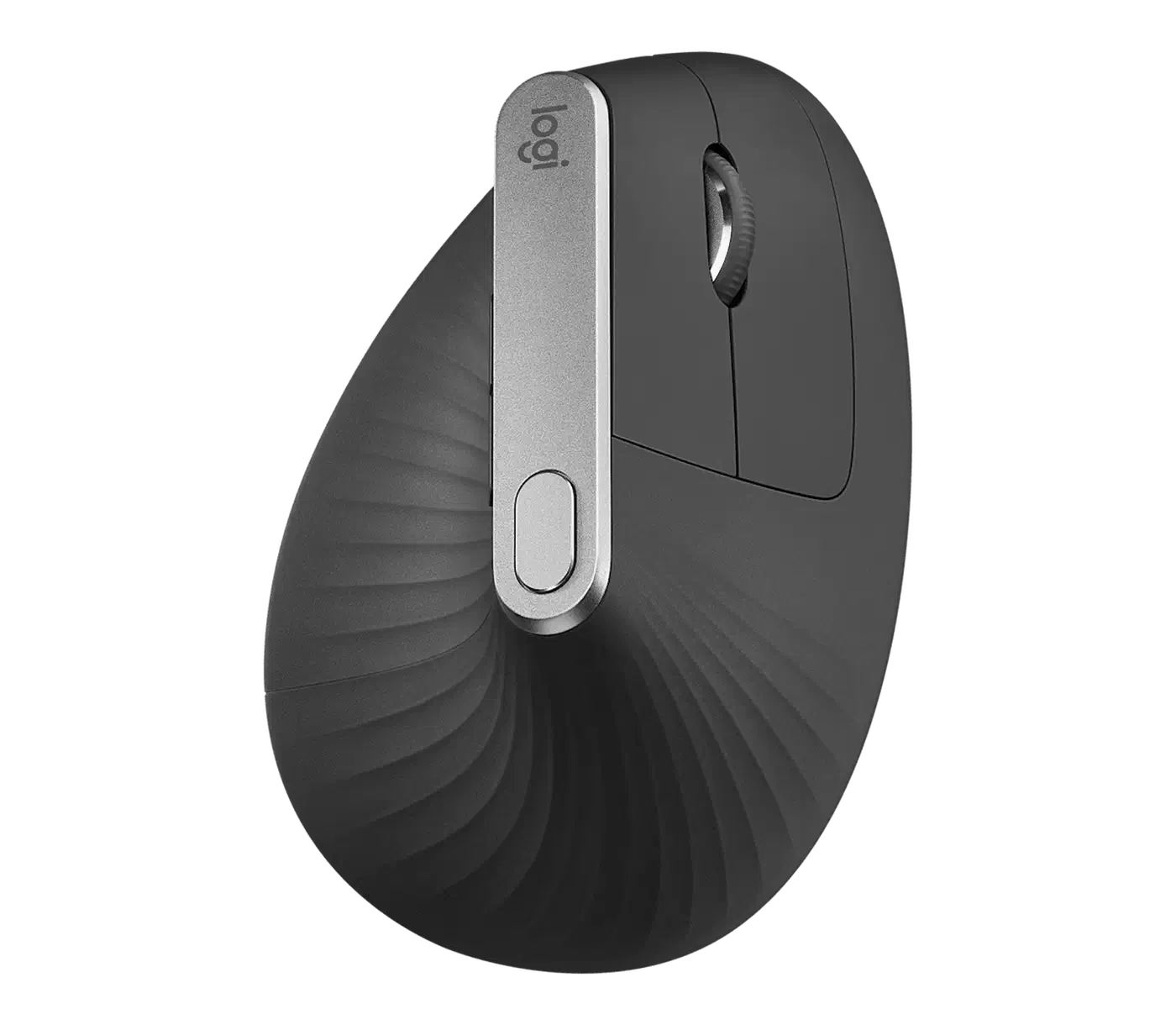
Optical sensors in this class (PixArt PMW3325 and friends) all track fine on any hard surface. None of these need a mousepad, which is a real win if you are already juggling a split keyboard, a laptop stand, and a monitor arm on a packed desk.
Thumb Trackballs, Finger Trackballs, Palm Trackballs
Trackballs give you the biggest ergonomic gain because your hand never moves. The three main styles differ in which digit drives the ball, and each has real trade-offs.
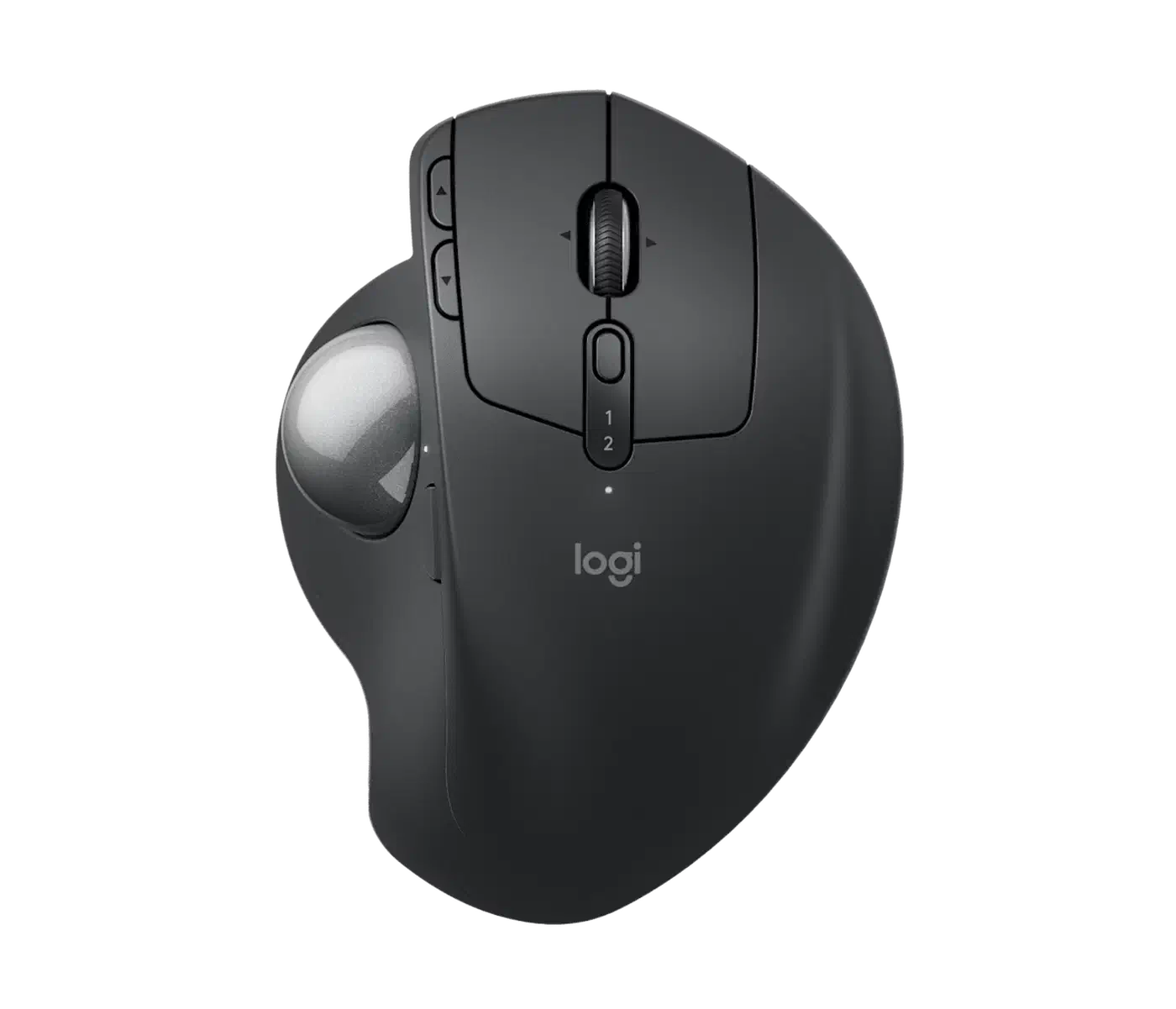
Thumb trackballs feel the most mouse-like to newcomers. The Logitech MX Ergo S has a 34mm ball, a 512-2048 DPI sensor, eight buttons, and a 0-20 degree tilt hinge that cuts pronation further. Logitech rates the battery at 120 days per full charge. A 1-minute fast charge gives you 24 hours of use. The precision button drops DPI for pixel work. The one common gripe: the scroll wheel feels stiff over long documents, which hurts if you scroll through huge log files all day.
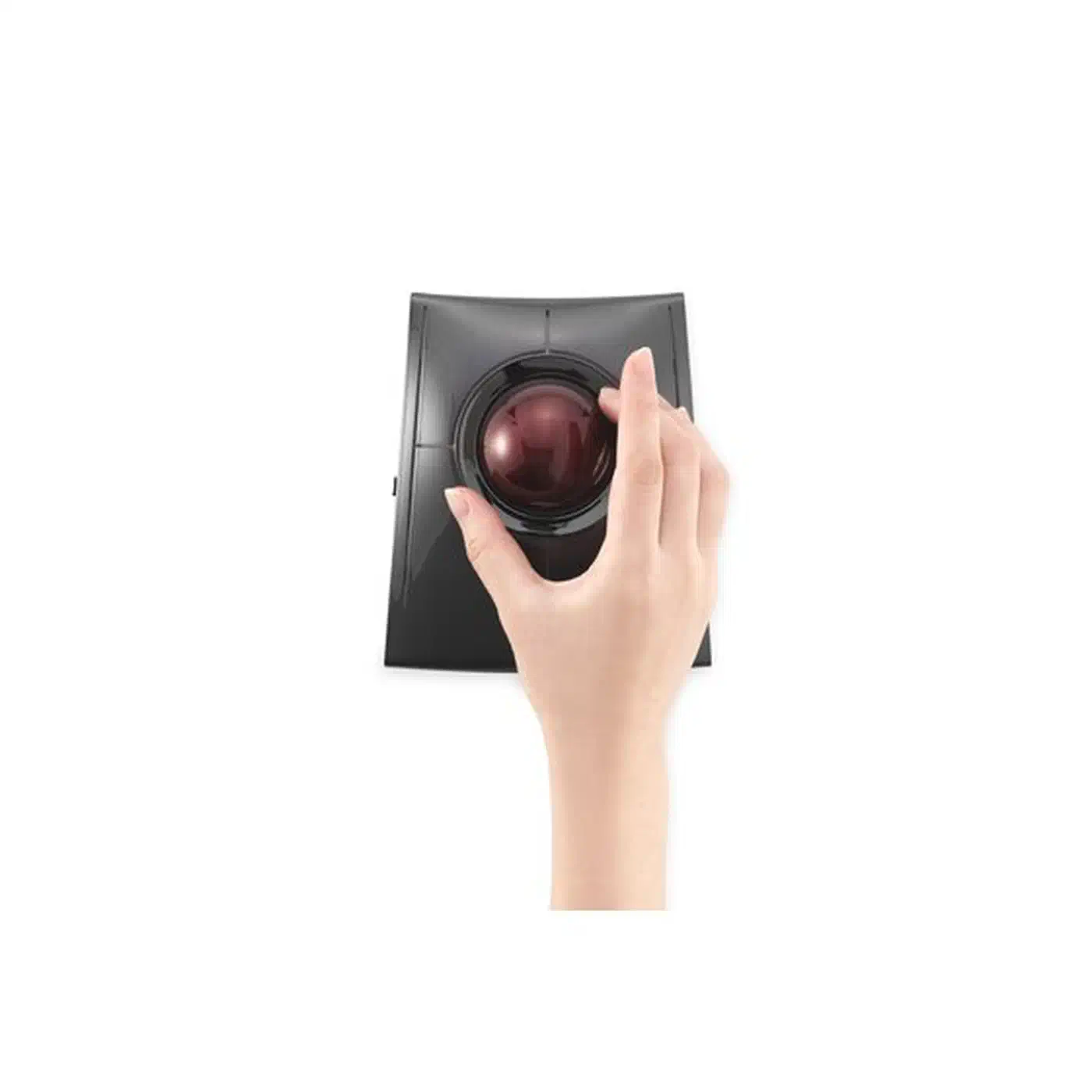
Finger trackballs put a 52-55mm ball right under your fingers. The Kensington SlimBlade Pro sells for around $119. It packs four DPI stages (400, 800, 1200, 1600), a 55mm polished billiard-grade ball, four buttons, and a signature twist-to-scroll move where you spin the ball around its vertical axis to scroll. It links via Bluetooth, 2.4GHz dongle, or wired USB-C. The Elecom HUGE is a Japanese cult favorite with a 52mm ball, eight buttons, a built-in wrist rest, and a middle-finger layout that stays comfy over 10-hour stints.
Index-finger trackballs take a middle path. The Elecom DEFT Pro has a 52mm ball driven by the index finger, eight buttons, and triple-mode hookup (wired, Bluetooth, 2.4GHz). The DEFT layout is one of the most neutral designs out there. Your thumb rests, and your strongest finger steers.
Two-handed palm trackballs like the Kensington Expert Mouse center a 55mm ball between four buttons with a real scroll ring. They work just as well for lefties and righties. If you share a desk with a partner or rotate between workstations, this is the obvious pick.
A quick rule of thumb on ball size: 34mm (thumb) is fast for small screens, 44mm sits in the middle for regular desktop use, and 52-55mm suits 4K or multi-monitor setups where you need long, smooth sweeps. Skip any trackball that uses ruby bearings on plastic sockets. They grind and pick up stiction within a few months. Ceramic or stainless-steel bearings last for years.
Open-Source Trackballs from Ploopy
If you care about repair, QMK firmware, and hackability, Ploopy is the only serious pick. The devices are designed in Canada, shipped as kits or fully built, and run open-source QMK firmware on an RP2040. Linux sees them as plain USB HID devices. No kernel modules, no daemons, no reverse-engineered drivers. Every STL, PCB, and firmware file lives on GitHub under an open license.
The lineup covers every ergonomic layout:
- Ploopy Classic 2 - the flagship finger trackball. 44mm ball, PMW3360 sensor with polling rates over 1000 Hz and up to 12000 DPI, five buttons, an RP2040 microcontroller, and a fully 3D-printable shell. Firmware is QMK, so you can remap buttons, add layers, and add macros the same way you would on a split keyboard.
- Ploopy Thumb Trackball - a 34mm ball in a thumb-driven layout with a PMW3360 sensor. A direct MX Ergo alternative if you want open firmware.
- Ploopy Adept - the ambidextrous palm-style answer to the Kensington SlimBlade, with a 55mm ball and QMK underneath.
- Ploopy Nano - an ultra-compact 34mm trackball designed to sit under a split keyboard. Popular among users of the Corne, Kyria, and ZSA Moonlander .
QMK is where Ploopy really pulls ahead of the rest. You get layer switching, tap-dance on mouse buttons, Drag Scroll, Snipe (precision) mode, and per-layer DPI. You set all of it from the QMK Configurator or Vial. Flashing is drag-and-drop UF2, or one click in QMK Toolbox . If you have ever rebuilt firmware for a custom keyboard , this is the same flow.
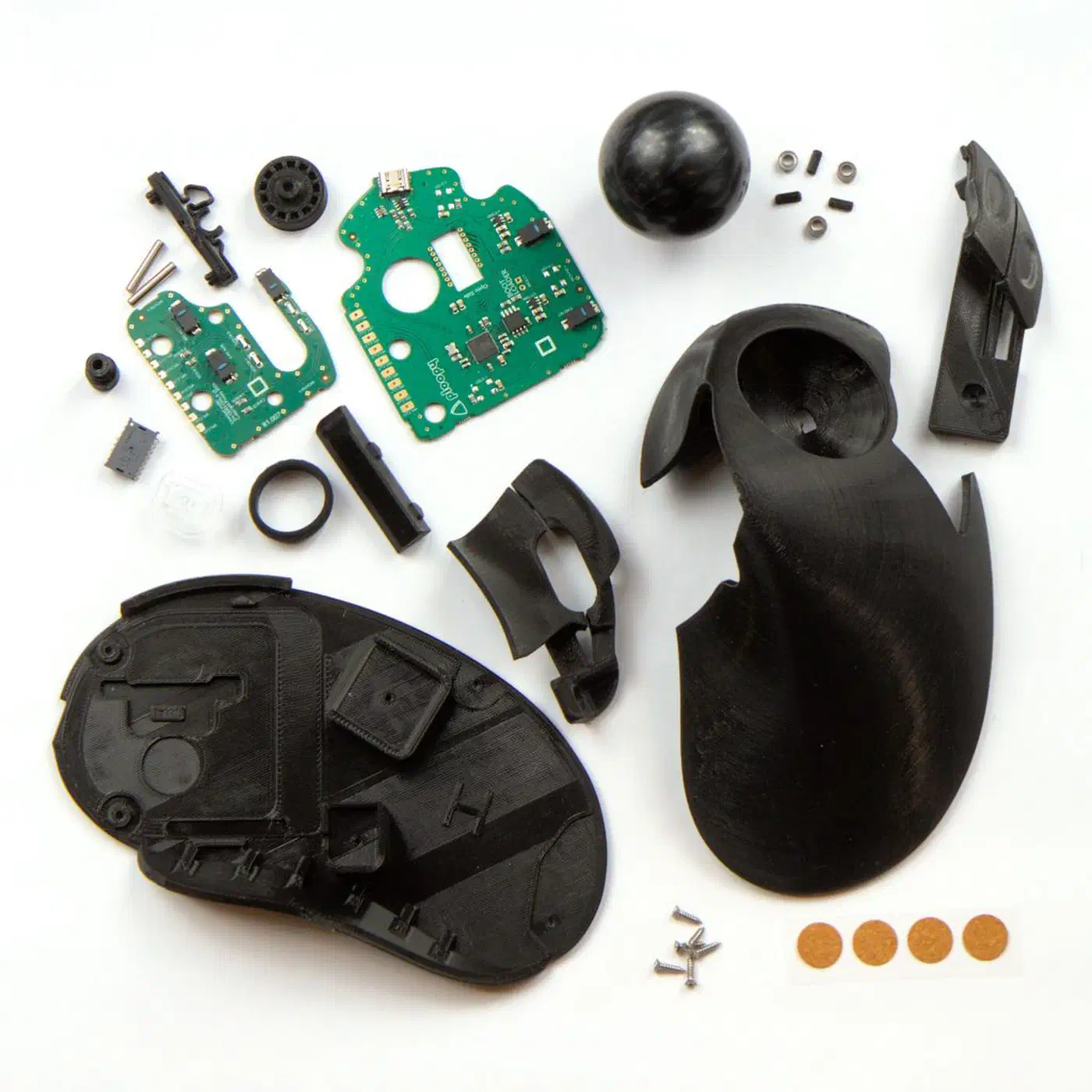
Ploopy also sells ceramic bearing upgrade kits and ships with Perixx 44mm billiard balls. The community has posted plenty of custom shells and wrist-rest STLs on Printables if you want to tune the shape to your hand.
Linux Software Support
Ergonomic mice are only as useful as the software that sets them up. On Linux, the picture leans heavily on who made the device. Logitech does not ship a native Linux app, but the community has built a clean software stack. Ploopy needs nothing at all. Kensington sits somewhere in the middle.
Solaar is the go-to GUI and CLI for pairing, battery status, and device settings on Logitech Unifying, Lightspeed, and Logi Bolt receivers. It works with the MX Vertical, MX Ergo S, Lift, MX Master 3S, and dozens of other devices. You can install it from the main repos on Debian, Ubuntu, Fedora, and Arch.
logiops (logid)
is the daemon that runs the HID++ protocol on Linux. It exposes Logitech’s gesture button and thumb wheel. You need it if you want the MX Vertical’s thumb button to do anything other than middle click. The config file lives at /etc/logid.cfg and uses a libconfig-style syntax. A minimal MX Vertical gesture block looks like this:
devices: (
  {
    name: "MX Vertical";
    smartshift: { on: true; threshold: 15; };
    buttons: (
      {
        cid: 0xc3;
        action = {
          type: "Gestures";
          gestures: (
            { direction: "Left";  mode: "OnRelease"; action = { type: "Keypress"; keys: ["KEY_LEFTMETA", "KEY_LEFT"]; }; },
            { direction: "Right"; mode: "OnRelease"; action = { type: "Keypress"; keys: ["KEY_LEFTMETA", "KEY_RIGHT"]; }; }
          );
        };
      }
    );
  }
);
That snippet binds left and right gestures on the thumb button to Super+Left and Super+Right, which maps to workspace switching on most tiling compositors.
libratbag and piper-gui make up a vendor-neutral setup daemon plus a GTK GUI. They cover gaming mice and several ergonomic models (Roccat, SteelSeries, some Logitech G series, and certain Unifying devices). You can set DPI stages, LED colors, and button remaps from one window.
input-remapper is the catch-all fix. It remaps at the kernel level and works on any input device, including Ploopy and Kensington trackballs. You can set per-app profiles, so one mapping runs in VS Code and another in Firefox. This is the usual way to tune the SlimBlade Pro on Linux, since KensingtonWorks is Windows and macOS only. The kernel already sees the SlimBlade’s buttons and twist-scroll; input-remapper just lets you rebind them.
For low-level debug work, evtest prints every event code a device sends. That is gold when a trackball’s extra buttons do not show up in GUI tools. xbindkeys does global hotkey binding on X11, but it does not run on Wayland. If you are on Hyprland, Sway, or GNOME on Wayland, use input-remapper or the compositor’s native binding system instead.
Ploopy sits in its own class because QMK handles it all on-device. There is no daemon, no config file, and nothing to start at boot. You flash firmware once, and the device acts the same on any OS.
Matching the Device to Your Workflow
There is no single best ergonomic mouse. The right pick depends on your current pain, your screen setup, and how often you switch between machines. A few starting points by profile:
- Healthy and want to stay that way: Logitech MX Vertical at around $100, or the Logitech Lift at $70 for smaller hands. Low learning curve, great Linux support, still feels like a mouse.
- Already have wrist pain or early RSI: Evoluent VerticalMouse D at a full 90 degrees, or skip straight to a finger trackball (SlimBlade Pro) to remove arm translation entirely.
- Running a split keyboard : Ploopy Nano under the keyboard or MX Ergo S to the side. Both keep your hands close to the home row.
- Heavy diff review and sub-character selection: SlimBlade Pro or Elecom HUGE. The 52-55mm ball gives you the precision you need for code-level positioning.
- Distrust proprietary firmware: Ploopy Classic 2 or Ploopy Adept. Every file sits on GitHub under an open license, QMK underneath, and an active community around it.
- $30 budget: Anker 2.4G Vertical or a used Logitech M570. Not ideal, but dramatically better than a flat mouse.
One pairing tip worth keeping in mind: most of these devices (MX Ergo S, MX Vertical, SlimBlade Pro) support three or more Bluetooth pairings at once. A single button press moves the cursor between your workstation and your laptop without you having to touch a receiver. If you switch between a desktop Linux box and a MacBook for meetings, that one feature saves hours over the course of a year.
Left-handed users face a thin market outside the Logitech Lift and two-handed palm trackballs like the Kensington Expert Mouse and the Ploopy Adept. If you are left-handed and want a vertical mouse, the left-handed Lift is the only mainstream pick. That is worth knowing before you start shopping.
For severe RSI cases where even trackballs hurt, foot pedals and eye trackers exist but they are a different article. Start with the groups above. Give any new device a real two-week break-in, and take the return policy seriously when you shop. Ergonomic mice are personal in a way that flat mice are not. A device that fits a colleague’s hand might not fit yours at all.