 Botmonster Tech
How to Repurpose Old Android Phones as Home Sensors and Smart Dashboards

That old Android phone gathering dust in your drawer is a fully equipped sensor platform. It has a camera, microphone, ambient light sensor, barometer, accelerometer, proximity sensor, and a touchscreen - all connected to your WiFi network. Instead of recycling it or letting it rot, you can turn it into a motion-detecting security camera, a room environment sensor publishing data over MQTT, or a wall-mounted Home Assistant dashboard that rivals commercial smart displays costing $150 or more. The entire setup runs on free or near-free software, keeps your data local, and takes about an hour to configure.
This guide walks through three practical uses for old Android phones in a smart home: security cameras with IP Webcam , environment sensors with Sensor Logger , and kiosk dashboards with Fully Kiosk Browser . Each project integrates directly with Home Assistant, and all of them can run on the same phone simultaneously if you have enough RAM to spare.
Which Old Phones Work and How to Prepare Them
Not every old phone is a good candidate. You need Android 8.0 (Oreo) or later, at least 2 GB of RAM, working WiFi, and a functional camera if you plan to use it as a security camera. Phones like the Pixel 3a, Samsung Galaxy S8, or Moto G7 hit the sweet spot - they are cheap (often free from friends and family), have decent cameras, and run Android 8 or 9 out of the box.
Start with a factory reset. Set the phone up with a throwaway Google account, or skip the account entirely if you plan to sideload apps. Disable every unnecessary system app, turn off automatic updates, and kill background sync. You want to strip the OS down to a single-purpose appliance. Install F-Droid as your primary app store to avoid Google Play Services overhead - most sensor and kiosk apps are available there or can be sideloaded via APK.
Battery Management for 24/7 Operation
Battery management is the most important preparation step, and skipping it can be dangerous. Lithium-ion batteries are designed to cycle between charge and discharge. Leaving a phone plugged in 24/7 holds the battery at 100% indefinitely, which accelerates chemical degradation and can cause the battery to swell. A swollen battery pushes against the phone’s screen and back panel, and in extreme cases it can rupture, leak electrolyte, or catch fire.
There are a few ways to handle this. AccuBattery (free) sounds an alarm when the battery reaches your target percentage (set it to 80%), reminding you to unplug - though it does not actually stop charging on its own. For phones with root access, Battery Charge Limit can cut charging programmatically at a threshold you define. Alternatively, connect the charger to a Zigbee or WiFi smart plug and use a Home Assistant automation to cycle charging between 20% and 80% - the HA Companion App reports battery level as a sensor entity, so the automation can read it directly. If the phone boots without a battery (many older models do), skip all of this and power it directly via USB.
Watch for warning signs: the back panel lifting away from the frame, the screen developing a slight bulge, or the phone rocking on a flat surface when it used to sit flush. If you spot any of these, power down immediately, do not charge the device, and take the battery to an e-waste collection site. Do not put a swollen battery in household trash.
For AMOLED screens running as always-on dashboards, use a screen dimmer app or configure a black screensaver between refreshes to prevent burn-in. LCD panels are less susceptible but still benefit from reduced brightness during idle periods.
Turn a Phone into a Motion-Detecting Security Camera
IP Webcam by Pavel Khlebovich is the go-to app for this. It is free, lightweight, and exposes your phone’s camera as a network video stream that Home Assistant can consume directly.
Once installed, tap “Start Server” and the app begins streaming. It exposes several endpoints on the phone’s local IP:
| Endpoint | URL | Use |
|---|---|---|
| MJPEG stream | http://<phone-ip>:8080/video | Live view in HA dashboard |
| Snapshot | http://<phone-ip>:8080/shot.jpg | Periodic image capture |
| RTSP stream | rtsp://<phone-ip>:8080/h264_opus.sdp | Frigate NVR input |
| Sensor data | http://<phone-ip>:8080/sensors.json | Light, battery, motion |
Home Assistant has a built-in Android IP Webcam integration that auto-discovers the camera and exposes binary sensors, camera entities, and switches. Enable “Data logging” in the app’s settings to get sensor states in HA as well.
Motion Detection and Recording
IP Webcam has built-in motion detection. Set the sensitivity to 60-80% and configure it to trigger a webhook or MQTT message when motion exceeds the threshold. In Home Assistant, create an automation that listens for this trigger and records a 30-second clip or sends a notification with a snapshot to your phone.
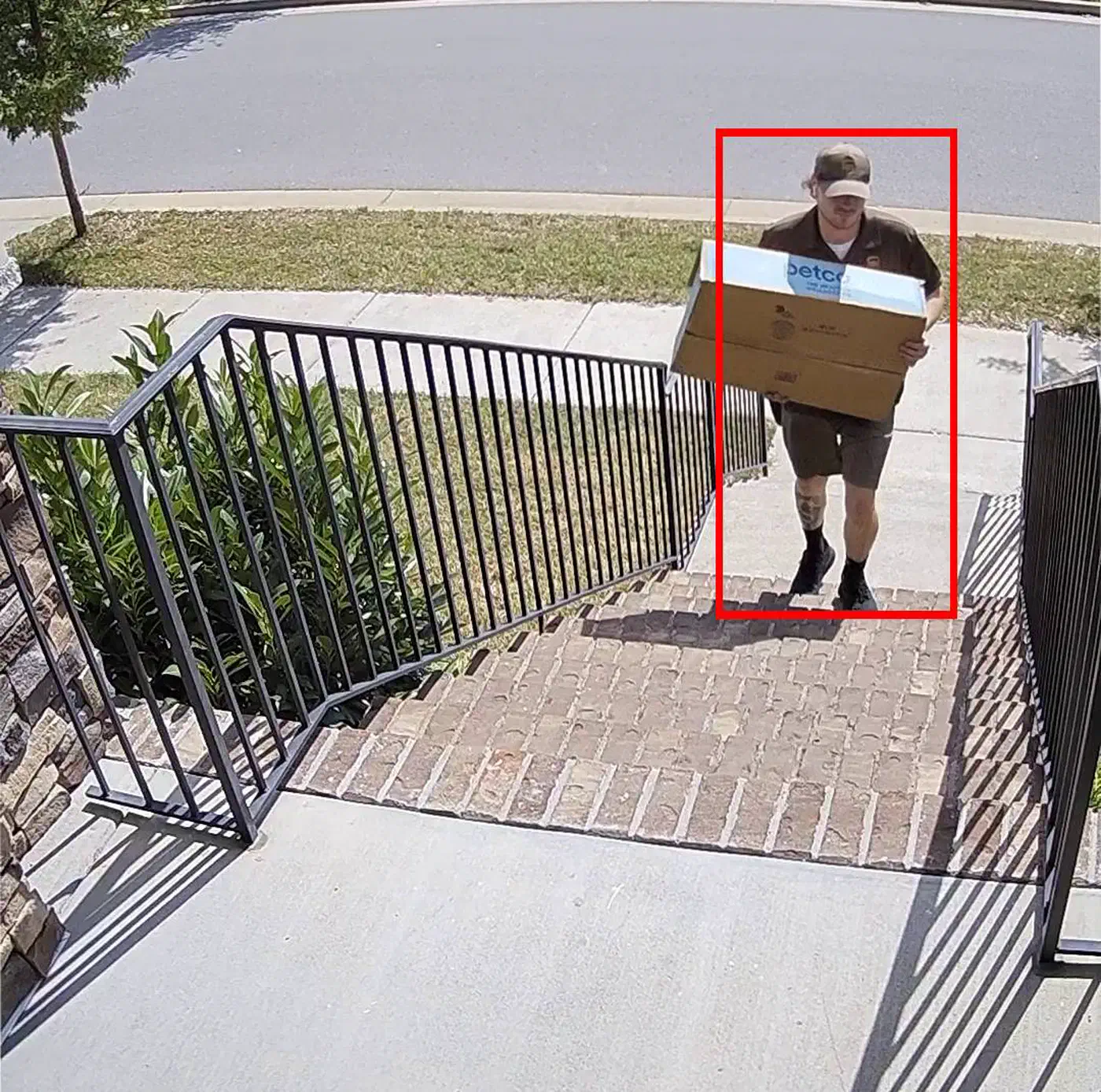
For more advanced object detection - distinguishing people from pets from cars - feed the RTSP stream into Frigate NVR (currently at version 0.17.1). Frigate runs on a separate machine and uses a Google Coral TPU or your GPU to perform real-time object detection . The phone provides the camera stream; Frigate provides the brains. This combination gives you person, vehicle, and animal detection that rivals commercial cameras costing $50 or more.
Mounting and Autostart
Mount the phone with a magnetic car mount ($5) or a 3D-printed wall bracket. Angle it 15-20 degrees downward for the best motion detection coverage of doorways and hallways.
For headless operation, set IP Webcam to start on boot. You can do this with Tasker or the app’s built-in autostart option. In Developer Options, enable “Stay awake while charging” if you want the camera preview visible, or leave it off for background-only operation. Most phones support infrared-adjacent sensitivity through the front camera - enable “Night Vision” mode in IP Webcam to boost gain and switch to grayscale for usable low-light footage.
Publish Sensor Data to Home Assistant via MQTT
Every Android phone ships with sensors that most people never think about: ambient light (in lux), barometric pressure, accelerometer, gyroscope, proximity, and a microphone. With the right app, these become legitimate home automation sensors publishing real-time data to your MQTT broker.
Sensor App Comparison
Three apps compete in this space:
| Feature | Sensor Logger | phyphox | HA Companion App |
|---|---|---|---|
| MQTT publishing | Yes (built-in) | No (export only) | No (uses HA API) |
| HTTP push | Yes | Yes (via remote) | No |
| Update frequency | Configurable (1s+) | Real-time | 1-15 minutes |
| Background recording | Yes | Limited | Yes |
| Sensors supported | 30+ (incl. camera) | 20+ (physics focus) | 15+ (device state) |
| Primary audience | IoT / logging | Physics education | HA users |
| Price | Free | Free | Free |
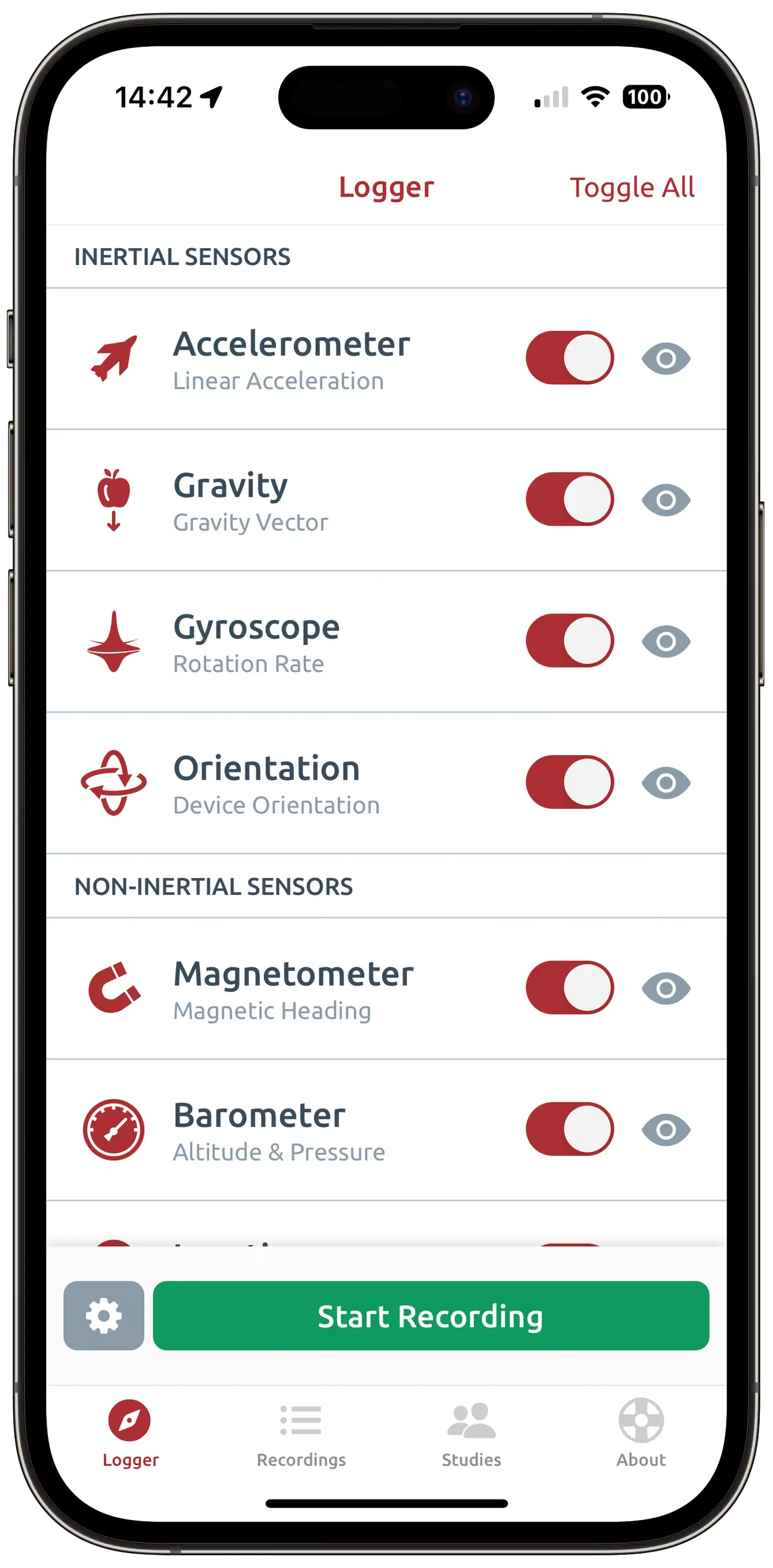
For MQTT-based home automation, Sensor Logger by Kelvin Choi is the best choice. It supports direct MQTT publishing to a broker like Mosquitto , covers over 30 sensor types including recent support for streaming camera images via MQTT, and lets you configure the publish interval down to one second.
phyphox from RWTH Aachen University is excellent for physics experiments and one-off measurements, but it lacks native MQTT support and is not designed for continuous background operation. The Home Assistant Companion App reports device sensors directly to HA without needing MQTT, but its update frequency tops out at one minute in “Fast Always” mode - too slow for real-time applications like vibration detection.
Configuring MQTT in Sensor Logger
Set your Mosquitto broker IP (e.g., 192.168.1.100:1883), define a topic prefix like homeassistant/sensor/phone_kitchen/, and set the publish interval to 10-30 seconds. This balances responsiveness against battery drain and network chatter.
For Home Assistant auto-discovery, publish to the HA MQTT discovery topic format
: homeassistant/sensor/<device>/config with a JSON payload that defines name, state_topic, unit_of_measurement, and device_class. Once published, HA picks up the sensor entities automatically without any manual YAML configuration.
Practical Sensor Uses
Phone sensors are more useful than they first appear:
- Ambient light (lux): drive adaptive lighting by turning on under-cabinet lights when the kitchen counter phone reads below 200 lux at 4 PM.
- Barometric pressure: track weather trends - a dropping barometer reading over 2 hours can trigger a “storm approaching” notification.
- Accelerometer vibration: stick a phone on top of your washing machine and detect when the high-frequency spin cycle ends to send a “laundry done” notification.
- Microphone dB level: monitor noise in a baby’s room or workshop and trigger an alert when sustained sound exceeds a threshold.
- Proximity sensor: the IR-based proximity sensor (0-5 cm range) detects when someone is near a nightstand or counter, useful for triggering bedside scene activations.
Most phones lack a dedicated temperature or humidity sensor. The Galaxy S4 and Note 3 had them, but those are ancient by now. For environmental data, pair a Bluetooth Xiaomi LYWSD03MMC thermometer ($4) and relay its data through the phone via the HA Companion App or a BLE-MQTT gateway.
Wall-Mounted Dashboard with Fully Kiosk Browser
Fully Kiosk Browser turns an old phone into a dedicated, always-on smart home control panel. It locks the device into single-app kiosk mode, displaying your Home Assistant dashboard and nothing else. The license costs $7 per device (or free with a watermark).
Install Fully Kiosk and point it at your Home Assistant dashboard URL - something like http://homeassistant.local:8123/lovelace/dashboard-wall. The app locks out the navigation bar, status bar, and all other apps, creating a purpose-built control panel.
Proximity Wake and Screen Management
Fully Kiosk uses the phone’s proximity sensor or camera-based motion detection to wake the screen when someone approaches. You configure an idle timeout (30-60 seconds works well) after which the screen dims to minimum brightness or turns off entirely. Walk up to it and the screen snaps back on instantly. This keeps power consumption low and prevents screen burn-in during idle hours.
Designing an Effective Dashboard
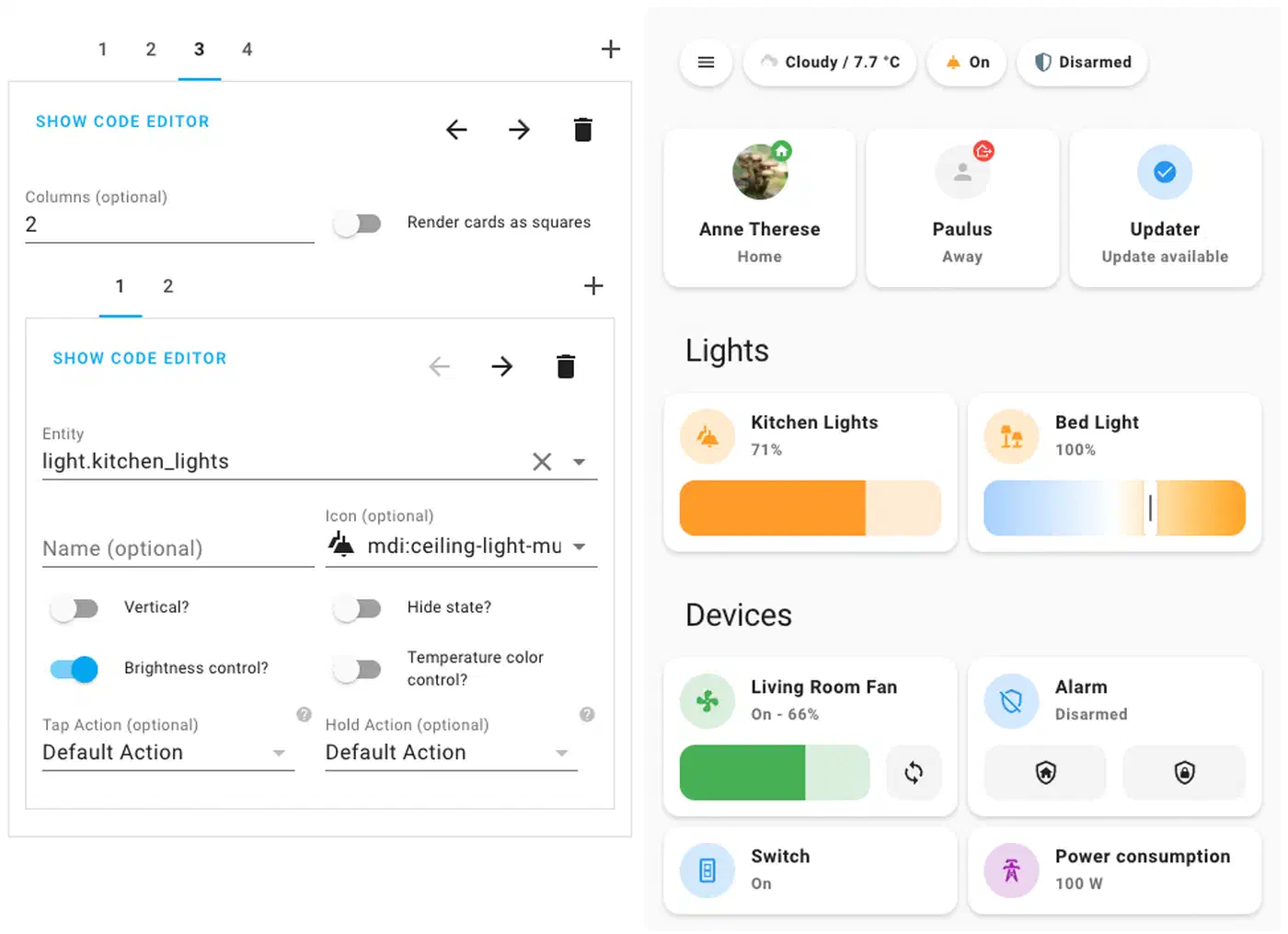
Build a dedicated HA dashboard view for wall use. The Mushroom cards collection (installable through HACS ) provides clean, touch-friendly cards with large targets. A few design considerations that matter in practice: minimum 48px touch targets for reliable finger taps, large readable fonts (16px minimum for body text), quick-access buttons for lights, thermostat, music, and camera feeds, and a dark theme to reduce power consumption on AMOLED screens and minimize light pollution at night.
Home Assistant Integration
Home Assistant has a built-in Fully Kiosk integration (core integration, no HACS needed). It exposes battery level, screen brightness control, TTS playback, and the device camera as entities within HA. You can build automations that dim the dashboard screen at bedtime, play TTS announcements through the phone’s speaker, or use the camera as an additional motion sensor.
The integration requires Fully Remote Admin to be enabled in the app settings and needs the Remote Admin password for authentication. Home Assistant can auto-discover Fully Kiosk devices on the network.
Mounting Options
For wall mounting, options range from dead simple to a weekend project. A flush-mount charging bracket ($10-20, search Amazon for “wall mount phone charger bracket”) holds the phone flat against the wall and provides USB charging through the bracket. A 3D-printed frame takes more effort but lets you cover the phone edges cleanly and route the USB-C cable through the wall to a recessed outlet - Thingiverse has dozens of designs for popular models. The most involved option is a PoE splitter ($12, 802.3af to USB-C adapter), which delivers both network connectivity and power over a single Ethernet cable run through the wall. No nearby outlet needed, and you get a wired connection instead of WiFi. You will need a PoE-capable switch or injector on the other end.
Network Security for Repurposed Phones
Old phones running outdated Android versions are a genuine security concern. A Galaxy S8 stuck on Android 9 has known, unpatched CVEs that Samsung will never fix. Putting these devices on your main network alongside computers and personal devices is a bad idea. Network isolation belongs in the setup checklist, not as an afterthought.
VLAN Isolation
Create a dedicated IoT VLAN (e.g., VLAN 30) on your router. OpenWrt
, pfSense
, and UniFi gear all support this. Assign a separate WiFi SSID (something like HomeIoT) with client isolation enabled so the repurposed phones cannot talk to each other or to devices on your main network.
Set firewall rules that allow the IoT VLAN to reach only the Home Assistant IP on the specific ports it needs:
| Port | Protocol | Purpose |
|---|---|---|
| 8123 | TCP | Home Assistant web UI |
| 1883 | TCP | MQTT (Mosquitto) |
| 8080 | TCP | Nginx proxy / IP Webcam |
| 123 | UDP | NTP (time sync) |
Block everything else. If any app needs internet access for updates, whitelist specific domains through DNS-based firewall rules rather than opening broad internet access.
Device Hardening
Disable every radio you do not need. Bluetooth and cellular can be turned off through settings or through ADB:
adb shell settings put global bluetooth_on 0Enable airplane mode and then re-enable WiFi only. This reduces the attack surface and saves power.
Monitor outbound traffic from these devices using Pi-hole or AdGuard Home DNS logs. Any unexpected connections to unknown domains could indicate a compromised device.
Consider a Custom ROM
For phones with expired vendor support, LineageOS is worth considering. The project currently supports over 190 devices with active builds, covering LineageOS 22.1 (based on Android 15) and LineageOS 21 (based on Android 14). Check the official device list to see if your phone is supported. A current LineageOS build gives you recent security patches on hardware that the manufacturer abandoned years ago, significantly reducing the risk of running these devices on your network.
Putting It All Together
A single old phone can run IP Webcam, Sensor Logger, and serve as a dashboard simultaneously, though you will want at least 3 GB of RAM for that combination. A more practical setup is to dedicate each phone to a single role: one in the hallway as a security camera, one on the kitchen counter publishing light and temperature data, and one on the living room wall as a dashboard.
The total cost for three repurposed phones: $7 for the Fully Kiosk license, $5-10 for magnetic mounts, and $4 for a Xiaomi thermometer if you want temperature data. Under $25 for a setup that would cost $250+ in commercial equivalents, with the added benefit that every byte of data stays on your local network.