 Botmonster Tech
Thunderbolt 5 Explained: What It Means for Linux Users

Thunderbolt 5
delivers 80 Gbps bidirectional bandwidth (120 Gbps with Bandwidth Boost for displays), USB4 v2 compliance, and PCIe Gen 4 x4 tunneling. For Linux users, this means real improvements for eGPU setups, multi-display docking stations, and high-speed NVMe storage enclosures. Kernel 6.10+ includes initial Thunderbolt 5 controller support through the thunderbolt driver, but full functionality depends on your distribution, firmware, and specific hardware. The upgrade is worth it only if you need bandwidth that Thunderbolt 4’s 40 Gbps cannot deliver.
Thunderbolt 5 Specs Breakdown: What Changed from Thunderbolt 4
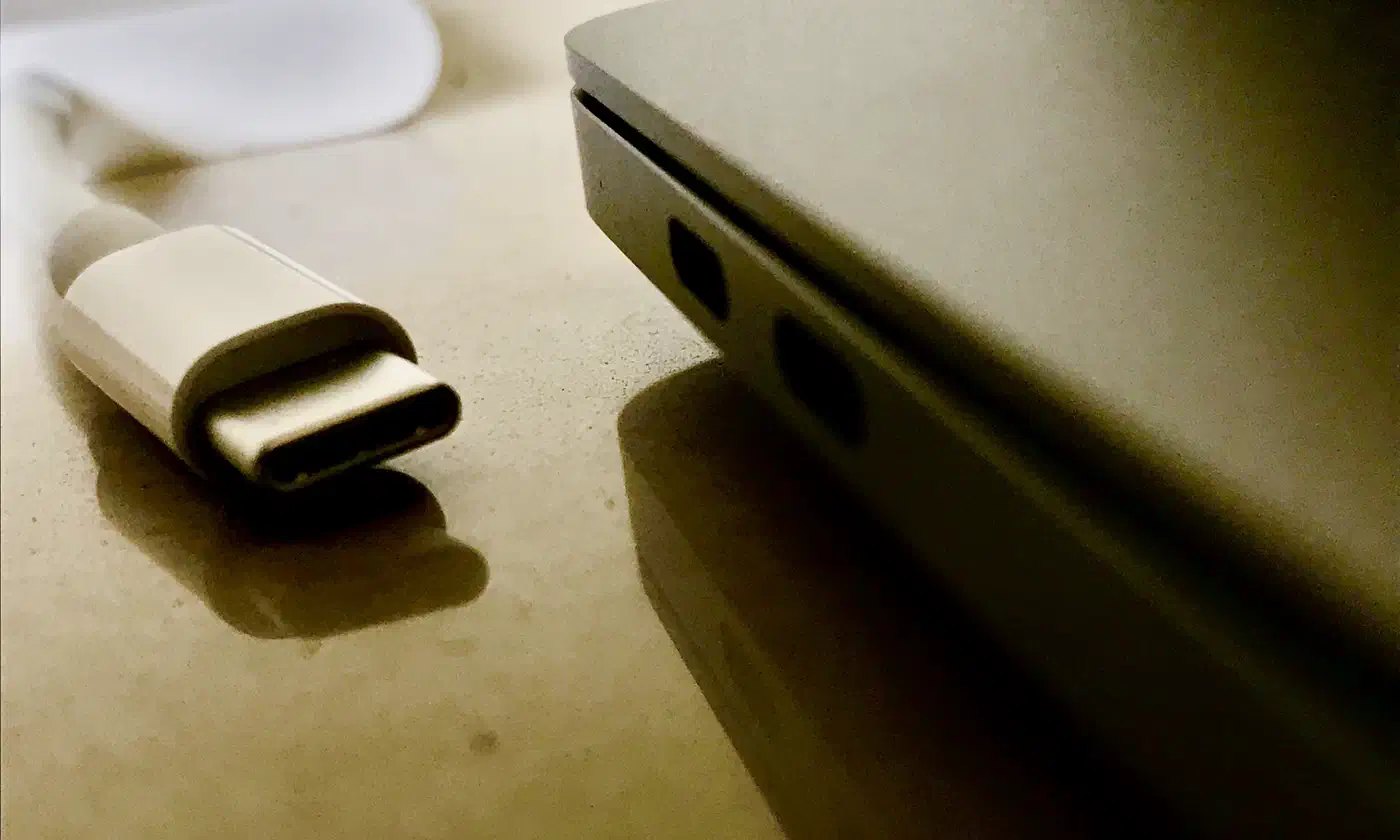
Thunderbolt 5 is not a minor revision. The spec introduces a new signaling technology, asymmetric bandwidth modes, and broader protocol tunneling that collectively double the available bandwidth while maintaining full backward compatibility.
The headline number is bandwidth: 80 Gbps bidirectional (40 Gbps per direction) in symmetric mode, using PAM-3 signaling over the same USB-C connector. Thunderbolt 4 maxed out at 40 Gbps total (20 Gbps per direction), so this is a clean 2x improvement in raw throughput.
Where it gets interesting for display-heavy setups is Bandwidth Boost - an asymmetric mode that shifts to 120 Gbps in one direction (typically toward a display) while reducing the return path to 40 Gbps. The switch happens automatically when a high-bandwidth display is connected, no manual configuration required.
PCIe tunneling jumps from Gen 3 x4 (32 Gbps on Thunderbolt 4) to Gen 4 x4 (64 Gbps). This directly impacts eGPU and NVMe enclosure performance, cutting the external device bottleneck roughly in half. On the display side, DisplayPort 2.1 tunneling means a single Thunderbolt 5 port can drive up to three 4K@144Hz displays or one 8K@60Hz display. Compare that to Thunderbolt 4’s limit of two 4K@60Hz or one 8K@30Hz.
Power delivery stays at up to 240W using the USB PD 3.1 Extended Power Range spec, same as the latest Thunderbolt 4 implementations - enough to charge gaming laptops while running peripherals. And backward compatibility is full: Thunderbolt 5 ports accept Thunderbolt 3/4, USB4, and USB 3.x/2.0 devices at their native speeds. You do not need to replace existing peripherals.
| Feature | Thunderbolt 3 | Thunderbolt 4 | Thunderbolt 5 |
|---|---|---|---|
| Total bandwidth | 40 Gbps | 40 Gbps | 80 Gbps (120 Gbps Boost) |
| PCIe tunneling | Gen 3 x4 (32 Gbps) | Gen 3 x4 (32 Gbps) | Gen 4 x4 (64 Gbps) |
| Display output | 2x 4K@60Hz | 2x 4K@60Hz | 3x 4K@144Hz |
| Min. display support | 1x 4K | 2x 4K | 3x 4K |
| Power delivery | 100W | 100W | 240W (PD 3.1) |
| Signaling | NRZ | NRZ | PAM-3 |
Linux Kernel Support and Driver Status in 2026
Hardware specs are meaningless without working drivers. The Thunderbolt 5 story on Linux is mostly positive, with some caveats that depend on your kernel version and distribution choice.
The thunderbolt kernel driver received Thunderbolt 5 controller support starting in kernel 6.10, merged in mid-2024, with Intel Barlow Ridge controller initialization as the first supported hardware. If you are running anything older than 6.10, Thunderbolt 5 devices will not be recognized at all.
Kernel 6.12+ (LTS) and 6.15+ (stable, shipping in 2026) include the most complete Thunderbolt 5 support: PCIe tunneling, DisplayPort 2.1 tunneling, and USB3 tunneling all work. This is the minimum kernel version you should target for a reliable Thunderbolt 5 experience.
Distribution support as of early 2026 varies. Fedora 43 (kernel 6.14+) works out of the box with no manual configuration needed - this is the smoothest experience available. Ubuntu 26.04 LTS (kernel 6.12) works but may need manual bolt daemon updates and device authorization on first connect. Arch Linux, with its rolling release and latest kernel, has the best support overall. The Arch Wiki Thunderbolt page
is the single best reference for troubleshooting on any distribution.
The bolt daemon is the userspace component that manages device authorization and security policies. Version 0.10+ is required for Thunderbolt 5 devices. Check your connected devices and their security status with:
boltctl listThunderbolt on Linux supports four security levels, configurable in BIOS: none (no authorization required), user (prompt on first connect), secure (cryptographic device verification), and dponly (only allow DisplayPort, no PCIe tunneling). Most distributions default to user, which prompts for authorization through GNOME or KDE system settings when you first plug in a device. On GNOME 3.30+, authorization is handled natively through the Settings UI. KDE Plasma users need the plasma-thunderbolt
package installed.
To permanently authorize a device so it works on every boot without prompting, use boltctl enroll with the device UUID:
boltctl list          # find the device UUID
boltctl enroll <uuid> # permanently authorize it
There are still some limitations in 2026. Bandwidth Boost (asymmetric mode) requires kernel 6.14+ and firmware cooperation from both the dock and display manufacturer. Some early Thunderbolt 5 docks fall back to 80 Gbps symmetric mode even with a single high-bandwidth display. Firmware updates through fwupd can sometimes resolve this - fwupd 2.0.11 added support for Lenovo Thunderbolt 5 Smart Docks, and other vendors are following.
eGPU on Linux with Thunderbolt 5: Finally Practical?
External GPUs have been a frustrating experience on Linux due to bandwidth bottlenecks, hot-plug instability, and driver inconsistencies. Thunderbolt 5’s doubled PCIe bandwidth changes the equation significantly, but you need to go in with realistic expectations.
Thunderbolt 5’s PCIe Gen 4 x4 tunnel provides 64 Gbps of bandwidth for eGPU communication. In practice, this reduces the performance penalty from roughly 25-30% on Thunderbolt 3/4 to about 10-15% compared to a native PCIe x16 desktop slot. Real-world benchmarks from Tom’s Hardware testing an RTX 5070 Ti in a Thunderbolt 5 enclosure showed the GPU running approximately 14% slower on average compared to OCuLink, which behaves more like a direct PCIe connection without the tunneling overhead.
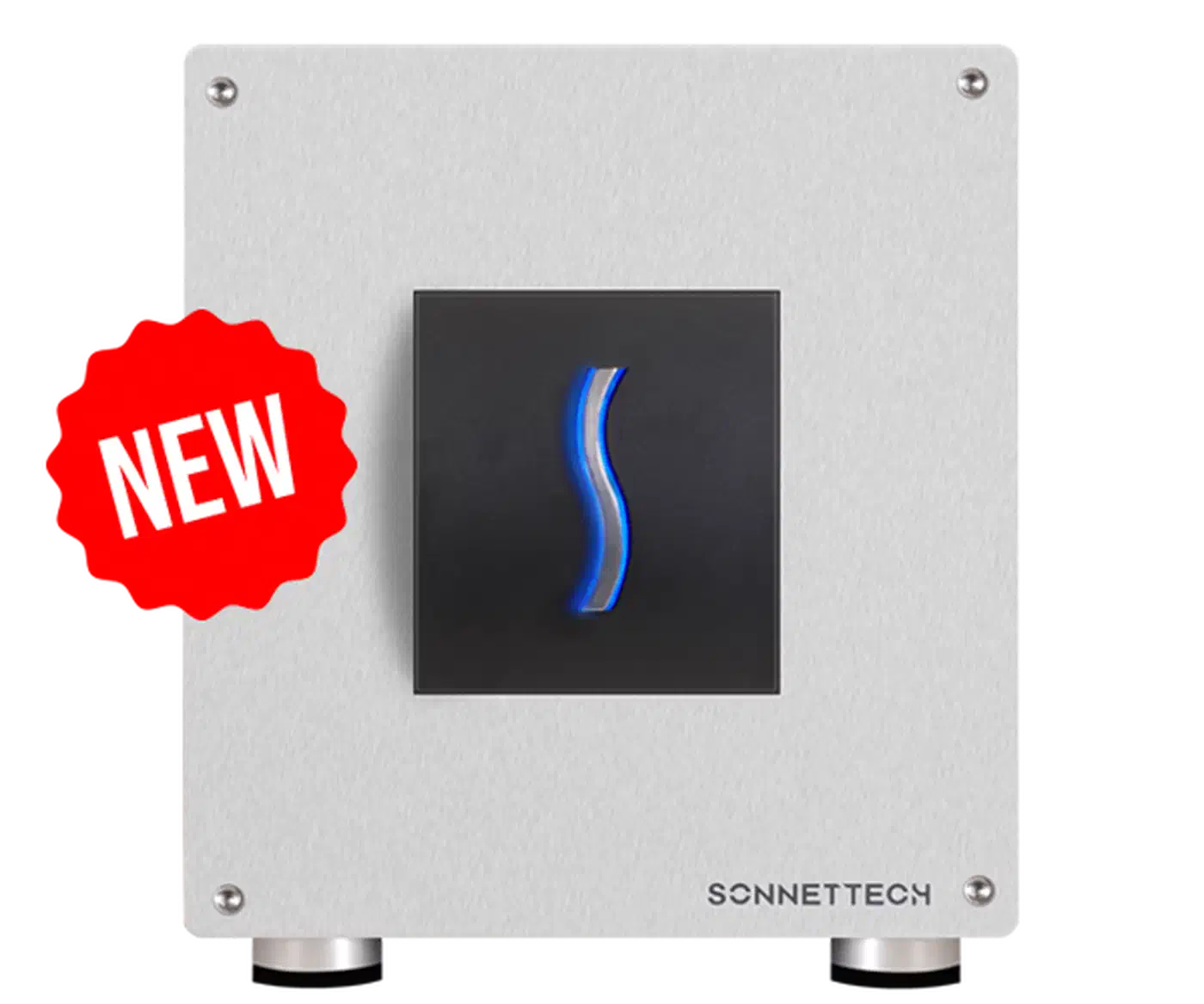
Compatible eGPU enclosures in 2026 include the Razer Core X successor (Thunderbolt 5), Sonnet Breakaway Box 850 TB5, and the OWC Mercury Helios TB5. All use a standard PCIe x16 slot internally. Check the eGPU.io buyer’s guide for the latest compatibility reports.
For GPU selection, AMD is the safer bet on Linux. The RX 7000 and RX 8000 series use the open-source amdgpu driver, which handles hot-plug significantly better than NVIDIA’s proprietary stack. Authorizing the device takes one command:
echo 1 > /sys/bus/thunderbolt/.../authorizedAfter authorization, the GPU appears in lspci and the amdgpu driver loads automatically.
NVIDIA eGPU on Linux works with the proprietary driver version 550 and later, but it requires adding AllowExternalGpus=True to your xorg.conf on X11 or setting specific environment variables for Wayland compositors. Hot-plug remains unreliable with NVIDIA - connecting the eGPU before boot is the recommended workflow. There is no sign this will improve until NVIDIA’s open kernel modules mature further.
For routing rendering to the eGPU, the egpu-switcher
tool automates the xrandr and Xorg configuration needed to direct output to external displays. On Wayland, Sway
and KDE Plasma both support DRM lease, which makes external display routing cleaner through sway output commands or the KDE display settings panel.
If your machine has an OCuLink port (or an M.2 slot you can adapt), that is worth considering as an alternative. OCuLink provides a direct PCIe connection without tunneling overhead, and it consistently outperforms Thunderbolt 5 for eGPU workloads in benchmarks. The tradeoff is that OCuLink does not carry power delivery, display signals, or USB data - it is PCIe only. Thunderbolt 5 remains the better choice for a single-cable dock setup.
To set expectations: eGPU on Thunderbolt 5 is practical for GPU-accelerated compute workloads (ML training, Blender rendering) and gaming at 1440p or 4K on Linux. It will not match a desktop GPU in a PCIe x16 slot if you are chasing maximum frames in competitive shooters.
Docks, Displays, and Storage: Real-World Thunderbolt 5 Peripherals
The Thunderbolt 5 peripheral ecosystem has grown quickly. Here is what actually works on Linux in 2026.
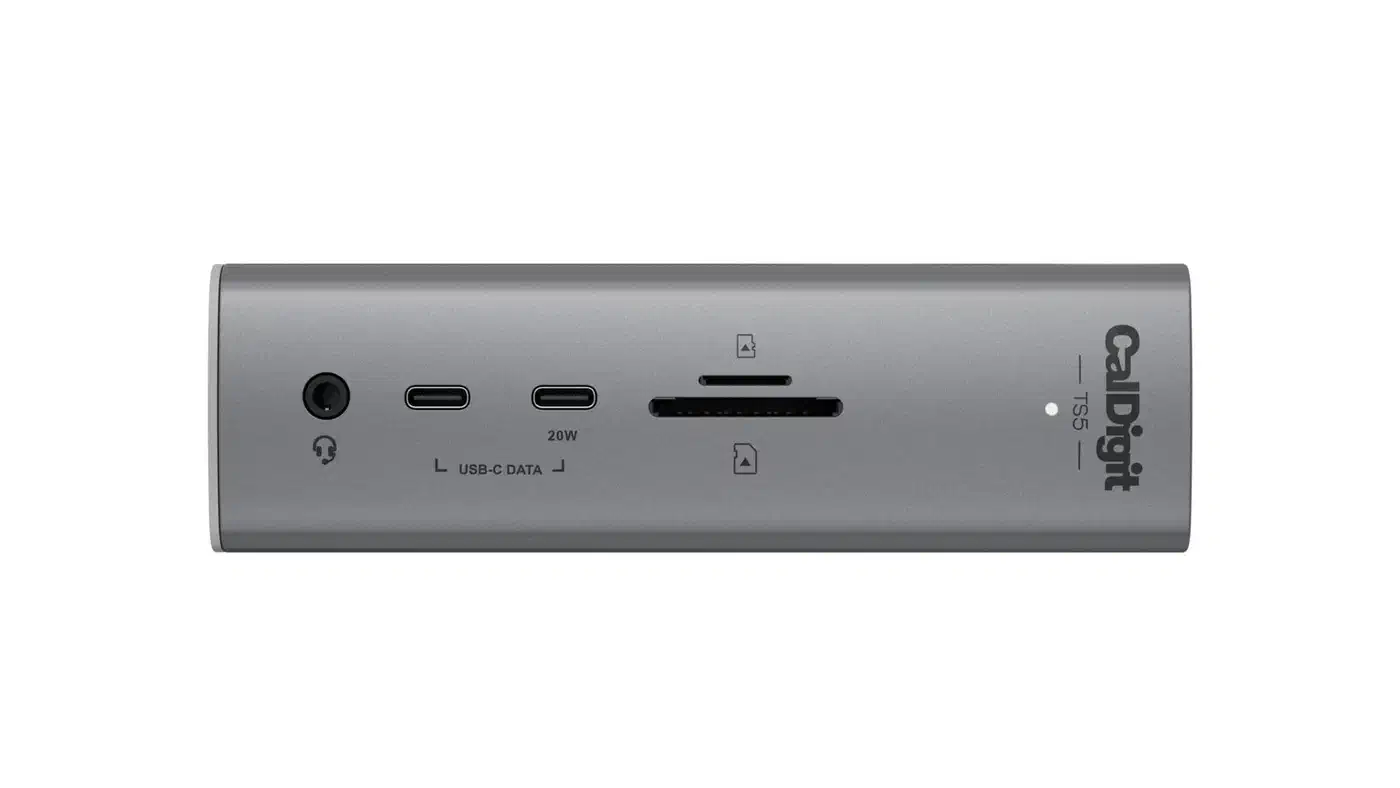
On the docking station side, the CalDigit TS5, Anker Apex TB5, and Kensington SD5800T all provide multiple DisplayPort and HDMI outputs, 10GbE Ethernet, USB-A and USB-C ports, and SD card readers through a single Thunderbolt 5 cable with up to 140W power delivery. On Linux, these docks generally work well - USB peripherals, Ethernet, and audio are handled by standard kernel drivers. Display output depends on your GPU driver and the dock’s DisplayPort implementation.
Display daisy-chaining is another Thunderbolt 5 feature worth knowing about. You can chain up to three 4K@144Hz displays through a single port. On Linux, each display appears as a separate output in your compositor’s display settings - sway output, xrandr, or GNOME Display Settings. The catch is that each display in the chain must support Thunderbolt passthrough.
External NVMe storage is where Thunderbolt 5 delivers the most noticeable day-to-day improvement. PCIe Gen 4 NVMe drives in Thunderbolt 5 enclosures like the OWC Envoy Ultra TB5 can reach approximately 6,000 MB/s sequential reads, approaching internal NVMe speeds. On Thunderbolt 4, the same drives were capped around 2,800 MB/s. Verify your enclosure’s performance with fio (see our NVMe benchmark guide
for interpreting the results):
fio --name=seqread --rw=read --bs=1M --size=4G \
    --filename=/dev/sdX --direct=1 --numjobs=1
The thunderbolt-net kernel module enables direct networking between two Thunderbolt-connected machines at 10GbE or even 25GbE speeds. This is useful for fast file transfers between a laptop and a workstation without setting up a separate network switch.
One practical note on cables: Thunderbolt 5 requires active cables for lengths over 1 meter at full 80/120 Gbps speeds. Passive cables work up to about 0.8 meters. Look for the Intel Thunderbolt 5 certification logo and expect to pay $40-80 for a quality cable. Cheap uncertified cables will silently fall back to lower speeds.
Thunderbolt Security: The Thunderspy Context
Any discussion of Thunderbolt on Linux should mention the security model. Thunderspy , disclosed in 2020, demonstrated that Thunderbolt’s direct memory access (DMA) capabilities could be exploited for evil maid attacks on machines manufactured before 2019.
Modern Thunderbolt 5 hardware addresses this through Kernel DMA Protection (IOMMU-based), which has been available in the Linux kernel since version 5.0. Combined with the user or secure authorization levels in the bolt daemon, the attack surface is significantly reduced. Kernel DMA Protection prevents unauthorized devices from accessing system memory, while the authorization framework ensures that only explicitly approved devices get PCIe tunneling access.
To check whether your system has Kernel DMA Protection enabled:
cat /sys/bus/thunderbolt/devices/domain0/iommu_dma_protectionA value of 1 means protection is active. If it shows 0, enable VT-d (Intel) or AMD-Vi in your BIOS settings.
Should You Upgrade? Decision Framework
Thunderbolt 5 hardware carries a price premium in 2026, so the question is whether the extra bandwidth justifies the cost for your specific workflow.
Thunderbolt 5 makes sense if you use an eGPU and want to reduce the performance penalty from 25-30% to 10-15%, if you drive three or more 4K displays from a laptop, if you regularly transfer large files to external NVMe storage and need throughput above 2,800 MB/s, or if you need 10GbE or faster networking through a single dock connection.
Staying on Thunderbolt 4 is the right call if you use a single 4K display and a basic USB dock, if your external storage is SATA-based or HDD-based, if you do not use an eGPU, or if your laptop simply does not have a Thunderbolt 5 port (retrofitting is not possible).
On pricing, Thunderbolt 5 docks cost roughly $100-150 more than equivalent Thunderbolt 4 docks. Laptops with Thunderbolt 5 (Intel Lunar Lake , Arrow Lake, and AMD Strix Point platforms) are priced $50-200 above their Thunderbolt 4 equivalents.
Thunderbolt 4 is not going obsolete any time soon. At 40 Gbps, it remains sufficient for most developer workflows: a single 4K@144Hz display, USB peripherals, and Gigabit Ethernet through a dock all fit comfortably within the bandwidth envelope.
If you are buying a new laptop in 2026, prefer Thunderbolt 5 when it is available at a similar price point. The extra bandwidth headroom keeps the port relevant for five or more years as peripherals continue to demand more bandwidth. But do not spend an extra $200 on Thunderbolt 5 if your workflow fits within Thunderbolt 4’s limits.
Before purchasing any Thunderbolt 5 hardware, check your Linux readiness:
uname -r                    # kernel version (need 6.10+, prefer 6.12+)
boltctl --version           # bolt daemon version (need 0.10+)
cat /sys/bus/thunderbolt/devices/domain0/iommu_dma_protection  # DMA protection
Search the kernel Thunderbolt documentation and the Arch Wiki for your specific controller’s compatibility notes before committing to a purchase.