 Botmonster Tech
Track Package Deliveries in Home Assistant with 17TRACK and Automations
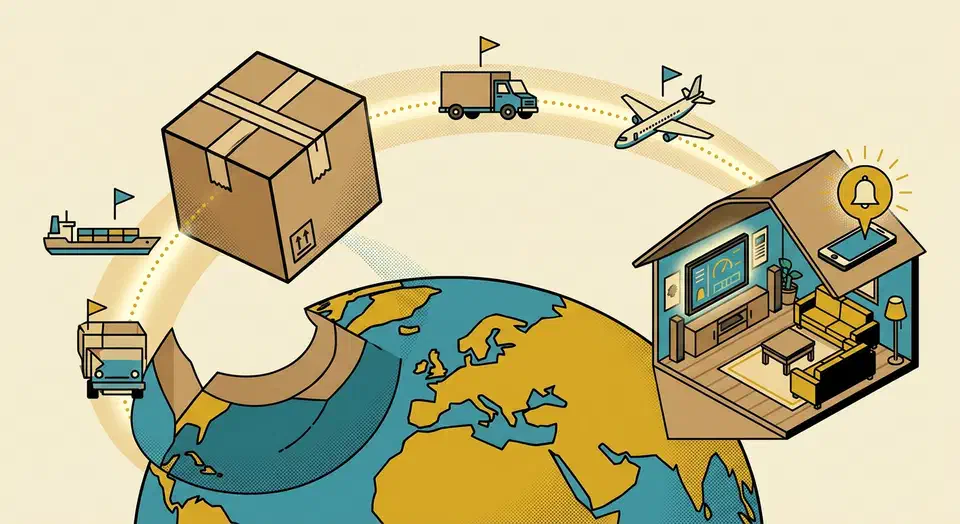
Connect a free 17track.net account to Home Assistant to pull tracking data from 3,200+ carriers into one place, then react to shipment events with automations that ping your phone, fire your porch camera, and toggle outdoor lights as boxes move through the system. Below is a working blueprint for the whole flow, from integration setup to multi-user notification tuning.
Setting Up the 17TRACK Integration
17track.net is a universal tracking aggregator that normalizes status updates from USPS, UPS, FedEx, DHL, Royal Mail, China Post, YunExpress, and roughly 3,200 other carriers across 220 countries. Once you add tracking numbers to your 17track account (either manually, through the mobile app, or via email forwarding), the Home Assistant integration mirrors them as sensor entities you can display and automate on.
Before adding the integration, create a free account at 17track.net and log in at least once to confirm the credentials. There is one footgun to know about: your 17track password must not exceed 16 characters. The 17track website will silently let you set a longer password, but the API the Home Assistant integration uses rejects anything beyond 16, and you will be stuck in a login loop. If you run into authentication errors, this is almost always the cause - reset the password to 16 characters or fewer and try again.
With the account ready, add the integration in Home Assistant under Settings -> Devices & services -> Add Integration -> 17TRACK, then enter your email and password. The integration is marked Cloud Polling and refreshes every 15 minutes by default, which is the sweet spot between API politeness and responsiveness for a typical household.
Once connected, the integration creates two families of entities. The first is a set of summary sensors that count packages by state, covering the seven possible statuses: Not Found, In Transit, Expired, Ready to be Picked Up, Undelivered, Delivered, and Returned. The second is individual entities for each tracked package exposing attributes like carrier, origin, destination, tracking number, last update, and status. The integration also ships three service calls:
| Service | Purpose |
|---|---|
seventeentrack.get_packages | Pulls the latest package list, optionally filtered by state. Useful for trigger-based template sensors. |
seventeentrack.add_package | Adds a new tracking number with a friendly name directly from an automation. |
seventeentrack.archive_package | Archives a package by tracking number - perfect for cleaning up delivered items. |
All three require the config_entry_id of your integration instance, which you can grab from the integration’s options page. These service calls are the modern replacement for the older per-state sensor pattern, so newer dashboards and automations should be built around them. The full reference lives on the official 17TRACK integration page
.
Building a Package Tracking Dashboard
A good package dashboard answers two questions at a glance: how many boxes are in flight, and which one is closest to arriving. I build mine around a trigger-based template sensor that calls seventeentrack.get_packages on a 15-minute schedule, stores the full list in an attribute, and then renders the data through a stack of Lovelace cards.
The template sensor is the backbone:
template:
  - trigger:
      - platform: time_pattern
        minutes: "/15"
      - platform: homeassistant
        event: start
    action:
      - service: seventeentrack.get_packages
        data:
          config_entry_id: <YOUR_CONFIG_ENTRY_ID>
          package_state:
            - in_transit
            - ready_to_be_picked_up
        response_variable: packages
    sensor:
      - name: "Active Packages"
        unique_id: active_packages_count
        state: "{{ packages.packages | length }}"
        attributes:
          items: "{{ packages.packages }}"
With that sensor in place, a Mushroom
template card gives you a clean headline tile. Set the primary text to {{ states('sensor.active_packages') }} packages in transit, the icon to mdi:package-variant-closed, and the tap action to navigate into a detailed subview. A conditional card
wraps the whole section so it disappears when the count is zero, keeping the main dashboard tidy.
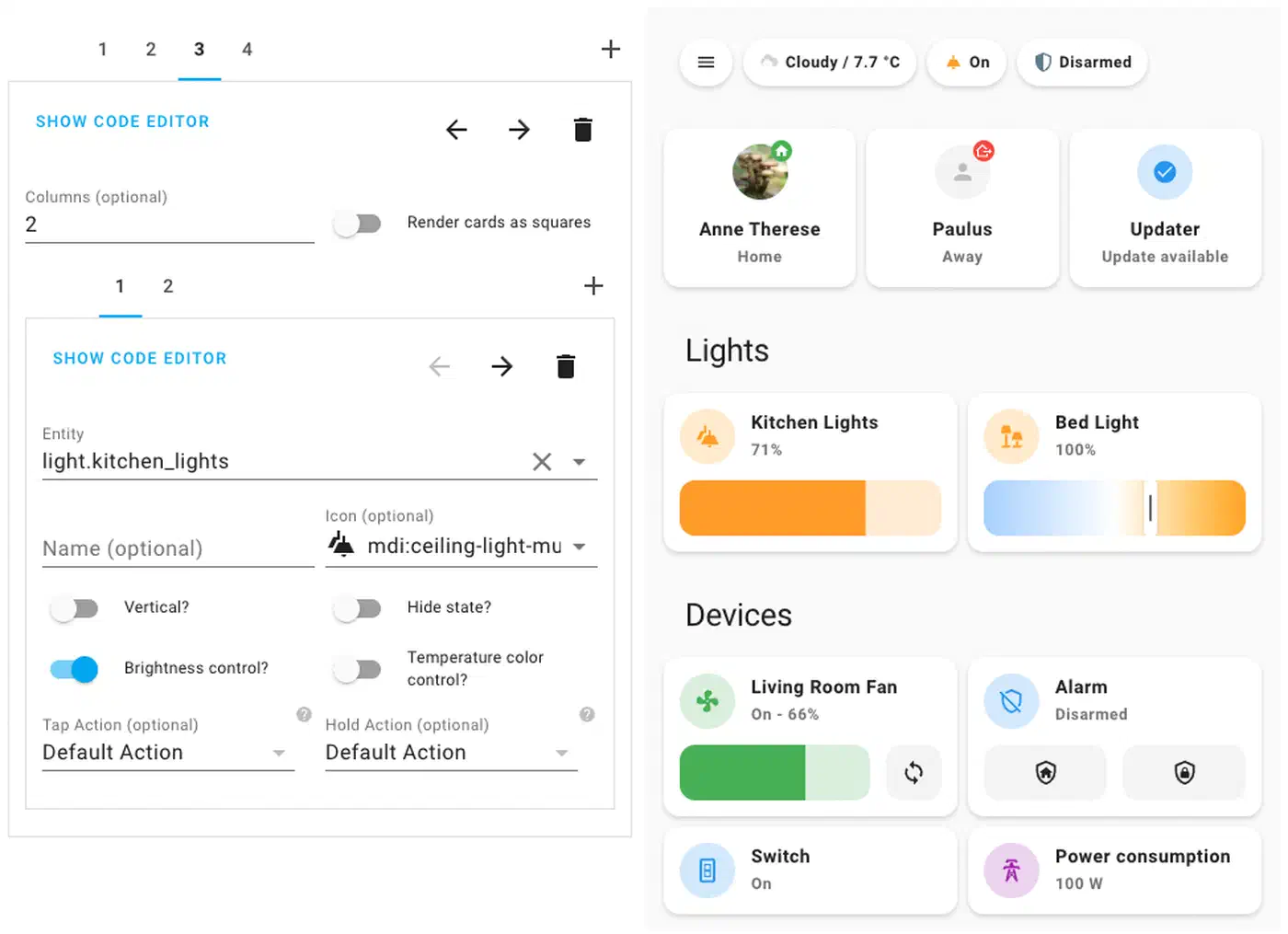
For the detail view, a Markdown card
iterates over the items attribute and renders a table with the friendly name, carrier, last known status, and last update timestamp. If you prefer a more visual layout, auto-entities
can generate one row per package and use templates to paint the status chip green for delivered, blue for in transit, yellow for out for delivery, and red for alert or exception. On mobile, wrap the whole thing in a vertical stack so each section reflows cleanly on narrow screens - the same dashboard then works on a wall-mounted tablet and a phone without separate layouts.
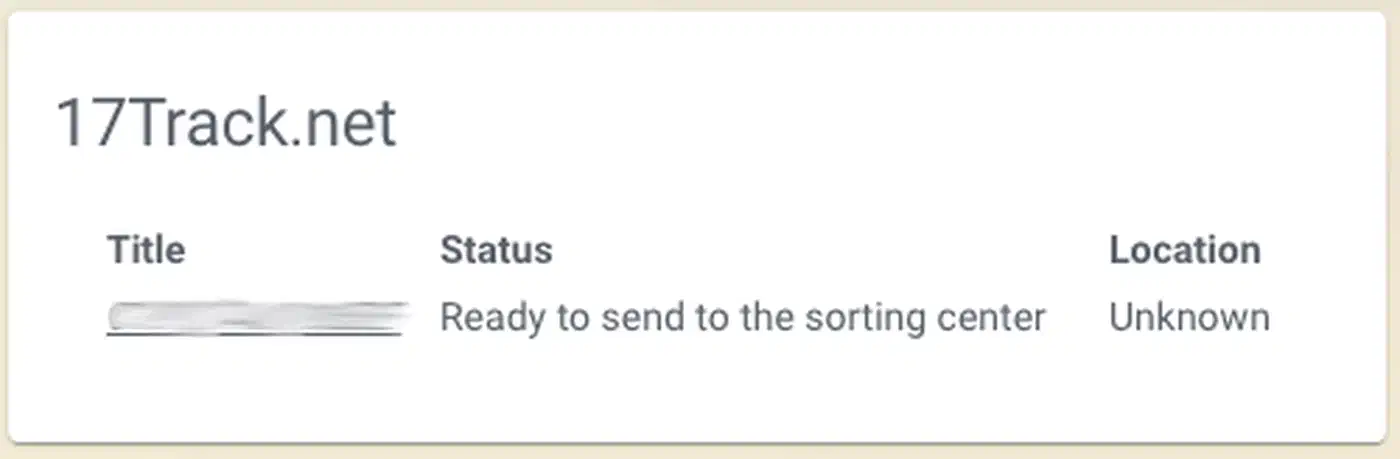
If any of your carriers include geolocation data in their tracking events (FedEx and DHL sometimes do, USPS almost never does), you can plot those coordinates on a Map card using a template sensor that extracts latitude and longitude from the package attributes. Expect this to be hit or miss - coverage varies wildly between carriers and shipping classes.
Delivery Automations
The dashboard is handy for checking in, but automations do the heavy lifting as packages move through the system. Five of them cover the full lifecycle for most households.
When the sensor.active_packages count increases, something new has entered the tracking system. A numeric state trigger with above: 0 combined with a value template that compares the current attribute list against a stored snapshot catches these arrivals cleanly, at which point a low-priority mobile notification with the carrier and tracking number goes out. I title mine “New shipment detected” so it is obvious at a glance without opening the app.
The out-for-delivery alert is the one everyone actually wants. Trigger on a seventeentrack.get_packages response containing a package with status out_for_delivery (carriers expose this through the per-package status attribute), then fire a high-priority notification to every household member. If you use the Home Assistant Companion app
for iOS or Android, set push.interruption-level to time-sensitive so the alert breaks through focus modes and silent hours.
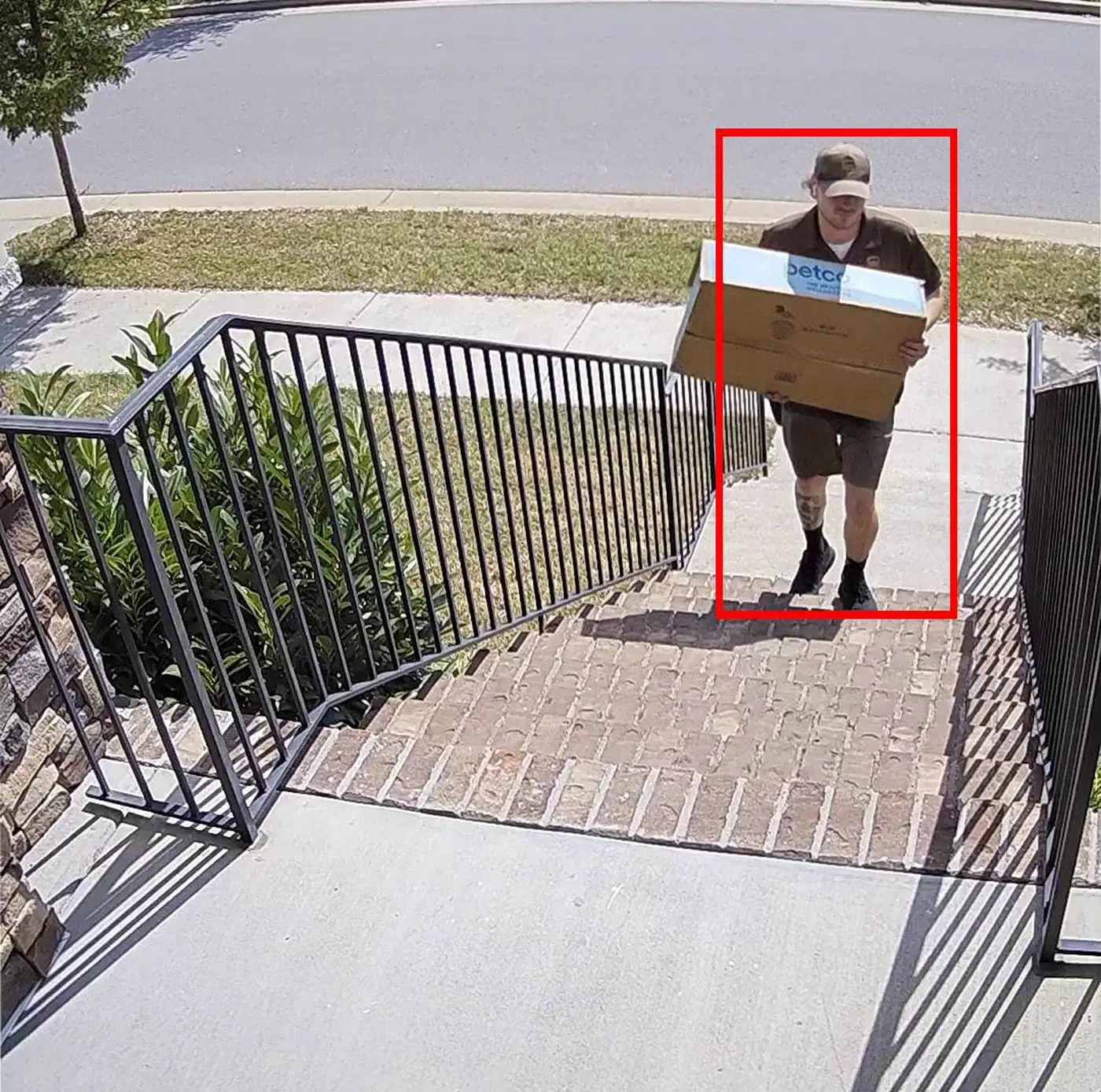
Delivered notifications feel much more satisfying when they include a photo. When a package transitions to delivered, fire the porch camera snapshot service call first, store the result in a variable, and then pass the file path to the notify service so the photo is embedded in the alert. If you run Frigate
or a Reolink doorbell, the snapshot URL can be fetched directly from the camera entity instead of writing to disk.
A porch light automation covers evening deliveries. When a package is out for delivery and the sun is below the horizon, turn the porch light on for two hours. Drivers can find the door, the package ends up in the camera frame, and the light automatically turns off before bedtime. The condition is a one-liner combining the package state with sun.sun being below_horizon.
For camera recording, if your platform supports on-demand clips (Frigate does via the frigate.create_event service, Reolink does via camera.record), start a five-minute recording the moment a package state flips to delivered. You end up with a saved video of every drop-off without having to babysit the live feed. If you have not set up Frigate yet, the guide to local AI security cameras with Frigate and a Coral TPU
walks through the full hardware-accelerated install.
Households with a smart lock can add a sixth automation: when a package is out for delivery and you are away from home, generate a temporary guest code and text it to a trusted neighbor. Home Assistant’s Z-Wave lock integration supports adding and revoking user codes programmatically, and the whole flow fits in a single script with a trigger, an action, and a notification.
One last piece worth wiring up is a nightly summary at 8 PM. Call seventeentrack.get_packages with package_state: [delivered, in_transit] and build a one-line recap along the lines of “2 delivered today, 3 still in transit”. For people who only want the big picture, this replaces the constant stream of per-package updates with a single evening check-in.
Automatic Tracking Number Ingestion
Manually pasting tracking numbers into the 17track app every time you order something gets old fast. The easiest fix is 17track’s built-in email forwarding feature: in your 17track account settings, 17track assigns you a unique forwarding address, and any shipping confirmation email you forward to it gets parsed for tracking numbers and added to your account automatically. Set up a forwarding rule in Gmail, Outlook, or Fastmail for messages matching “shipped”, “tracking number”, or “on its way”, and you are done - the tracking numbers show up in Home Assistant within 15 minutes of the email arriving.
For a fully local setup, the IMAP integration
in Home Assistant can monitor a mailbox and fire an imap_content event whenever a new message matches a search term. Use the IMAP custom event data template to run the message body through a regex that extracts tracking numbers (Amazon’s are 12 digits prefixed with TBA, UPS starts with 1Z, FedEx uses 12- or 15-digit numerics), then call seventeentrack.add_package with the extracted number. The regex work is fiddly but the end result is zero-touch tracking.
If you would rather not write parsers, two community integrations cover this ground: Mail and Packages
by moralmunky recognizes shipment notifications from Amazon, USPS Informed Delivery, UPS, FedEx, and DHL, and ha-email-sensor
by ljmerza parses tracking numbers from 40+ providers. Both can feed their output into the 17track add_package service through a simple automation.
Finally, schedule an archive automation that calls seventeentrack.archive_package for any package that has been in the delivered state for 48 hours. This keeps your sensor list short and stops old deliveries from polluting dashboard queries.
Notification Tuning and Multi-User Setup
A package tracking setup that buzzes four phones every 15 minutes is worse than no setup at all. A few techniques keep the noise down in a multi-person household.
Debouncing is the first thing to add. Use a for clause on your state triggers so a momentary flip does not fire a notification, and compare the new state against the previous one in the automation condition. For trigger-based template sensors, store a snapshot of tracking numbers in an input_text helper and only notify when a new number appears that was not there on the previous refresh. This alone eliminates most of the duplicate buzzes that come from the 15-minute polling cadence. For routing logic that grows beyond what native automations handle cleanly, AppDaemon’s Python-based automation engine
makes state machine patterns and cross-package comparisons considerably easier to manage.
Routing packages to the person who ordered them takes a bit of bookkeeping. 17track does not natively expose a “recipient” field, but you can fake it by including a tag in the package’s friendly name when you add it (for example, Alex-Headphones or Sam-RAM-kit). An automation template parses the prefix and routes the notification to that person’s mobile device only. For Amazon orders, check the order history page and set the friendly name at ingestion time so nobody has to do it manually later.
Quiet hours are worth setting up once and forgetting about. Wrap the whole notification block in a condition that checks whether the current time is between 10 PM and 7 AM, and if so, write the event to an input_text buffer instead of pushing a notification. At 7:05 AM, a second automation reads the buffer and sends a single morning digest. Your phone stays quiet overnight but nothing gets lost in the shuffle.
For people who do not want the full trail, a per-user critical-only mode is a nice touch. Create an input_boolean.alex_critical_only toggle and gate the in-transit and shipped notifications on it being off. When someone flips the toggle on, they only get out-for-delivery and delivered alerts. This is handy for houseguests or family members who would rather not be pinged every time a box leaves a warehouse in China.
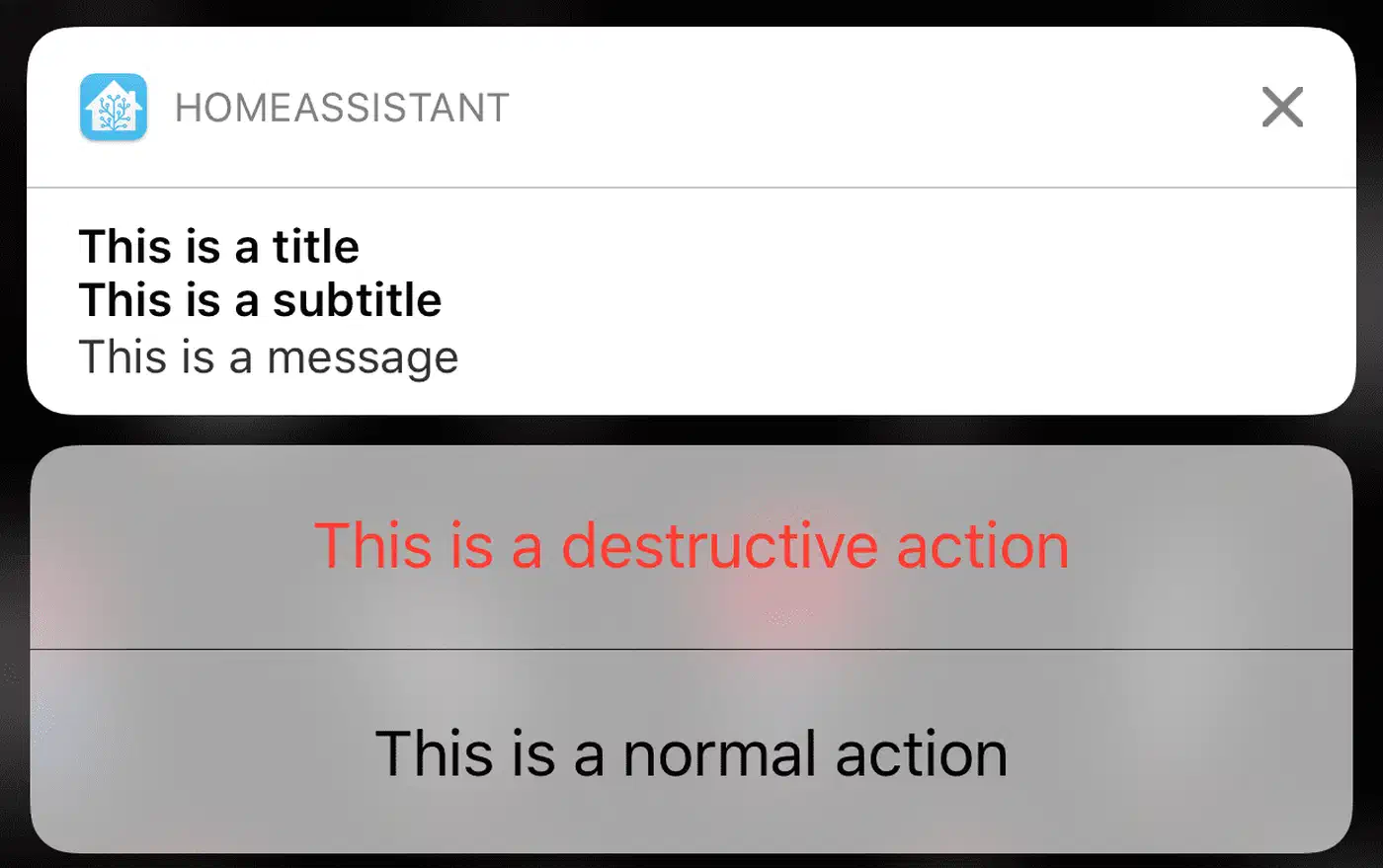
Actionable notifications close the loop on archiving. The Home Assistant Companion app supports action buttons that fire events back to Home Assistant, so add a “Mark received” button to the delivered notification that calls seventeentrack.archive_package for the tracking number. Cleanup happens with one tap instead of a manual service call in Developer Tools.
If three packages arrive within the same five-minute window, one grouped notification feels much calmer than three pings in a row. The cleanest pattern is a template sensor that counts recently-changed packages in a sliding window, with the notification firing when the window closes and including all packages as a list.
Once the automations, dashboard, and ingestion pipeline are wired together, the whole system gets out of your way. Packages show up in the dashboard when they ship, you get a single notification when something is actually at your door, the porch camera captures every drop-off, and old deliveries archive themselves after two days. For a free service backed by open-source integrations, the signal-to-noise ratio is hard to beat.