 Botmonster Tech
Monitor Linux Servers: Prometheus and Grafana

Deploy Prometheus to scrape metrics from node_exporter running on each Linux server, then visualize everything in Grafana dashboards showing CPU, memory, disk, network, and systemd service health. The full stack - Prometheus 3.x, node_exporter 1.10, and Grafana 11.6 - can monitor a 10-server homelab on a single Raspberry Pi 4 or a small VM with 1GB RAM. With the community-maintained Node Exporter Full dashboard (Grafana ID 1860), you get production-grade visibility in under 30 minutes of setup time.
This guide walks through the complete setup from architecture to dashboards, including practical configuration files, useful PromQL queries, and expansion paths for log aggregation and container monitoring.
Architecture Overview: How Prometheus and Grafana Fit Together
Before deploying anything, it helps to understand the pull-based architecture that makes Prometheus different from push-based monitoring systems like Telegraf+InfluxDB or Datadog agents.
Prometheus operates on a pull model. It reaches out to HTTP endpoints (called exporters) on a configurable scrape interval - 15 seconds by default - and collects whatever metrics those endpoints expose. This is the opposite of push-based systems where agents on each server send data to a central collector. The pull model has a practical advantage: if a target goes down, Prometheus knows immediately because the scrape fails. There is no ambiguity about whether the agent crashed or the server died.
The official Prometheus architecture diagram shows how these components interact:
Image: Prometheus official documentation
Here is how the components fit together:
| Component | Role | Default Port | Resource Usage |
|---|---|---|---|
| node_exporter | Exposes hardware/OS metrics as HTTP endpoint | 9100 | ~10MB RAM |
| Prometheus | Scrapes exporters, stores time-series data in TSDB | 9090 | 512MB-1GB RAM |
| Grafana | Queries Prometheus via PromQL, renders dashboards | 3000 | ~200MB RAM |
| Alertmanager | Routes alerts to email, Slack, Discord, webhooks | 9093 | ~30MB RAM |
A typical node_exporter instance produces roughly 700 metrics per host. Ten servers means about 7,000 active time series, which is negligible for Prometheus. The rule of thumb is that Prometheus uses 1-2GB RAM per 100,000 active time series, so a 10-server homelab barely registers.
For storage, Prometheus defaults to 15 days of retention. For homelab use, extending that to 90 days makes more sense:
--storage.tsdb.retention.time=90dDisk usage works out to approximately 1-2 bytes per sample. Ten servers scraped every 15 seconds for 90 days consumes roughly 10GB of storage - well within the capacity of any modern SSD.
Why Not Telegraf+InfluxDB or Zabbix?
Telegraf+InfluxDB is a solid stack, but it is push-based, which means configuring an agent on every host. More importantly, InfluxDB 3.x dropped the open-source time-series database engine, making the free tier less appealing for self-hosters. Zabbix is powerful but heavyweight, requiring a MySQL or PostgreSQL backend and considerably more RAM and configuration overhead.
Prometheus+Grafana is the industry standard for cloud-native monitoring, and the skills transfer directly to Kubernetes and professional environments. If you learn PromQL and Grafana dashboarding for your homelab, you are building marketable skills.
If Prometheus resource usage becomes a concern at scale (hundreds of servers, millions of time series), VictoriaMetrics is a drop-in replacement that uses roughly 7x less disk storage and significantly less RAM. In benchmarks, VictoriaMetrics consumed 0.3 bytes per sample compared to Prometheus’s 2.1 bytes per sample when storing 24.5 billion data points over 24 hours. For a homelab of 10-20 servers, though, Prometheus handles everything just fine.
Installing and Configuring node_exporter on Each Server
node_exporter is a lightweight daemon that exposes Linux system metrics over HTTP. It needs to run on every server you want to monitor.
Installation
Download the latest binary from the node_exporter releases page . As of early 2026, the current version is 1.10.2.
# Download and extract
wget https://github.com/prometheus/node_exporter/releases/download/v1.10.2/node_exporter-1.10.2.linux-amd64.tar.gz
tar xzf node_exporter-1.10.2.linux-amd64.tar.gz
sudo cp node_exporter-1.10.2.linux-amd64/node_exporter /usr/local/bin/

# Create a dedicated system user
sudo useradd --no-create-home --shell /usr/sbin/nologin node_exporter
Systemd Service
Create the service file at /etc/systemd/system/node_exporter.service:
[Unit]
Description=Prometheus Node Exporter
After=network-online.target
Wants=network-online.target

[Service]
User=node_exporter
Group=node_exporter
Type=simple
ExecStart=/usr/local/bin/node_exporter \
    --web.listen-address=:9100 \
    --collector.systemd \
    --collector.processes

[Install]
WantedBy=multi-user.target
Enable and start the service:
sudo systemctl daemon-reload
sudo systemctl enable --now node_exporter
Verify it is working by hitting the metrics endpoint:
curl -s http://localhost:9100/metrics | head -20You should see lines like node_cpu_seconds_total, node_memory_MemTotal_bytes, and node_filesystem_avail_bytes.
Choosing Collectors
node_exporter enables roughly 40 collectors by default, including cpu, diskstats, filesystem, loadavg, meminfo, netdev, netstat, uname, and time. These cover 95% of homelab monitoring needs without additional configuration.
Two optional collectors worth enabling:
--collector.systemdexposes systemd service states (running, failed, inactive) - useful for alerting when a critical service goes down--collector.processesadds per-process state counts - helpful for spotting zombie processes or runaway forks
If you have hardware or subsystems you do not use, disable their collectors to reduce metric cardinality:
--no-collector.infiniband --no-collector.nfs --no-collector.zfsFewer metrics means less Prometheus storage and faster dashboard rendering.
Security Considerations
node_exporter metrics should not be exposed to the public internet. The simplest options:
- Bind to a private interface:
--web.listen-address=192.168.1.100:9100 - Use firewall rules to restrict access to your Prometheus server’s IP
- Run your monitoring network over Tailscale zero-config mesh VPN - node_exporter listens on the Tailscale interface, and only devices on your tailnet can reach it
- For TLS, use
--web.config.filewith a YAML file specifying cert and key paths
Deploying Prometheus and Writing Scrape Configs
Prometheus is the central time-series database. It scrapes all your node_exporters and stores the data locally.
Installation
The cleanest approach is downloading the official binary:
wget https://github.com/prometheus/prometheus/releases/download/v3.10.0/prometheus-3.10.0.linux-amd64.tar.gz
tar xzf prometheus-3.10.0.linux-amd64.tar.gz
sudo cp prometheus-3.10.0.linux-amd64/{prometheus,promtool} /usr/local/bin/
sudo mkdir -p /etc/prometheus /var/lib/prometheus
Alternatively, run it as a Docker container:
docker run -d \
  --name prometheus \
  -p 9090:9090 \
  -v /etc/prometheus:/etc/prometheus \
  -v prometheus-data:/prometheus \
  prom/prometheus:latest \
  --config.file=/etc/prometheus/prometheus.yml \
  --storage.tsdb.retention.time=90d
prometheus.yml Configuration
Here is a practical starting configuration:
global:
  scrape_interval: 15s
  evaluation_interval: 15s

rule_files:
  - "alerts.yml"
  - "recording_rules.yml"

scrape_configs:
  - job_name: "prometheus"
    static_configs:
      - targets: ["localhost:9090"]

  - job_name: "linux-servers"
    static_configs:
      - targets: ["192.168.1.10:9100"]
        labels:
          hostname: "server1"
          role: "docker-host"
      - targets: ["192.168.1.11:9100"]
        labels:
          hostname: "server2"
          role: "nas"
      - targets: ["192.168.1.12:9100"]
        labels:
          hostname: "server3"
          role: "k3s-node"
File-Based Service Discovery
Hardcoding targets works for a handful of servers, but file-based service discovery scales better. Instead of listing targets in prometheus.yml, point to a directory of JSON files:
scrape_configs:
  - job_name: "linux-servers"
    file_sd_configs:
      - files:
          - "/etc/prometheus/targets/*.json"
        refresh_interval: 5m
Then create /etc/prometheus/targets/servers.json:
[
  {
    "targets": ["192.168.1.10:9100", "192.168.1.11:9100"],
    "labels": {
      "env": "homelab",
      "location": "rack1"
    }
  }
]
Add or remove servers by editing this JSON file. Prometheus picks up changes within the refresh interval without requiring a restart.
Recording Rules for Dashboard Performance
Pre-computing expensive queries as recording rules makes dashboards load faster. Create /etc/prometheus/recording_rules.yml:
groups:
  - name: node_exporter_recording
    rules:
      - record: instance:node_cpu_utilisation:rate5m
        expr: 1 - avg without(cpu) (rate(node_cpu_seconds_total{mode="idle"}[5m]))

      - record: instance:node_memory_utilisation:ratio
        expr: 1 - (node_memory_MemAvailable_bytes / node_memory_MemTotal_bytes)

      - record: instance:node_filesystem_utilisation:ratio
        expr: 1 - (node_filesystem_avail_bytes{mountpoint="/"} / node_filesystem_size_bytes{mountpoint="/"})
These turn per-CPU-core metrics into single utilization percentages, reducing Grafana query time from seconds to milliseconds on larger setups.
Alerting Rules
Create /etc/prometheus/alerts.yml for critical conditions:
groups:
  - name: node_alerts
    rules:
      - alert: HostDown
        expr: up == 0
        for: 2m
        labels:
          severity: critical
        annotations:
          summary: "Host {{ $labels.instance }} is unreachable"

      - alert: DiskSpaceLow
        expr: (node_filesystem_avail_bytes / node_filesystem_size_bytes) < 0.1
        for: 5m
        labels:
          severity: warning
        annotations:
          summary: "Disk space below 10% on {{ $labels.instance }}"

      - alert: HighCPU
        expr: instance:node_cpu_utilisation:rate5m > 0.9
        for: 10m
        labels:
          severity: warning
        annotations:
          summary: "CPU above 90% on {{ $labels.instance }} for 10 minutes"

      - alert: HighMemory
        expr: instance:node_memory_utilisation:ratio > 0.9
        for: 5m
        labels:
          severity: warning
        annotations:
          summary: "Memory above 90% on {{ $labels.instance }}"
After starting Prometheus, verify everything is working at http://prometheus-host:9090/targets. All targets should show a green “UP” status.
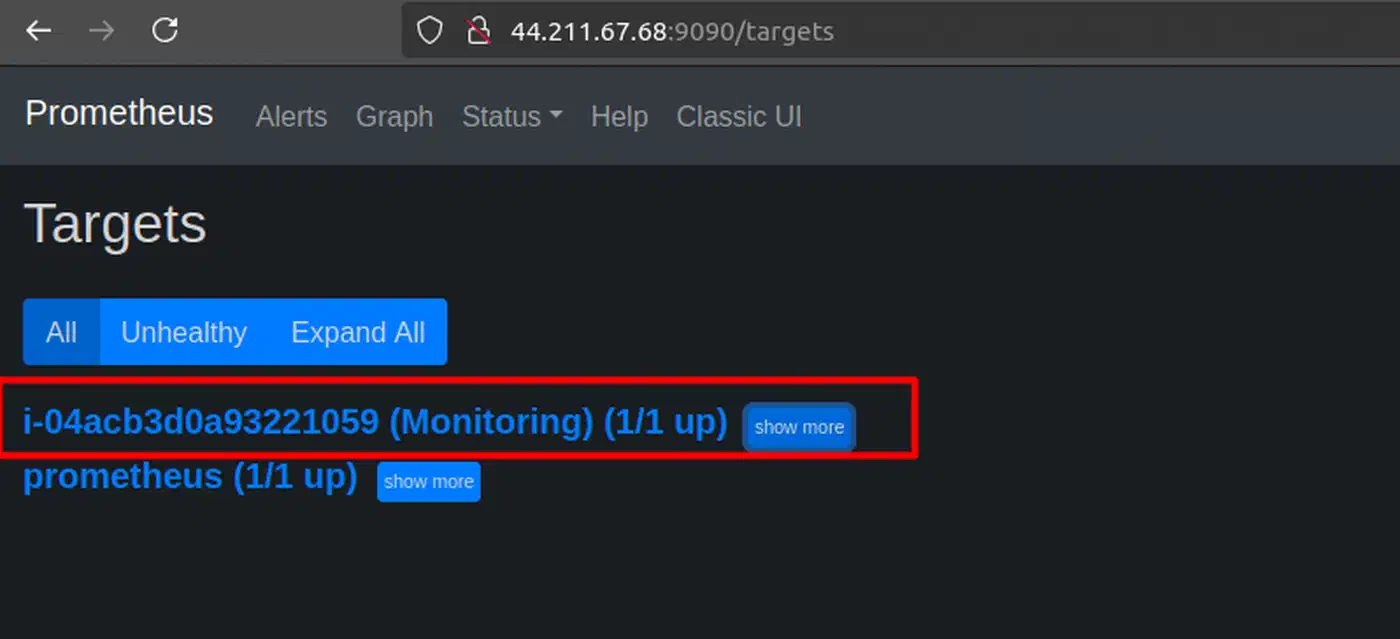
Image: ToTheNew Blog
Essential PromQL Queries
Here are ten PromQL queries that cover the most common homelab monitoring needs:
| What You Want | PromQL Query |
|---|---|
| CPU usage percentage | 1 - avg by(instance)(rate(node_cpu_seconds_total{mode="idle"}[5m])) |
| Available memory in GB | node_memory_MemAvailable_bytes / 1024^3 |
| Disk usage percentage | 1 - (node_filesystem_avail_bytes{mountpoint="/"} / node_filesystem_size_bytes{mountpoint="/"}) |
| Network receive rate (Mbps) | rate(node_network_receive_bytes_total{device="eth0"}[5m]) * 8 / 1e6 |
| Disk I/O read rate | rate(node_disk_read_bytes_total[5m]) |
| System load (1 min) | node_load1 |
| Uptime in days | (time() - node_boot_time_seconds) / 86400 |
| Failed systemd services | node_systemd_unit_state{state="failed"} == 1 |
| Swap usage | 1 - (node_memory_SwapFree_bytes / node_memory_SwapTotal_bytes) |
| Open file descriptors | node_filefd_allocated |
Building Grafana Dashboards for Server Monitoring
Grafana transforms raw Prometheus metrics into visual dashboards with graphs, gauges, stat panels, and alert integration.
Installation
Add the official Grafana APT repository and install:
sudo apt-get install -y apt-transport-https software-properties-common
sudo mkdir -p /etc/apt/keyrings/
wget -q -O - https://apt.grafana.com/gpg.key | gpg --dearmor | sudo tee /etc/apt/keyrings/grafana.gpg > /dev/null
echo "deb [signed-by=/etc/apt/keyrings/grafana.gpg] https://apt.grafana.com stable main" | sudo tee /etc/apt/sources.list.d/grafana.list
sudo apt-get update
sudo apt-get install grafana
sudo systemctl enable --now grafana-server
Or run as a Docker container:
docker run -d \
  --name grafana \
  -p 3000:3000 \
  -v grafana-data:/var/lib/grafana \
  grafana/grafana-oss:latest
Access Grafana at http://<host>:3000 with the default login admin/admin. You will be prompted to change the password on first login.
Adding Prometheus as a Data Source
Navigate to Connections > Data Sources > Add data source > Prometheus. Set the URL to http://localhost:9090 (or the Prometheus host’s IP if running on a different machine). Click Save & Test to verify connectivity. This is the only required configuration before you can start building dashboards.
Importing the Node Exporter Full Dashboard
Instead of building dashboards from scratch, import the community-maintained Node Exporter Full dashboard :
- Go to Dashboards > New > Import
- Enter dashboard ID
1860 - Select your Prometheus data source
- Click Import
This single dashboard provides CPU usage graphs, memory breakdown, disk I/O rates, network traffic, filesystem space gauges, system load curves, and network connection tracking for each server. A dropdown at the top lets you switch between monitored hosts.
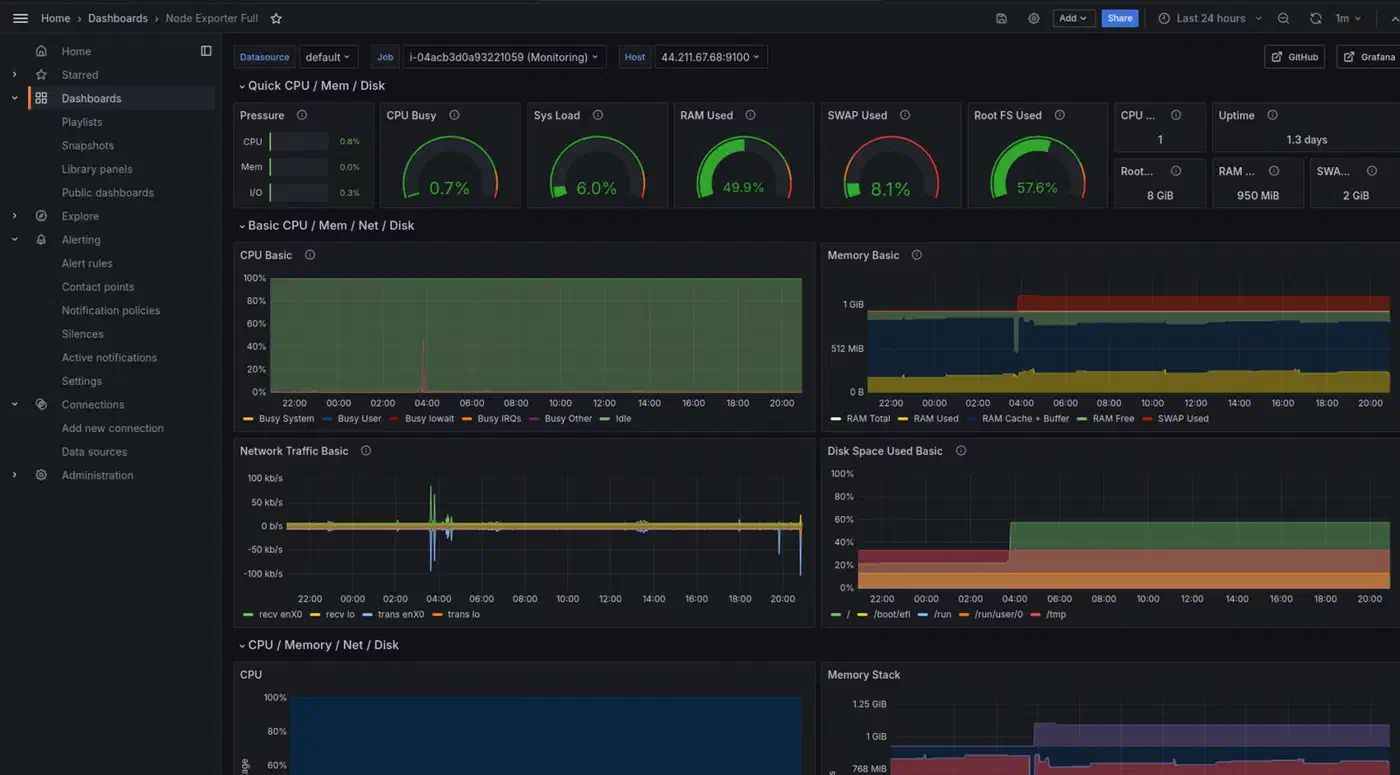
Image: ToTheNew Blog
Building a Custom Homelab Overview Dashboard
The Node Exporter Full dashboard is detailed but focused on one host at a time. For a fleet-wide overview, create a custom dashboard with these panels:
A stat panel using up{job="linux-servers"} with value mappings (1 = green “UP”, 0 = red “DOWN”) gives you an at-a-glance status for every server. Pair it with a table panel querying the same metric to list all servers, their status, and last scrape time.
For network monitoring, a time series panel plotting rate(node_network_receive_bytes_total[5m]) * 8 across all hosts shows total throughput over time. Add gauge panels per server for root filesystem usage, colored green/yellow/red at 60%/80%/90% thresholds - these tend to be the panels you actually look at most often.
Alert Configuration in Grafana
Grafana has its own alerting engine that evaluates independently from Prometheus Alertmanager. Configure contact points under Alerting > Contact points:
- Email via SMTP
- Slack or Discord webhooks
- Gotify for self-hosted push notifications
- PagerDuty or Opsgenie for on-call rotation
Create alert rules directly on dashboard panels. Practical examples: alert when disk usage exceeds 85%, when a server’s up metric drops to 0 for more than 2 minutes, or when CPU stays above 90% for 10 minutes.
Dashboard Provisioning
For reproducible setups, store dashboard JSON exports and data source configurations in Grafana’s provisioning directories:
/etc/grafana/provisioning/
  dashboards/
    dashboard.yml          # Points to dashboard JSON directory
    homelab-overview.json  # Exported dashboard JSON
  datasources/
    prometheus.yml         # Prometheus data source config
This lets you rebuild your Grafana instance from version-controlled configuration files - useful when migrating to a new server or recovering from a failure.
Expanding the Stack: Loki for Logs, cAdvisor for Containers
Once basic metrics monitoring is running, the natural next steps are centralized log aggregation and container monitoring.
Grafana Loki for Centralized Logs
Grafana Loki is a log aggregation system designed to integrate with Grafana. Unlike Elasticsearch, Loki indexes only labels (hostname, service name, log level) rather than full-text indexing every log line. This makes it much cheaper to run - a Loki instance serving a 10-host homelab needs only 256-512MB of RAM.
As of March 2026, the current version is Loki 3.7. An important change: Promtail, the traditional log-shipping agent, reached end-of-life in March 2026. Grafana Alloy is its replacement. Alloy handles the same job - tailing logs on each server and shipping them to Loki - but also supports OpenTelemetry traces and Prometheus metric collection in a single agent.
Configure Alloy to scrape /var/log/syslog, /var/log/auth.log, and systemd journal logs, adding labels for hostname and service. In Grafana, you can then query logs with LogQL right alongside your Prometheus metrics - correlating a CPU spike with the exact log entries that preceded it.
cAdvisor for Docker and Podman Containers
If you run Docker or Podman containers, cAdvisor exposes per-container CPU, memory, network, and disk metrics. Run it as a container itself:
docker run -d \
  --name cadvisor \
  -p 8080:8080 \
  -v /:/rootfs:ro \
  -v /var/run:/var/run:ro \
  -v /sys:/sys:ro \
  -v /var/lib/docker/:/var/lib/docker:ro \
  gcr.io/cadvisor/cadvisor:latest
Add cAdvisor as a Prometheus scrape target on port 8080, then import Grafana dashboard ID 19792 or 19908 for container-level visualization.
Blackbox Exporter for Endpoint Monitoring
The blackbox_exporter probes HTTP endpoints, TCP ports, ICMP ping, and DNS queries from the outside. Use it to verify that your public-facing services actually respond - check that your website returns HTTP 200, that your mail server’s port 25 is open, and that DNS resolves correctly.
For users who find blackbox_exporter’s relabel configuration overly complex, Uptime Kuma provides a web UI for configuring HTTP, TCP, DNS, and ping monitors with built-in notification support. It does not feed metrics into Prometheus, but it covers the “is my service reachable?” question with minimal configuration. For a more Prometheus-native approach, Gatus serves a self-hosted status page with built-in alerting and check history, configured entirely through YAML.
Complete Stack Resource Summary
Here is what the full monitoring stack looks like in terms of resource consumption for a 10-host homelab:
| Component | Per Host | Central Server |
|---|---|---|
| node_exporter | ~10MB RAM | - |
| Grafana Alloy (log shipping) | ~30MB RAM | - |
| Prometheus | - | 512MB-1GB RAM |
| Grafana | - | ~200MB RAM |
| Loki | - | 256-512MB RAM |
| cAdvisor | ~50MB RAM | - |
| Total central | - | ~1.5-2GB RAM |
The entire central monitoring server fits comfortably on a 2-core/2GB VM, a $5/month VPS, or a Raspberry Pi 4 with 4GB RAM. The per-host agents (node_exporter + Alloy) add under 50MB of overhead each - invisible on any modern server. If you are shopping for dedicated hardware, see our guide to the best mini PCs for a home lab for current N150/N305 picks that run the full stack on under 15W.
Docker Compose for One-Command Deployment
For getting the central monitoring stack running quickly, here is a docker-compose.yml that brings up Prometheus, Grafana, and Alertmanager together:
version: "3.8"

services:
  prometheus:
    image: prom/prometheus:latest
    container_name: prometheus
    ports:
      - "9090:9090"
    volumes:
      - ./prometheus/prometheus.yml:/etc/prometheus/prometheus.yml
      - ./prometheus/alerts.yml:/etc/prometheus/alerts.yml
      - ./prometheus/recording_rules.yml:/etc/prometheus/recording_rules.yml
      - prometheus-data:/prometheus
    command:
      - "--config.file=/etc/prometheus/prometheus.yml"
      - "--storage.tsdb.retention.time=90d"
      - "--storage.tsdb.wal-compression"
    restart: unless-stopped

  grafana:
    image: grafana/grafana-oss:latest
    container_name: grafana
    ports:
      - "3000:3000"
    volumes:
      - grafana-data:/var/lib/grafana
      - ./grafana/provisioning:/etc/grafana/provisioning
    environment:
      - GF_SECURITY_ADMIN_PASSWORD=changeme
    restart: unless-stopped

  alertmanager:
    image: prom/alertmanager:latest
    container_name: alertmanager
    ports:
      - "9093:9093"
    volumes:
      - ./alertmanager/alertmanager.yml:/etc/alertmanager/alertmanager.yml
    restart: unless-stopped

volumes:
  prometheus-data:
  grafana-data:
Run docker compose up -d and the entire monitoring backend starts in seconds. Point your prometheus.yml scrape targets at the node_exporter instances running on your other servers, import dashboard 1860 in Grafana, and you have production-grade Linux server monitoring running.
From here, you can add Loki for log aggregation, cAdvisor for container metrics, and blackbox_exporter for endpoint probing - all as additional services in the same compose file. Start with the basics and add components as you need them. When you are ready to expose Grafana publicly over HTTPS, pair this compose setup with Traefik for automatic TLS and routing to avoid manually managing certificates.