 Botmonster Tech
Wayland Screen Sharing: XDG Portal, PipeWire Fix
Screen sharing on Wayland fails because Wayland’s security model blocks apps from grabbing other windows or the full desktop. The fix has three layers. First, install the right XDG Desktop Portal backend for your compositor. Second, check that PipeWire is running as your media daemon. Third, set your browser or app to use the portal capture path, not the old X11 one. Once these align, screen sharing works in Zoom, Teams, Discord, and Google Meet on any major Wayland compositor .
This guide walks each layer. You get steps for GNOME, KDE Plasma, Sway, Hyprland, and COSMIC. A troubleshooting checklist follows for when things still refuse to cooperate.
Why Screen Sharing Breaks on Wayland (and Why That Is Actually a Good Thing)
Under X11, any app can grab any other window’s pixels, read keystrokes, and inject input events. That is how screen sharing “just worked” on X11. It is also how keyloggers and screen scrapers run with zero friction. Every X11 client has open access to the display server. That makes security impossible to enforce at the protocol level.
Wayland flips this model. Each client only knows about its own surfaces. No protocol reads another client’s pixels or grabs its input. This isolation is the core security gain Wayland brings. It also means screen sharing cannot happen the old way. If you still run X11 and want to switch, our guide on migrating from X11 to Wayland covers GPU drivers, compositor choice, and Xwayland fit.
Instead, Wayland uses a portal that asks you for consent. The XDG Desktop Portal
protocol sets a D-Bus API called org.freedesktop.portal.ScreenCast. An app asks for screen capture. The compositor shows a prompt where you pick which screen or window to share. The portal then hands back a PipeWire stream that the app reads.
PipeWire is the media transport in this pipeline. It takes raw framebuffer data from the compositor’s portal backend and exposes it as a video stream. This is the same stack that handles audio routing on modern Linux distros. Fedora, Ubuntu, Arch, and others have shipped PipeWire as the default audio/video daemon for years now.
Screen sharing breaks when any part of this chain is missing:
- No portal backend installed - nobody processes the D-Bus screen capture request
- PipeWire not running - no media transport layer to carry the video stream
- Application not using the portal API - it falls back to X11 capture methods, which fail on Wayland
- Wrong portal backend - you installed
xdg-desktop-portal-gnomebut you are running Hyprland - Environment variables not exported - the portal backend cannot detect your compositor
The good news: once you understand which piece is missing, the fix is usually a single package install and a config line or two.
Setting Up XDG Desktop Portal for Your Compositor
The portal backend is tied to your compositor. Installing the wrong one, or stacking two that clash, is the top cause of screen sharing failures. Here is the right setup for each major compositor.
GNOME (Mutter)
Install xdg-desktop-portal-gnome and xdg-desktop-portal. GNOME auto-starts both via systemd user services, so no manual setup is needed on most distros. Verify with:
systemctl --user status xdg-desktop-portal-gnomeThe service should show as active (running). On Fedora, Ubuntu, and other GNOME-first distros, this is pre-installed and running out of the box.
KDE Plasma (KWin)
Install xdg-desktop-portal-kde and xdg-desktop-portal. Plasma 6.x sets up the portal backend on its own. The systemd user service starts with your session. Verify with:
systemctl --user status xdg-desktop-portal-kdeSway
Install xdg-desktop-portal-wlr and xdg-desktop-portal. Sway does not auto-export the required env vars to D-Bus. Add this line to your Sway config (~/.config/sway/config):
exec dbus-update-activation-environment --systemd WAYLAND_DISPLAY XDG_CURRENT_DESKTOPThe xdg-desktop-portal-wlr backend uses slurp
to pick a monitor by default. Install slurp if you want to choose which output to share when the portal prompt appears.
Hyprland
Install xdg-desktop-portal-hyprland, not xdg-desktop-portal-wlr. The Hyprland portal
is its own backend. It supports full-screen and per-window capture, region sharing, and a built-in picker UI. Add these lines to hyprland.conf:
exec-once = dbus-update-activation-environment --systemd WAYLAND_DISPLAY XDG_CURRENT_DESKTOP
exec-once = systemctl --user start xdg-desktop-portal-hyprland
If you previously had xdg-desktop-portal-wlr installed, remove it to avoid conflicts.
COSMIC
Install xdg-desktop-portal-cosmic. It ships with COSMIC DE
by default. The COSMIC session manager starts the portal on its own. No manual setup needed.
Resolving Portal Conflicts
If you have several portal backends installed (common after trying a few compositors), the portal dispatcher may pick the wrong one. Create ~/.config/xdg-desktop-portal/portals.conf with:
[preferred]
default=hyprland
org.freedesktop.impl.portal.ScreenCast=hyprland
Swap hyprland for your compositor’s backend name (gnome, kde, wlr, cosmic). This tells the dispatcher which backend to use for screen capture and clears the ambiguity.
You can check which portal files are installed with:
ls /usr/share/xdg-desktop-portal/portals/If you see both gnome.portal and wlr.portal (or a like clash), the portals.conf file is the fix.
Verifying and Configuring PipeWire for Screen Capture
PipeWire must be running and linked to the portal backend so the video stream can flow from compositor to app. Most modern distros ship PipeWire on by default. You should still check.
Check That PipeWire Is Running
Run this command to check all three required services:
systemctl --user status pipewire pipewire-pulse wireplumberAll three should show as active (running). If any are not running, enable and start them:
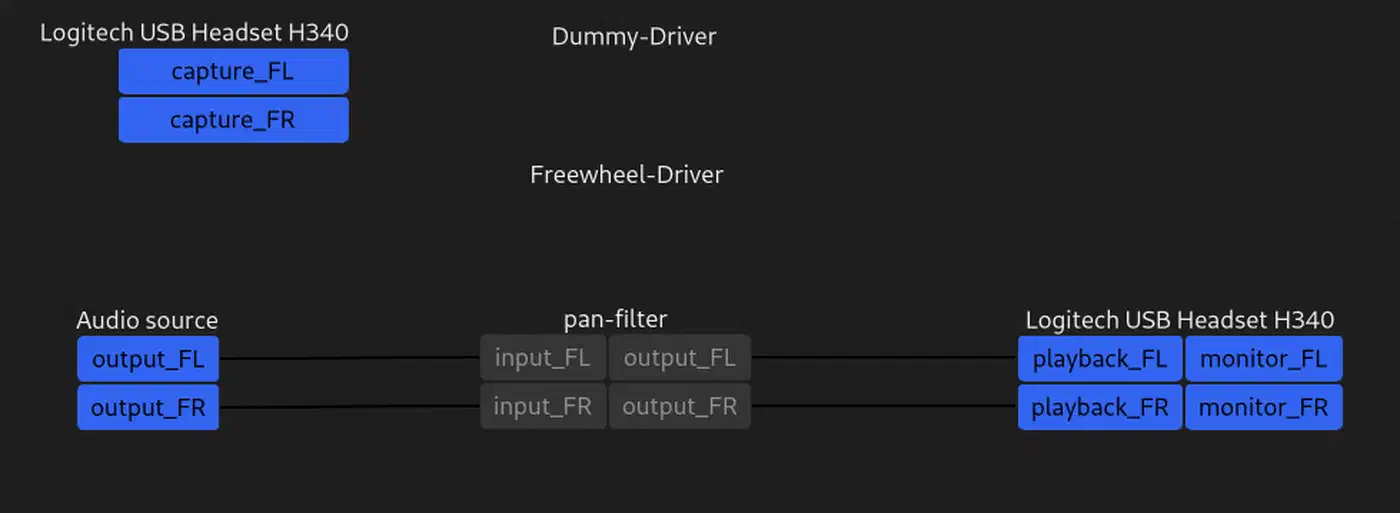
systemctl --user enable --now pipewire pipewire-pulse wireplumberWirePlumber is PipeWire’s session manager. It links the portal’s video source to the app that reads it. Most setups need no custom WirePlumber config for screen sharing.
Check PipeWire Version
pipewire --versionTarget PipeWire 1.0 or later. PipeWire 1.0+ ships in Fedora 41+, Ubuntu 24.04+, and Debian 13+. Older builds (before 0.3.50) had known screen capture bugs that could cause black screens or dropped frames.
Monitor Active Screen Capture Streams
When screen sharing is active, you can verify it at the PipeWire level:
pw-cli ls NodeLook for a node with media.class = "Video/Source" from the portal backend. This shows the compositor is sending video frames through PipeWire.
For real-time monitoring during a screen share:
pw-toppw-top shows frame rates, buffer sizes, and any xruns (dropped frames). A healthy screen share runs around 30 fps at your monitor’s native size.
Common PipeWire Issue
If PIPEWIRE_RUNTIME_DIR is not set or points to a missing path, apps cannot connect to PipeWire. Verify with:
echo $XDG_RUNTIME_DIR
ls $XDG_RUNTIME_DIR/pipewire-0
PipeWire defaults to $XDG_RUNTIME_DIR/pipewire-0. If the socket file is missing, PipeWire is not running, or it is running in a different session.
Configuring Browsers and Applications
Even with portals and PipeWire set up right, the app itself must use the portal API for screen capture. Browsers and Electron apps sometimes need extra flags or settings.
Firefox
Firefox has had native Wayland screen sharing on by default since version 130+. If you run a recent Firefox build, it should work with no changes. To verify, check about:config for:
media.webrtc.camera.allow-pipewireshould betruewidget.use-xdg-desktop-portal.file-pickershould be1
On most distros in 2026, MOZ_ENABLE_WAYLAND=1 is auto-detected, so you do not need to set it by hand.
Chrome and Chromium
Chrome 110+ has WebRTC PipeWire capture on by default. When it runs under Wayland, screen sharing uses the portal API on its own. You can verify at:
chrome://flags/#enable-webrtc-pipewire-capturerThis flag should read Enabled or Default (which means on). If Chromium is not running natively under Wayland, launch it with:
chromium --enable-features=UseOzonePlatform --ozone-platform=waylandOn Debian-based distros, you can make this stick by adding the flags to /etc/chromium.d/ or to ~/.config/chromium-flags.conf.
Electron Apps (Discord, Slack, VS Code, Obsidian)
Most Electron apps in 2026 run on Electron 30+, which speaks Wayland natively. To force Wayland mode in older Electron apps, add these flags to the app’s .desktop file Exec line:
--enable-features=UseOzonePlatform,WaylandWindowDecorations --ozone-platform=waylandOr create ~/.config/electron-flags.conf with these flags on separate lines. That applies to all Electron apps at once.
Apps running under XWayland , the X11 compat layer, only see other XWayland windows. They cannot share the full Wayland desktop or Wayland-native windows. So make sure the Electron app runs natively under Wayland if you want full screen sharing.
Zoom
Zoom’s Linux client used to have weak Wayland support. As of Zoom 6.x, it uses portals when XDG_SESSION_TYPE=wayland is set. If screen sharing shows a black screen, check that the portal and PipeWire are running, then try:
QT_QPA_PLATFORM=wayland zoomMicrosoft Teams
The PWA (Progressive Web App) build of Teams in Chrome or Edge works better than the native Electron client for screen sharing on Wayland. Install it via Chrome’s “Install app” option for the best portal fit. The native Teams client can lag behind on Wayland updates.
OBS Studio
OBS Studio
31+ has native PipeWire screen capture via the “Screen Capture (PipeWire)” source. If this source is missing from the list, check that OBS was built with PipeWire support. On distros that split it out, install the obs-pipewire package. The PipeWire source replaces the old XSHM capture method that only worked under X11.
OBS 31.0.0 had a reported crash bug with PipeWire screen capture on some setups. If you hit it, update to the latest OBS release. Also check that your GPU drivers (especially NVIDIA) are current.
Flatpak Apps and Screen Sharing
If you run apps through Flatpak
, screen sharing needs portal access in the app’s Flatpak manifest. Most well-kept Flatpak apps already include the org.freedesktop.portal.ScreenCast permission. If screen sharing fails in a Flatpak app but works in a native install, sandbox permissions are the likely cause.
You can grant screen sharing permissions using Flatseal :
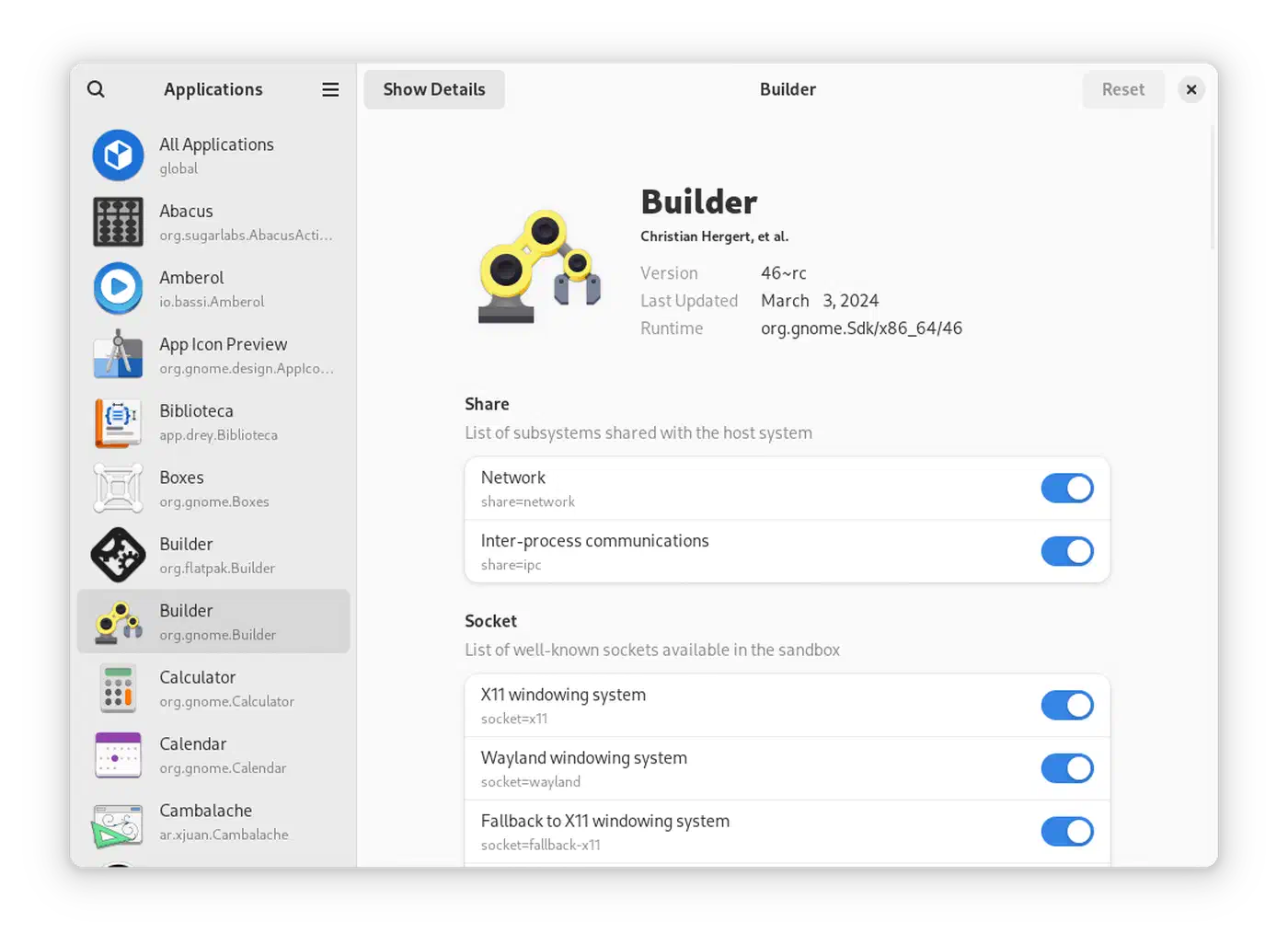
- Open Flatseal
- Select the application
- Under “Session Bus”, make sure
org.freedesktop.portal.Desktopis allowed - Under “Device”, ensure PipeWire access is enabled
Alternatively, use the command line:
flatpak override --user --talk-name=org.freedesktop.portal.Desktop com.example.AppNameWindow Sharing vs. Full Screen Sharing
Per-window capture support varies by compositor and portal backend. GNOME and Hyprland both share single windows through their portal backends. The Hyprland portal has a picker UI that lets you pick a full monitor, a region, or one window.
The xdg-desktop-portal-wlr backend (used by Sway and other wlroots compositors) is more limited. It mostly supports full-output capture. You pick which monitor to share, but you cannot pick a single window. If per-window sharing is core to your workflow, Hyprland’s own portal backend is worth a look.
For multi-monitor setups, the portal picker lets you pick which monitor to share. Mixed-DPI setups can cause size mismatches in the shared stream. If the shared video looks wrong with different scaling factors, try sharing only the monitor at the standard scale (100% / 1x).
Troubleshooting Checklist
When everything looks right but screen sharing still does not work, step through this checklist.
Verify environment variables:
echo $XDG_CURRENT_DESKTOP    # Must match your compositor: Hyprland, sway, GNOME, KDE
echo $XDG_SESSION_TYPE        # Must be "wayland"
echo $WAYLAND_DISPLAY         # Must be set, usually wayland-1
Test the portal directly with D-Bus:
dbus-send --session --dest=org.freedesktop.portal.Desktop \
  --print-reply /org/freedesktop/portal/desktop \
  org.freedesktop.portal.ScreenCast.CreateSession "dict:s:v:"
If this returns an error, the portal backend is not running or not reachable.
Check for conflicting portals:
ls /usr/share/xdg-desktop-portal/portals/If you see portal files for compositors you do not use, create the portals.conf file shown earlier to clear it up.
Restart the entire portal stack:
systemctl --user restart xdg-desktop-portal xdg-desktop-portal-hyprland pipewire wireplumberSwap in your portal backend name. Sometimes stale D-Bus state stops the portal from answering new requests.
Check logs for errors:
journalctl --user -u xdg-desktop-portal -u xdg-desktop-portal-hyprland --since "5 minutes ago"Portal errors show up here. For PipeWire debugging:
PIPEWIRE_DEBUG=3 pw-cli ls NodeFor browser-side bugs, open the browser console (F12, Console tab) and look for WebRTC errors during a screen share attempt.
Test with a known-good tool:
On wlroots compositors (Sway, Hyprland), try a direct screenshot to check that the compositor’s capture pipeline works:
grim -g "$(slurp)" screenshot.pngIf this works but browser screen sharing does not, the bug is in the browser or app config, not the compositor setup.
Audio Sharing Alongside Screen
Sharing system audio along with your screen in a video call is a separate task on Wayland. PipeWire can capture system audio through the portal, but app support varies. In browser-based calls (Google Meet, Teams PWA), the “Share system audio” option works when PipeWire is set up right and the browser runs natively under Wayland.
For OBS, the “Application Audio Capture (PipeWire)” source lets you pick which apps to capture audio from. That is more flexible than the old PulseAudio monitor approach.
Desktop-wide audio sharing in Electron apps (Discord, Slack) is still patchy. The best bet is to use the browser version of these services when you need to share both screen and audio.
Quick Reference Table
Wayland screen sharing leans on three pieces working together. You need the right XDG Desktop Portal backend for your compositor, a running PipeWire daemon, and an app set to use the portal API. Here is the right portal backend for each compositor:
| Compositor | Portal Backend | Auto-start | Extra Config Needed |
|---|---|---|---|
| GNOME (Mutter) | xdg-desktop-portal-gnome | Yes (systemd) | None |
| KDE Plasma | xdg-desktop-portal-kde | Yes (systemd) | None |
| Sway | xdg-desktop-portal-wlr | No | Export env vars in sway config |
| Hyprland | xdg-desktop-portal-hyprland | No | Export env vars + start service in hyprland.conf |
| COSMIC | xdg-desktop-portal-cosmic | Yes (session) | None |
If screen sharing is broken, walk the three layers in order. First, portal backend installed and running. Second, PipeWire active with all three services. Third, app using the Wayland portal capture path. The checklist above covers every common failure mode. In most cases, the fix is a missing package or an unexported env var.