 Botmonster Tech
Upgrade laptop to WiFi 7: M.2 2230 card and Linux driver setup

To upgrade your laptop to WiFi 7, swap the internal M.2 wireless card for a newer module like the Intel BE200. The new card enables Multi-Link Operation (MLO), which brings higher throughput and lower latency on 6GHz networks. The physical swap takes about 15 minutes. The real hurdles are checking that your laptop can take a new card and picking one with solid Linux drivers.
Is Your Laptop Upgradeable? Checking Before You Buy
Not all laptops have a wireless card you can reach. Some makers solder the WiFi chip straight onto the motherboard. This is common in ultra-thin designs and many premium laptops built after 2020. Others give you an M.2 slot but bury it under thermal shielding or RAM sticks, so you have to take the whole thing apart to get at it.
Step 1: Identify your current card. On Linux: lspci | grep -i network or lspci | grep -i wireless. On Windows: Device Manager > Network Adapters. Note the card model. Then check it against your laptop’s service manual to confirm it sits on an M.2 slot.
Step 2: Check iFixit and community resources. iFixit’s teardown database has teardowns for hundreds of laptop models, with notes on how easy the wireless card is to reach. The official service manual, usually on the maker’s support site, also tells you whether the WLAN card comes out and which M.2 size it uses.
Step 3: Confirm the M.2 form factor. Laptops use two sizes:
- M.2 2230 (22mm × 30mm): common in recent thinner designs, used by Framework, newer ThinkPads, Dell XPS
- M.2 2242 (22mm × 42mm): less common but present in some older and larger designs
The Intel BE200 and most WiFi 7 cards are available in M.2 2230. Confirm which size your slot accepts before ordering.
The Whitelist Problem
This is the most frustrating block for many upgraders. Lenovo ThinkPads, many HP EliteBooks, and some other business laptops ship a BIOS whitelist. It only allows pre-approved wireless card models. Boot with a card that isn’t on the list and you get an error: “1802: Unauthorized network card is plugged in.”
The situation in 2026:
- Framework laptops: no whitelist, any M.2 WiFi card works
- Dell XPS/Latitude: no whitelist on most models
- Lenovo ThinkPad (business tier): whitelist on older models; newer (2022+) models have removed it for most regions
- HP EliteBook: whitelist common on corporate models
- Gaming laptops (ASUS, MSI, Acer): generally no whitelist
If your laptop has a whitelist, you have three options. You can find a BIOS mod that removes the whitelist check, which is well documented for older ThinkPads on community forums. You can check whether a BIOS update from the maker has dropped the restriction. Or you can accept the limit and use an external USB WiFi adapter instead.
Multi-Link Operation (MLO) Reality Check
WiFi 7’s headline feature is Multi-Link Operation. It lets a device send and receive on several frequency bands at once. A WiFi 7 device with MLO can use 2.4GHz and 5GHz together, or 5GHz and 6GHz. It either pools the bandwidth or keeps one band as a backup for the other.
What MLO actually does for different use cases:
For VR and AR streaming, the big win is steadier latency, also called lower jitter. Traditional WiFi sits on one channel at a time, so a brief burst of channel congestion spikes the latency. MLO spreads traffic across two links at once. If one link degrades, the other keeps the stream going. Measured jitter drops from about 20ms on average to about 5ms in MLO setups.
For video calls and remote work, the gain is real but smaller. You get fewer dropped frames and steadier bandwidth during busy hours on a crowded network.
For file transfers, you rarely see the on-paper doubling of bandwidth. Real speed depends on your router’s backhaul, the storage speed of both ends, and how busy the network is. Most people with WiFi 6E already max out their internet plan. WiFi 7’s extra headroom won’t push more data through a typical home fiber line.
The critical requirement: MLO only works when both the client card and the router support it. If your router is WiFi 6E or older, the new card buys you better 6GHz speed and a longer useful life, not MLO. A WiFi 7 router is the other half of the setup.
Choosing the Right WiFi 7 Card
Linux driver support is the first thing to check on any wireless card upgrade. A card with weak Linux support runs poorly. It may lose features like MLO or 6GHz access, and it forces you into annoying workarounds. Three cards are worth a look in 2026.
Intel BE200 - Recommended for Linux
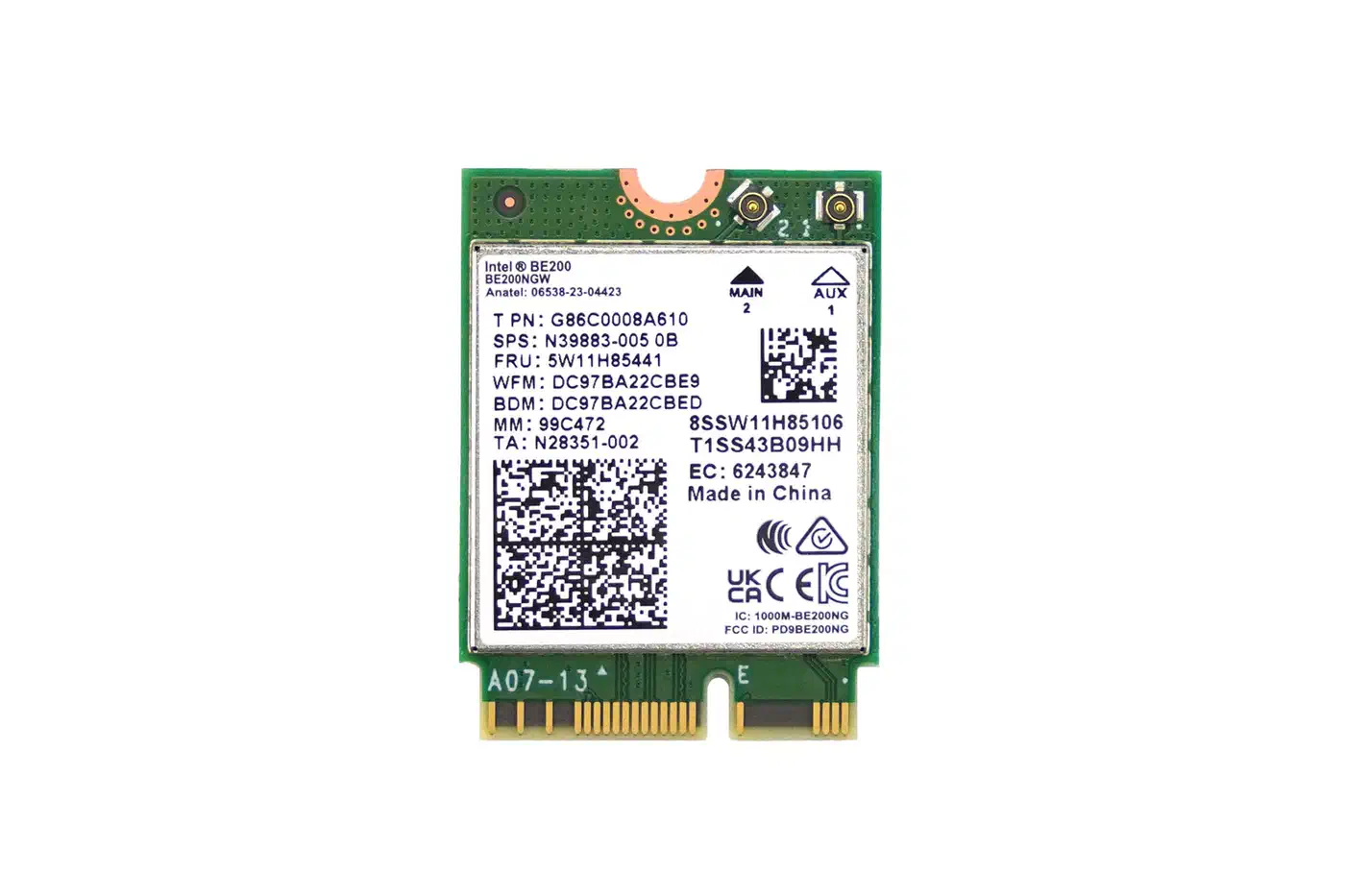
The Intel BE200 is the safest Linux choice. Intel has a long record of getting its drivers into the mainline Linux kernel. The BE200’s iwlwifi driver has shipped in the mainline kernel since version 6.7. Driver support is stable, well tested, and kept up to date.
Features: supports WiFi 7 (802.11be), 2.4/5/6GHz tri-band, MLO, up to 5.8 Gbps theoretical, Bluetooth 5.4. Available in both M.2 2230 and M.2 2242. Price: $25-35 in 2026.
MediaTek MT7925 - Strong Alternative
MediaTek has stepped up its Linux driver work in recent years. The MT7925’s mt7921 driver family sits in the mainline kernel and gets regular updates. The card performs about as well as the BE200. ASUS and Lenovo often ship it as the factory WiFi 7 option.
The plus over Intel: the MT7925 tends to do better on some 6GHz channels. The minus: the driver ecosystem is less mature than Intel’s. Now and then a kernel update brings a regression bug that takes a while to fix.
Qualcomm FastConnect 7800 - Performance Leader, Linux Caution
The Qualcomm FastConnect 7800 posts the best real-world speed in controlled benchmarks. On Windows, it’s the premium pick. On Linux, the ath12k driver works but isn’t complete. MLO and some 6GHz features are still settling down in 2026. It suits users on Fedora or Arch who track the latest kernel and don’t mind a few rough edges.
What to Avoid
Skip no-name WiFi 7 chips with no mainline Linux driver. These usually use Realtek chipsets with vendor kernel modules. You have to compile those modules against each kernel update, and they break often. If a card’s Linux driver needs DKMS and isn’t in the mainline kernel tree, expect trouble.
WiFi 8 (802.11bn) Consideration
WiFi 8 is moving through the IEEE 802.11bn standards process, with 2027 to 2028 ratification in view. On paper it promises 100 Gbps peak throughput, better multi-user OFDMA, and cleaner behavior in crowded RF space.
Should you wait? No, unless you’re already on WiFi 6E (802.11ax) and happy with it. Mainstream WiFi 8 products land in 2028 at the earliest, and routers need to catch up alongside the client devices. If you’re still on WiFi 5 or WiFi 6 without 6E, moving to WiFi 7 now is a real step up. If you’re on WiFi 6E and content, waiting makes sense. Swapping the card for WiFi 8 will be easy. The pricier router upgrade is the bigger commitment.
Installation Walkthrough
Tools needed: Phillips #0 or #00 screwdriver (verify your laptop’s screw type first), plastic spudger or guitar pick for prying plastic clips, anti-static wrist strap.
Step 1: Preparation. Power off completely, not sleep. Unplug the AC power. On many laptops, pull the battery or hold the power button for 10 seconds after unplugging to drain the capacitors.
Step 2: Open the bottom panel. Take out all the screws from the bottom panel. Screws hide under rubber feet often, so check with a flashlight. Use a spudger to unclip the plastic retention clips around the edge without cracking them. Then lift the bottom panel off.
Step 3: Locate and remove the old card. You can spot the WiFi card by its two antenna cables, thin black and white wires with small metal connectors on the ends. Lift the antenna cables straight up off the U.FL connectors, and never pull sideways. Take out the single retention screw, then slide the card out at a 20 to 30 degree angle.
Step 4: Install the new card. Slide the new card in at the same angle the old one came out, press it down flat, and put the retention screw back. Keep it hand-tight only, since over-tightening cracks the PCB. Reconnect both antenna cables, pressing straight down until they click.
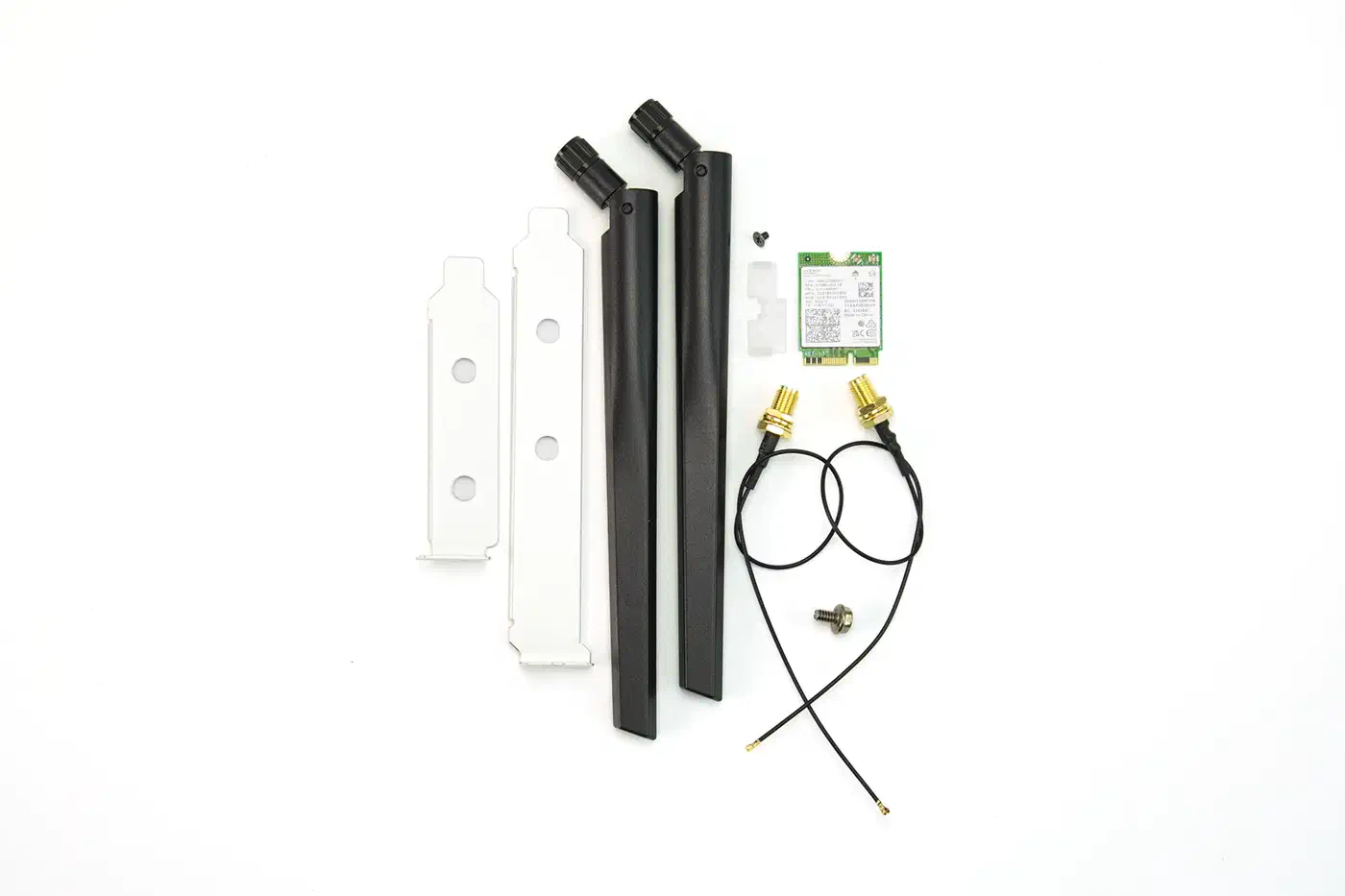
Step 5: Reassemble and verify on Linux:
# Verify the card is recognized
lspci | grep -i network

# Check that firmware loaded correctly
dmesg | grep -i iwlwifi  # for Intel BE200

# Verify band support
iw list | grep "Frequencies" -A 20 | grep 6
The 6GHz band entries in iw list confirm the card is operating correctly with full WiFi 7 capability.
Troubleshooting:
| Issue | Likely Cause | Solution |
|---|---|---|
Card not in lspci | Physical seating issue | Reseat card, check screw |
No suitable firmware found | Missing firmware package | sudo apt install firmware-iwlwifi |
| 6GHz not available | Regulatory domain | iw reg set US (or your region) |
MLO not in iw list | Kernel too old | Upgrade to 6.7+ |
Once the upgrade works, connect to a 6GHz network and run a speed test. On a WiFi 7 router with a clear 6GHz signal, expect 800 to 1500 Mbps from a meter away. That’s roughly 3 to 5 times the typical speed of a 5GHz WiFi 6 link at the same distance.
Compatibility Matrix for Common Laptops
| Laptop Model | Upgradeable? | Current Card | M.2 Size | Whitelist? |
|---|---|---|---|---|
| Framework 13/16 (Intel/AMD) | Yes | Intel AX210/AX211 | 2230 | No |
| ThinkPad X1 Carbon (Gen 11+) | Yes | Intel AX211 | 2242 | No (newer BIOS) |
| Dell XPS 13/15 (2023+) | Yes | Killer/Intel | 2230 | No |
| ASUS ROG Zephyrus series | Yes | Intel/MediaTek | 2230 | No |
| HP Spectre x360 (2023+) | Varies | Intel | 2230 | Check model |
| Apple MacBook (any) | No | Soldered | N/A | N/A |
For laptops you can’t open up, a USB WiFi 7 adapter is the fallback. The ASUS USB-AX56 (WiFi 6E) and new WiFi 7 USB adapters from TP-Link and Netgear give you 6GHz access with no internal surgery. USB bandwidth caps the speed at around 1 Gbps, though, no matter how fast the card claims to be. Checking Linux hardware support follows the same careful pattern for any component. The RISC-V laptop Linux compatibility guide is a handy reference for sizing up any newer platform before you commit, and the same driver questions decide whether RISC-V single-board computers are usable yet.