 Botmonster Tech
Running Windows apps on Linux: Proton, Bottles, and the full compatibility stack

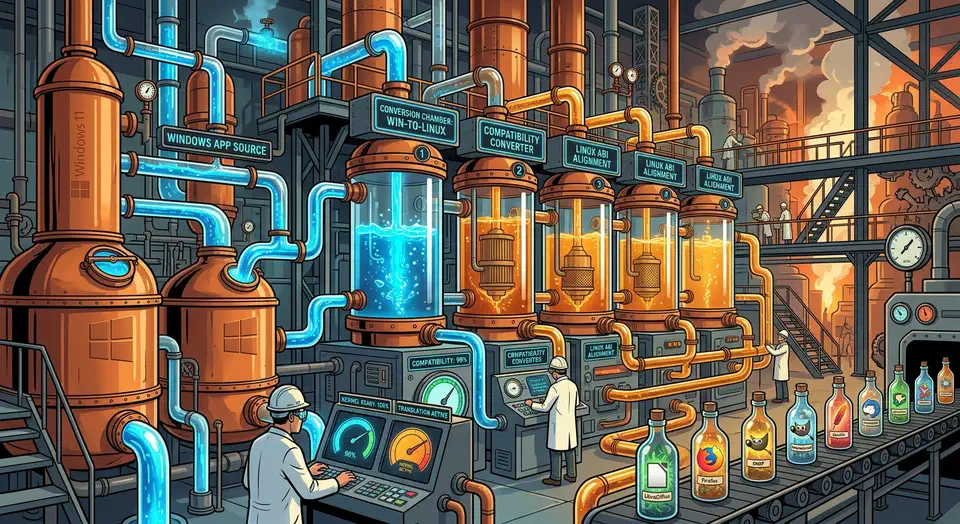
Use Proton for Windows games on Steam. Use Bottles for everything else: Office, Adobe apps, business tools, non-Steam games. Both run on Wine, which maps Windows API calls to Linux without a virtual machine. DXVK and VKD3D-Proton handle the DirectX side. Wine 11.0 closes most of the remaining gap to native Windows. For the display side of a game session, Gamescope adds HDR, VRR, and an FPS cap around whichever runtime you land on.
This guide covers the full stack in 2026: what each piece does, how to set up Proton and Bottles, how to tune DirectX translation, and what still breaks.
The Windows Compatibility Stack in 2026
Running Windows software on Linux used to mean wrestling with Wine prefixes and hunting down DLL overrides. That era is mostly over. The stack is now a set of well-fitted pieces, each solving one problem.
Wine
is the foundation. Started in 1993, it rebuilds the Windows API on Linux so .exe files just run. No hardware emulation. Wine 11.0
shipped in January 2026 with over 6,300 changes and 600+ bug fixes.
The headline is NTSync. It is a Linux kernel module (needs kernel 6.14+) that copies Windows sync primitives with low latency. This used to be a Proton-only win. Wine also added a Vulkan path for legacy Direct3D and early Wayland support for shaped windows and clipboard.
DXVK maps DirectX 9, 10, and 11 calls to Vulkan. It is what made Linux gaming work. Without it, every DirectX game would need a native OpenGL or Vulkan path to hit playable framerates.
VKD3D-Proton does the same job for DirectX 12. Cyberpunk 2077, Elden Ring, and Starfield all lean on it. Valve maintains a fork of the original VKD3D project and ships it with every Proton build.
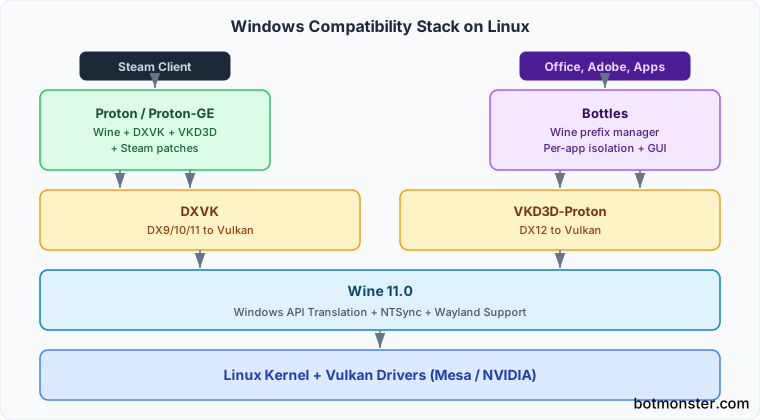
Proton is Valve’s all-in-one bundle: Wine, DXVK, VKD3D-Proton, and Steam patches. It plugs straight into the Steam client. Flip it on once and every Windows game in your library gets a Play button on Linux. In theory.
Proton-GE is a community fork from GloriousEggroll. It carries extra patches, codec support, and per-game fixes that have not landed upstream. The current build is GE-Proton 10-30 , with fixes for Arknights Endfield and the EA app.
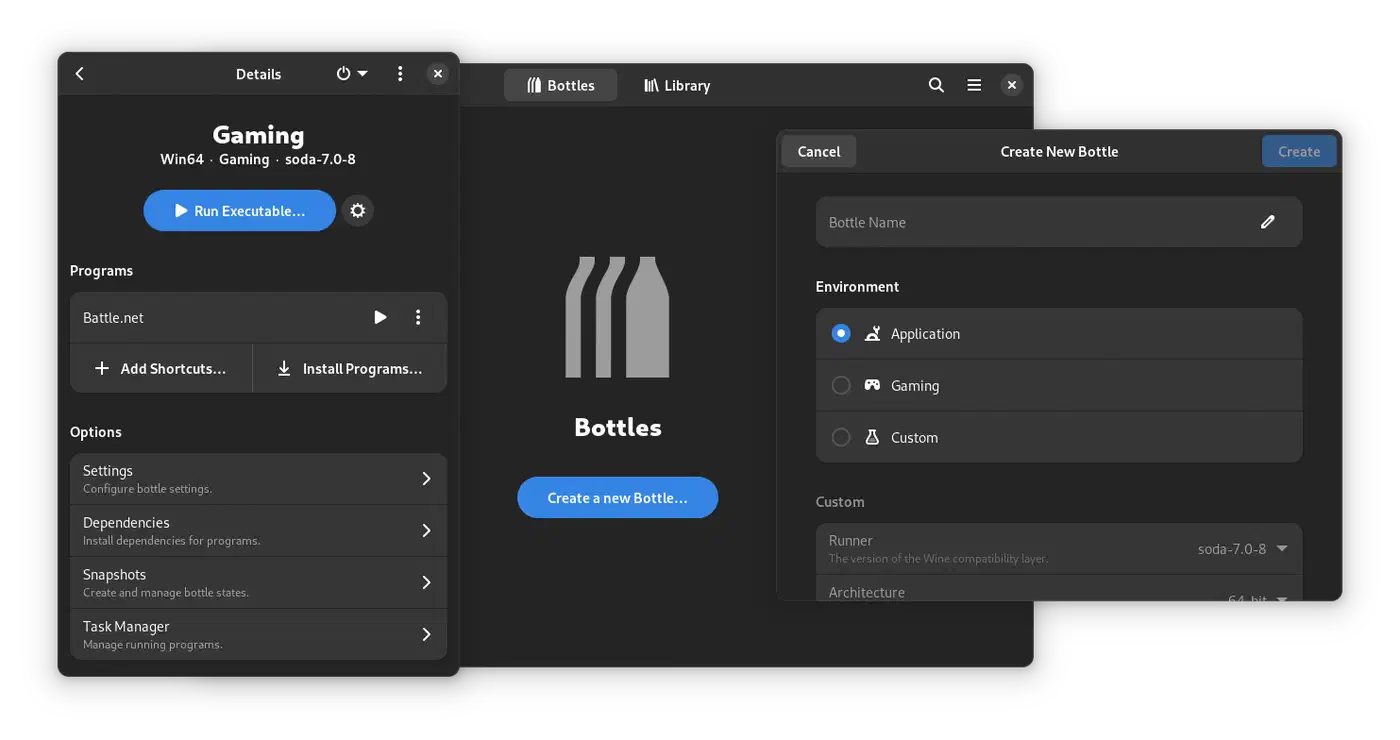
Bottles is a modern GUI for Wine. It gives you per-app isolation, auto dependency setup, and pre-built environments. Proton is glued to Steam. Bottles handles the rest.
Here is how the components relate:
| Component | Role | Used By |
|---|---|---|
| Wine 11.0 | Windows API translation | Everything (foundation layer) |
| DXVK | DX9/10/11 to Vulkan | Proton, Bottles (Gaming env) |
| VKD3D-Proton | DX12 to Vulkan | Proton, Bottles (Gaming env) |
| Proton | Wine + patches for Steam | Steam client |
| Proton-GE | Community Proton fork | Steam (via ProtonUp-Qt) |
| Bottles | Wine prefix manager + GUI | Non-Steam apps, productivity |
Gaming with Proton
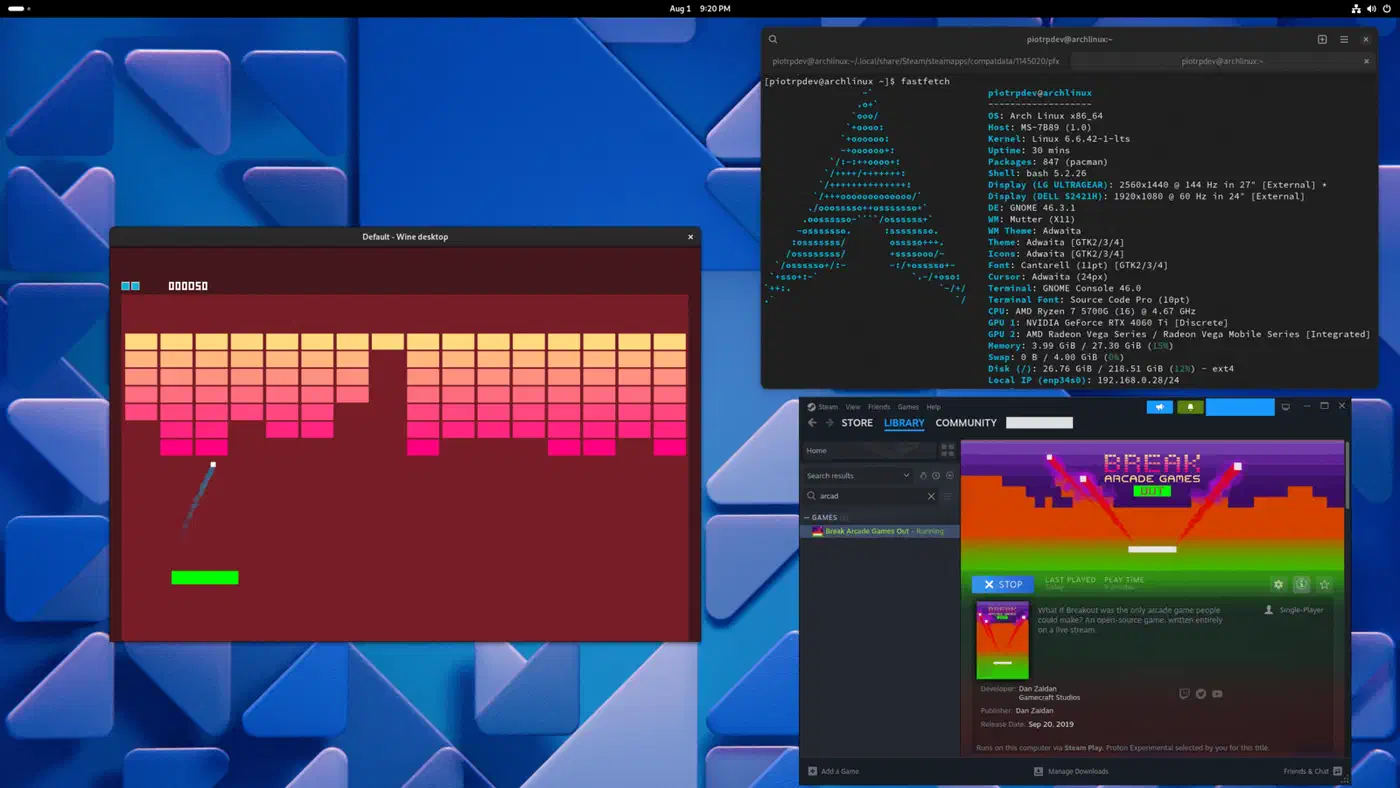
Setup takes about 30 seconds. Open Steam, go to Settings, then Compatibility, and tick “Enable Steam Play for all other titles.” Pick a Proton version: the latest stable, or Proton-GE for bleeding-edge fixes. Done. Every Windows game in your library now has a Play button on Linux.
Before you buy a game, check ProtonDB . Players rate titles Native, Platinum, Gold, Silver, Bronze, or Borked. Platinum means it works out of the box. Gold needs minor tweaks. Silver or below may need a specific Proton version or launch flag.
Some games run better on older Proton builds, or on Proton-GE. Right-click a game, hit Properties, then Compatibility, and force a version. This is common for older titles that broke in newer Proton releases.
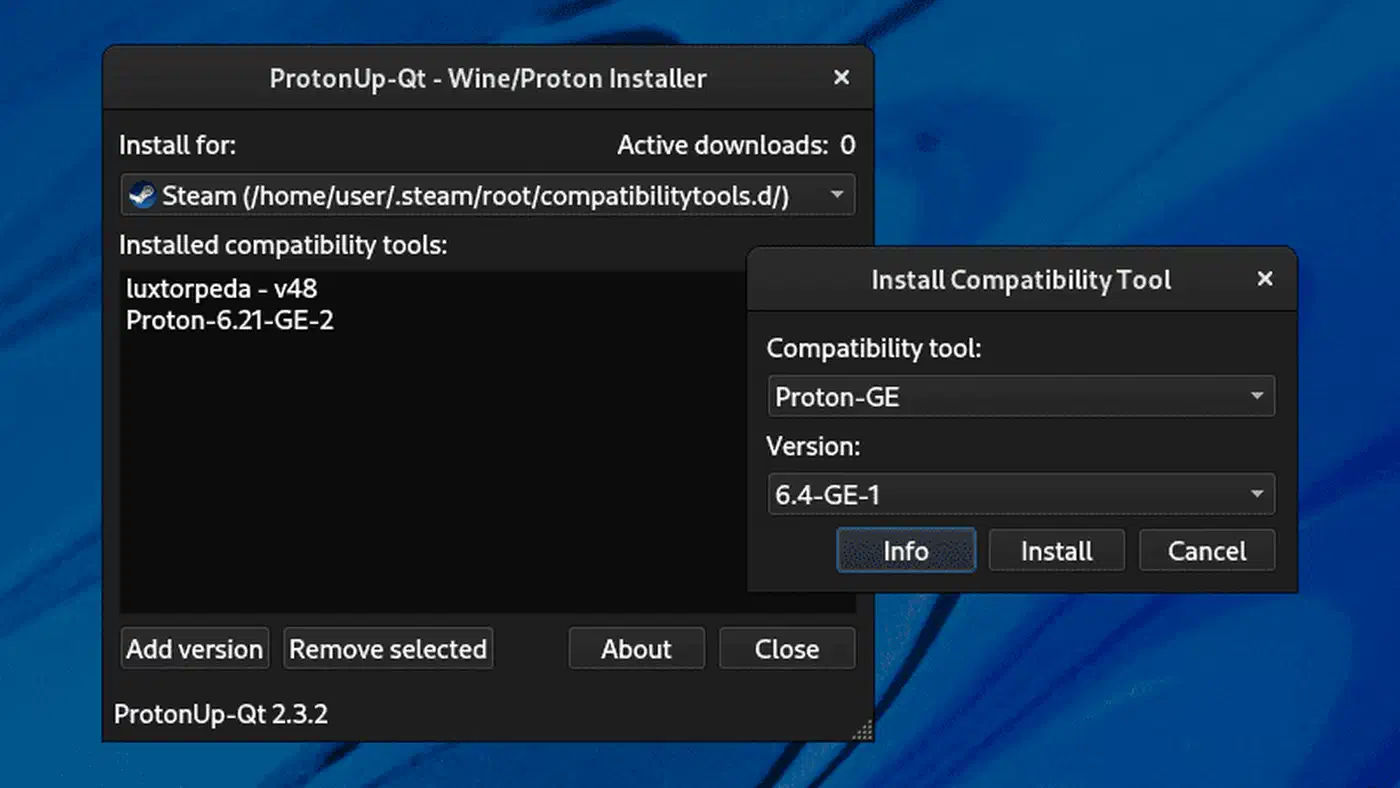
The cleanest way to install Proton-GE is ProtonUp-Qt
. Run flatpak install com.vysp3r.ProtonUp, launch it, and click “Add version.” It drops Proton-GE builds next to the official ones, so you can switch per game.
A few launch options are worth knowing. Right-click a game, hit Properties, and drop these in the Launch Options field:
PROTON_ENABLE_NVAPI=1 %command%: needed for games that use NVIDIA DLSSDXVK_HUD=fps %command%: shows an FPS counterMANGOHUD %command%: a richer overlay, needs MangoHud installed
On first launch, Proton builds shaders for your GPU. That causes stutter the first time you play. Later launches load the cached shaders and run smoothly. Steam also pulls pre-built shader caches in the background for popular games, so many titles skip this step.
Most games with Easy Anti-Cheat and BattlEye now run on Proton. Valve worked with both vendors to add Linux support. Status still varies by title, so check ProtonDB before you buy a competitive multiplayer game.
Performance: Proton vs. Native Windows
Benchmarks from 2025-2026 tell a mixed story. The gap depends on the game, the GPU vendor, and the DirectX version.
| Game | Windows 11 FPS | Linux (Proton) FPS | Hardware |
|---|---|---|---|
| Crimson Desert (1080p Ultra) | 59 | 63 | Ryzen 5 5600X, RX 6700 XT |
| The First Descendant (FSR 3) | 63 | 54 | Ryzen 5 5600X, RX 6700 XT |
| The Division 2 | 128 | 128 | Ryzen 5 5600X, RX 6700 XT |
| Cyberpunk 2077 (1440p Ultra) | ~100 | ~87 | RTX 4090 |
AMD GPUs hit parity, and sometimes win. The open-source Mesa Vulkan drivers are heavily tuned for DXVK’s workloads. NVIDIA GPUs sit at a steadier 10 to 15% overhead in Proton, with some variance by title. Games with native Vulkan paths, like Doom Eternal and other id Tech titles, run as fast or faster on Linux.
For most games, expect a 0 to 15% gap. That gap shrinks with every Proton and Mesa release.
Productivity Apps with Bottles
Proton only works inside Steam. For Office, Adobe tools, business apps, and non-Steam games, reach for Bottles.
Install it via Flatpak:
flatpak install com.usebottles.bottlesBottles sorts Windows apps into walled-off setups called “bottles.” Each bottle is its own Wine prefix with its own C: drive, registry, and DLL setup. One bad app can’t break another.
When you make a new bottle, Bottles offers three presets:
- Gaming: includes DXVK, VKD3D-Proton, and game-tuned defaults
- Software: built for productivity apps, with stability-first defaults
- Custom: a bare prefix where you set everything yourself
To run an installer, click “Run Executable” in a bottle, pick the .exe, and Bottles wires up the prefix. For apps that need extra Windows bits, the Dependencies tab one-click installs Visual C++ runtimes, .NET Framework, DirectX, and more.
Each bottle can use a different Wine runtime. Bottles ships four. Caffe is the default, with Bottles patches on top. Vaniglia is plain Wine, handy for debugging. Proton-GE is for apps that need Proton patches. Soda is another community build. Switch runners in a bottle’s settings. Add more from the Preferences panel.
Example: Running Microsoft Office 2021
- Create a new bottle with the “Software” environment
- Open the Dependencies tab and install
dotnet48andvcredist2022 - Click “Run Executable” and select the Office installer
- After installation, Office apps appear in the bottle’s Programs list
- Pin Word, Excel, and other apps for quick launch from Bottles’ main screen
Bottles can export a whole bottle as a zipped archive. Import it on another box to get the same setup, dependencies and all.
Bottles vs. Lutris
Lutris is the other big option for Windows apps outside Steam. The two tools take different angles:
| Feature | Bottles | Lutris |
|---|---|---|
| Primary focus | Wine environment management | Universal game launcher |
| Isolation | Per-bottle (strong) | Per-game prefixes |
| Store integration | Manual (install launchers in bottles) | Built-in (GOG, Epic, Steam) |
| Community scripts | Limited | Extensive install scripts |
| Non-gaming apps | First-class support | Possible but not the focus |
| UI approach | Environment-centric | Game library-centric |
If you mostly run non-Steam games from GOG or Epic, Lutris is the better pick. Its community install scripts cover thousands of titles. If you run productivity apps or want fine control over Wine setups, Bottles wins. They are not mutually exclusive. Many people run both.
Configuring DXVK and VKD3D-Proton
DXVK and VKD3D-Proton are on by default in Proton and in the Bottles Gaming preset. Most of the time you don’t touch them. When you do, here are the knobs.
To check that DXVK is live, set DXVK_HUD=devinfo,fps before launch. If an overlay shows your GPU name and FPS, DXVK is running. In Bottles, add it as an env var in the bottle’s settings. In Steam, add it to the game’s launch options.
DXVK builds shaders on first use, which causes stutter. Pin a cache with DXVK_STATE_CACHE_PATH=/path/to/cache to keep them between sessions.
On multi-GPU rigs, DXVK sometimes picks the wrong card. This is common on laptops with both integrated and discrete graphics. Force it with DXVK_FILTER_DEVICE_NAME="NVIDIA" or the name string of your preferred GPU.
VKD3D-Proton supports DirectX Raytracing on GPUs with the Vulkan ray tracing extensions. Turn it on with VKD3D_CONFIG=dxr.
Common Issues
A black screen on launch is almost always a Vulkan driver issue. Check your drivers with:
vulkaninfo | grep deviceNameIf this fails or shows the wrong GPU, reinstall the Vulkan driver packages for your card. Use mesa-vulkan-drivers for AMD or nvidia-vulkan-icd for NVIDIA.
Low FPS on a laptop usually means the game is on the integrated GPU, not the discrete one. On AMD, set DRI_PRIME=1 before launch. On NVIDIA with the proprietary driver, use __NV_PRIME_RENDER_OFFLOAD=1 __GLX_VENDOR_LIBRARY_NAME=nvidia.
Missing textures or visual glitches often clear up with a newer DXVK. Proton-GE ships patched DXVK builds that fix game-specific rendering bugs.
Audio: PipeWire and Wine
Audio used to be a steady headache with Wine. PipeWire , now the default audio server on most major distros, has mostly fixed that. Wine’s audio backend hooks into PipeWire on its own, and for most apps audio just works.
For low-latency work, like music production or real-time audio tools, PipeWire’s design pays off. Each app picks its own buffer size on connect. A DAW can run a 5 ms buffer while a media player uses 40 ms on the same hardware, with no clash. To tune PipeWire for low latency
, tweak the quantum in /etc/pipewire/pipewire.conf.d/. Make sure your user has real-time scheduling, usually via the rtkit service.
Wine 11.0’s audio backend picks buffer sizes at 2x the minimum quantum by default. That is a fair balance of latency and stability. For pro audio work that needs sub-10 ms latency, use a low-latency kernel and a real audio interface.
Troubleshooting Stubborn Applications
When an app refuses to run, these tools help you pin down the cause.
Set WINEDEBUG=+all for a full Wine log. Be warned, the output is huge. For aimed checks, WINEDEBUG=+relay traces Windows API calls. WINEDEBUG=+loaddll shows which DLLs load.
Bottles has its own logs. Turn on debug mode in Bottles Preferences. Read the logs in ~/.var/app/com.usebottles.bottles/data/bottles/.
Some apps need native Windows DLLs instead of Wine’s own builds. Set per-DLL overrides in the bottle’s settings. Common ones are d3dcompiler_47 for apps that use DirectX shader compilation, plus a few Visual C++ runtime DLLs.
If an app grabs the whole screen or wrecks your display manager, turn on “Virtual Desktop” in the Wine config. The app then runs in a boxed window that cannot take over your desktop.
Wine maps Z:\ to the Linux root by default. Bottles locks that to the bottle’s sandbox for better security. If an app needs files outside the bottle, add custom drive mappings in its settings.
The WineHQ Application Database has user reports for thousands of apps, with version-specific patches, DLL overrides, and config tricks.
The Nuclear Options: WinApps and GPU Passthrough
When Wine can’t run an app at all, two heavier paths exist.
WinApps runs a full Windows install inside a hidden VM, using KVM or Docker/Podman. It then shows each Windows app as a native Linux window over RDP. You right-click a file in your file manager and open it with Word or Photoshop, as if they were local. The newer WinBoat project wraps most of WinApps’ manual setup in a GUI. The cost is resources. You are running a full Windows VM in the background, which eats RAM and CPU even when idle.
The last resort is QEMU/KVM with GPU passthrough. The Windows VM gets direct access to a dedicated GPU. That gets you native Windows speed for any app, even kernel-level DRM and anti-tamper that Wine can’t touch. The catch is real. You need two GPUs, one for Linux and one for the VM. You need IOMMU support in your CPU and board. And you need an afternoon to set up VFIO. It is overkill for most people, but it is the only path for some pro tools.
What Works and What Does Not
Not everything runs under Wine and Proton. The gap between “works on day one” and “will never work” is wider than most people expect, and the buckets below cover the four points on that scale. Knowing where your tools fall before you commit saves a frustrating weekend.
Most Steam games rated Gold or Platinum on ProtonDB work well. So do Office 2016-2021 in Bottles, .NET business apps, older pre-DX12 games, and many GOG and Epic titles in Lutris or Bottles. Most of these install and run with little or no tweaking.
DX12 games, older Adobe Creative Cloud apps like Photoshop CS6 and Lightroom Classic, and games with Easy Anti-Cheat or BattlEye usually work, but may need tweaks. VKD3D-Proton gets better with every release. Some DX12 titles still glitch.
Apps with kernel-level DRM, like some DAWs and pro video editors, stay rough. So does software that needs TPM or Windows-only hardware security modules. Aggressive anti-tamper is hit or miss. Denuvo works most of the time, but not always.
A few classes just don’t run in Wine or Proton:
- Apps that need Windows kernel drivers
- 16-bit Windows apps on 64-bit Wine
- UWP and Windows Store apps
- Anything that wants Hyper-V or Windows Subsystem for Linux
Not ready to leave Windows? Set up a dual boot with shared storage. You keep both systems while you check what works. Before you fully switch, test your must-have apps in a Bottles “Software” bottle. Make the bottle, install the apps, and confirm they run. It takes an hour and saves you from finding a deal-breaker after you wipe your Windows partition.