 Botmonster Tech
Setup a private WireGuard VPN for secure remote access
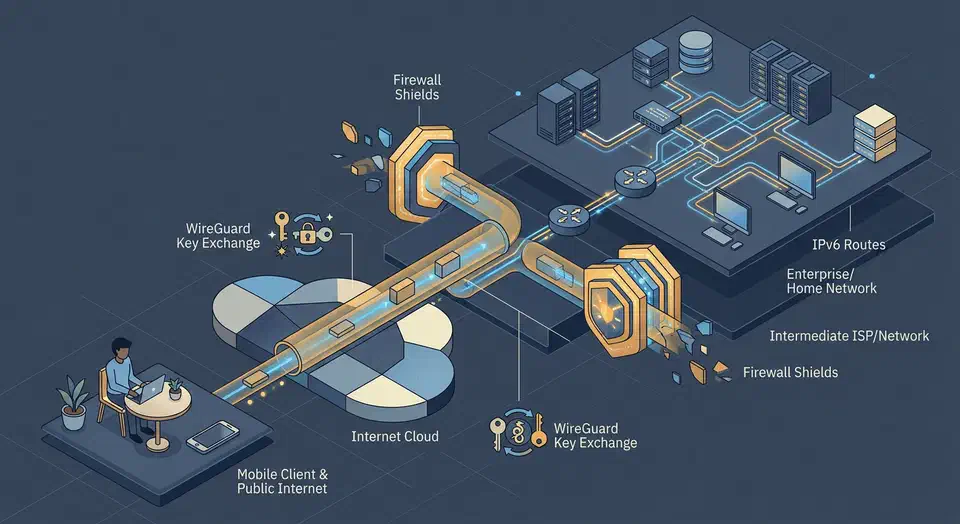
A private WireGuard VPN is the simplest way to reach your home lab, self-hosted apps, and dev machines from anywhere. You don’t expose services directly to the internet. Instead of opening many inbound ports, you publish one UDP endpoint and move trusted traffic through an encrypted tunnel.
This guide builds a setup from scratch on Ubuntu or Debian. Then it hardens that setup for the real world: home IPs that change, IPv6, mobile clients behind carrier NAT, and networks that try to block VPN traffic. You’ll also see a GUI path, wg-easy, for teams that would rather click than edit config files.
WireGuard remote access
WireGuard remote access means running a WireGuard server at home and giving each phone or laptop its own peer config and key pair. You forward one UDP port to the server instead of opening a port for every self-hosted app. Once a client connects, it reaches your home lab through the encrypted tunnel as if it were on the LAN. For WireGuard remote access from a home IP that changes, add the dynamic DNS setup covered later in this guide.
Why WireGuard in 2026? (And Why Not OpenVPN or Tailscale)
WireGuard is small on purpose. The protocol and the code are tiny next to older VPN stacks, which leaves less code to audit. OpenVPN is solid and flexible, though the flexibility brings extra options to tune, legacy baggage, and a higher CPU cost on cheap hardware.
On modern x86 and ARM chips, WireGuard often pushes multi-gigabit throughput when both ends can handle it. Handshakes and reconnects are quick, so mobile roaming feels smooth. SSH sessions recover after a network change, file syncs fill your uplink sooner, and remote IDEs or admin dashboards feel less “tunneled.” When you just need to hand one file to another machine without bringing the whole tunnel up, croc sends it directly with an end-to-end encrypted code phrase.
Tailscale uses WireGuard underneath but adds a managed control plane for identity, key handling, NAT traversal, and relay fallback. If you want the least upkeep and you’re fine with a third-party layer, Tailscale is often the fastest path to “it just works.”
This guide takes the opposite goal: no outside control plane at all. You own the keys, the peer data, the routing rules, and the logs on your own boxes.
If you want a Tailscale-like feel but want to self-host the control layer, look at Headscale. You keep the same client tools but run your own server.
| Option | Core Model | Typical Performance | Operational Complexity | Third-Party Dependency |
|---|---|---|---|---|
| WireGuard (manual) | Direct peer config | Excellent | Medium | None |
| OpenVPN | TLS-based VPN | Moderate | Medium-High | None |
| Tailscale | WireGuard + cloud control plane | Excellent | Low | Yes |
| Headscale + Tailscale clients | WireGuard + self-hosted coordination | Excellent | Medium | No cloud control plane |
Pick private WireGuard when control and independence come first and you’re fine managing peer definitions by hand.
Prerequisites and Architecture Planning
Decide your topology, address space, and DNS behavior before you generate keys.
For the server, you need one reachable endpoint with a public IP or a DNS name that resolves. That can be:
- A VPS in a provider region near your users.
- A home server behind port forwarding with either static IP or DDNS.
- A small cloud VM acting as a hub while your home network joins as a peer.
A good baseline is Debian 12 or Ubuntu 22.04+ with root access and a simple firewall policy. Keep kernel and security patches current.
Topology choice comes next:
- Road warrior hub-and-spoke: phones and laptops connect to one central server. This is the easiest to run and ideal for “reach my home or dev network from anywhere.”
- Full mesh peer-to-peer: every node can route to every other node directly. This cuts hub bottlenecks but adds route management work.
For most people, start with hub-and-spoke. You can grow later. If you need to bridge two whole networks rather than connect roaming clients, see the guide on WireGuard site-to-site setup.
Now pick a WireGuard subnet that won’t collide with your LANs or office networks. If your home LAN is 192.168.1.0/24 and work often uses 10.0.0.0/24, pick something rarer like 10.44.0.0/24 for VPN addresses.
Then decide how DNS behaves:
- Full-tunnel DNS: all queries go through VPN resolvers. Best privacy and consistent split-horizon internal names.
- Split DNS: only internal domains resolve via VPN, public DNS stays local. Better performance and fewer surprises on bandwidth-limited links.
For a self-hosted resolver that drops outside DNS for good, see the guide on Pi-hole with Unbound for private DNS.
Also plan address families from day one. In 2026, many networks run dual-stack, so include IPv6 in your design rather than bolting it on later. Example internal ranges:
- IPv4 VPN:
10.44.0.0/24 - IPv6 VPN ULA:
fd42:42:42::/64
| Planning Item | Recommended Default | Why |
|---|---|---|
| Topology | Hub-and-spoke | Easiest to reason about and debug |
| Listen Port | UDP 51820 (or 443 if needed) | Standard default, easy docs; 443 can evade restrictive firewalls |
| VPN Subnet | 10.44.0.0/24 | Avoids common home/office collisions |
| IPv6 Subnet | fd42:42:42::/64 | Enables dual-stack from start |
| DNS Strategy | Full-tunnel for privacy, split DNS for speed | Explicit trade-off you can revisit |
Server Installation and Key Generation
Assume a fresh Debian/Ubuntu server with sudo privileges.
Install packages:
sudo apt update
sudo apt install -y wireguard wireguard-tools qrencode nftables
Verify the kernel module is available:
modinfo wireguard | headGenerate key material and lock down permissions:
sudo mkdir -p /etc/wireguard/keys
cd /etc/wireguard/keys
wg genkey | sudo tee server_private.key | wg pubkey | sudo tee server_public.key
sudo chmod 600 server_private.key
sudo chmod 644 server_public.key
Create /etc/wireguard/wg0.conf:
[Interface]
Address = 10.44.0.1/24, fd42:42:42::1/64
ListenPort = 51820
PrivateKey = <SERVER_PRIVATE_KEY>

# NAT for IPv4 and IPv6 egress via this host
PostUp = nft add table inet wgtable; nft 'add chain inet wgtable postrouting { type nat hook postrouting priority 100; }'; nft add rule inet wgtable postrouting ip saddr 10.44.0.0/24 oifname "eth0" masquerade; nft add rule inet wgtable postrouting ip6 saddr fd42:42:42::/64 oifname "eth0" masquerade
PostDown = nft delete table inet wgtable
Replace <SERVER_PRIVATE_KEY> with:
sudo cat /etc/wireguard/keys/server_private.keyEnable forwarding permanently:
cat <<'EOF' | sudo tee /etc/sysctl.d/99-wireguard.conf
net.ipv4.ip_forward=1
net.ipv6.conf.all.forwarding=1
EOF
sudo sysctl --system
Open the UDP listen port in your firewall. With UFW:
sudo ufw allow 51820/udp
sudo ufw reload
sudo ufw status verbose
Bring up the tunnel and enable it at boot:
sudo systemctl enable --now wg-quick@wg0
sudo wg show
If your interface does not come up, run:
sudo journalctl -u wg-quick@wg0 -n 100 --no-pagerThat log is usually enough to spot typos in keys, interface names, or broken post-up rules.
Adding Client Peers
Most setup failures happen in peer blocks, mostly AllowedIPs and endpoint typos. Be explicit and consistent.
On each client, generate keys:
wg genkey | tee client1_private.key | wg pubkey > client1_public.key
wg genpsk > client1_psk.key
chmod 600 client1_private.key client1_psk.key
Add the client peer to server config (/etc/wireguard/wg0.conf):
[Peer]
PublicKey = <CLIENT1_PUBLIC_KEY>
PresharedKey = <CLIENT1_PSK>
AllowedIPs = 10.44.0.2/32, fd42:42:42::2/128
Then reload cleanly:
sudo wg syncconf wg0 <(sudo wg-quick strip wg0)
sudo wg show
Create client config (Linux/macOS/Windows via respective tools):
[Interface]
PrivateKey = <CLIENT1_PRIVATE_KEY>
Address = 10.44.0.2/24, fd42:42:42::2/64
DNS = 10.44.0.1

[Peer]
PublicKey = <SERVER_PUBLIC_KEY>
PresharedKey = <CLIENT1_PSK>
Endpoint = vpn.example.net:51820
AllowedIPs = 0.0.0.0/0, ::/0
PersistentKeepalive = 25
Important AllowedIPs patterns:
- Full tunnel:
0.0.0.0/0, ::/0routes all traffic through VPN. - Split tunnel to VPN subnet only:
10.44.0.0/24, fd42:42:42::/64. - Split tunnel to home LAN too: add
192.168.1.0/24(or your LAN).
Start a Linux client:
sudo wg-quick up wg0
wg show
ip route
ip -6 route
For mobile clients, generate a QR code from a finalized config:
qrencode -t ansiutf8 < client1.confIn the iOS or Android WireGuard app, import by scanning. For recurring team onboarding, keep a safe process for handing out one-time configs and archiving them right away.
Security Best Practices
A working tunnel still needs hardening. Treat your WireGuard host like a bastion.
Rotate keys on a schedule, and always after team changes, device loss, or role changes. WireGuard’s static key model is simple. But day-to-day discipline counts more than the protocol you picked.
Use a PSK (wg genpsk) on each peer pair. This adds a shared-secret layer on top of the normal key exchange. It’s a sensible extra guard against future advances in cryptanalysis.
Keep the firewall strict. With nftables, allow inbound only established traffic and your WireGuard UDP port, and drop invalid state.
Example minimal concept:
sudo nft add table inet filter
sudo nft 'add chain inet filter input { type filter hook input priority 0; policy drop; }'
sudo nft add rule inet filter input ct state established,related accept
sudo nft add rule inet filter input iif lo accept
sudo nft add rule inet filter input udp dport 51820 accept
sudo nft add rule inet filter input ct state invalid drop
For a full gateway built entirely on nftables, our stateful NAT and CAKE traffic shaping walkthrough takes it further.
About hiding ports: some strict networks filter UDP except on common ports. Running WireGuard on UDP 443 can raise success rates, since many networks allow that path. The traffic still looks like WireGuard, yet that is often enough to get connected.
PersistentKeepalive helps clients behind NATs that expire UDP mappings fast. A value of 25 seconds keeps the path alive. Don’t set it on every peer forever, though. Needless keepalives create a visible traffic pattern and drain mobile batteries.
Monitor with wg show and system logs. WireGuard has no password-auth attempts like SSH, so classic fail2ban patterns don’t map to it. Instead, watch for repeated handshake anomalies and odd endpoint churn, then alert on that from journald metrics or your log pipeline.
Operational hardening checklist:
- Patch OS and kernel on a predictable schedule.
- Use unique keypairs per device; never share client keys.
- Revoke peers immediately when devices are retired.
- Keep server private keys readable only by root.
- Backup configs and keys securely (encrypted backup vault).
Dynamic DNS (DDNS) for Home Servers Without Static IP
Many home ISPs rotate public IPs. Without DDNS, your clients eventually fail, because Endpoint points to an old address.
Publish a stable hostname and update its DNS record whenever your IP changes.
Typical flow:
- Register
vpn.yourdomain.tldwith your DNS provider. - Create an API token scoped to DNS record updates.
- Run a lightweight DDNS updater on your router or server.
- Point all clients to the hostname, never raw IP.
A common Linux tool is ddclient:
sudo apt install -y ddclient
sudo dpkg-reconfigure ddclient
Or use provider scripts (Cloudflare, Route 53, DuckDNS) on cron or systemd timers. The goal is safe repeat updates and an alert when one fails.
If your ISP uses CGNAT and blocks inbound forwarding, direct home hosting may not work. In that case:
- Put your WireGuard hub on a low-cost VPS.
- Connect home server as a peer to that VPS.
- Route your clients through the VPS to reach home resources.
This setup is often more reliable than fighting consumer ISP limits.
A GUI Alternative: wg-easy with Docker
Not everyone wants to hand-edit peer blocks. wg-easy gives you a web UI for creating peers, QR codes, and quick visibility.
Example docker-compose.yml:
services:
  wg-easy:
    image: ghcr.io/wg-easy/wg-easy:latest
    container_name: wg-easy
    environment:
      - WG_HOST=vpn.example.net
      - PASSWORD_HASH=<bcrypt-hash>
      - WG_DEFAULT_ADDRESS=10.44.0.x
      - WG_DEFAULT_DNS=10.44.0.1
      - WG_ALLOWED_IPS=0.0.0.0/0,::/0
      - WG_MTU=1420
      - WG_PERSISTENT_KEEPALIVE=25
    volumes:
      - ./wg-easy-data:/etc/wireguard
    ports:
      - "51820:51820/udp"
      - "51821:51821/tcp"
    cap_add:
      - NET_ADMIN
      - SYS_MODULE
    sysctls:
      - net.ipv4.ip_forward=1
      - net.ipv6.conf.all.forwarding=1
    restart: unless-stopped
Bring it up:
docker compose up -dThen browse to your server on port 51821 (for example, https://192.168.1.100:51821). Use strong UI credentials, put TLS in front of the panel, and limit who can reach the management UI with firewall rules or an internal-only route.
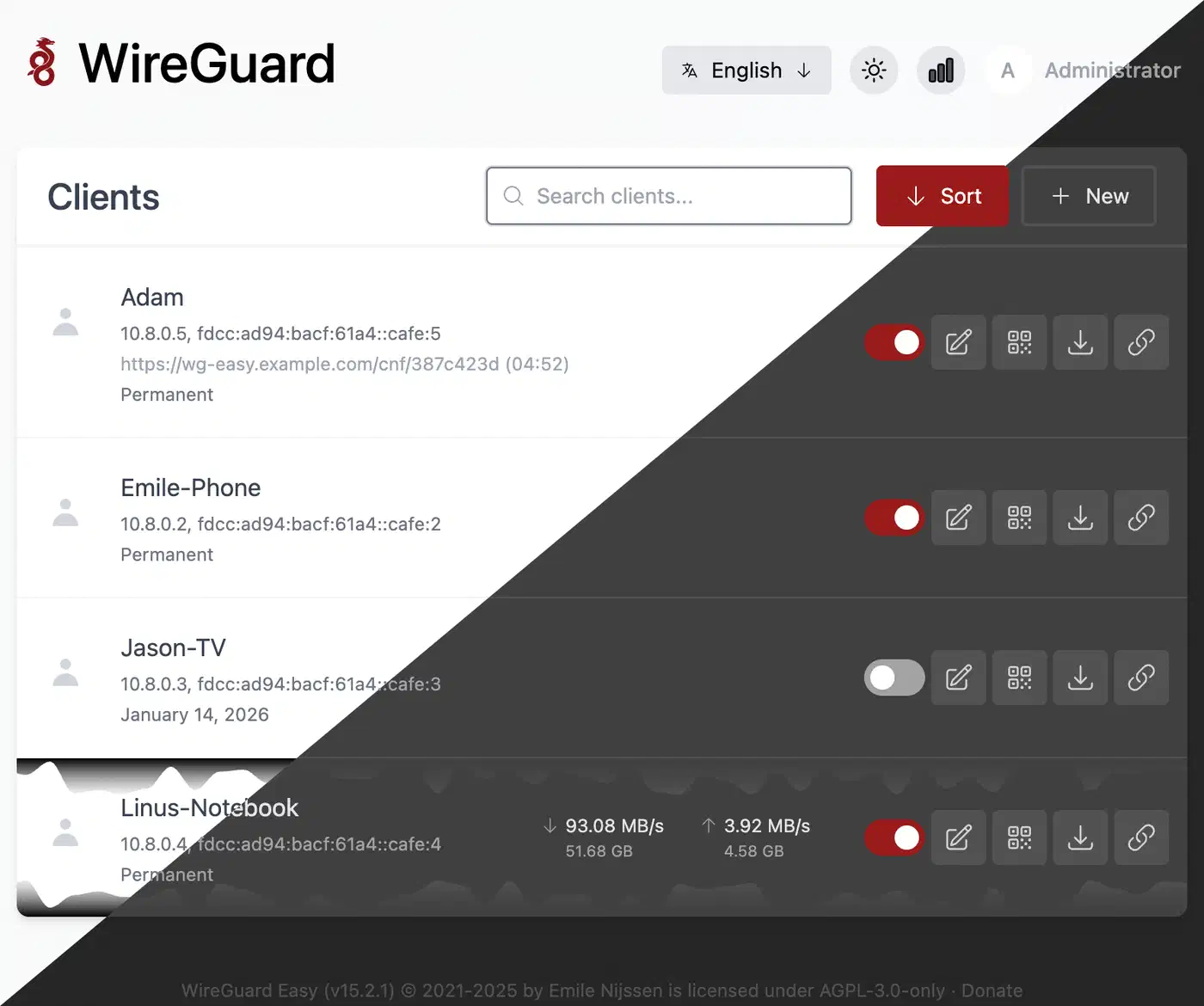
wg-easy is great for small teams, homelabs, and fast onboarding. Manual config still wins if you need strict config review or infrastructure-as-code pipelines.
IPv6 Dual-Stack WireGuard Configuration
Many networks now expect IPv6, and dual-stack WireGuard avoids breakage on IPv6-first clients.
Server interface example already included IPv6:
Address = 10.44.0.1/24, fd42:42:42::1/64Client interface should also include both families:
Address = 10.44.0.2/24, fd42:42:42::2/64
AllowedIPs = 0.0.0.0/0, ::/0
Three practical notes:
- Enable IPv6 forwarding (
net.ipv6.conf.all.forwarding=1). - Add IPv6 NAT or routing policy matching your upstream network model.
- Test with IPv6-specific commands, not only IPv4 pings.
Validation commands:
ping -6 fd42:42:42::1
curl -6 ifconfig.co
dig AAAA example.com
If IPv6 handshakes succeed but traffic fails, check the firewall rules for each address family. It is common to secure IPv4 right and then leave IPv6 too open or too locked down by accident.
Multi-Hop and Obfuscation for Censored or Restricted Networks
In some places, direct WireGuard UDP is throttled or blocked. Two patterns help: multi-hop routing and obfuscation wrappers.
Multi-hop means clients enter one VPN node, then route onward through a second exit node. Benefits include:
- Isolating entry and exit trust boundaries.
- Region-shifting egress for policy compliance or access needs.
- Limiting blast radius if one node is compromised.
Trade-off: more latency and more routing work.
WireGuard traffic is already encrypted, but its traffic pattern can still stand out. Packet shaping in the style of AmneziaWG can blur that fingerprint in hostile networks. Where blocking is aggressive, people drop WireGuard entirely for protocols built to hide, and the VLESS Reality and Hysteria 2 comparison covers the two that dominate now.
A practical approach:
- Keep standard WireGuard profile for normal networks.
- Maintain a separate “restricted network” profile on alternate port/path.
- Use a relay VPS in a permissive region.
- Monitor reliability and fail back automatically when normal profile works.
Be clear on legal and policy limits wherever you operate. A technical option does not remove your duty to comply.
Troubleshooting Common Issues
When WireGuard fails, check the handshake, routing, and DNS separately.
Start with handshake state:
sudo wg showIf there is no recent handshake:
- Check server UDP port exposure (
ufw statusornft list ruleset). - Verify
Endpointhostname resolves correctly. - Confirm DDNS record points to current public IP.
- Check router port forwarding for home-hosted servers.
If handshake exists but traffic does not flow:
- Confirm IP forwarding is enabled (
sysctl net.ipv4.ip_forward). - Verify NAT/postrouting rules were applied.
- Check client and server
AllowedIPsfor overlap mistakes.
If DNS leaks or DNS does not resolve:
- Confirm client
DNS =points to intended resolver. - Test resolver path with
dig whoami.akamai.netand compare expected egress. - If using split DNS, ensure domain-specific resolver rules are applied by your client OS.
If some sites work and others stall:
- Suspect MTU and fragmentation.
- Set
MTU = 1420on both ends, then retest. - On nested tunnels or mobile carrier paths, lower values like
1380may be necessary.
If mobile clients connect intermittently:
- Enable
PersistentKeepalive = 25on mobile peer. - Confirm device battery optimization is not suspending the WireGuard app.
A fast incident playbook:
| Symptom | Likely Cause | First Check |
|---|---|---|
| No handshake | Blocked UDP/incorrect endpoint | Firewall + DNS + port forward |
| Handshake, no packets | Routing/NAT/forwarding issue | sysctl, postrouting rules |
| Connected, name resolution fails | DNS config mismatch | Client DNS and resolver reachability |
| Random stalls | MTU mismatch | Set MTU=1420, retest |
| Works on Wi-Fi, fails on mobile | NAT timeout/policy filtering | PersistentKeepalive, port strategy |
Final Deployment Checklist
Before you call the deployment done, verify each of these items once:
- Server reachable by stable DNS name (DDNS if needed).
- IPv4 and IPv6 forwarding enabled.
- One unique keypair and PSK per client.
- Explicit firewall policy and only required inbound UDP exposed.
AllowedIPsreviewed for least-privilege routing.- DNS behavior matches your privacy/performance goal.
- MTU tuned for your real network path.
- Revocation process documented for lost devices.
- Optional GUI (
wg-easy) secured or disabled when not needed. - Optional restricted-network profile tested (multi-hop/obfuscation path).
Start with a simple hub-and-spoke setup, test each layer one at a time, and add advanced features only once the basics work. A private WireGuard setup built in that order shrinks your public attack surface and is dependable enough for daily dev work and home infrastructure.